

By default, Elementor (like most website builders) applies an underline style to links so they’re instantly recognizable to users. While this works well for basic usability, it doesn’t always align with modern web design goals.
In many cases, you may want to stop links from being underlined to maintain a cleaner, more professional look.
“To stop Elementor Links from Being Underlined, go to your WordPress Dashboard >> Navigate to Appearance >> Customize>>Additional CSS. Paste the CSS code
a { text-decoration: none}.Then, click on Published.
In this blog, I will examine 3 methods for stopping or removing Elementor Links from Being Underlined.
So, let’s get started!
Stop Elementor Links from Being Underlined (Using Global Setting)
If you want to turn off underlined links on your entire site, then this method is perfect for you. With this method, you don’t need to edit each page individually. You can do it with a small CSS code using the WordPress Customizer. But don’t worry, it’s really easy.
Here’s how to do it:
- Go to your WordPress Dashboard.
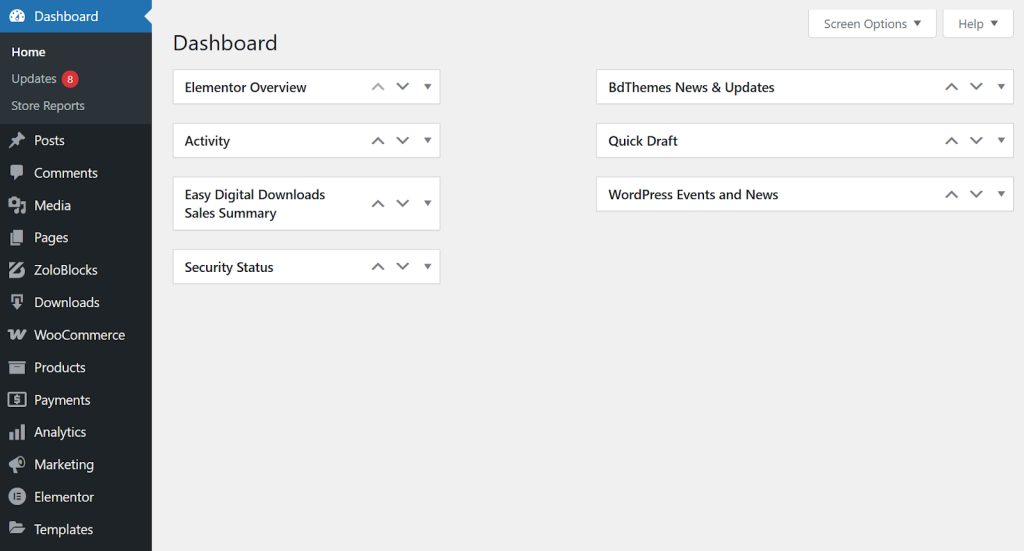
- Navigate to Appearance >> Customize.
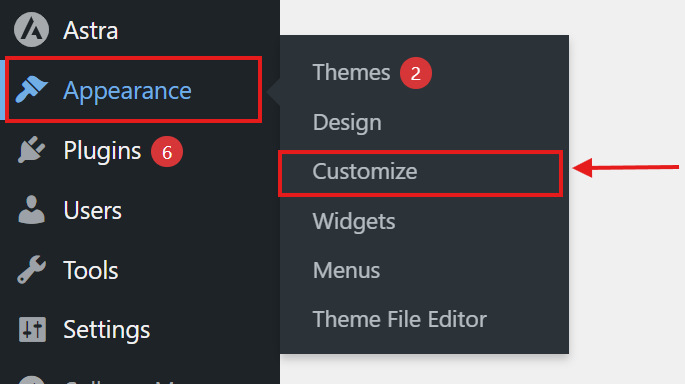
- Scroll down and click on Additional CSS.
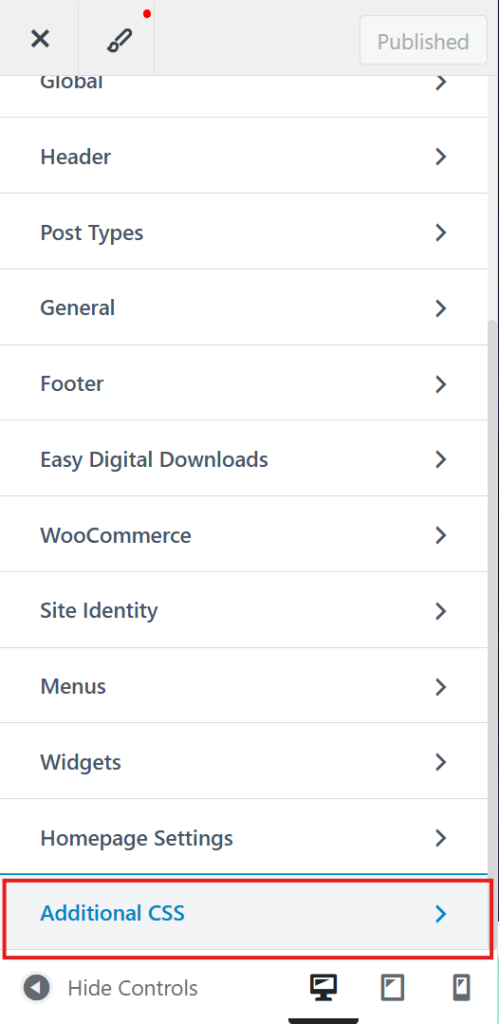
- Paste the following underline stop text CSS code:
a {
    text-decoration: none;
}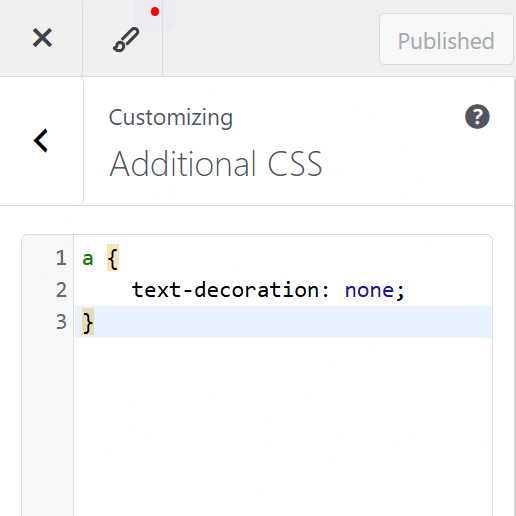
5. Now click on Published.
This will stop the underline from all links site-wide, without the need to edit each page individually. It’s a quick and effective way to maintain consistent styling.
How to Remove Underline from Text Links in Elementor
What if you want to remove the underline from links in the content of a specific section or widget, not the entire website?
Now I will show you how to remove the underline from text links in Elementor’s specific section or widget.
You can then follow these two methods below:
Method 1: Adding Custom CSS in Elementor (Requires Elementor PRO)
You can change all the text links of a specific section or widget using custom CSS. This is a very simple method. However, it is only for Elementor Pro users.
In this method, you just need to add some code. This method only requires you to add some code. Don’t worry, it’s very easy. Just follow these steps:
- Open your page in Elementor.
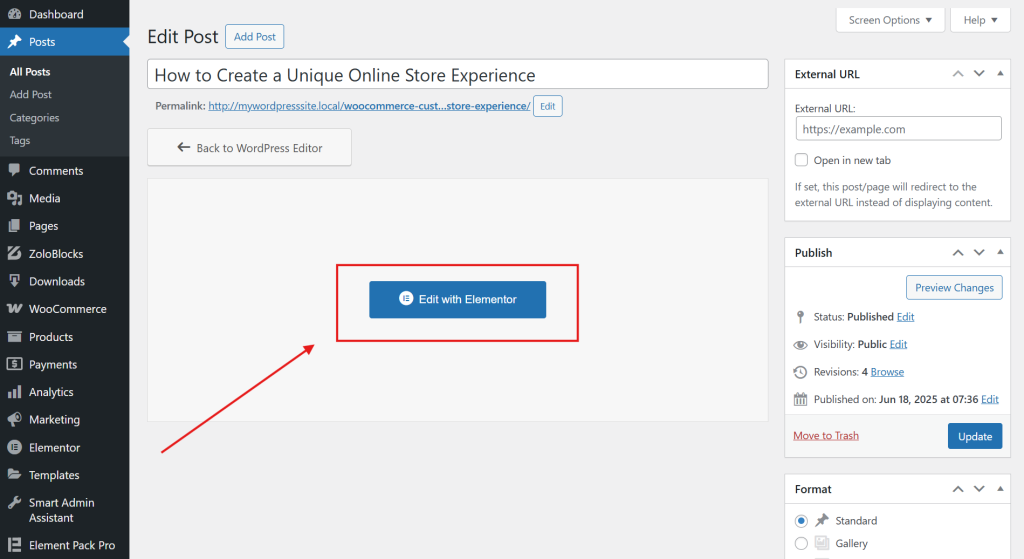
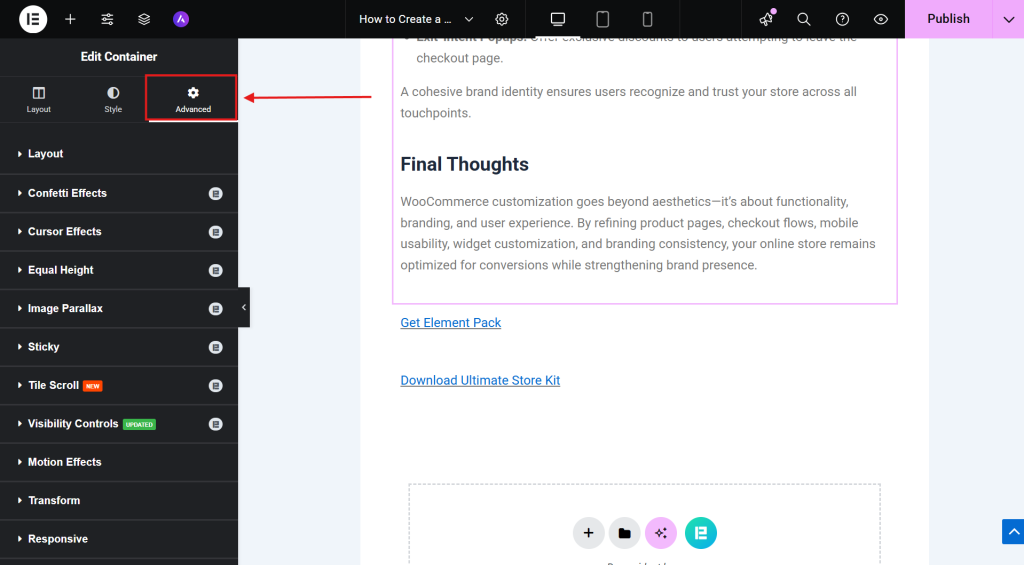
- Select your section and go to the Advanced tab.
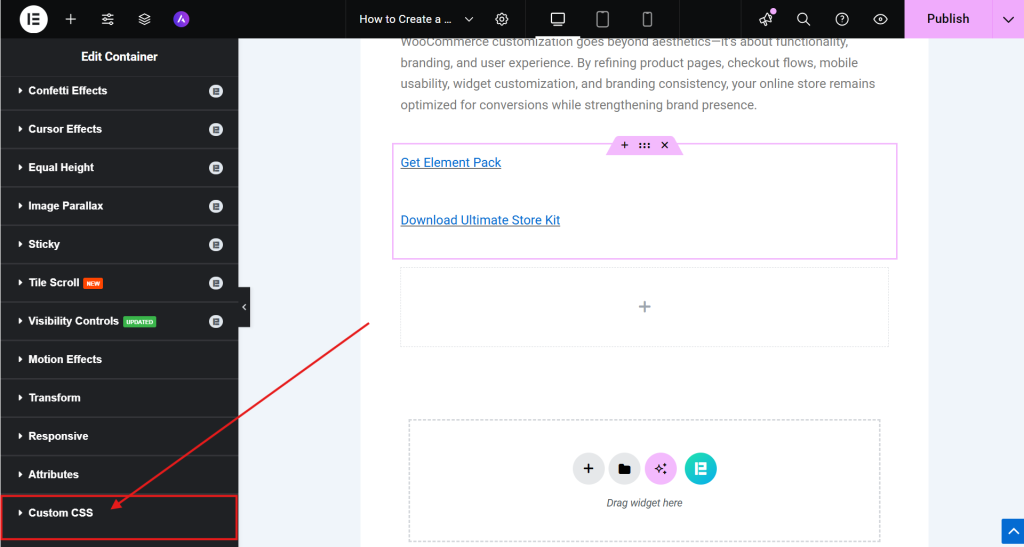
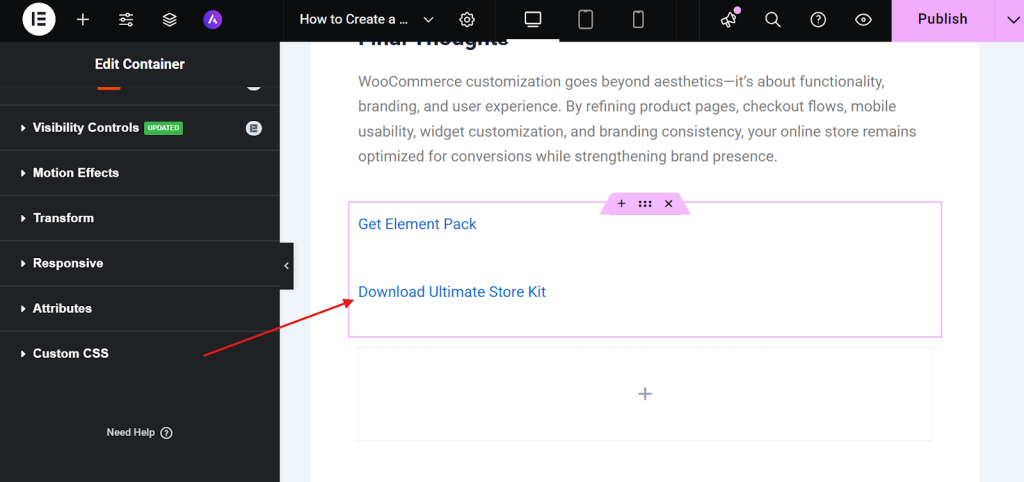
- Scroll down and click on Custom CSS.
- Paste the following code:
a {
    text-decoration: none;
}- This removes the underline from all links within that widget or section.
This code will prevent all links from being underlined. You can also add more styles if you want. For example, you can change the color, change the font style. For this, you just need to add a little more CSS code.
If you don’t like this CSS coding method at all, you can also try the following method.
Method 2: Using Elementor’s Style Settings
If you are using Elementor Free and don’t like coding, then this method is for you. Elementor allows you to easily customize link styles. To remove underlines from links, follow these simple steps:
- Open your page in Elementor.
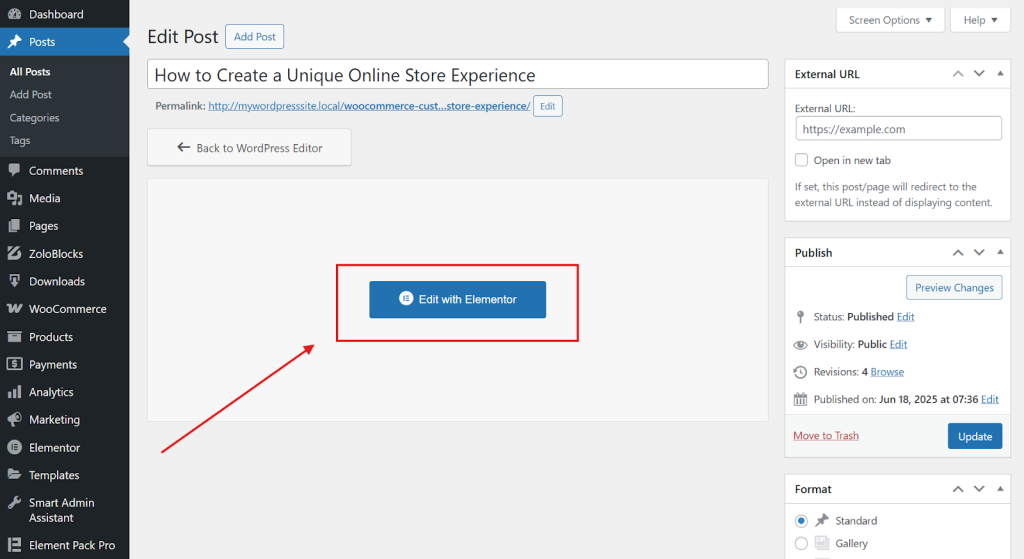
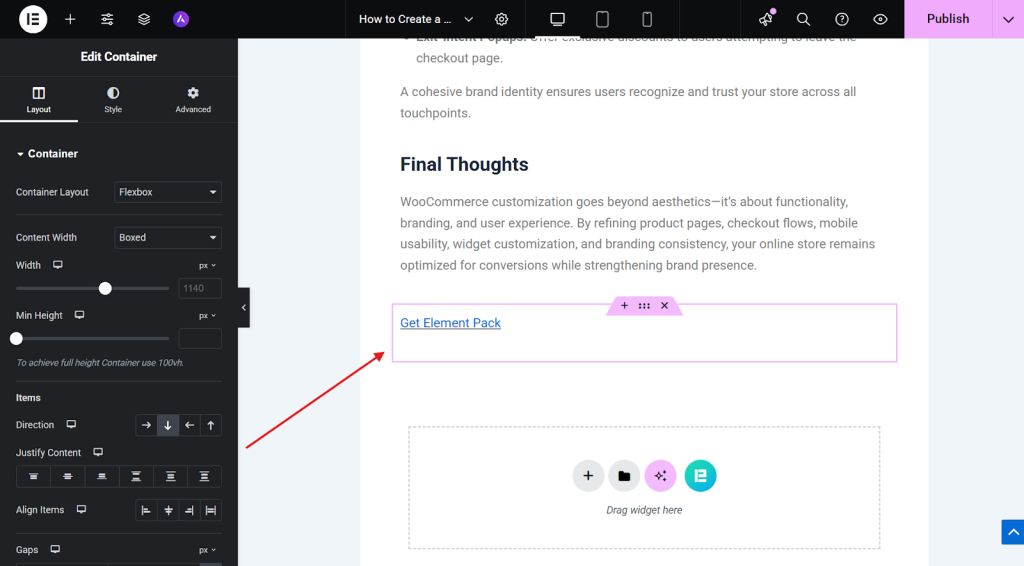
- Then, click on the text block with the link.
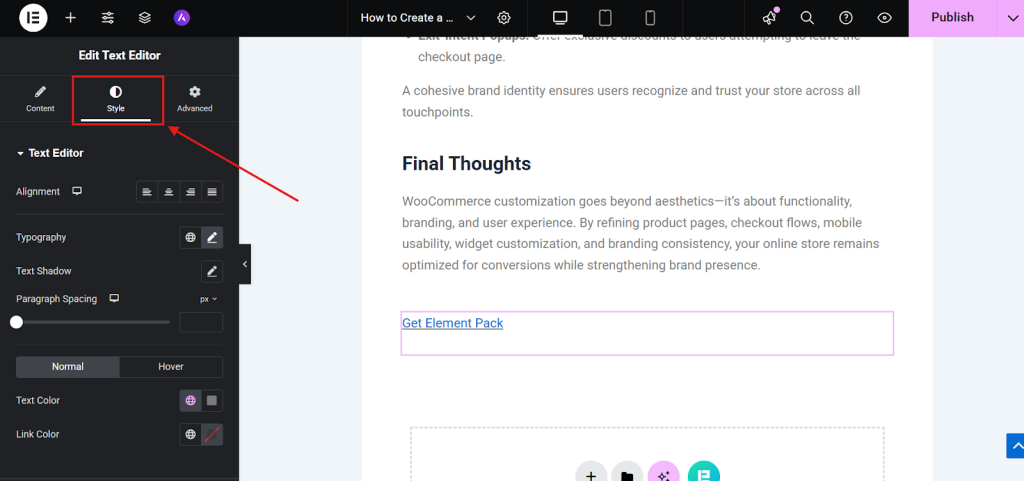
- Now, navigate to the Style tab.
- Click on the Typography pencil icon.
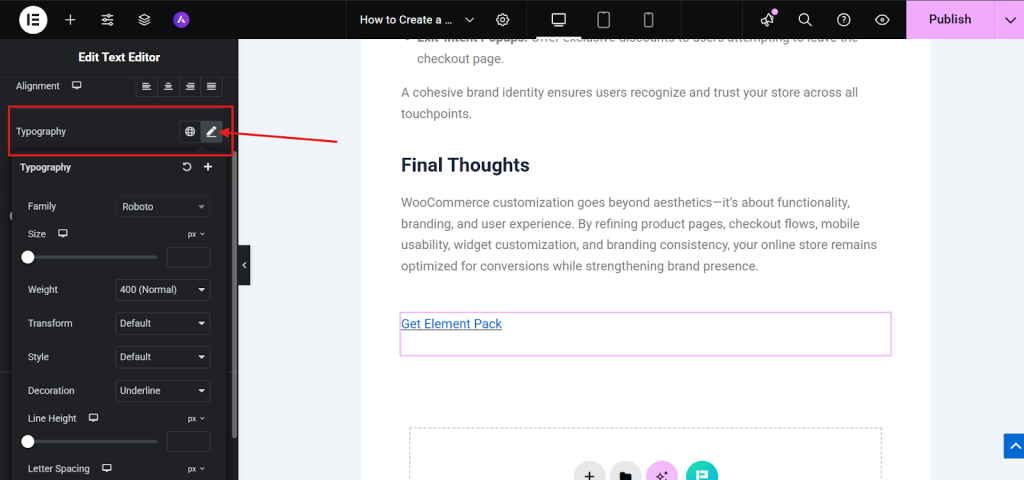
- Then, scroll down and find the Decoration option. And, set it to None.
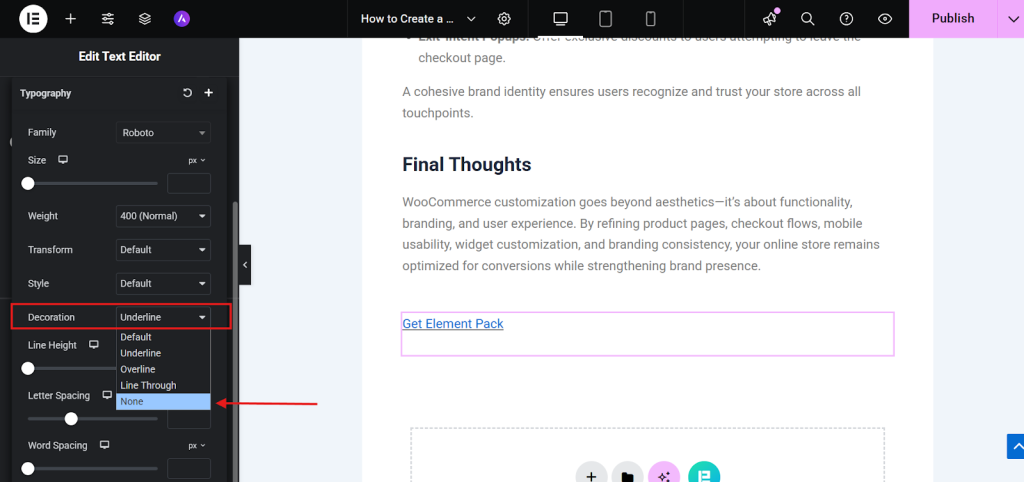
- Your link will now appear without an underline.
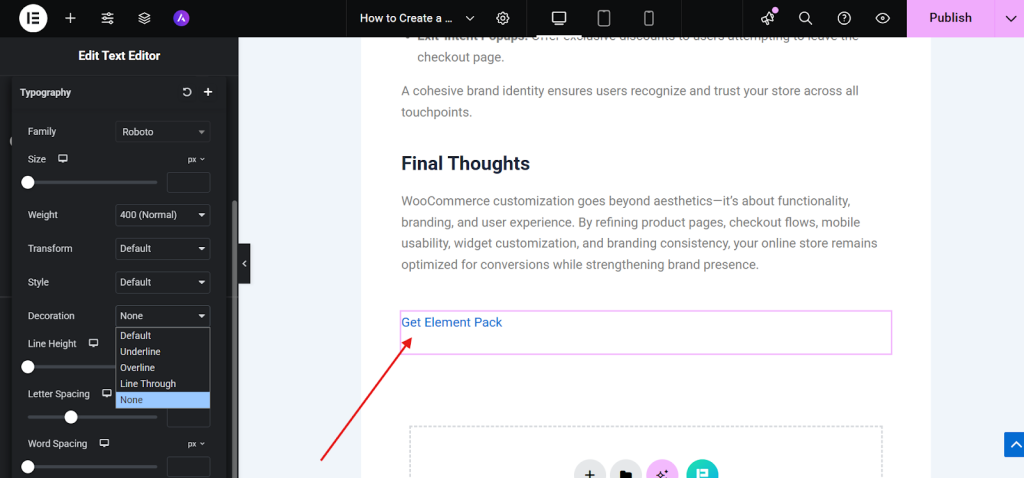
You can repeat this manually for each link.
Note: If there are a few links, then you can use this method to stop the links from underlining. But if you are working with multiple links and want to change from multiple pages, you should follow this method.
When You Need to Stop Elementor Links from Being Underlined and When Not
In Elementor, link underlines can either enhance clarity or clutter your design depending on where they appear. So, before stopping the links from getting underlined, you should know when to stop links from being underlined, ensuring a balance between clean visuals and strong usability.
You’d typically remove underlines if:
- You’re Designing Buttons or CTAs
Buttons should look like buttons, not text links. Underlines here create clutter. For example: “Buy Now” button styled with background color, hover effect, and no underline.
- Navigation Menus or Header Links
Menu items usually follow a clean, minimal design (styled with hover effects or background highlights instead of underlines).
- When Links Are Styled Differently (color, bold, hover effects)
If your link already has a distinct color contrast (like blue text against black) and hover styling (like underline on hover), you can safely remove the default underline.
- For Modern, Minimal Layouts
Some designs (like corporate or portfolio sites) aim for a sleek, minimal look, where underlines might feel old-school or distracting.
When You Should Not Stop Underlines:
Here are the cases where you can keep underlines:
- In Long-Form Content or Blog Posts
Users expect links in content to be underlined. Removing it risks people missing them. For example: Articles, case studies, or affiliate blogs. Again, links (like “Privacy Policy” or “Terms of Use”) should be easy to identify quickly.
- For Accessibility and Readability
Users with color blindness or low vision may not notice links without an underline. WCAG guidelines recommend underlines unless the link color has at least 3:1 contrast against normal text.
- When Link Styling Is Too Subtle
If your site uses similar colors for text and links, removing the underline kills usability.
Also Read: How to underline in WordPress
FAQ
Q1: Why are hyperlinks underlined?
Hyperlinks are traditionally underlined to visually distinguish them from regular text, making it clear they’re clickable.
Q2: How do I remove the underline from a hyperlink in WordPress?
To remove underlines from hyperlinks in WordPress, add text-decoration: none; to your CSS. You can do this via the Customizer under Appearance >> Customize >> Additional CSS.
Q3: How to remove underline in CSS?
To remove underline from a link with CSS, add text-decoration: none to your code.
Q4: How to remove the underline from a button in Elementor?
To eliminate the underline from linked text by selecting that text block, then going into the Elementor menu, under Style > Typography > Decoration, and selecting None.
Q5: How do I remove the underline from a link?
To remove underline from a link, add text-decoration: none; to your CSS. You can apply it in Elementor’s Style tab or through WordPress Customizer for global changes.
Conclusion
Stopping or removing underlines from links in Elementor isn’t just a matter of style. It’s about making your website look clean, modern, and easy to use. In this guide, we’ve explored three easy ways to stop links from being underlined:
- If you want to remove underlines across your entire website, you can use a small CSS code in the WordPress Customizer.
- If you’re using Elementor Pro, you can add custom CSS directly to a section or widget.
- And if you’re using the free version of Elementor, you can use the style settings to manually remove underlines from each link.
Each method has its own use case. For example, global CSS is great for saving time and keeping things consistent. But if you only want to change a few links, the manual method works just fine.
Still, it’s important to think about your visitors. Underlined links help people know they’re clickable. Especially in blog posts or long articles.
Also Read:
- How to Track and Improve Your WordPress Website Visibility in Search Engines
- 20 Website Layout Examples to Inspire Your Next Design
- WordPress 7.0 is Coming: The Essential Guide to the 2026 Release, Collaboration Features and AI Infrastructure
- How Can I Make a Business Website (Complete Step-by-Step Guide)
- How to Make a Website for My Business with WordPress in 2026
Md Tarikul
The BdThemes team builds WordPress plugins trusted by 3M+ users worldwide. We write about web accessibility, WCAG compliance, and inclusive design.