

You may want a simple way to understand how to make a landing page in WordPress. But it is not always clear where to begin or which tools to use. You may also feel unsure about design, content and how to get results from your page.
This can slow you down. You may spend time trying different things without success. A poorly designed page can also reduce your chances of getting leads or sales.
The good news is that you can do it step by step. In this guide, we will show you how to create a landing page with WordPress using Elementor and Element Pack. The process is simple and easy to follow. If you are asking, how do I create a landing page in WordPress, this guide will help you get started.
What Is the Difference Between the Homepage and a Landing Page?
A homepage and a landing page are not the same. A homepage is the main page of your website. It shows what your business does and helps people go to different pages like services, blog, or contact. It has a menu and many links, making it easy for visitors to explore your site.
A landing page is different. It is made for one goal only. It asks visitors to do one thing, like sign up, download something, or buy a product. It has few links or distractions. This helps people focus and take action.
In simple words, a homepage helps people explore your website, and a landing page helps people take action quickly.
How to Create a Landing Page – Step-by-Step Guide
To create a landing page in WordPress using Elementor, you need to install the Elementor plugin, create a new page, design it using drag-and-drop tools and then publish it.
Follow these simple steps:
Step 1: Install Elementor
First, log in to your WordPress dashboard. Go to Plugins → Add Plugin.
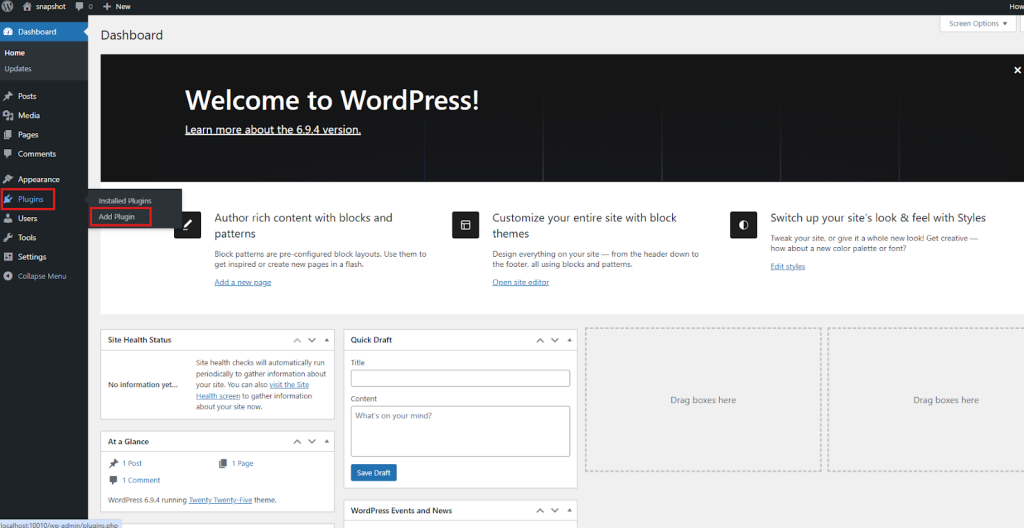
Then search for “Elementor.”
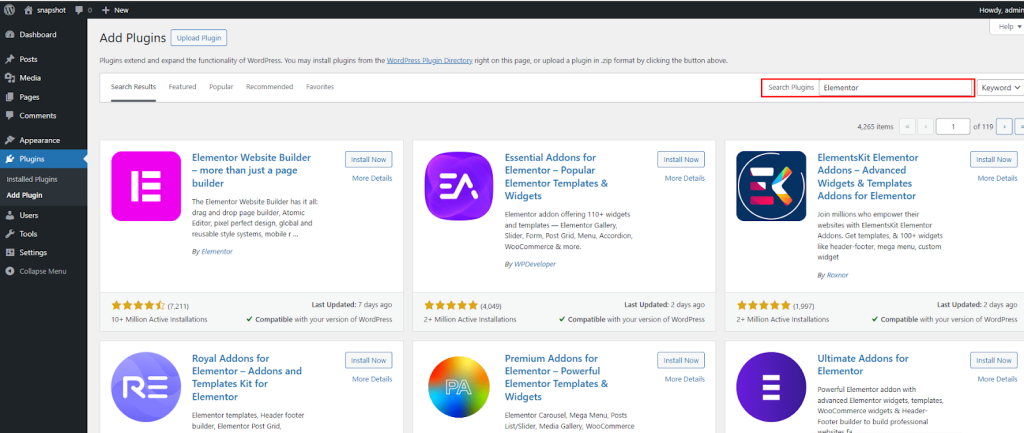
Click Install Now.
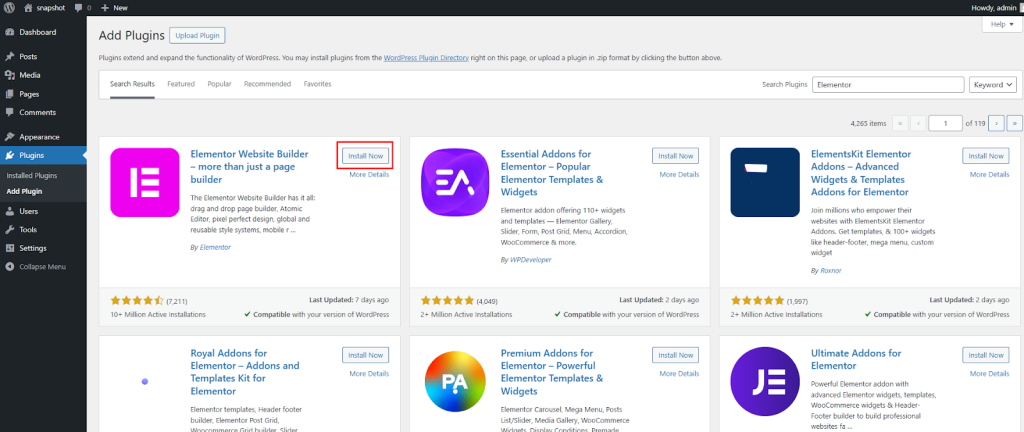
Then click Activate.
Step 2: Create a New Page
Next, go to Pages → Add New.
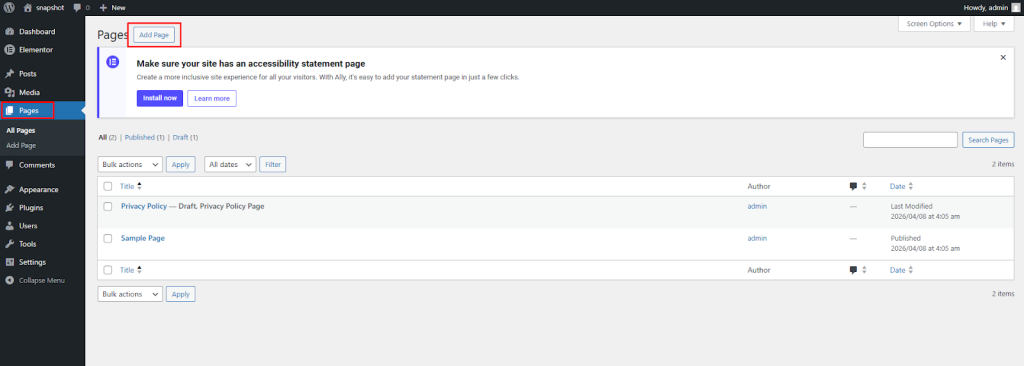
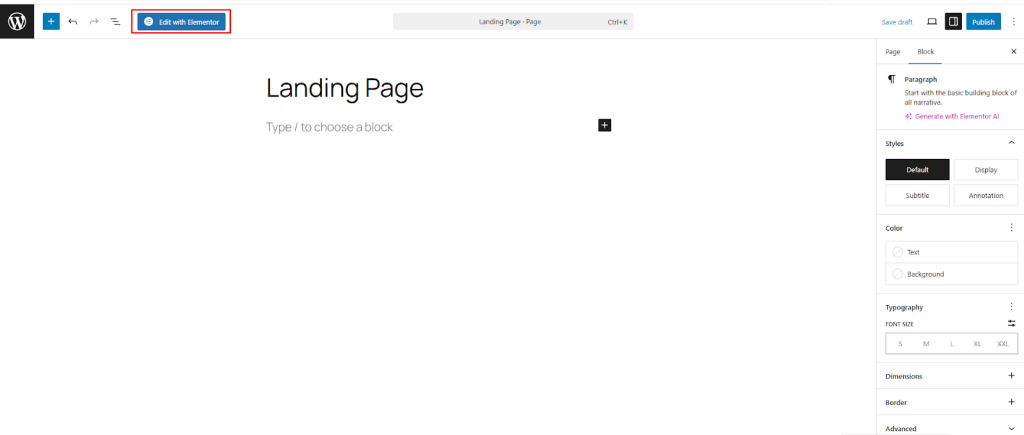
Add a simple title for your page, like “Landing Page.” Then click Edit with Elementor.
Now, you will see the Elementor editor. On the left side, you will find different elements. On the right side, you will see your page.
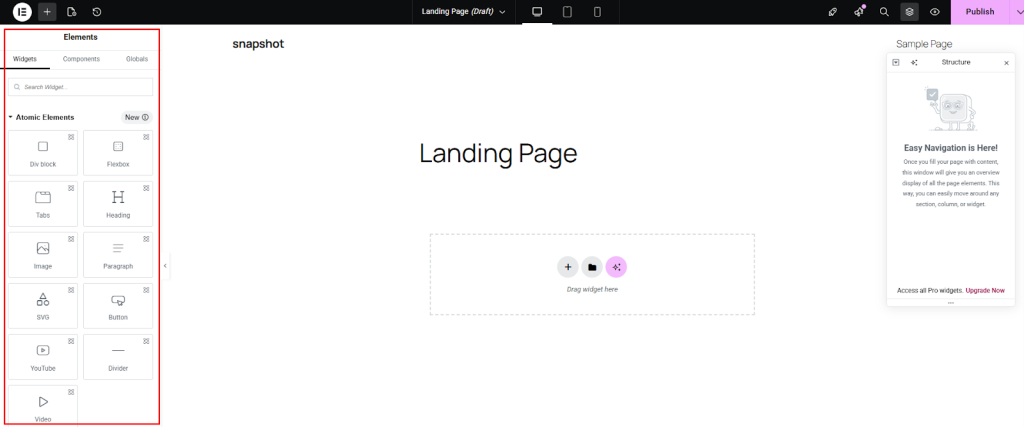
You can:
- Add sections
- Choose layouts
- Drag and drop elements like text, images, and buttons
There are some limitations when using Elementor. Sometimes, the free version does not include all features. Some advanced widgets and templates are only available in the Pro version, which can be expensive.
To make things easier and save money, you can use Elementor addons like Element Pack Pro, Power Pack, The Plus Addons and Exclusive Addons.
However, in this blog, we will create a landing page using Element Pack Pro. Why? Because it offers more widgets and ready-made templates for flexibility, which help you build your landing page faster and more easily.
First off, visit the Element Pack official website, then make sure to buy the premium version. You’ll get the license key and ZIP file. Save the ZIP file on your device.
If you are not sure where to find this file, check the video below.
Go to your WordPress dashboard. Click on Plugins, then click Add New.
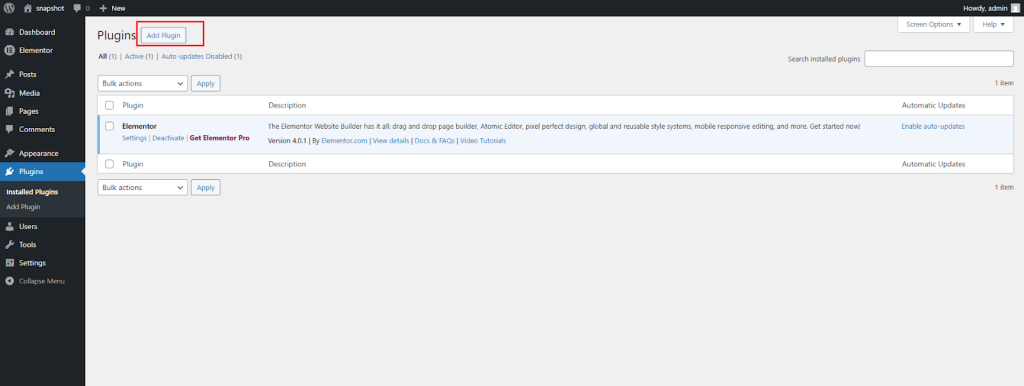
Now, click on Upload Plugin.
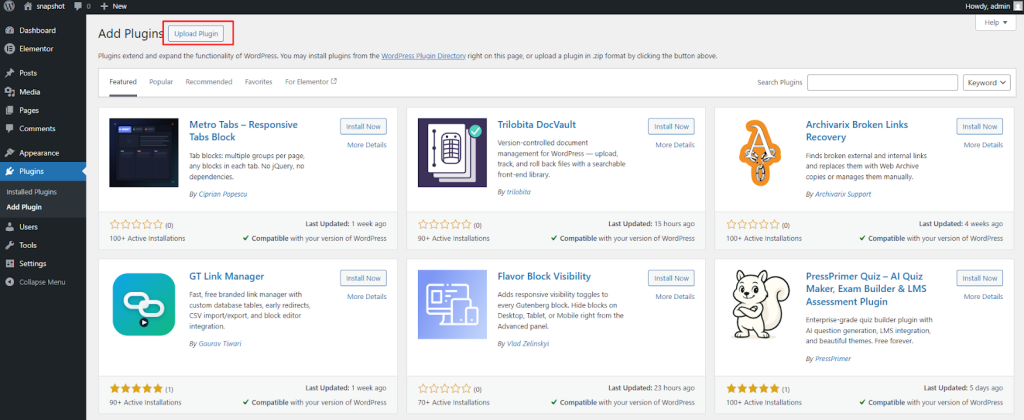
Then click Choose File and select the plugin file from your computer.
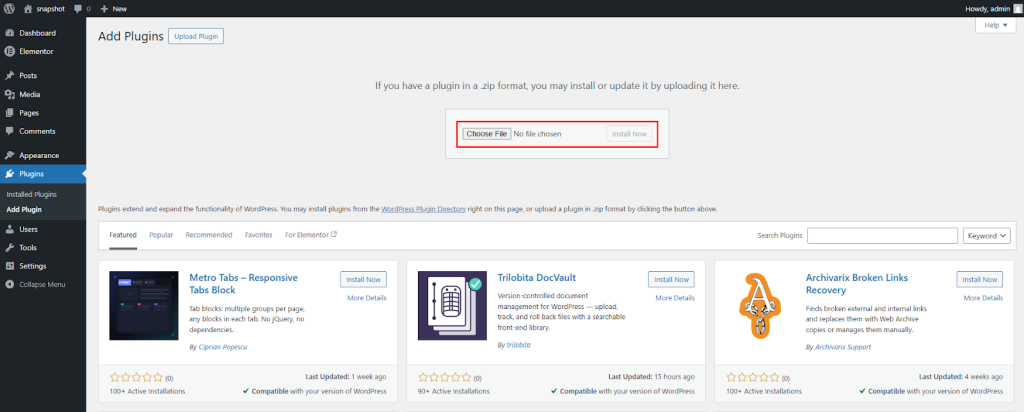
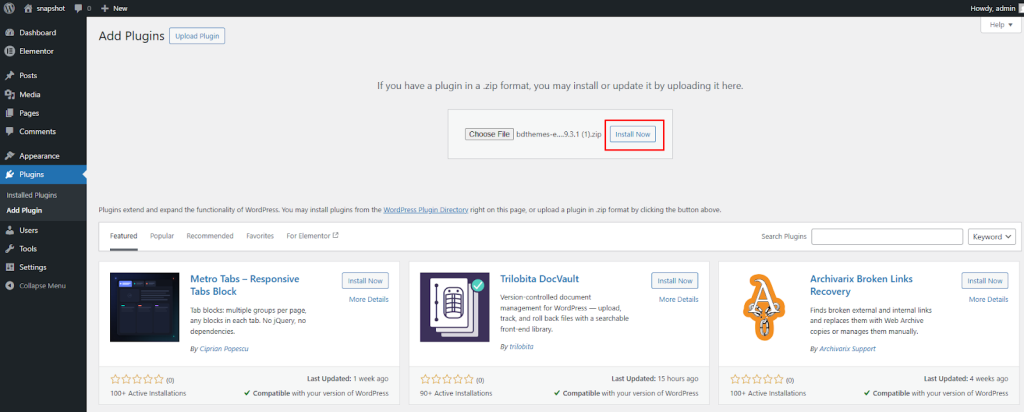
After that, click Install Now and wait a few seconds.
Once the installation is done, click Activate Plugin.
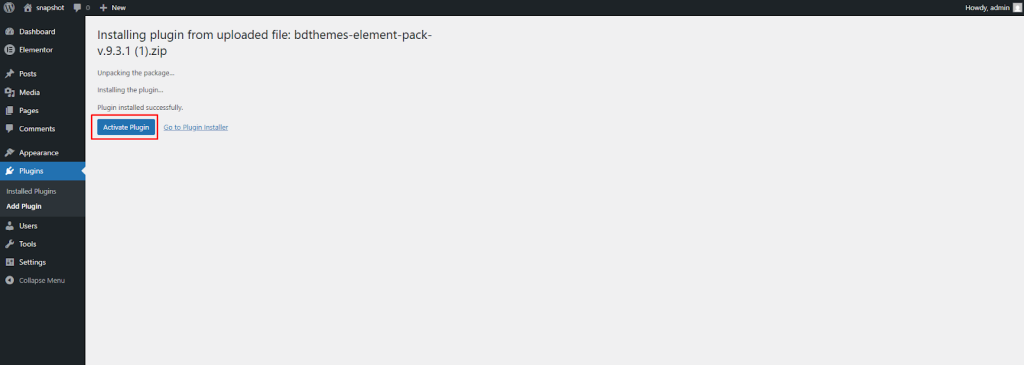
Now your plugin is ready to use.
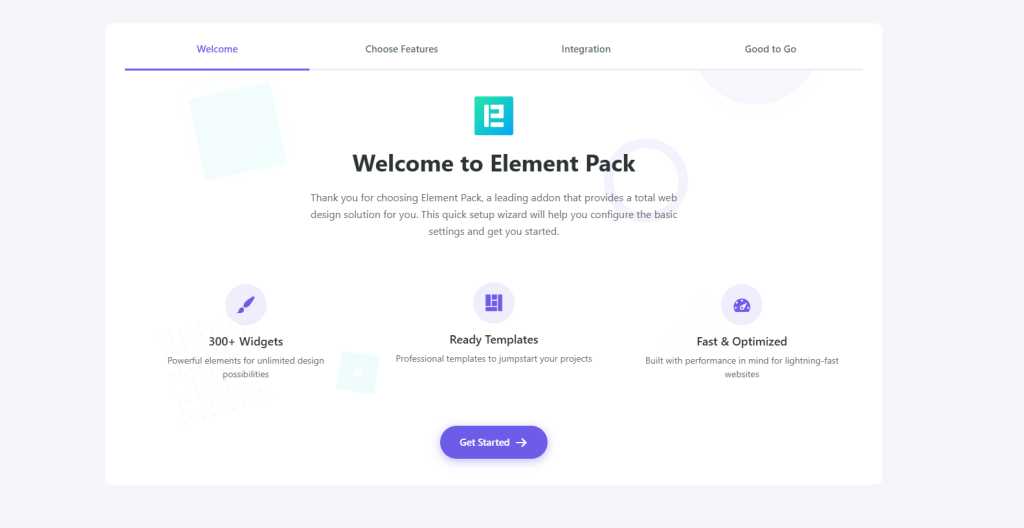
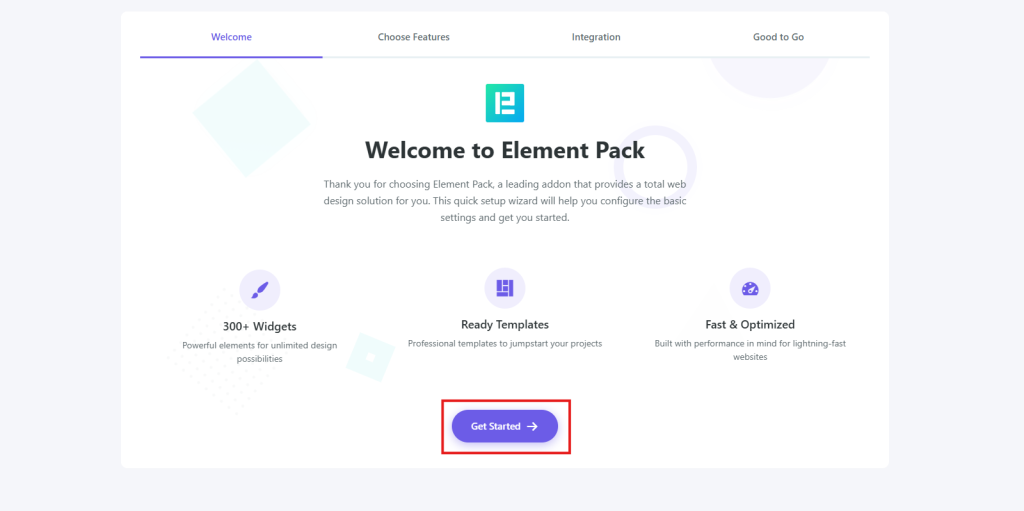
Now, Get Started.
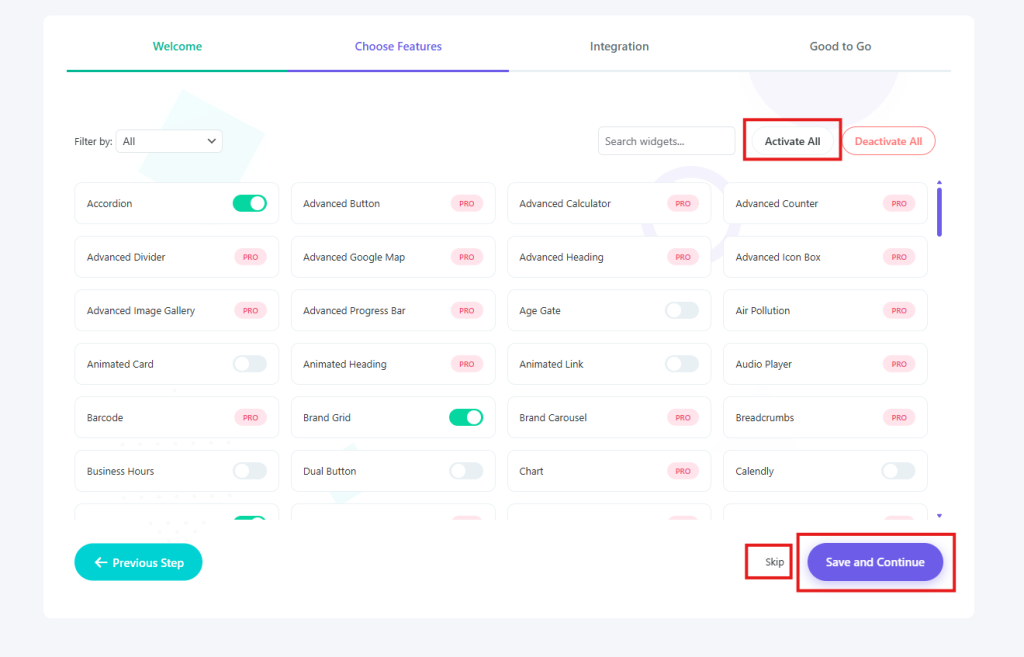
At the top, you can see the setup steps:
Welcome → Choose Features → Integration → Good to Go
Right now, you are on the “Choose Features” step.
In the middle, there is a list of widgets (features). Each widget has a small switch button.
- If the switch is ON, the widget is active
- If the switch is OFF, the widget is disabled
Some widgets have a “PRO” label. This means they only work in the paid version.
On the top right side, you will see:
- Search widgets → to find a widget quickly
- Activate All → turn on all widgets at once
- Deactivate All → turn off all widgets
You can choose only the widgets you need. This helps keep your website fast and clean.
At the bottom:
- Previous Step → go back
- Skip → skip this setup step
- Save and Continue → save your settings and go to the next step
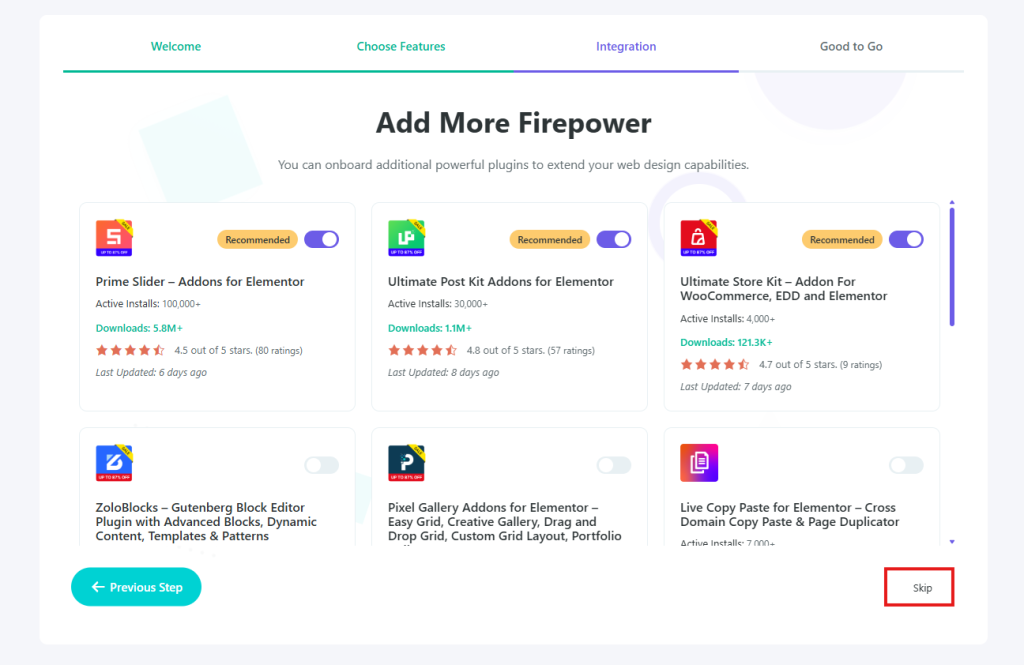
Now you will see the title “Add More Firepower.”
This means you can install extra plugins to add more features to your website.
Below, you will see a list of plugins like:
- Prime Slider: Helps you create beautiful and responsive sliders for your website.
- Ultimate Post Kit: Adds advanced widgets to design blog posts and news layouts easily.
- Ultimate Store Kit: Provides powerful tools to customize and improve WooCommerce stores.
- ZoloBlocks: Offers flexible Gutenberg blocks for building modern, fast websites.
- Pixel Gallery Addons: Let’s you create stylish image galleries with advanced effects.
- Live Copy Paste: Allows you to copy and paste Elementor designs between websites instantly.
Only turn on the plugins you really need. Too many plugins can slow down your website.
Now, click Skip to move to the next step.
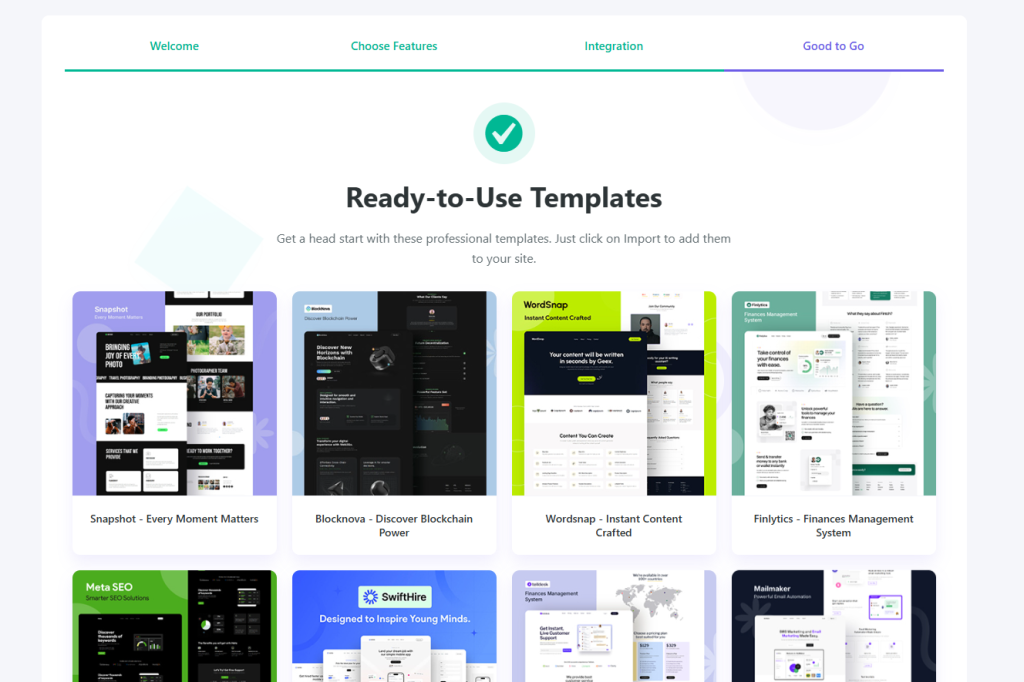
Now you will see the title “Ready-to-Use Templates.” This means you can quickly use ready-made website designs.
Each template is already designed. You can import it and use it on your website.
But in this guide, we will show you the process to create a landing page in WordPress using Element Pack Pro.
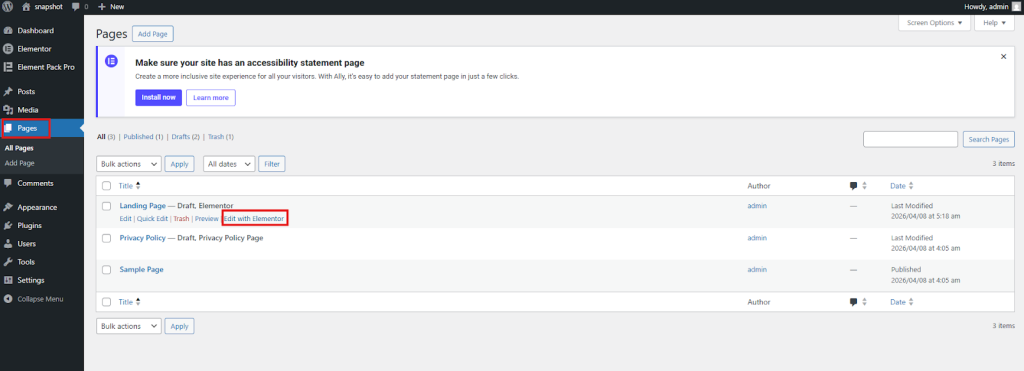
So, go back to Pages. Then click Edit with Elementor.
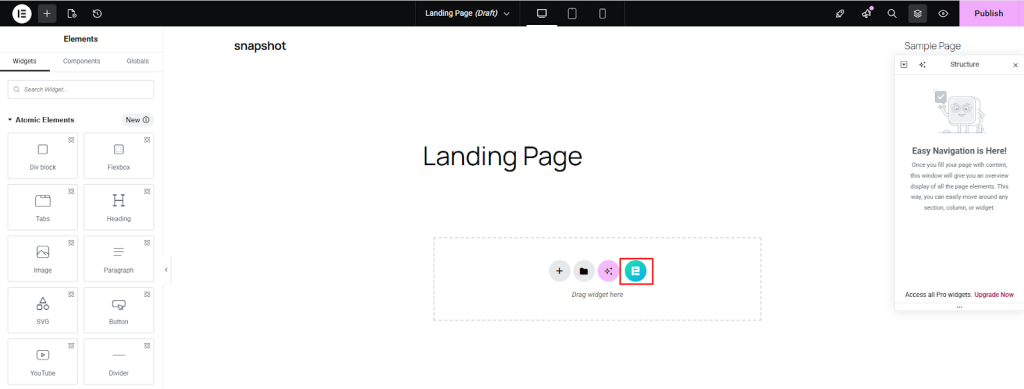
Now open your Landing Page. Then click the Element Pack Pro icon.
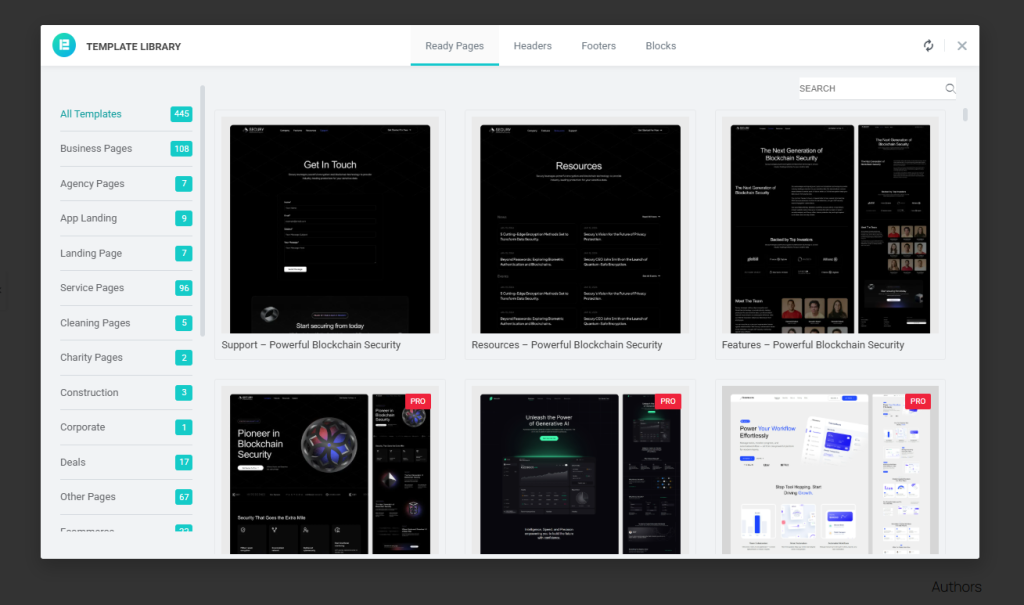
Now we will show you the Element Pack Template Library inside Elementor.
At the top, you will see different tabs such as Ready Pages, Headers, Footers and Blocks. Right now, we are in the Ready Pages section, where you can choose full website page designs.
On the left side, you will see different categories like All Templates, Business Pages, Agency Pages, App Landing, Landing Page, Service Pages, Cleaning Pages, Charity Pages, Construction, Corporate, Deals and Other Pages. You can click on any category to quickly find the template you need.
With this template library, we can help you create a professional page quickly without starting from scratch.
Now we will choose a landing page template.
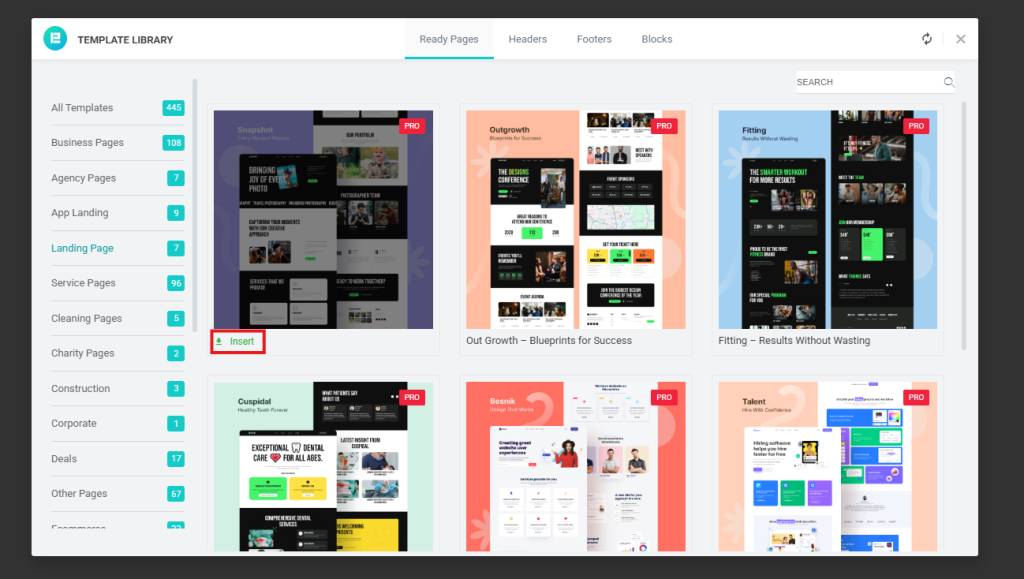
On the left side, click Landing Page. You will see many templates in the center.
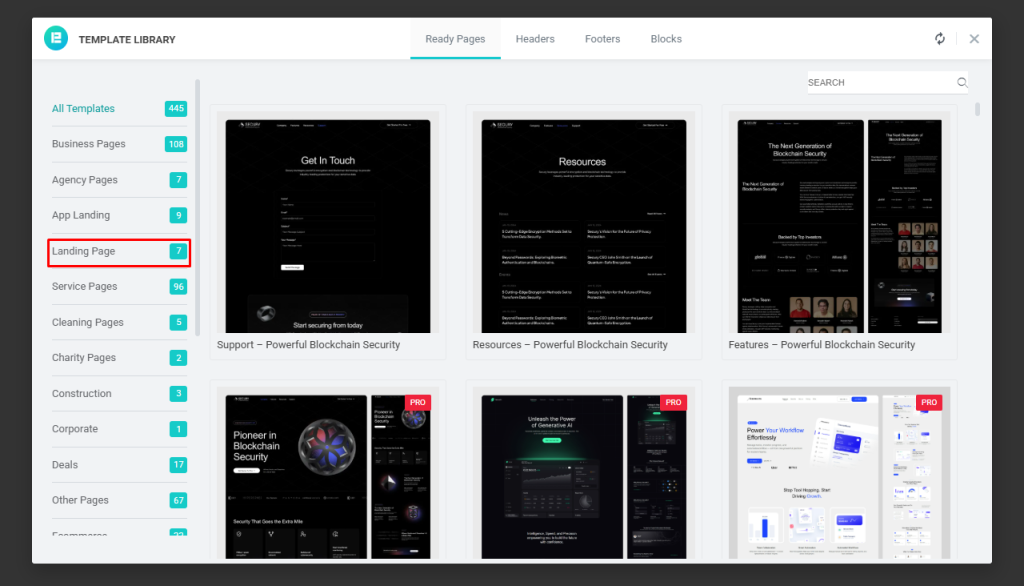
Now choose a template you like. Then click the Insert button.
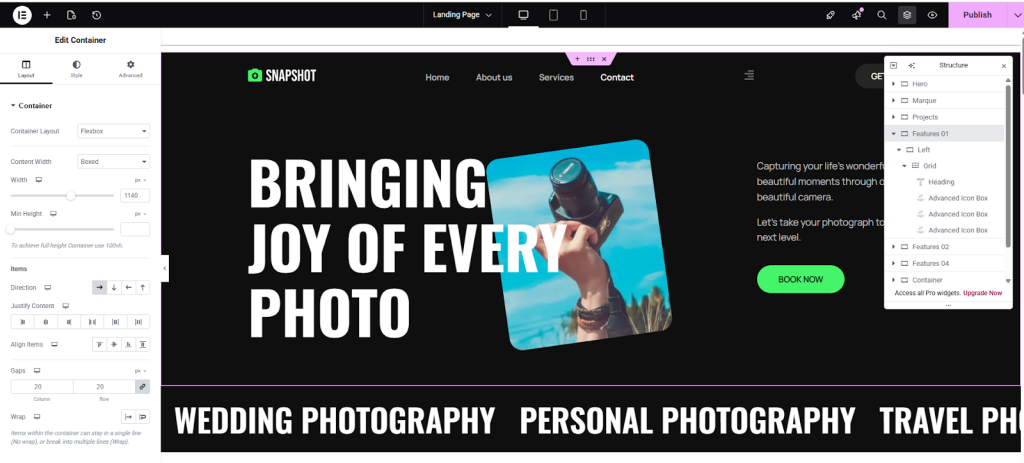
Now the template is added to your page. You can edit everything using Elementor. Click on any text to change it. Click on images to replace them. You can also change colors, layout, and content from the left panel.
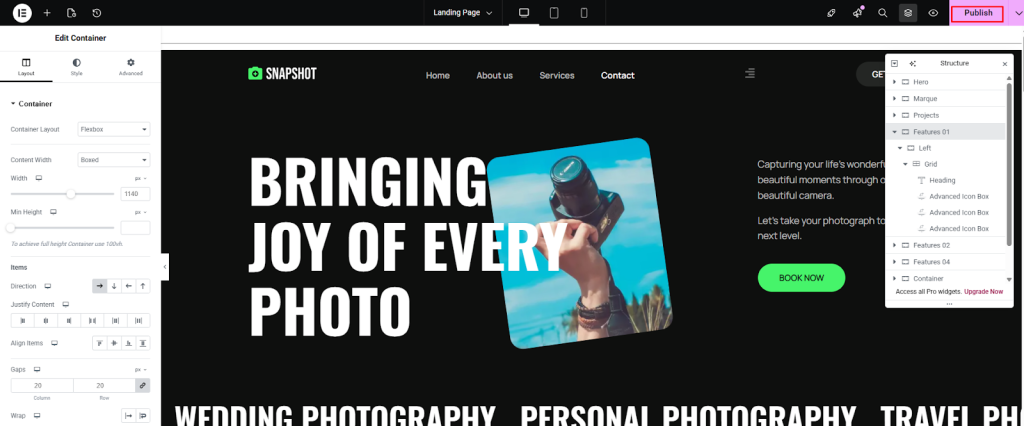
Once you finish editing, click Publish to make your page live.
Now Let’s See the Result….

Next, we will show you how to add widgets to this template. Click Edit with Elementor to start editing.
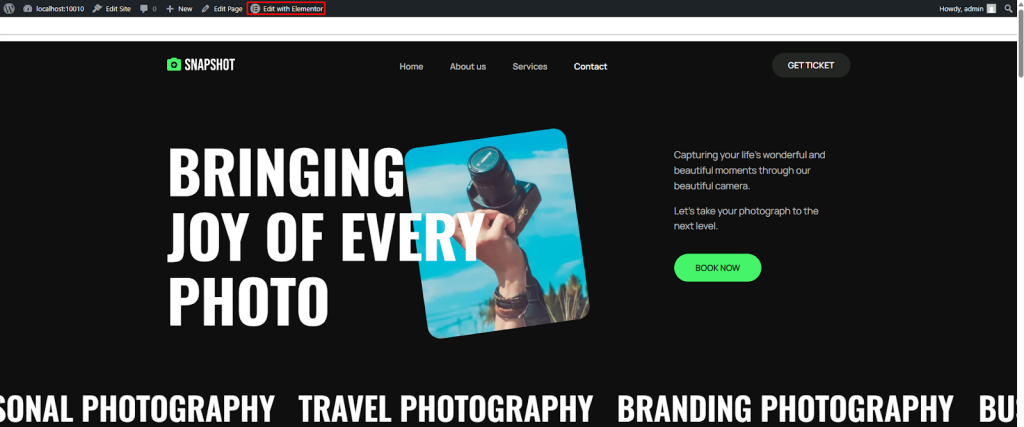
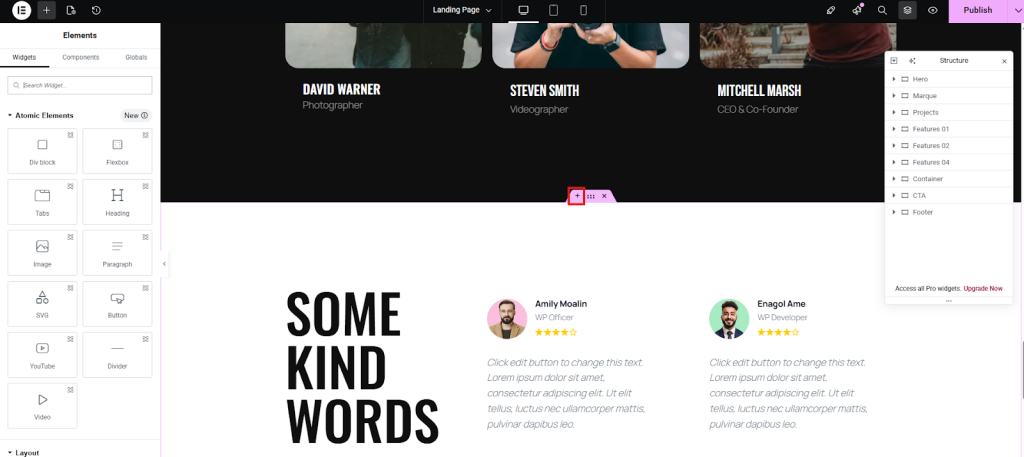
Now, hover over any section and click it. Then click the + (plus) icon.
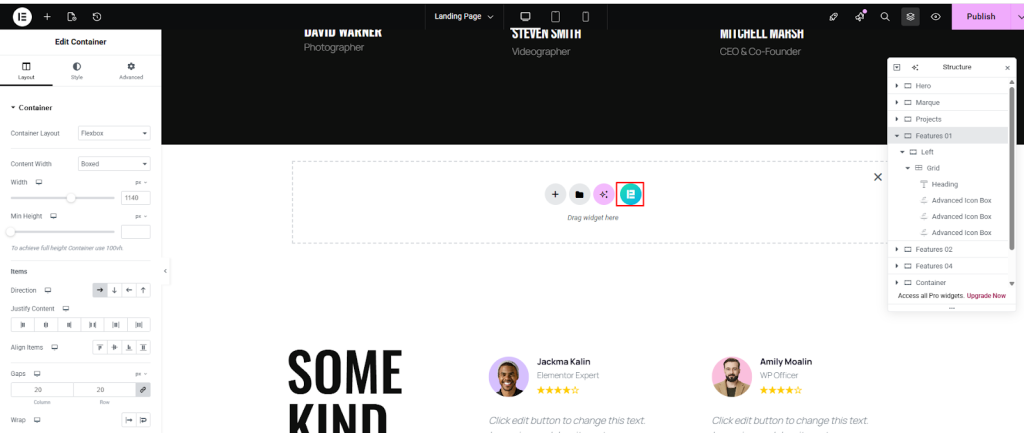
After that, click the Element Pack Pro icon again.
Then go to Blocks → Pricing Table.
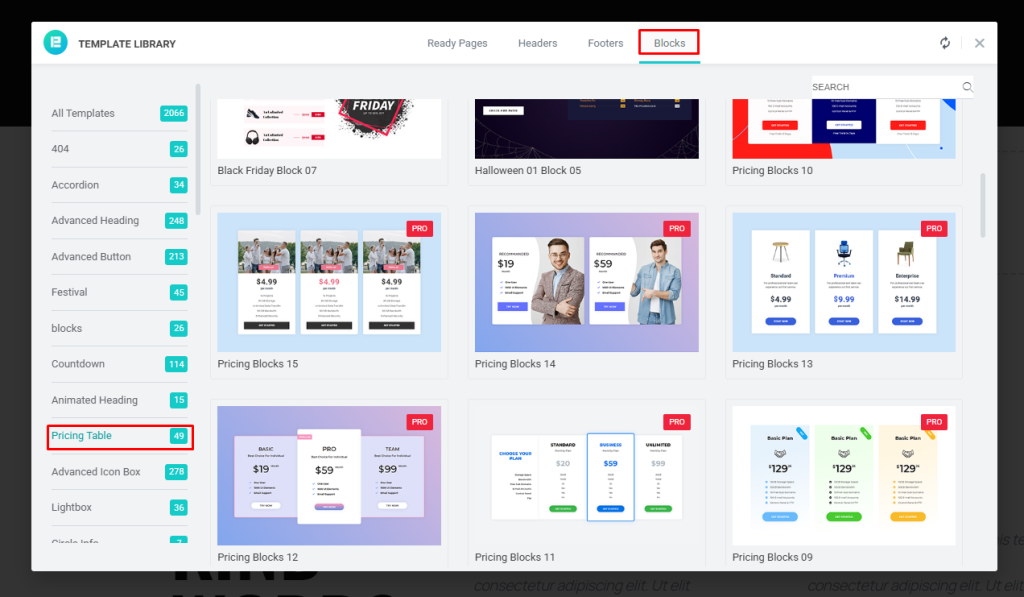
Select any pricing table, then click Insert.
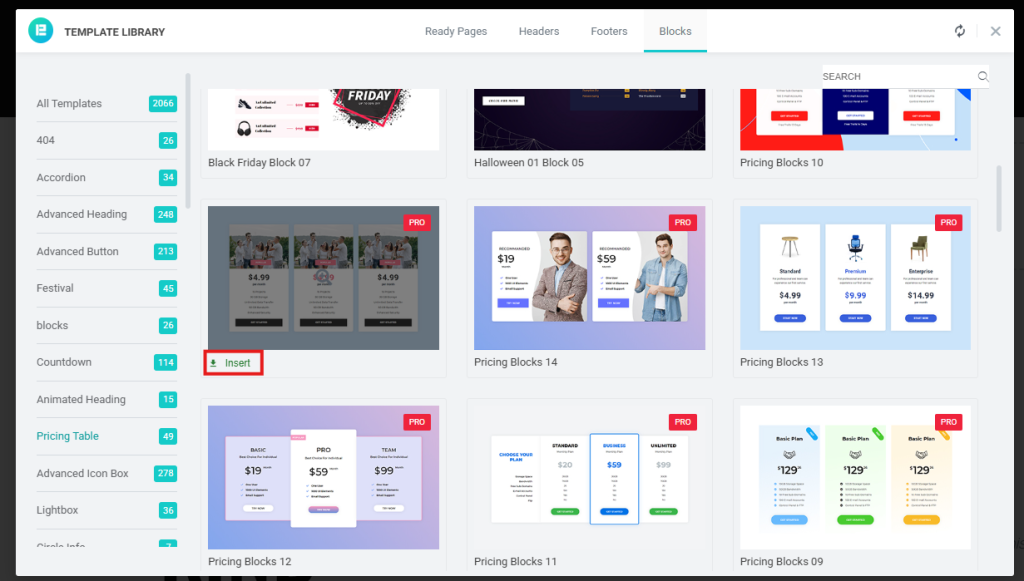
After inserting, the pricing table will be added to your landing page.
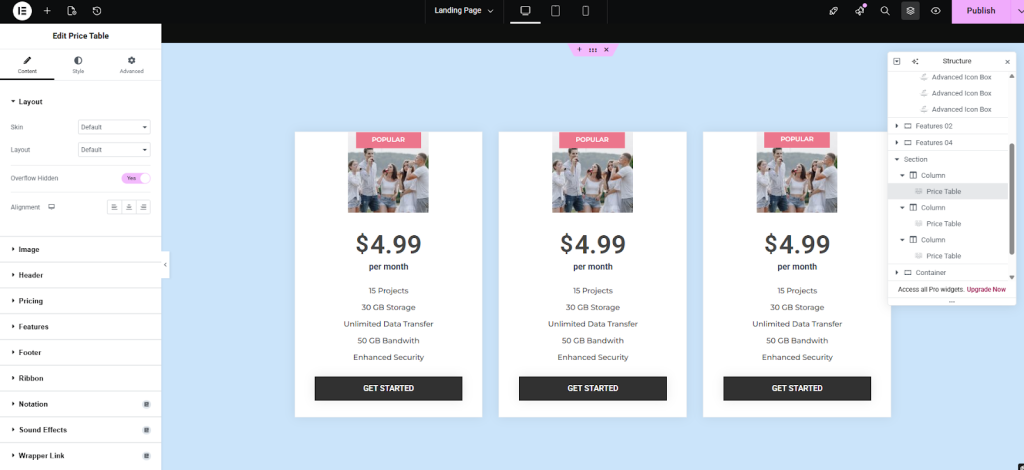
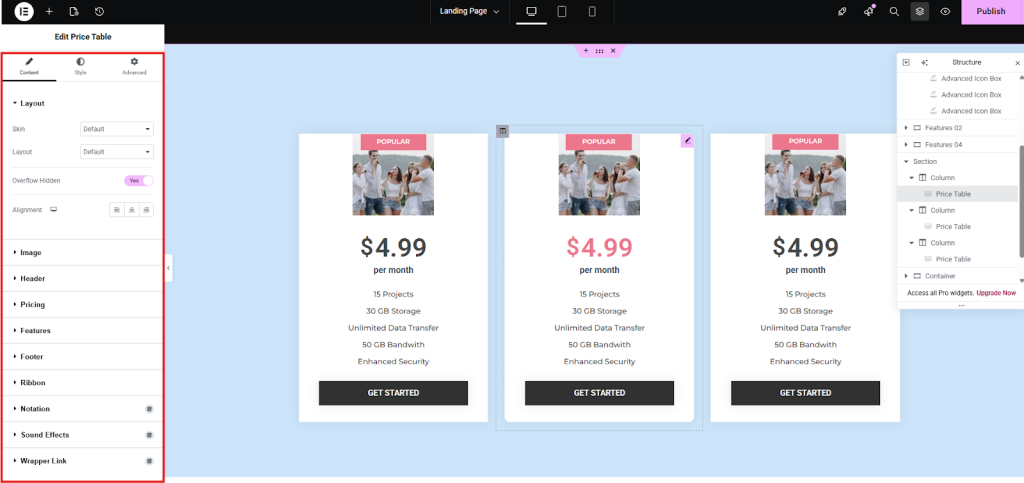
Now you can edit the content and images as you need.
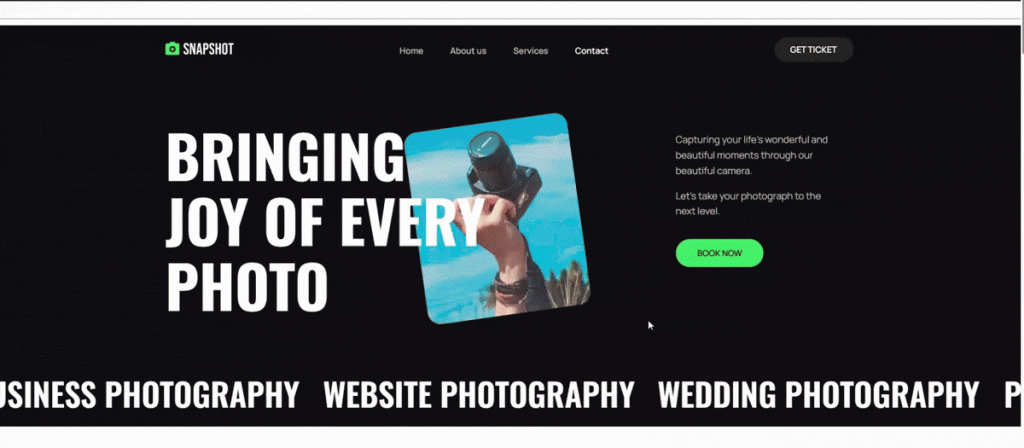
Let’s see the Final Result….
Tips for a High-Converting Landing Page
Making a landing page is just the first step. Follow these tips to get better results:
- Focus on one goal: Do not try to do too many things on one page. Keep one clear goal so users do not get confused.
- Use a clear headline: Tell visitors what they will get. Make it simple and easy to understand.
- Show trust: Add reviews, ratings, or client logos. This helps people trust your website.
- Use a clear button (CTA): Make your button easy to see. Use simple words such as “Get Started” or “Buy Now”.
- Create urgency: Use limited offers or time-based deals. This helps people take action quickly.
- Keep it simple: Remove extra links and unnecessary content. Focus only on what matters.
- Test and improve: Try different headlines, colors, or layouts. Small changes can give better results.
FAQs on How to Create a Landing Page
1. How do I create a landing page in WordPress?
You can create a landing page by using a page builder like Elementor. First, install Elementor from the Plugins section. Then, create a new page and click Edit with Elementor. After that, you can design your page using drag and drop tools. You can add text, images, buttons, and more.
2. How to make a landing page in WordPress without coding?
You do not need coding skills. Tools like Elementor and Element Pack allow you to build pages easily. You can use ready templates and edit them based on your needs.
3. What is the best plugin to create a landing page in WordPress?
Elementor is one of the best plugins. It is easy to use and works well for beginners. You can also use addons like Element Pack Pro to get more widgets and templates.
4. Can I create a landing page for free in WordPress?
Yes, you can create a landing page for free. Elementor has a free version that gives basic features. However, some advanced tools and templates are only available in paid versions.
5. What is the difference between a homepage and a landing page?
A homepage shows all parts of your website. It has many links and helps users explore. A landing page focuses on one goal only, like getting leads or sales. It has fewer distractions and a clear call to action.
6. What should a good landing page include?
A good landing page should have:
- A clear headline
- Short and simple content
- A strong call-to-action button
- Images or visuals
- Trust elements like reviews or testimonials
7. How long should a landing page be?
There is no fixed length. Your page should be as long as needed to explain your offer clearly. Keep it simple and avoid unnecessary content.
8. How can I improve my landing page conversion?
You can improve results by:
- Using a clear headline
- Adding a strong CTA button
- Keeping the design simple
- Using high-quality images
- Testing different layouts and content
9. Do I need Element Pack Pro to create a landing page?
No, it is not required. You can use Elementor alone. But Element Pack Pro gives more features, widgets, and ready templates, which can save time.
10. Can I edit my landing page after publishing?
Yes, you can edit it anytime. Just go to your page and click Edit with Elementor. Make changes and update the page.
12. Why is my landing page not converting?
There can be many reasons:
- Unclear headline
- Weak call-to-action
- Too much content
- Poor design
- Slow loading speed
Try to keep your page simple and focused.
13. Can I use templates for landing pages?
Yes, templates make your work easier. You can import ready-made designs and edit them. This saves time and helps you create a professional page quickly.
14. Is Elementor good for beginners?
Yes, Elementor is very beginner-friendly.
It uses drag and drop features, so you can design your page easily without technical skills.
Conclusion
If you do not build a proper landing page, you may lose visitors and potential customers. Many people still struggle because they think the process is hard or technical. This can slow down your growth and affect your results.
But now you know how to make a landing page in WordPress in a simple way. You have learned how to create a landing page with WordPress using Elementor and Element Pack Pro without coding. You can now design, edit, and publish your page easily.
So do not wait. Start building your landing page today. Use the steps from this guide and take action. How do I create a landing page in WordPress? Now you have the answer.
Suza
The BdThemes team builds WordPress plugins trusted by 3M+ users worldwide. We write about web accessibility, WCAG compliance, and inclusive design.