

You have a design idea. You can see it clearly in your head. Maybe it is a bold landing page with an eye-catching hero section. Or an elegant portfolio that makes your work pop off the screen. But the moment you open WordPress, that mental image gets blurry. Which tool do you use? Where do you even start?
That is the exact problem Elementor was built to solve. And if you use it the right way, it does not just help you build a page. It helps you translate your creative vision into a real, working website without touching a single line of code.
In this guide, we will walk through everything you need to know to use Elementor in WordPress properly. We are not just covering the basics. We are going deep into the workflow, the decisions and the habits that separate a frustrating experience from a truly powerful one. By the end, you will know how to build anything you can imagine.
Step 1: Establish a Global Design System Before You Touch a Single Page
Most beginners make the same mistake – they open Elementor, start dragging widgets onto a blank canvas and begin styling things one by one. It feels productive. It is not. An hour later, you have a hero section with one font, a services section with another and colors that vaguely match but do not quite. You have built a patchwork, not a design.
The right approach is to set up a global design system before you build a single page. This means telling Elementor what your brand looks like at the foundation level. So that every element you place automatically inherits a consistent visual language.
Consistent Section Spacing
One of the biggest visual inconsistencies in amateur-built Elementor sites is uneven spacing. Some sections have 80px of padding above them, others have 40px and others have none at all. The result feels sloppy, even if the individual elements look fine.
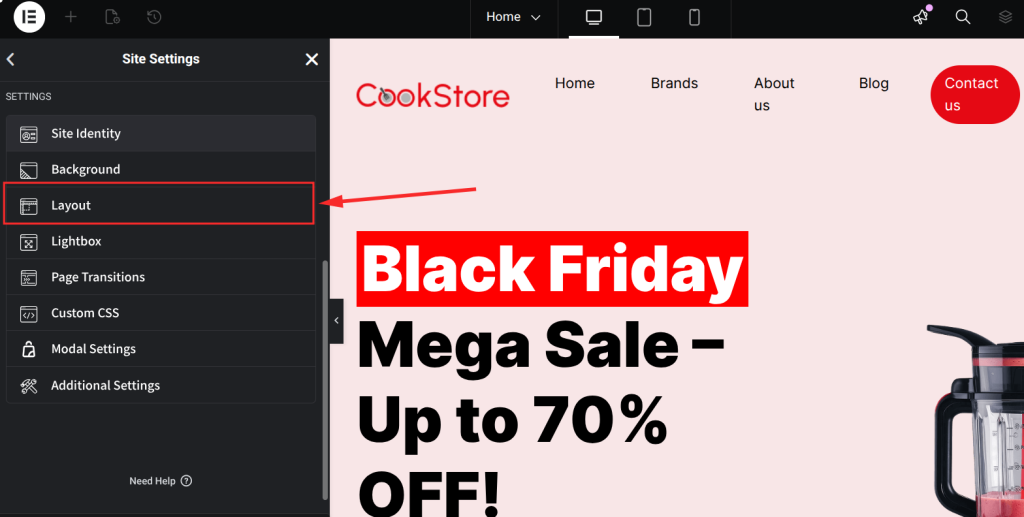
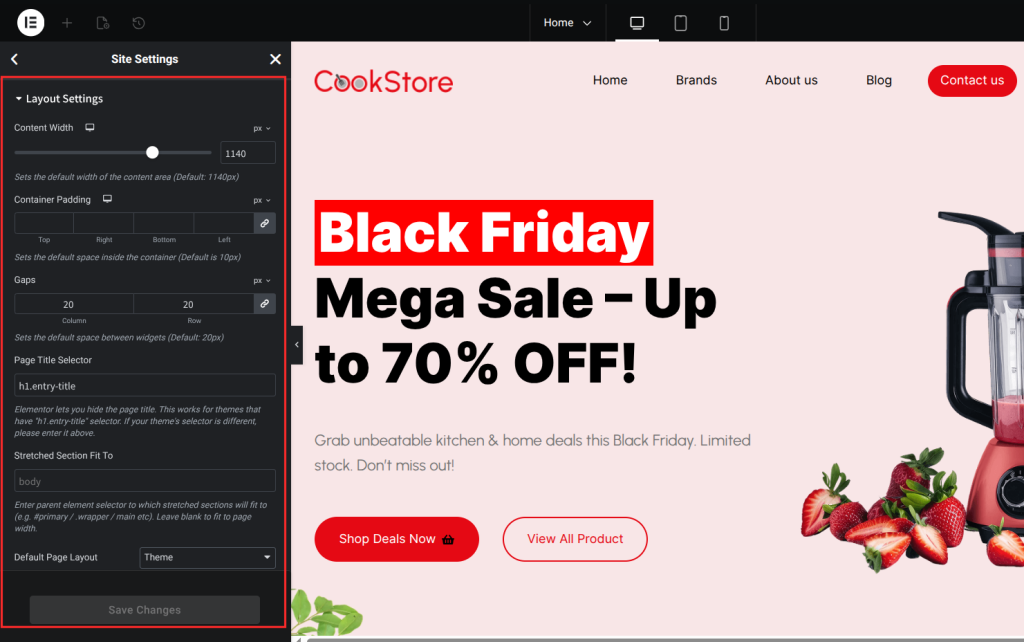
The fix is simple: decide on a spacing system and stick to it. A good starting point is 80px top and bottom padding for most sections, with tighter 40px spacing for compact areas like footers or tight content blocks. In the Elementor Page, you can set default section padding globally under Elementor > Site Settings.
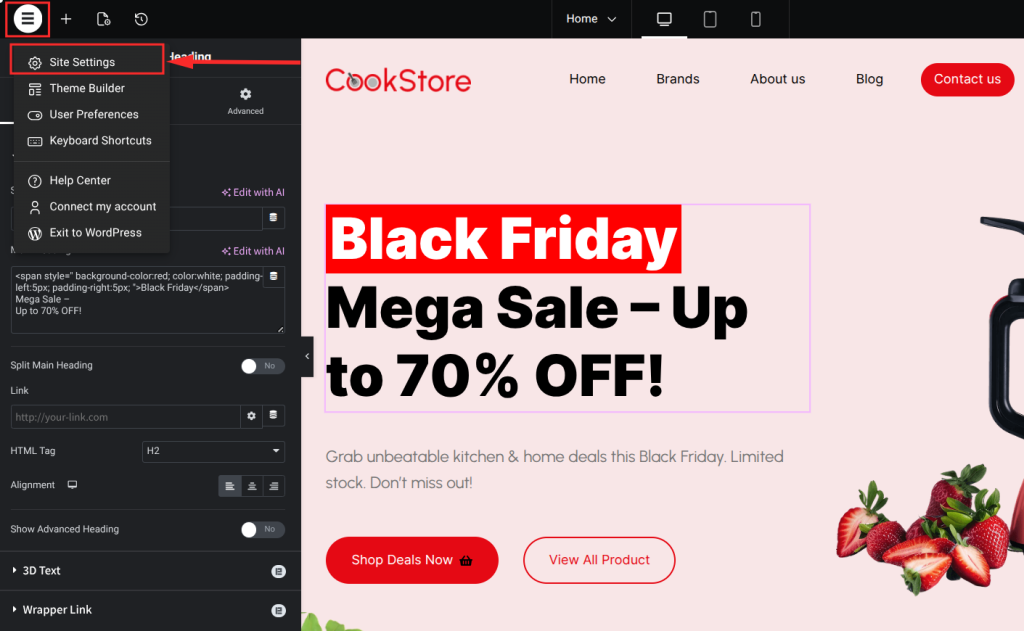
Then select the Layout option.
Set it once and it applies everywhere unless you consciously override it.
Strategic Widget Spacing
Inside your sections, widget spacing is equally important. If you place a heading, then a paragraph, then a button, the gap between each should feel intentional – not random. Establish a standard bottom margin for widgets (20px to 30px works for most layouts) and apply it consistently.
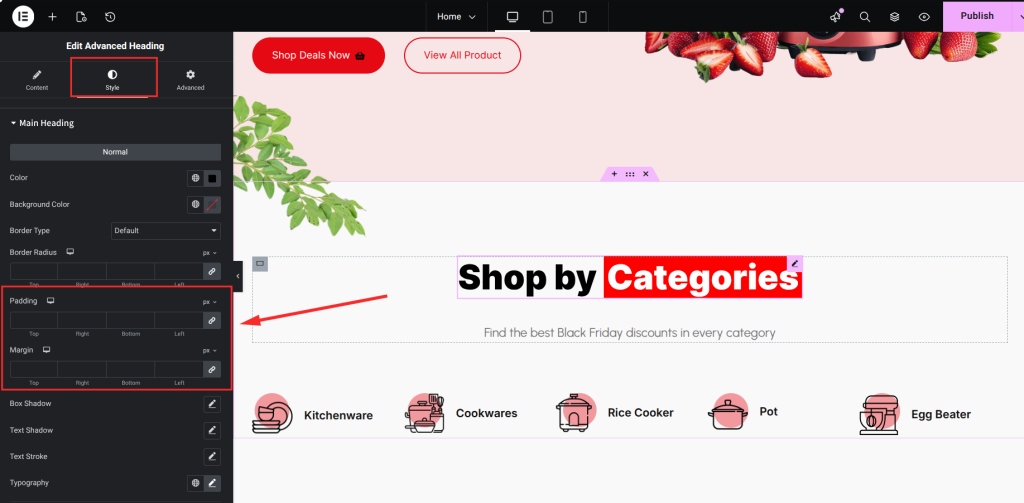
Elementor lets you set default widget margins globally too. This is a small setting that has an outsized impact on how polished your pages feel.
Consistent Layout Width
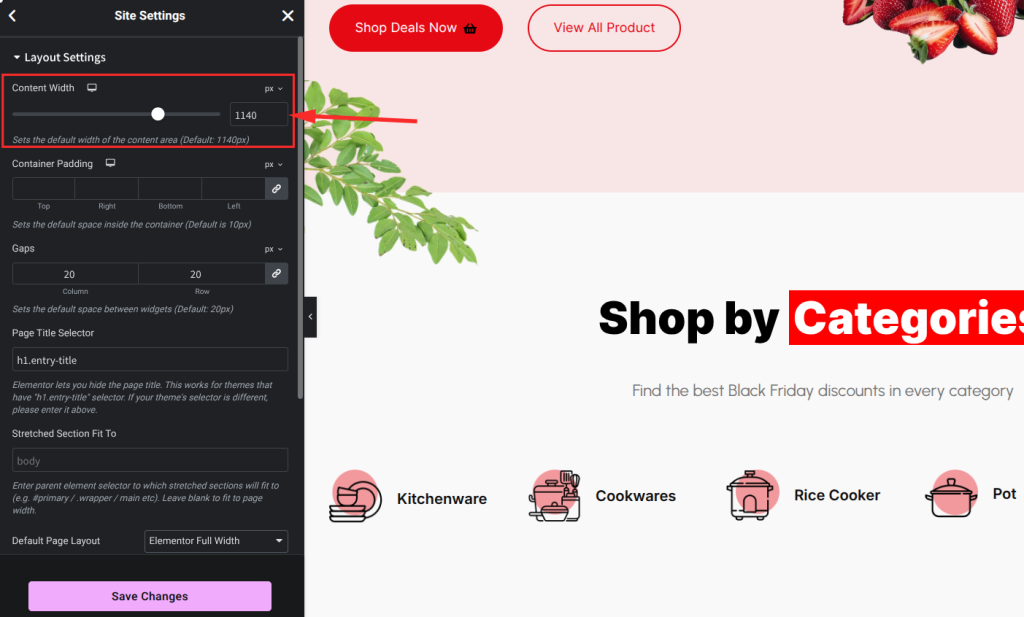
Choose a content width and commit to it. Most modern designs use a container width somewhere between 1140px and 1200px. Elementor defaults to 1140px, which works well for most cases. Go to Elementor > Site Settings > Layout and set your content width globally. This ensures your text, images and columns align predictably across every page.
Master the Core Structural Elements
Every Elementor design is built using a three-tier hierarchy that dictates how content is organized:
- Sections (Rows): The main horizontal containers that divide the page.
- Columns: Vertical divisions within sections used to create layouts (e.g., a two-column “text vs. image” split).
- Widgets: The specific “building blocks” (headings, images, buttons) dragged into columns. Use Flexbox Containers (an advanced feature) for even more precise, modern layout control.
Step 2: Choose the Right Foundation – Your Theme Matters More Than You Think
Elementor is a page builder, not a complete website solution on its own. It lives on top of a WordPress theme and the theme you choose will either make your experience smooth or fill it with friction.
Start With a Lightweight Theme
If your theme comes loaded with its own page templates, custom headers, custom footers and dozens of settings, it is going to fight with Elementor. You will spend time trying to disable things you do not need instead of building what you want.
The best approach is to choose a lightweight, Elementor-compatible theme. Hello Elementor (the official free theme by Elementor) is the most stripped-down option – it gives Elementor complete control. Other excellent choices include GeneratePress, Astra and OceanWP. These themes are built to be fast and stay out of the way.
However, a better way is to use ready-made theme templates through the Elementor Addon plugin. There are many such plugins in the WordPress directory. One of the best examples of these plugins is Element Pack. Element Pack provides 2700+ ready-made templates and blocks that are completely lightweight.
Use Theme Builder to Control Every Part of Your Site
Once you have a clean theme in place, use Elementor’s Theme Builder to design your own header, footer, single post templates and archive pages. This is where Elementor transforms from a page builder into a full site-building platform.
For example, you can design a custom header with a sticky navigation bar, a mega menu and a search bar using advanced navigation widgets from Element Pack. Once you assign it as your global header, it appears sitewide – no more fighting with your theme’s default header or adding custom CSS to override it.
The same applies to your footer, your blog post layout, your WooCommerce product pages and more. Build it in Elementor, assign it globally and your entire site gains a consistent, professional look.
Step 3: Master the Page Structure – Sections, Columns and Widgets
Elementor organizes every page using a three-tier hierarchy: sections, columns and widgets. Understanding this structure is the difference between feeling in control of your designs and constantly wondering why things are not working.
Sections
A section is a full-width horizontal band that runs across your page. Think of it as a row. Every page is made up of stacked sections – a hero section, a features section, a testimonials section and so on.
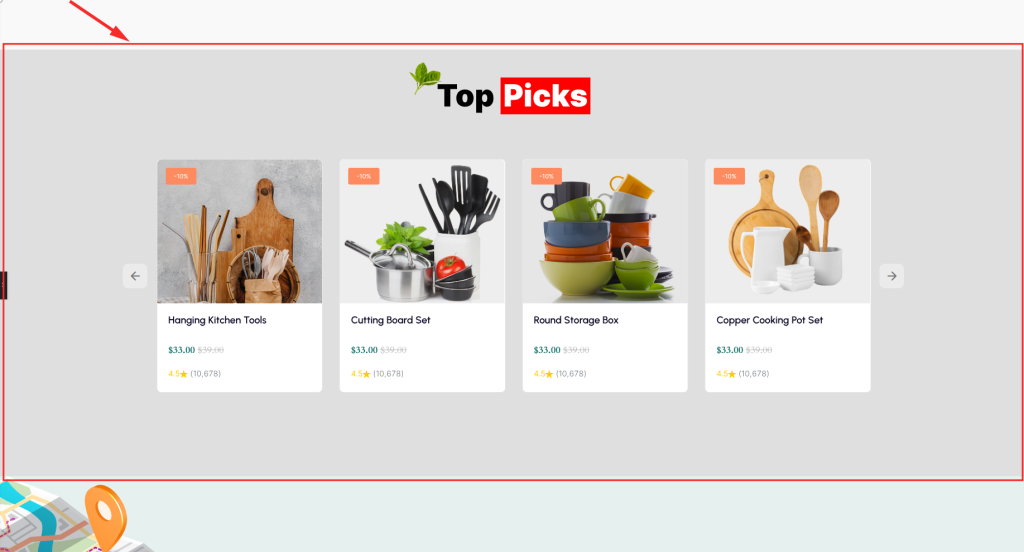
Sections control the background of each row (color, image, gradient or video), the height and vertical alignment of content and whether the content stretches edge to edge or stays within your layout width.
Columns
Inside each section, you divide the space into columns. A standard section might have one column for a centered hero area, two columns for a side-by-side features layout or three columns for a services grid.
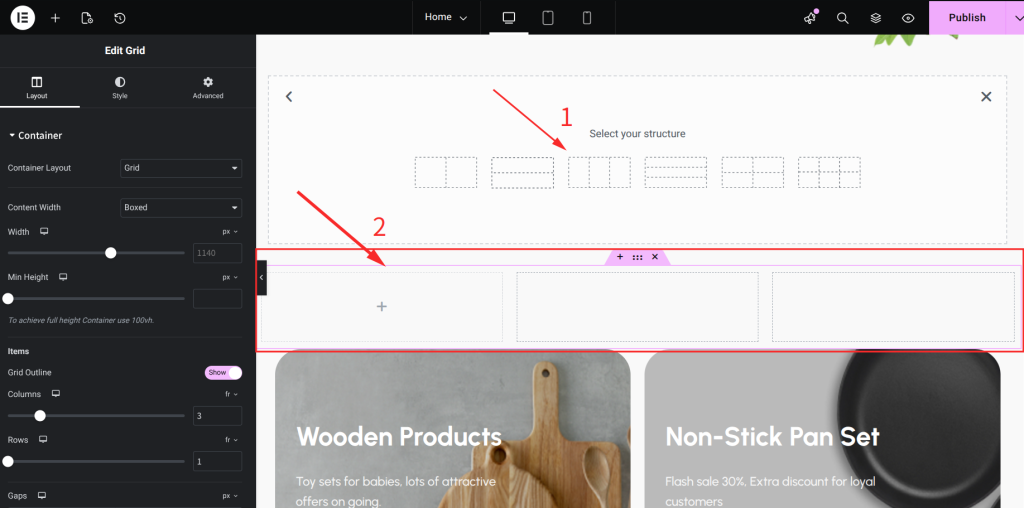
Columns control the horizontal distribution of your content. You can set custom widths (so one column can be 70% and another 30%), add column-specific backgrounds and control vertical alignment of the widgets inside them.
Widgets
Widgets are the actual content elements you place inside columns – headings, paragraphs, images, buttons, videos, forms, sliders and more. Elementor comes with a solid core set of widgets, but where things get truly interesting is when you extend it with a widget library.
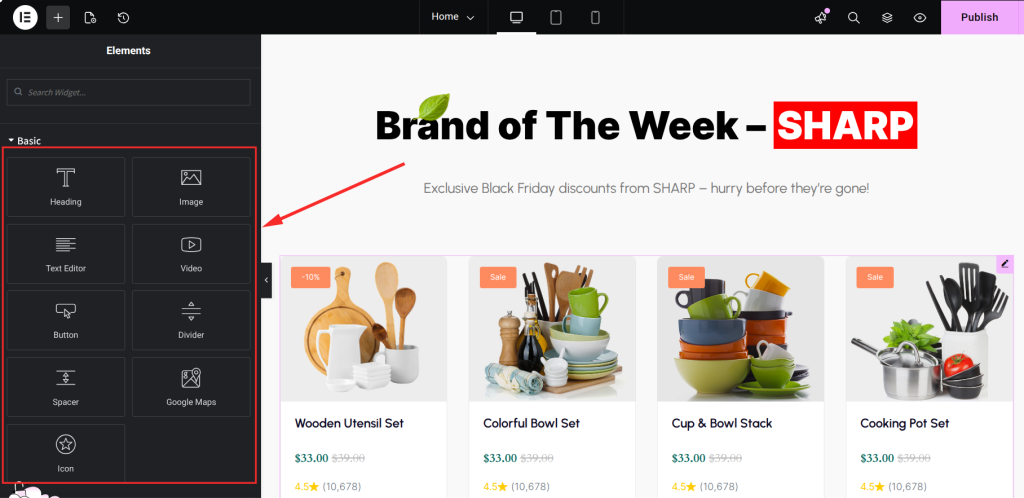
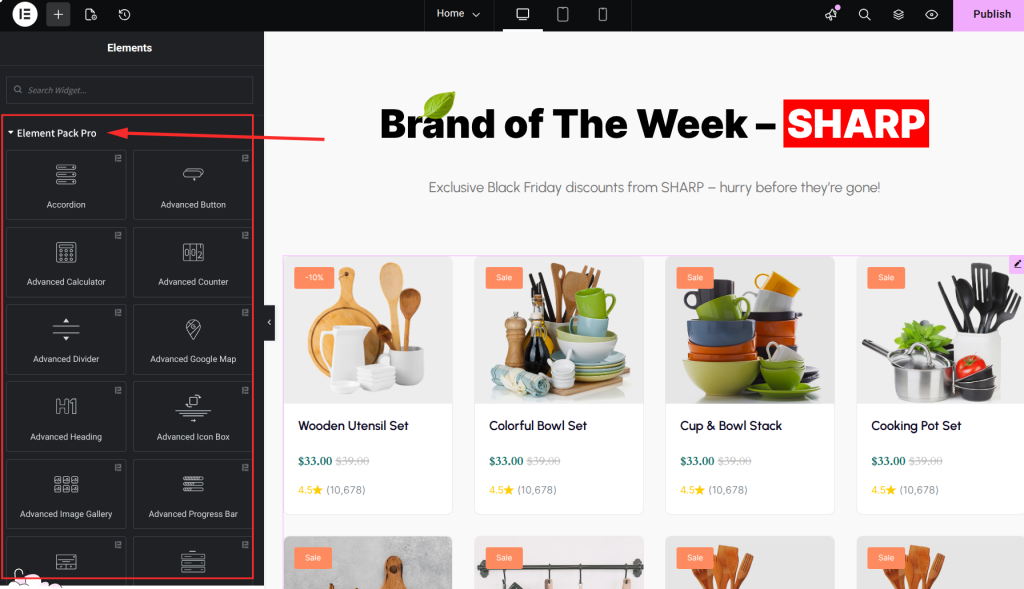
This is where Element Pack Pro comes in. It adds over 170 additional widgets to Elementor – things like advanced carousels, timeline widgets, pricing tables, interactive maps, animated text, custom sliders and much more.

Instead of trying to cobble together complex layouts with basic widgets, you get purpose-built components that handle the heavy lifting for you. It is one of the most comprehensive widget libraries in the Elementor ecosystem.
Step 4: Implement Specific Layout Ideas – Three Approaches That Actually Work
Now comes the part you have been waiting for: actually building the layouts you have in mind. There are three main approaches and the best designers use all three depending on the situation.
Building From Scratch
When you have a very specific vision and you know exactly what you want, building from scratch gives you the most control. Start with a blank page, set up your section structure and build from the top down.
A good workflow: sketch your layout roughly on paper or in a design tool first. Identify how many sections you need, what each section contains and what the rough proportions are. Then open Elementor, build your section skeleton and fill in the content.
The key is not to style as you go. Place all your content first – headings, body text, images, buttons – and then go through and apply styling. This stops you from over-investing in the look of an element before you have confirmed that its position makes sense.
Using Templates
Elementor’s template library contains hundreds of pre-built page templates and individual section blocks. For many common design patterns – hero sections, testimonials, pricing tables, contact forms – a template gets you 80% of the way there in seconds.
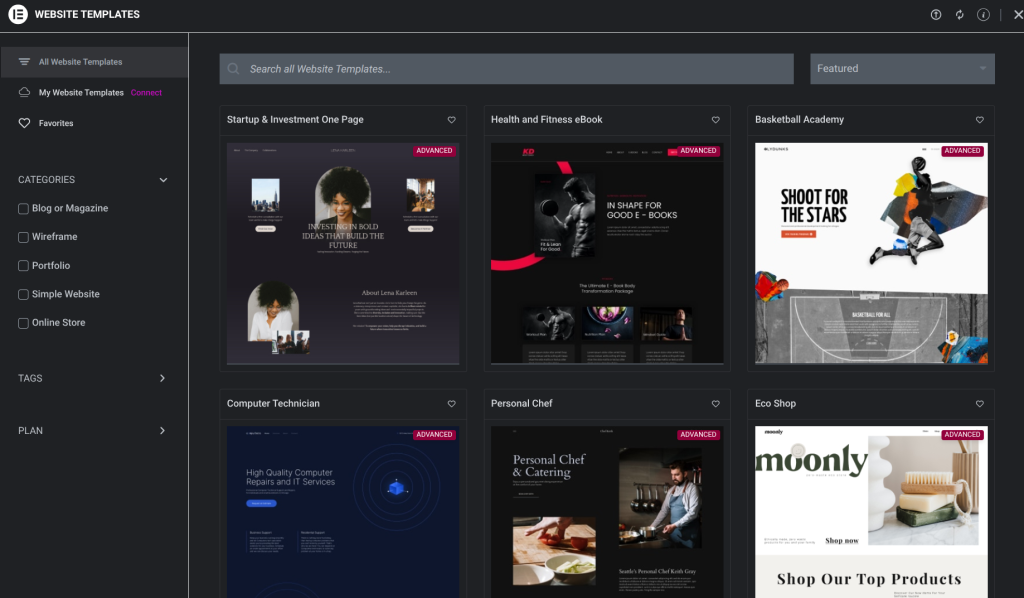
The smart approach is to use templates as a starting point, not a final product. Import a template that has the structure you like, then swap out the colors, fonts, content and images to match your brand. This is dramatically faster than building from scratch while still giving you a unique result.
The BdThemes library – the company behind Element Pack – offers a curated collection of template kits designed specifically to work with Element Pack widgets. These kits are complete website designs with consistent styling across all pages, which means importing one gives you an instantly cohesive look sitewide.
Elementor AI-Assisted Design
Elementor has begun integrating AI features that can help you generate content, suggest layouts and even create variations of elements you are working on. While AI-assisted design is still maturing, it is already useful for tasks like generating placeholder copy, creating image backgrounds and speeding up repetitive styling decisions.
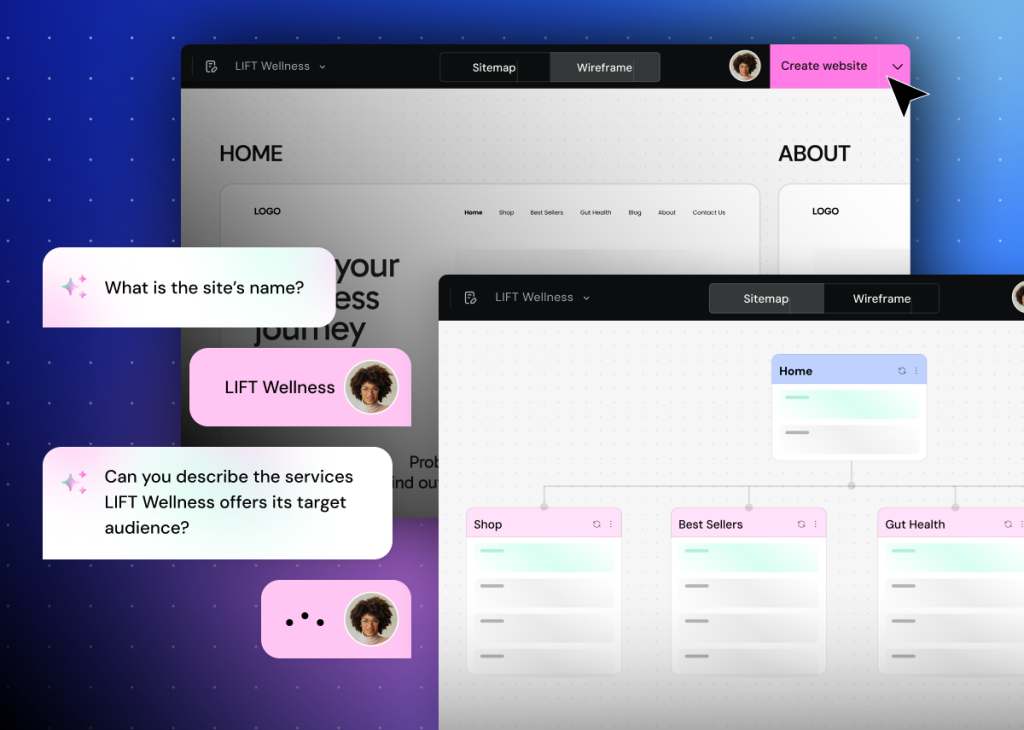
The best way to use AI in your Elementor workflow is as a collaborator, not a replacement for your judgment. Let it suggest a headline, then refine it yourself. Let it generate a background image, then adjust the overlay until it suits your palette. The creative direction should remain yours; the AI just helps you move faster.
Elementor Core AI Features
Elementor AI is a natively integrated suite of artificial intelligence tools within the Elementor Website Builder for WordPress.
It is designed to accelerate web design by allowing users to generate content, images, layouts and code directly inside the editor.
- AI Site Planner: Generates complete website structures, including sitemaps and stylized wireframes, based on a business brief or a recorded meeting analyzed by the AI Notetaker.
- AI Writing Assistant: Creates and refines text content directly within widgets. It can adjust tone, simplify language, fix grammar and translate content into over 25 languages.
- AI Image Generator: Produces unique, royalty-free images from text prompts. It also features generative fill to expand backgrounds and tools for background removal or object replacement.
- AI Layouts (Containers): Builds responsive Flexbox container layouts from scratch via prompts or by referencing existing web URLs.
- AI Code Assistant: Generates custom HTML, CSS and JavaScript snippets to add unique animations or functionality without manual coding.
- AI Copilot: A design assistant that anticipates needs and suggests the next section of a page based on existing site context.
Step 5: Optimize for Performance and Accessibility
A beautifully designed page that loads slowly or excludes users with disabilities is not a success. The final step in any Elementor project is optimization – making sure your design works well for every visitor on every device.
Mobile-First Design
More than half of web traffic now comes from mobile devices, yet most designers still build for desktop first. Elementor lets you switch between device views (desktop, tablet, mobile) while you build and critically, it lets you set different styling values for each breakpoint.
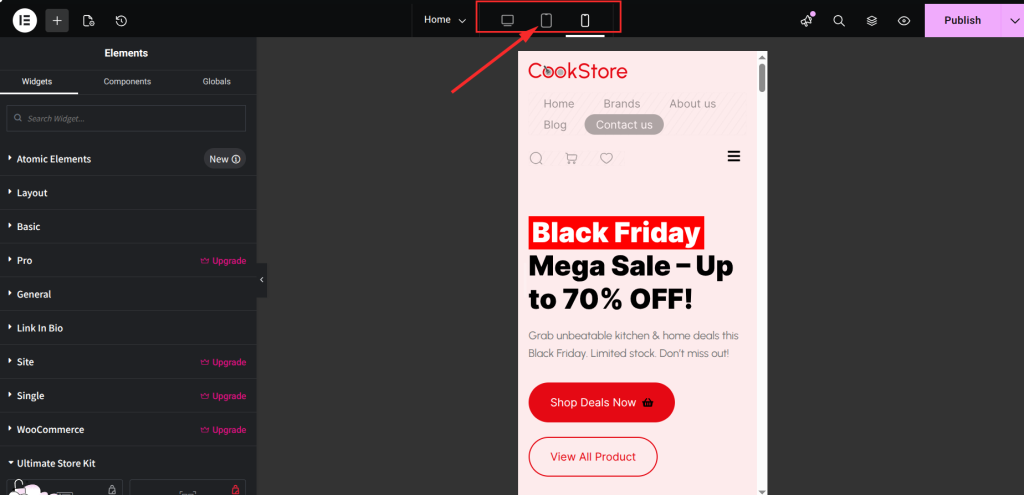
The better habit is to check your mobile view after completing every section, not at the end of the entire page. It is much easier to fix spacing, font sizes and column stacking when you catch issues early. If something looks great on desktop but breaks on mobile, adjust the column layout, reduce font sizes for smaller screens and increase touch-target sizes for buttons.
Image Optimization
Images are the single biggest driver of slow page load times. Before uploading any image to your Elementor page, compress it. Tools like Squoosh or TinyPNG can reduce file sizes by 60-80% with no visible quality loss.
In Elementor, use lazy loading for images that appear below the fold. This tells the browser to only load those images when the user scrolls down to them, which dramatically improves initial page load performance. You can also use Elementor’s built-in image size settings to serve appropriately sized images for each device.
Accessibility
Accessibility is not just good ethics – it is good business. Accessible websites rank better in search engines, reach a wider audience and reduce legal risk. In Elementor, several quick wins make a significant difference.
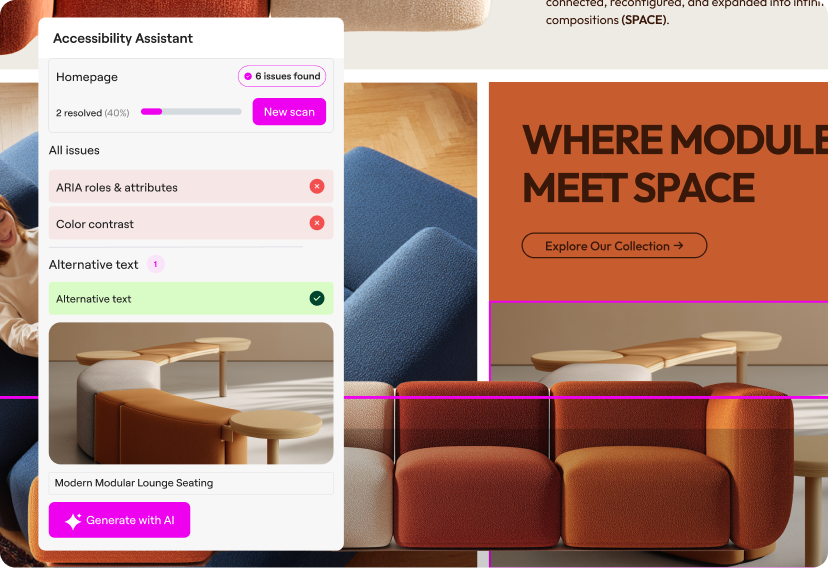
- Make sure all images have descriptive alt text
- Ensure sufficient color contrast between text and backgrounds (a 4.5:1 ratio minimum for body text)
- Use proper heading hierarchy (H1, H2, H3 in logical order – never skip levels)
- Ensure all interactive elements (buttons, links, forms) are keyboard-navigable
- Add ARIA labels to icon-only buttons
For deeper accessibility compliance, especially if you are working on a professional or enterprise project, consider integrating a dedicated accessibility tool alongside your Elementor setup. The One Accessibility Plugin offers resources and tools that help WordPress site owners build with accessibility best practices baked in from the start.
Bonus: Tips to Genuinely Improve Your Elementor Design Skills
Beyond the technical steps, here are three habits that separate experienced Elementor designers from frustrated beginners:
1. Study Real Designs Before You Build
Before opening Elementor for any new project, spend 15 minutes looking at websites in the same industry. Note what they do with spacing, typography and color. Save screenshots of sections you like. Then build with those visual references nearby. You will make better decisions faster.
2. Commit to One Widget Library and Learn It Deeply
There is a temptation to install multiple Elementor add-on plugins to get access to every possible widget. Resist it. Each additional plugin adds weight to your site and introduces potential compatibility issues. Instead, choose one comprehensive library – Element Pack Pro is an excellent choice given its breadth – and learn it deeply. Know what every widget does. Explore its settings. The more fluent you are with your tools, the faster you will build and the better your results will be.
3. Save Your Best Work as Templates
Every time you build a section or a page component you are proud of, save it as an Elementor template before moving on. Over time, you will accumulate a personal library of your best work. The next time a client needs a testimonials section or a pricing table, you are not starting from zero – you are customizing something great.
Frequently Asked Questions
Is Elementor for beginners?
Yes. Its drag-and-drop visual interface makes it the go-to choice for beginners. You can build professional layouts without touching a single line of code.
Which is better, Wix or Elementor?
Elementor. While Wix is simpler for absolute novices, Elementor (via WordPress) offers superior SEO control, ownership of your data and unlimited scalability that Wix cannot match.
What are the disadvantages of Elementor?
The main drawbacks are potential “code bloat,” which can impact page speed if not optimized and the dependency on the Pro version for advanced features like header/footer editing.
How to implement Elementor in WordPress?
Install it via Plugins > Add New in your WordPress dashboard. Once activated, simply click the “Edit with Elementor” button on any page or post to start designing.
Is Elementor Pro worth it?
Yes. Elementor Pro is essential for building complete websites, as it unlocks the Theme Builder, Popup Builder and Form Builder, eliminating the need for multiple extra plugins.
Can Elementor affect SEO?
Positively. While it adds some code, its compatibility with plugins like Rank Math and Yoast SEO, combined with its ability to create mobile-responsive designs, makes it an excellent tool for ranking on Google.
Does Elementor work with all themes?
Mostly. It works with any theme that follows WordPress standards, but for the fastest performance, use the Hello Elementor theme, a lightweight canvas built specifically for the builder.
Final Thoughts
Elementor is one of the most capable tools in the WordPress ecosystem. It can help you build virtually anything – from simple landing pages to full multi-page websites with custom headers, footers and post templates. But like any powerful tool, the results you get depend less on what it can do and more on how you use it.
The designers who get the most out of Elementor are not the ones who know the most tricks. They are the ones who start with a clear system, deliberately choose their foundation, understand the structure they are building within and make performance and accessibility a priority from the beginning.
Follow the steps in this guide, build consistently and refine your process with every project. You will not just learn to use Elementor – you will learn to think like a designer while using it.
Ready to level up your Elementor builds? Explore Element Pack Pro for an extended widget library and visit BdThemes for professional template kits that make it even faster to implement any design idea.
Md Tarikul
The BdThemes team builds WordPress plugins trusted by 3M+ users worldwide. We write about web accessibility, WCAG compliance, and inclusive design.