

Many people ask, “How can I make a Business Website” without feeling confused. It often looks hard at the start. There are many tools, many steps and too much information online.
This confusion can stop you from taking action. Without a website, your business stays hidden. People cannot find your services. You may lose customers every day. It can also feel frustrating when you do not know where to begin.
The good news is that building a website is now simple. You do not need coding skills or a big budget. In this guide, you will know how to make a business website step by step. We will use easy words and clear steps. By the end, you will feel confident to create your own website.
Step 1: Define Your Website Goal
Before you touch any tools or settings, take a moment to think about what your website needs to do. A clear goal shapes every decision that follows your design, your pages and your content.
Ask yourself: Do you want people to contact you? Buy your products? Book an appointment? Read your blog? Different goals lead to different website structures.
Step 2: Choose a Domain Name
Your domain name is your website address on the internet, like yourbusiness.com. It is one of the first things people notice about your business, so it should be clear and professional. A good domain helps people remember your brand and find you easily online.
- Keep it short, simple and easy to spell
- Use your business name if possible
- Avoid numbers, hyphens or complex words
- Choose .com if available for better trust
- Make sure it is easy to remember
- Check availability on platforms like Namecheap or GoDaddy
Take time to choose wisely, as your domain represents your business online.
Step 3: Pick a Website Builder or Platform
This is where many people feel confused. There are many website builders available, but the right one depends on your needs, budget and how much control you want.
- WordPress.com: Best for beginners. It offers a free plan and is easy to set up without technical work.
- WordPress.org: Best for full control. It is self-hosted, offering complete flexibility and customization.
- Shopify: Best for e-commerce. It is built for selling products online and managing stores easily.
- Wix / Squarespace: Best for simplicity. They offer drag-and-drop editors with ready designs.
For most businesses, WordPress.org offers the best balance of power, flexibility and cost over the long term. It is the platform used by over 40% of all websites on the internet.
For businesses that eventually need more advanced functionality, custom workflows, or highly scalable systems, traditional website builders can become limiting. In such cases, companies often move beyond CMS platforms and adopt full-stack frameworks. This is where Laravel, Django, or Ruby on Rails web development becomes especially valuable, as it allows developers to build secure, structured, and fully customized applications tailored to complex business needs.
Step 4: Get Web Hosting
Web hosting is the service that stores your website files and makes them available on the internet. When someone visits your website, the hosting server loads your pages. Without hosting, your website cannot go live.
There are different types of hosting and each one suits different needs.
- Shared hosting is the most common option for beginners. It usually costs between $2 and $8 per month. Your website shares a server with other websites, which keeps the cost low. It is a good choice for small business websites.
- VPS hosting offers more power and better performance. It gives you more control and resources. This option is useful as your website starts to get more traffic.
- Managed WordPress hosting is designed specifically for WordPress websites. It provides better speed, strong security and expert support. You do not need to handle technical tasks.
Some reliable hosting providers include Hostinger, SiteGround and GreenGeeks. They offer one-click WordPress installation and beginner-friendly support, making it easy to get your website started.
Step 5: Install WordPress on Your Hosting
Installing WordPress is now very easy. In the past, it required technical skills, but today most hosting providers offer one-click installs.
First, log in to your hosting account. After signing up, you will get your login details. Open your dashboard. It may be cPanel, hPanel or a custom panel.
Next, find the WordPress installer. Look for options like “WordPress,” “Auto Installer,” or “Softaculous.” Almost all hosting providers have this.
Now, enter your website details. Add your domain name, website title, admin username and a strong password. Also, enter your email address. Make sure everything is correct.
Then click the install button. The system will set up WordPress for you. This usually takes only a minute or two.
After installation, you will get a login link. You can access your dashboard at yourdomain.com/wp-admin. Use your username and password to log in.
Now your website is ready and you can start building it.
If you are not sure, you can watch a video tutorial or ask your hosting provider for help. Most providers offer free support.
Method 2: Manual Installation
- Download WordPress from WordPress.org.
- Unzip the file on your computer.
- Upload the files to your hosting using FTP or file manager. Place them in the public_html folder.
- Create a MySQL database from your hosting panel and connect it with a user.
- Visit your domain in a browser and follow the setup steps.
If you are not familiar with these steps, you can watch a video tutorial to better understand the process.
Note on SSL: You should also enable SSL for your website. SSL adds security and shows HTTPS with a padlock icon in the browser.
It protects user data and improves your Google ranking. You can activate SSL from your hosting panel using options like “Let’s Encrypt SSL” or “SSL/TLS.”
Step 6: Initial Website Setup
After installing WordPress, log in to your dashboard.

This is where you manage your website.
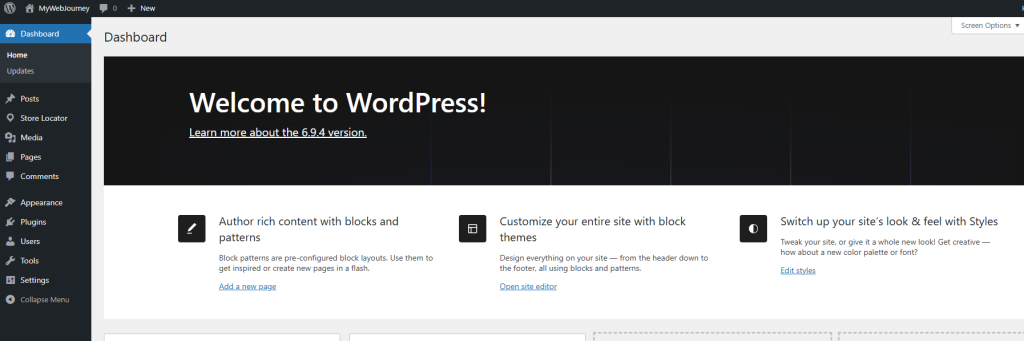
Before building your site, complete these basic settings:
- Set site name and tagline
Go to Settings → General.
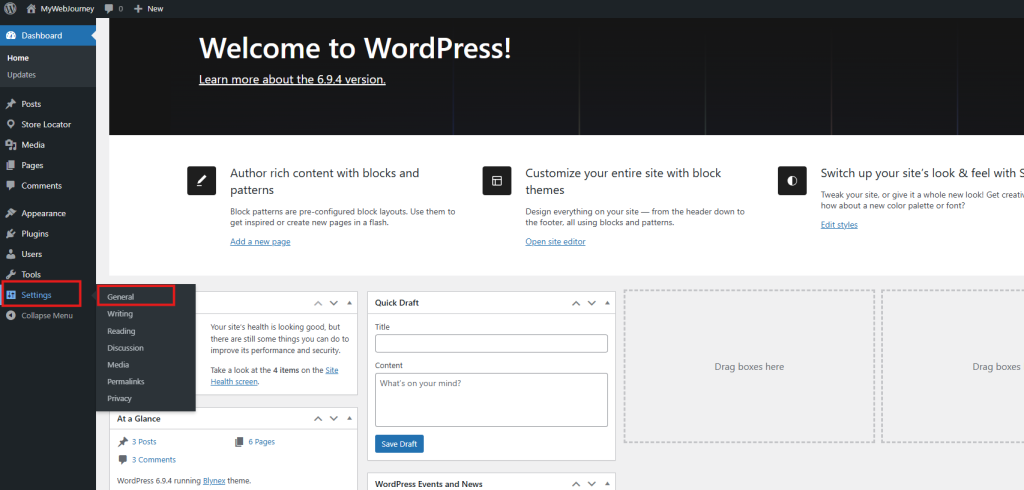
Add your website name, short description, timezone and date format.
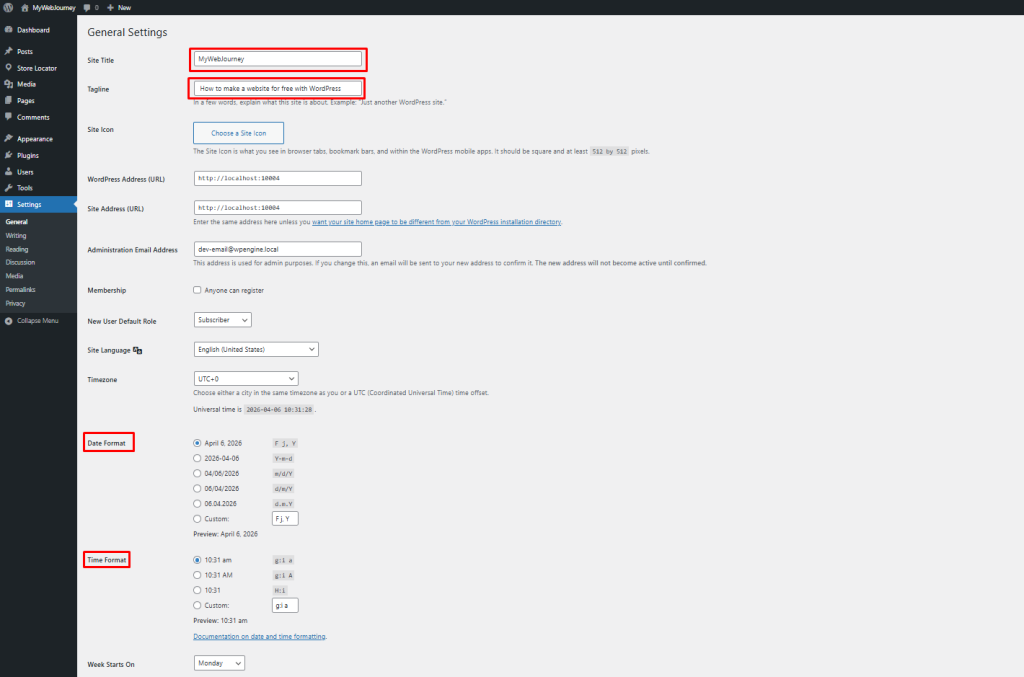
- Set permalinks
Go to Settings → Permalinks. Choose “Post name” for clean and simple URLs.
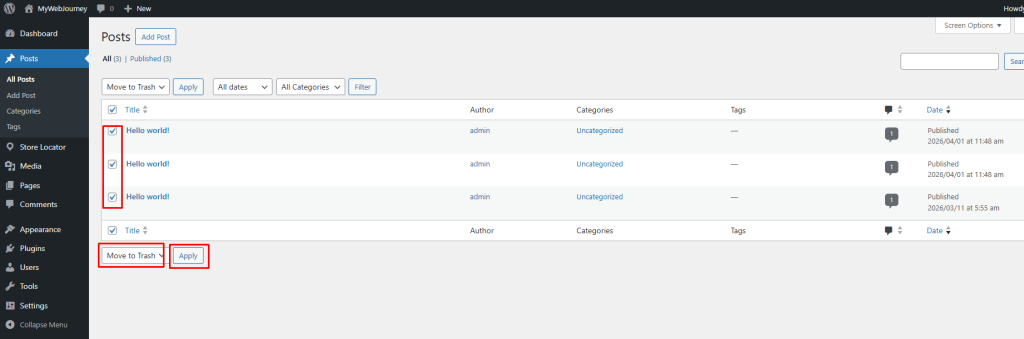
- Remove default content
Delete the sample post, page and comment to keep your site clean.
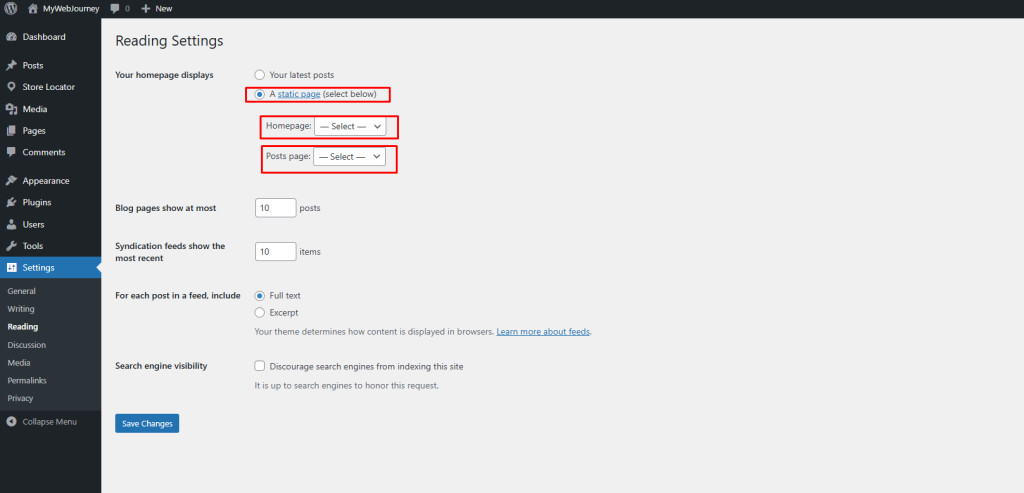
- Set homepage
Go to Settings → Reading. Choose a static page for business websites.
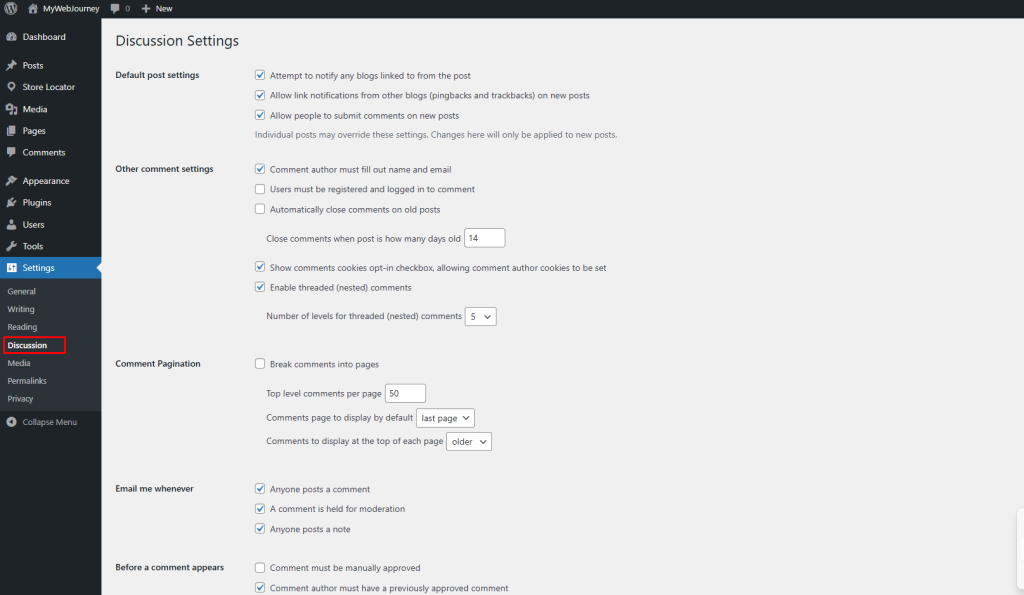
- Manage comments
Go to Settings → Discussion. Enable or disable comments and turn on manual approval to avoid spam.
Step 7: Install a Page Builder
Now, let’s look at how you can make a business website using a page builder. A page builder helps you design your website without coding, which makes the process much easier for beginners.
There are many page builders available, but one of the most popular and effective options is Elementor.
Elementor also has a free version, which is great for beginners. However, the free version has some limitations when it comes to advanced design features.
To get more design options and ready-made layouts, you can use an add-on like Element Pack. It adds extra widgets and templates, helping you build your business website faster and making it look more professional.
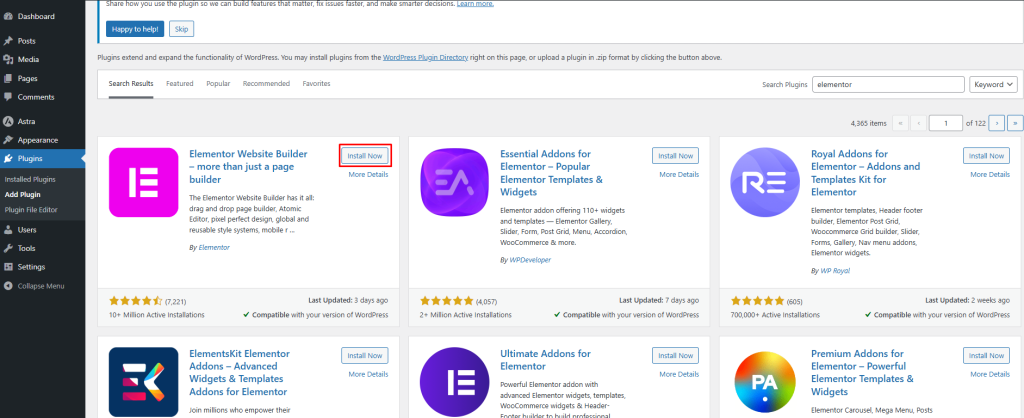
Now, let’s install Elementor. Go to your WordPress dashboard. From the left menu, click on Plugins, then click Add New. In the search bar, type “Elementor.”
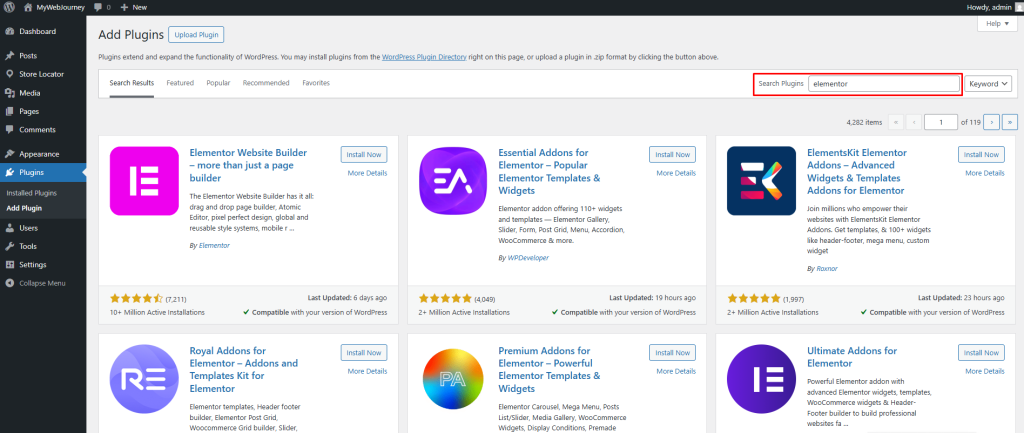
When you see the plugin, click Install Now,
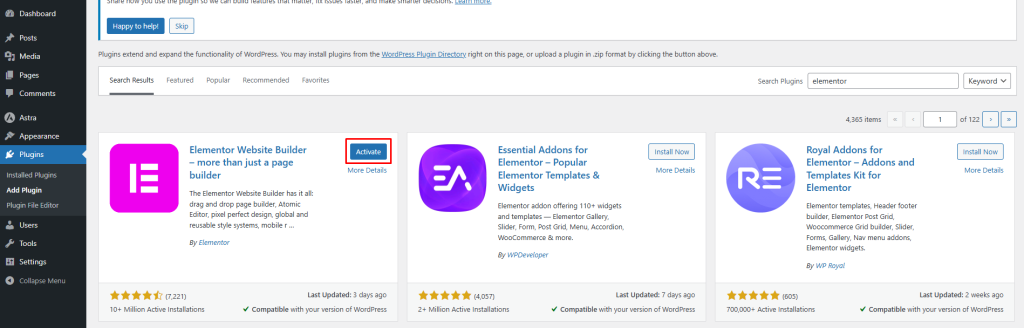
Then click Activate.
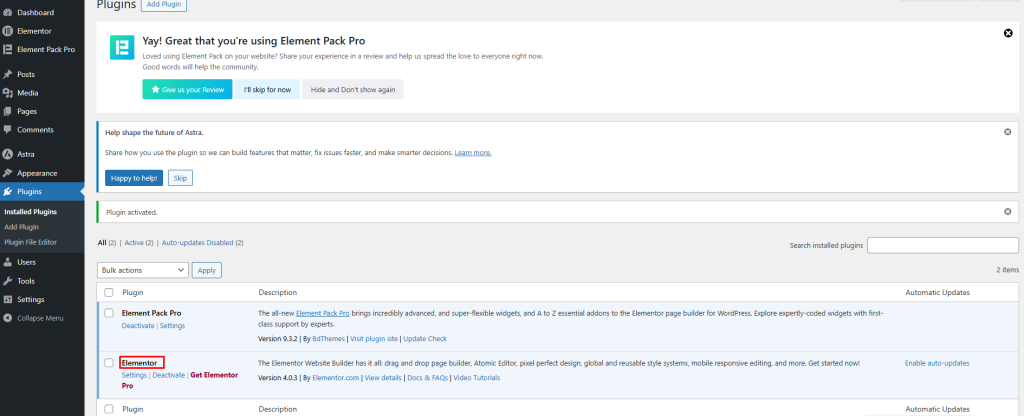
Once activated, Elementor is ready to use. You can now start designing your business website easily.
Now, let’s install the extension Element Pack Pro. It is a premium add-on that offers many advanced features, including over 2700 ready-made templates and 300 widgets to design your website effortlessly.
To begin, download the ZIP file and get your license key from the official website.
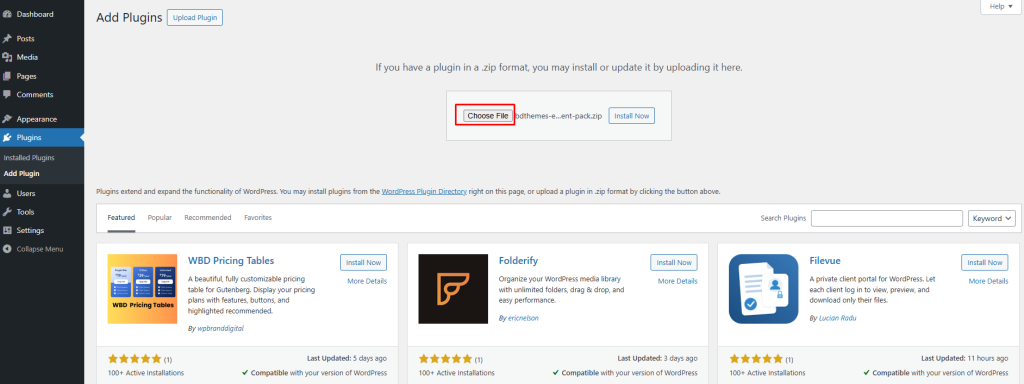
Go to your WordPress Dashboard and navigate to Plugins → Add New → Upload Plugin.
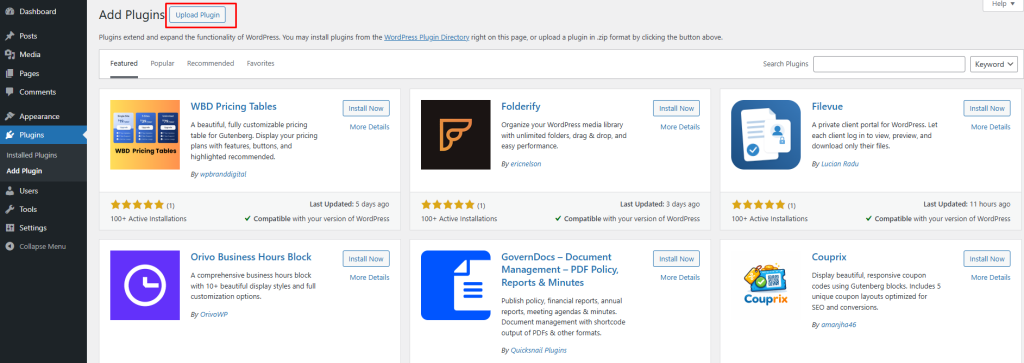
Click Choose File.
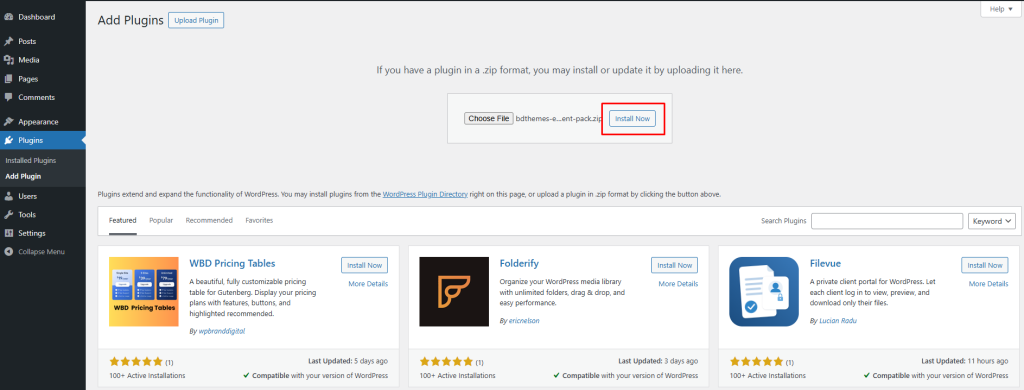
Then click Install Now.
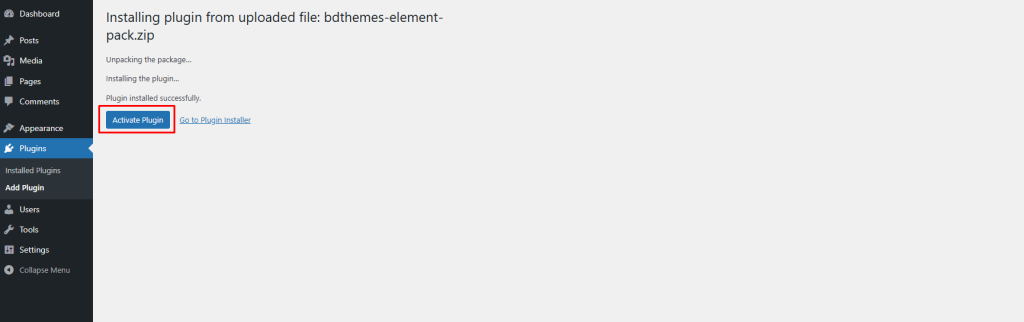
After installation, click Activate Plugin.
Your plugin is now active.
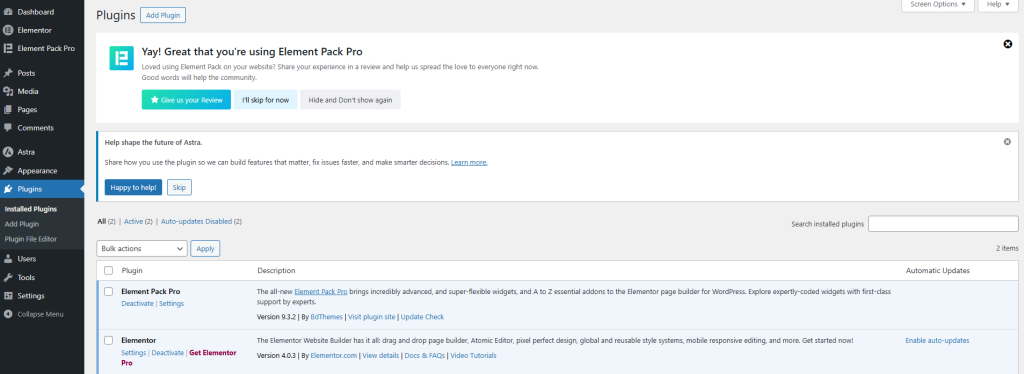
After activation, enter your license key to unlock all features. You can also watch the video below to follow each step easily.
Get Familiar with the BdThemes User Account Dashboard
Now we will show you how to edit the page you created earlier using Element Pack.
Step 8: Create a Page
Go to your dashboard, then navigate to Pages → Add Page
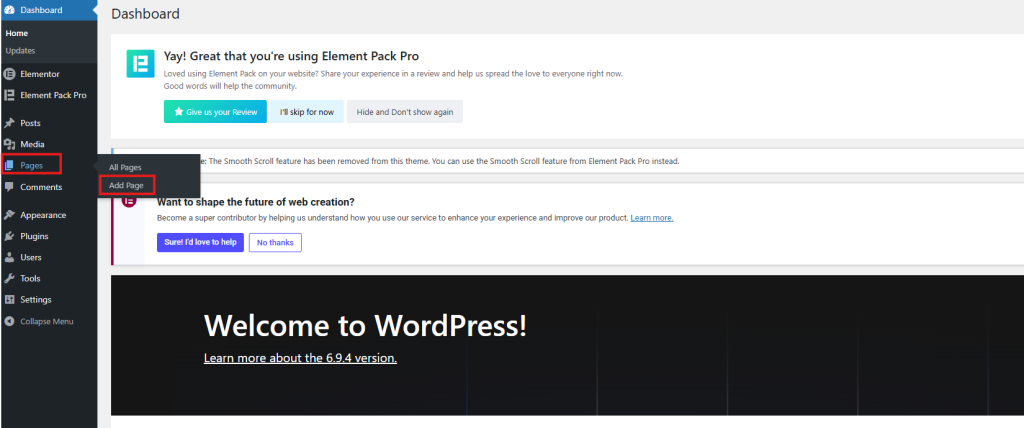
First, click Add Page
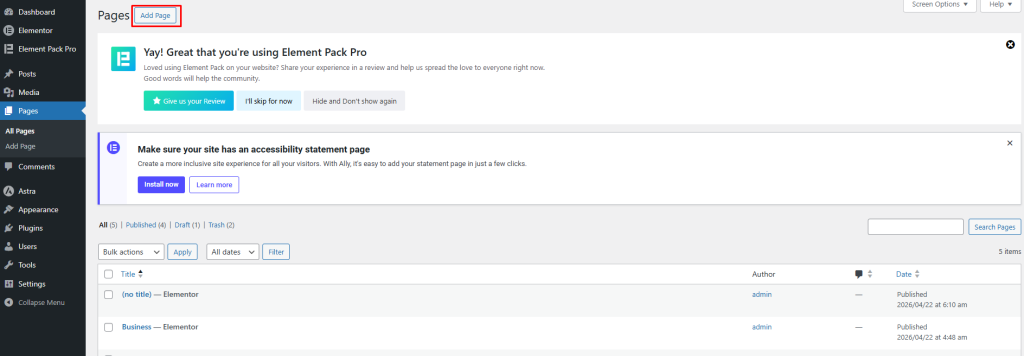
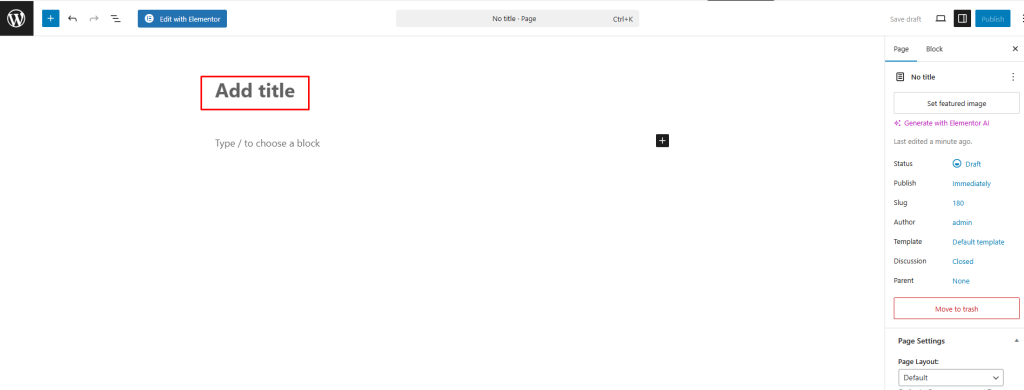
Then add a title for your page. This will be the name of your page.
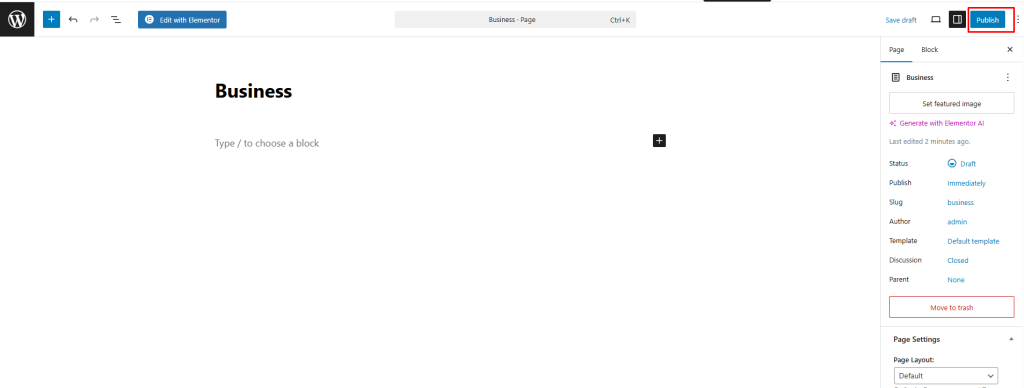
After that, click Publish to make your page live.
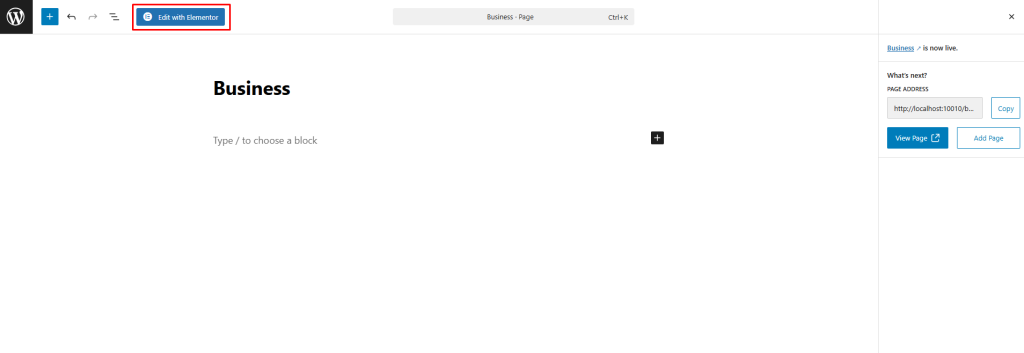
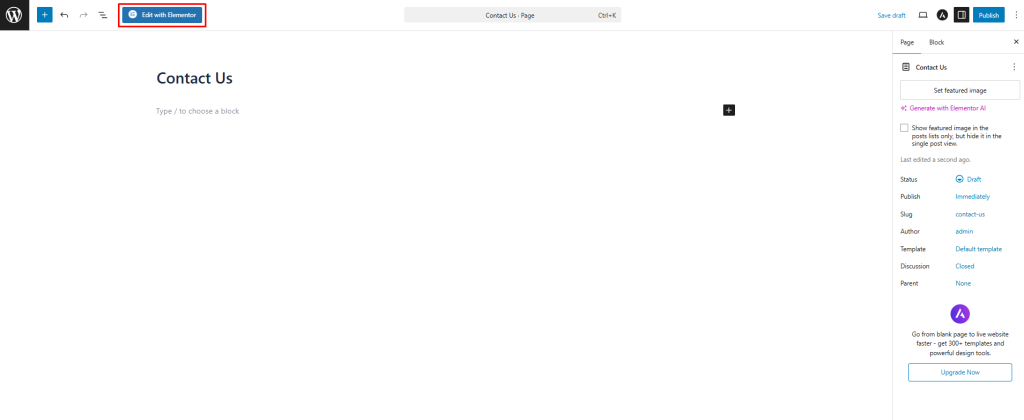
Next, click Edit with Elementor to begin designing your page.
Step 9: Use Element Pack Templates
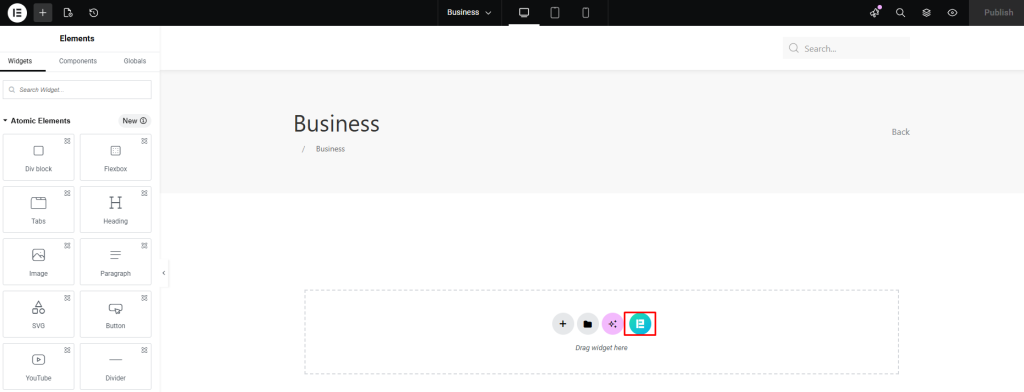
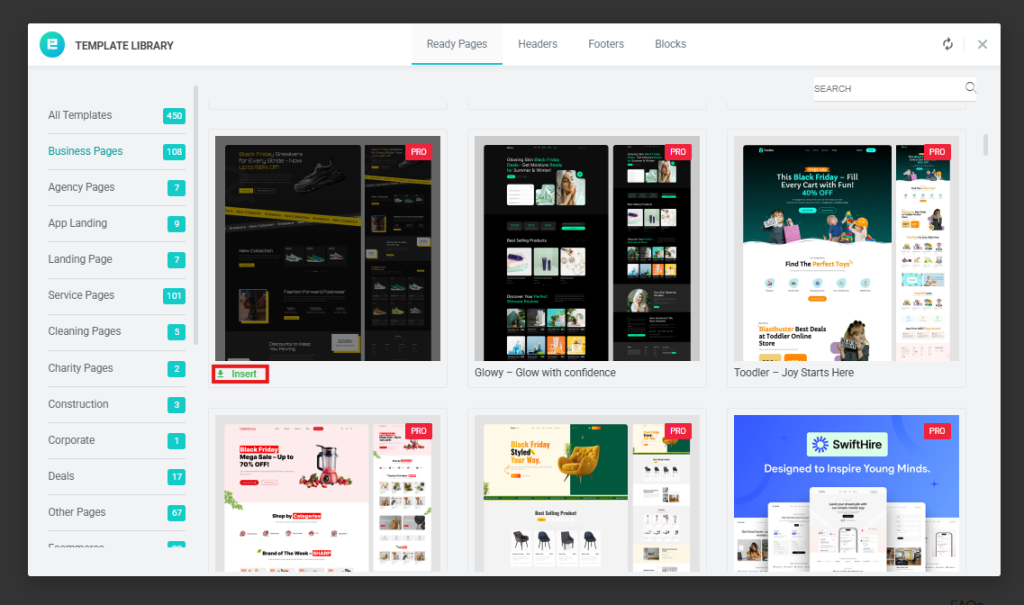
Click on the Element Pack icon.
You will find many ready-made templates that help you build your page quickly.
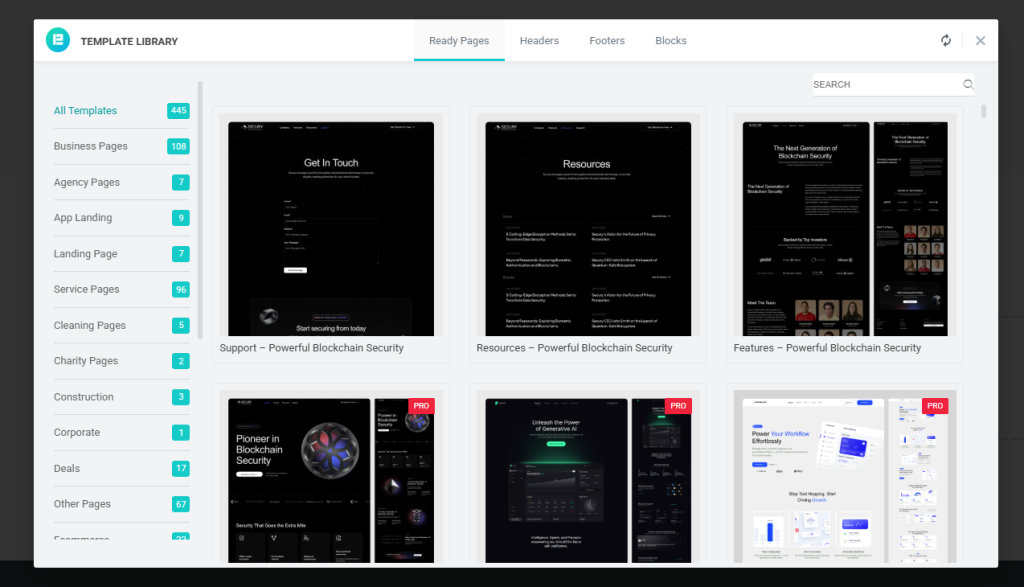
These templates are designed for different business needs, so you can choose one that fits your style and purpose.
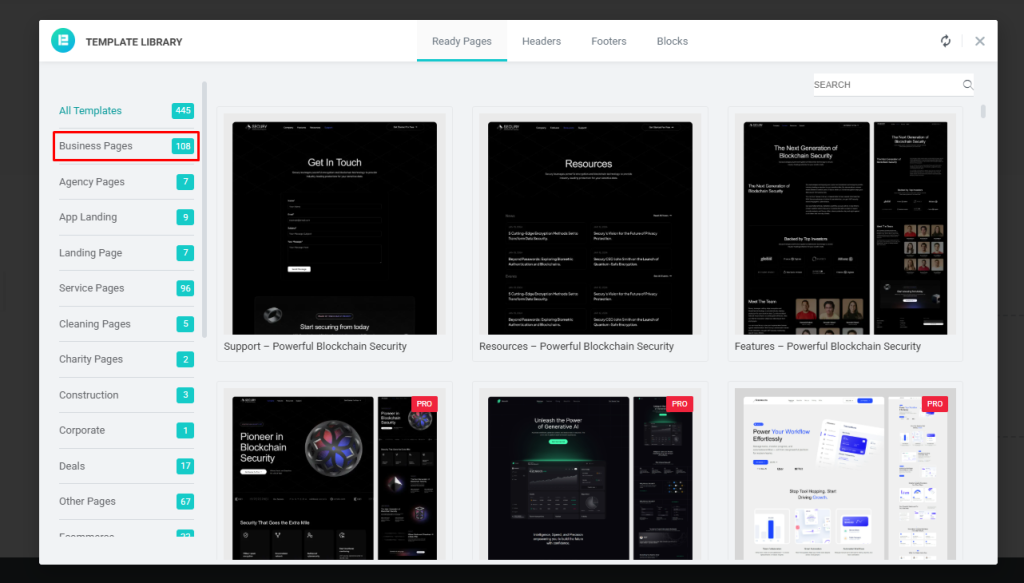
Take a moment to browse through the options and preview the designs.
Once you find a template you like, click it, then click Insert.
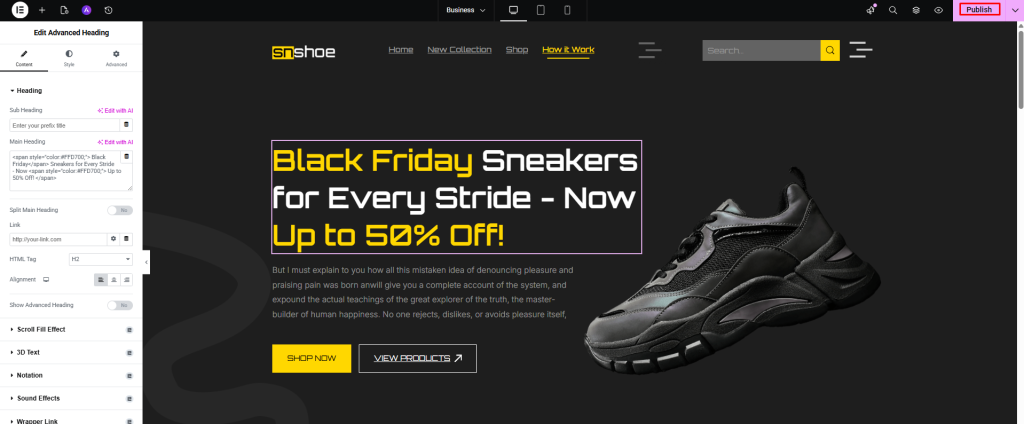
Once the template is added, you can edit it easily with Elementor. Click on any text to change it. Click on images to replace them. You can also change colors, layout and content from the left panel.
" class="wp-image-60164" alt="website creation for small business" title="website creation for small business"/>
When you finish editing, click Publish to save your page.
Now check how your page looks on the front end.
Now you can also create another page using ready-made templates from Element Pack. In this guide, we will create a Contact Us page using this method.
First, create a new page. Then click Edit with Elementor to start designing it.
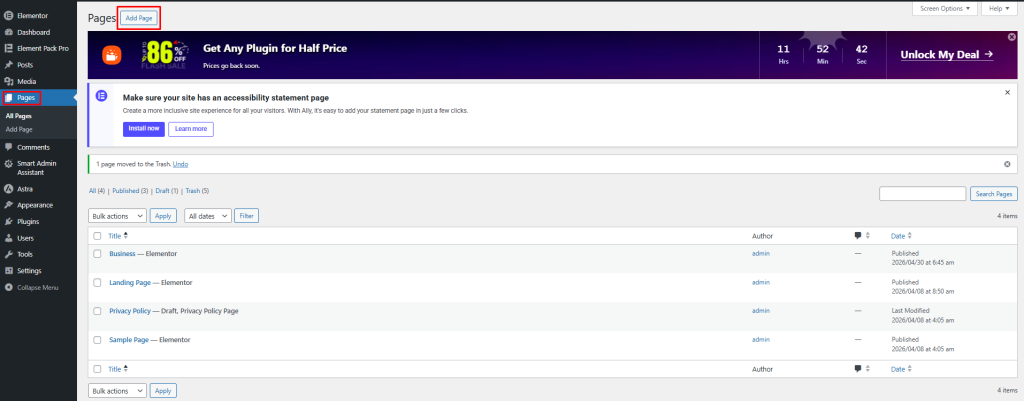
Create a page, then click Edit with Elementor to start designing it.
Now click the Element Pack icon.
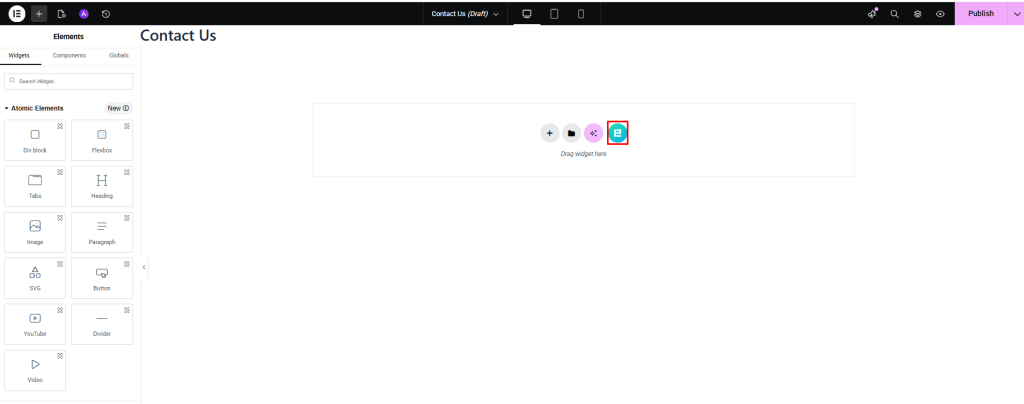
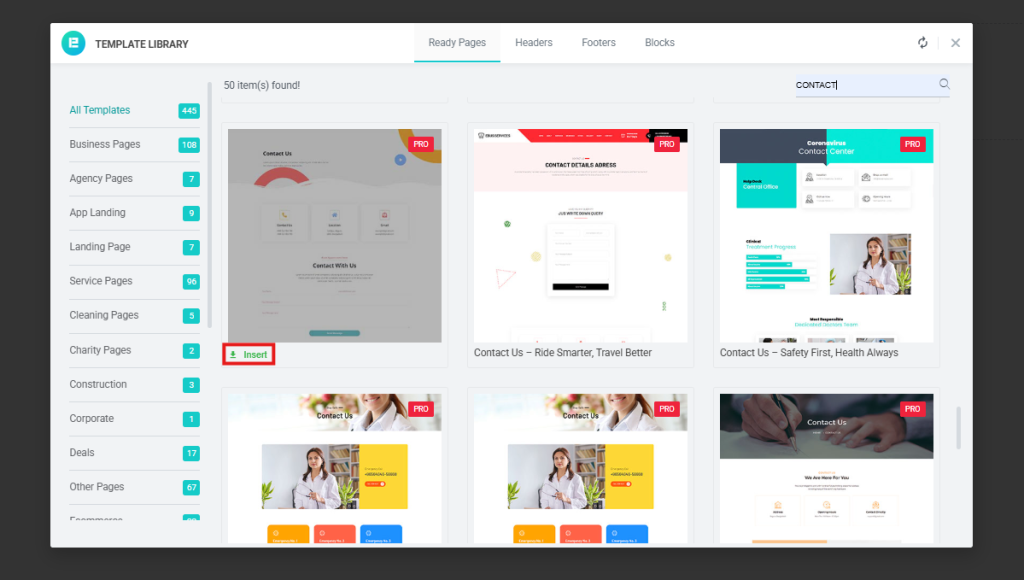
From here, you can choose ready-made contact page templates to build your page quickly. Click Insert to add the template to your page.
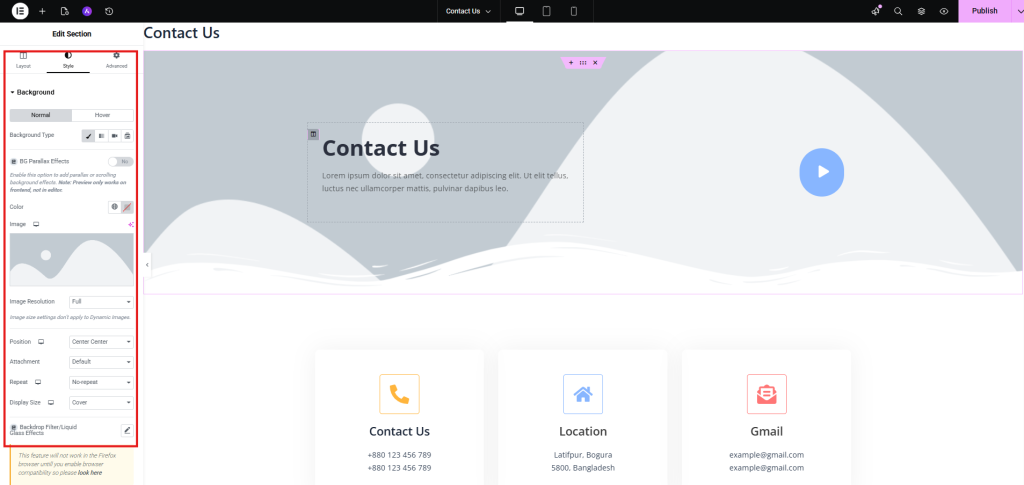
After that, you can easily change everything. Click on any text to edit it. Click on images to replace them. You can also adjust colors, layout and content from the left panel.
When you finish editing, click Publish to make your page visible to the web.
" class="wp-image-60166" alt="how to build a website without coding" title="how to build a website without coding"/>
Now let’s link your Contact page to your business page. Go to the business page, hover over the Contact Us button and click on it.
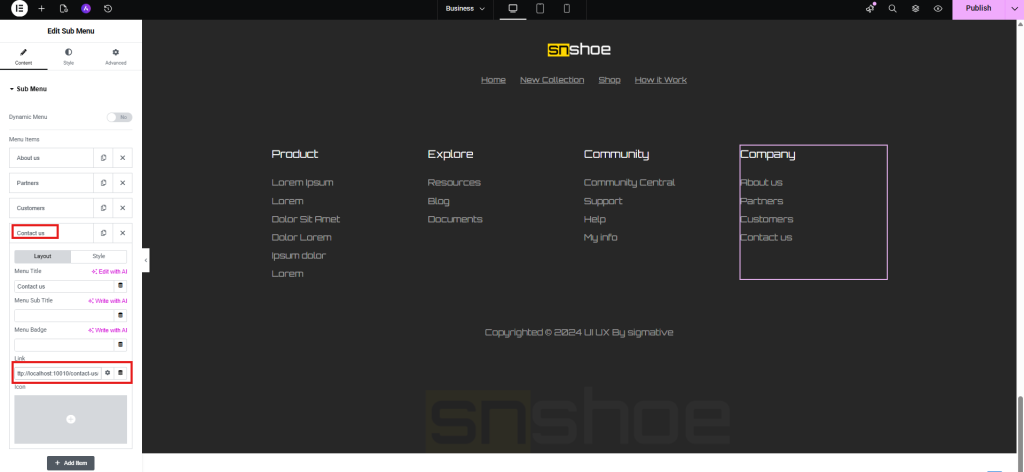
In the left panel, add the link to your Contact page. Then click Publish.
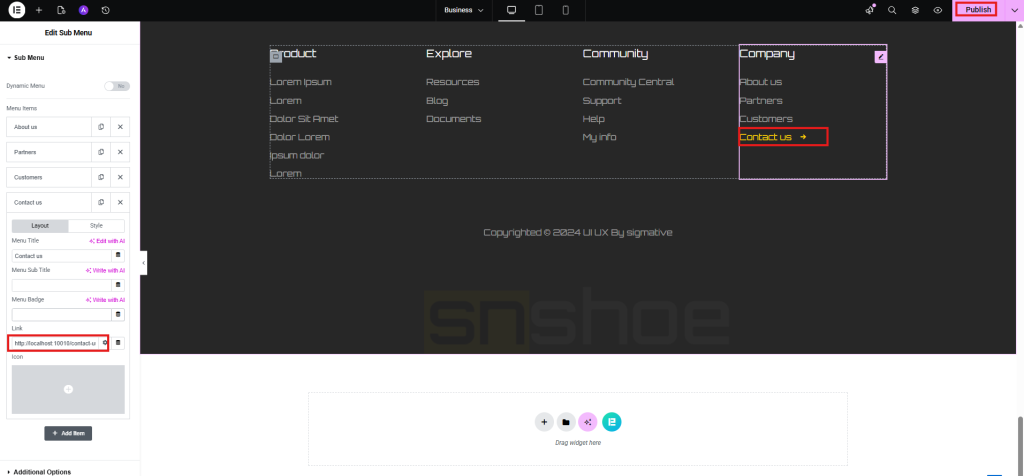
Now, let’s see the final result from the front end….
That’s how simple it is to build a business website with WordPress.
FAQ
1. What is Elementor and how does it work?
Elementor is a popular page builder for WordPress. It lets you design pages using a drag-and-drop system. You can add text, images, buttons and other elements without writing code. It shows live changes, so you can see your design as you edit.
2. What is Element Pack and why should I use it?
Element Pack is an add-on for Elementor. It gives you many extra widgets and ready-made templates. These templates help you build pages faster. It is useful if you want a professional design without having to start from scratch.
3. Do I need technical skills to build a page with Elementor?
No, you do not need any technical or coding skills. Elementor is made for beginners. You can create and edit pages by clicking, dragging and typing. It is simple and user-friendly.
4. How do I create a new page in WordPress?
First, go to your WordPress dashboard. Then click Pages → Add New. Enter a title for your page. After that, click Publish. Once your page is live, click “Edit with Elementor” to start designing.
5. How can I use Element Pack templates?
Click on the Element Pack icon inside Elementor. You will see many ready-made templates. Browse and preview them. When you find one you like, click Insert. The template will be added to your page and you can start editing it.
6. Can I edit all parts of the template?
Yes, you can edit everything. Click on any text to change it. Click on images to replace them. You can also adjust colors, layout, spacing and other settings from the left panel.
7. How do I create a Contact Us page using templates?
Create a new page and click Edit with Elementor. Then open Element Pack templates. Choose a contact page design and click Insert. After that, edit the content like phone number, email and form details.
8. What should I include on a Contact Us page?
A Contact Us page should include basic details like your phone number, email address and location. You can also add a contact form, a map, and business hours. This helps users reach you easily.
9. How do I save or publish my page after editing?
Once you finish editing, click the Publish button. This will make your page live. You can also update it later anytime if you want to make changes.
10. Can I preview my page before publishing?
Yes, Elementor allows you to preview your page before publishing. You can check how it looks on desktop, tablet and mobile. This helps ensure everything looks good before going live.
Conclusion
Starting a website can feel confusing at first. Many people still wonder How Can I Make a Business Website the right way.
If you delay, your business may miss online opportunities. Your competitors may get ahead. You may lose trust from people who expect to find you online.
Now you know the answer to your question, “how I can simply make a Business Website?”. Follow the steps, take action and keep improving your site over time. Start small and grow step by step. Your website can help your business reach more people and build strong trust online.
Al Jami Zwad
The BdThemes team builds WordPress plugins trusted by 3M+ users worldwide. We write about web accessibility, WCAG compliance, and inclusive design.