

Many people struggle with how to edit WooCommerce shop page. The default shop page looks very simple. It rarely matches your brand. Even with Elementor, you cannot edit it easily.
This becomes a big problem for store owners. A basic shop page can look unprofessional. It can confuse visitors and reduce sales. You also miss the chance to showcase your products more effectively.
The good news is that there is an easy solution. In this guide, you will learn how to edit WooCommerce shop page with Elementor. You can design your shop page step by step without coding and create a clean and modern layout.
Why You Should Customize Your WooCommerce Product Page
Your product page is very important. It is the place where people decide to buy or leave.
Here are some simple reasons why you should customize it:
- Better Design: The default design looks simple. A custom design looks more professional.
- Improve User Experience: A clean layout helps users understand your product quickly.
- Increase Sales: A good design builds trust. This helps increase conversions.
- Show Important Details Clearly: Highlight price, features, reviews, and offers.
- Match Your Brand: Use your brand colors, fonts, and style.
In short, a better product page means better results.
Step-by-Step Guide to Edit WooCommerce Product Pages
In this part of the blog, we will show you how to edit your WooCommerce product page in two easy ways.
- Method 1: Create a Single Product Page Template
- Method 2: Create a Product Page Using Ultimate Store Kit with Elementor.
Pre-requisites
Before you start, make sure you install and activate the following plugins:
- Elementor (Free)
- Elementor Pro
If you are new to Elementor, follow the step-by-step guide below.
“How to Use Elementor in 7 Simple Steps’’
Method 1: Create a Single Product Page Template
This method helps you design a product page layout for all your products. You can use Elementor’s ready-made templates to save time and create a professional design.
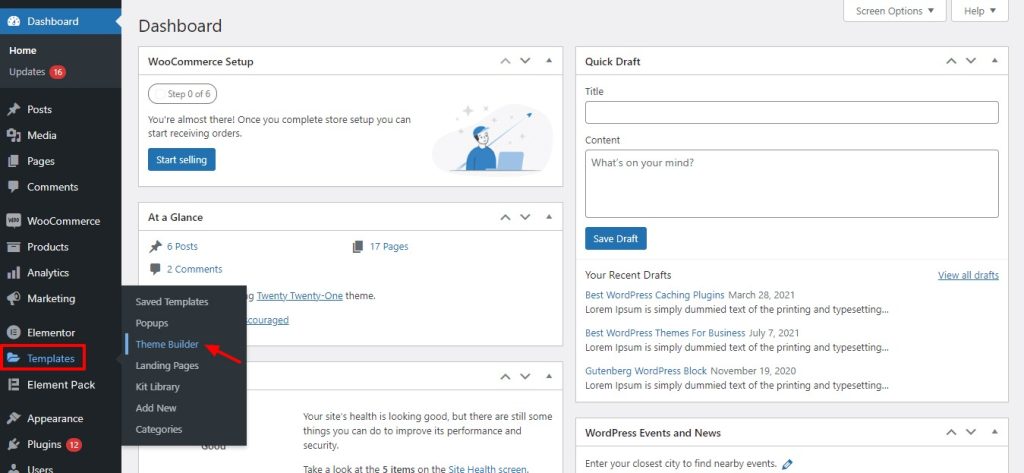
Step 1: Go to Templates → Theme Builder
First, log in to your WordPress dashboard.
Then go to:
Templates → Theme Builder
Here you can control different parts of your website, including your product pages.
Step 2: Open the Single Product Section
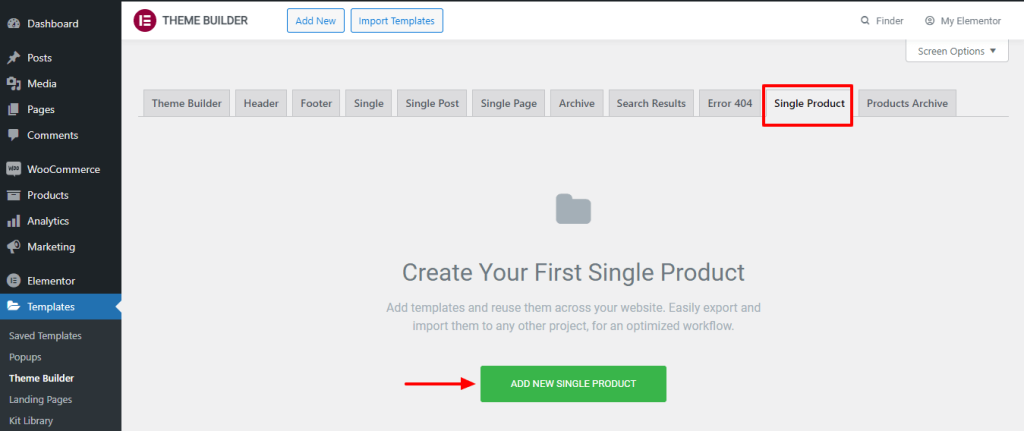
Inside the Theme Builder:
- Click on the Single Product section
This area is used to design how your product pages will look.
Step 3: Create a New Template
Now, you will see an option to create a new template.
- Enter a name for your template
- Click the Create Template button
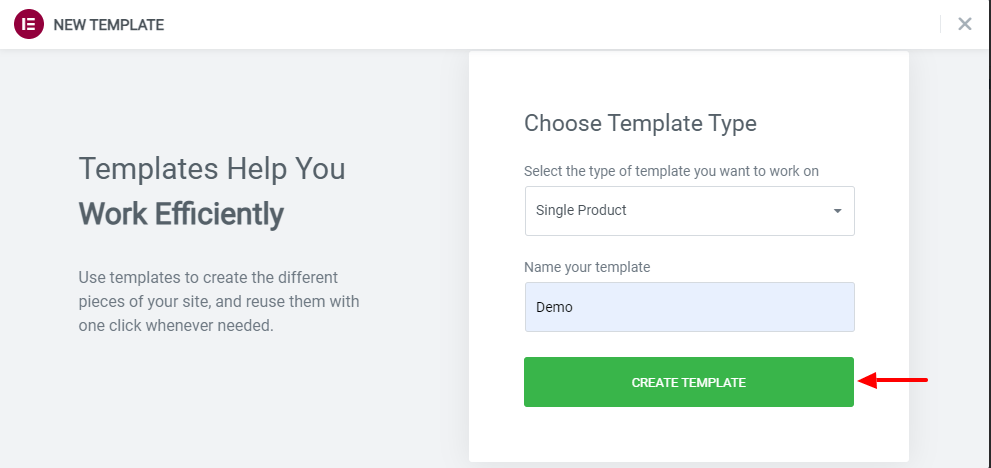
After that, the Elementor editor will open, and you can start designing your product page.
Step 4: Choose a Pre-designed Product Template
Elementor gives you many ready-made templates.
- Open the template library
- Choose a product page design you like
- Click Insert
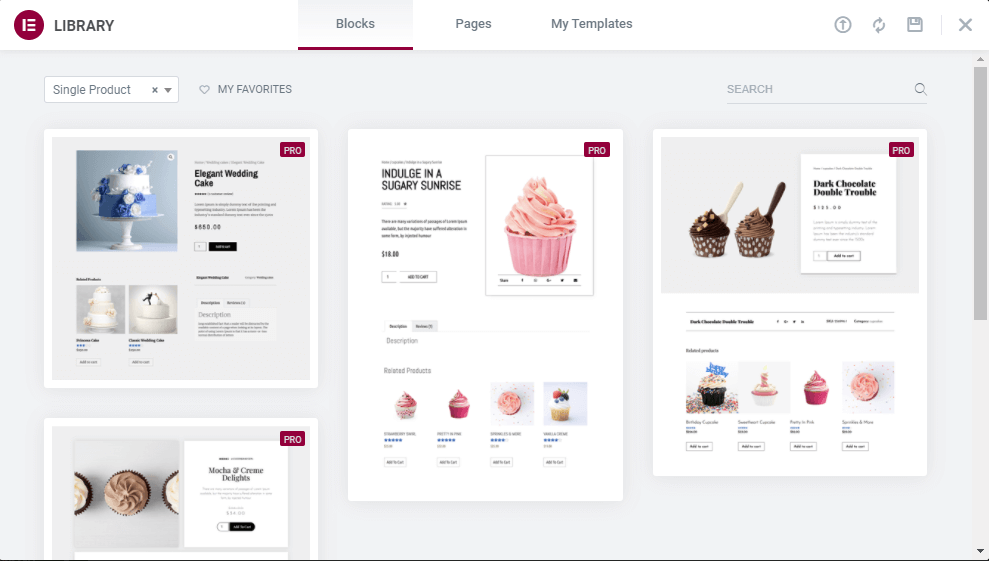
You can now edit the template easily. Change text, images, colors and layout to match your brand.
If you don’t have enough time to design and customize your WooCommerce product page, you can use Elementor’s pre-made templates and blocks.
Method 2: Create a More Professional Product Page Using Ultimate Store Kit with Elementor.
Install and Activate Ultimate Store Kit
This is an important step that allows you to edit the shop page in Elementor. Ultimate Store Kit is designed to improve compatibility between WooCommerce and Elementor.
If you need help installing and activating the plugin, you can read this guide: “How to Install and Activate Ultimate Store Kit Pro’’
Edit the WooCommerce Shop Page with Elementor Using Ultimate Store Kit
Just follow these simple steps to achieve a clean and professional design.
Enable the Single Product Page Widget
The first step is to turn on the required widget.
- Go to your WordPress dashboard
- Open the Ultimate Store Kit plugin settings
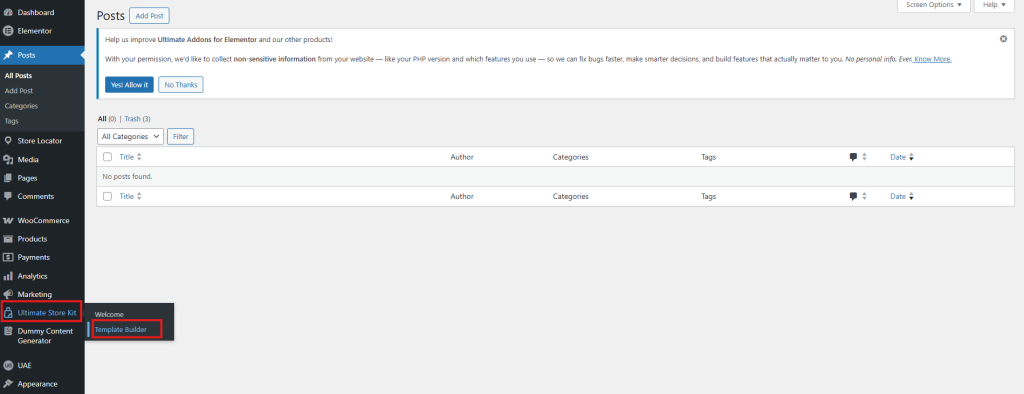
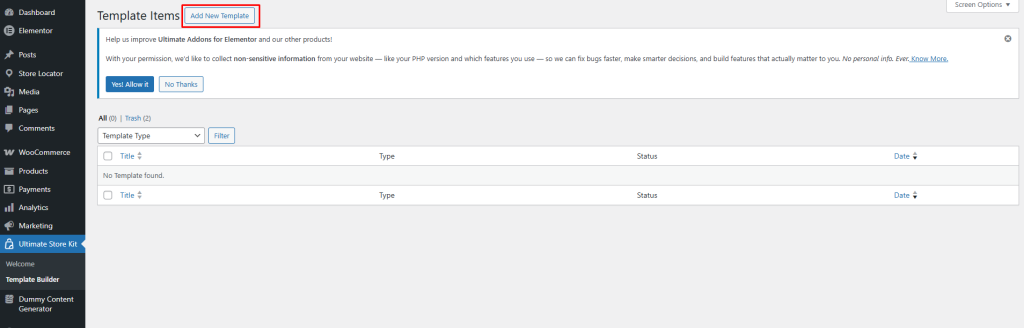
Create a Template
- Go to Template Builders→ Add New Template
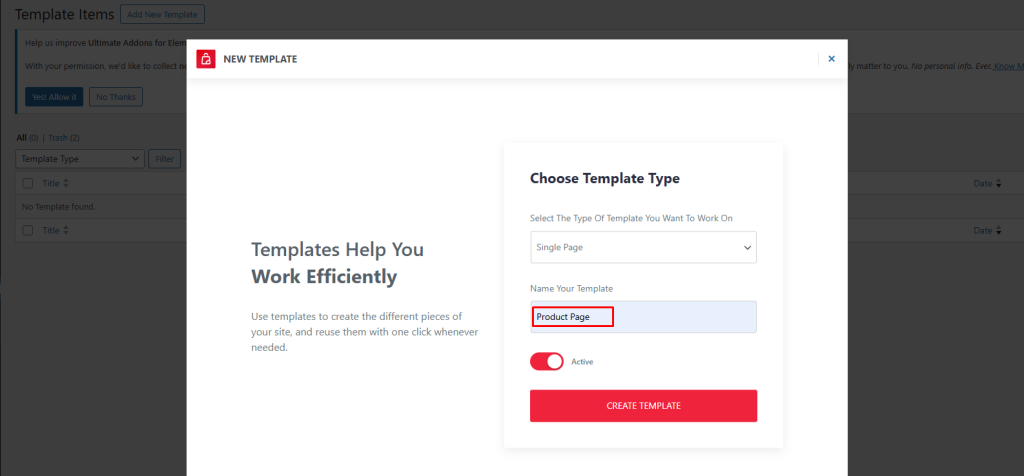
Choose Template Type → Single Page. Then enter a name for your template. Click Create Template.
Insert the Single Product Page Widget in Elementor Editor
Now, let’s add the widget to your page:
- Search for the Single Product Page widget
- Drag and drop it onto your page
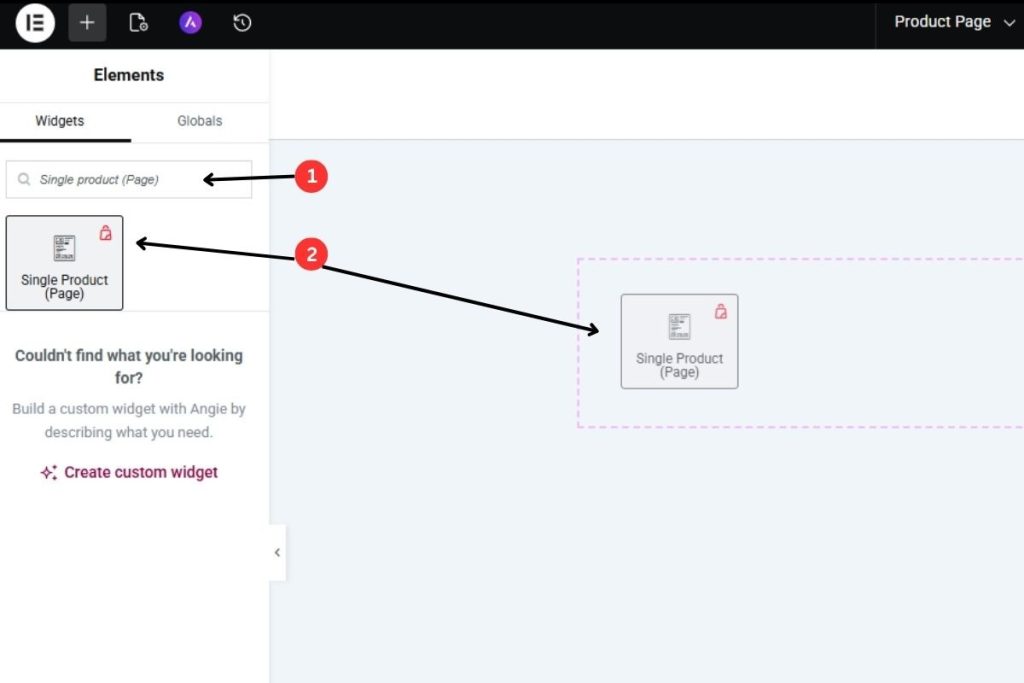
Once you add it, the widget will automatically display your product details. You will also see a live preview of how your page will look after changes.
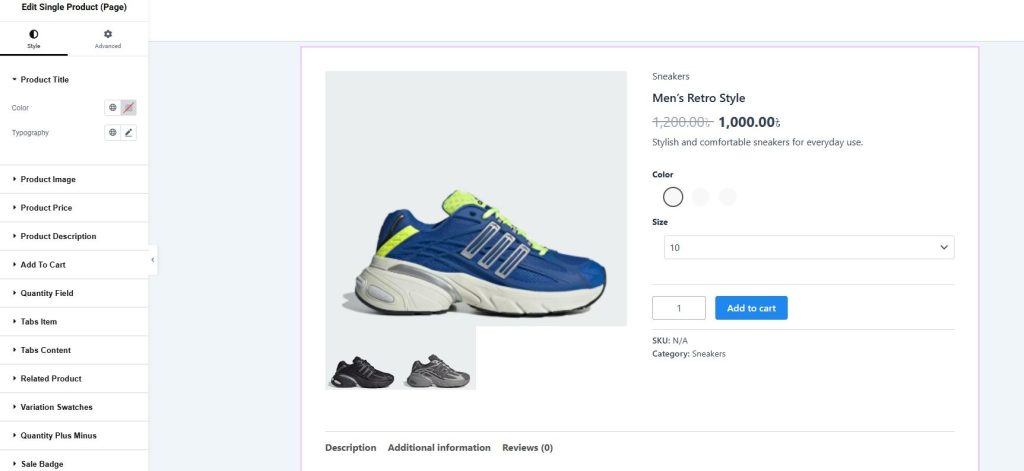
Customize the Product Title Section
Go to Style → Product Title and change these settings:
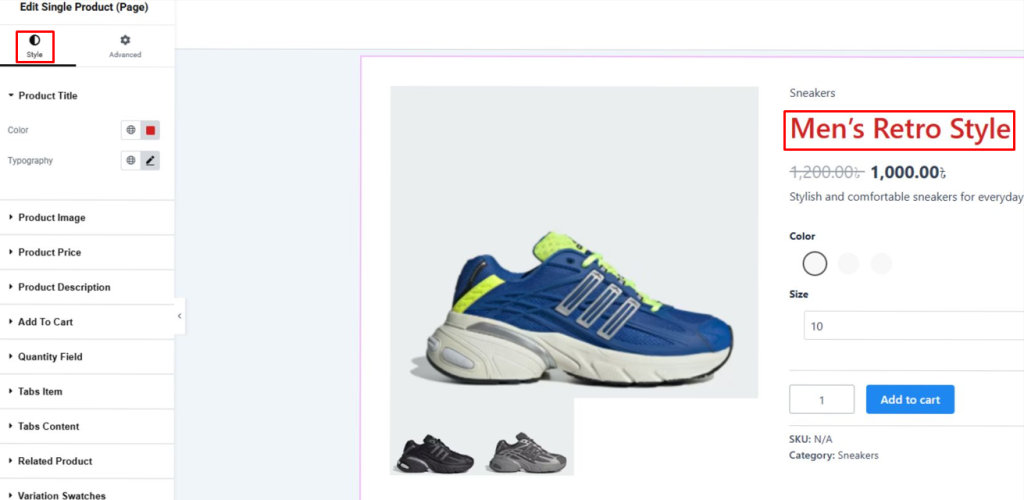
Color
- Choose a color that matches your brand
- Make sure the text is easy to read
- Use a dark color on a light background
- Try to keep good contrast (minimum 4.5:1 for accessibility)
Typography
You can change how your title looks:
- Font Family: Pick a simple font or Google Font
- Font Size: Use around 24px to 32px for desktop
- Font Weight: Use bold (700) or semi-bold (600)
- Text Transform: You can use uppercase for a modern look
- Line Height: Keep it between 1.2 and 1.4 for easy reading
- Letter Spacing: Use small spacing like 0.5px to 1px
Customize the Product Price Section
Go to Style → Product Price and change these settings:
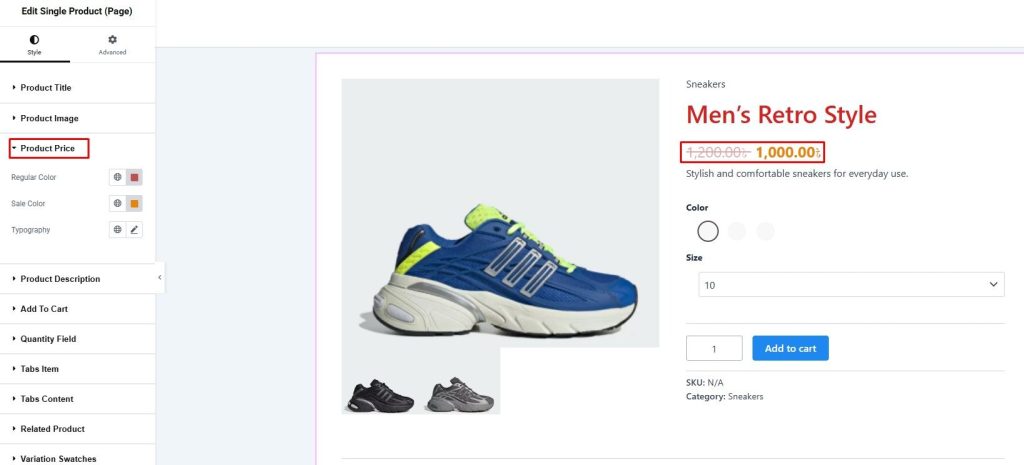
Color
- Use a color that makes the price easy to see
- You can use red or orange for sale prices
- This helps grab attention
- Keep the color matching your website design
Typography
You can change how the price looks:
- Font Size: Keep it bigger (around 18px to 24px)
- Font Weight: Use bold to highlight the price
- Font Family: Use the same font as your title for a clean look
Customize the Product Description Section
Product descriptions play an important role in buying decisions. Detailed descriptions can increase sales by up to 78%.
Go to Style → Product Description and change these settings:
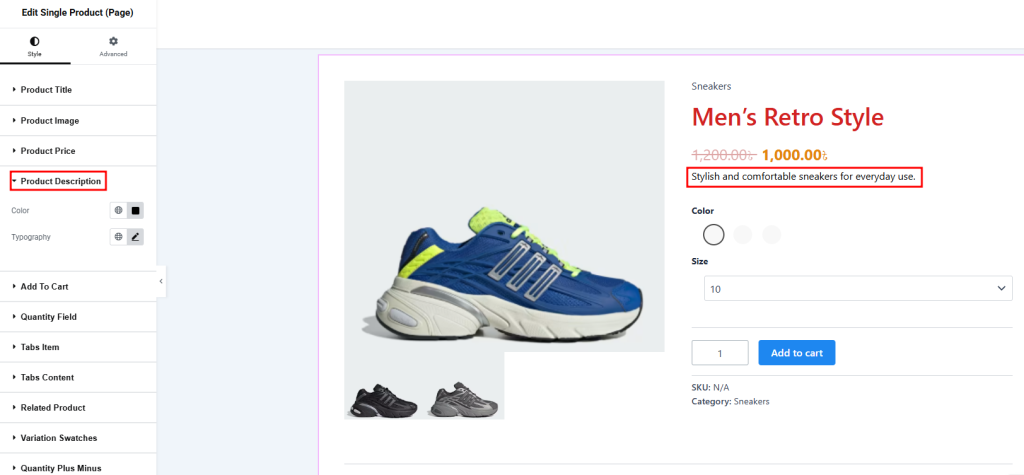
Color
- Use simple and soft colors
- Make sure the text is easy to read
- Use a slightly lighter color than the title
Typography
You can change how the description looks:
- Font Size: Keep it between 14px and 16px
- Line Height: Use 1.5 to 1.6 for better reading
- Font Weight: Use normal (400) or medium (500)
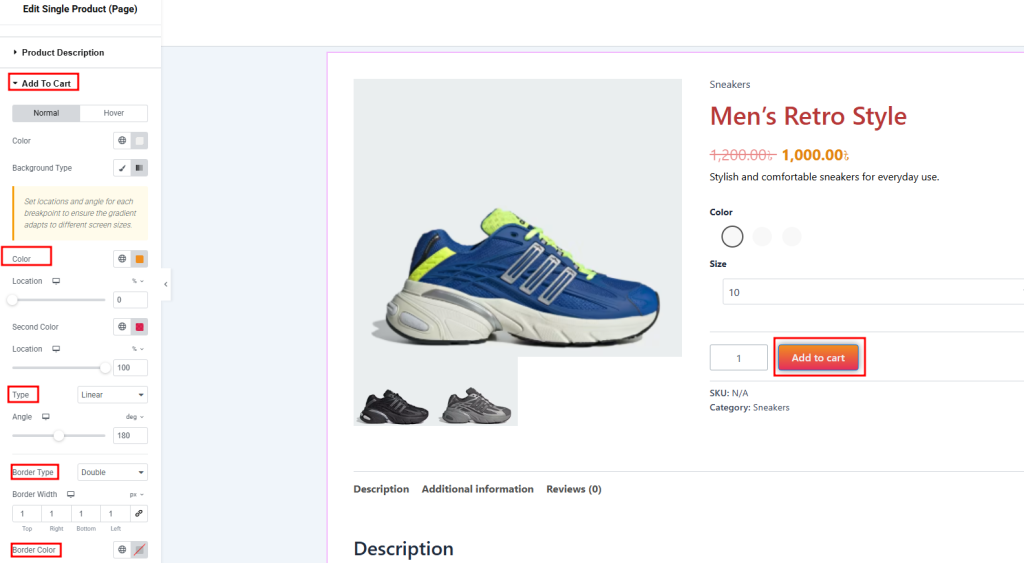
Customize the Add to Cart Section
Go to Style → Add to Cart and edit both tabs:
Normal Tab Settings
Text Color
- Choose a color that is easy to see
- Make sure it has good contrast
Background Color
- You can choose two types:
- Classic: Use a solid color for a clean look
- Gradient: Use mixed colors for a modern look
Border Settings
- Border Type: Use a solid border for a simple design
- Border Width: Keep it small (1px to 2px)
- Border Color: Match it with your design
- Border Radius: Use 4px to 8px for rounded corners
Size
- Choose small, medium, or large
- Pick based on how important the button is
Typography
- Use the same style as your website text
Box Shadow
- Add a small shadow (2px to 4px)
- This makes the button look clickable
Customize the Tabs Item Section
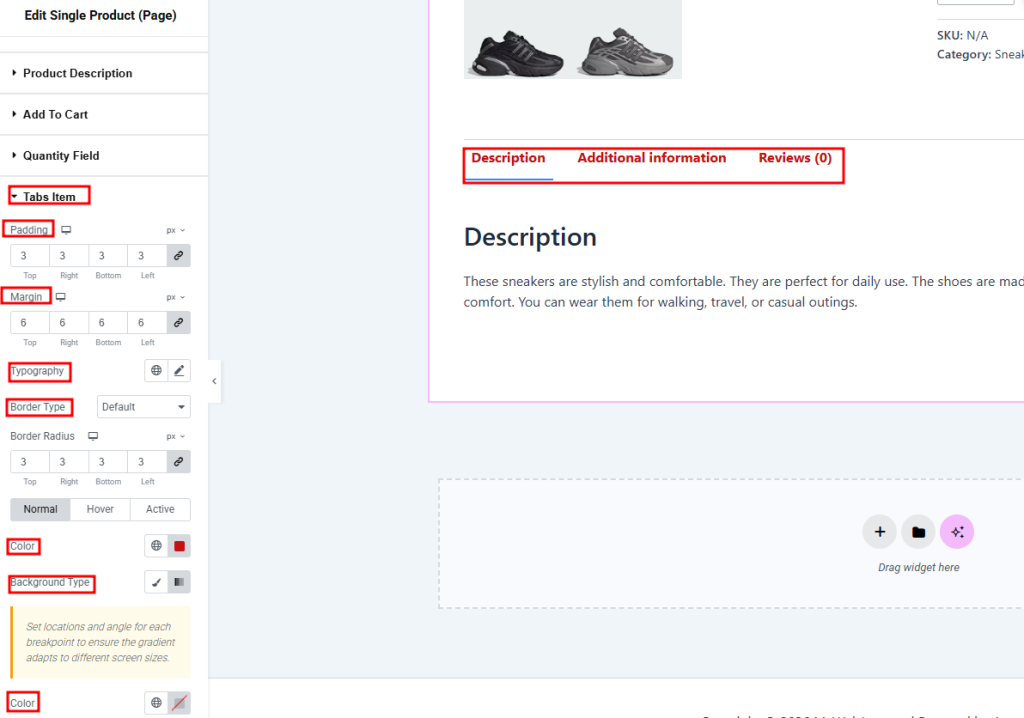
Go to Style → Tabs Item and set these options:
General Settings
- Padding: Use 12px to 16px so it’s easy to click
- Margin: Add space between tabs so they don’t touch
- Typography: Use clear and easy-to-read fonts
- Border Settings: Add borders to separate each tab
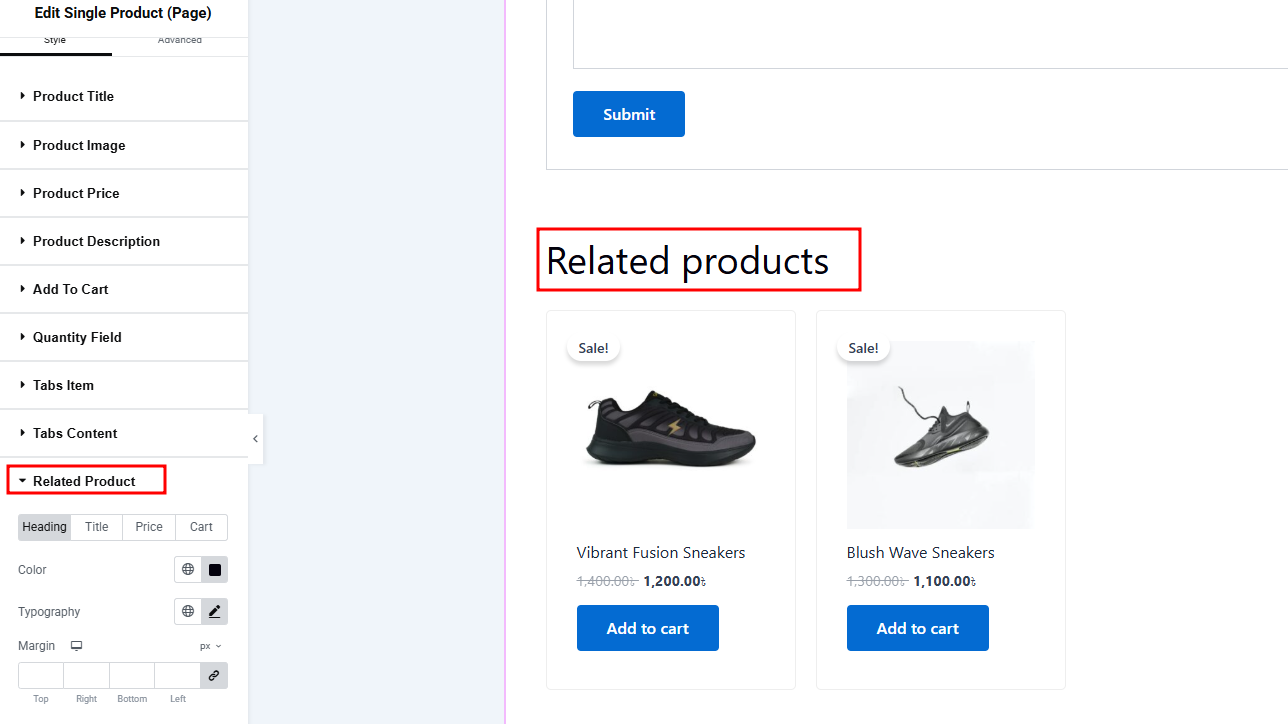
Customize the Related Product Section
Related products can help increase sales. Go to this section and edit these settings:
Heading Sub Section
- Color: Use a darker color than normal text
- Typography: Make the heading bigger and bolder
- Margin: Add space above and below the heading
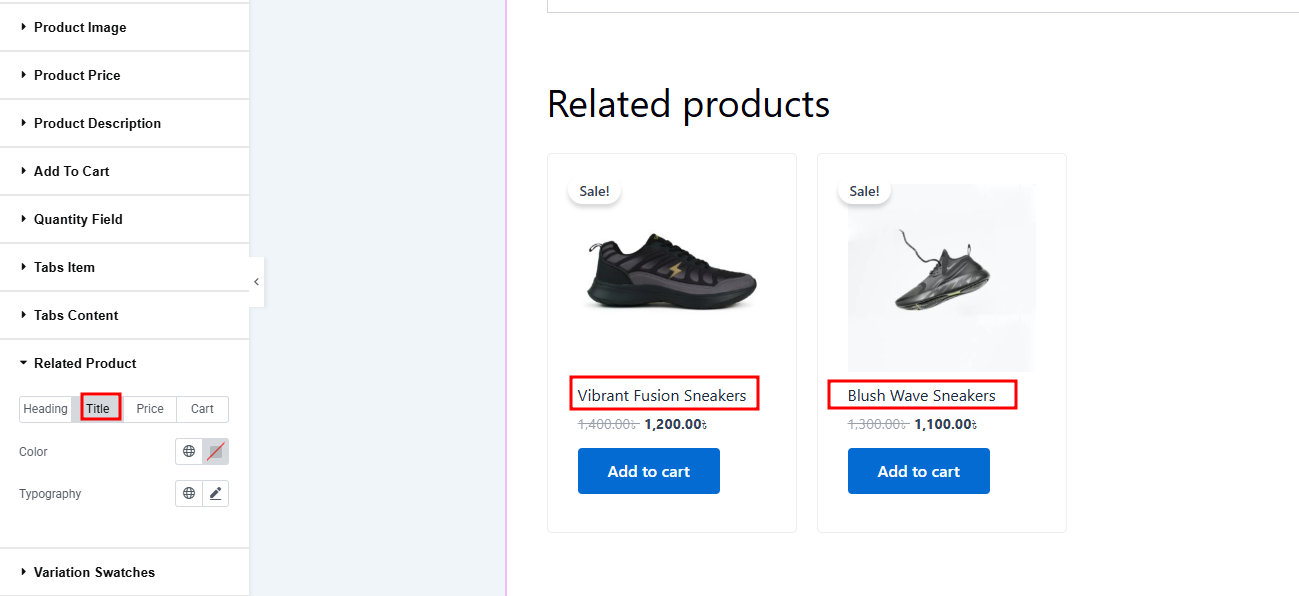
Title Sub Section
- Color: Use colors that match the product
- Typography: Keep text easy to read (16px to 18px)
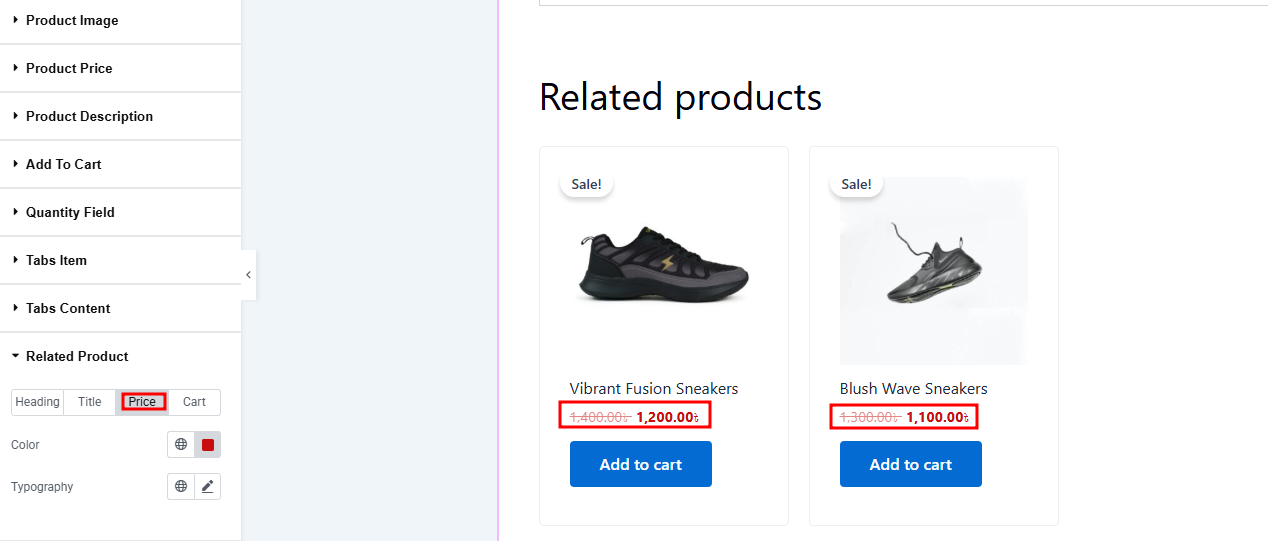
Price Sub Section
- Color: Use the same style as the main product price
- Typography: Make the price clear and easy to see
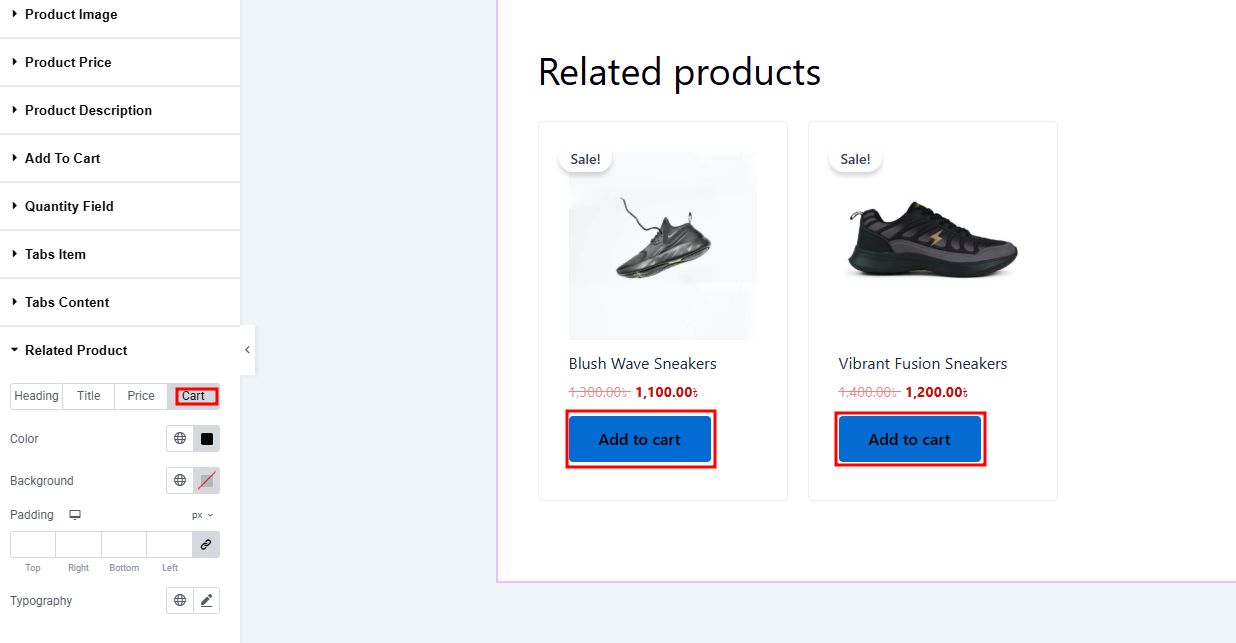
Cart Sub Section
- Color: Use strong colors to attract attention
- Background: Use a different color so the button stands out
- Padding: Make the button big enough to click easily
- Typography: Use clear text like “Add to cart.”
Customize the Variation Swatches Section
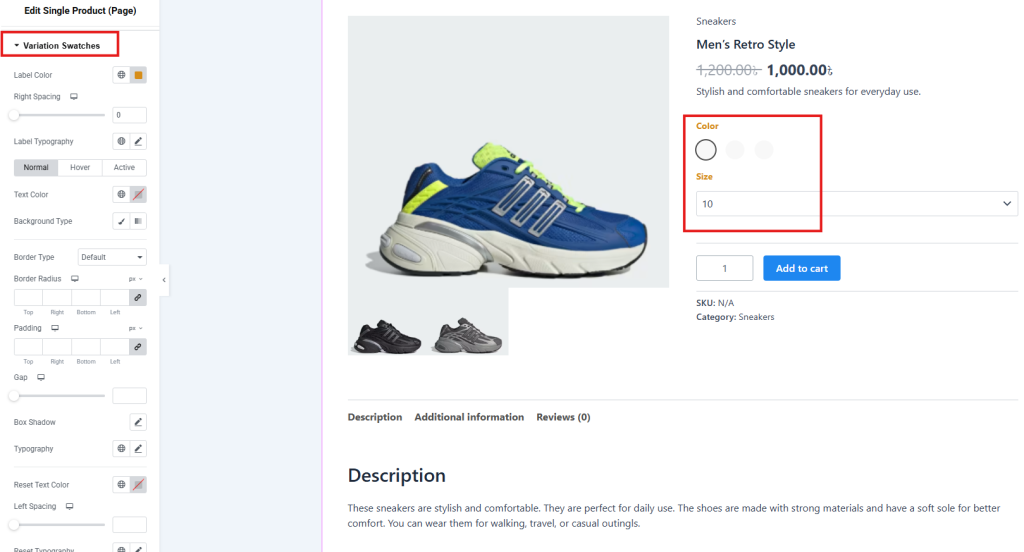
Product variations help users easily choose options.
Go to Style → Variation Swatches and change these settings:
General Settings
- Label Color: Use clear and easy-to-read colors
- Right Spacing: Add space between the label and the swatches
- Typography: Keep it the same as your form style
Normal Tab
- Text Color: Use simple and readable colors
- Background: Keep it clean and clear
- Border: Add borders to separate options
- Padding: Make buttons easy to click
- Gap: Add space between options
- Box Shadow: Add light shadow for depth
- Reset Text Color: Make the reset option visible
Hover Tab
- Text Hover Color: Change color when the mouse is over
- Background: Show hover effect clearly
- Border Hover Color: Highlight on hover
- Hover Shadow: Add more depth when hovering
Active Tab
- Text Active Color: Show selected option clearly
- Background: Make the selected option stand out
- Border Active Color: Strong border for selection
- Active Shadow: Add a clear selection effect
Customize the Quantity Plus Minus Section
Quantity buttons should be easy to use and understand.
Go to Style → Quantity Plus Minus and change these settings:
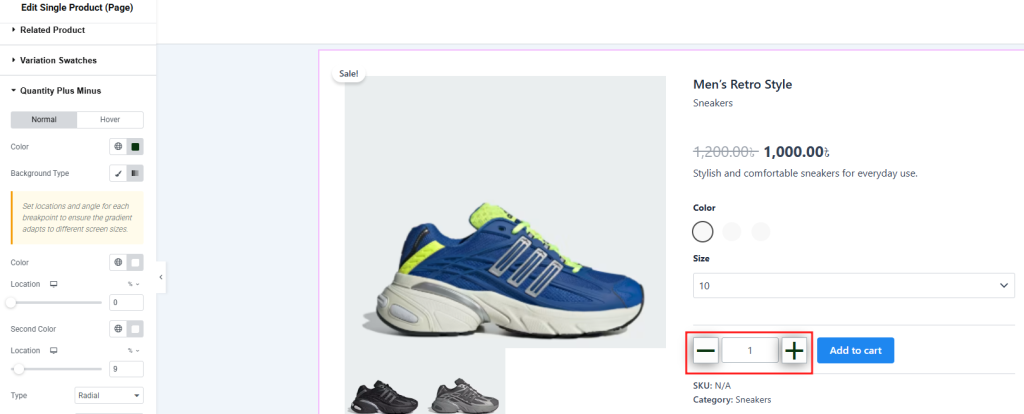
Normal Tab
- Icon Color: Use clear colors so users can see the buttons
- Background: Set a background to show the button area
- Border: Add borders to make buttons easy to identify
Customize the Sale Badge Section
Sale badges can help increase sales when used correctly.
Go to Style → Sale Badge and change these settings:
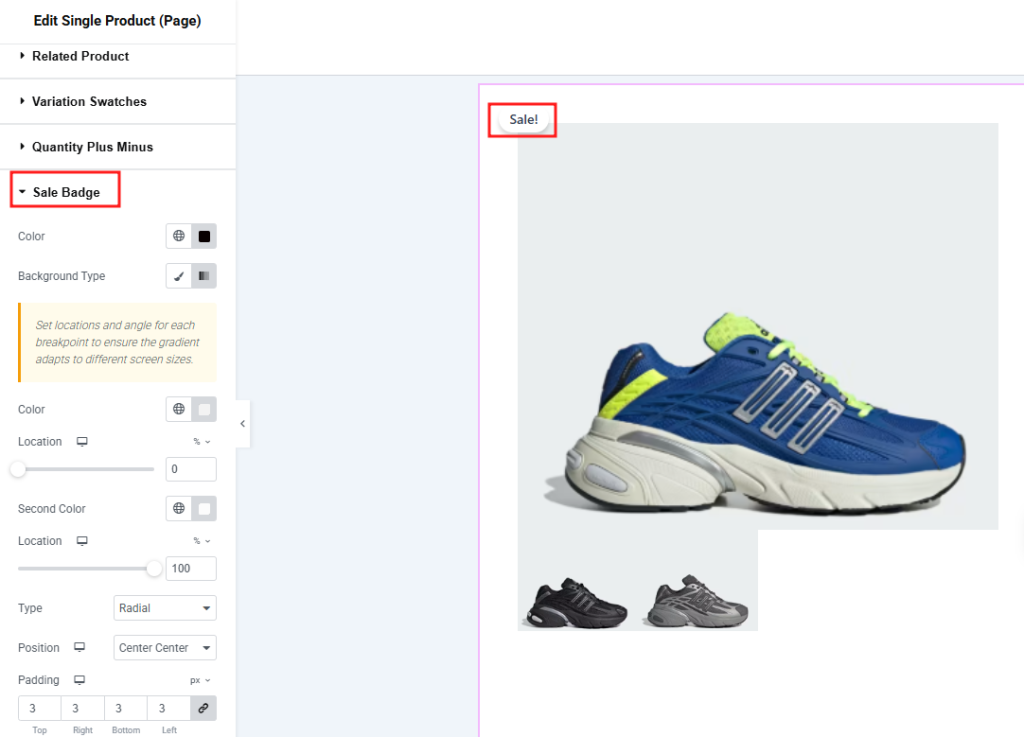
Settings
- Text Color: Use a color that is easy to see
- Background: Use strong colors like red or orange
- Background Image: You can add an image if needed
- Padding: Add space inside the badge
- Margin: Place it properly on the product
- Border Radius: Use rounded corners if needed
- Typography: Use bold and clear text
Best Practices for WooCommerce Elementor Customization
When you customize your WooCommerce pages, follow these simple tips:
Mobile-Friendly Design
Most people shop using mobile phones. Make sure your design works well on all devices. Always test your edited WooCommerce page on mobile and tablet.
Performance Optimization
Page speed is very important. If your page loads slowly, you may lose customers. Use optimized images and avoid using too many widgets.
A/B Testing
Try different designs to see what works better. Even small changes can improve your sales. Test layouts, colors, and buttons.
Accessibility
Make sure your page is easy for everyone to use. Follow basic accessibility rules like good contrast and readable text. This helps improve user experience for all users.
FAQs
1. What is a WooCommerce Shop page?
The WooCommerce shop page is the main page where all your products are displayed. It works like a product archive. Instead of showing fixed content, it automatically shows products from your store. That is why it behaves differently from a typical WordPress page.
2. Why can’t I edit my WooCommerce shop page with Elementor?
You cannot edit the shop page directly because it is a dynamic archive page. WooCommerce controls its layout. Elementor free version does not support editing this type of page. You need Elementor Pro or a plugin like Ultimate Store Kit to customize it.
3. Can I edit WooCommerce shop page with Elementor?
Yes, you can edit it using Elementor. But you need the right setup. You can use Elementor Pro Theme Builder or tools like Ultimate Store Kit to design your shop page easily.
4. Do I need Elementor Pro to edit the shop page?
Elementor Pro is highly recommended. It gives you access to Theme Builder, which allows you to edit archive pages like the shop page. Without Pro, you will need extra plugins.
5. What is Ultimate Store Kit?
Ultimate Store Kit is a plugin that helps you customize WooCommerce pages using Elementor. It adds extra widgets and features so you can design shop and product pages easily without coding.
6. Can beginners use Elementor to edit shop pages?
Yes, Elementor is very beginner-friendly. It uses drag and drop. You do not need coding knowledge. Anyone can design a shop page with basic understanding.
7. How do I create a custom shop page?
You can create a new template using Elementor or Ultimate Store Kit. Then add product widgets like product grid and customize the layout, colors, and spacing to match your design.
8. What widgets are needed for shop page design?
You can use widgets like product grid, product title, product price, and add to cart button. These help you build a complete shop page layout.
9. Will customizing the shop page improve sales?
Yes, a well-designed shop page can improve user experience. It makes products look better and easier to understand. This can help increase conversions and sales.
10. Is coding required to edit WooCommerce shop page?
No, you do not need coding. Elementor and Ultimate Store Kit allow you to design everything using simple drag and drop tools.
Conclusion
Many users still feel confused about how to edit the WooCommerce shop page. This is normal because the shop page is not like a regular WordPress page.
If you do not customize it, your store may look basic and less attractive. This can affect user experience and lower your chances of generating sales.
Now you know how to edit WooCommerce shop page using Elementor and Ultimate Store Kit. With the right setup, you can fully control your shop design and create a better shopping experience for your customers.
Al Jami Zwad
The BdThemes team builds WordPress plugins trusted by 3M+ users worldwide. We write about web accessibility, WCAG compliance, and inclusive design.