

Building a website for your business can feel confusing. Many people do not know where to start. They worry about coding, cost and technical setup.
This creates a problem. Without a website, your business stays invisible online. You lose customers and miss opportunities. Even if you try, the process can feel slow and frustrating.
There is a simple way to fix this. In this guide on how to make a website for my business with WordPress, you will learn step by step how to build a professional website. You do not need coding skills. You will learn how to choose a domain, set up hosting and design your pages easily.
In this blog, we will follow a step-by-step guide on how to make a website for your business with WordPress.
How to Make a Website for My Business with WordPress (in 17 Steps)
Follow this step-by-step guide to plan, build and launch your business website with confidence.
Step 1: Pick a Website Purpose
Before you start building your website, you need to understand your goal. This is one of the most important steps. Without a clear purpose, your website may look good but fail to deliver results.
Think about why you need a website. Some businesses want to generate leads. Others want to sell products or share information. Your purpose will guide your design, content and features.
For example, if you run a service business, your goal might be to get inquiries from clients. In that case, your website should focus on contact forms and service details. If you are selling products, your website should focus on product pages and an easy checkout process.
When your purpose is clear, everything else becomes easier.
Step 2: List Potential Domain Names
Your domain name is your website address. It is the first thing people see and remember. A good domain name makes your business look professional and trustworthy.
Try to keep your domain name short and simple. It should be easy to spell and easy to remember. Avoid using numbers or complex words. If possible, use your business name.
Many people use platforms like Namecheap or GoDaddy to buy domain names. These platforms also show available options if your first choice is already taken.
Take your time with this step. A good domain name can help your brand grow.
Step 3: Plan Your Website Pages and Functions
Before you start designing your website, it is important to plan its structure. This step saves time and prevents confusion later.
Think about what pages your website needs. Most business websites include a homepage, an about page, a services page and a contact page. These pages help users understand your business and take action.
You should also consider which features your website needs. For example, you may want a contact form so users can reach you easily. Some businesses may need booking systems or online payments.
Planning everything helps you build your website smoothly and in an organized way.
Step 4: Laws and Regulations and Guidelines
Many people ignore legal requirements when building a website, but this step is very important. Your website must follow certain rules to protect both your business and your users.
Before creating your business website, it is a good idea to do some research. If possible, you can also speak with a legal expert who understands website regulations. This helps you avoid future problems and keeps your website compliant.
There are several important laws and guidelines you may need to follow. These include
- Americans with Disabilities Act (ADA),
- California Consumer Privacy Act (CCPA),
- Children’s Online Privacy Protection Act (COPPA),
- General Data Protection Regulation (GDPR),
- Web Content Accessibility Guidelines (WCAG).
These rules help protect user data, ensure accessibility and improve user safety.
You should also include important pages like a privacy policy and terms and conditions. These pages explain how you collect, use and store user information. In many countries, these pages are required by law.
Adding these pages builds trust. Visitors feel more comfortable when they know their data is safe and handled properly.
The good news is you do not need to create everything from scratch. You can use online tools or WordPress plugins to generate these pages easily.
Step 5: Set up WordPress
Once you have your domain name and plan ready, the next step is to set up your website.
What is WordPress.com?
WordPress.com is a platform that allows you to easily create a website without handling technical work. Everything is already managed for you, including hosting, updates and security.
It works like a ready-to-use system. You can sign up and start building your website right away without worrying about setup.
WordPress.com also offers a free plan. You can create and publish a website without paying anything. Your website will have a subdomain like yourname.wordpress.com.
This platform is a good option for beginners, bloggers and anyone looking for a quick, simple website.
What is WordPress.org?
WordPress.org is a platform where you can build a website using WordPress software with full control. The software is free, but you need to set everything up yourself.
You must download WordPress and install it on a hosting server. This gives you complete control over your website, including design, data and features.
Unlike WordPress.com, WordPress.org does not include hosting. You need to purchase:
- Web hosting
- A domain name
Although the software is free, there are some costs involved. You may also need basic knowledge to manage your website properly.
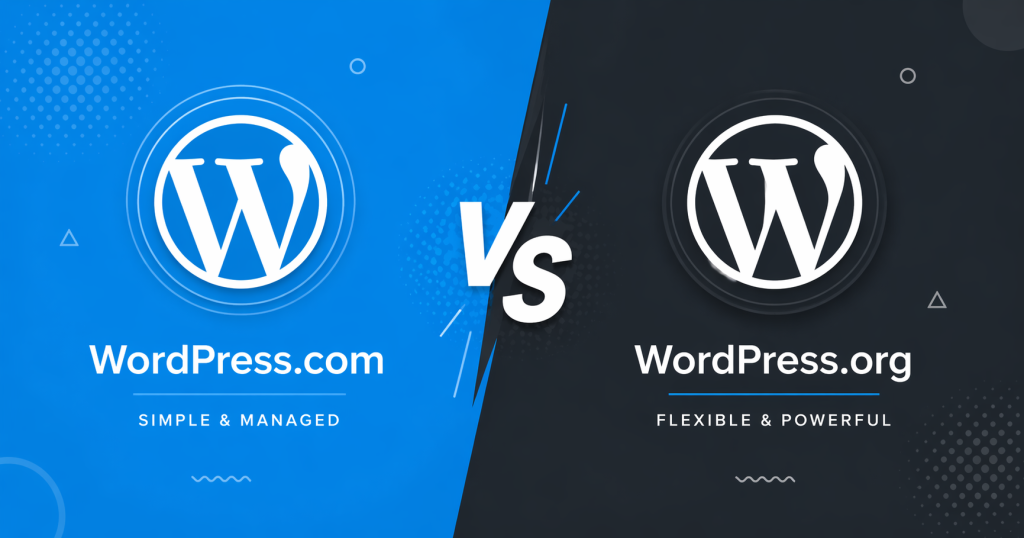
WordPress.org is best for users who want more flexibility, custimizability, advanced features and full control over their website.
Step 6: Get Web Hosting
Web hosting is where your website lives on the internet. It stores all your files, images and content. When someone visits your website, their browser connects to your hosting server and loads your pages.
There are different types of hosting, each suited to different needs.
Shared hosting is the most affordable option. It usually costs around $2 to $8 per month. In this setup, your website shares a server with other websites. It is a good choice for beginners and small business websites.
VPS hosting gives you more power and control. It costs more than shared hosting and is suitable for growing websites with more traffic.
Managed WordPress hosting is designed specifically for WordPress websites. It offers better speed, security and support. You do not need to handle technical maintenance, which makes it a good option for business owners.
Dedicated hosting gives you a full server just for your website. It is powerful but expensive. This option is mainly used by large websites with very high traffic.
You can choose a hosting provider like Hostinger, GreenGeeks, or SiteGround. These platforms make it easy to get started.
Step 7: Install WordPress on Your Hosting
In the past, installing WordPress required technical skills. But now, it is very simple. Most hosting providers offer a one-click installation that takes only a few minutes.
- First, log in to your hosting account. After you sign up, your hosting provider will give you login details. Open your Dashboard, which may be cPanel, hPanel or a custom panel.
- Next, find the WordPress installer. Look for options like “WordPress,” “Auto Installer,” or “Softaculous.” These tools are available on almost all hosting platforms.
- After that, enter your website details. Add your domain name, website title, admin username and a strong password. Also, enter your email address. Make sure all details are correct.
- Then, click the install button. The system will automatically set up WordPress for you. This usually takes less than two minutes.
- Once the installation is complete, you will get your login link. You can access your Dashboard by visiting yourdomain.com/wp-admin. Enter your username and password to log in.
Now your WordPress website is ready and you can start building your pages.
If you are still confused, you can watch a step-by-step video tutorial to understand the process more clearly.
If you don’t want to do it yourself, no worries. You can always take free support from your hosting provider to install WordPress.
Method 2: Manual Installation
If you want more control, you can install WordPress manually. This method is a bit more technical, but it gives you full access to your website setup.
- First, download WordPress from the official website. You can get the latest version from wordpress.org.
- After downloading, unzip the file on your computer. This will create a folder with all the WordPress files.
- Next, upload these files to your hosting account. You can use FTP or your hosting file manager. Place the files in your public_html folder so your website loads properly.
- Then, create a MySQL database. You can do this from your hosting control panel, such as cPanel. You will also need to create a database user and connect it to the database.
Once everything is ready, open your browser and visit your domain name. WordPress will automatically start the setup process. Follow the steps to connect your database and create your admin account.
After completing the setup, your website will be ready to use.
If you are not familiar with these steps, you can watch a video tutorial to better understand the process.
Note on SSL: Activate your SSL certificate before or after installing WordPress. It secures your website and adds HTTPS with a padlock icon.
SSL protects user data and helps with Google ranking. You can enable it from your hosting panel using options like “Let’s Encrypt SSL” or “SSL/TLS.”
Step 8: Initial Website Setup
After you install WordPress, log in to your Dashboard.

This is the main control panel where you manage your website.
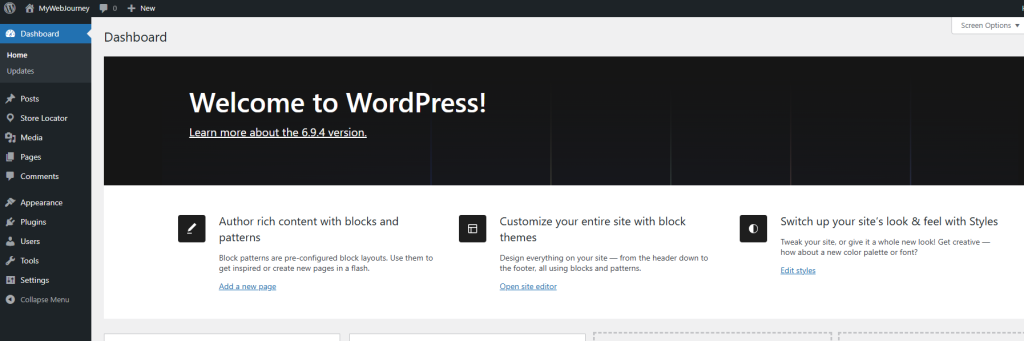
Before you start building your site, take a few minutes to set up the basic settings.
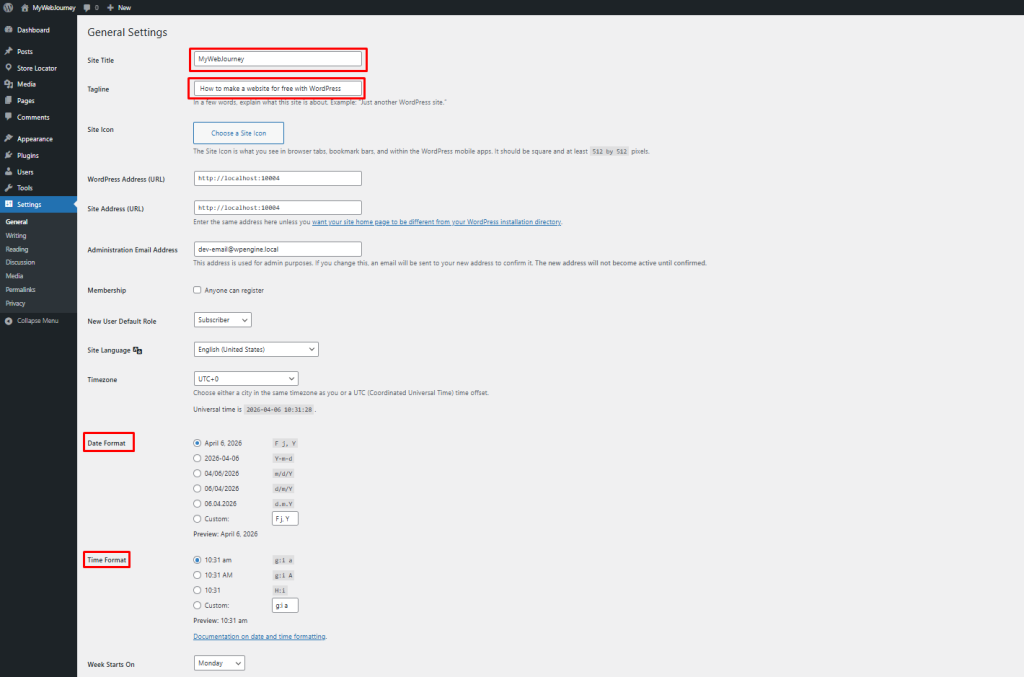
1. Set Your Site Name and Tagline
Go to Settings → General.
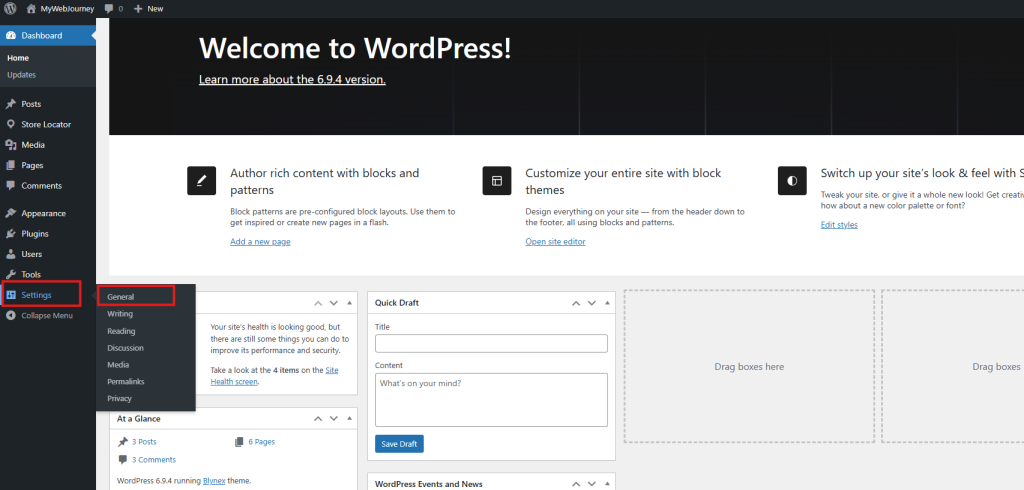
Write your website name and a short line that explains what your site is about. Also, set your timezone and choose your preferred date format.
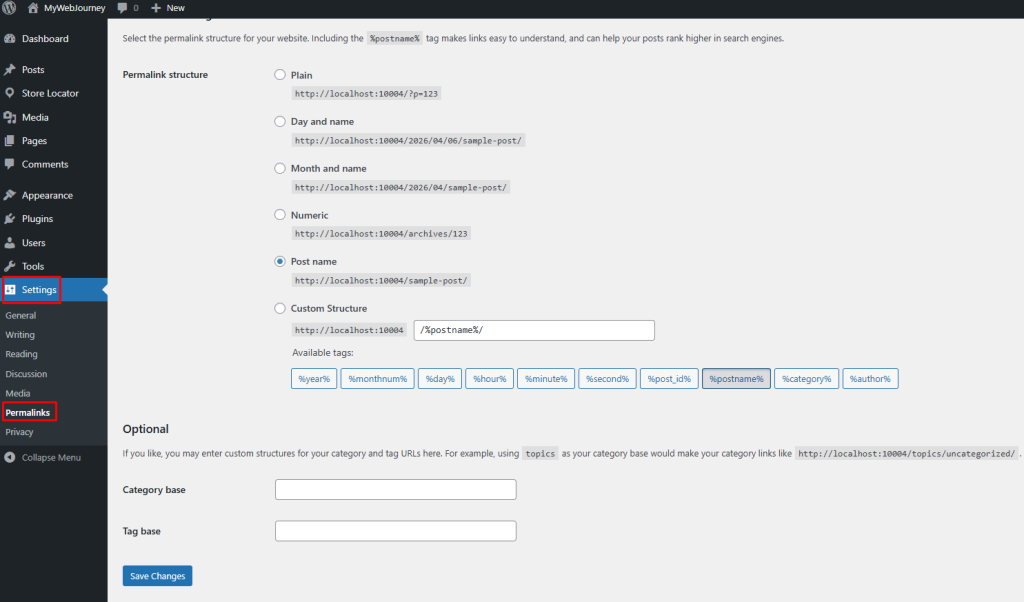
2. Set Your Website Links (Permalinks)
Go to Settings → Permalinks. Choose the post name. This makes your links simple and clean, like: yourdomain.com/about-us instead of: yourdomain.com/?p=123. This is better for both users and search engines. Click Save Changes.
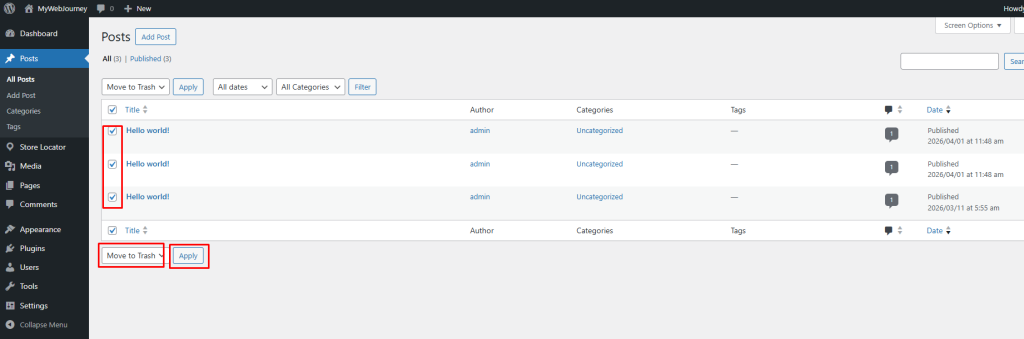
3. Remove Default Content
WordPress adds some sample content when you install it.
This includes:
- A “Hello World” post
- A sample page
- A sample comment
Delete all of these to keep your site clean. Go to Posts, Pages and Comments, select everything and move it to the trash.
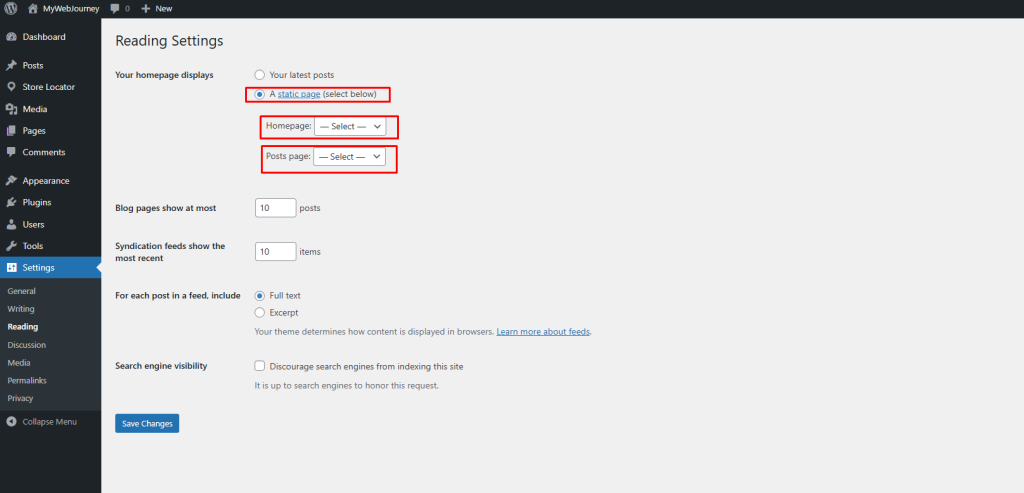
4. Set Your Homepage
Go to Settings → Reading. Choose what you want your homepage to show. You can select:
- Latest blog posts
- A static (fixed) page
If you are making a business or portfolio site, choose A static page. Then select your homepage and blog page (you will create these later).
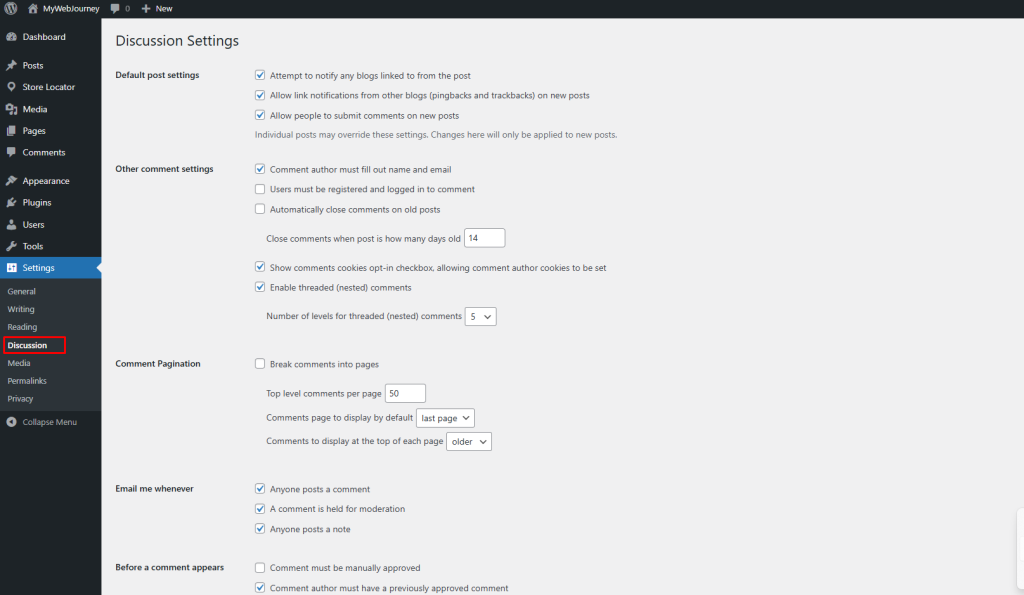
5. Manage Comments
Go to Settings → Discussion. Decide if you want people to comment on your posts. If yes, turn on comments. Also, enable manual approval to avoid spam.
Step 9: Install Must-Have Plugins
Now, let’s see how to create a business website simply using a page builder. There are many page builders out there. But the most popular and effective page builder is Elementor. It’s free but it has some limitations as well.
So, we’ll be using an extension called Element Pack to fully capitalize on the page builder.
Now let’s install Elementor first.
To install Elementor, head to WordPress Dashboard → Plugins → Add Plugin
Search for Elementor
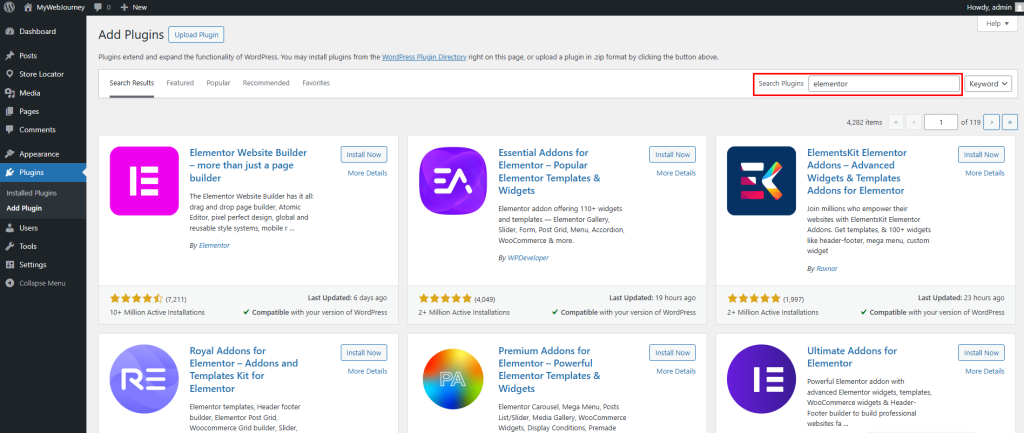
Click Install Now.
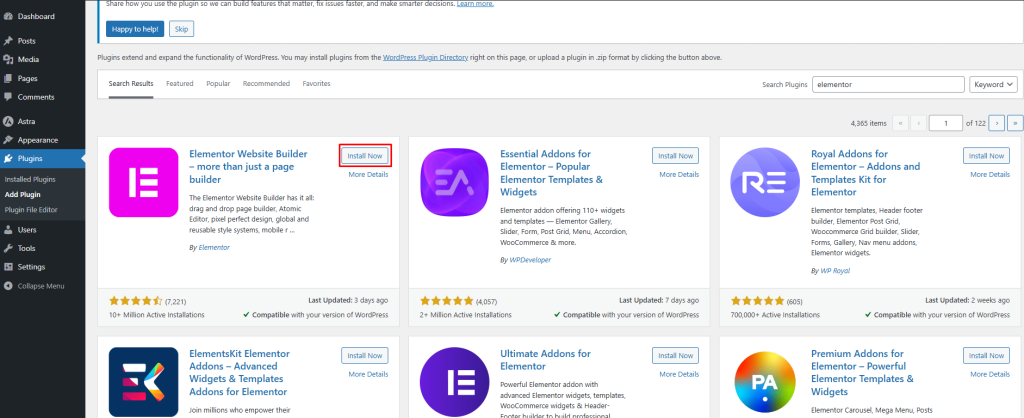
Then click Activate.
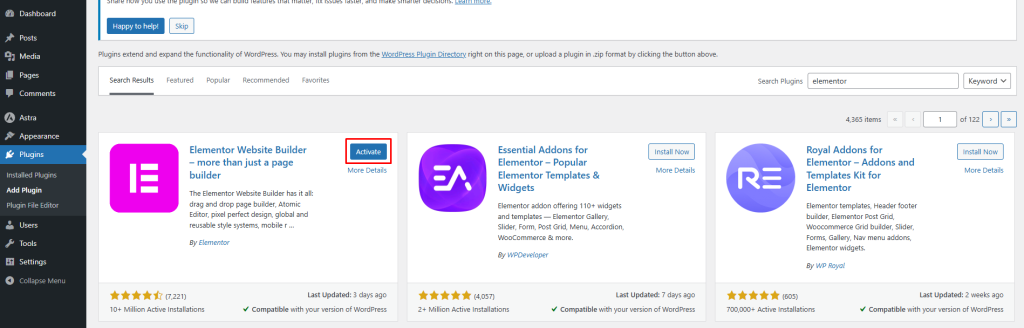
The plugin is now active on your website.
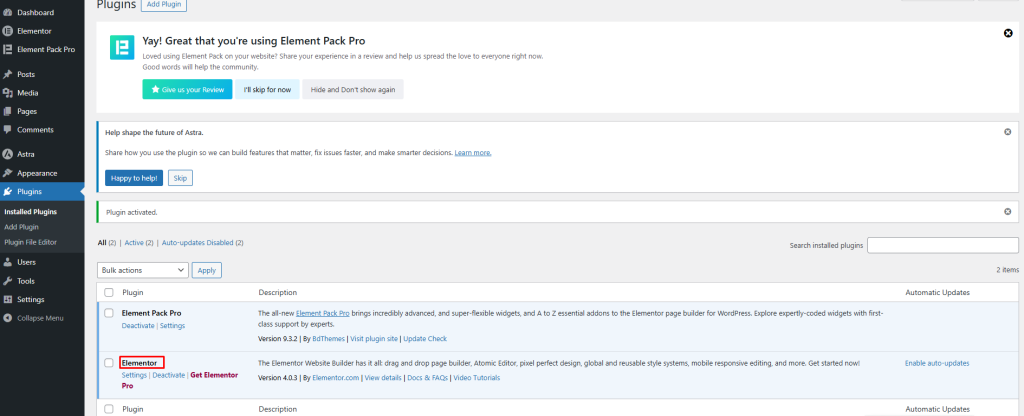
Now let’s install the extension Element Pack Pro. It is a premium extension that offers many advanced features like over 2700 ready-made templates and 300 widgets.
To get started, download the ZIP file and collect your license key from the official website.
Go to your WordPress Dashboard and navigate to Plugins → Add New → Upload Plugin.
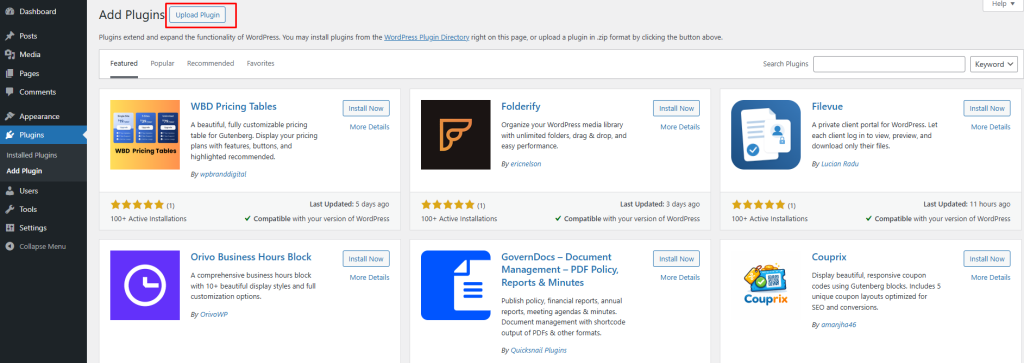
Click Choose File.
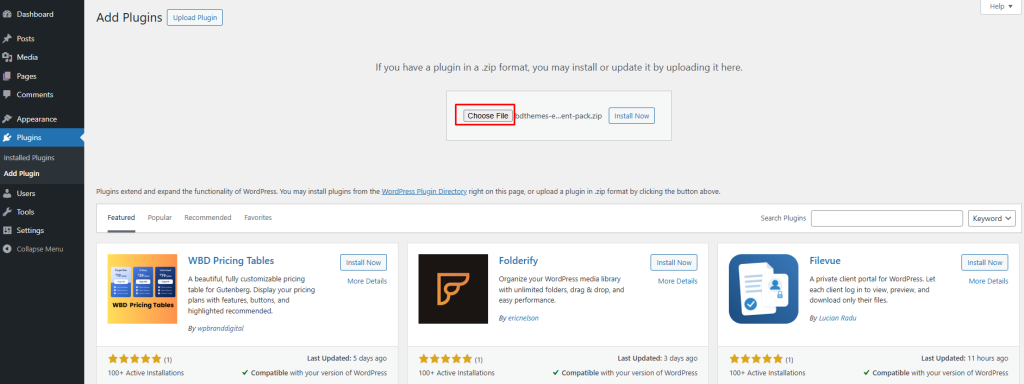
Then click Install Now.
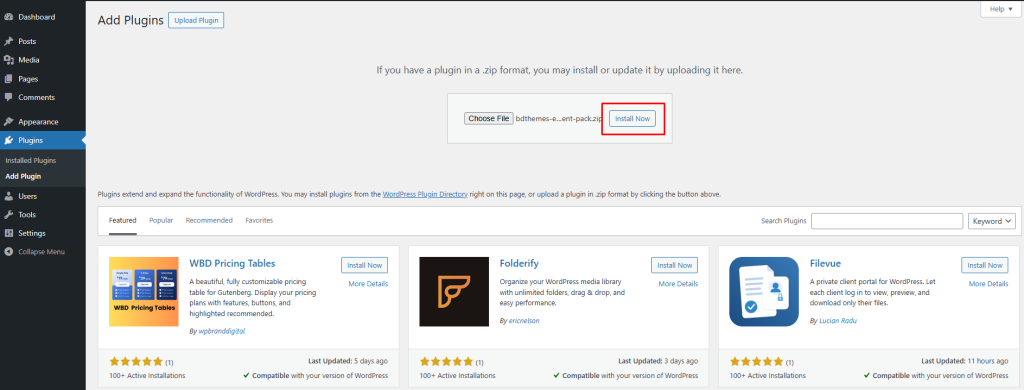
After installation, click Activate Plugin.
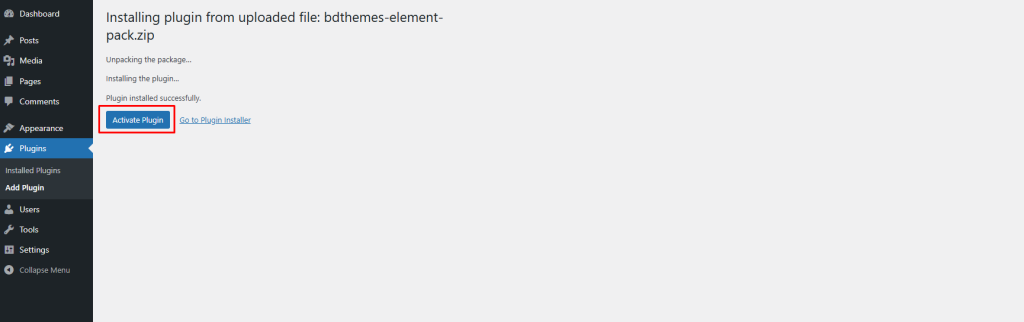
Your plugin is now active.
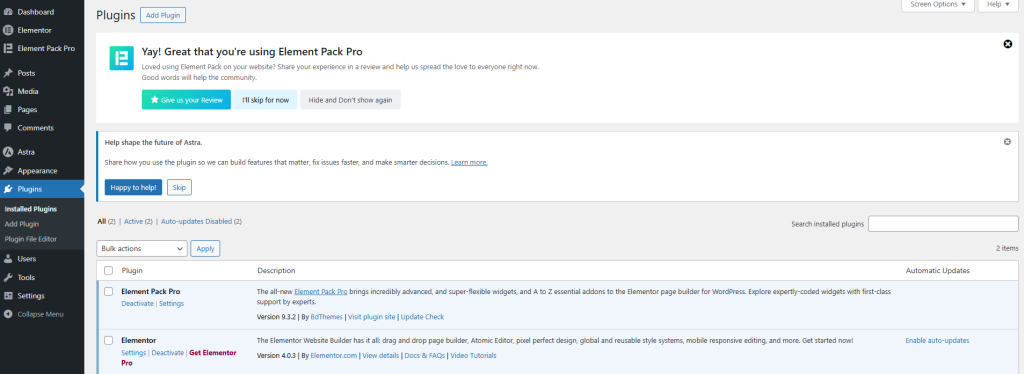
After activation, enter your license key to unlock all features. You can also watch the video below to follow each step easily.
Now we will show you how to edit the page you created earlier using Element Pack.
Step 10: Create a Page
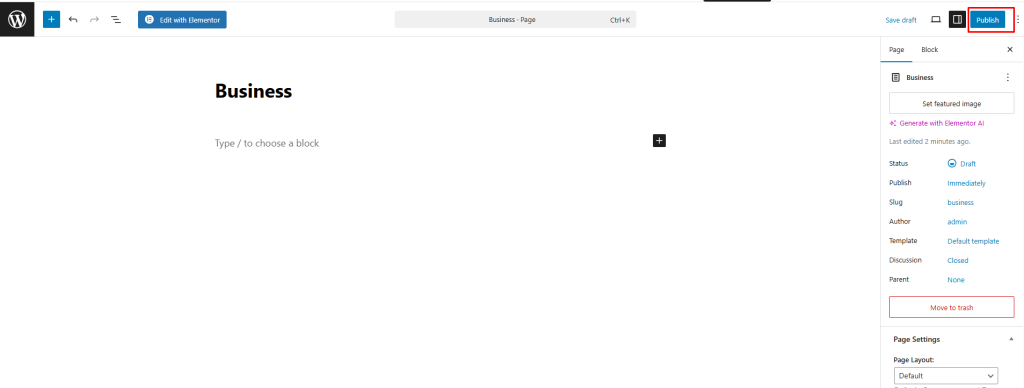
Go to Dashboard → Pages → Add Page
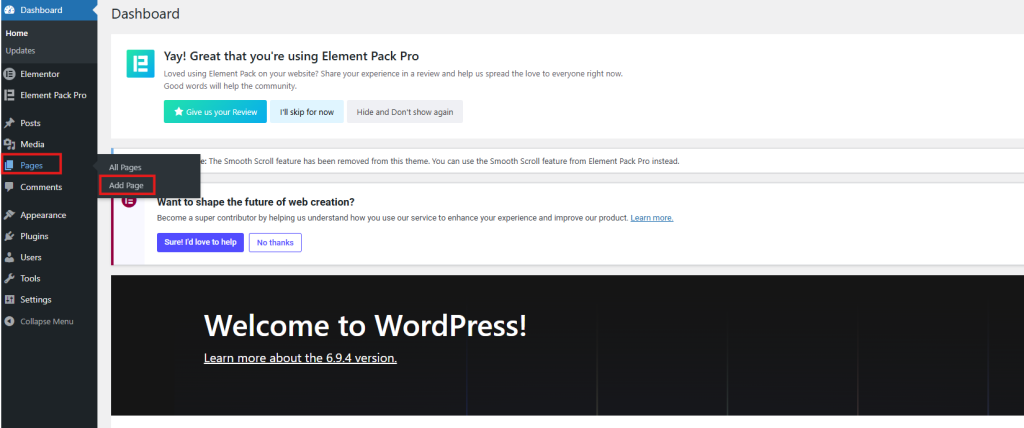
First, click Add Page
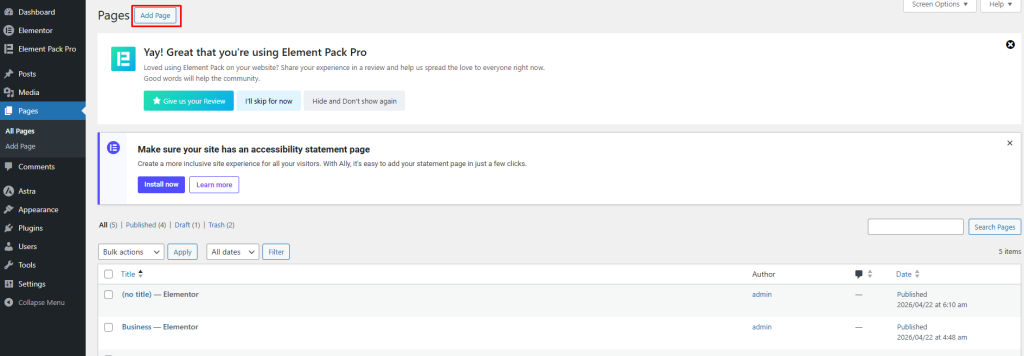
Then enter a title for your page. This will be your page name.
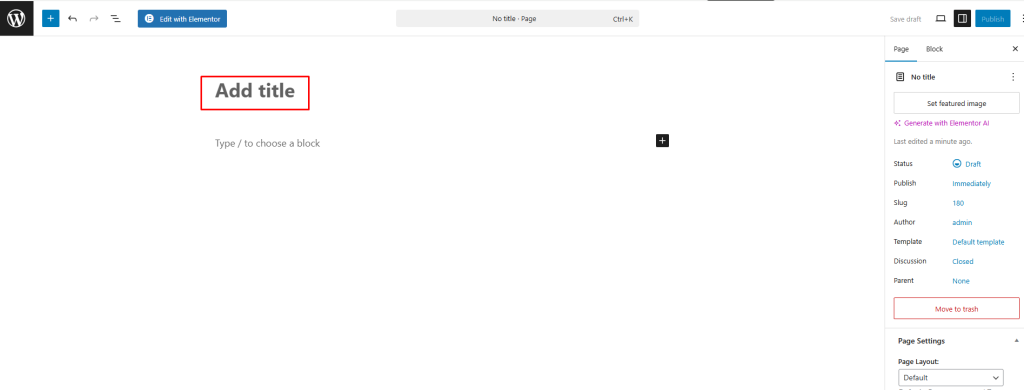
After that, click Publish. Your page is now live.
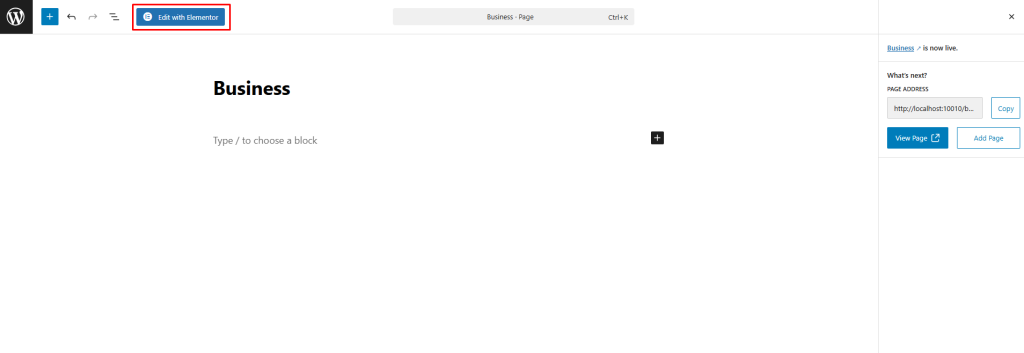
Next, click Edit with Elementor to start designing your page.
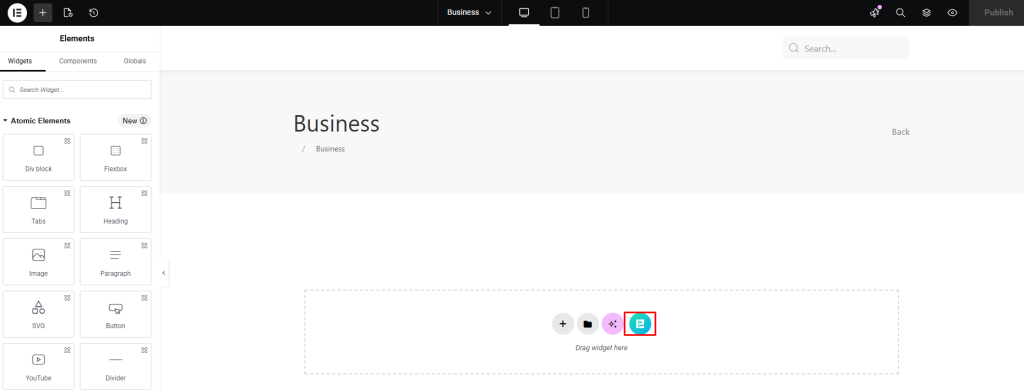
Step 11: Use Element Pack Templates
Now, click on the Element Pack icon.
You will see the Element Pack template library. From here, you can choose ready-made templates to build your page quickly.
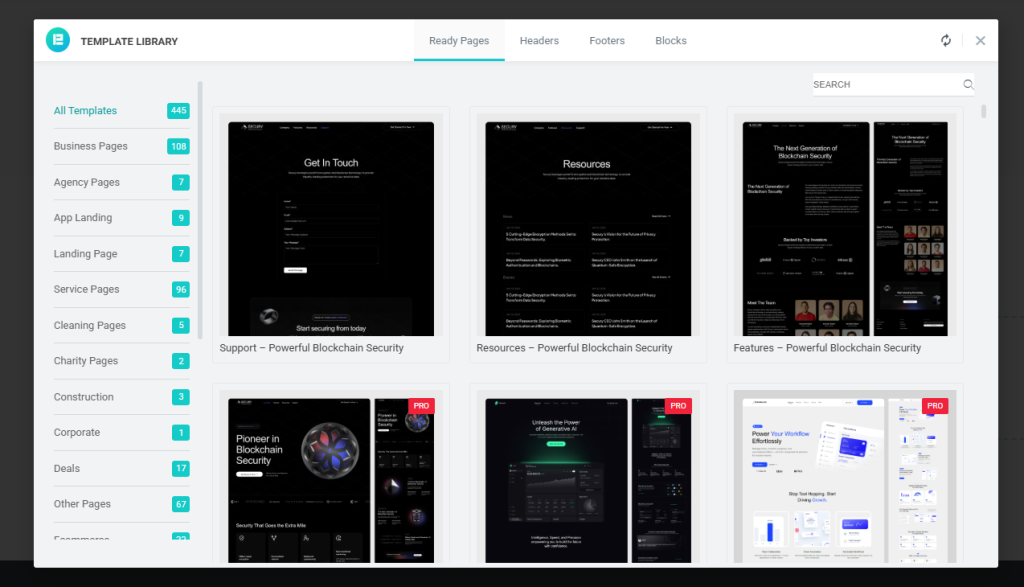
Browse the templates and select one that matches your needs.
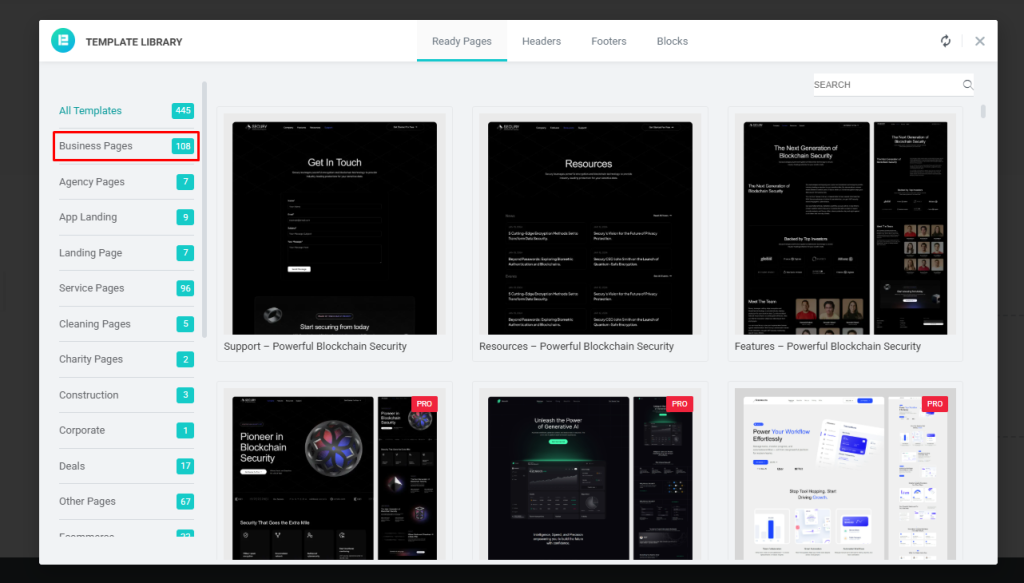
Click Insert to add the template to your page.
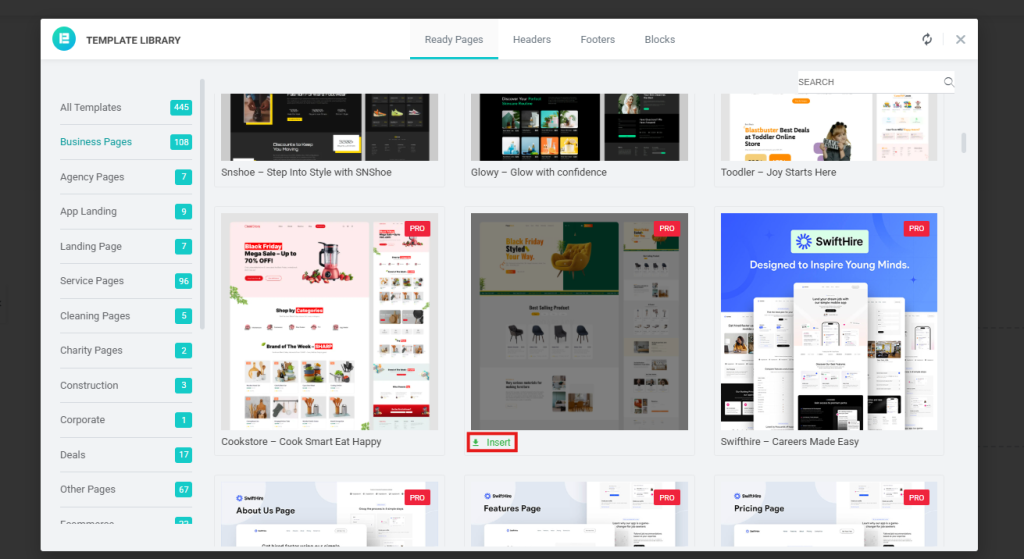
Step 12: Customize Your Page
Once the template is added, you can edit everything using Elementor. Click on any text to change it, click on images to replace them and adjust colors, layout and content from the left panel.
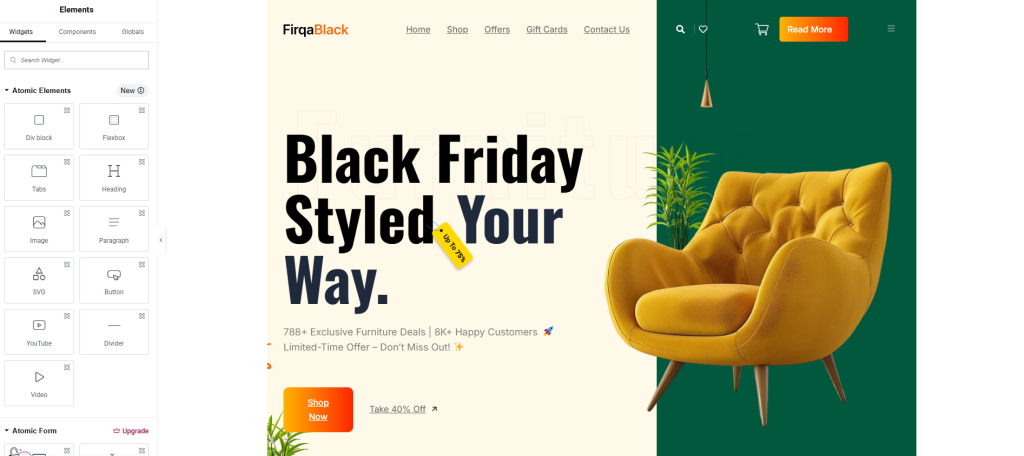
When you finish editing, click Publish to update your page.
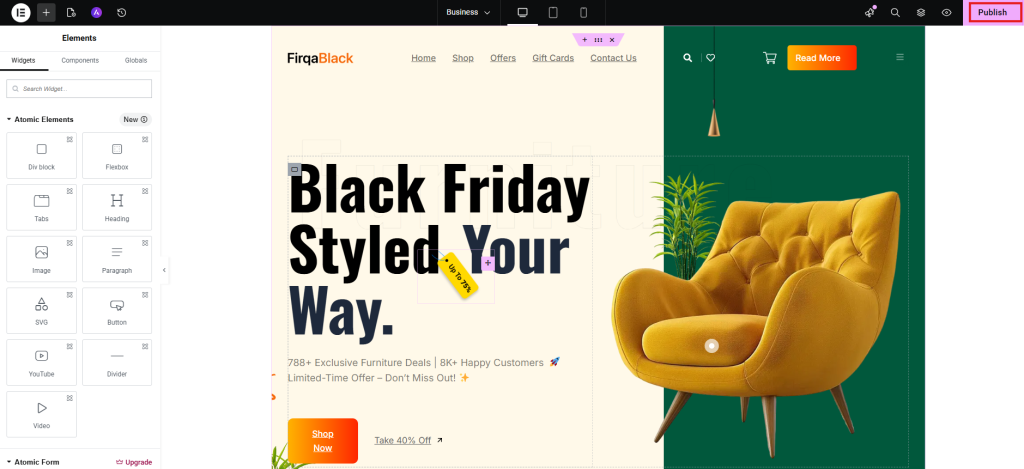
Let’s see how it looks from the front end.

Step 13: Create Contact Page
Now you can also create another page using Element Pack-ready templates. In this blog, we will create a Contact Us page using this method.
Create a page, then click Edit with Elementor to start designing it.
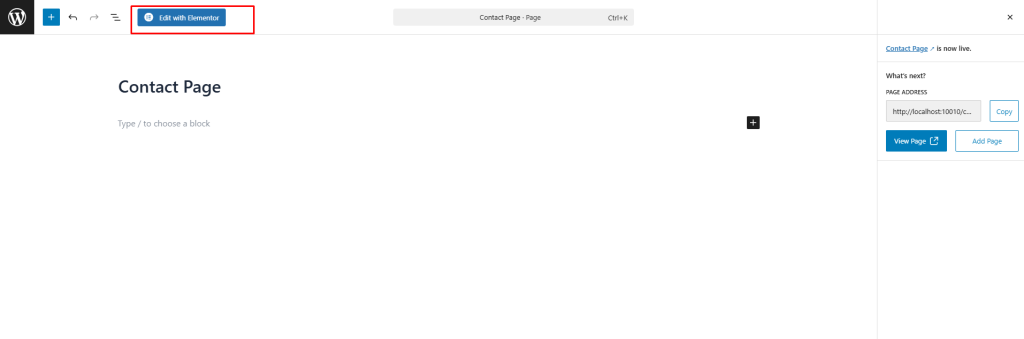
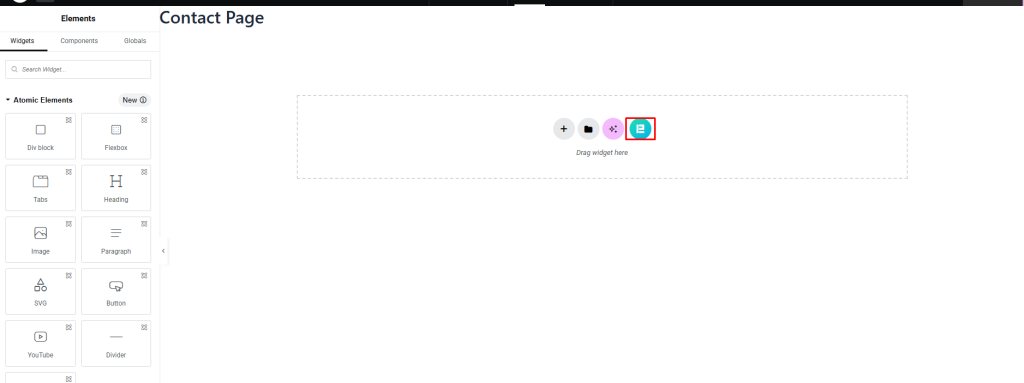
Now click the Element Pack icon.
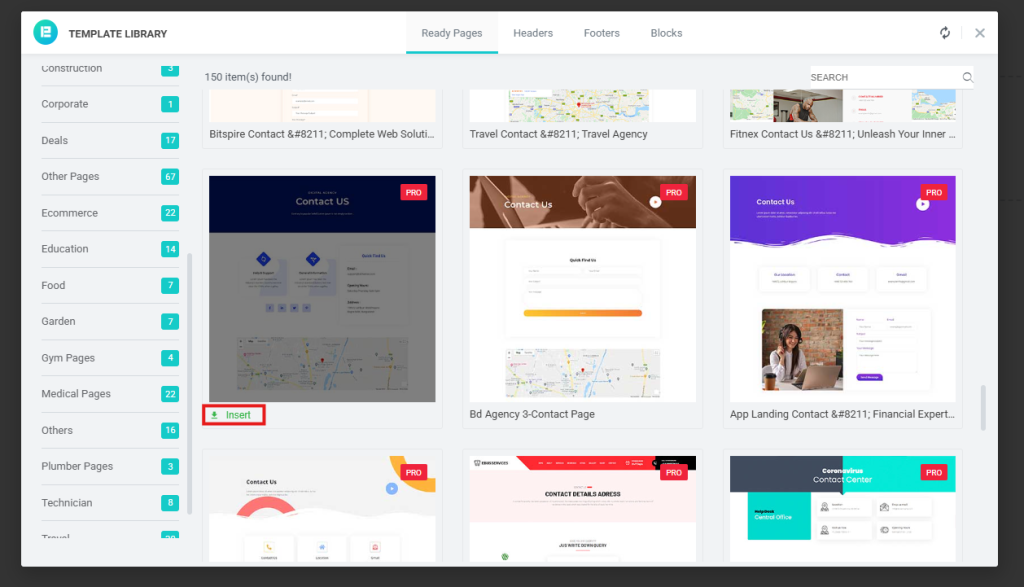
From here, you can choose ready-made contact page templates to build your page quickly. Click Insert to add the template to your page.
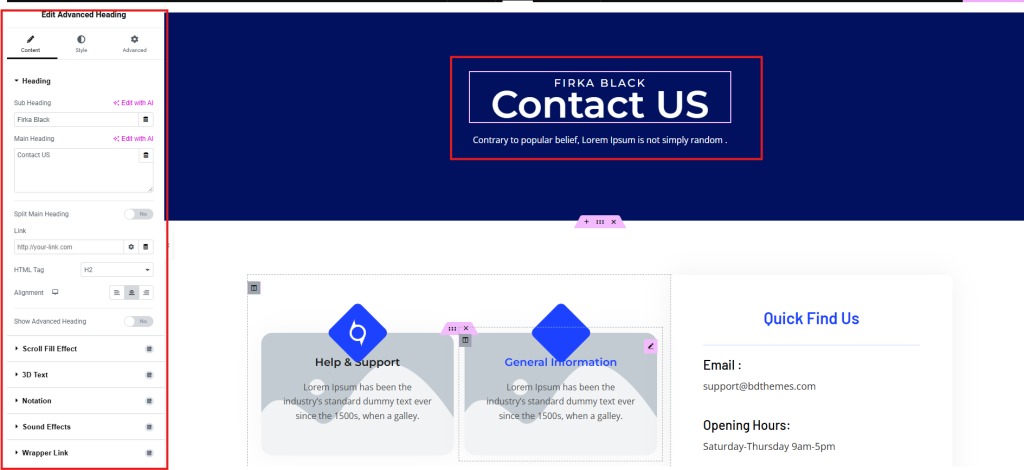
After that, you can edit everything. Click on the text to change it. Click on images to replace them. You can also change colors, layout and content from the left side.
When you finish editing, click Publish to update your page.
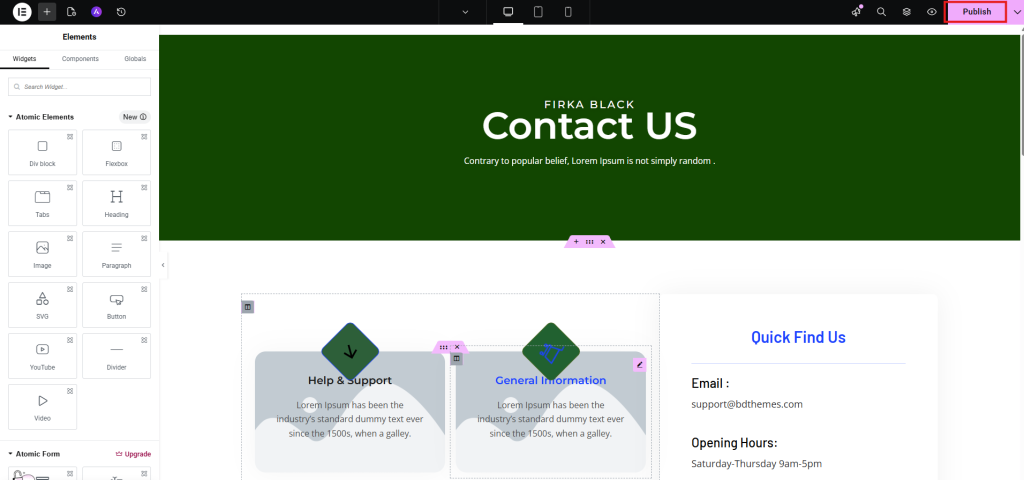
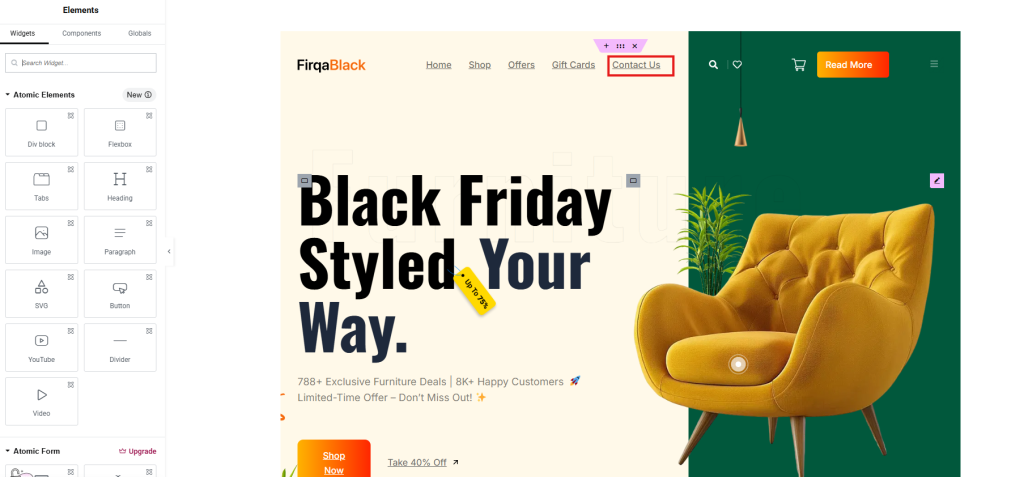
Step 14: Link Contact Page
Now add the contact page link to your business page. Go to the business page and hover over the Contact Us button, then click it.
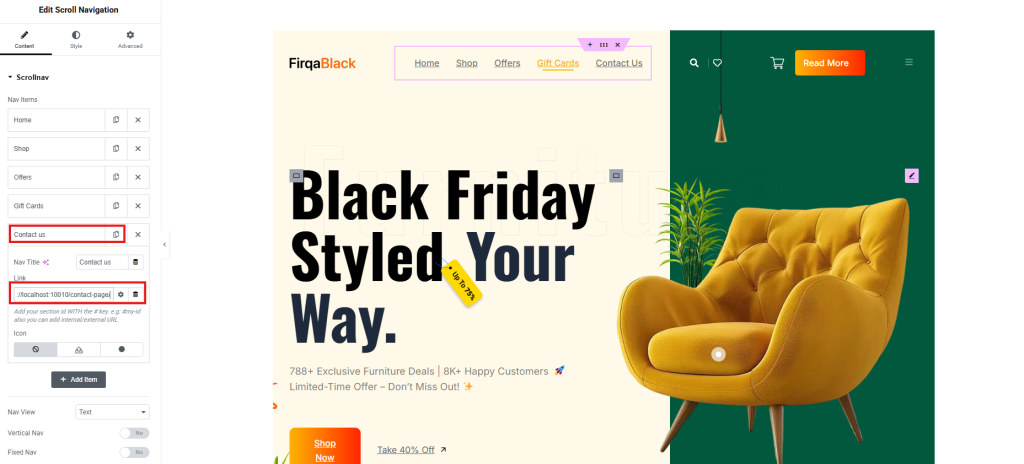
In the left side panel, add the link to your contact page.
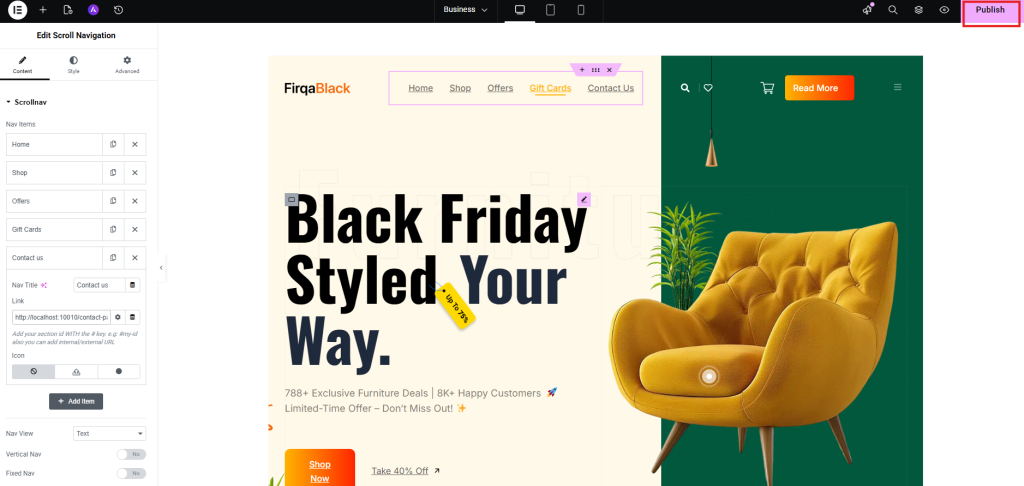
Now click Publish.
Step 17: Check Final Result
Now, let’s see the final result from the front end….

Frequently Asked Questions
1. How to make a website for your business with WordPress?
You can create a business website by choosing a domain, buying hosting, installing WordPress and designing pages using tools like Elementor.
2. Is WordPress good for business websites?
Yes, WordPress is a great choice for business websites because it is flexible, easy to use and supports many plugins.
3. What do I need before creating a WordPress website?
You need a domain name, web hosting and a clear idea of your website purpose.
4. Can I build a business website without coding?
Yes, you can build a website without coding using page builders like Elementor and tools like Element Pack.
5. How long does it take to build a business website?
It depends on your needs. A simple website can be built in a few hours, while a full business website may take a few days.
6. Which is better for business: WordPress.com or WordPress.org?
WordPress.org is better for business websites because it gives you full control and more features.
7. What pages should a business website have?
A business website should include a homepage, about page, product or services page and contact page.
8. What is the easiest way to design a WordPress website?
The easiest way is to use Elementor and ready-made templates from Element Pack.
9. Do I need to buy plugins to build a website?
No, you can start with free plugins. However, premium plugins offer more features and better design options.
10. How can I make my WordPress website look professional?
Use a clean design, high-quality images, simple layout and clear content.
Conclusion
Many business owners delay creating a website because it seems difficult. This leads to lost traffic, fewer leads and slow growth.
If you do not take action, your competitors will move ahead. A business without a website in today’s world can struggle to grow.
The good news is that it is easier than ever. By following this guide on how to make a website for my business with WordPress, you can create a clean, fast and professional website.
Start simple, keep improving and focus on your users. Your website can become a powerful tool for your business growth.
Al Jami Zwad
The BdThemes team builds WordPress plugins trusted by 3M+ users worldwide. We write about web accessibility, WCAG compliance, and inclusive design.