

A mega menu is a type of expandable navigation menu that reveals multiple options at once, typically grouped into categories for a better user experience. Unlike traditional drop-downs, mega menus offer a broader layout, often featuring columns, images, icons, or even widgets.
It is especially useful for eCommerce sites, news portals, or any large website with lots of content that needs to be easily accessible.
But if you want to create a Mega Menu in Elementor, it is not possible because Elementor (the free version) allows for simple navigation layouts using the Nav Menu widget; it lacks the advanced structure needed for a full-fledged mega menu. You’d run into limitations like:
- No support for multi-column dropdowns
- No image or widget embedding in menu items
- Limited styling and hover control
So, if you’re aiming for an advanced, modern, user-friendly mega menu with rich features, you’ll need to use a third-party plugin to enable this functionality. So, in this blog, I will show you How to Create a Mega Menu in Elementor in 5 Easy Steps
Here’s the mega menu preview we’re going to create using Elementor:
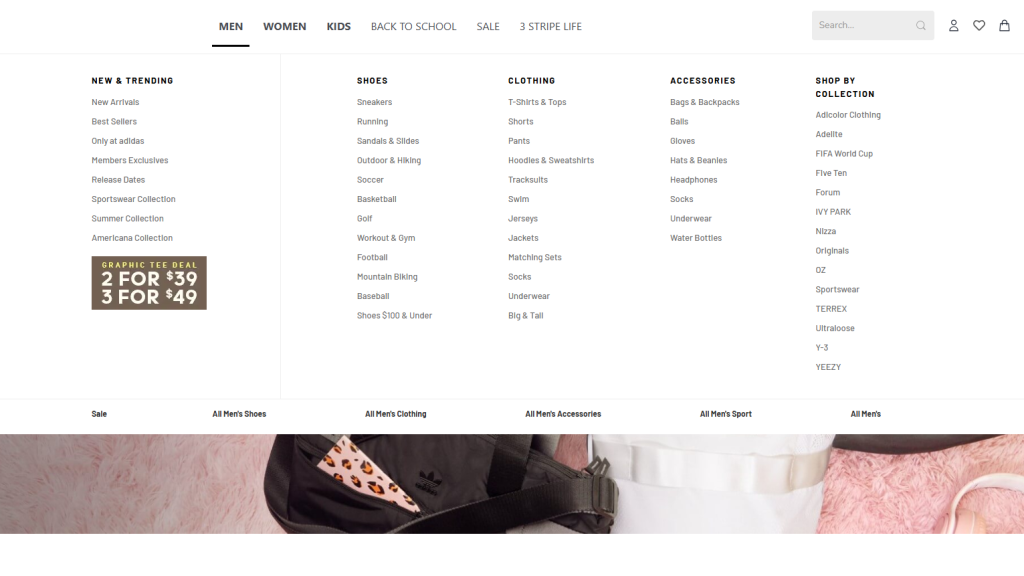
Create a WordPress Mega Menu in Elementor
Building a detailed mega menu for your WordPress site with Elementor can seem tricky. Elementor is great for pages, but advanced menus often need more. Many plugins offer mega menu features for Elementor, yet Element Pack stands out for simplifying things.
With some other plugins, you might run into confusing settings, limited design options, or struggle to get your menu to look just right on different devices. It can feel like you’re fighting the interface just to get a basic mega menu set up.
Element Pack, however, offers all the needed power through a user-friendly interface. It lets you create impressive mega menus without the typical frustrations, providing a direct way to add content and layouts right inside Elementor.
So, let’s start building the entire mega menu with the Element Pack.
Prerequisite
First of all, confirm that these 2 plugins have been installed and activated:
- Elementor: The Free version is enough.
- Element Pack: This WordPress plugin adds mega menu capabilities specifically for Elementor.
Step 1: Enable Mega Menu Modules and Widgets
Enabling the Mega Menu feature in Element Pack Pro involves adjusting several settings within the WordPress dashboard. So,
- Go to Element Pack Pro from your WordPress dashboard.
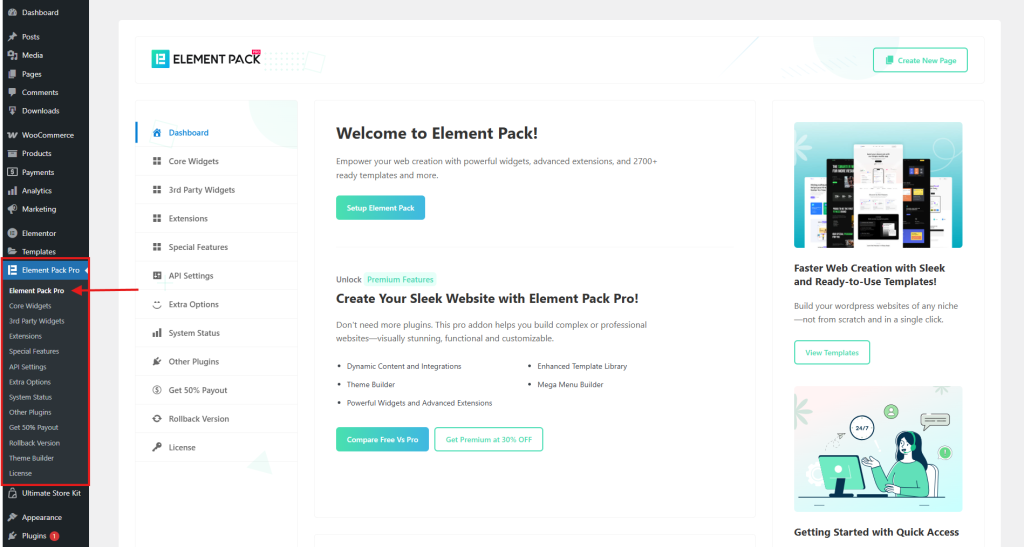
- Navigate to the Special Features tab.
- Enable the Mega Menu Switcher and save settings.
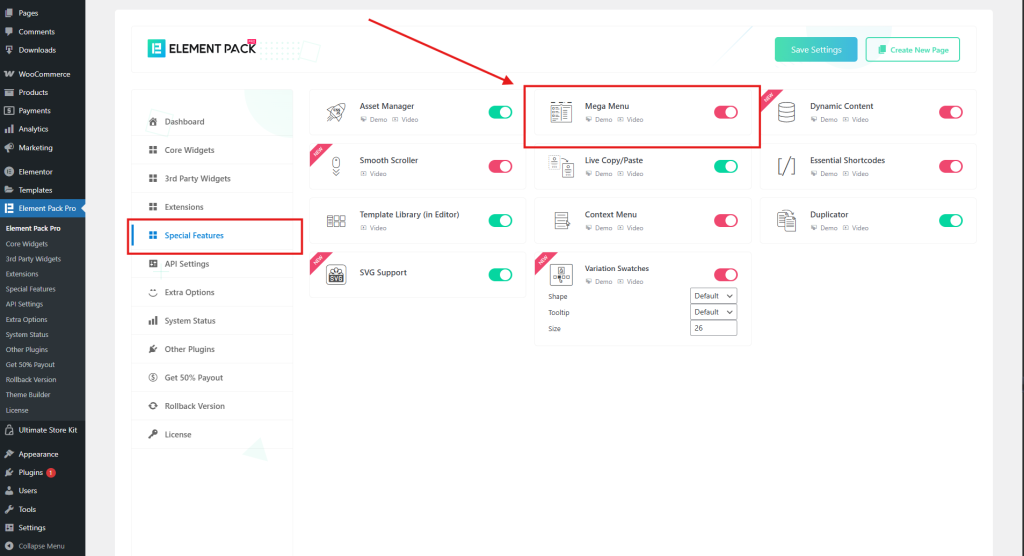
- Then, go to the Core Widgets tab.
- Enable Mega Menu and Sub-Menu widgets.
- Save the settings.
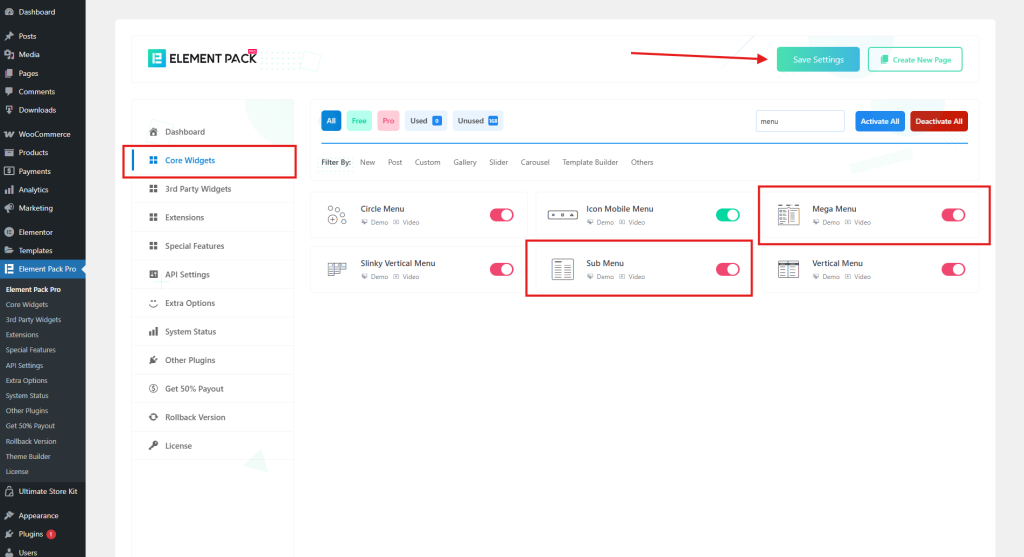
- Resave permalinks to ensure proper functionality.
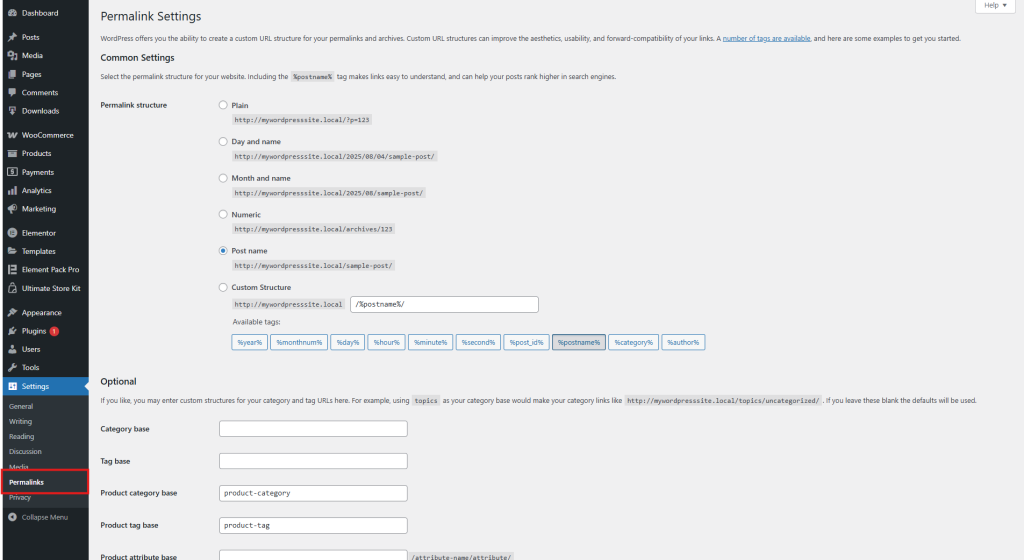
Step 2: Create & Configure Elementor Menu
Now you need to create your mega menu. Follow the basic steps below for effective menu management.
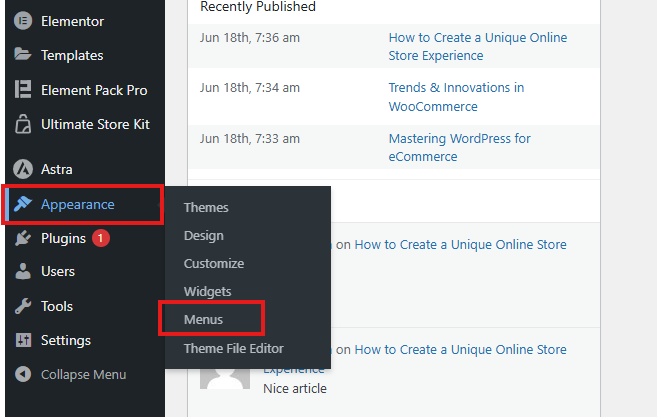
- Go to Appearance > Menus.
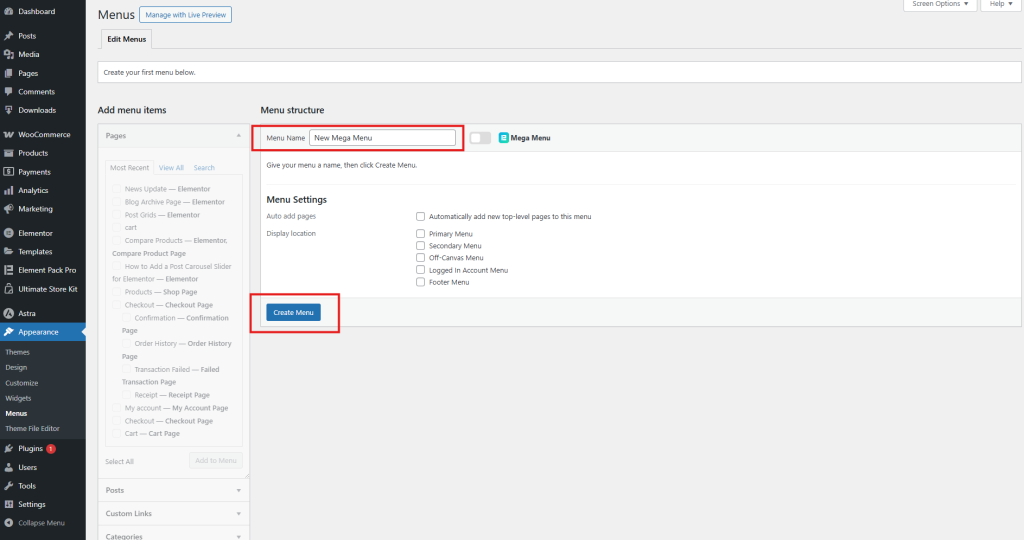
- Name your menu and click Create Menu.
- Add menu items (custom links or existing pages) to the menu.
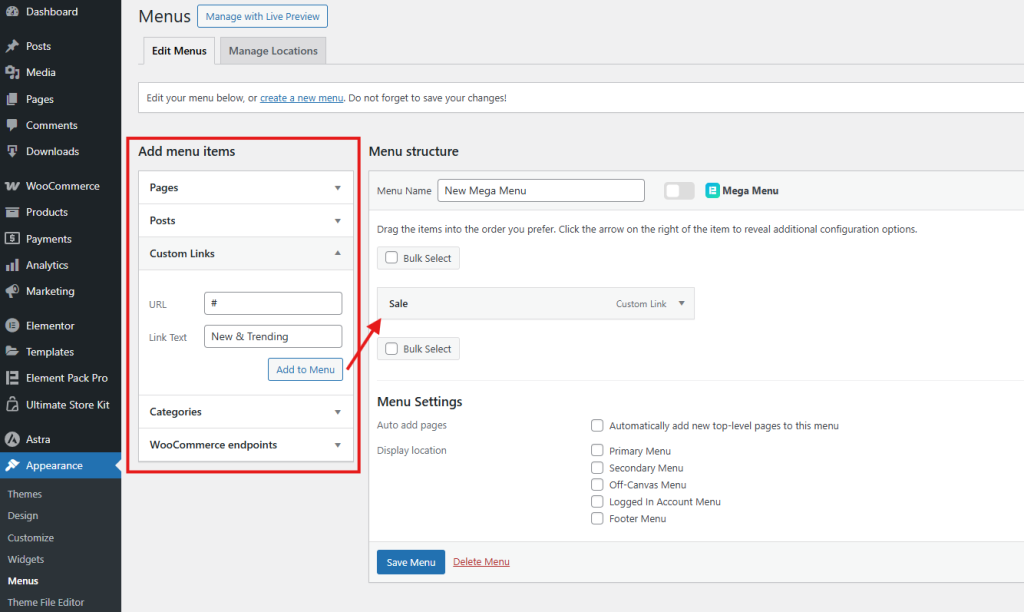
- For each item you want to turn into a Mega Menu, toggle the Mega Menu Switcher to turn it on.
- Save the menu and refresh the page.
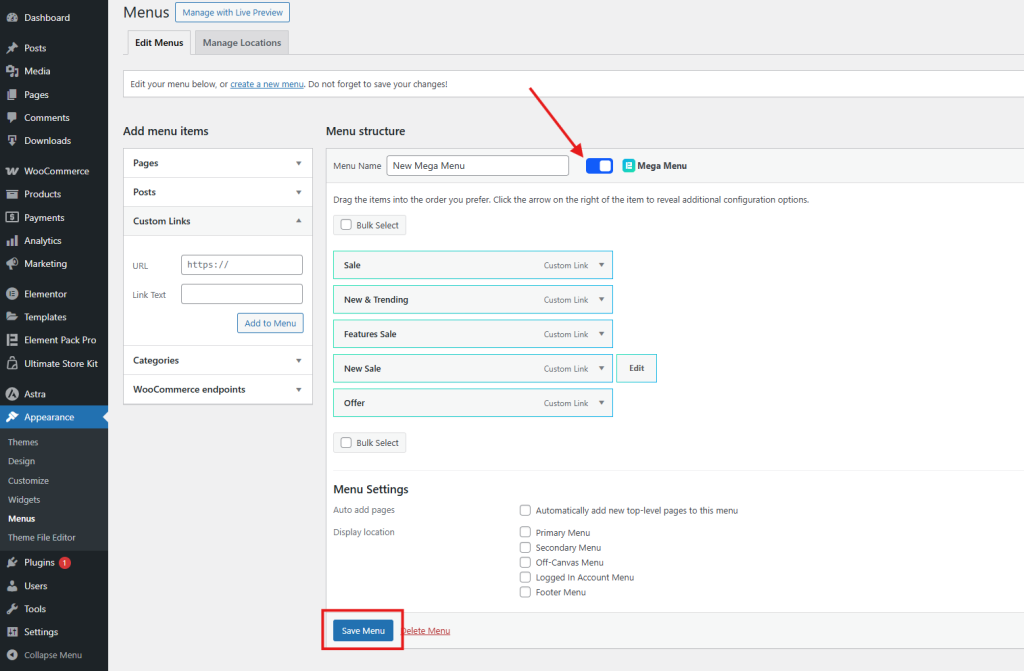
Step 3: Designing the Mega Menu
After creating the menu, turning on the Element Pack Mega Menu Switcher allows for customization of the menu items. This feature highlights items ready to be converted into Mega Menus.
Customizing mega menus with width and icon options improves the user experience. These things help visually integrate the menu with your website design. So, design some basics of the system according to your needs.
- Hover over a menu item with the Mega Menu enabled.
- Click the Edit Mega Menu button that appears.
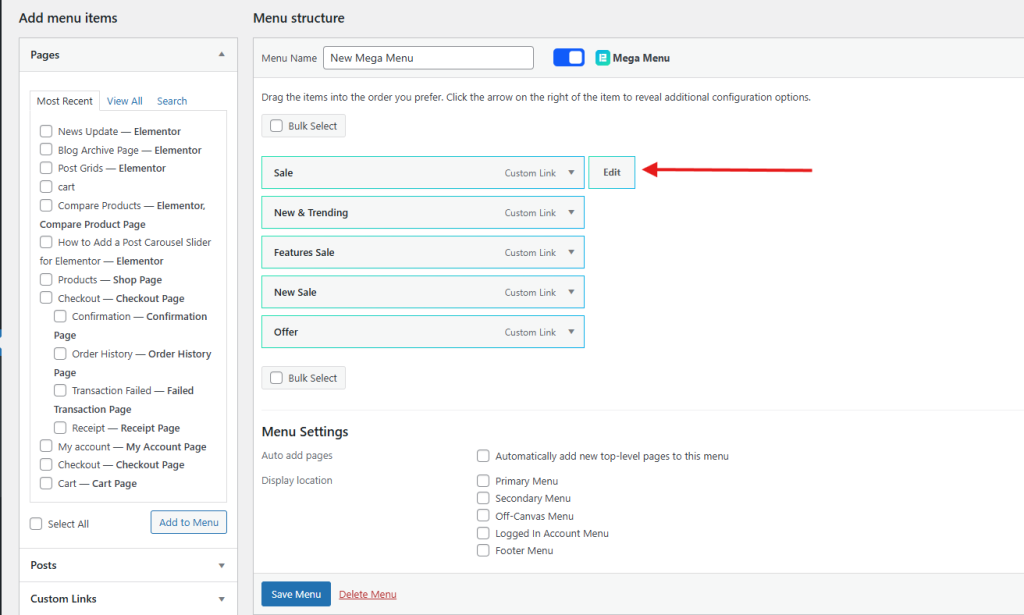
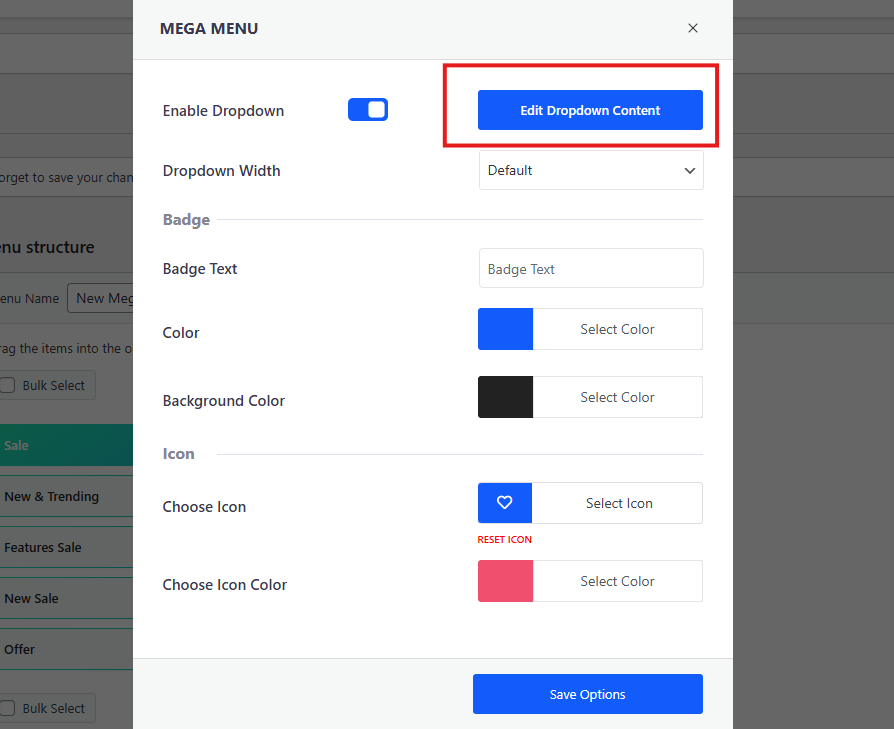
- A pop-up will appear
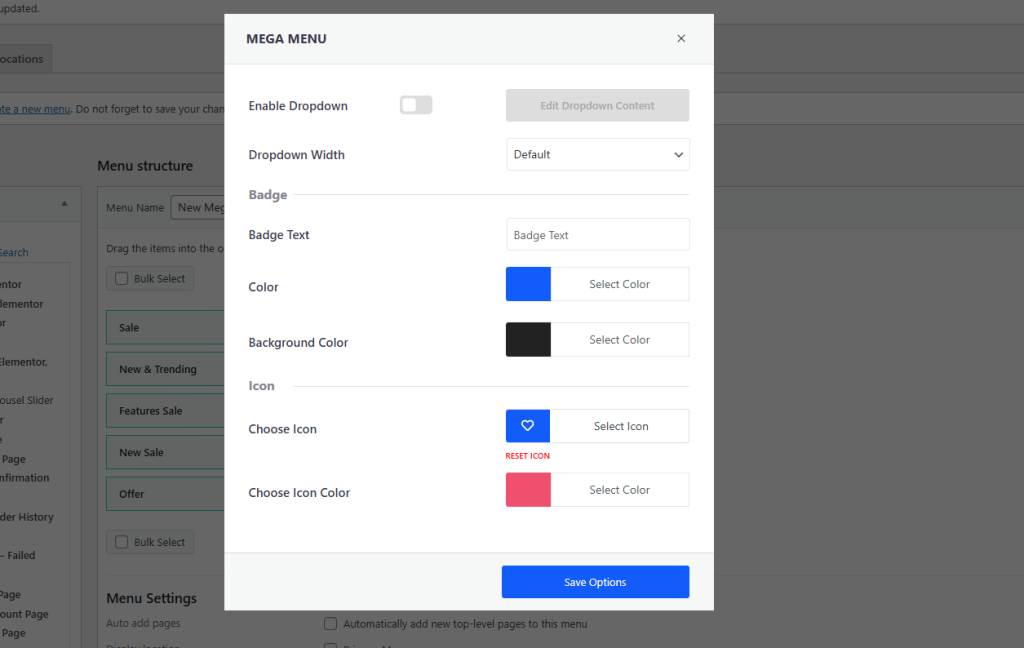
- Turn on Enable Mega Menu.
- Set the width of the menu (default or custom).
- Add a badge text if desired, which will appear near the menu item.
- Choose a menu icon and icon color.
- Click on Save Options.
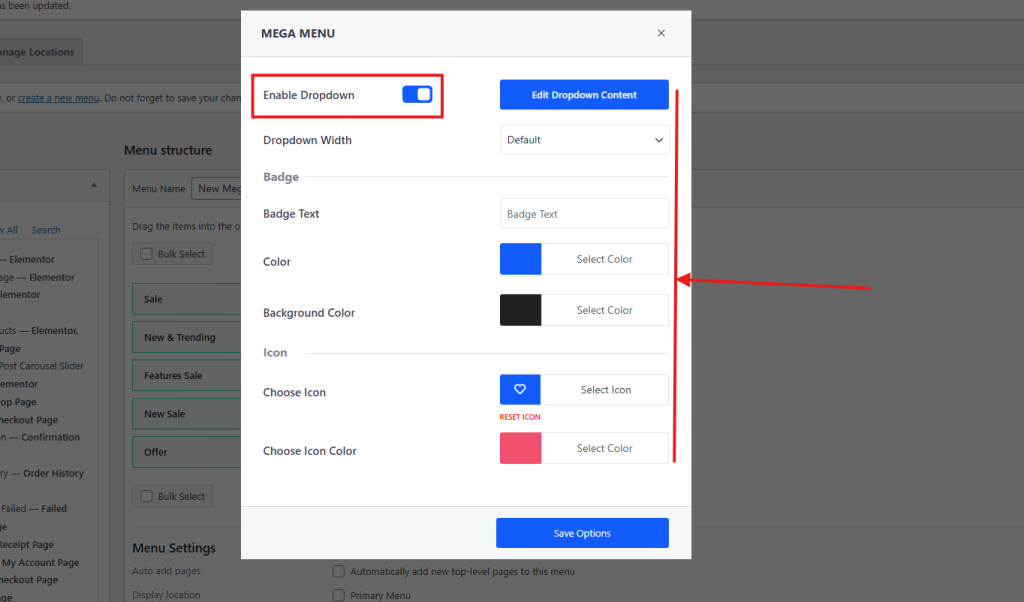
Step 4: Customize Elementor Mega Menu
Now, to customize the mega menu, we need to open it with Elementor. So,
- Click on the Edit Dropdown Content.
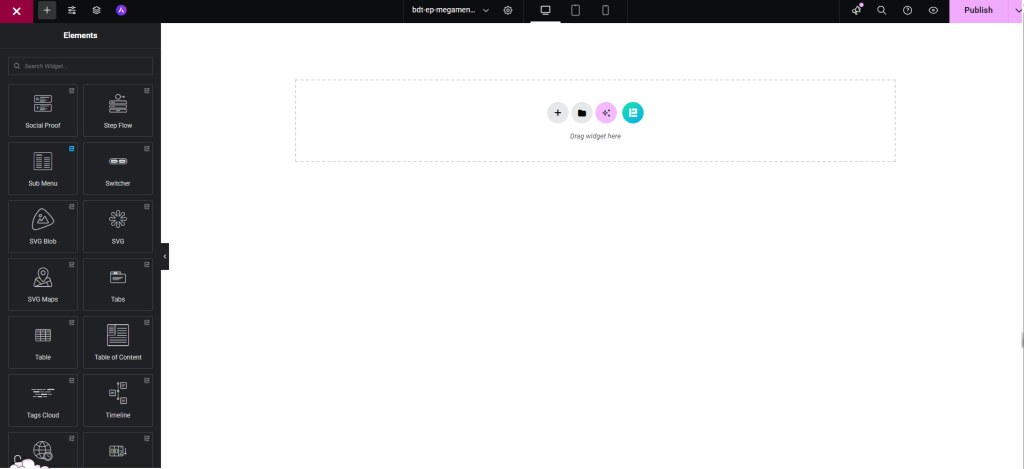
- The Elementor editor will open.
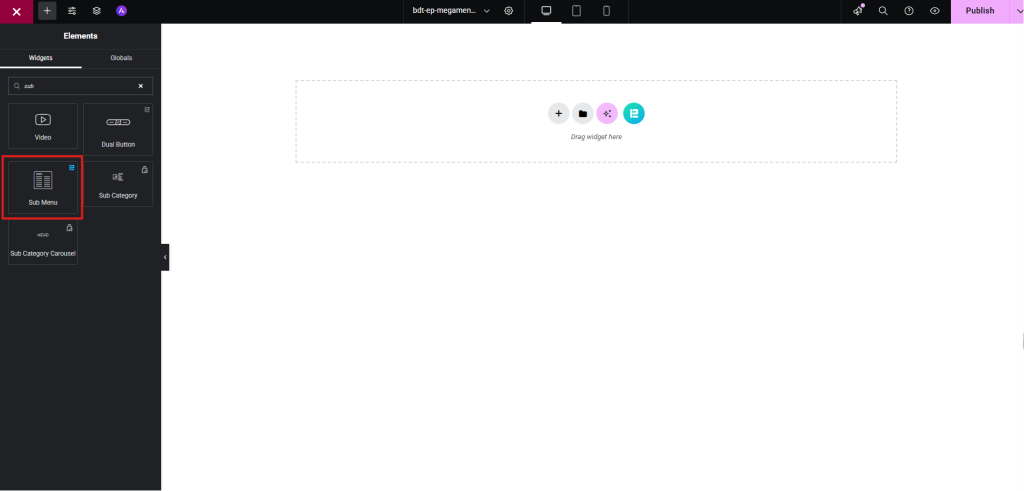
- Drag and drop widgets into the Mega Menu layout.
- Use the Sub-Menu widget and create columns, add images, icons, text, etc.
- Customize styles, spacing, and layout as needed.
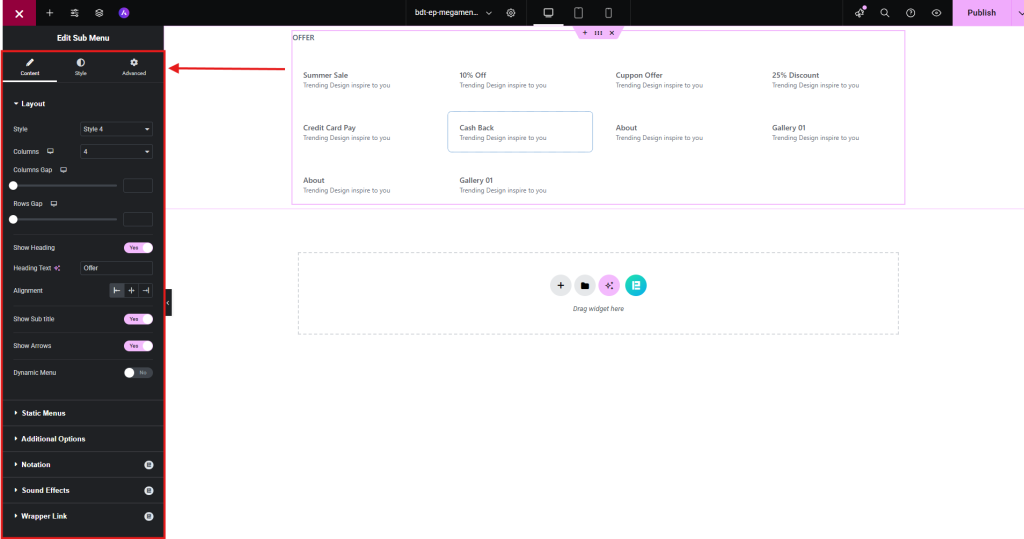
- Use the Elementor preview to see how the Mega Menu looks.
- You can use another way to make a submenu using Live copy and paste
- Just go to Element Pack Mega Menu Demo
- Choose a demo
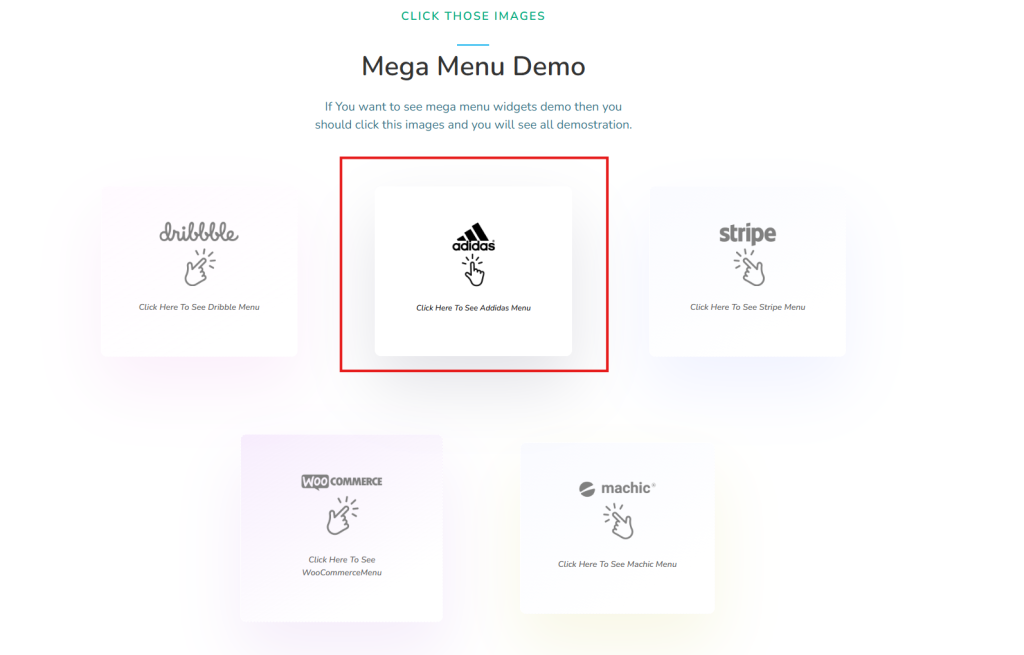
- Now, choose a style and click on the right side’s Live copy and paste button
- Here, I am copying Adidas’ demo’s Men’s menu element
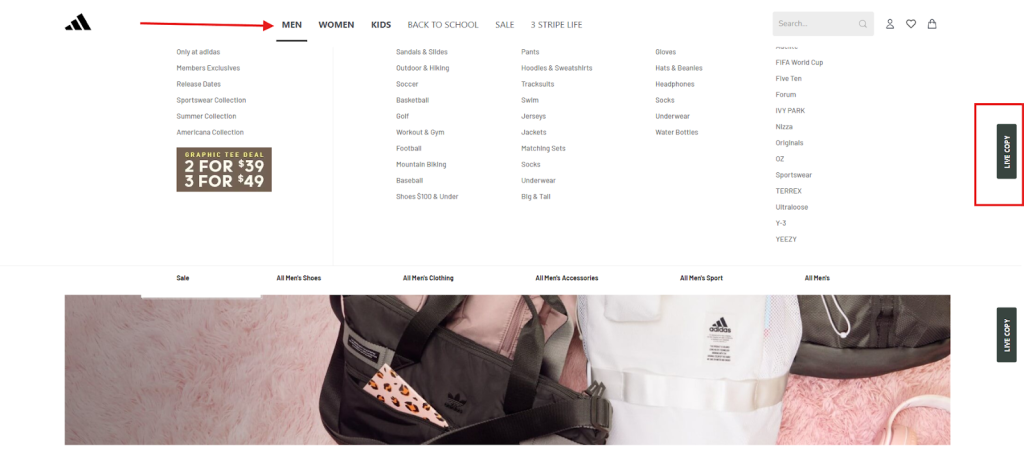
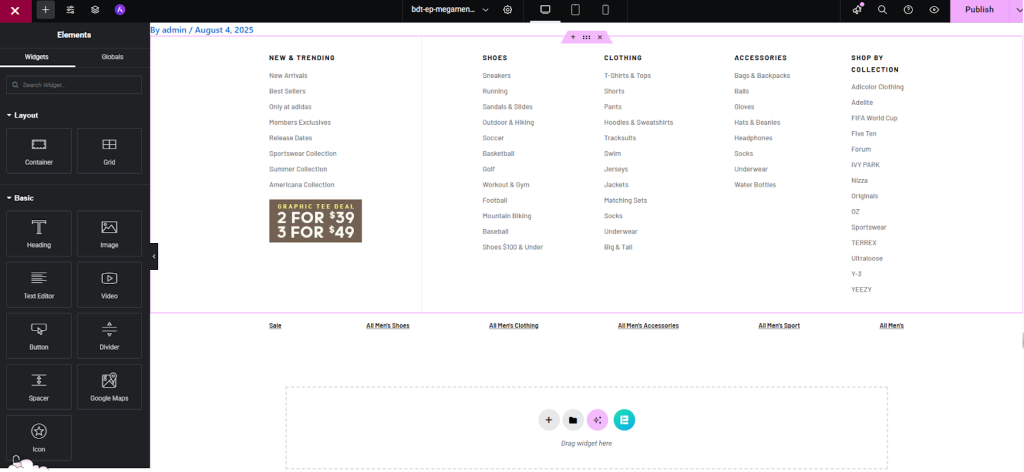
- Now, back to your Elementor editor and paste

- The entire mega menu template will be available here.
Step 5: Control Layout and Style Customization
Its layout and styles may require further customization to keep it similar to your website. So,
- Now, adjust styling and content as needed.
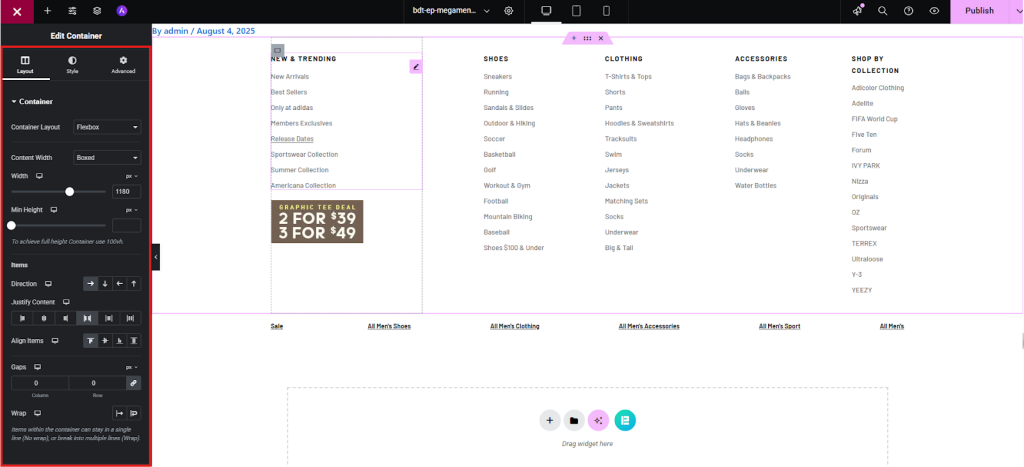
- Use the responsive mode to ensure it looks good on mobile.
- Check the menu in desktop and mobile views.
Step 6: Save and Enjoy
Now we are at the end,
- Go to your template or page where you want to show the mega menu.
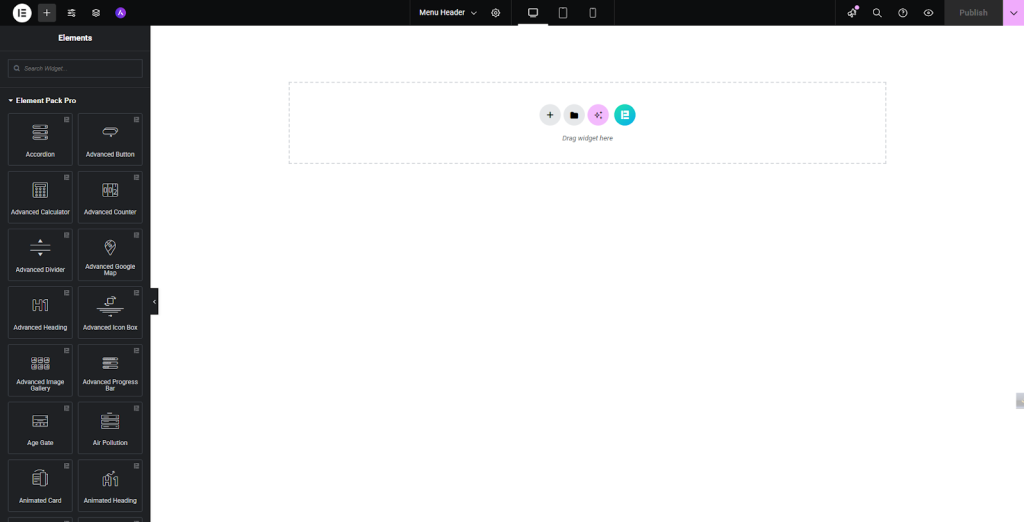
- Search the mega menu widget from the Element Pack section
- Drag and drop it into the page layout
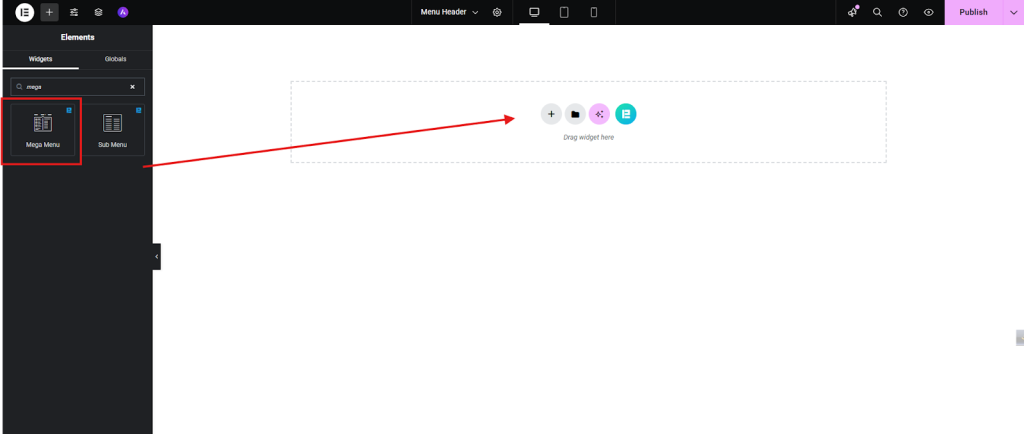
- Select the menu and set the menu direction
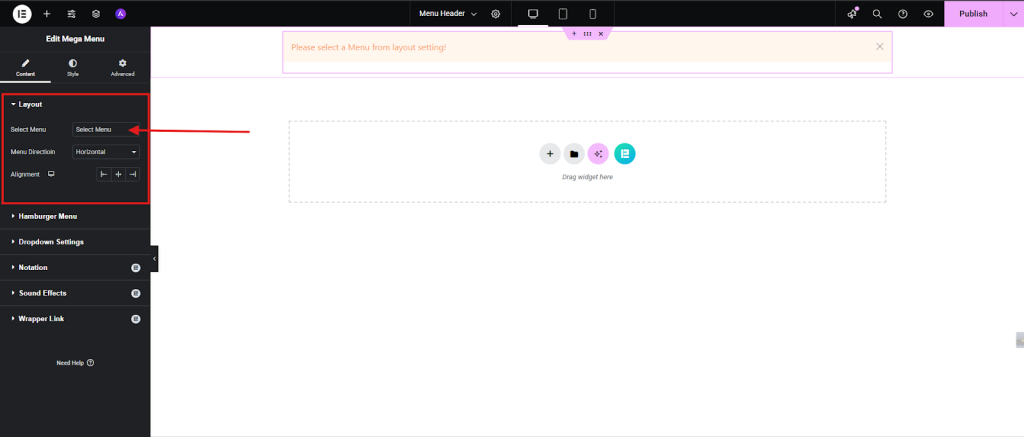
- Now, if you need to make any layout or style changes, complete them and click the Publish button.
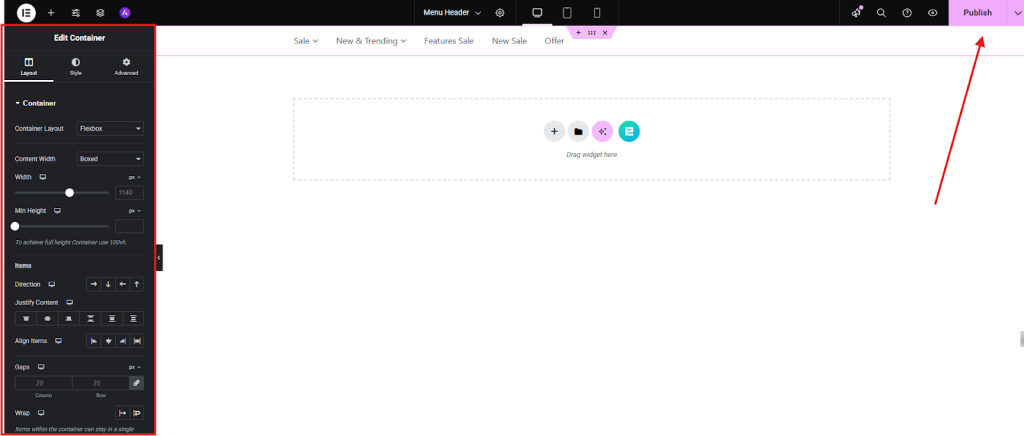
- Now visit your page or template and hover over your menu, and you will get the mega menu.
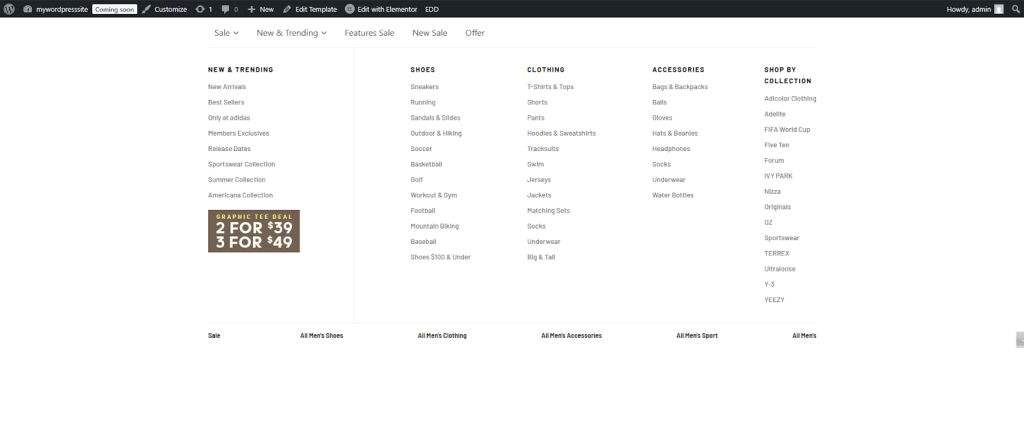
Advanced Mega Menu in Elementor: preview
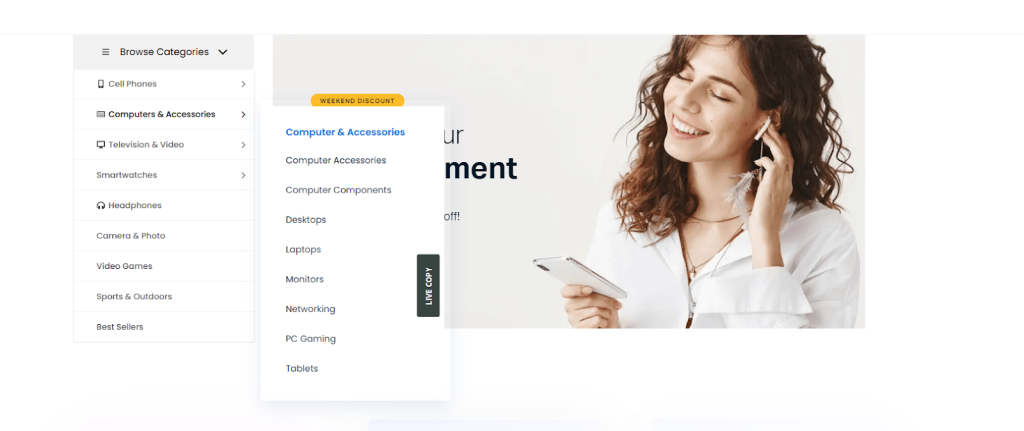
The Element Pack Maine Focus allows you to create an Advanced Mega menu. Here are some advanced mega menus made by Element Pack.
It is a copy of the dribble to make a mega menu like the Dribbble website
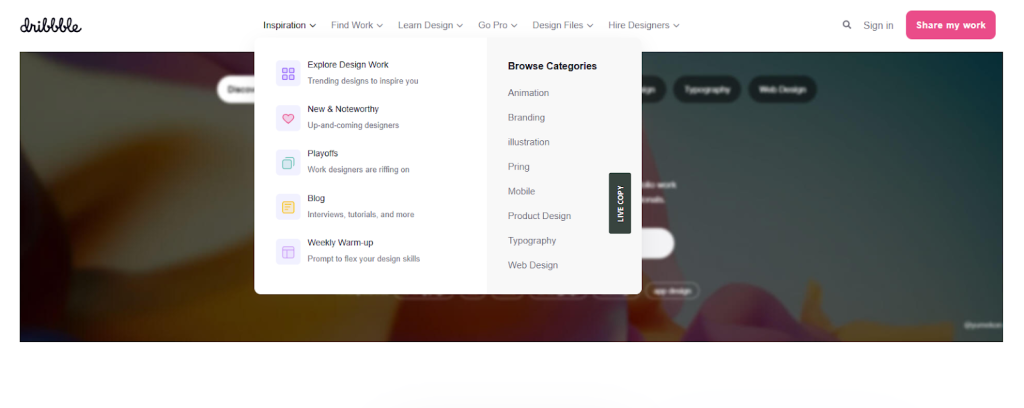
With Element Pack, you can build advanced mega menus like this for eCommerce.
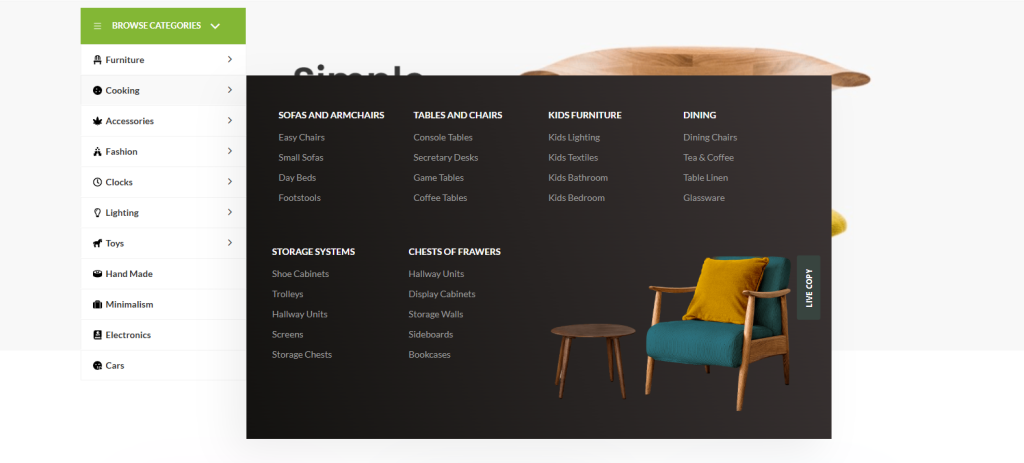
You can also build this beautiful mega menu with the Element Pack.
Conclusion
Creating a mega menu in Elementor from scratch might seem daunting at first, but with the right tools and a structured approach, it becomes a powerful way to elevate your site’s navigation and user experience.
Whether you’re running an eCommerce store, a content-rich blog, or a corporate website, a well-designed mega menu helps visitors find what they need faster, while showcasing your brand’s professionalism.
By following the steps outlined above, you’ve now built a fully functional, visually engaging mega menu that’s both responsive and customizable. Don’t forget to test it across devices and refine the layout based on user feedback. Element Pack gives you the flexibility to tweak and scale your menu as your site grows.
Ready to take it further? Try integrating dynamic content, icons, or even WooCommerce elements to make your mega menu truly interactive. The possibilities are endless. So, keep experimenting and let your creativity lead the way!
FAQ
1. Can I create a mega menu with free Elementor?
Yes, but it’s limited. For advanced layouts and features, Element Pack makes it much easier.
2. Do I need coding skills to build a mega menu?
Not at all! With Element Pack, you can design complex mega menus visually no code required.
3. How do you create a mega menu on Elementor?
You can use Elementor’s Menu widget with dropdown content enabled. But for faster setup and more styling options, the Element Pack makes it effortless.
4. How do you create a mega menu in Elementor without a plugin?
You can use custom CSS and inner sections, but it’s time-consuming. Element Pack saves you hours with its built-in Mega Menu widget.
5. How to set up a mega menu?
Design your header, add menu items, and enable dropdown content. Or skip the hassle, Element Pack handles layout, responsiveness, and animations for you.
Latest Blogs
- How to Track and Improve Your WordPress Website Visibility in Search Engines
- 20 Website Layout Examples to Inspire Your Next Design
- WordPress 7.0 is Coming: The Essential Guide to the 2026 Release, Collaboration Features and AI Infrastructure
- How Can I Make a Business Website (Complete Step-by-Step Guide)
- How to Make a Website for My Business with WordPress in 2026
Md Tarikul
The BdThemes team builds WordPress plugins trusted by 3M+ users worldwide. We write about web accessibility, WCAG compliance, and inclusive design.