












Every website has a distinctive home page to welcome their visitors. Replacing a WordPress home page becomes crucial if you are trying to adapt a better design. As the home page contains hundreds of links, settings, and information, replacing it becomes critical. If you replace the home page, the new page will not import any previous settings. So, you need to keep that in mind.
Anyway, in this blog, we will show you the easiest way to replace your home page in seconds. Let’s start.
Replace home page with new elementor page (Easy Steps)
First of all, you need to complete the new home page that you can use from now on. Note that, if you have a live website, replacing your current home page is a big matter to reconsider. If you are about to place a crudely made page, certainly you have to be prepared to lose regular traffic. Just because google ranks every home page all the time, if you choose something that’s below average, you will lose your ranks.
So, in order to successfully replace your WordPress home page, first select the best page you want to show. If you don’t have any, create your page following the example below.
Create new home page
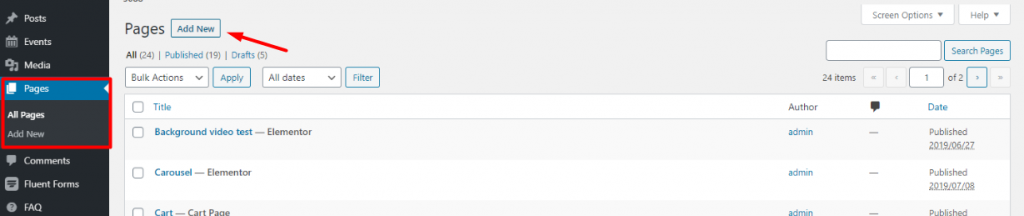
First, go to your WordPress 대시보드 > 페이지 > 새로 추가.
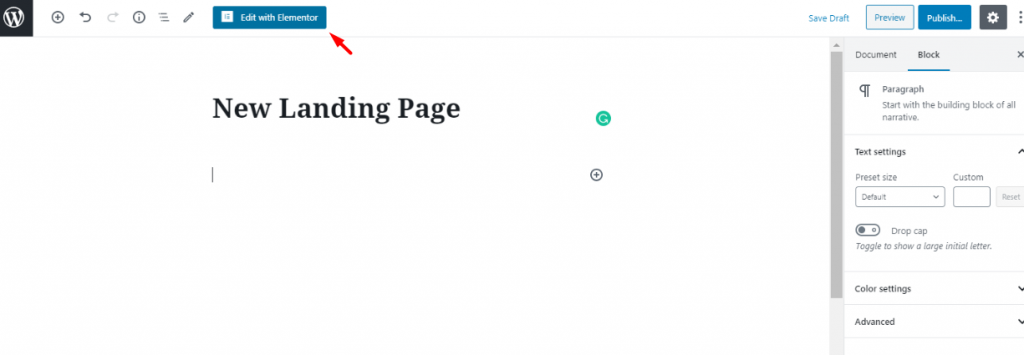
Then, a window will open for creating a new page. There, you can put your page title. Then hit Elementor로 편집. We have put New Landing Page as the title for our replacement WordPress home page. Of course, you don’t need to follow that too.
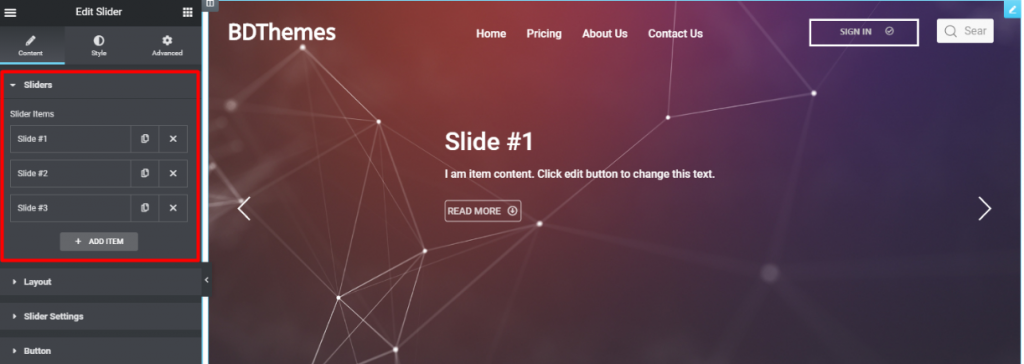
Next, design your page as much as you like. Now, you must remember that you have to design with modesty. Make sure to design your page with the theme of your customer. Like the image above, we have tried to design the page to be more attractive to the visitors. Now, as your page is ready, let’s replace the home page quickly.
나를 위한 블로그가장 인기 있는 블로그
워드프레스에 대해 자세히 알아보기
Replacing the current home page within seconds
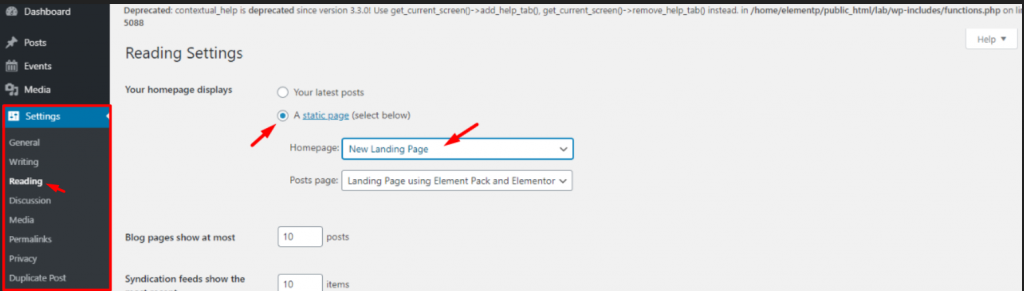
In this step, go to Dashboard> Settings> Reading.
There, you will see the option Your homepage displays at the top. From there, select the 2nd option A static page and select your 홈페이지. You can also select the Post page, let’s proceed with current settings. Just click on the Save changes button and it’s done!
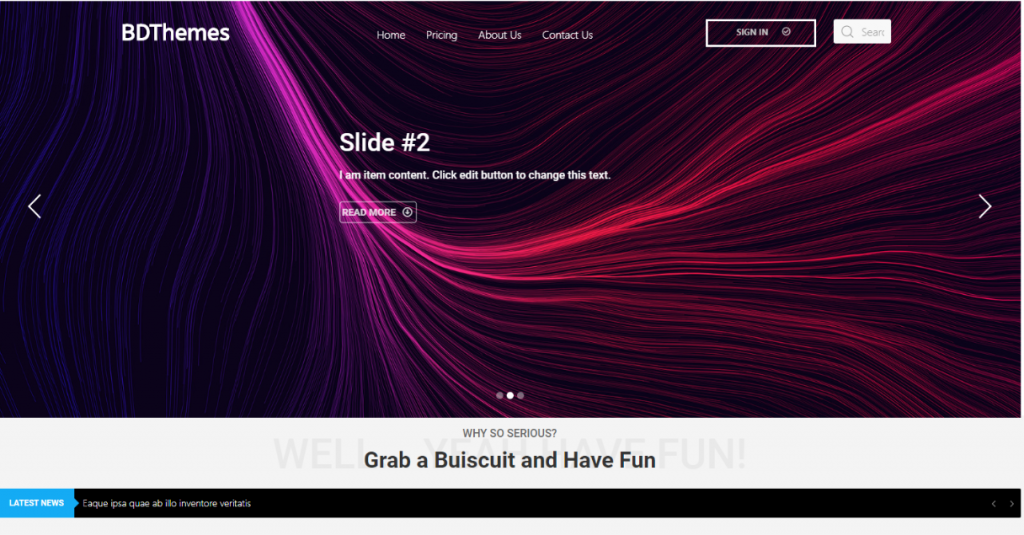
Now, every time you click on your homepage, you will see the new page you have just selected. Very easy right? Like this, you can replace your WordPress home page anytime you want.
보너스:
If you want advanced home page along with other essential site pages, then, the you can simply use widgets and prebuilt- templates using Elementor용 애드온 with Element pack.
결론
Every now and then ,you need to do little tweaks on your WordPress website. The best thing about WordPress is, it gives you plenty of easy options to modify your site. With just a little push, you will be able to do everything on it.
이 블로그는 다음에서 후원합니다. Element Pack, the only one-in-all Elementor widget pack available on the market. If you have any inquiries please contact us through our channel.
Thank you for reading this blog. Stay safe, keep safe.
워드프레스 블로그 더 보기
ul > .bdt-post-list-item; delay: 350;">

워드프레스 죽음의 하얀 화면 수정(모두 적용됨)2019년 4월 29일 분류
![WordPress SEO Plugins Compared [update-21]](https://www.elementpack.pro/wp-content/uploads/2020/08/WordPress-SEO-150x150.jpg)
워드프레스 SEO 플러그인 비교 [업데이트-21]2021년 4월 14일 분류

워드프레스 라이브 채팅 플러그인: 어디서 찾고 어떻게 추가하나요?2021년 4월 5일 분류

워드프레스 CDN: 정의, 장점, 단점 및 사용 시기2019년 8월 18일 분류

워드프레스에서 쇼트코드가 중요한 이유2021년 4월 14일 Element Pack 팁, Elementor, 워드프레스

이메일 캠페인 자동화를 위한 최고의 워드프레스 이메일 플러그인 - 전문가 팁!2021년 4월 11일 분류

