












Every website has a distinctive home page to welcome their visitors. Replacing a WordPress home page becomes crucial if you are trying to adapt a better design. As the home page contains hundreds of links, settings, and information, replacing it becomes critical. If you replace the home page, the new page will not import any previous settings. So, you need to keep that in mind.
Anyway, in this blog, we will show you the easiest way to replace your home page in seconds. Let’s start.
Replace home page with new elementor page (Easy Steps)
First of all, you need to complete the new home page that you can use from now on. Note that, if you have a live website, replacing your current home page is a big matter to reconsider. If you are about to place a crudely made page, certainly you have to be prepared to lose regular traffic. Just because google ranks every home page all the time, if you choose something that’s below average, you will lose your ranks.
So, in order to successfully replace your WordPress home page, first select the best page you want to show. If you don’t have any, create your page following the example below.
Create new home page
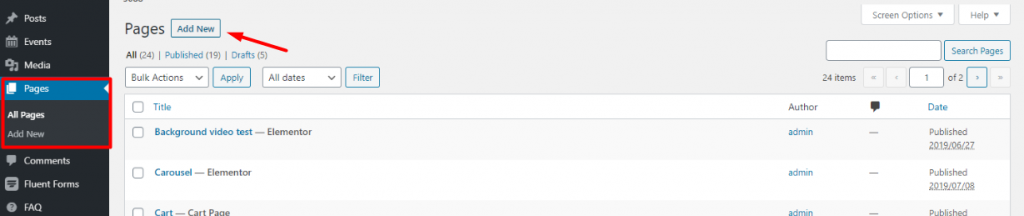
First, go to your WordPress Tableau de bord> Pages> Ajouter un nouveau.
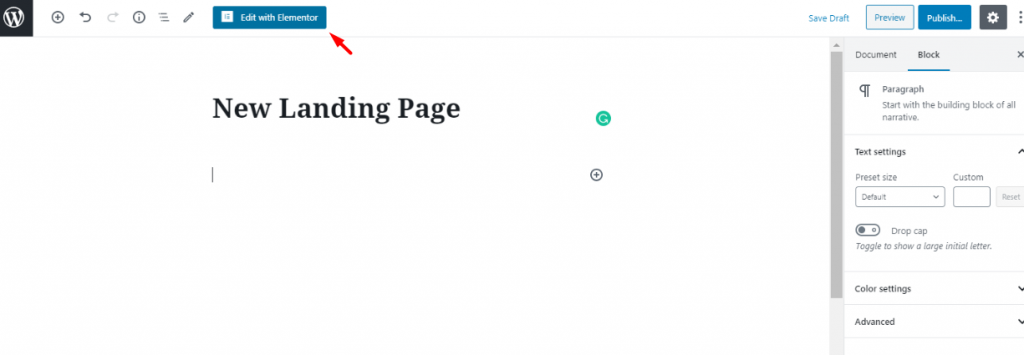
Then, a window will open for creating a new page. There, you can put your page title. Then hit Editer avec Elementor. We have put New Landing Page as the title for our replacement WordPress home page. Of course, you don’t need to follow that too.
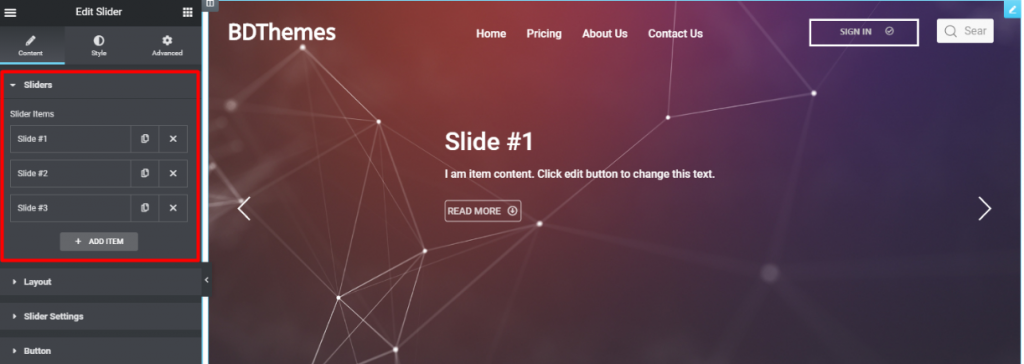
Next, design your page as much as you like. Now, you must remember that you have to design with modesty. Make sure to design your page with the theme of your customer. Like the image above, we have tried to design the page to be more attractive to the visitors. Now, as your page is ready, let’s replace the home page quickly.
Blog for youLes blogs les plus populaires
En savoir plus sur WordPress
Replacing the current home page within seconds
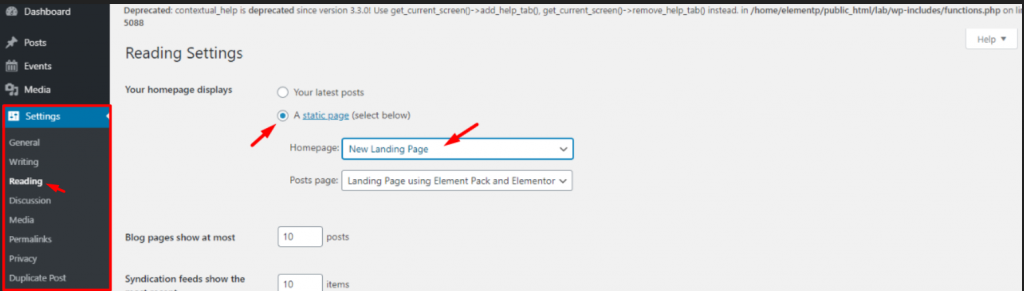
In this step, go to Dashboard> Settings> Reading.
There, you will see the option Your homepage displays at the top. From there, select the 2nd option A static page and select your Page d'accueil. You can also select the Post page, let’s proceed with current settings. Just click on the Save changes button and it’s done!
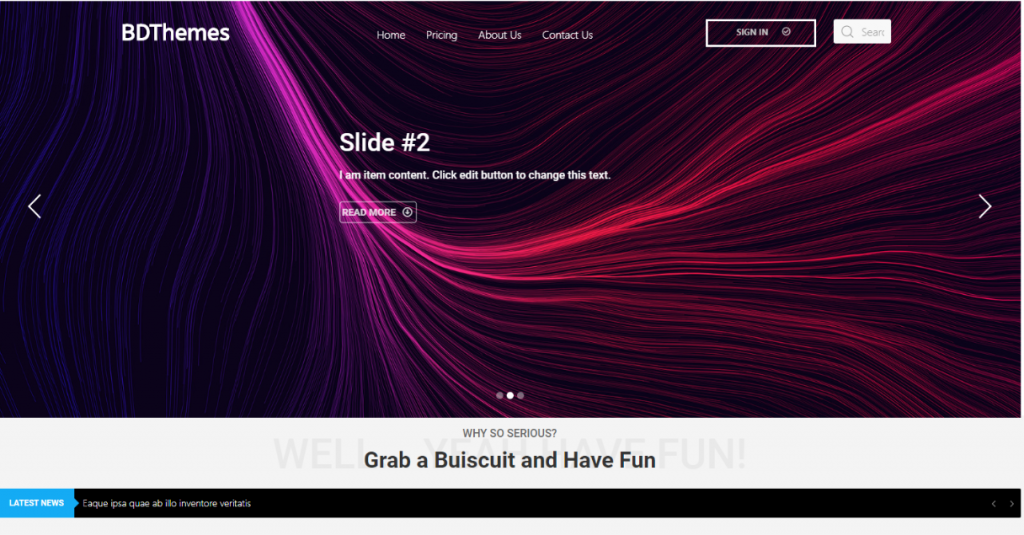
Now, every time you click on your homepage, you will see the new page you have just selected. Very easy right? Like this, you can replace your WordPress home page anytime you want.
Bonus :
If you want advanced home page along with other essential site pages, then, the you can simply use widgets and prebuilt- templates using addons pour Elementor with Element pack.
Conclusion
Every now and then ,you need to do little tweaks on your WordPress website. The best thing about WordPress is, it gives you plenty of easy options to modify your site. With just a little push, you will be able to do everything on it.
Ce blog est sponsorisé par Element Pack, the only one-in-all Elementor widget pack available on the market. If you have any inquiries please contact us through our channel.
Thank you for reading this blog. Stay safe, keep safe.
Lire d'autres blogs WordPress
ul > .bdt-post-list-item ; delay : 350 ;">

Correction de l'écran blanc de WordPress (Tous couverts)29 avril 2019 Non classé
![WordPress SEO Plugins Compared [update-21]](https://www.elementpack.pro/wp-content/uploads/2020/08/WordPress-SEO-150x150.jpg)
Comparaison des plugins WordPress SEO [update-21]April 14, 2021 Non classé

WordPress Live Chat plugin : Où trouver et comment ajouter ?5 avril 2021 Non classé

WordPress CDN : Qu'est-ce que c'est, avantages, inconvénients et quand l'utiliser ?18 août 2019 Non classé

Pourquoi les shortcodes sont importants dans WordPressApril 14, 2021 Element Pack Conseils, Elementor, WordPress

Les meilleurs plugins WordPress pour automatiser votre campagne d'emailing - Conseils de pro !11 avril 2021 Non classé

