

Picture this: A visitor lands on your WordPress site. No slider, no visual hook, just a static wall of text staring back at them. In under three seconds, they have already made up their mind and hit the back button.
Now picture the opposite. A beautifully animated image slider greets them, cycling through your best work, your strongest message, your most compelling offer. That is not decoration. That is conversion design. A well-placed slider on your homepage can be the difference between a bounce and a lead.
The good news? You do not need a developer, you do not need to write a single line of code and you do not need to spend hours fiddling with settings.
Elementor’s drag-and-drop builder makes it remarkably straightforward to add a slider to any WordPress page. And if you want to go beyond the basics with richer slider types, more animation styles and purpose-built widgets, Element Pack Pro has you well covered.
In this guide, you will learn exactly how to create a WordPress slider using Elementor, why sliders still matter in 2026 and how Element Pack Pro takes the whole experience to a completely different level.
Why Add a Slider to Your WordPress Website in 2026

Before diving into the steps, it is worth understanding why sliders are still worth your attention.
- They showcase multiple messages in one space. Instead of forcing visitors to scroll past five separate sections to see your key services or promotions, a slider lets you rotate content dynamically above the fold.
- They grab attention immediately. Motion draws the human eye. An auto-playing or hover-triggered slider creates visual momentum the moment someone lands on your page.
- They work beautifully as hero sections. Portfolio sites, agencies, ecommerce stores and blogs all use sliders as hero sections because they communicate breadth and visual quality in seconds.
- They improve user engagement. When visitors click through slider navigation or interact with controls, they stay on your page longer and that signals positive engagement to search engines.
- They are especially powerful for product showcases. Showing multiple products or features in a scrollable, looping format keeps things compact without sacrificing information.
That said, a poorly implemented slider can slow down your site and frustrate users. That is why choosing the right tool and following a clean setup process matters a lot.
What You Need Before Creating a WordPress Slider With Elementor
Make sure you have the following in place before following the steps below:
- A WordPress website (self-hosted on WordPress.org)
- Elementor Free or Elementor Pro installed and activated
- A page or post where you want to add the slider
- Images or media ready in your WordPress Media Library
- (Optional but highly recommended) Element Pack Pro for access to 23 advanced slider and carousel widgets with deep customization
- Slide content planned out (at minimum a headline, short description, and button link per slide)
Why not just use Elementor’s built-in slider? Elementor Free does not include a hero-style slider widget with text and buttons per slide. That feature is locked inside Elementor Pro. Element Pack Pro’s free Slider widget fills that gap completely, giving you a full-featured slider with headlines, descriptions, CTAs, background images, autoplay, navigation, and styling controls, all without needing to upgrade Elementor itself.
How to Create a WordPress Slider Using Element Pack Pro’s Free Slider Widget (Step-by-Step)
Elementor’s built-in Slides widget covers the basics well, but it has clear limits. If you want layered text animations, post-based sliders that update themselves automatically, device mockup sliders, full-screen cinematic slideshows, WooCommerce product sliders, or a panel-style split layout, you need a dedicated addon.
Element Pack Pro is one of the most comprehensive Elementor addons available, with 300+ widgets and a dedicated Sliders and Carousels category containing 23 purpose-built slider widgets. Here is how to get started.
Step 1: Install and Activate Element Pack Pro
Before you can use any Element Pack Pro widget, you need to get the plugin onto your WordPress site.
- Go to elementpack.pro/pricing and purchase a license that fits your needs.
- After checkout, log into your BdThemes account dashboard and download the Element Pack Pro
.zipfile.
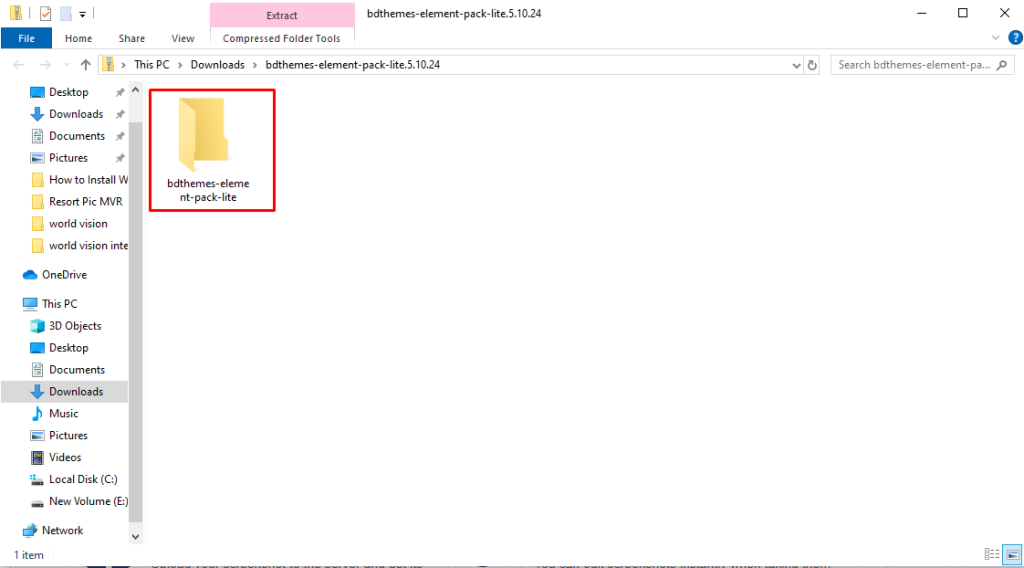
- In your WordPress admin, navigate to Plugins > Add New > Upload Plugin.
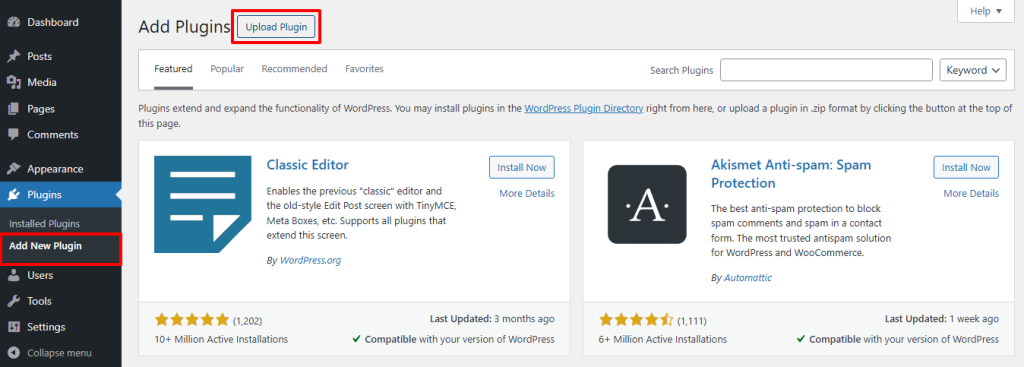
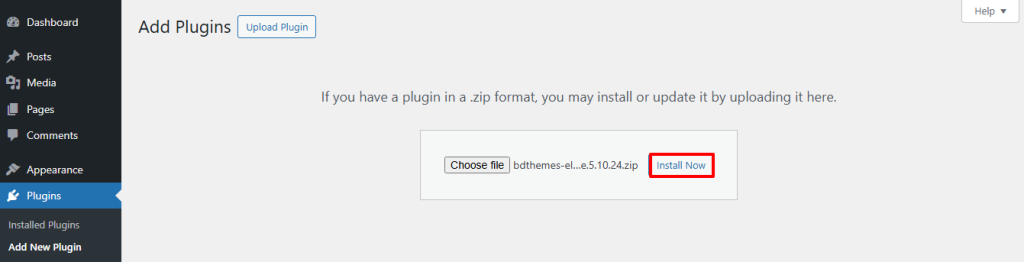
- Click Choose File, select the downloaded
.zip, then click Install Now.
- Once installed, click Activate Plugin.
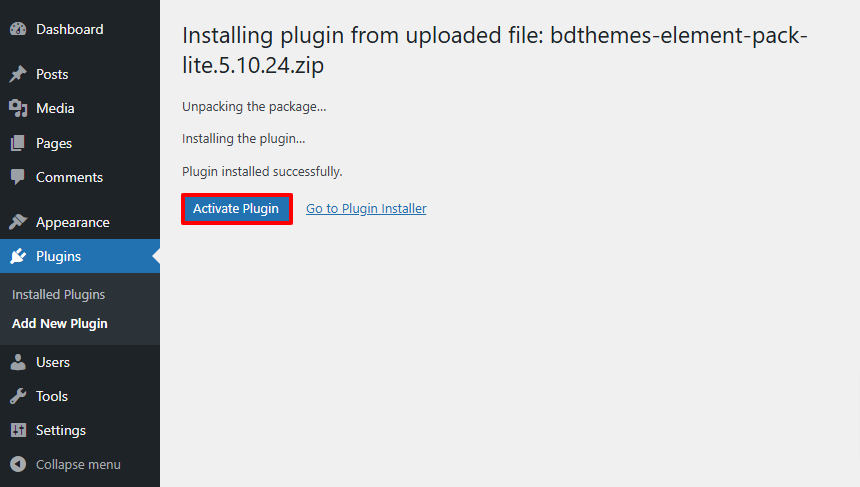
- You will see a prompt to enter your license key. Paste it in and save. This unlocks all widgets, updates, and support.
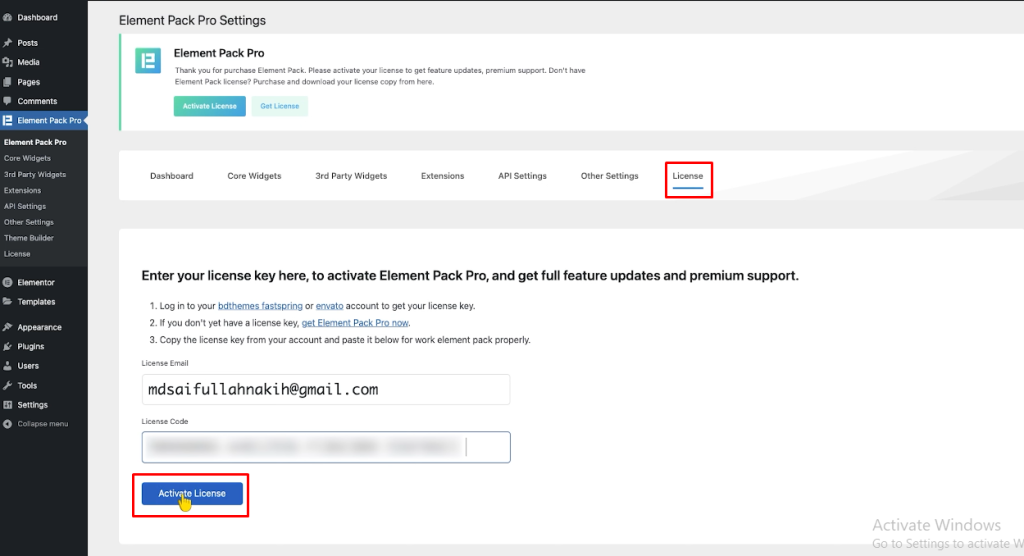
Step 2: Enable the WooCommerce Slider Widget
Element Pack Pro only loads code for widgets you have deliberately turned on. This keeps your site fast and avoids bloat. Here is how to enable the WooCommerce Slider widget specifically:
- In your WordPress admin sidebar, go to Element Pack > Elements.
- On the Elements page, click the 3rd Party Widgets tab at the top.
- Use the search bar and type “WooCommerce Slider” to find it quickly.
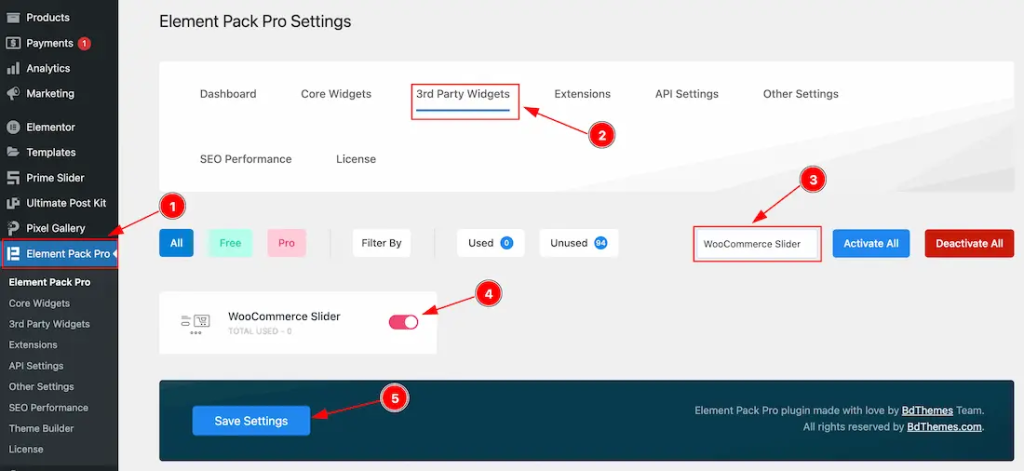
- Toggle the WooCommerce Slider widget on.
- Scroll down and click Save Settings.
The widget is now available inside the Elementor editor and ready to use.
Step 3: Open Your Page in the Elementor Editor
- In your WordPress admin, go to Pages and find the page where you want the slider.
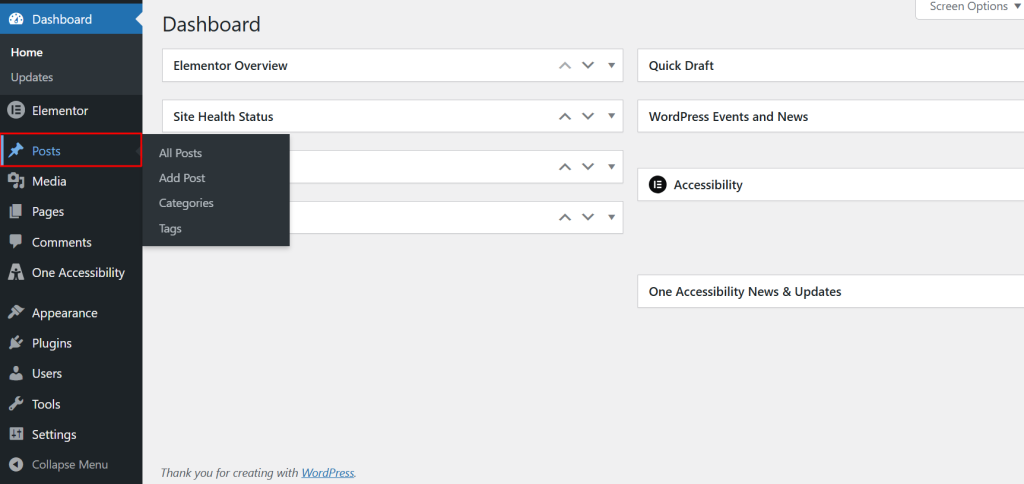
- Click Edit with Elementor.
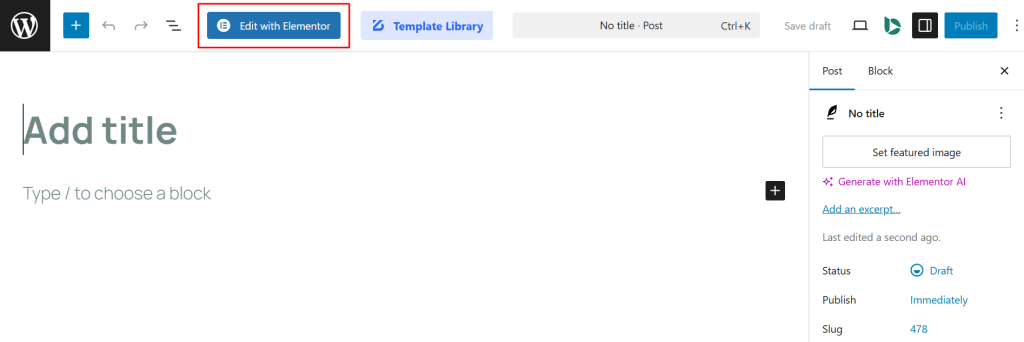
- The Elementor drag-and-drop editor will open with the widget panel on the left and your live page preview on the right.
Step 4: Add the WooCommerce Slider Widget to Your Page
- In the Elementor widget search bar at the top of the left panel, type “WooCommerce Slider.”
- The WooCommerce Slider widget will appear in the results with the Element Pack badge next to it.
- Click and drag it onto your page canvas, dropping it into the section where you want the slider to appear.
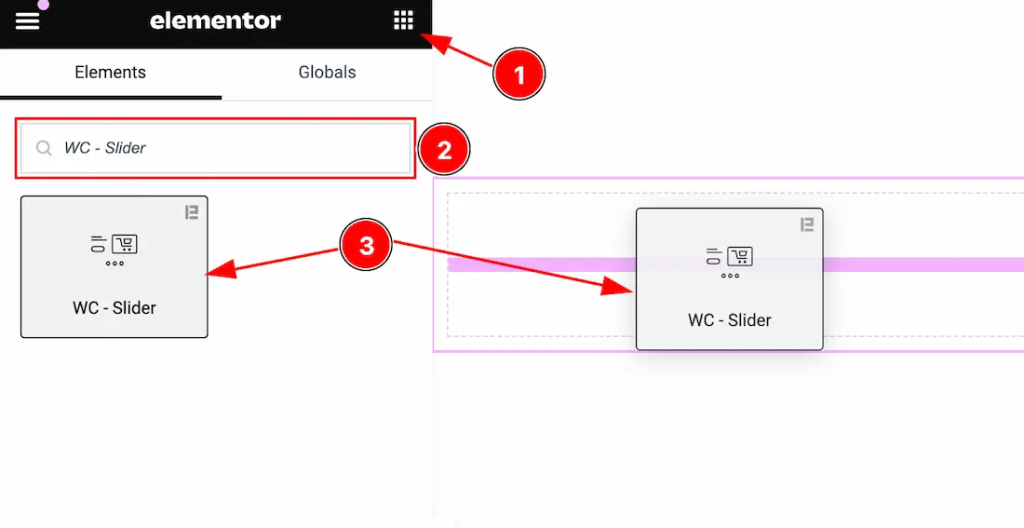
- The widget will load with default product slides pulled from your WooCommerce store immediately.
Step 5: Configure the Content Tab
The Content tab is where you control what the slider shows and how it behaves. It is split into several sections.
Layout Section
Go to Content > Layout to control the overall presentation of the slider:
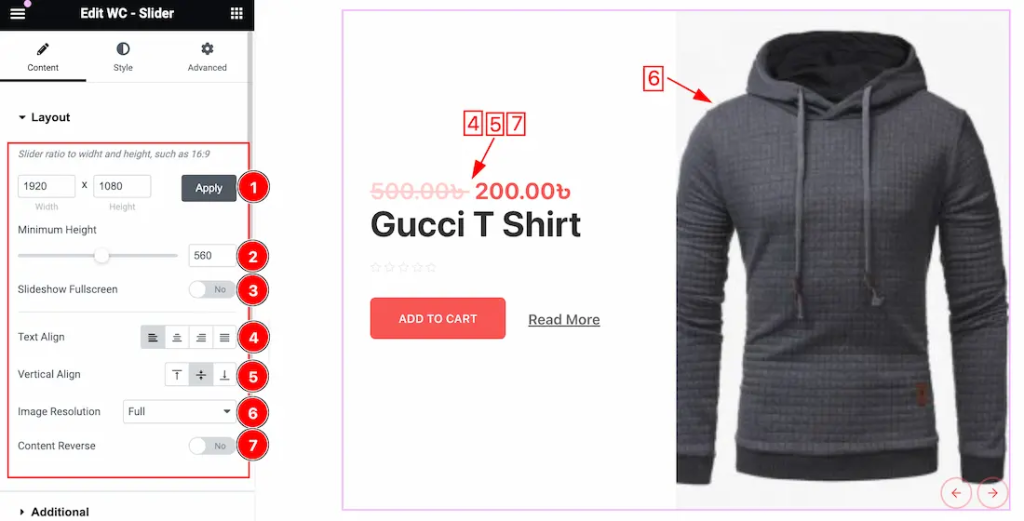
- Slider Ratio: Sets the aspect ratio of the slider. Adjust this to match your product image proportions and available page width.
- Minimum Height: Sets a minimum pixel height for the slider so it never collapses to a tiny strip regardless of screen size.
- Slideshow Fullscreen: Toggle this on to make the slider fill the full browser viewport height. Works well as a homepage hero for stores with strong product photography.
- Text Align: Control text alignment within each slide. Choose Left, Right, Center, or Justified depending on your layout.
- Vertical Align: Set whether the product content sits at the Top, Middle, or Bottom of the slide.
- Image Resolution: Choose the image size used for product images in the slider. Options include Thumbnail, Medium, Medium Large, Large, WooCommerce Thumbnail, WooCommerce Gallery Thumbnail, WooCommerce Single, and Full. For a large hero slider, WooCommerce Single or Full gives the best visual quality.
- Content Reverse: Toggle this on to flip the layout so product information appears on the opposite side from the product image. Useful for alternating layouts or specific design preferences.
Additional Section
Go to Content > Additional to control which product details appear on each slide:
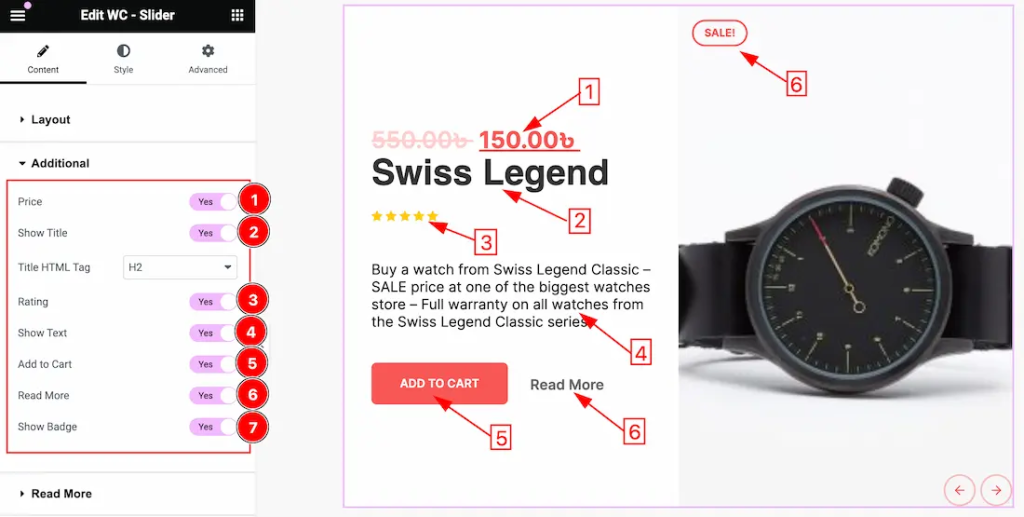
- Price: Toggle on or off to show or hide the product price on each slide.
- Show Title: Toggle on to display the product name. You can also change the HTML tag used for the title (H1, H2, H3, etc.) for SEO and hierarchy reasons.
- Rating: Toggle on to show the star rating pulled from WooCommerce reviews on each slide.
- Show Text: Toggle on to display the product short description on each slide.
- Add to Cart: Toggle on to show the Add to Cart button directly on the slide, so shoppers can buy without navigating to the product page.
- Read More: Toggle on to show a Read More button linking to the full product page.
- Show Badge: Toggle on to display the sale or featured badge on applicable products.
Read More Section
Go to Content > Read More to customize the Read More button:
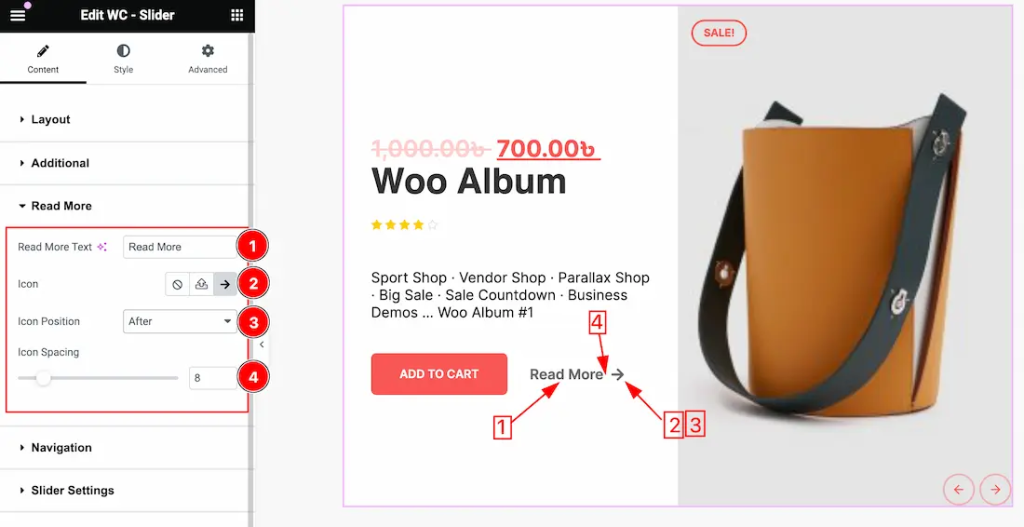
- Read More Text: Replace the default “Read More” label with something more fitting for your store, such as “View Product” or “See Details.”
- Icon: Add an icon to the Read More button from Element Pack Pro’s icon library.
- Icon Position: Set the icon to appear Before or After the button text.
- Icon Spacing: Adjust the gap between the icon and the button text.
Navigation Section
Go to Content > Navigation to set up the slider controls:
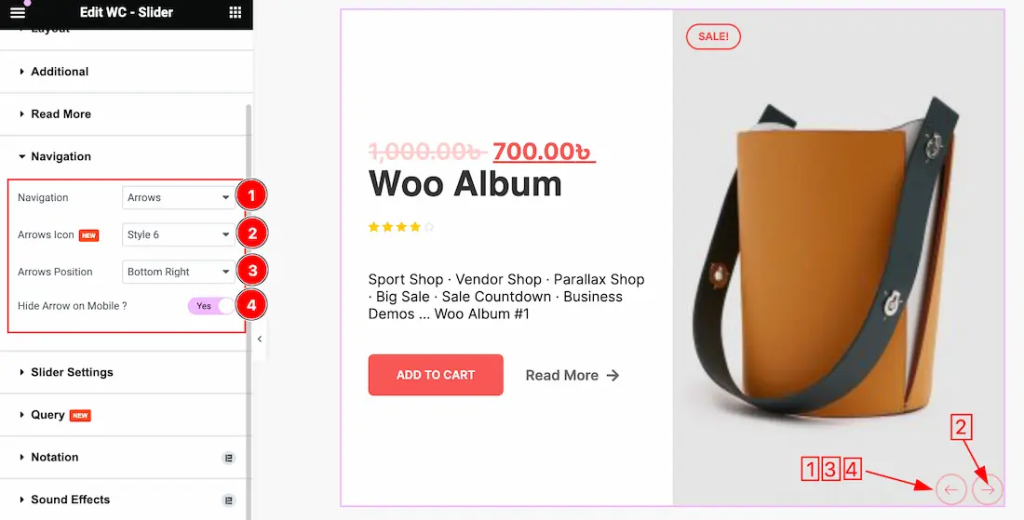
- Navigation: Choose from Arrows and Dots, Arrows only, Dots only, or None.
- Arrows Icon: Choose from 23 different arrow icon styles to match your site’s visual language.
- Arrows Position: Place the navigation arrows at Top Left, Top Center, Top Right, Center, Center Left, Center Right, Bottom Left, Bottom Center, or Bottom Right of the slider.
- Hide Arrow on Mobile: Toggle this on to hide the arrow buttons on mobile devices, keeping the touch interface clean since mobile users can swipe to navigate anyway.
Slider Settings Section
Go to Content > Slider Settings to control slider behavior:
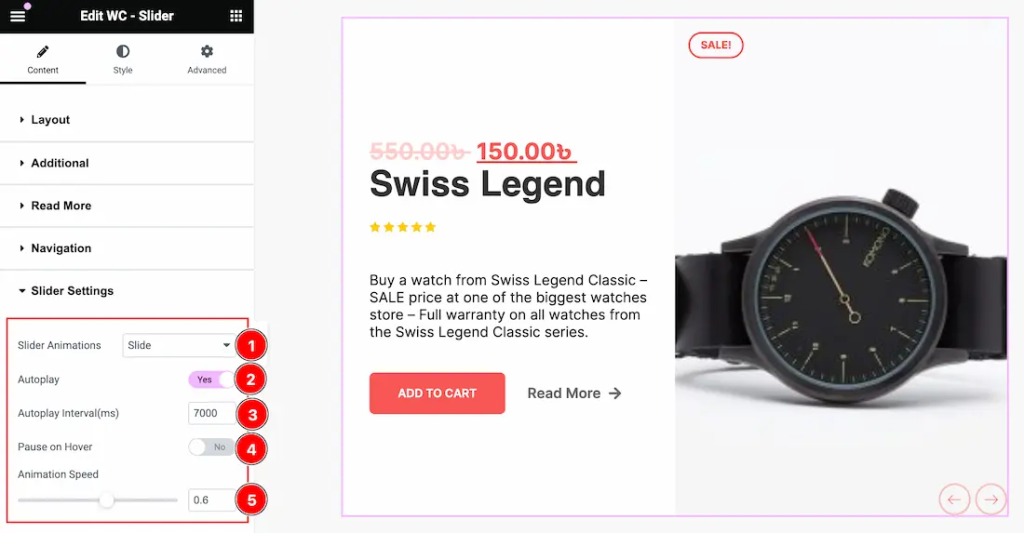
- Slider Animation: Choose the transition style between slides. Options are Slide, Fade, Scale, Push, and Pull. Slide is the most familiar and works well for product sliders. Fade works beautifully for full-screen hero layouts.
- Autoplay: Toggle on to have slides advance automatically without any visitor interaction.
- Autoplay Interval: Set how long each product slide stays visible before advancing. 4000 milliseconds (4 seconds) gives shoppers enough time to read the product name and price before the next one appears.
- Pause on Hover: Toggle this on so the slider pauses when a visitor moves their cursor over it. This is especially important for product sliders since visitors often stop to read the price or rating.
- Animation Speed: Control how fast the actual slide transition animation plays, separate from the interval between slides.
Query Section
Go to Content > Query to control exactly which WooCommerce products appear in the slider. This is one of the most powerful aspects of the WooCommerce Slider widget.
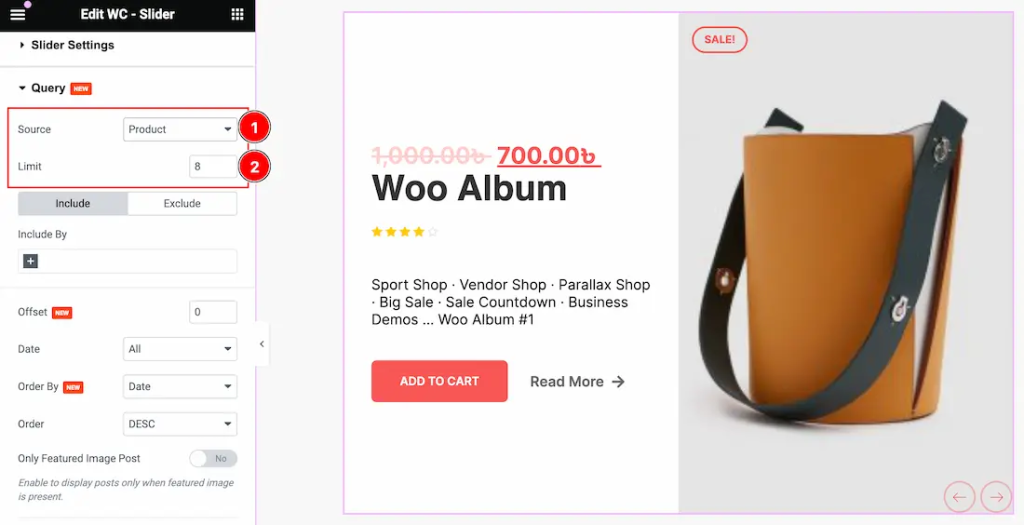
- Source: Choose from Product (all products), Manual Selection (hand-pick specific products), Current Query (matches whatever WooCommerce query is running on the current page), or Related (shows products related to the current product page).
- Limit: Set the maximum number of products the slider will show.
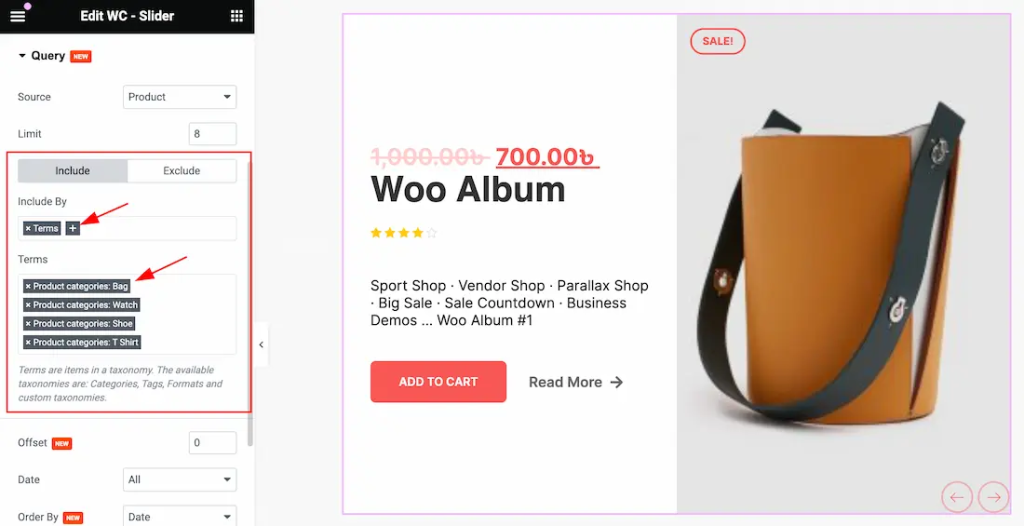
- Include: Use the Include filter to limit the slider to specific categories or tags. Click the Terms icon, then select the categories or tags you want to include. Only products matching those terms will appear.
- Exclude: The Exclude filter does the opposite. Use it to hide products by author, current post, manual selection, or specific terms.
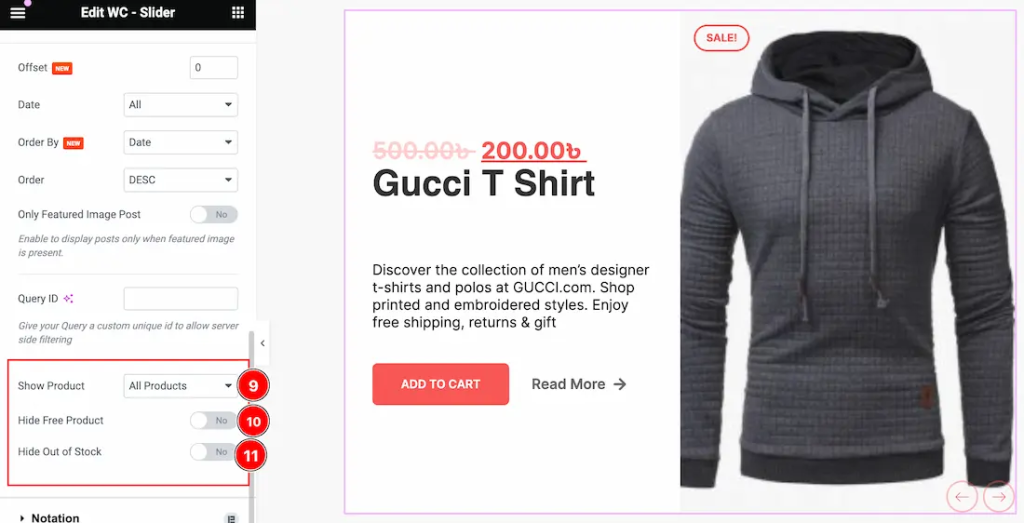
- Offset: Skip a set number of products at the start of the query. For example, if you set Offset to 2, the first two products in the query result are skipped and the slider starts from the third.
- Date: Filter products by when they were published. Options include All, Past Day, Past Week, Past Month, Past Quarter, Past Year, and Custom. The Custom option lets you set a specific Before and After date range, useful for time-limited promotions or seasonal sliders.
- Order By: Sort products by Title, ID, Date, Author, Comment Count, Menu Order, Random, Price, or Sales. Ordering by Sales is particularly useful for a “bestsellers” slider.
- Order: Choose Ascending or Descending order.
- Only Featured Image Post: Toggle on to show only products that have a featured image set. This prevents slides from appearing with a broken or placeholder image.
- Show Product: Filter by product status. Choose All Products, On Sale, or Featured to build sliders targeting specific merchandising goals.
- Hide Free Product: Toggle on to exclude free products from the slider.
- Hide Out of Stock: Toggle on to hide products that are currently out of stock, so shoppers only see what they can actually buy.
Step 6: Style the Slider Using the Style Tab
The Style tab is where the slider goes from functional to visually polished. Here is a walkthrough of each section.
Content Section
Go to Style > Content to set the overall slide appearance:
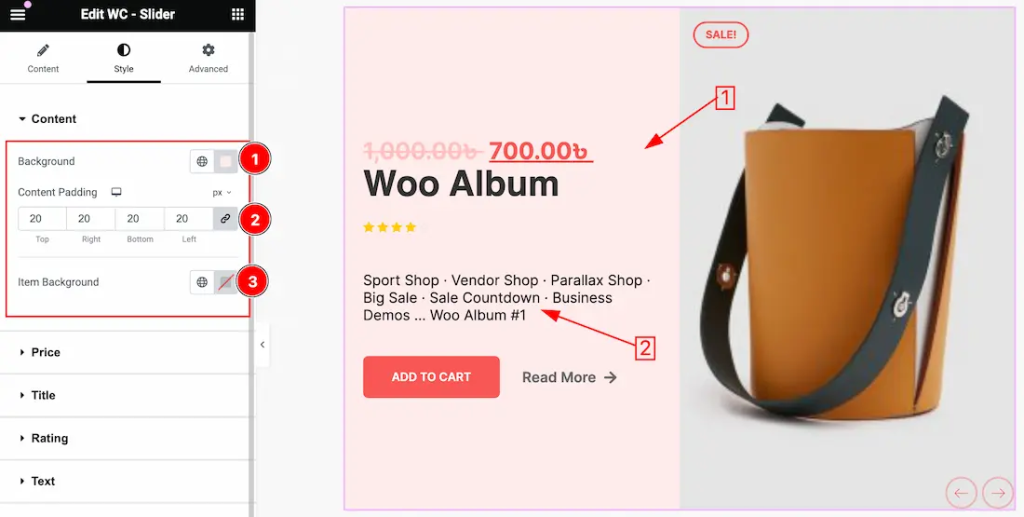
- Background: Set a background color for the content area of each slide.
- Content Padding: Add inner spacing around the text and buttons within each slide.
- Item Background: Set a background color for each product item block within the slide.
Price Section
Go to Style > Price to style the product pricing displayed on each slide:
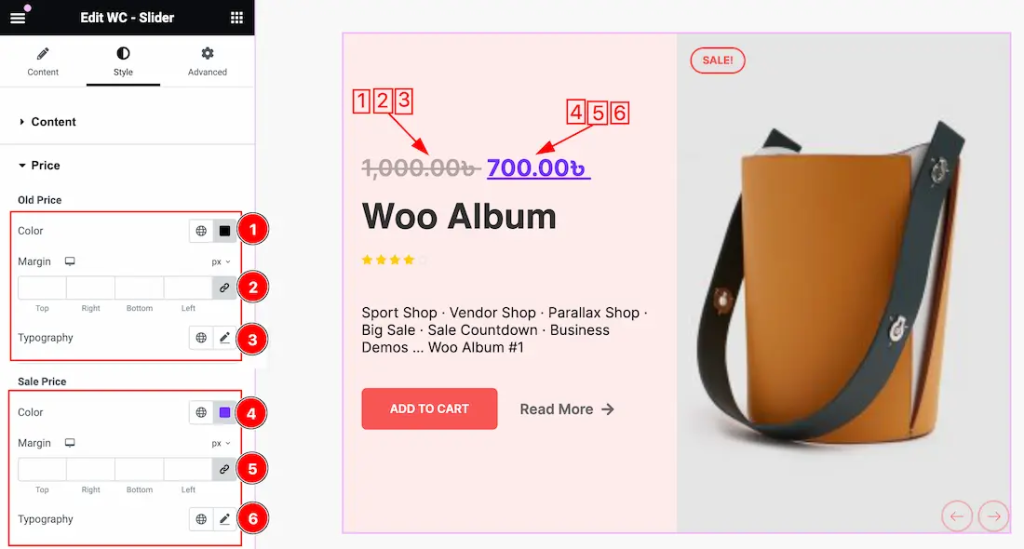
- Old Price Color: Set the color for the original (crossed-out) price on sale products.
- Old Price Margin: Adjust spacing around the old price.
- Old Price Typography: Control font family, size, weight, style, decoration, line height, and letter spacing for the old price.
- Sale Price Color: Set the color for the discounted sale price.
- Sale Price Margin: Adjust spacing around the sale price.
- Sale Price Typography: Full typography controls for the sale price, same options as above.
Title Section
Go to Style > Title to style the product name on each slide:
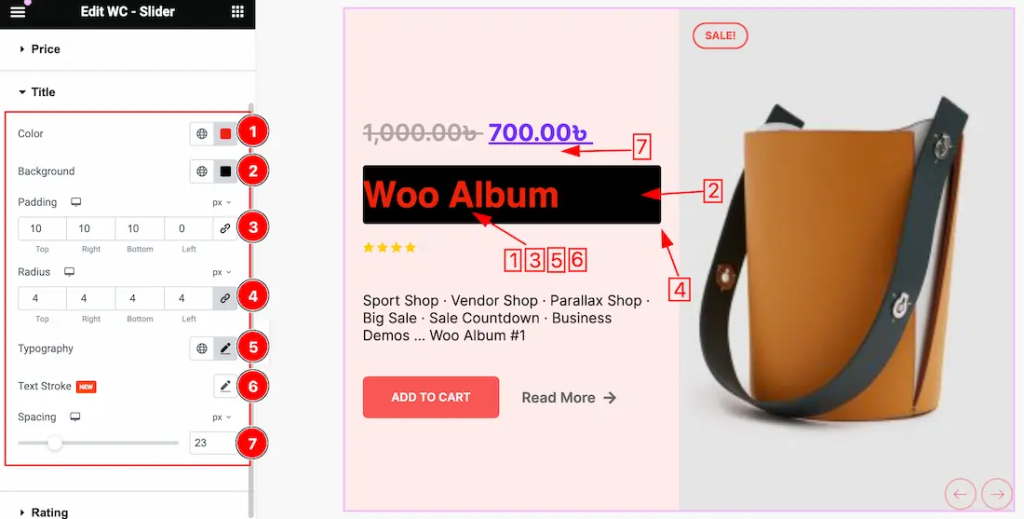
- Color: Set the product title text color.
- Background: Add a background color behind the title if needed.
- Padding: Add inner spacing around the title text.
- Radius: Round the corners of any title background shape.
- Typography: Full font controls including family, size, weight, style, transform, decoration, line height, and letter spacing.
- Text Stroke: Add an outline stroke around the title text and set its color.
- Spacing: Control the gap between the title and the price below it.
Rating Section
Go to Style > Rating to style the star rating display:
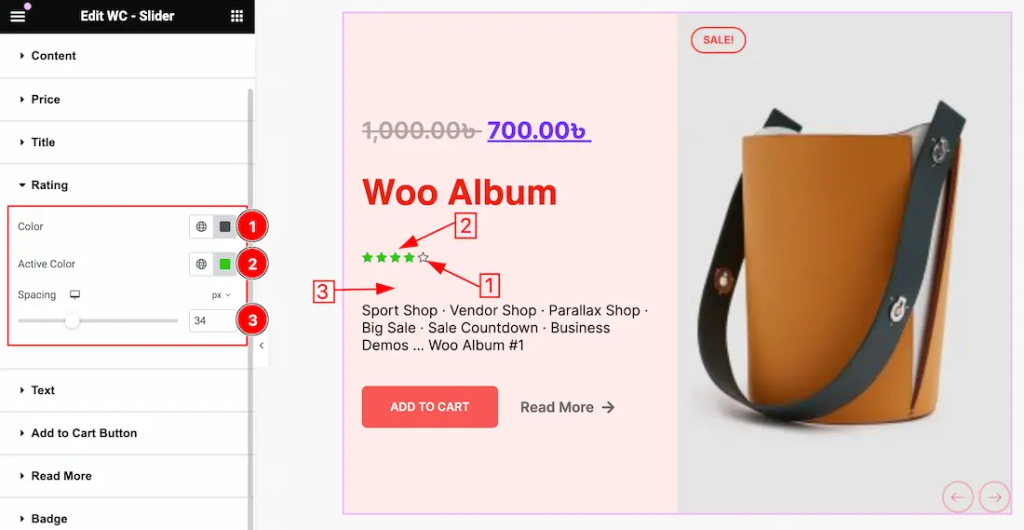
- Color: Set the color of inactive (unfilled) rating stars.
- Active Color: Set the color of active (filled) rating stars. Orange or yellow works well for most store designs.
- Spacing: Control the gap between the rating and the title above it.
Text Section
Go to Style > Text to style the product description text on each slide:
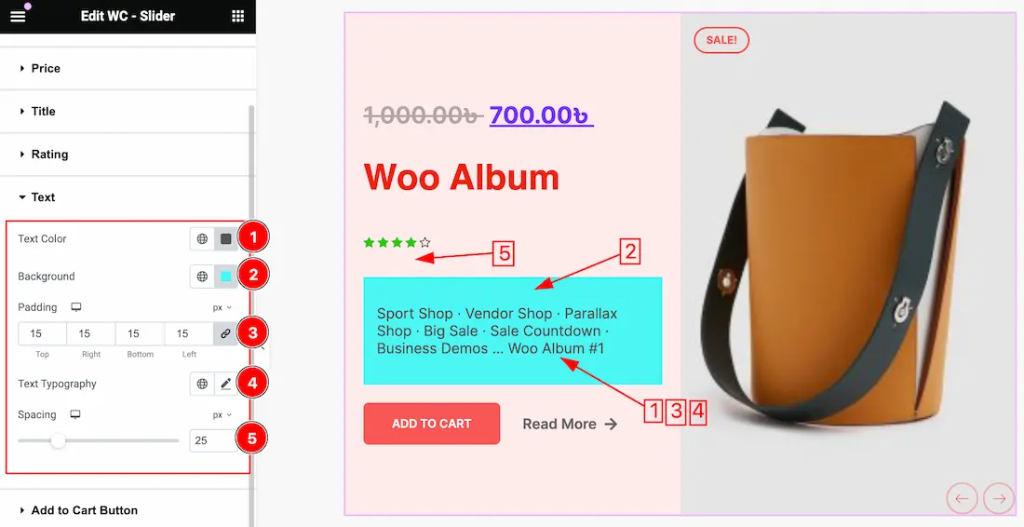
- Text Color: Set the description text color.
- Background Color: Add a background behind the description text if needed.
- Padding: Add inner spacing around the description text block.
- Text Typography: Full font controls for the description text.
- Spacing: Control the gap between the rating and the text.
Add to Cart Button Section
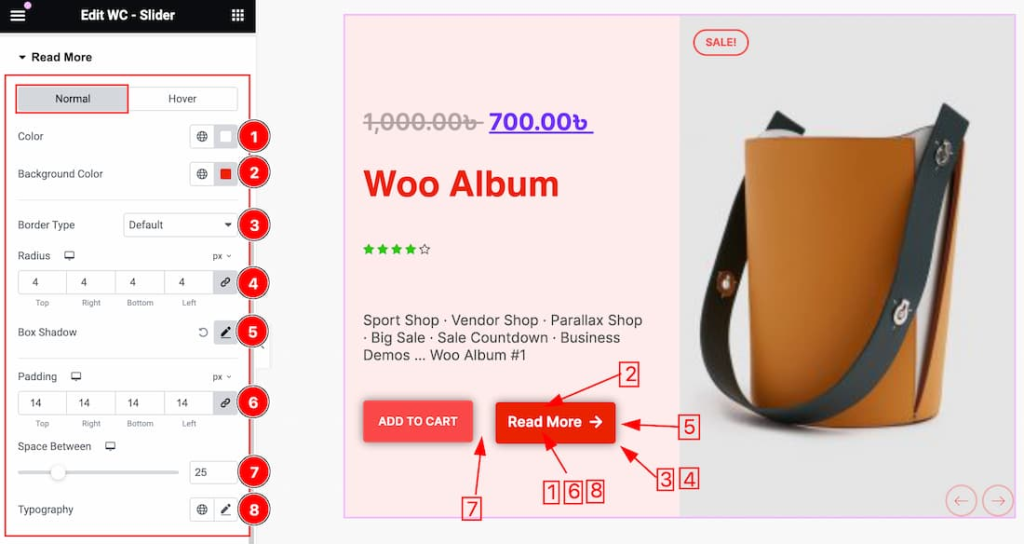
Go to Style > Add to Cart Button to style the buy button. This section has Normal and Hover states:
Normal state:
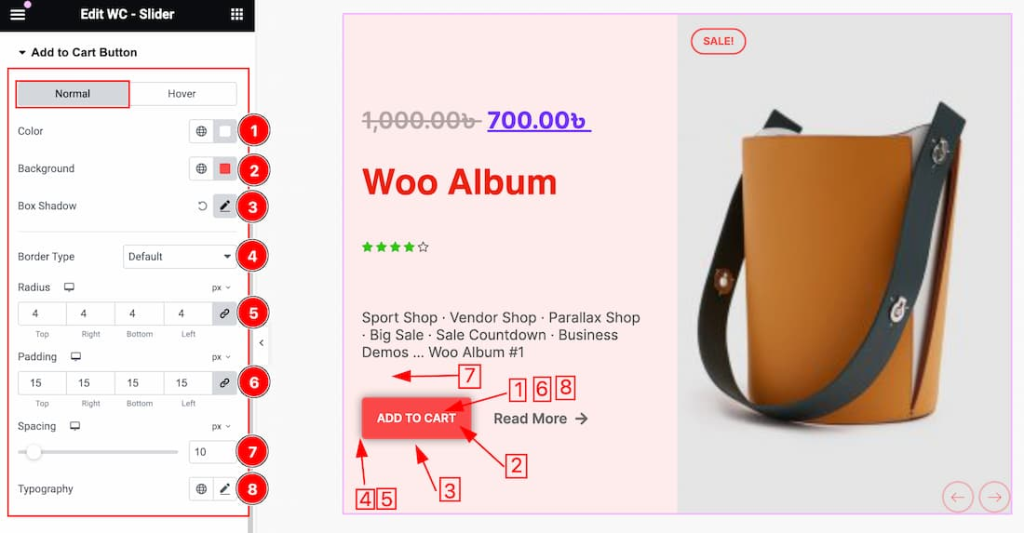
- Color: Set the button text color.
- Background: Set the button background color.
- Box Shadow: Add a shadow around the button with controls for horizontal offset, vertical offset, blur, spread, position (Outline or Inset), and shadow color.
- Border Type: Choose from None, Solid, Double, Dotted, Dashed, or Groove.
- Radius: Round the button corners.
- Padding: Add inner spacing inside the button.
- Spacing: Control the gap between the product text and the button.
- Typography: Full font controls for the button label.
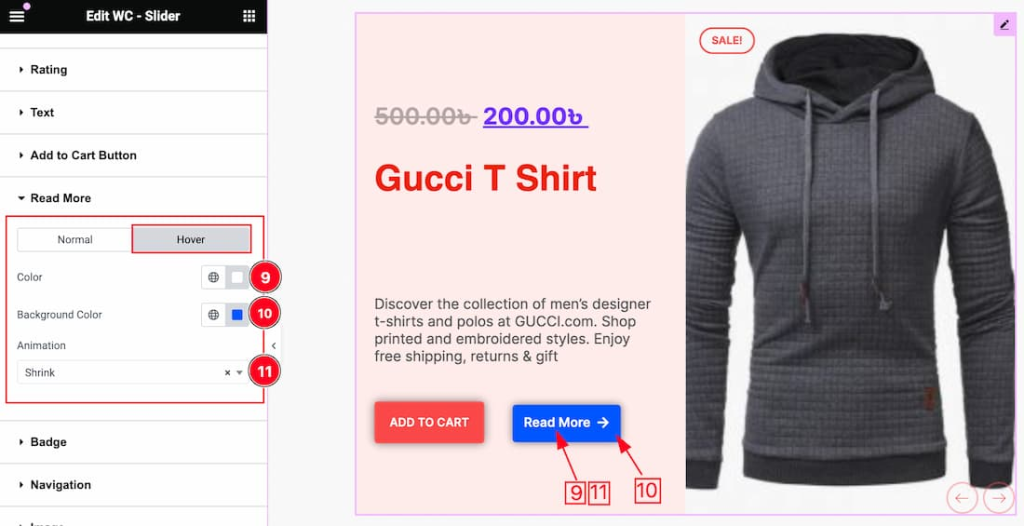
Hover state:
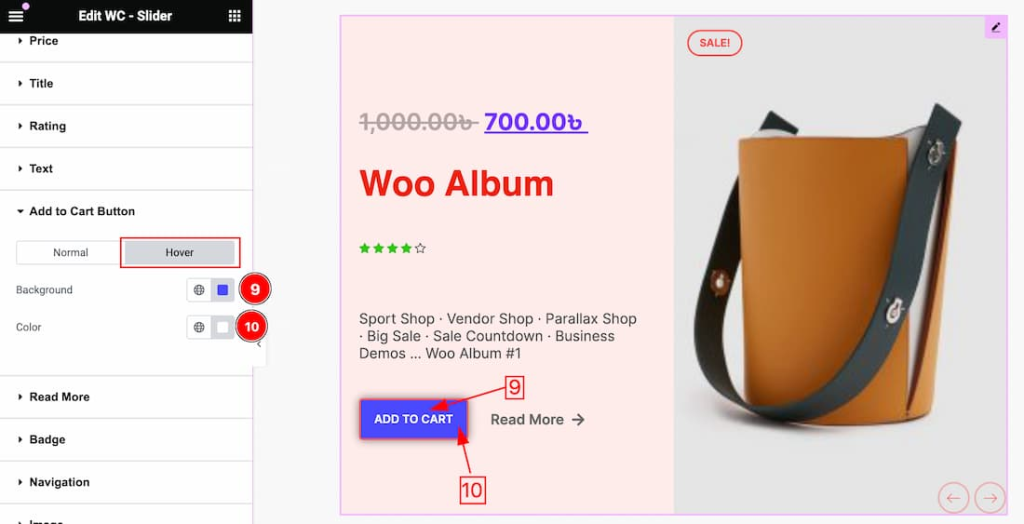
- Color: Set the button text color on hover.
- Background Color: Set the button background color when hovered.
Read More Button Section
Go to Style > Read More for full styling of the secondary button. This section also has Normal and Hover states with the same controls as the Add to Cart button, plus one extra option in the Hover state:
- Animation: Choose from 27 hover animation styles for the Read More button to add a subtle interactive effect.
Badge Section
Go to Style > Badge to style the sale or featured badge:
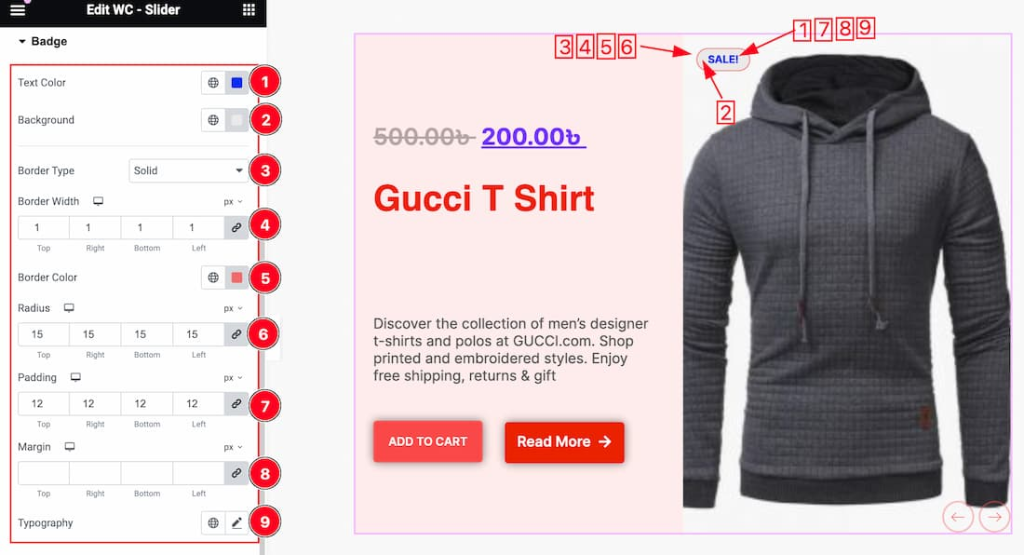
- Text Color, Background, Border Type, Border Width, Border Color, Radius, Padding, Margin: Full visual control over the badge appearance and position.
- Typography: Font controls for the badge label text.
Navigation Section
Go to Style > Navigation to style the slider arrows:
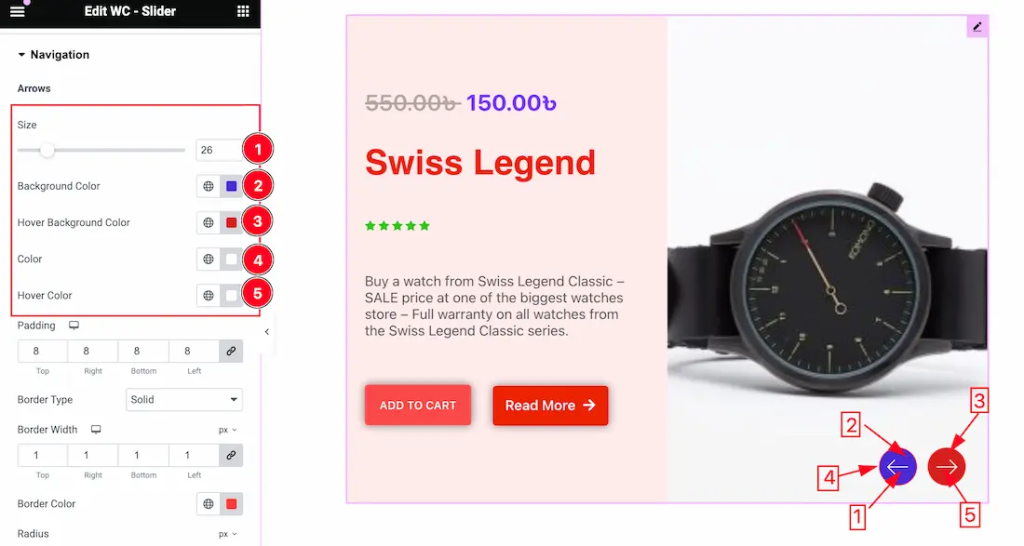
- Arrows Size: Set how large the arrow icons appear.
- Background Color: Set the background behind each arrow button.
- Hover Background Color: Set the background color when an arrow is hovered.
- Color: Set the arrow icon color in its normal state.
- Hover Color: Set the arrow icon color on hover.
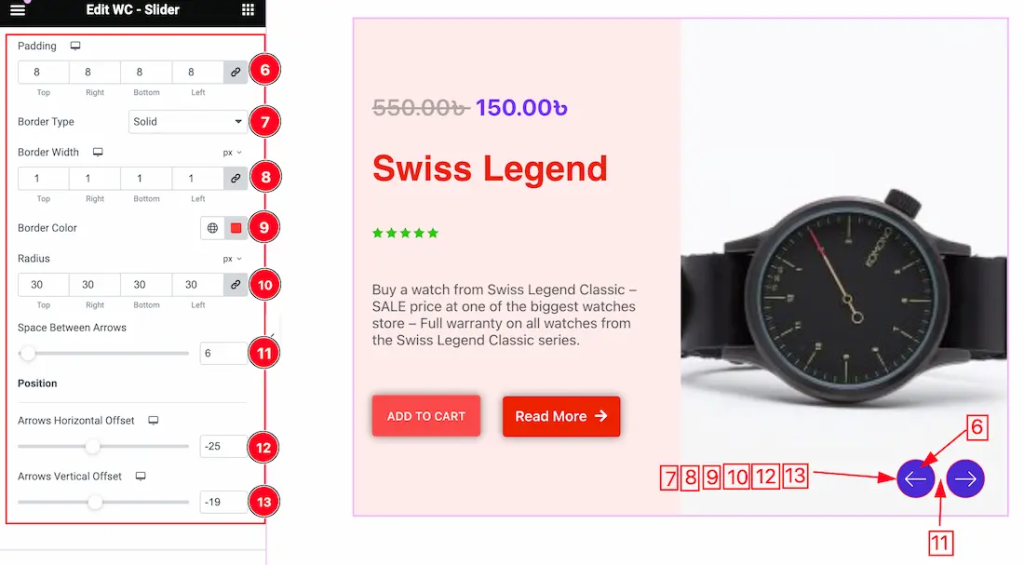
- Padding: Add inner spacing inside the arrow button.
- Border Type, Border Width, Radius: Add and style a border around the arrow buttons.
- Space Between Arrows: Control the gap between the left and right arrow buttons.
- Arrows Horizontal Offset: Fine-tune the horizontal position of the arrows relative to the slider edges.
- Arrows Vertical Offset: Fine-tune the vertical position of the arrows.
Image Section
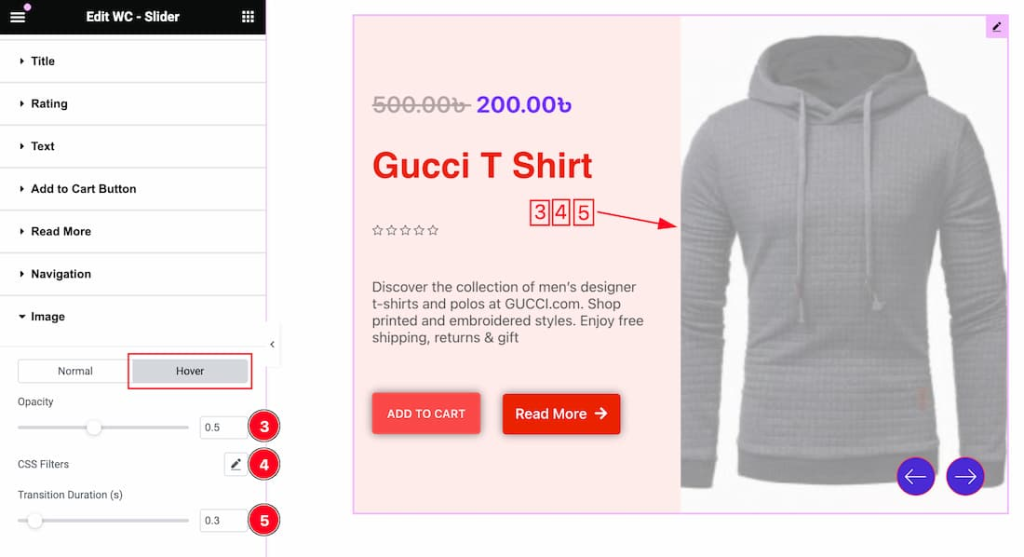
Go to Style > Image to add visual effects to the product images. This section has Normal and Hover states:
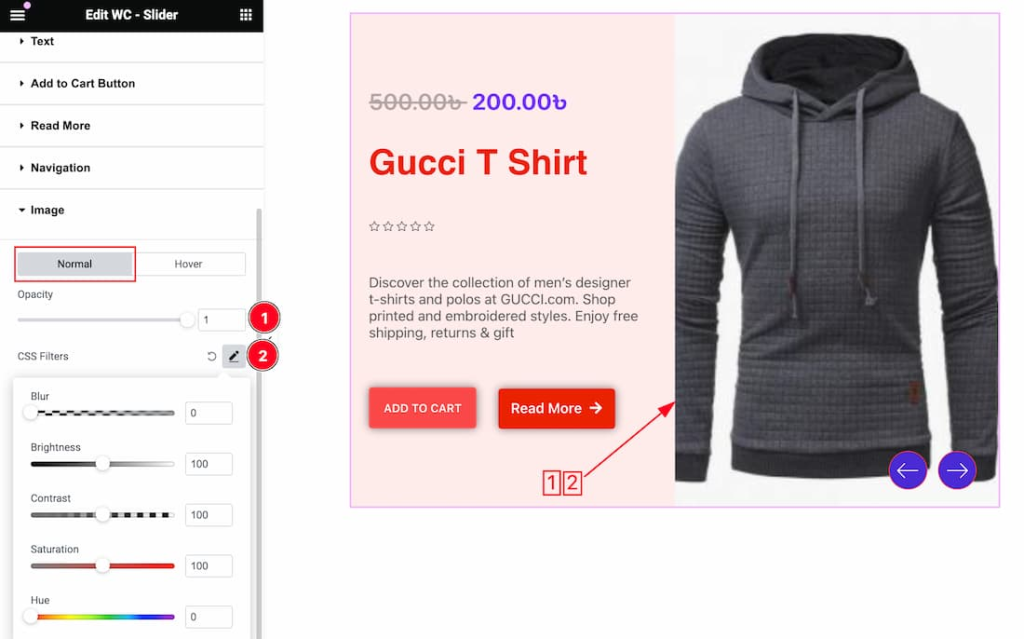
- Opacity: Set the transparency of product images in their default state.
- CSS Filter: Apply Blur, Brightness, Contrast, Saturation, or Hue adjustments to product images. In the Hover state, you can set different filter values so images visually respond when a visitor hovers over the slide.
Step 7: Preview on All Devices and Publish
- At the bottom of the Elementor editor, click the eye icon to preview the full page at actual size.
- Scroll through the slider manually to check every product slide looks correct.
- Test autoplay to confirm the timing feels right and Pause on Hover is working.
- Switch to Tablet and Mobile preview using the device icons at the bottom of the editor. Check that:
- Product titles and prices are readable at smaller sizes
- The Add to Cart button is easy to tap on a phone
- Navigation arrows are either visible and usable or correctly hidden on mobile if you toggled that option on
- When everything looks right, click Publish (for a new page) or Update (for an existing page) to go live.
What Else Can You Do With Element Pack Pro’s Slider Collection?
The WooCommerce Slider is one of 23 slider and carousel widgets inside Element Pack Pro. As your store and site grow, here are some other widgets worth knowing about.
Fancy Slider for Elementor: Layered Animation Slider for Premium Hero Sections
The Fancy Slider supports per-element entrance animations on each slide, meaning your headline, subheadline, and button can each animate in independently with different effects and timing. Great for brand-focused hero sections above your store.
Post Slider for Elementor: Dynamic WordPress Blog Post Slider Widget
The Post Slider connects directly to your WordPress posts and builds slides automatically from your blog content. Useful for stores that also run a content marketing blog and want to surface recent posts in a slider section.
Testimonial Slider for Elementor: WordPress Customer Review Slider Widget
The Testimonial Slider is purpose-built for social proof sections. Add customer reviews, ratings, names, and photos and they cycle through in a clean, elegant format. You can find a detailed walkthrough on how to add a testimonial slider in WordPress using Elementor on the Element Pack Pro blog.
Device Slider for Elementor: App and Software Mockup Slider Widget
The Device Slider renders your slides inside a phone, tablet, or laptop frame. Useful for stores that sell digital products or software and want to showcase the product UI inside a realistic device mockup.
Panel Slider for Elementor: Split-Layout Editorial Slider
The Panel Slider presents content in a split-panel layout where image and text sit side by side. A strong choice for stores with lifestyle product photography where the image and copy deserve equal visual weight.
Remote Arrows, Pagination, Thumbs and Fraction: Place Slider Navigation Anywhere on Your Page
These four widgets let you place slider navigation anywhere on your page, completely separate from the slider itself. Remote Arrows, Remote Pagination, Remote Thumbs, and Remote Fraction are all linked to your slider via a shared Widget ID, giving you layout freedom that no standard slider plugin can match.
WooCommerce Slider Best Practices: Getting More From Every Slide
- Show On Sale or Featured products by default. Use the Query section’s Show Product filter to surface only your most commercially important products rather than showing everything.
- Enable Hide Out of Stock. Nothing frustrates a shopper more than clicking Add to Cart on a product that is unavailable. This one toggle prevents it.
- Turn on Pause on Hover. Product sliders need it more than any other slider type because shoppers stop to read prices and ratings. Letting the slide advance while they are reading loses the sale.
- Use WooCommerce Single or Full image resolution. Blurry product images in a hero slider undermine trust instantly. The slider is large and prominent, so give it the highest quality images your products have.
- Keep the slider to 5 to 7 products maximum. Beyond that, most visitors will not cycle through. If you have more products to showcase, combine the slider with a product grid section below it.
- Use the Order By Sales option for a bestsellers slider. This automatically surfaces your most popular products at the top and stays current as your sales data changes.
- Set autoplay to 4 to 5 seconds. Shoppers need a moment to read the product name and price. Faster than 4 seconds and you are sliding past products before visitors have processed them.
Conclusion: Build a WooCommerce Product Slider With Element Pack Pro and Elementor Free
You do not need Elementor Pro, a separate slider plugin, or any custom code to build a professional WooCommerce product slider. With Elementor Free and the WooCommerce Slider widget from Element Pack Pro, you get a slider that pulls directly from your store, shows real product prices, ratings, badges, and buy buttons, and gives you granular control over which products appear and how they are styled.
And when you are ready to go further, the other 22 slider and carousel widgets in Element Pack Pro are right there, along with 300+ widgets covering every other part of your site design.
Visit elementpack.pro to browse the live WooCommerce Slider demo and see every other widget in action before you build.
Frequently Asked Questions About WooCommerce Sliders and Elementor
Do I need Elementor Pro to create a WooCommerce product slider?
No. Elementor Pro is not required. You only need Elementor Free installed as the page builder, plus Element Pack Pro for the WooCommerce Slider widget. The two plugins work together without needing an Elementor Pro license.
Do I need WooCommerce installed separately?
Yes. The WooCommerce Slider widget connects directly to your WooCommerce product database to pull slides automatically. WooCommerce must be installed, activated, and set up with products before the widget will display anything.
Can I choose which products appear in the slider?
Yes. The Query section inside the widget’s Content tab gives you full control. You can filter by category, tag, sale status, featured status, date range, and more. You can also manually select specific products, or use the Related source to show products related to whatever product page the slider appears on.
Will the slider update automatically when I add new products?
Yes, as long as you are using a query-based source (Product, Current Query, or Related). New products that match your query settings will automatically appear in the slider without you needing to edit the widget. If you use Manual Selection, you will need to update the widget to add new products.
Can I show the Add to Cart button directly on the slider?
Yes. In the Content tab under the Additional section, toggle on the Add to Cart option. The button appears on each slide and connects directly to WooCommerce, so shoppers can add products to their cart without leaving the page.
Will the WooCommerce Slider slow down my store?
Not significantly, as long as your product images are properly optimized. Element Pack Pro only loads the widget’s code on pages where you have actually placed it, and only if you have the widget enabled in Element Pack settings. Compress product images before uploading using a tool like ShortPixel or Smush, and pair the site with a caching plugin for the best performance.
Can I hide out-of-stock products from the slider automatically?
Yes. In the Query section, toggle on Hide Out of Stock. Products with zero stock are automatically excluded from the slider and will reappear if stock is restocked later.
What is the best WooCommerce slider plugin for Elementor in 2026?
Element Pack Pro’s WooCommerce Slider widget is purpose-built for Elementor stores and covers far more than a generic image slider ever could, with native WooCommerce integration, product query controls, per-slide pricing and ratings, Add to Cart buttons, and deep styling options all in one widget.
Selim Rana
The BdThemes team builds WordPress plugins trusted by 3M+ users worldwide. We write about web accessibility, WCAG compliance, and inclusive design.