
豊富なメニューオプションによる容易なナビゲーション
視覚的な商品選択が売上を加速させる
パーソナライズされたコンテンツがリアルタイムで適応
UXフローを改善するシームレススクロール
瞬時にコンテンツを複製し、時間を節約
パワフルなデザイン要素に素早くアクセス
既製のテンプレートがデザインをスピードアップ
柔軟なデータのための高度なカスタムフィールド
手間をかけずに簡単にサイトをクローン
あらゆるスクリーンに対応する、鮮明でスケーラブルなグラフィック
ツールをリブランドしてプロフェッショナルな外観に
正確なコンテンツの表示・非表示
滑らかな動きで奥行きを魅せる
明確なメモや注釈を簡単に追加
役立つヒントがユーザーとのインタラクションを向上
スタイリッシュなアニメーション
重要なセクションは常に見えるようにしておく
カスタム・コードの微調整によるフル・コントロール
ファイルを最適化してサイトのスピードを上げる
年中無休で対応いたします。喜んでお手伝いいたします。
BdThemesで各機能の詳細なガイドラインをご覧いただけます。
ワードプレス、ウェブデザイン、その他について新しいことを学び、情報を得る。
私の成長における重要なマイルストーンをいくつか紹介しよう:
ビデオで製品の使い方、WordPressのヒントとコツを学ぶ
プロモーションに参加することで、高額なコミッションを得ることができます。
Widget Idea Shareは、あなたが改善できる類似ウィジェットを見つける素晴らしい方法です。
確かに!私たちと連絡を取る必要がある場合は、お気軽にご連絡ください。
Sigma Forms を使って WordPress のフォームを数分で作成しましょう。.
ページ・ビルダー・プラグイン
One Accessibilityでウェブサイトを簡単にアクセシブルに
信頼と信用を高めるために、顧客の声を表示する。.
Zoloblocksは、Gutenbergベースの魅力的なウェブサイトを作成するのに役立ちます。.
Elementorスライダー時代の最も優れたスライダー
Elementorで唯一互換性のあるブログ用ウィジェット
ビジネス向け次世代型WordPress eコマースサイトの構築
Elementorで毎回違うエンジェルで写真を整理する
スピンホイールを使ってエンゲージメントを高め、売上を増加させましょう。.
WordPress用AI画像生成プラグイン ChatGPT
WooCommerce用の360°拡張現実を今すぐ入手しましょう!
好きなウェブデザインを2クリックでコピー&ペースト!
無制限のオプションを備えたelementorのための完全に機能するテーマ
スマート、クリーン、フレキシブルなGutenberg用ブロックテーマ
Dark Readerプラグインは、目に優しいウェブ閲覧を保証します。.
コンバージョンを高めるWooCommerceのワンページチェックアウト。
Find Nearby Stores Instantly with Sigma Store Locator
The Ultimate WordPress Media Library Organizer
 Japanese

豊富なメニューオプションによる容易なナビゲーション
視覚的な商品選択が売上を加速させる
パーソナライズされたコンテンツがリアルタイムで適応
UXフローを改善するシームレススクロール
瞬時にコンテンツを複製し、時間を節約
パワフルなデザイン要素に素早くアクセス
既製のテンプレートがデザインをスピードアップ
柔軟なデータのための高度なカスタムフィールド
手間をかけずに簡単にサイトをクローン
あらゆるスクリーンに対応する、鮮明でスケーラブルなグラフィック
ツールをリブランドしてプロフェッショナルな外観に
正確なコンテンツの表示・非表示
滑らかな動きで奥行きを魅せる
明確なメモや注釈を簡単に追加
役立つヒントがユーザーとのインタラクションを向上
スタイリッシュなアニメーション
重要なセクションは常に見えるようにしておく
カスタム・コードの微調整によるフル・コントロール
ファイルを最適化してサイトのスピードを上げる
年中無休で対応いたします。喜んでお手伝いいたします。
BdThemesで各機能の詳細なガイドラインをご覧いただけます。
ワードプレス、ウェブデザイン、その他について新しいことを学び、情報を得る。
私の成長における重要なマイルストーンをいくつか紹介しよう:
ビデオで製品の使い方、WordPressのヒントとコツを学ぶ
プロモーションに参加することで、高額なコミッションを得ることができます。
Widget Idea Shareは、あなたが改善できる類似ウィジェットを見つける素晴らしい方法です。
確かに!私たちと連絡を取る必要がある場合は、お気軽にご連絡ください。
Sigma Forms を使って WordPress のフォームを数分で作成しましょう。.
ページ・ビルダー・プラグイン
One Accessibilityでウェブサイトを簡単にアクセシブルに
信頼と信用を高めるために、顧客の声を表示する。.
Zoloblocksは、Gutenbergベースの魅力的なウェブサイトを作成するのに役立ちます。.
Elementorスライダー時代の最も優れたスライダー
Elementorで唯一互換性のあるブログ用ウィジェット
ビジネス向け次世代型WordPress eコマースサイトの構築
Elementorで毎回違うエンジェルで写真を整理する
スピンホイールを使ってエンゲージメントを高め、売上を増加させましょう。.
WordPress用AI画像生成プラグイン ChatGPT
WooCommerce用の360°拡張現実を今すぐ入手しましょう!
好きなウェブデザインを2クリックでコピー&ペースト!
無制限のオプションを備えたelementorのための完全に機能するテーマ
スマート、クリーン、フレキシブルなGutenberg用ブロックテーマ
Dark Readerプラグインは、目に優しいウェブ閲覧を保証します。.
コンバージョンを高めるWooCommerceのワンページチェックアウト。
Find Nearby Stores Instantly with Sigma Store Locator
The Ultimate WordPress Media Library Organizer
Japanese
Hello guys. This is a step-by-step tutorial for creating a perfect portfolio using Elementor for your website. Many times, for different occasions, you may face trouble while designing a portfolio that goes along your theme. To ease your trouble, today I’m gonna show you how to create a portfolio using Elementor that fits every occasion.
Note that the Portfolio Gallery widget that I used in this tutorial is a Product of Element Pack Pro. So, I suggest that you get it before starting.
Before going further, please install Elementor そして Element Pack into your dashboard. It’s an easy process as you have to install them from the Plugins menu. Just click Add New and add them by searching their names. This is the first step in creating a portfolio using Elementor page builder.
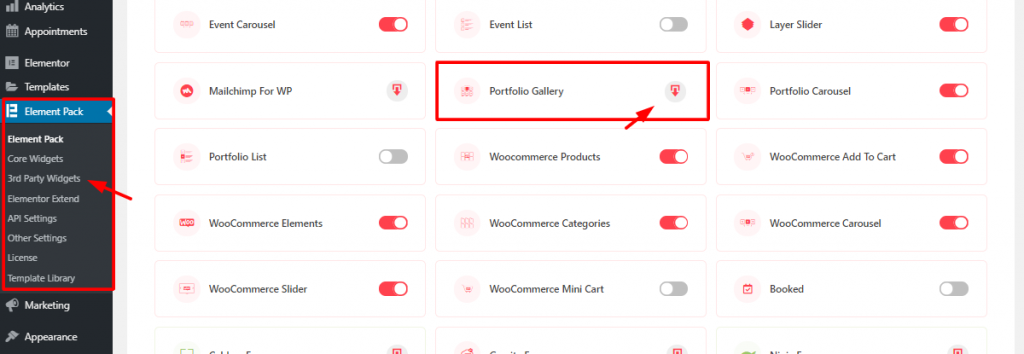
For starters, go to Element Pack plugin menu from ワードプレス dashboard. There, from the 3rd party widgets, click on the download button to download and install ポートフォリオ・ギャラリー widget. Then just activate it with one click on it.
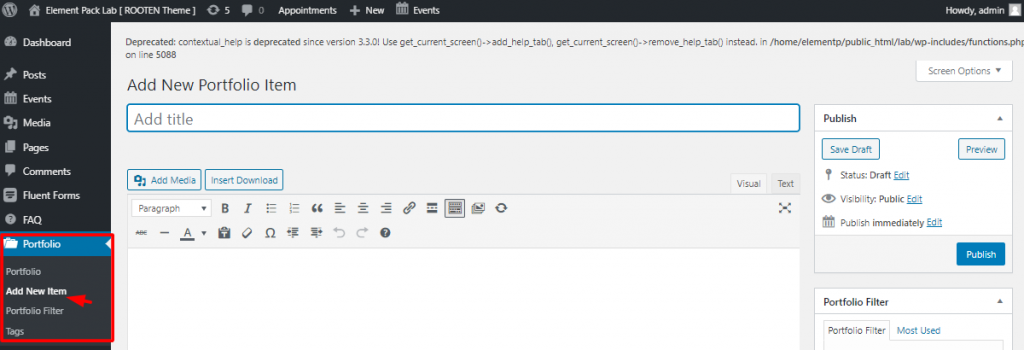
After you install the widget, it will automatically create a menu on your dashboard. To create a portfolio using Elementor and Portfolio Gallery widget, you must have portfolios inserted into your dashboard. To do that, go to Dashboard> Portfolio> Add New Item. Here, you can add your items to the portfolio. In this part, you can add a name for your item.
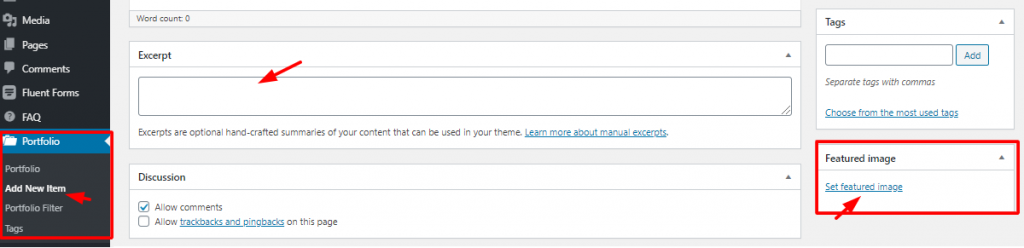
Again, you can write an Excerpt for each of your items and select a 特集画像. That’s it! Hit the Publish button and your items are now on the portfolio. It’s very easy to make a portfolio using Elementor.
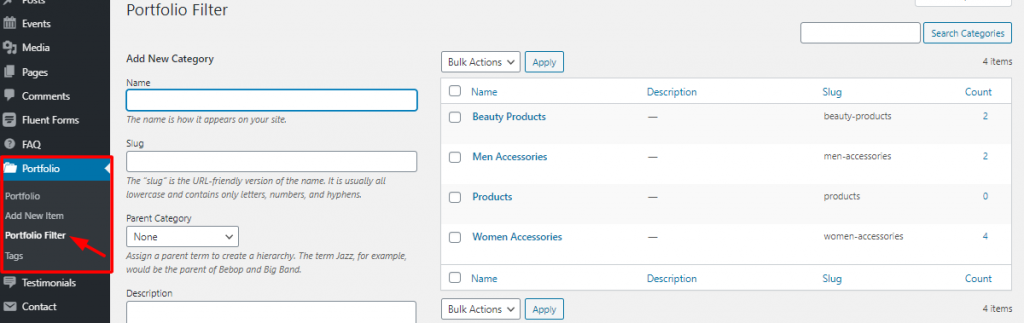
Again, make sure to categorize your items or products for the portfolio. Creating a good category not only makes the portfolio beautiful but also makes it easy to use. Then the next step, for creating a portfolio using Element, is the page editor.
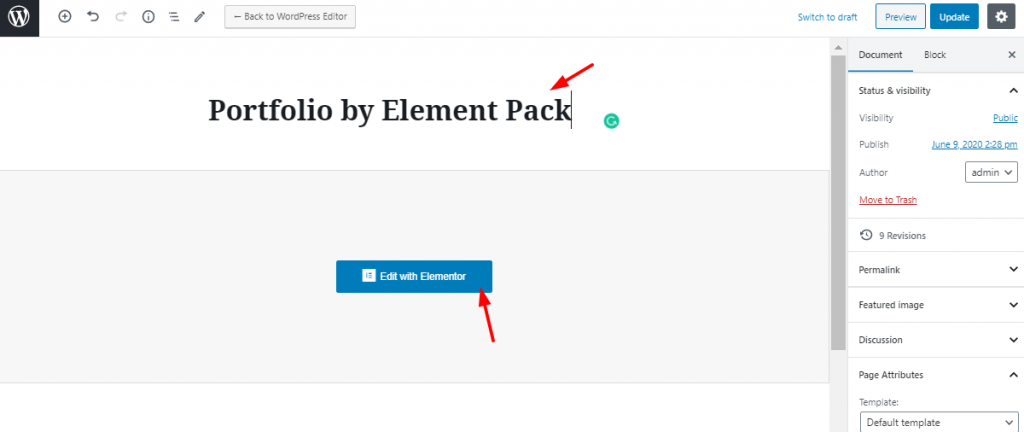
On your dashboard, go to Pages> Add New. You need to put a title for the page as the image shows. Then click on Elementorで編集する.
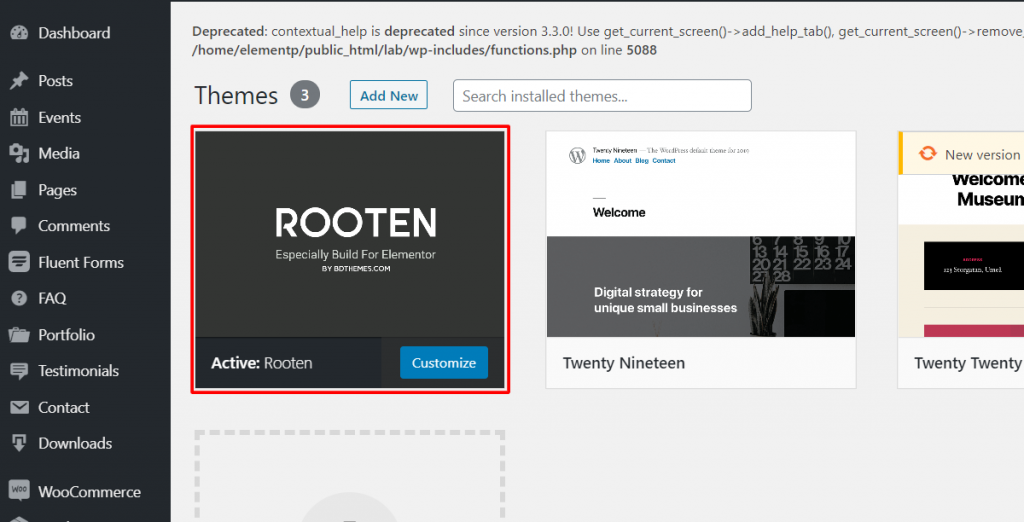
Note that, I’m using ルーテン theme for this tutorial. It’s a premium product with a large potential. This is the lightest and fastest theme optimized for WordPress. ルーテン theme is offering a huge range of customizable content with stylish artworks. This theme makes it easy and simple for users. It’s an easy-to-use theme for creating a portfolio using Elementor.
Creating a Portfolio Using Elementor and Portfolio Gallery Widget
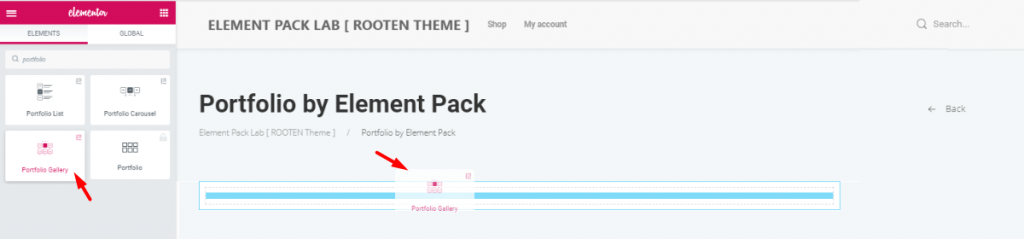
First, you have to drag and drop the widget from the widget menu. Although, this task is nothing to be mentioned. But since many are new to Elementor, this step may help them a bit.
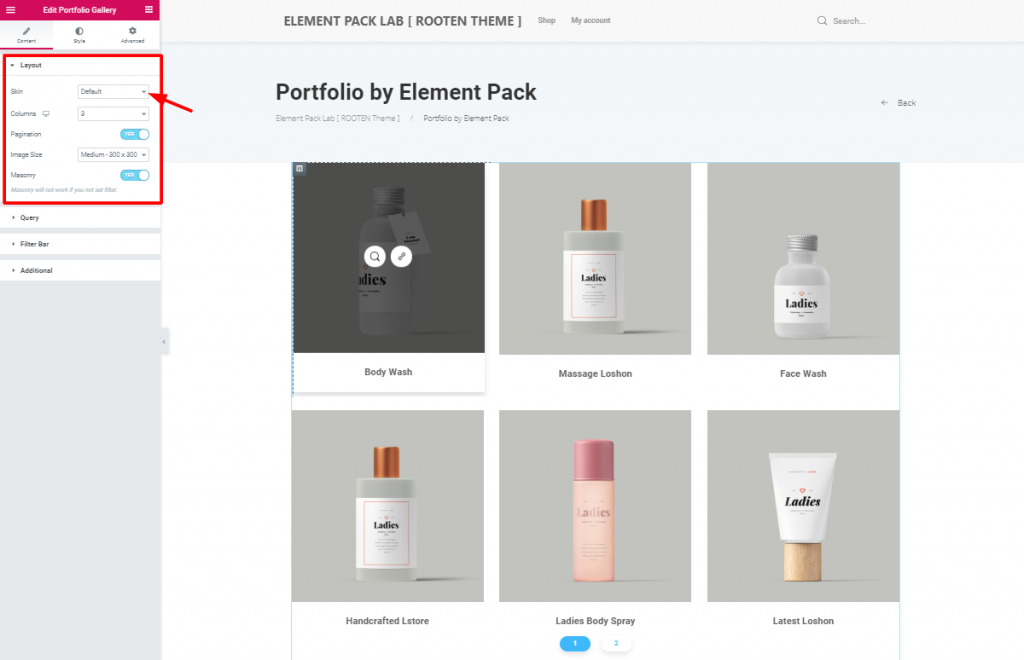
After you insert the widget, you will see the レイアウト section opened from the 内容 tab. This tab holds the base settings of the portfolio widget. As you can see, the 皮膚 is set to デフォルト。 The first image has a bit blacken out due to mouse hovering on it.
However, you can change the image size and enable pagination or masonry from this section. The 皮膚 option helps you create your unique portfolio using Elementor.
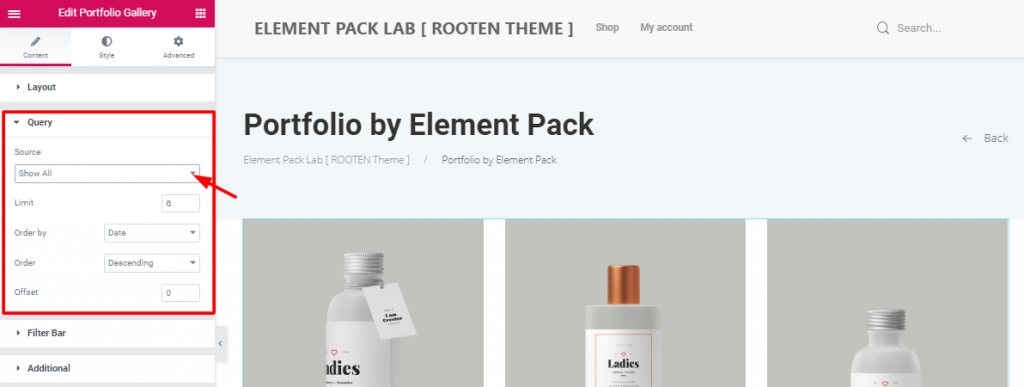
This is where you specify the category of products or items you want to show on the portfolio. If you choose Manual Selection in the ソース option, you can select a category. It’s the category you have made in the dashboard while creating this portfolio using Elementor.
You can also determine the number of products shown on one page. Also, you can set the order and offset it. These are the basic functions of your portfolio.
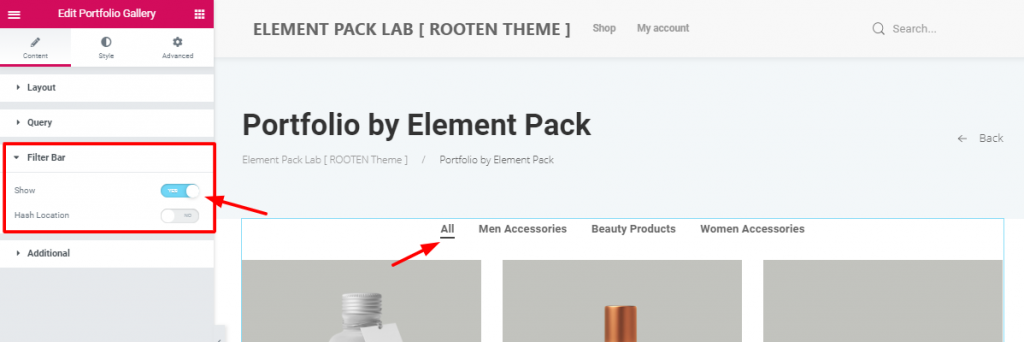
After setting the query, you can see the switcher to turn on the filter bar. It shows how many categories you have inserted in the portfolio. It’s handy and informative towards the visitors. Moreover, the filter bar option makes it easy for customers to choose their products. You need it to create a good portfolio using Elementor.
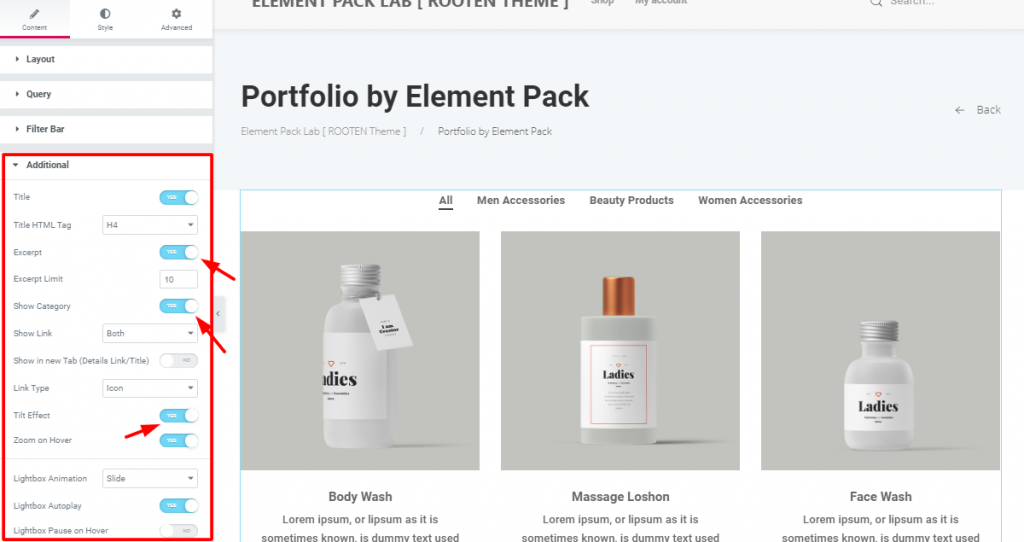
の中で 追加 section, you have some more switchers and drop-down controllers. You can actually show/hide the title, excerpt, or categories. However, turning on/off these switchers will do the job. Look carefully at the ティルト効果 そして Zoom on Hover switchers.
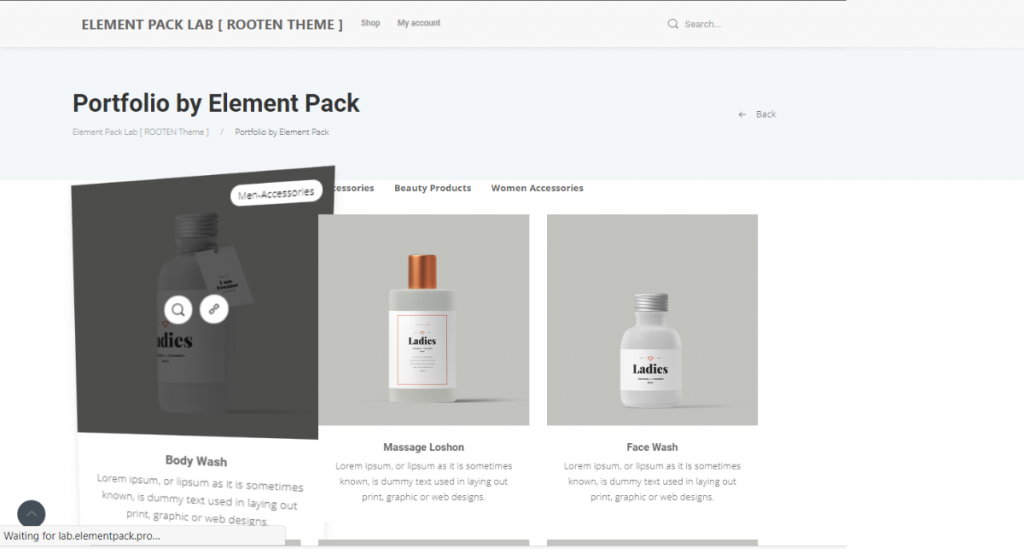
This is the プレビュー mode, showing the action of the two switchers. Adding these effects will not only make your portfolio rich but also make the visitors satisfied.
Now that you have completed the basics, it’s time to add some pepper on the dish. Let’s move on to the スタイル タブ
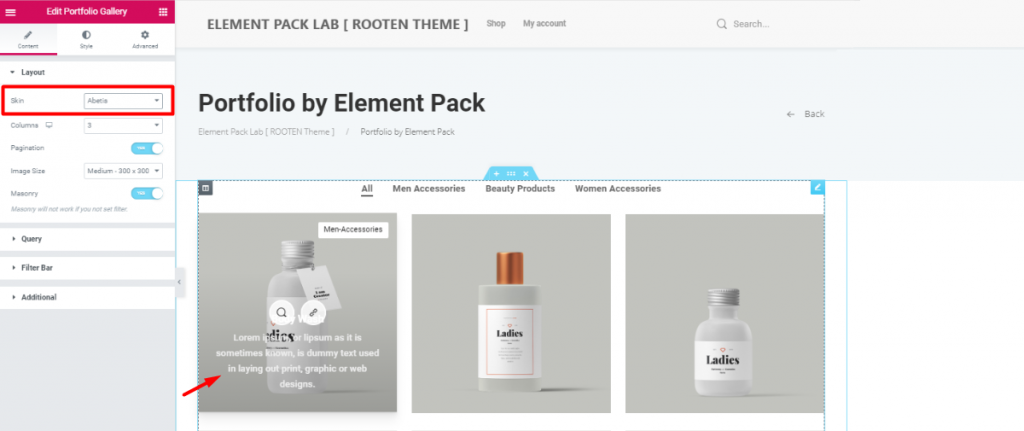
Before moving on, I’m going to change the 皮膚 への Abetis. Doing this will bring the title and excerpt into the image. The reason is, it will give you more visible ground and will take less space.
However, all the previous settings still remained attached. So, make sure to give another look at the 皮膚 オプションがある。
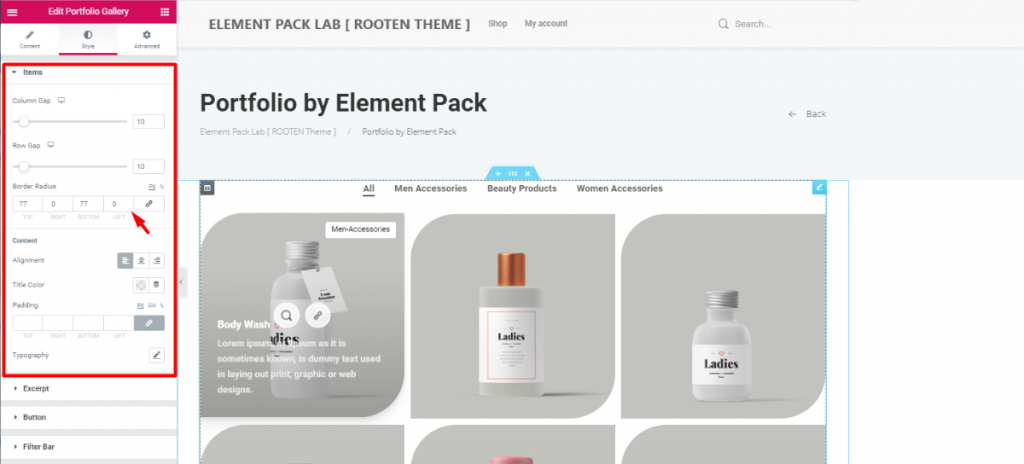
The first section Items lets you adjust the items column and row gaps. The more you increase the gaps, the more their size decreases. This happens because they are in a limited space. So, make sure to maintain the optimum gaps.
Moreover, you can adjust their border-radius from here. As the image shows, I’ve given them unique shapes with Border Radius. Just put 77 numbers in the Top そして Bottom fields.
Again, you can change the color and alignment of the Titles of all the items at the same time. However, be sure to choose unique typography that represents your brand. You can also change the typography and color of the excerpt in the next section.
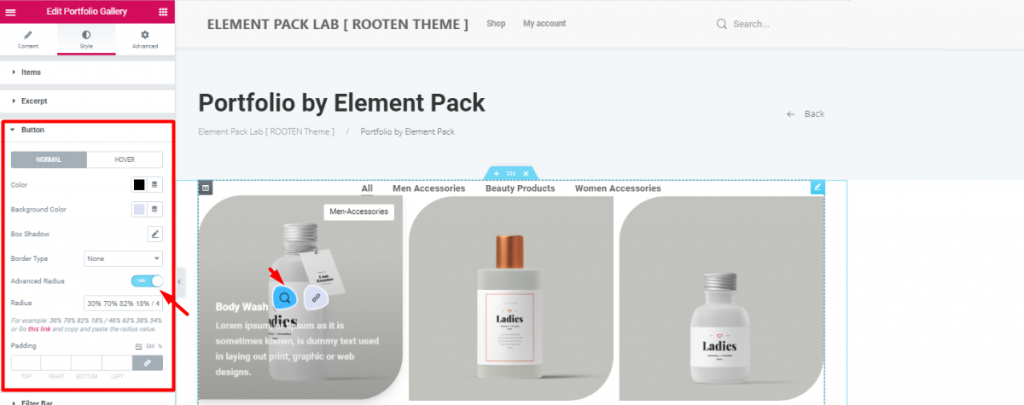
Let’s make things a bit spicier. Turn on the Advanced Radius switcher and have a look. Therefore, you will see the icons appearing in a cool weird shape. This can be done from the ボタン section in the style tab. However, be sure to change the color as you like.
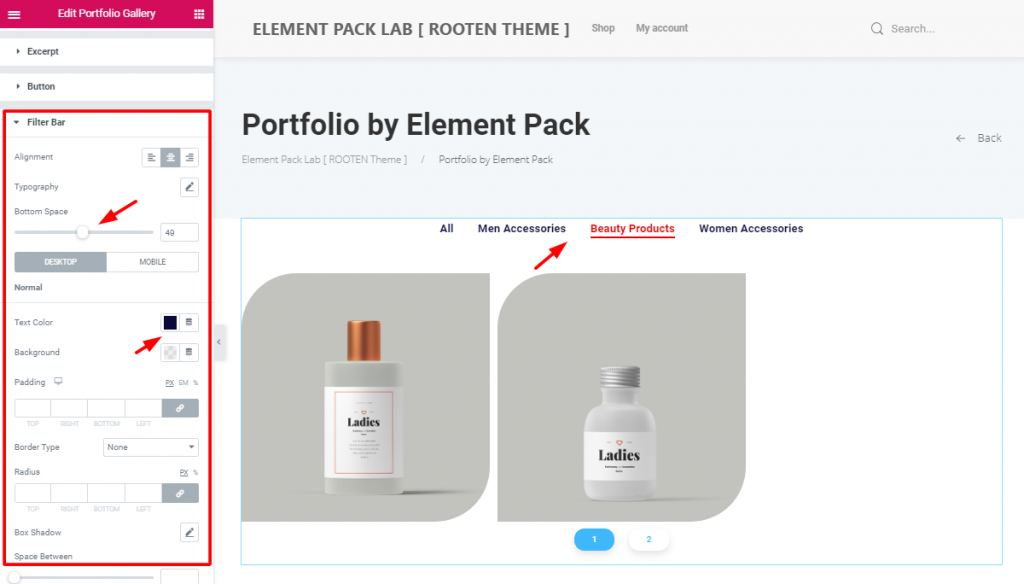
After that, change the alignment and bottom space of the filter bar to match your taste. Don’t forget to change the color and typography. The more refined look your portfolio has, the more it will attract visitors. So, keep that in mind.
Furthermore, changing the appearance of the pagination form the last section is also a good bargain.
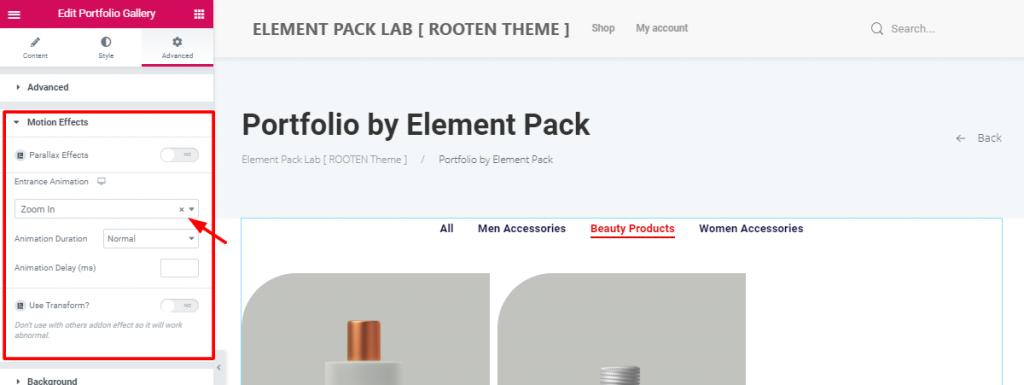
After all these customizations, there’s still something off. Let’s throw in animation and make it complete. From the 上級 tab, go to the モーション・エフェクト section. Just like above, choose an entrance animation to the portfolio.
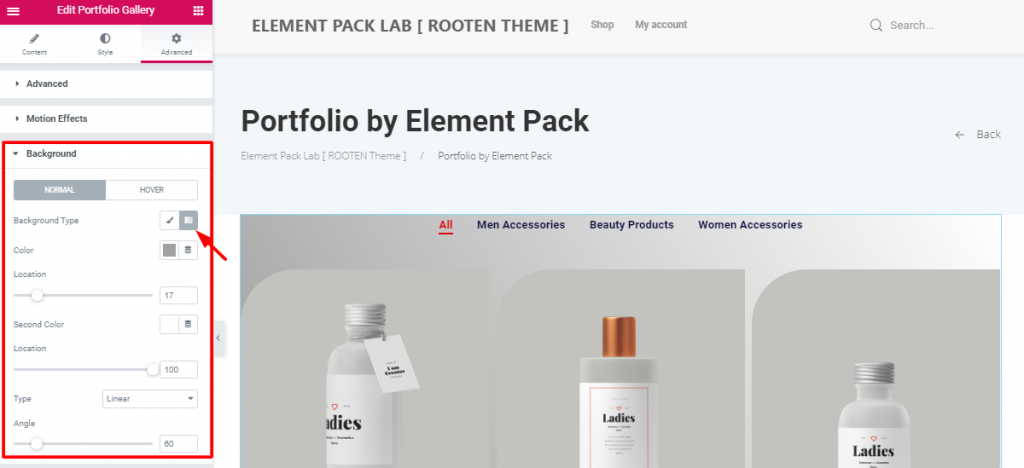
After that, put a gradient color on the background to make a light-dark shade. You can do this in the 背景 section. Simply, go to Style tab> Background.
All done! Have a look at the finished product.
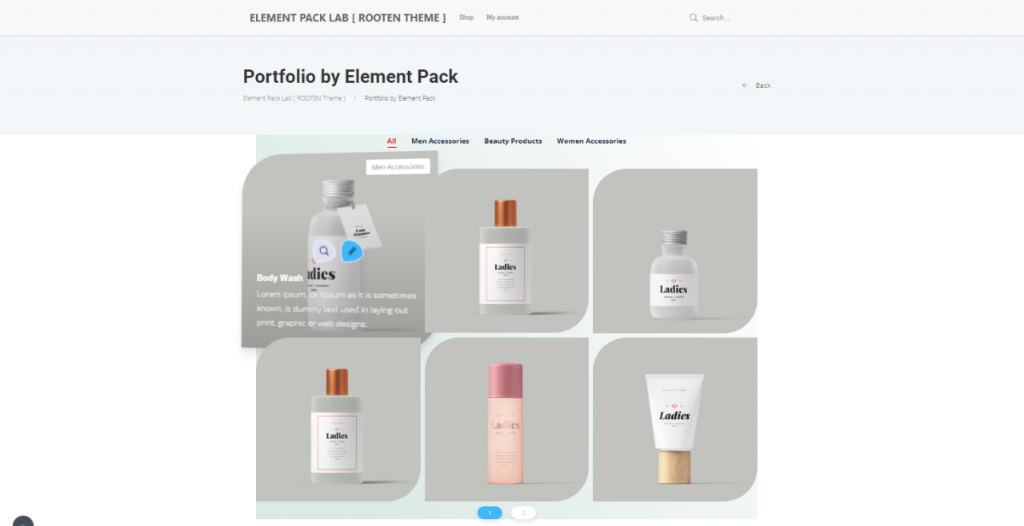
Hence, The portfolio is complete. No need to thank me. However, follow these steps carefully. Make yourself a unique and stunning portfolio using Elementor.
Element Pack は、WordPressに基づく最も最適化されたアドオンです。 Elementor plugin for creating your premium website.
This plugin has a vast inventory ready to be deployed on your website. Also With 190+ plugins, 270+ すぐに使えるページ 1800 unique blocks, Element Pack has made it to the position of トップ5 ワールドワイドで。
オフィシャルサイトにご登録いただいている皆様を対象に、プレゼント企画を実施いたします。 BDthemes.com
訪問 Element Pack または プライムスライダー あなたの感想をお聞かせください。ラッキーな当選者には、$100相当の生涯ライセンスを差し上げます。参加にかかる時間はわずか1分です。
What every successful website designer wishes for is premium and optimized tools. And Element Pack responds confidently to that wish. So, don’t hesitate too much and make a run for it!
Thank you for reading this blog. Have a great day!

最大のElementorテンプレートパックは、最もユーザーフレンドリーなUIと 300+ 便利なElementorウィジェット。ゼロからウェブサイトを構築 100% あっという間に完璧になる。
このウェブサイトは Element Pack Pro そして ルーテンのテーマ
Copyright © 2026 Bdテーマ. 無断複写・転載を禁じます。










