

Hello readers. Today I’m going to talk about how to create an eCommerce marketplace from the very beginning. For the webpage creation purpose, I’ve chosen the Elementor Page builder and EDD. Why is that? Because Elementor permits you to effortlessly make any sort of site without the need to get familiar with any code. You can even make an amazing eCommerce site utilizing Elementor and EDD. However, before diving into the game, you must know the basics. Both EDD and Elementor has amazing features one needs to know to get used to them.
Easy Digital Downloads, by all means, an envied e-commerce plugin system for selling software-based products. EDD provides an add-on which the site owner can use to license each and every product sold on the website.
From this point on, I’ll walk you through how you can utilize Elementor to make a stunning eCommerce website. I’ll show you the whole thing step by step of pursuing a smooth plan. Introducing WordPress, Elementor, and EDD. Though these tutorial type blogs make you sleepy but trust me, no one else but you will get the benefit of this. Moreover, some expert tips and tools included at the end of this blog. Make sure to burn these steps in your memory. Let’s get started!
Getting Started to Make Your Website With Elementor
To start with Elementor, you’ll have to purchase a hosting plan first. What you need are:
- A domain name and hosting
- WordPress
- Elementor plugin and a theme
These 3 things will get your base ready. From this point, I’ll be showing you how to get, install, and customize domain, WordPress, and Elementor. Let’s go through one by one.
Step 1: A Domain and Hosting
The first thing to do is, get a domain name for your website and a hosting plan. I personally recommend BlueHost because it’s the best hosting company. This company provides solid uptime for your eCommerce store, meaning very fast loading speed. In addition, they will provide you with a domain and 1-click WordPress install facility to create an eCommerce Website.
Start with BlueHost. My best suggestion for you is to choose the ‘Plus’ plan from the site. This plan not only gives you unlimited broadband but also unlimited server space also. Moreover, they will assign one of their experts for your website to solve any problems at any time. So, buy the best services at the best price.

Alright, now you have chosen a plan. The next step is giving a name to your domain. After clicking the ‘Select’ button on the Plan tab, you will be forwarded to a page where you’ll get to name your domain.
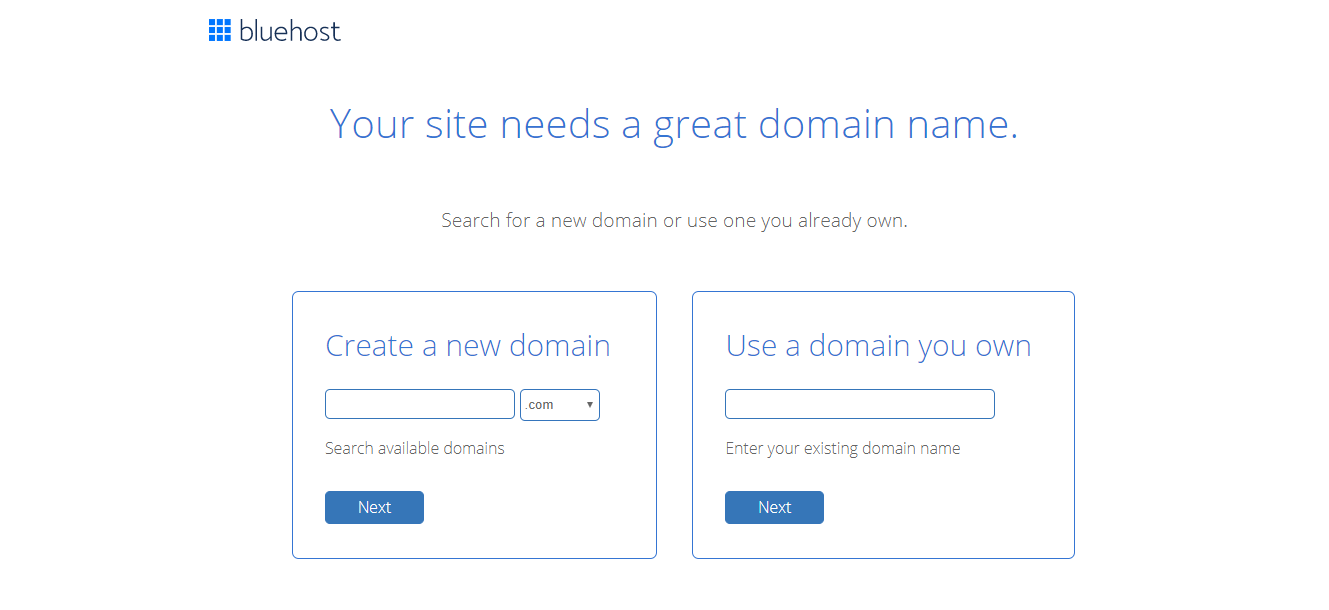
After you submit your payment, BlueHost will create your account and you will be able to go to your customer area.
Step 2: WordPress
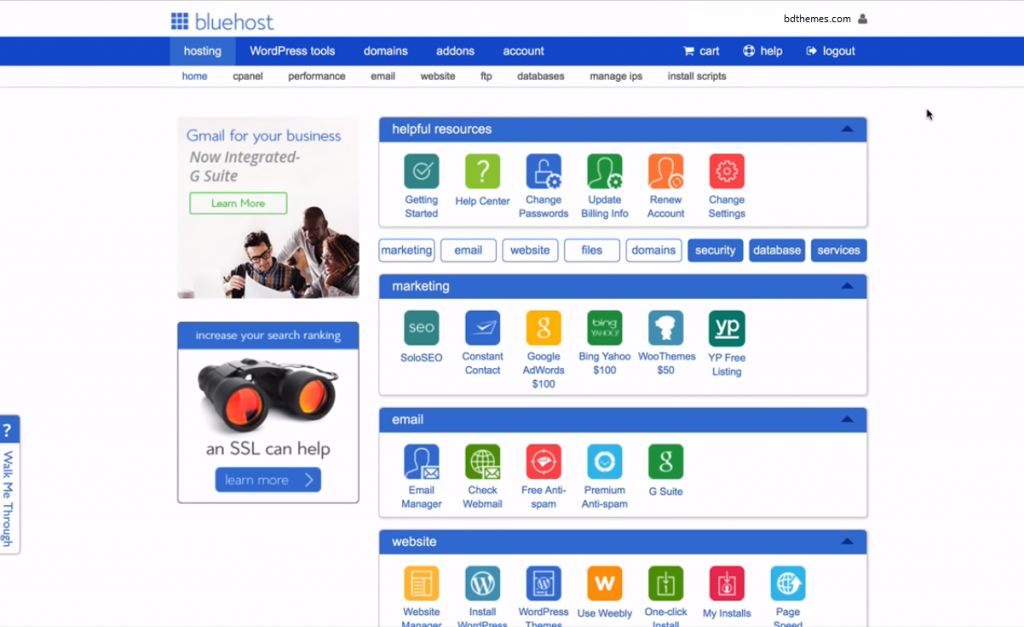
The next step is to install WordPress. In your Hosting tab area will be a blue bar with a ‘website’ name tag on it. Click on the ‘Install WordPress’ button from there. WordPress is crucial for creating an eCommerce Website.

Choose a username and password that you’ll use to login to your WordPress website. Make sure to copy it and store it somewhere very safe. Then, click the ‘Next’ button and wait for BlueHost to finish installing WordPress on your site.

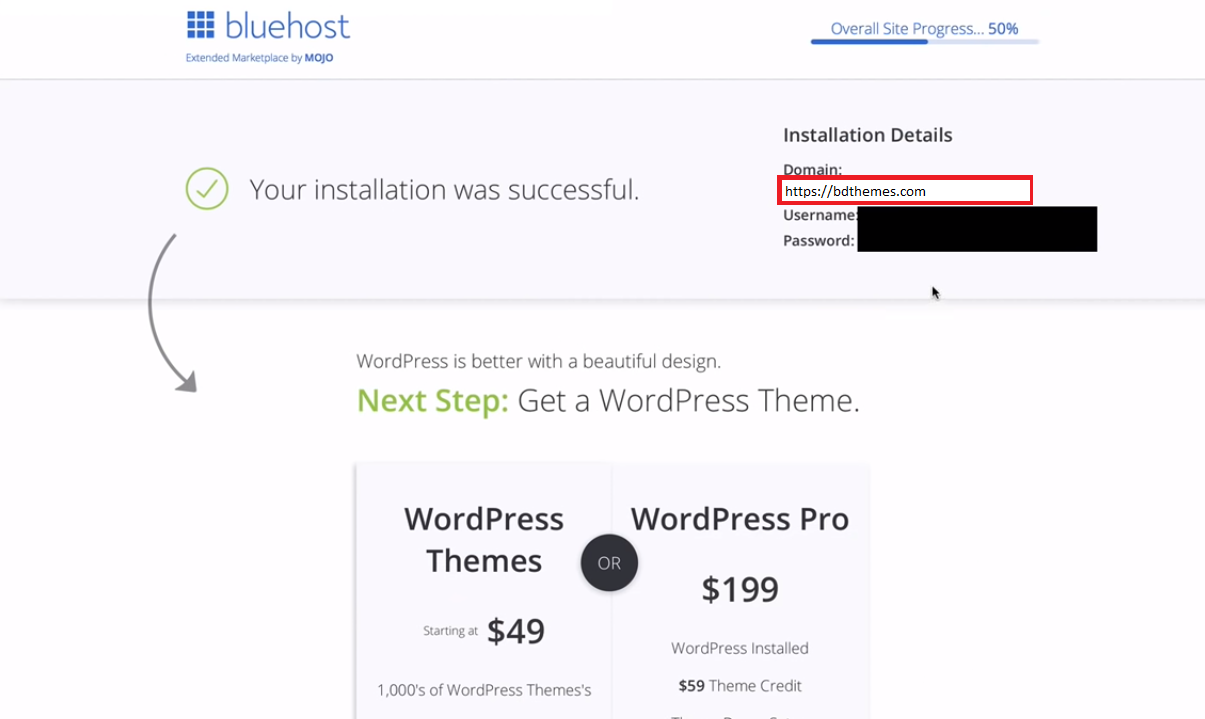
After completing the installation, click the ‘View credentials’ button. Here, you’ll see your domain, username, and password under the “Installation Details’ Tab. Click on the domain link and you’ll be redirected to WordPress user page to log in. There you need to enter your username and password to enter the WordPress dashboard.
By default, there will be a custom dashboard installed by BlueHost.
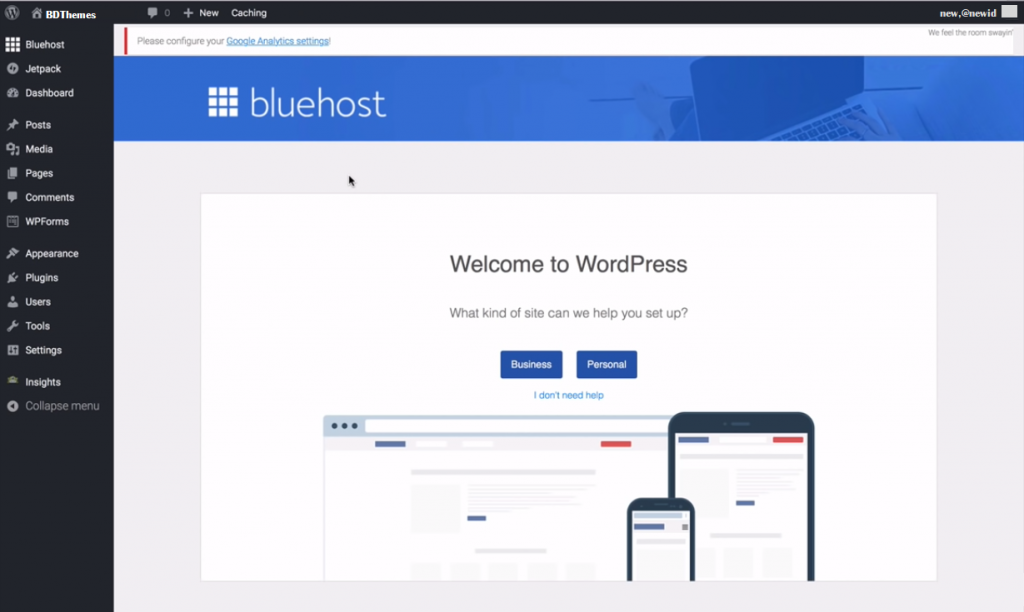
Before installing Elementor, there’s one more thing to do here and that’s changing the permalink structure to make it more user and SEO-friendly. Go to Permalinks and then select the Post Name option. Save your changes.
Step 3: Elementor and a Theme
Now let’s move with the simple steps for installing Elementor and a theme to create an eCommerce Website with ease.
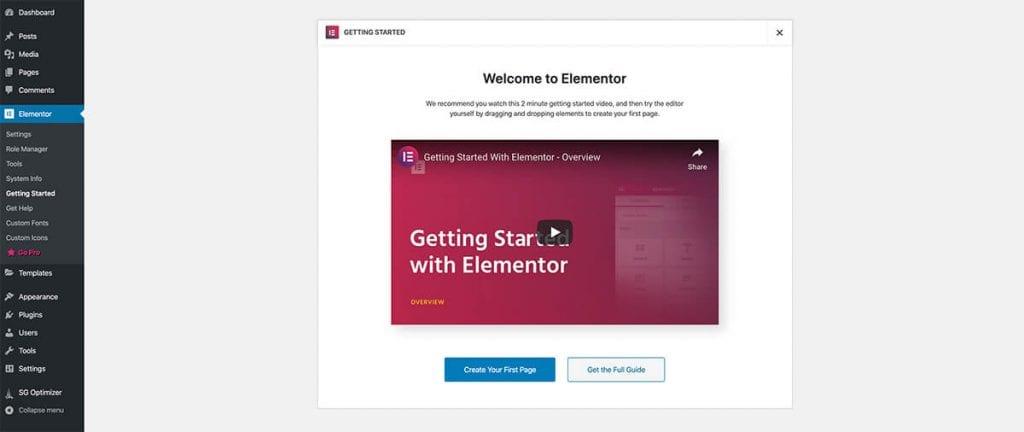
First, go to the Elementor website and download the free version of it. You need to enter your email to receive your free copy. After it’s downloaded, go to your WordPress dashboard and from there, go to Plugins > Add new. Locate the downloaded Elementor file from the local disc and install it.
Or, from the Dashboard/Plugins, manually search for Elementor Plugin and install it from there. After installation, click on Activate.
For installing a theme, go to ‘Appearance’ and select ‘Themes’. I am using ‘Astra’ theme as a reference for this blog. Search Astra theme from Dashboard and then install it. You must activate it to make it work.
After that, click on Astra Options and select the option to install the Importer plugin. Then select Elementor as your page builder from there.
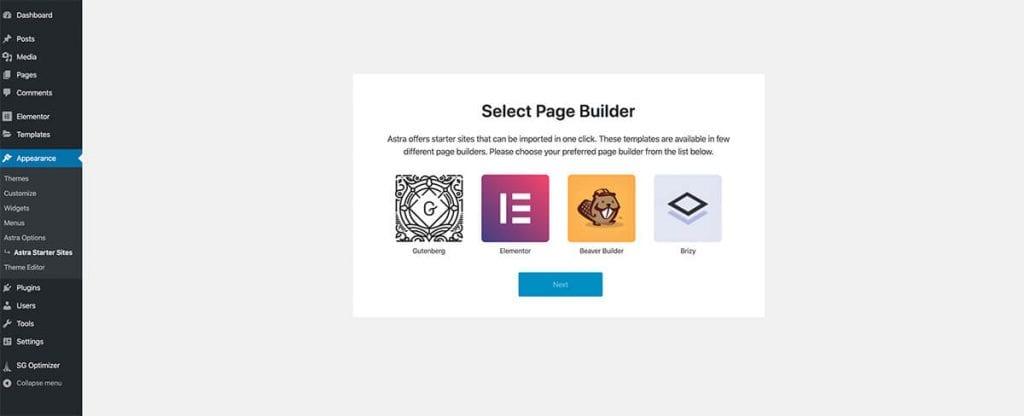
Once the template has been set, you can start customizing your site.
Blog for you
Most popular blogs
Learn more about WordPress
Pro Tips:

Customizing Your Website With Elementor

At this point in the tutorial, I’ll show you how you can customize the theme template just like this demo page. Though it’s not necessary to customize the theme that much as they are already optimized. However, this would be preferable for creating a unique style.
The steps we need to follow:
- Home Page and Theme customization
- Making Contact Form
- Creating Samples
- Products And WooCommerce Settings
Let’s not waste any more time and read thoroughly.
Step 1: Home Page and Theme Customization
At the WordPress dashboard, you can see your site name on the quick list. Click on the site name and from there, click Edit With Elementor. Elementor provides its interface and building blocks to customize the homepage. You can add more elements such as headlines, text, buttons, callouts, grids from the selection menu. As a drag and drop system, you can create anything without the need for coding.
You can remove sections you don’t need by right-clicking on them and delete them. You can also duplicate sections via section menu and rearrange them by dragging.
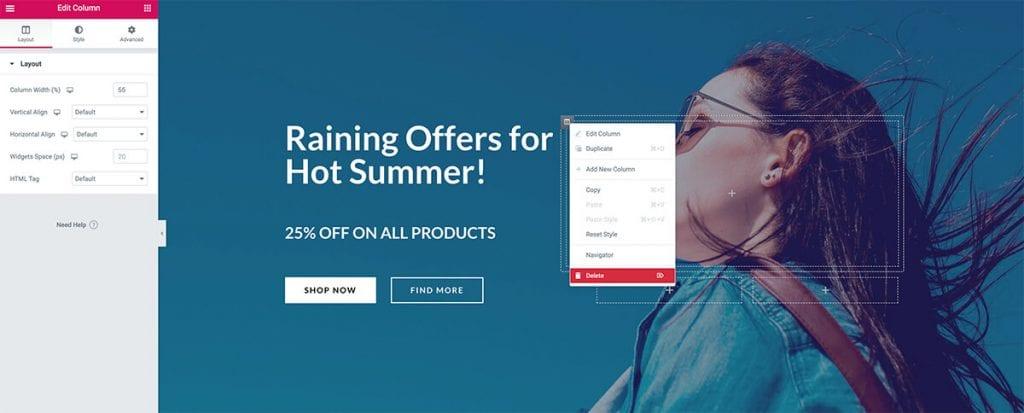
For every particular section, you’ll be able to customize the background, spacing, and more for that section.
If you want to edit a particular block, all you have to do is click the pencil icon and you’ll be able to adjust fonts, colors, background, spacing, and other settings.
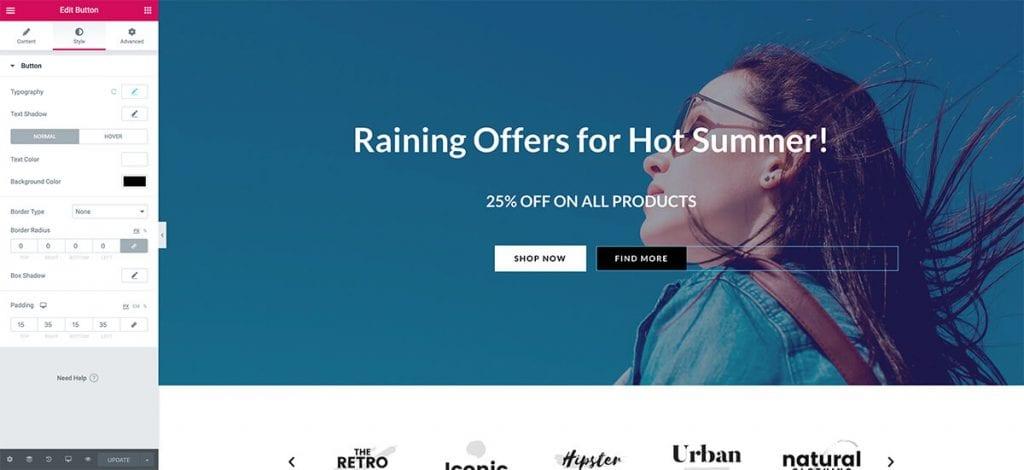
After the customization of your site is completed, click on the Update button and the changes will be applied. Simple isn’t it?
Alright, now that your home page is ready, head towards to customize your site with the Theme Customizer. Visit your website and then click the Customize option or in your dashboard, go to Appearance > Customize. There you’ll be able to override the theme settings according to your taste.
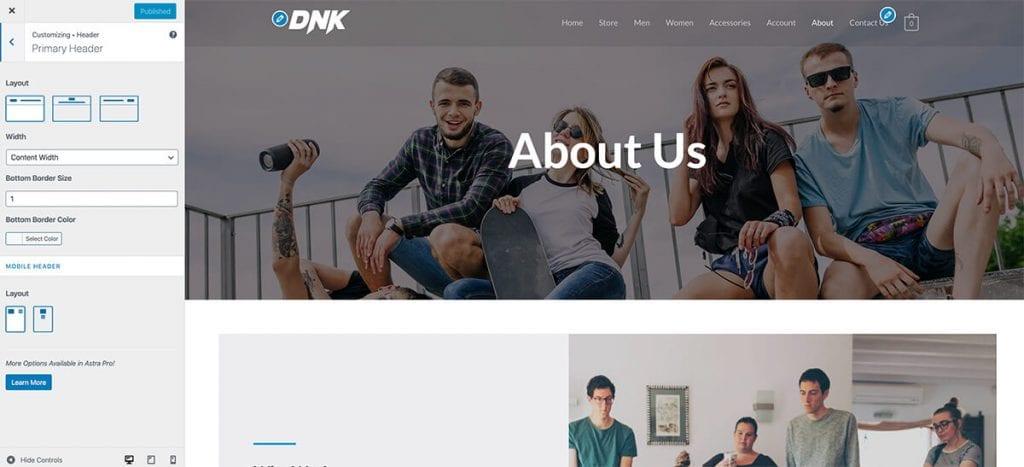
Step 2: Making Contact Form
By adding a contact form to your website you can give people access to the mail you’re using in your Contact page. For this function to work, go to your WordPress dashboard and click on Plugins > Add new. Search for WPForms and install and activate the plugin.
You’ll see the plugin’s homepage with a button to create a form. Click it and choose a Simple Contact Form and make sure that the form is linked with your primary email address. You will see a shortcode given by WPForms for the form you’ve just created. Copy it and save it for later. This contact is crucial if you want to create an eCommerce Website.

Now go to the Elementor editor page from the contact form. In the Elementor interface, search for the Shortcode block and paste the form’s shortcode. Once the page is updated, your customers will be able to contact you.
Step 3: Creating Products
In this step, you need to go to your WordPress dashboard and setup the WooCommerce plugin through its instructions. This is where you’ll create and configure the base options for your store. After the setup is completed, we can start creating our products. Let’s start by creating a simple product. Go to Products > Add new. Here you’ll be able to add a title and a description for your product. There are more options to add product images, set your price, and configure stock management settings where your customers can see the number of products you have in store. A well-categorized collection of goods is needed for creating an eCommerce online store.
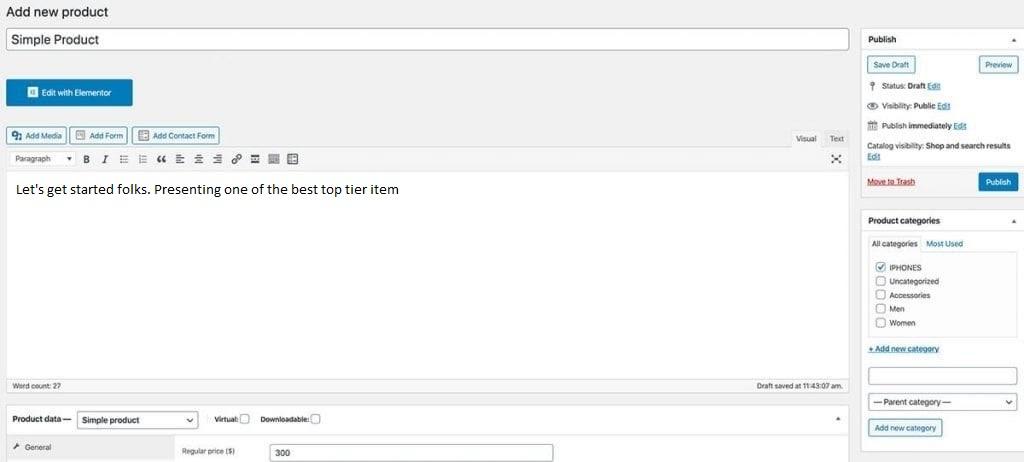
Also, you can enter categories and tags for your products to make your store more organized.
When you’re done, click the Publish button and now the product will be available and visible in your store.
Step 4: Products And WooCommerce Settings
WooCommerce automatically by default makes your items and products appear on your store page when activating this plugin. Also, you can showcase any product you want thanks to the shortcodes WooCommerce provides. Moreover, there are other customizable settings in WooCommerce that you need to configure. More or less they are stated below.
-Taxes are although automated but you can also configure them manually.
-For shipping, you’ll need to configure the shipping rates and zones for your store.
-As for the payment methods during the setup process, WooCommerce asks you to set up a payment method. You can enable Paypal, Stripe, 2Checkout, and other payment methods with WooCommerce extensions.
– Also, by creating coupons, you can easily create promo codes for your customers and vouchers your store for promoting or selling certain items or variables.
Bonus Tip: Creating multiple pages with advanced styling isn’t easy. Again, basic WordPress or even Elementor won’t give that much customization flexibility as well. For this, you can use different addons for Elementor for every single design for your ecommerce site with easy drag and drop widgets.
Get a free EP & PS license (Lifetime)
We are running a give-away program to our beloved consumers & subscribers who are connected to our official website BDthemes.com
Visit Element Pack or Prime Slider and share with us your thoughts. Lucky winners will receive a lifetime license worth $100. It will only take a minute to take part in.
Selim Rana
The BdThemes team builds WordPress plugins trusted by 3M+ users worldwide. We write about web accessibility, WCAG compliance, and inclusive design.