



Are you struggling to display clean, readable code blocks on your Elementor pages?
You’re not alone. If you need to showcase HTML tutorials, embed JavaScript code, or display CSS examples, the default Elementor options often fall short.
To Add Code to a Page on Elementor, install Element Pack and enable source code widget. Configure and select the code language . Then, customize the content tab. Once done, publish the page.
In this detailed tutorial guide, we will be showcasing you a step by step process on how you can add code to the page on elementor.
So, let’s get started!
How to Add Code to a Page on Elementor (Step-by-Step)
Before diving into the solution, let’s examine why the standard Elementor approach to adding HTML code in Elementor page doesn’t meet modern web development needs:
- HTML Widget Limitations
- No Built-in Code Styling
- Multi-language Support Issues
- Layout and Design Conflicts
So, the most effective solution to use custom code in Elementor involves leveraging a specialized widget designed specifically for code display. The Source Code widget by Element Pack Pro addresses every limitation of default Elementor options while following WordPress development best practices.
So, let’s jump into the steps to add code to your Elementor pages.
Step 1: Install and Activate Element Pack Pro
Before you can use the Source Code widget, you need to install and activate Element Pack Pro:
- Get Element Pack Pro from their official website and download the plugin zip file
- Install the Plugin:
- Go to your WordPress dashboard
- Navigate to Plugins > Add New
- Click Upload Plugin button
- Choose the Element Pack Pro zip file you downloaded
- Click Install Now
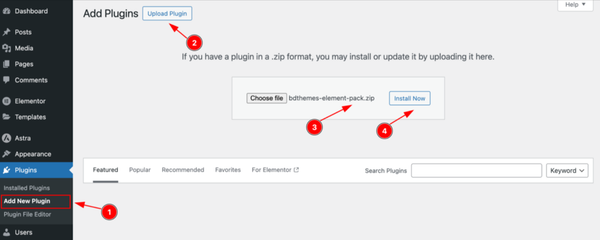
- Activate the Plugin:
- After installation, click Activate Plugin
- Enter your license key when prompted (found in your purchase confirmation email)
- Click Activate License to unlock all premium features
Once activated, you’ll have access to 80+ premium widgets including the powerful Source Code widget.
Step 2: Insert the Source Code Widget
Open your Elementor Editor and navigate to the page where you want to add your code snippet.
- In the widget search bar, type “Source Code” to locate the widget
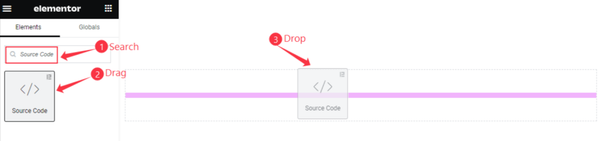
- Look for the Element Pack Pro logo in the top-right corner to ensure you’re selecting the correct widget from Element Pack Pro’s extensive collection
- Drag and drop the Source Code widget onto your desired page location
The widget will appear with default styling, ready for customization.
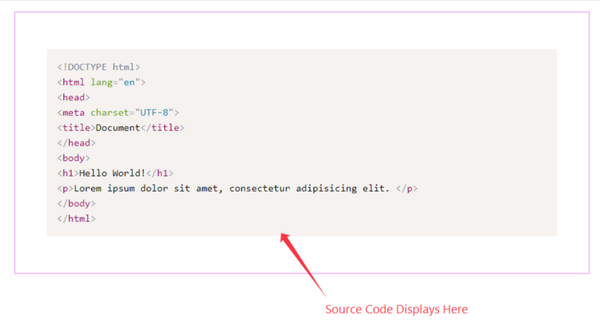
This method ensures you’re using a widget that follows WordPress plugin development guidelines for optimal performance and security.
Step 3: Configure the Content Tab
Navigate to the Content tab to set up your code display:
3. 1: Select Your Style Preset
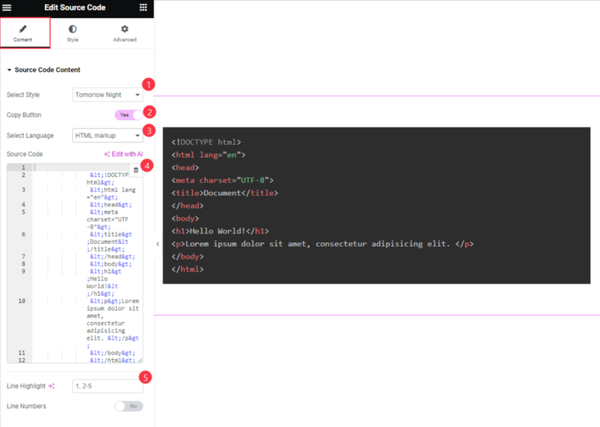
Choose from professionally designed themes that mirror popular development environments:
- Default: Clean, minimal appearance suitable for documentation
- Dark: Perfect for modern, dark-themed websites (preferred by 90% of developers according to Stack Overflow’s survey)
- Coy: Subtle, light background with gentle highlights
- Funky: Vibrant colors for creative projects and tutorials
- Tomorrow Night: Popular dark theme among developers
3.2: Enable the Copy Button
Toggle this feature on to provide visitors with easy code copying functionality. This significantly improves user experience, especially for tutorial content and is essential for effective Elementor code snippets implementation.
3.3: Choose Your Programming Language
Select the appropriate language for proper syntax highlighting:
- HTML markup for web structure examples
- CSS for styling demonstrations
- JavaScript for interactive code examples (used by 63.61% of developers per Stack Overflow’s 2024 survey)
- PHP for server-side scripting tutorials
- Python for data science and automation examples
- C++ for systems programming content
- And many more options supported by the Element Pack Pro documentation
3.4: Input Your Source Code
Paste your code into the designated field. The widget automatically applies appropriate formatting based on your selected language, following WordPress PHP coding standards for consistency.
3.5: Highlight Specific Lines (Optional)
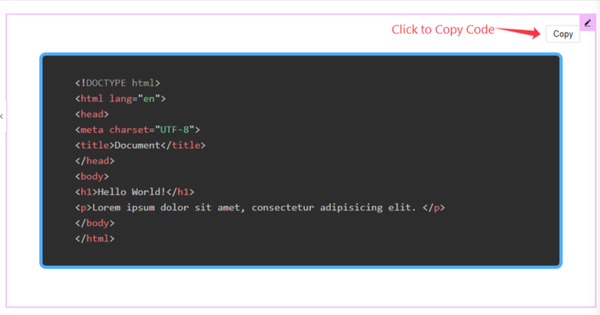
Use the line highlight feature to emphasize important code sections. This works like using a physical highlighter, drawing attention to key lines within your code block.
Step 4: Customize the Style Tab
Fine-tune your code block’s appearance through the Style tab:
Item Settings Configuration
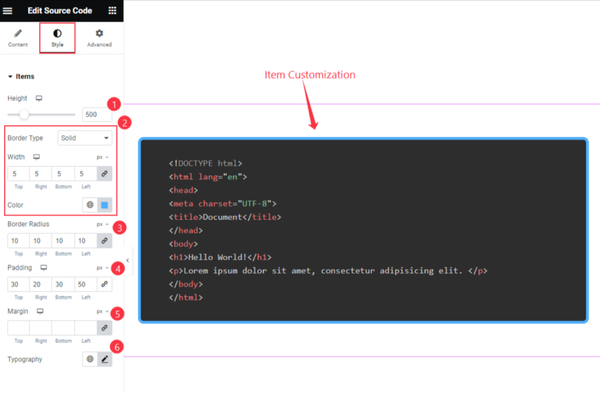
- Height: Adjust the code block height to accommodate your content while maintaining readability
- Border Properties: Choose border type, width, and color to match your site design
- Border Radius: Create rounded corners for a modern appearance
- Padding: Set internal spacing for optimal readability following WordPress spacing guidelines
- Margin: Control external spacing relative to other page elements
- Typography: Customize font family, size, weight, and line height for maximum readability
Copy Button Styling – Normal State
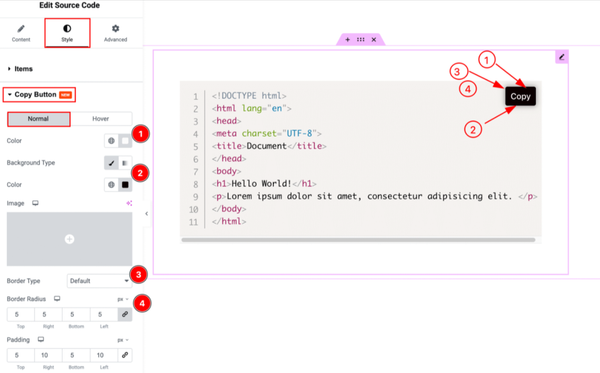
- Color: Set the default button text color
- Background: Choose solid colors or gradients for button background
- Border: Configure border appearance and color
- Border Radius: Adjust button corner rounding
- Padding and Margin: Fine-tune button spacing
- Box Shadow: Add depth with shadow effects
- Typography: Customize button text properties
Copy Button Styling – Hover State
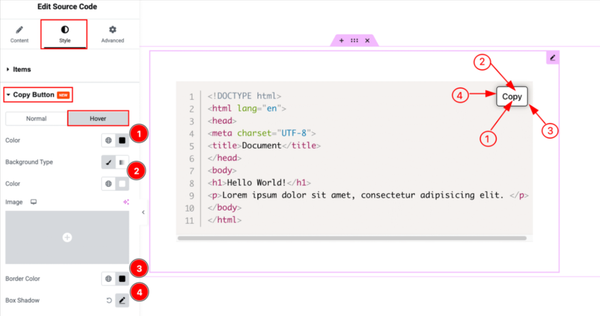
- Hover Color: Define text color changes on mouse hover
- Hover Background: Set background color transitions
- Hover Border: Modify border appearance during hover
- Box Shadow: Create dynamic shadow effects for interaction feedback
Step 5: Preview and Optimize
After configuration, preview your code block to ensure optimal presentation across different devices. The Source Code widget automatically handles responsive design, but you may want to adjust spacing or font sizes for mobile viewing.
Advanced Tips for Elementor Code Snippets
Optimizing Page Performance
When adding multiple code blocks to a single page, consider performance optimization strategies recommended by WordPress performance experts:
- Use code minification for large snippets to reduce page load time
- Monitor Core Web Vitals and increase page loading speed to maintain search engine rankings
SEO Best Practices for Code Content
Technical content benefits from proper formatting and structure according to Google’s SEO guidelines:
- Include relevant keywords naturally within your code explanations
- Use proper heading structure around code blocks following WordPress documentation standards
- Implement structured data markup for tutorial content using Schema.org
Where to Place Custom Code in Elementor
Strategic placement of your code blocks enhances both user experience and SEO performance:
- Tutorial Sections: Place code examples immediately after explanatory text
- Documentation Pages: Use code blocks to illustrate API usage or configuration examples
For comprehensive implementation examples, visit the Element Pack Pro demo pages to see the Source Code widget in action.
Integration with WordPress Development Workflow
Adding Tracking Code in Elementor
For analytics and marketing purposes, you can use the Source Code widget to display tracking implementation examples, helping users understand proper code placement. Popular tracking solutions include:
- Google Analytics 4 implementation
- Facebook Pixel integration
- Custom event tracking codes
- Heat mapping tools like Hotjar or Crazy Egg
Elementor Add Code to Header Scenarios
While the Source Code widget displays code visually, you may also need to add functional code to your site’s header. For this purpose, combine the widget’s display capabilities with:
- Element Pack Pro’s advanced features for comprehensive code management
- WordPress hooks and filters for theme-level customizations using the WordPress Plugin API
- Specialized header/footer plugins for site-wide code injection
Custom CSS and JavaScript Integration
The widget seamlessly integrates with Elementor custom CSS and JavaScript features, allowing you to:
- Display custom CSS examples while applying them to your design
- Showcase JavaScript functionality with working code samples
- Demonstrate responsive design techniques with live examples
Troubleshooting Common Issues
Code Display Problems
If your code doesn’t display correctly:
- Verify language selection matches your code type
- Check for special characters that might need escaping
- Ensure proper indentation for nested code structures
- Test across different browsers for compatibility using Can I Use for feature support
Mobile Responsiveness
Ensure code blocks work on all devices:
- Test on actual mobile devices, not just browser tools
- Adjust font sizes for mobile readability: the font 16-20px
- Consider horizontal scrolling for wide code blocks
- Implement touch-friendly copy buttons
Frequently Asked Questions
Can I use this widget in the free version of Element Pack?
The Source Code widget is exclusively available in Element Pack Pro. The investment provides access to over 80 premium widgets and advanced customization options that significantly expand Elementor’s capabilities for the 18+ million websites using Elementor globally.
Is this widget safe for adding JavaScript or PHP?
The Source Code widget is designed for display purposes only and doesn’t execute code. This makes it completely safe for showcasing any type of code without security concerns, addressing the vulnerabilities that affect 43,000+ WordPress sites daily according to Wordfence statistics.
Can I add multiple code blocks on one page?
Absolutely. You can add unlimited Source Code widgets to a single page, each with independent styling and language settings. This flexibility makes it perfect for comprehensive tutorials and documentation.
Will this affect my page speed or SEO?
The Source Code widget is optimized for performance and follows SEO best practices. When used properly, it can actually improve your content’s search engine visibility by providing well-structured, readable code examples that enhance user engagement and meet Google’s Core Web Vitals requirements.
Can I export or backup my code blocks?
Yes, all Source Code widgets are stored in your WordPress database and can be exported using standard WordPress export tools or Element Pack Pro’s template system. This ensures your code examples are preserved during site migrations or backups.
Conclusion
Successfully learning how to add code to page on Elementor requires the right tools and approach. While Elementor’s default options provide basic functionality, professional code display demands specialized solutions that can handle the complexity of modern web development.
The Source Code widget by Element Pack Pro transforms your code presentation capabilities, and enhanced user interaction features.
For hands-on experience before purchasing, check out the live demos to see the Source Code widget in action across different use cases and design scenarios.
Also Read:

Al Suzaud Dowla is a Senior Content Strategist and Editor at Sigmative (Element Pack), translating intricate WordPress, Elementor and web development architectures into engaging, data-backed technical guides and growth resources.