



Describe the page you want to build. Ask for a heading to change. Find the Element Pack widgets your site actually uses.
With Element Pack Pro MCP (AI tools), a connected AI assistant can turn these instructions into real actions on your Elementor site. You can work through an external assistant such as Claude, ChatGPT or Cursor or use Angie inside the Elementor editor.
The feature brings together 31 abilities across seven groups, covering page building, widget management, page management, design tokens, maintenance, plugin information and integrations. You choose which abilities your assistant can use.
Key Benefits of Element Pack Pro AI Tools
- Build pages from a prompt. Create a page and assemble its layout using your site's existing colors, fonts and spacing.
- Make changes by instruction. Update widget settings, move elements and remove content from an existing Elementor page.
- Reduce routine admin work. Manage page titles, templates, featured images and publishing status, subject to your WordPress permissions.
- Find unused widgets. Check widget usage across your site and disable unused core Element Pack widgets.
- Work with your preferred assistant. Connect an external client through MCP or use Angie in the Elementor editor.
- Control access. Choose read-only access, allow selected abilities and limit actions through WordPress user permissions.
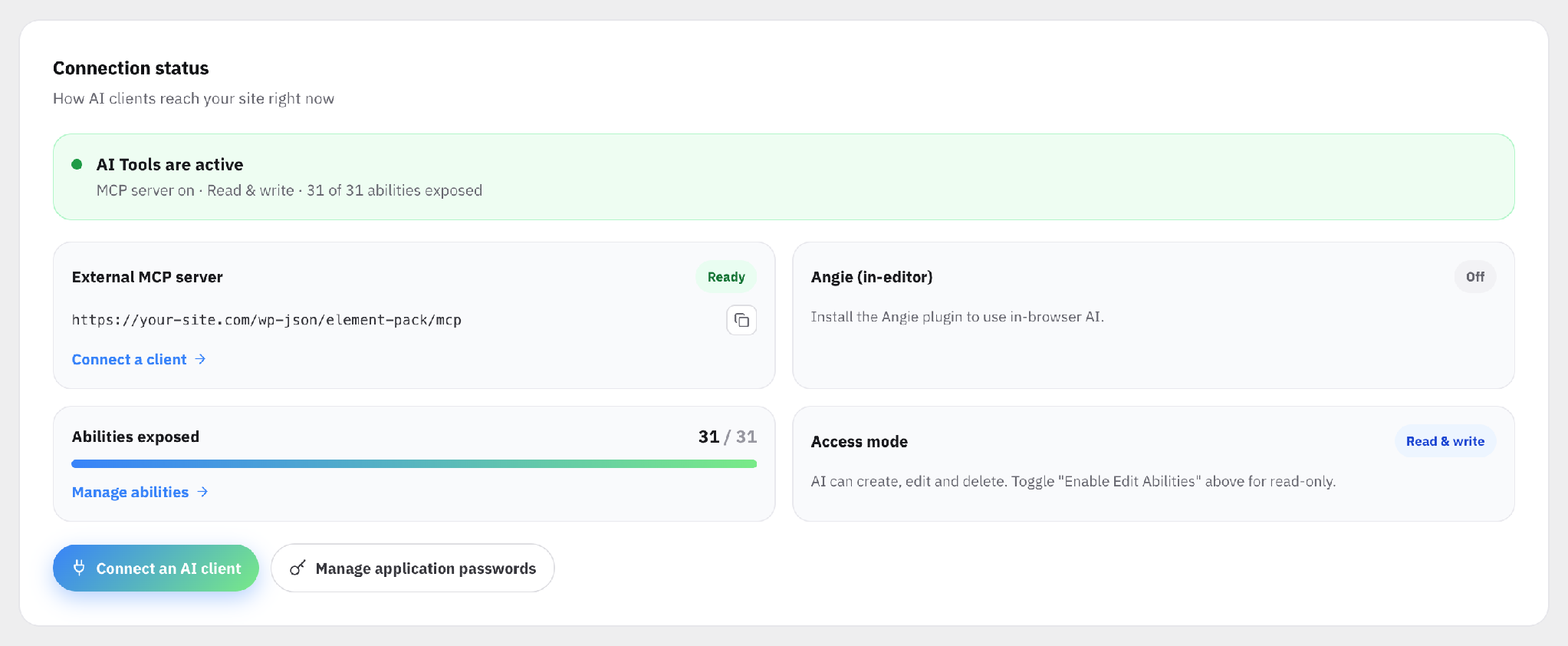
AI Tools Overview shows connection status, exposed abilities and the access mode.
Build Elementor Pages from a Prompt
For a business owner preparing a service page or a freelancer starting a client landing page, the first task is turning an idea into a usable layout.
AI Tools lets your assistant create an Elementor-ready page and build a complete layout of sections, columns and widgets. It can also read the global colors, fonts and spacing from your active Elementor kit, giving it the design information needed to follow your site's existing style.
For example, you could ask:
Draft a landing page for our consulting service with an introduction, benefits, pricing and common questions. Follow our site's existing colors and typography.
The assistant can use the page creation, design token and layout abilities to carry out the request. You can then review the result in Elementor and refine it.
The complete-layout ability replaces the page's existing Elementor content. Use it on a new page or back up an important page before rebuilding its layout.
Edit Existing Elementor Pages with AI
Many website updates involve a few specific changes: adjust a heading, move a button or remove an outdated section.
With AI Tools, you can describe those changes to your connected assistant. It can read the page's actual Elementor structure and the available settings for its elements, then update individual widget settings or reposition content.
For example:
On our services page, change the main heading to “Find the Right Service for Your Business” and move the enquiry button below it.
This is useful for client revisions and routine content updates. You describe the result you want and the assistant works with the page's real elements and supported settings.
If the last AI builder change needs reversing, the Undo Last Builder Change ability can restore the snapshot taken immediately before it. This provides one level of undo.
Identify and Disable Unused Widgets
As a website develops, the widgets it uses can change. A module enabled for an old campaign may no longer appear anywhere on the site.
AI Tools includes a widget usage map that reports site-wide usage counts for Element Pack widgets. Your assistant can use this information to identify unused widgets and help you tidy the active selection.
An example request is:
Review our Element Pack widget usage and disable core widgets that no Elementor content uses.
The Deactivate Unused Widgets ability applies to core widgets. It leaves extensions and third-party integrations alone.
This gives you a practical way to manage widgets based on actual site usage.
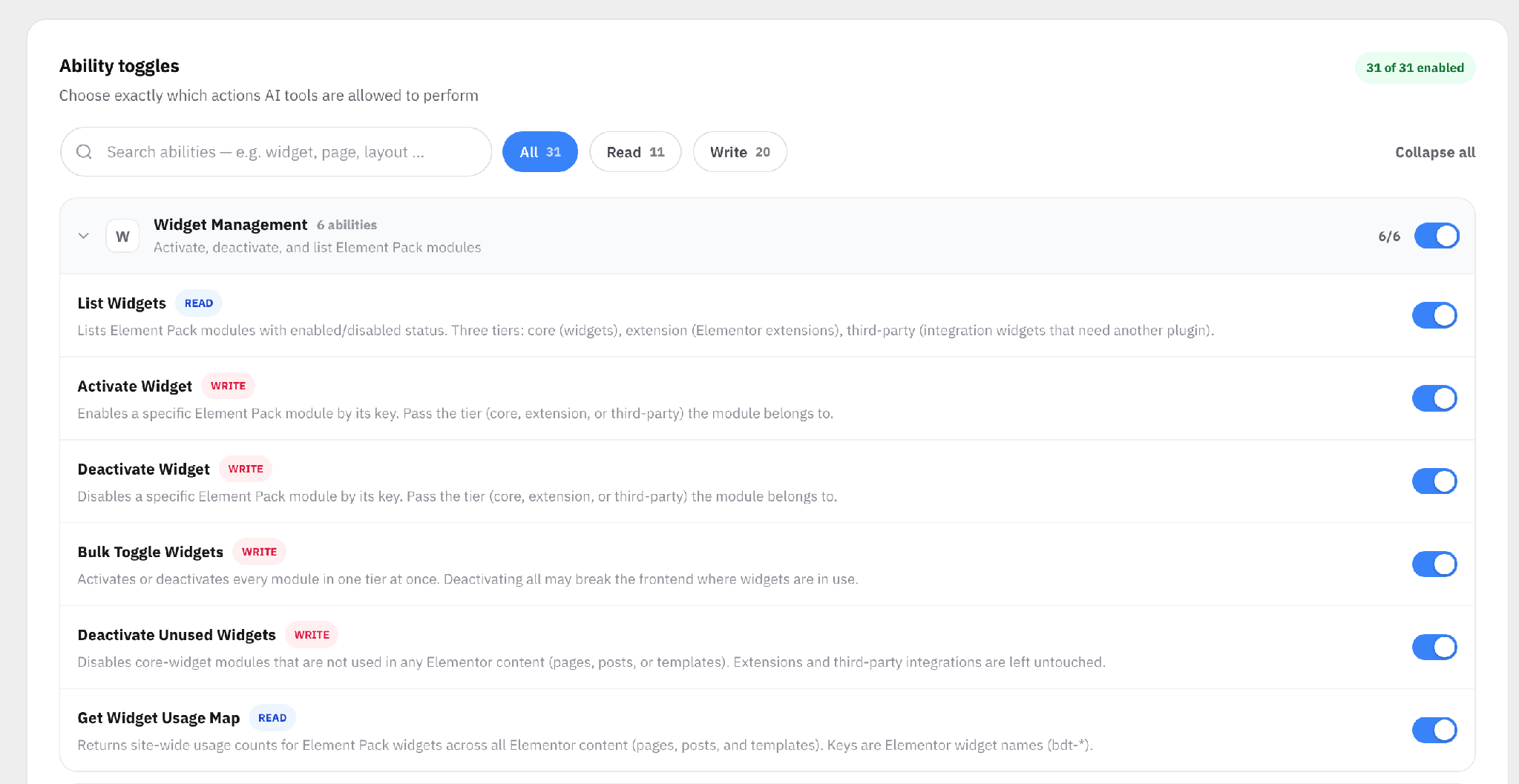
The Abilities tab includes widget management tools, Read and Write filters and individual toggles.
Manage Pages and Refresh Elementor Styles
AI Tools also supports tasks beyond the page layout. Depending on the connected user's permissions, your assistant can list Elementor pages and posts, publish pages or return them to draft and update titles, page templates and featured images.
For someone managing several campaign pages, this means being able to ask for a list of drafts before deciding which pages are ready to publish. For an agency, it offers another way to handle page details and routine maintenance through the assistant already used for the project.
The assistant can also move old pages to the WordPress trash and restore them. The Delete Page ability does not permanently delete content.
After layout changes, AI Tools can regenerate an individual page's CSS or clear the Elementor CSS cache across the site. These abilities help when styles need refreshing after an update.
Choose Your AI Assistant
You can choose the workflow that fits how you already build websites.
External clients connect through an MCP server, which gives the assistant access to the Element Pack abilities you enable. The Server & Connect tab provides setup instructions for Claude Code, Claude Desktop, Cursor, VS Code, Windsurf and ChatGPT.
If you prefer to stay in the Elementor editor, the Angie integration provides an in-editor option. With the Angie plugin active and the integration enabled, Angie can use Element Pack abilities directly in the browser. This route does not require an external MCP client, Node.js or an Application Password.
Angie has access to 29 of the 31 abilities. Add Section/Container and Add Column to Section are excluded from its integration.
Control AI Access and Editing Permissions
AI Tools gives you controls for both access and editing. The master Enable Abilities switch is off by default, so the abilities are not exposed until you enable the feature.
If you want to start with a review, turn off Enable Edit Abilities. This blocks all 20 write abilities while keeping the 11 read abilities available, subject to user permissions and individual ability settings.
That lets you ask the assistant to inspect a page's structure, report widget usage or check plugin information before allowing changes. You can also disable individual abilities to allow only the tasks you need.
WordPress permissions still apply to every call. An Editor can use builder abilities within their permissions, while administrator-only actions remain restricted. External clients use separate, revocable Application Passwords and integration settings hide secret values when read.
Enable Edit Abilities starts on, even though the master switch starts off. Set your preferred access mode before enabling the feature.
How to Get Started with Element Pack Pro AI Tools
You can connect an AI client in about five minutes.
Settings
Four switches at the top of Element Pack > AI Tools control what AI can reach. Enable Abilities is the master switch; the other three only work while it is on.
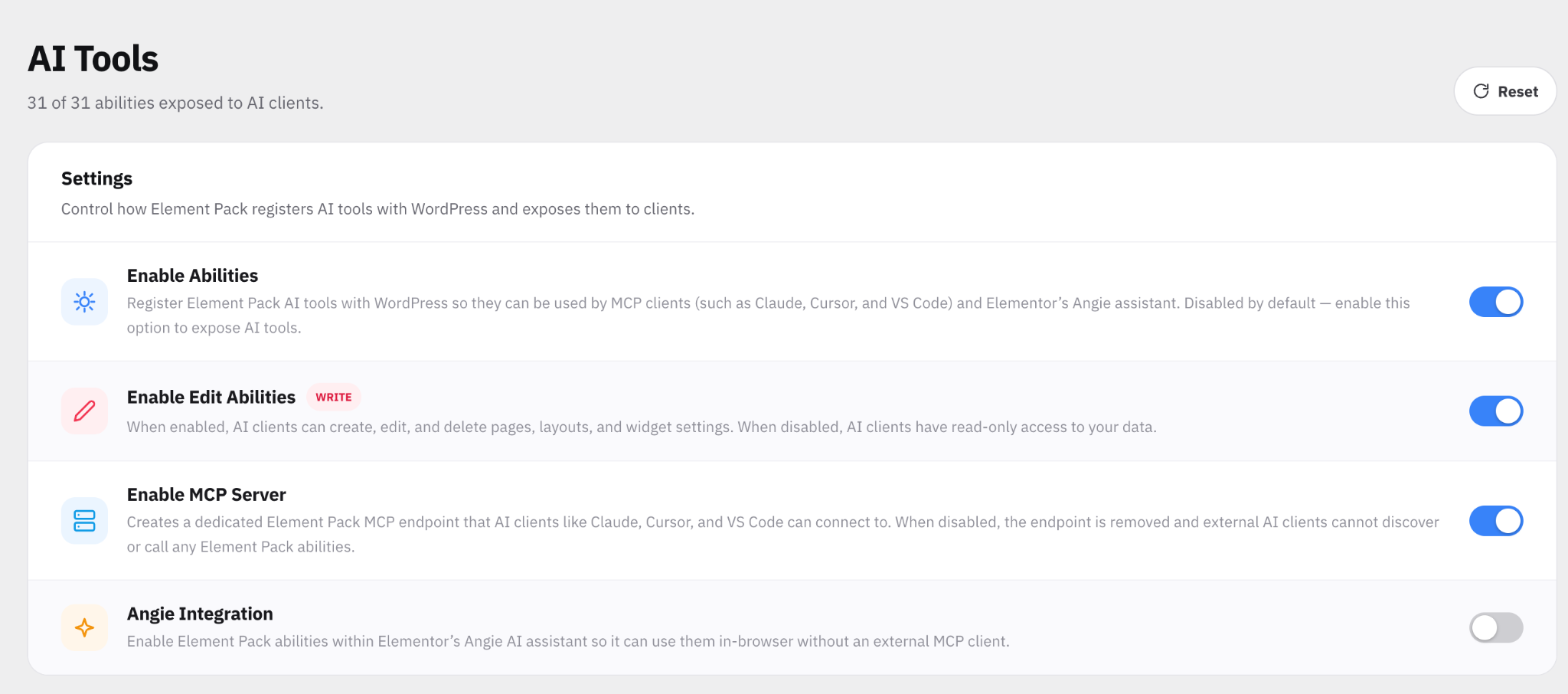
| Setting | What it does | Default |
| Enable Abilities | Registers the 31 abilities with WordPress. Off means nothing is exposed to any AI client, the MCP server or Angie. | Off |
| Enable Edit Abilities | Lets AI create, edit and delete pages, layouts and widget settings. Off makes AI read-only: the 20 write abilities are blocked and the 11 read abilities still work. | On |
| Enable MCP Server | Creates the dedicated endpoint /wp-json/element-pack/mcp for Claude, Cursor, VS Code, Windsurf and ChatGPT. Needs the MCP Adapter plugin. Off removes the endpoint. | Off |
| Angie Integration | Lets Elementor's Angie assistant use the abilities inside the editor. Needs the Angie plugin. | Off |
Each ability also has its own toggle on the Abilities tab, so you can allow some and block others.
Use Angie in Elementor
Activate the Angie plugin, enable Abilities and Angie Integration, then open a page in Elementor. The editing and individual ability controls apply to Angie too.
Wrapping Up
Element Pack Pro AI Tools lets you build and maintain Elementor pages through your preferred AI assistant. From creating a new layout to updating a widget or finding unused core widgets, its abilities cover practical tasks you can carry out with plain-language instructions.
Open Element Pack > AI Tools, choose what your assistant can read or change and start with a small task: review an existing page or create a new draft layout. Check the result in Elementor before moving on to larger changes.

Al Suzaud Dowla is a Senior Content Strategist and Editor at Sigmative (Element Pack), translating intricate WordPress, Elementor and web development architectures into engaging, data-backed technical guides and growth resources.