
Navigation aisée grâce à un menu riche en options
Les choix visuels de produits stimulent rapidement les ventes
Le contenu personnalisé s'adapte en temps réel
Défilement transparent pour une meilleure fluidité de l'interface utilisateur
La duplication instantanée du contenu permet de gagner du temps
Accès rapide à des éléments de conception puissants
Les modèles prêts à l'emploi accélèrent la conception
Champs personnalisés avancés pour des données flexibles
Cloner des sites en toute simplicité
Des graphiques nets et évolutifs pour tous les écrans
Renouveler l'image de marque des outils pour un aspect professionnel
Afficher ou masquer le contenu avec précision
Engager la profondeur avec des mouvements fluides
Ajouter facilement des notes et des annotations claires
Les conseils utiles améliorent l'interaction avec l'utilisateur
Animer des éléments avec style
Garder les sections importantes toujours visibles
Contrôle total grâce à des modifications de code personnalisées
Optimiser les fichiers pour augmenter la vitesse du site
Des modèles de pages conçus pour vous aider à démarrer votre page d'atterrissage en y insérant simplement un modèle de départ.
Ready Blocks est livré avec une variété de mises en page et d'éléments de conception, tels que des en-têtes, des pieds de page, des widgets, etc.
En-têtes pré-conçus avec des styles lucratifs qui conviennent à différentes niches de sites web et à différents goûts en matière de design
Une collection utile de modèles de pieds de page pour vous aider à créer un pied de page attrayant sur votre page d'atterrissage.
Nous sommes à votre service 24 heures sur 24, 7 jours sur 7. Nous sommes heureux de vous aider.
Des instructions détaillées sont disponibles pour chaque fonctionnalité sur BdThemes
Apprenez quelque chose de nouveau, restez informé sur WordPress, la conception de sites Web et plus encore.
Voici quelques-unes des étapes clés de mon développement :
Apprendre l'utilisation des produits, les trucs et astuces de WordPress grâce à nos vidéos
Gagnez des commissions importantes en nous rejoignant dans la promotion
Le partage d'idées de widgets est un excellent moyen de trouver des widgets similaires que vous pouvez améliorer.
Certainement ! Si vous avez besoin de nous contacter, n'hésitez pas à le faire.
Créez n'importe quel formulaire WordPress en quelques minutes avec Sigma Forms.
Coming Soon & Maintenance Mode Page Builder Plugin
Rendre les sites web accessibles en toute simplicité avec One Accessibility
Affichez des témoignages de clients pour renforcer la confiance et la crédibilité.
Zoloblocks aide à créer de superbes sites web basés sur Gutenberg.
Slider le plus performant à l'ère du Elementor Slider
Les seuls widgets de blogs compatibles avec Elementor pour tous les blogs
Construire un site web WordPress eCommerce de nouvelle génération pour les entreprises
Organisez vos photos dans un ange différent à chaque fois avec Elementor
Stimulez l'engagement et augmentez les ventes grâce à Spin Wheel.
Puissant plugin de génération d'images AI pour WordPress par ChatGPT
Obtenez 360° Augmented Reality pour WooCommerce aujourd'hui !
Copiez et collez n'importe quel design web en 2 clics !
Un thème entièrement fonctionnel pour Elementor avec des options illimitées
Thème de bloc intelligent, propre et flexible pour Gutenberg
Le plugin Dark Reader garantit une lecture du web respectueuse des yeux.
Le paiement en une page de WooCommerce pour augmenter les conversions.
Find Nearby Stores Instantly with Sigma Store Locator
The Ultimate WordPress Media Library Organizer

Accédez à plus de 100 plugins WordPress premium avec des mises à jour à vie et un support dédié.
 French

Navigation aisée grâce à un menu riche en options
Les choix visuels de produits stimulent rapidement les ventes
Le contenu personnalisé s'adapte en temps réel
Défilement transparent pour une meilleure fluidité de l'interface utilisateur
La duplication instantanée du contenu permet de gagner du temps
Accès rapide à des éléments de conception puissants
Les modèles prêts à l'emploi accélèrent la conception
Champs personnalisés avancés pour des données flexibles
Cloner des sites en toute simplicité
Des graphiques nets et évolutifs pour tous les écrans
Renouveler l'image de marque des outils pour un aspect professionnel
Afficher ou masquer le contenu avec précision
Engager la profondeur avec des mouvements fluides
Ajouter facilement des notes et des annotations claires
Les conseils utiles améliorent l'interaction avec l'utilisateur
Animer des éléments avec style
Garder les sections importantes toujours visibles
Contrôle total grâce à des modifications de code personnalisées
Optimiser les fichiers pour augmenter la vitesse du site
Des modèles de pages conçus pour vous aider à démarrer votre page d'atterrissage en y insérant simplement un modèle de départ.
Ready Blocks est livré avec une variété de mises en page et d'éléments de conception, tels que des en-têtes, des pieds de page, des widgets, etc.
En-têtes pré-conçus avec des styles lucratifs qui conviennent à différentes niches de sites web et à différents goûts en matière de design
Une collection utile de modèles de pieds de page pour vous aider à créer un pied de page attrayant sur votre page d'atterrissage.
Nous sommes à votre service 24 heures sur 24, 7 jours sur 7. Nous sommes heureux de vous aider.
Des instructions détaillées sont disponibles pour chaque fonctionnalité sur BdThemes
Apprenez quelque chose de nouveau, restez informé sur WordPress, la conception de sites Web et plus encore.
Voici quelques-unes des étapes clés de mon développement :
Apprendre l'utilisation des produits, les trucs et astuces de WordPress grâce à nos vidéos
Gagnez des commissions importantes en nous rejoignant dans la promotion
Le partage d'idées de widgets est un excellent moyen de trouver des widgets similaires que vous pouvez améliorer.
Certainement ! Si vous avez besoin de nous contacter, n'hésitez pas à le faire.
Créez n'importe quel formulaire WordPress en quelques minutes avec Sigma Forms.
Coming Soon & Maintenance Mode Page Builder Plugin
Rendre les sites web accessibles en toute simplicité avec One Accessibility
Affichez des témoignages de clients pour renforcer la confiance et la crédibilité.
Zoloblocks aide à créer de superbes sites web basés sur Gutenberg.
Slider le plus performant à l'ère du Elementor Slider
Les seuls widgets de blogs compatibles avec Elementor pour tous les blogs
Construire un site web WordPress eCommerce de nouvelle génération pour les entreprises
Organisez vos photos dans un ange différent à chaque fois avec Elementor
Stimulez l'engagement et augmentez les ventes grâce à Spin Wheel.
Puissant plugin de génération d'images AI pour WordPress par ChatGPT
Obtenez 360° Augmented Reality pour WooCommerce aujourd'hui !
Copiez et collez n'importe quel design web en 2 clics !
Un thème entièrement fonctionnel pour Elementor avec des options illimitées
Thème de bloc intelligent, propre et flexible pour Gutenberg
Le plugin Dark Reader garantit une lecture du web respectueuse des yeux.
Le paiement en une page de WooCommerce pour augmenter les conversions.
Find Nearby Stores Instantly with Sigma Store Locator
The Ultimate WordPress Media Library Organizer
Accédez à plus de 100 plugins WordPress premium avec des mises à jour à vie et un support dédié.
French
Price Box is a very useful tool if you are running a website to sell any products. Normally, most eCommerce websites use it to sell packages, products, courses, daily necessaries, etc. People often address it as Tableau des prix in the tech industry. Furthermore, well-structured price tables make price comparison easier for the users and make it easy to decide what to purchase.
In fact, if you can present offers and prices to your customers with a decent price box design, they most likely are willing to pay. With Elementor, you can in fact create neat and stunning pricing tables. As for the widget Tableau des prix, Element Pack has developed it. This widget has awesome features that you can use to create an effective price box easily.
In this blog, we will show you a step-by-step process of creating a price box using Elementor et Element Pack Addon’s Tableau des prix Widget.
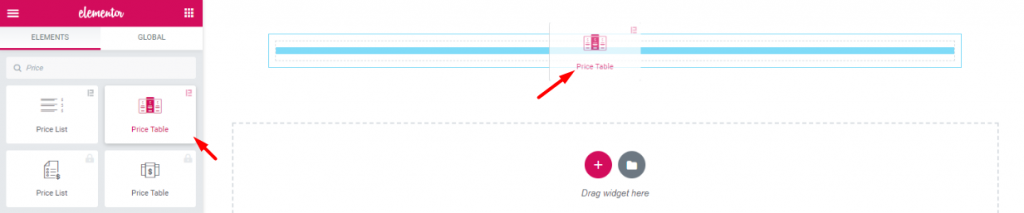
First thing’s first. Though, it’s not worth mentioning, for beginners it may be helpful. Drag and drop the Tableau des prix widget (Element Pack logo attached) into your webpage.
If you don’t have the Element Pack plugin installed, no problem. In that case, you can use Elementors’ price table widget instead. Note that, both of them are available on pro versions.
We must mention one thing, the company Element Pack always puts tonnes of customizing options in each of their widgets. As a result, you have a big menu bar for customizing your price box. The Tableau des prix widget will help you to create unique and stylish designs easily.
Let’s move into the main course!
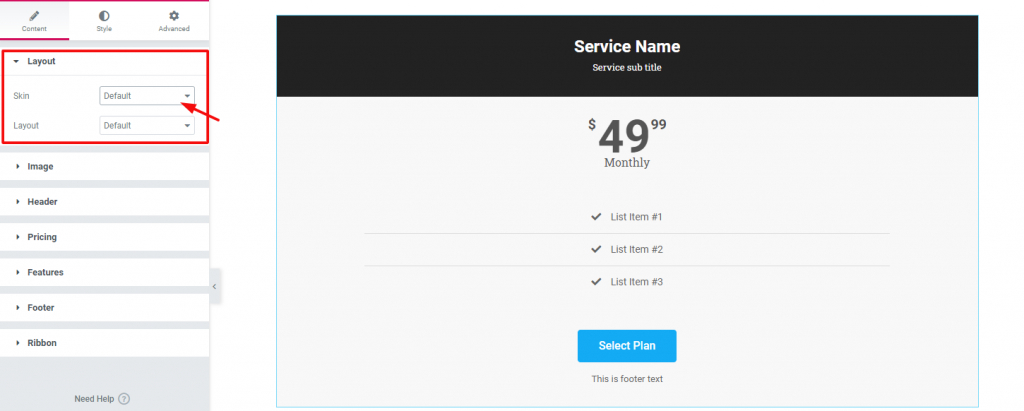
Once you drop the widget, it will pop up Content Tab. This tab holds the base settings for customizing the contents of the box. As you can see, the first section of Mise en page has two options; Skin & Mise en page. Both are set to Par défaut. Keep an eye on the section list of this tab.
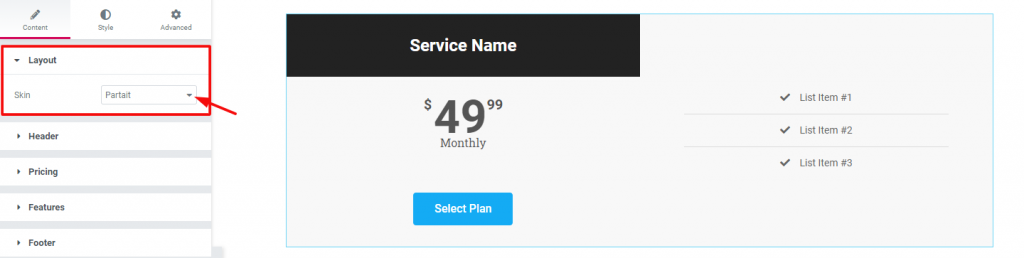
In case you choose a different Peau (Partait), the appearance of your price box will also change. Now notice that there is a section ‘Image‘ is missing on the section list. Also, you can see no Mise en page option under Skin. However, the reason is, when you change the Peau option, it will automatically show/hide options related to that layout.
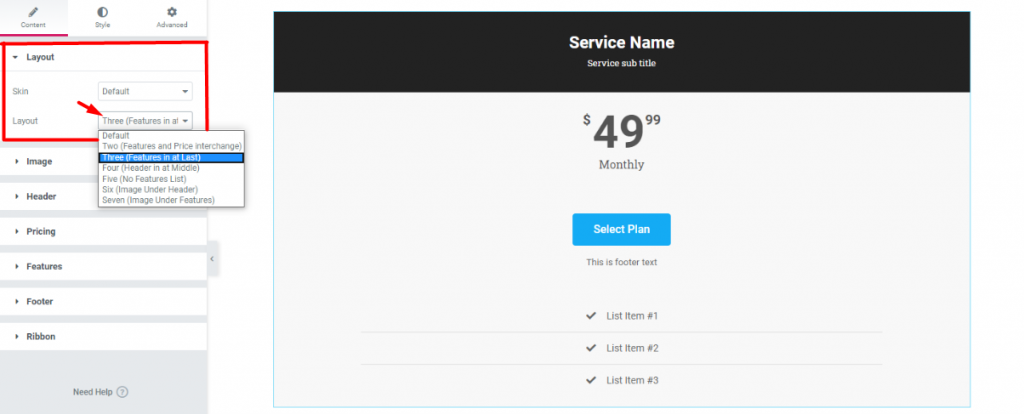
Once again, back to the default settings. The Mise en page option under Peau also has its uses. After all, you can choose from a number of layout styles from here. Each layout style is different and has different sets of options.
After choosing a layout, what we need to do now is add our details. In fact, you can add any image to your price box if you want. Adding service/product-related images will bring more attention to it. In fact, adding images increase the charm of that product.
But, if the landing page already shows all the information about that service, you may not need any image. However, I will show you how to add images anyway.
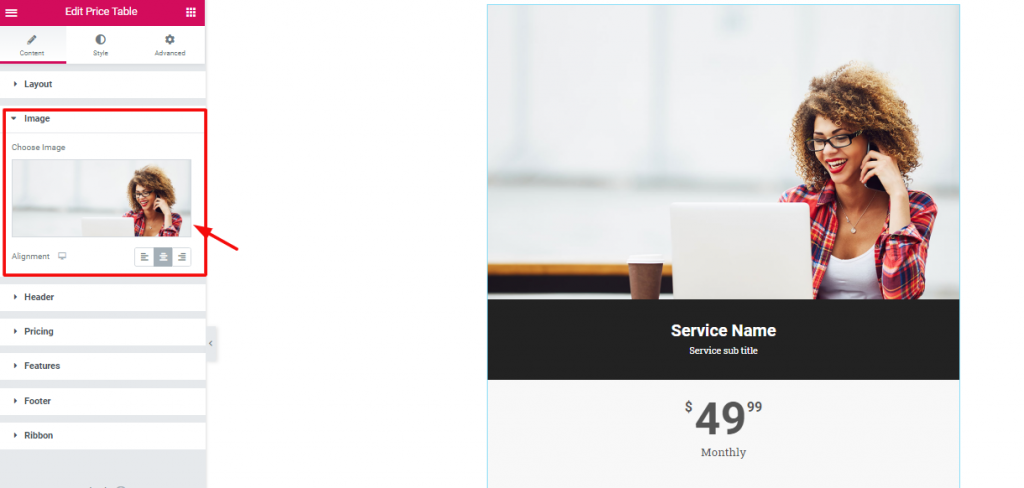
Aller à Content Tab> Image section
Let’s be precise. To add an image to your price box is not a difficult matter. But what’s difficult, is choosing the right image. Just go to the Image section from the widget customizing panel and choose your image.
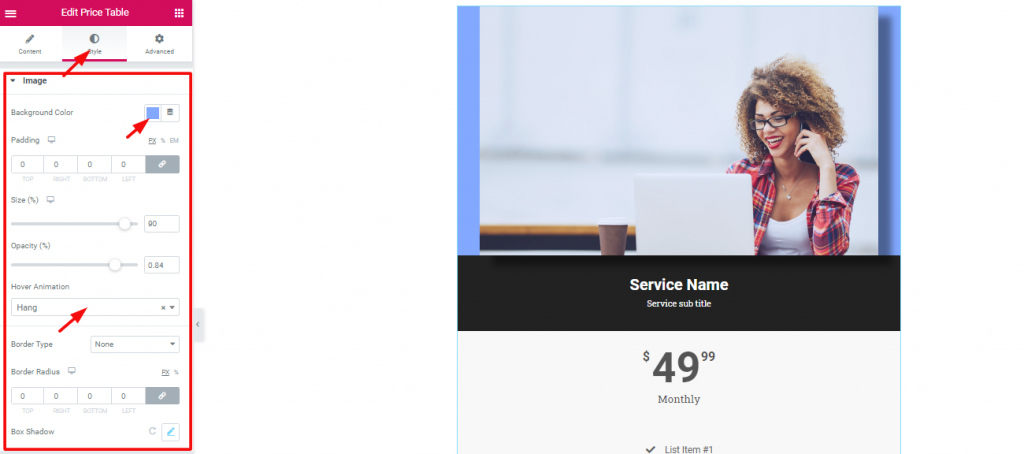
After choosing an image, you can also customize a few things about it. From the Onglet Style, se rendre sur le site Image. Here, you can find some options like Background color, Taille, Opacity, Hover Animation, etc.
For the most part, the image size, background color, and opacity options are enough. But, as you can see, Element Pack given out more options like Border, Border Radius, and Box shadow along with other options. However, try for yourself! I guaranty that you will make a great design.
Now, let’s move on to the details.
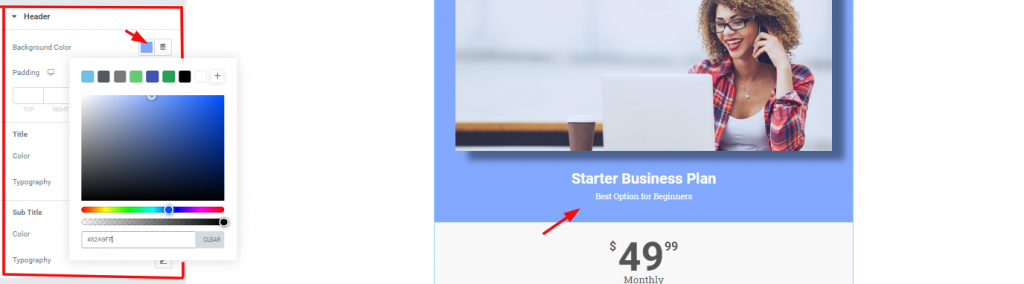
A title holds great importance for your content. Therefore, you must put something that grabs the attention of the visitors. For a price box, you need to put direct titles such as product names or service plans’ names. As for its customization, go to Style Tab> Header. There, you can change the color and typography of the title and sub-heading.
Next, let’s talk about the price tag. The Tableau des prix widget has an interesting setting for this part.
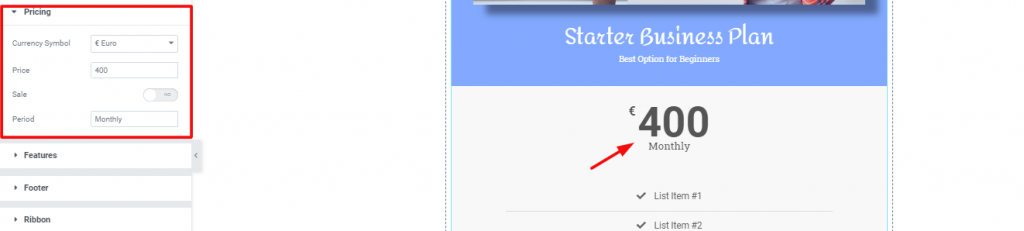
Like all the price labels on the market, you can change the pricing from the Tarification section. The fun part is, you can choose any currency label from the Currency Symbol option.

Again, if you click on the Switcher Sale, it will bring up another price field Original Price. Here, you can put the original price of your product with a crossed-out style. Generally speaking, you can use this to show discounted products or offers.
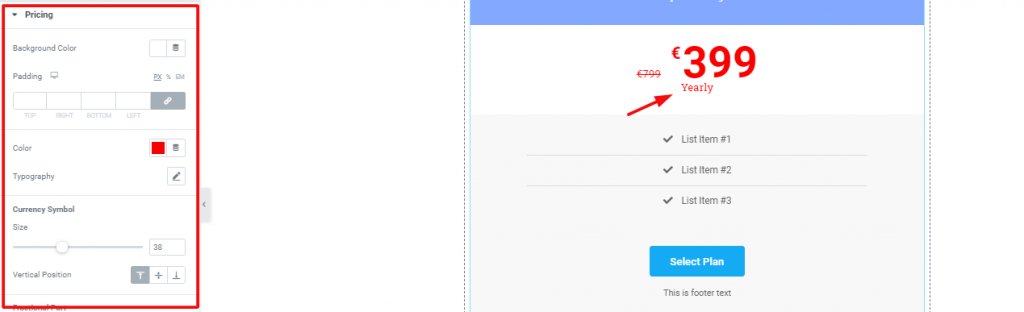
And Lastly, you can customize your price tag from the Style tab> Pricing. As shown above, try to leave the background color separate from the rest. Doing this will highlight the price tag to the viewers.
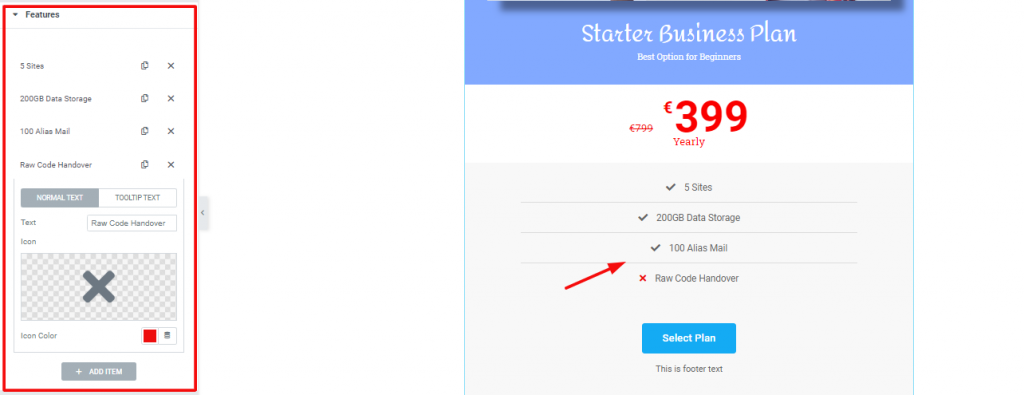
Aller à Content Tab> Features
For starters, the features section holds the key to understand what things your offer includes. Though it’s not a briefly detailed part, it gives a quick view of the contents. Hence, for this part, use direct words and be specific.
Let’s talk about customization. As you can see, this section has a bunch of repeaters. You can add more or remove them also. Each repeater has two option sets, one as Normal Text, the other as Tooltip Text. For the normal text, you have options to choose a logo, logo color, and title. In most cases, you can ignore the tooltip option.
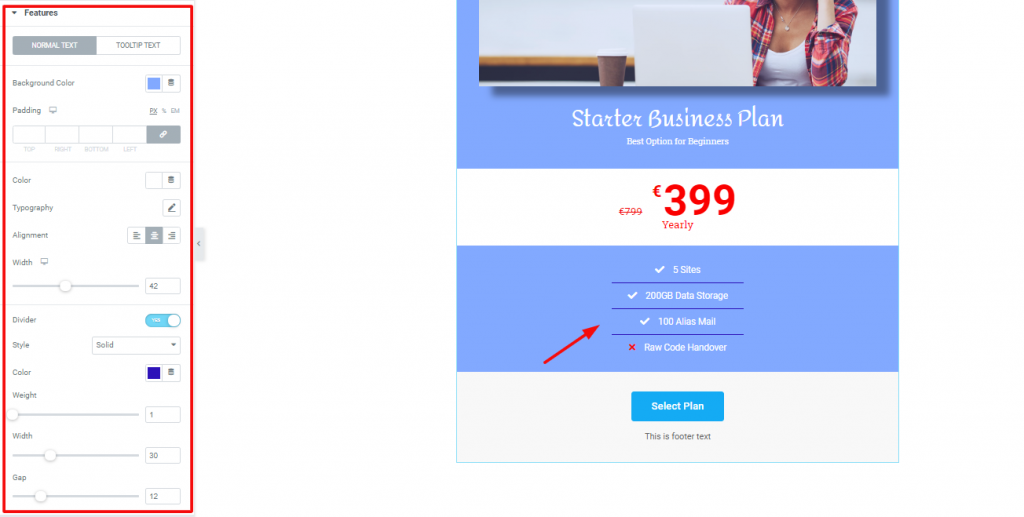
Now, let’s change the outlook of this part. In this case, go to Style Tab> Features. There, you will find the options shown above. We are, in fact, maintaining a single color for the whole price box. Again, the price tag is the only part highlighted.
However, you can change the color, typography, borderline width et weightet gap from this part. Moreover, there is an option to change the alignment of the texts. But, you may want to keep it in the middle of this style.
We are very close to the finishing part. Regardless of what type your price box is, you need to add the footer. Let’s see how to make one.
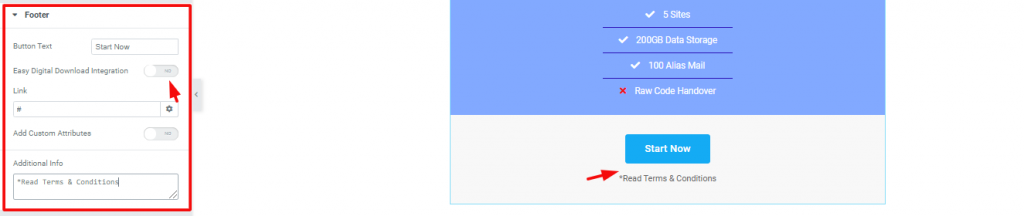
Le Content Tab of the Price Table widget has a section named Pied de page. Basically, the footer area has a call-out button and an additional text box. From the settings, you can see two switchers named Intégration des téléchargements numériques et Add Custom Attributes. You can use the first one to link EDD to your button. As for the second one, you can learn about it ici.
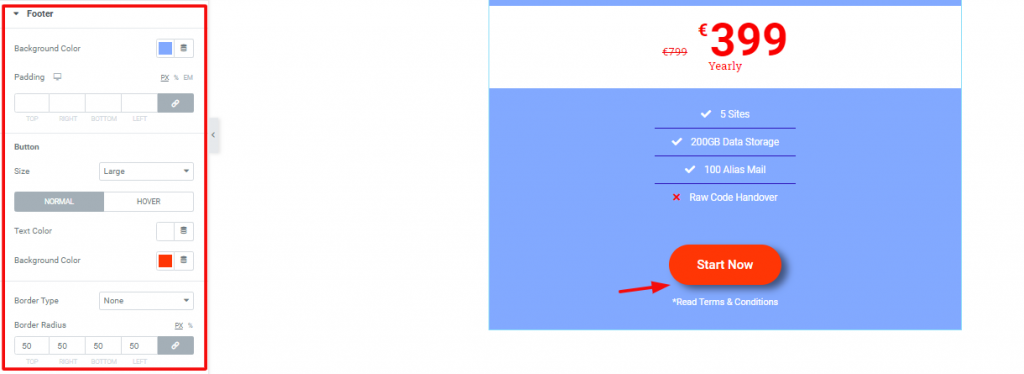
However, you can change the look of the footer from the Pied de page section in the Onglet Style. In fact, you can make the button round using the Rayon de la bordure option. You can change the background and foreground color of the footer here. Also, you can add a hover effect and a box shadow to the button.
People often use Ribbon on their price box to show features or new offers. It is nothing but a mark that highlights a specific product. Let us show you how you can use it.
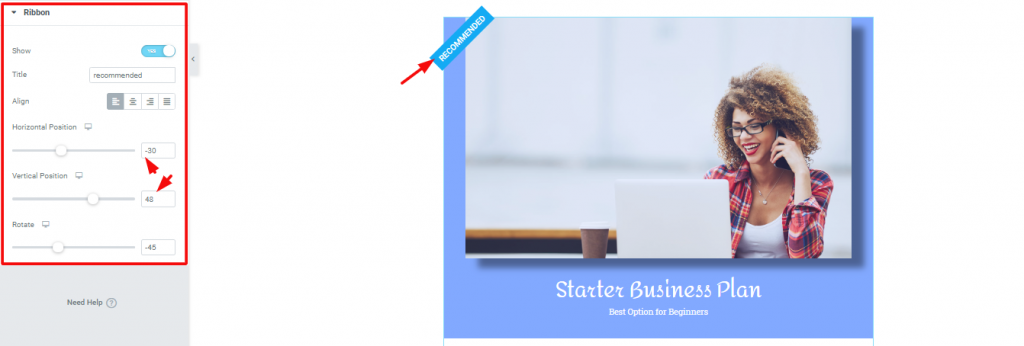
Sur le site Content Tab, the last section is Ribbon. There is a switcher at the top of the section. You need to turn it on to make the ribbon appear. However, you can edit the title, change the position of it from Alignment & Horizontal/Verticle Position. Also, you can rotate the ribbon as you like.
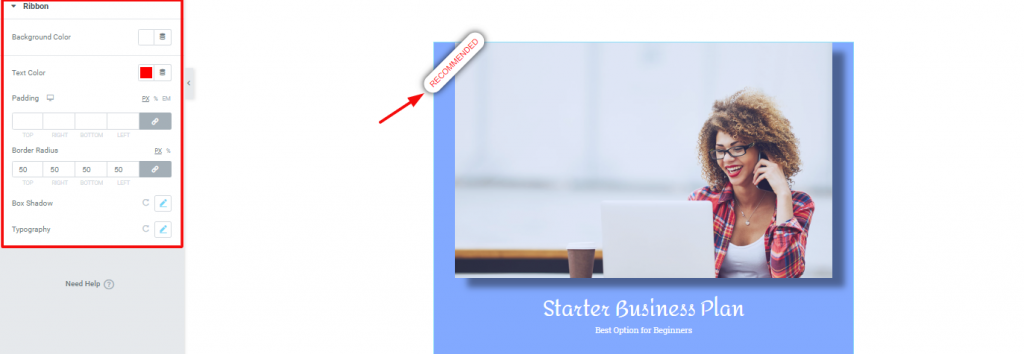
Now, to change the outlook of the ribbon, go to Style Tab> Ribbon. Surely as the image above, you can easily design this by changing its color, border-radius, typography, and box shadow.
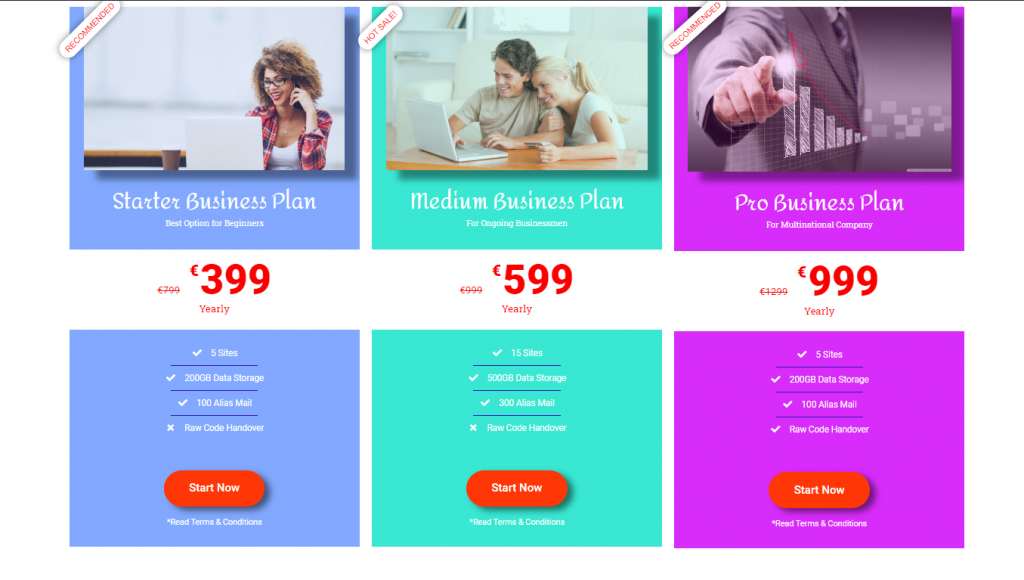
Congratulations and thanks for keeping patients up to this moment. Look at the stunning price boxes you made with us. With the example above, you can easily create such boxes for your eCommerce websites.
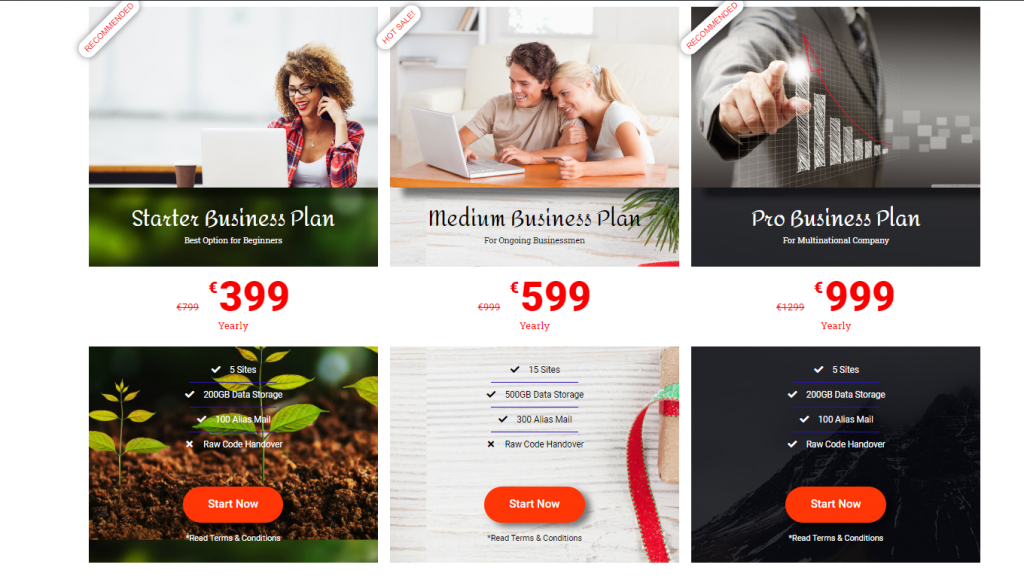
One more thing, you can also add your custom backgrounds to these price boxes. It’s easy to create. It’s attractive. Also, it’s fun. Thanks for reading this blog. Have a great day!

Le plus grand pack de modèles Elementor avec l'interface utilisateur la plus conviviale et le plus grand nombre de modèles Elementor. 300+ des widgets Elementor utiles. Créez des sites web de zéro à 100% la perfection en un rien de temps.
Ce site est alimenté par Element Pack Pro et Thème Rooten.
Copyright © 2026 BdThemes. Tous droits réservés.









