
Mühelose Navigation mit umfangreichen Menüoptionen
Visuelle Produktauswahl steigert schnell den Umsatz
Personalisierte Inhalte passen sich in Echtzeit an
Nahtloser Bildlauf für besseren UX-Flow
Sofortige Vervielfältigung von Inhalten spart Zeit
Schneller Zugriff auf leistungsstarke Designelemente
Vorgefertigte Vorlagen beschleunigen die Gestaltung
Erweiterte benutzerdefinierte Felder für flexible Daten
Websites einfach und problemlos klonen
Gestochen scharfe, skalierbare Grafiken für alle Bildschirme
Rebranding von Werkzeugen für ein professionelles Aussehen
Inhalte präzise ein- und ausblenden
Fesselnde Tiefe mit sanfter Bewegung
Einfaches Hinzufügen von Notizen und Kommentaren
Hilfreiche Hinweise verbessern die Benutzerinteraktion
Elemente mit stilvollem Flair animieren
Wichtige Abschnitte immer sichtbar halten
Vollständige Kontrolle mit benutzerdefinierten Code-Optimierungen
Optimieren Sie Dateien, um die Geschwindigkeit der Website zu erhöhen
Ausgearbeitete Seitenvorlagen, die Ihnen den Einstieg in Ihre Landing Page erleichtern, indem Sie einfach ein Einstiegsdesign einfügen
Ready Blocks enthält eine Vielzahl von Layouts und Designelementen, wie Kopf- und Fußzeilen, Widgets usw.
Vorgefertigte Kopfzeilen mit lukrativen Stilen, die für verschiedene Nischenwebsites und Designvorlieben geeignet sind
Eine hilfreiche Sammlung von Fußzeilendesigns, mit denen Sie sofort eine attraktive Fußzeile für Ihre Landing Page erstellen können
Wir sind 24/7 für Sie da. Wir helfen Ihnen gerne.
Detaillierte Anleitungen für jede Funktion bei BdThemes verfügbar
Lernen Sie etwas Neues, bleiben Sie informiert über WordPress, Webdesign und mehr
Hier sind einige der wichtigsten Meilensteine in meiner Entwicklung:
Lernen Sie in unseren Videos die Verwendung von Produkten sowie Tipps und Tricks zu WordPress
Verdienen Sie saftige Provisionen, indem Sie sich an der Aktion beteiligen
Widget Idea Share ist eine gute Möglichkeit, ähnliche Widgets zu finden, die Sie verbessern können.
Gewiss! Wenn Sie sich mit uns in Verbindung setzen möchten, können Sie sich gerne an uns wenden
Erstellen Sie jedes WordPress-Formular in wenigen Minuten mit Sigma Forms.
Coming Soon & Wartungsmodus Page Builder Plugin
Websites mit One Accessibility leicht zugänglich machen
Zeigen Sie Erfahrungsberichte von Kunden an, um das Vertrauen und die Glaubwürdigkeit zu erhöhen.
Zoloblocks hilft bei der Erstellung beeindruckender Gutenberg-basierter Websites.
Der beste Slider in der Ära der Elementor Slider
Die einzigen kompatiblen Blogging-Widgets in Elementor für jeden Blog
Erstellen Sie eine WordPress-eCommerce-Website der nächsten Generation für Unternehmen
Organisieren Sie Ihre Fotos jedes Mal in einem anderen Engel mit Elementor
Steigern Sie das Engagement und den Umsatz mit Spin Wheel.
Leistungsstarkes AI Image Generator Plugin für WordPress von ChatGPT
Holen Sie sich 360° Augmented Reality für WooCommerce noch heute!
Kopieren und Einfügen eines beliebigen Webdesigns mit nur 2 Klicks!
Ein voll funktionsfähiges Theme für elementor mit unbegrenzten Optionen
Intelligentes, sauberes und flexibles Block-Theme für Gutenberg
Das Dark Reader Plugin sorgt für augenfreundliches Lesen im Internet.
WooCommerce einseitige Kasse zur Steigerung der Konversionen.
Find Nearby Stores Instantly with Sigma Store Locator
The Ultimate WordPress Media Library Organizer

Zugang zu über 100 Premium-WordPress-Plugins mit lebenslangen Updates und speziellem Support.
 German

Mühelose Navigation mit umfangreichen Menüoptionen
Visuelle Produktauswahl steigert schnell den Umsatz
Personalisierte Inhalte passen sich in Echtzeit an
Nahtloser Bildlauf für besseren UX-Flow
Sofortige Vervielfältigung von Inhalten spart Zeit
Schneller Zugriff auf leistungsstarke Designelemente
Vorgefertigte Vorlagen beschleunigen die Gestaltung
Erweiterte benutzerdefinierte Felder für flexible Daten
Websites einfach und problemlos klonen
Gestochen scharfe, skalierbare Grafiken für alle Bildschirme
Rebranding von Werkzeugen für ein professionelles Aussehen
Inhalte präzise ein- und ausblenden
Fesselnde Tiefe mit sanfter Bewegung
Einfaches Hinzufügen von Notizen und Kommentaren
Hilfreiche Hinweise verbessern die Benutzerinteraktion
Elemente mit stilvollem Flair animieren
Wichtige Abschnitte immer sichtbar halten
Vollständige Kontrolle mit benutzerdefinierten Code-Optimierungen
Optimieren Sie Dateien, um die Geschwindigkeit der Website zu erhöhen
Ausgearbeitete Seitenvorlagen, die Ihnen den Einstieg in Ihre Landing Page erleichtern, indem Sie einfach ein Einstiegsdesign einfügen
Ready Blocks enthält eine Vielzahl von Layouts und Designelementen, wie Kopf- und Fußzeilen, Widgets usw.
Vorgefertigte Kopfzeilen mit lukrativen Stilen, die für verschiedene Nischenwebsites und Designvorlieben geeignet sind
Eine hilfreiche Sammlung von Fußzeilendesigns, mit denen Sie sofort eine attraktive Fußzeile für Ihre Landing Page erstellen können
Wir sind 24/7 für Sie da. Wir helfen Ihnen gerne.
Detaillierte Anleitungen für jede Funktion bei BdThemes verfügbar
Lernen Sie etwas Neues, bleiben Sie informiert über WordPress, Webdesign und mehr
Hier sind einige der wichtigsten Meilensteine in meiner Entwicklung:
Lernen Sie in unseren Videos die Verwendung von Produkten sowie Tipps und Tricks zu WordPress
Verdienen Sie saftige Provisionen, indem Sie sich an der Aktion beteiligen
Widget Idea Share ist eine gute Möglichkeit, ähnliche Widgets zu finden, die Sie verbessern können.
Gewiss! Wenn Sie sich mit uns in Verbindung setzen möchten, können Sie sich gerne an uns wenden
Erstellen Sie jedes WordPress-Formular in wenigen Minuten mit Sigma Forms.
Coming Soon & Wartungsmodus Page Builder Plugin
Websites mit One Accessibility leicht zugänglich machen
Zeigen Sie Erfahrungsberichte von Kunden an, um das Vertrauen und die Glaubwürdigkeit zu erhöhen.
Zoloblocks hilft bei der Erstellung beeindruckender Gutenberg-basierter Websites.
Der beste Slider in der Ära der Elementor Slider
Die einzigen kompatiblen Blogging-Widgets in Elementor für jeden Blog
Erstellen Sie eine WordPress-eCommerce-Website der nächsten Generation für Unternehmen
Organisieren Sie Ihre Fotos jedes Mal in einem anderen Engel mit Elementor
Steigern Sie das Engagement und den Umsatz mit Spin Wheel.
Leistungsstarkes AI Image Generator Plugin für WordPress von ChatGPT
Holen Sie sich 360° Augmented Reality für WooCommerce noch heute!
Kopieren und Einfügen eines beliebigen Webdesigns mit nur 2 Klicks!
Ein voll funktionsfähiges Theme für elementor mit unbegrenzten Optionen
Intelligentes, sauberes und flexibles Block-Theme für Gutenberg
Das Dark Reader Plugin sorgt für augenfreundliches Lesen im Internet.
WooCommerce einseitige Kasse zur Steigerung der Konversionen.
Find Nearby Stores Instantly with Sigma Store Locator
The Ultimate WordPress Media Library Organizer
Zugang zu über 100 Premium-WordPress-Plugins mit lebenslangen Updates und speziellem Support.
German
Hello guys. This is a step-by-step tutorial for creating a perfect portfolio using Elementor for your website. Many times, for different occasions, you may face trouble while designing a portfolio that goes along your theme. To ease your trouble, today I’m gonna show you how to create a portfolio using Elementor that fits every occasion.
Note that the Portfolio Gallery widget that I used in this tutorial is a Product of Element Pack Pro. So, I suggest that you get it before starting.
Before going further, please install Elementor und Element Pack into your dashboard. It’s an easy process as you have to install them from the Plugins menu. Just click Add New and add them by searching their names. This is the first step in creating a portfolio using Elementor page builder.
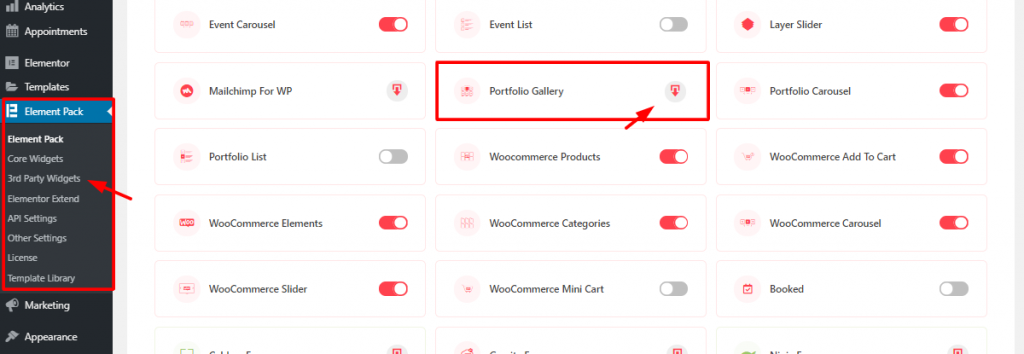
For starters, go to Element Pack plugin menu from WordPress dashboard. There, from the 3rd party widgets, click on the download button to download and install Portfolio-Galerie widget. Then just activate it with one click on it.
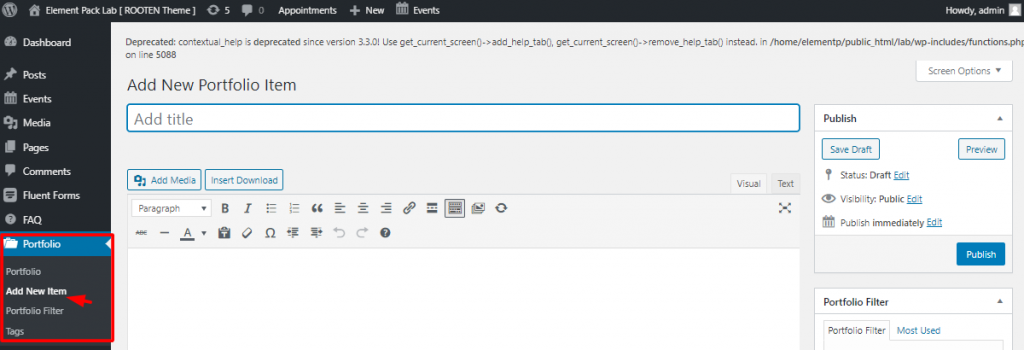
After you install the widget, it will automatically create a menu on your dashboard. To create a portfolio using Elementor and Portfolio Gallery widget, you must have portfolios inserted into your dashboard. To do that, go to Dashboard> Portfolio> Add New Item. Here, you can add your items to the portfolio. In this part, you can add a name for your item.
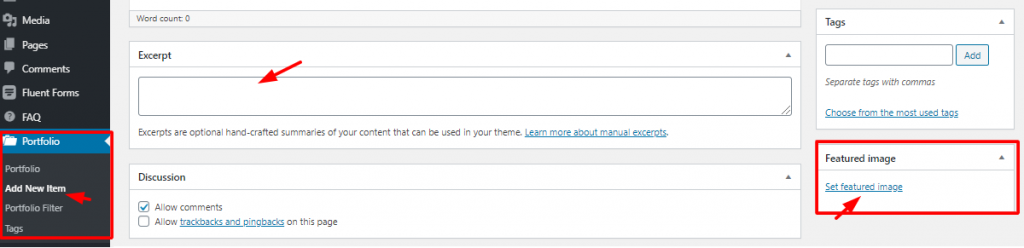
Again, you can write an Auszug for each of your items and select a Gekennzeichnetes Bild. That’s it! Hit the Publish button and your items are now on the portfolio. It’s very easy to make a portfolio using Elementor.
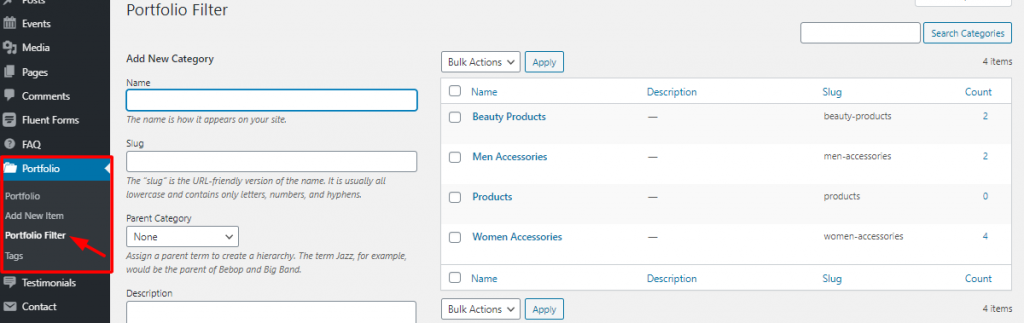
Again, make sure to categorize your items or products for the portfolio. Creating a good category not only makes the portfolio beautiful but also makes it easy to use. Then the next step, for creating a portfolio using Element, is the page editor.
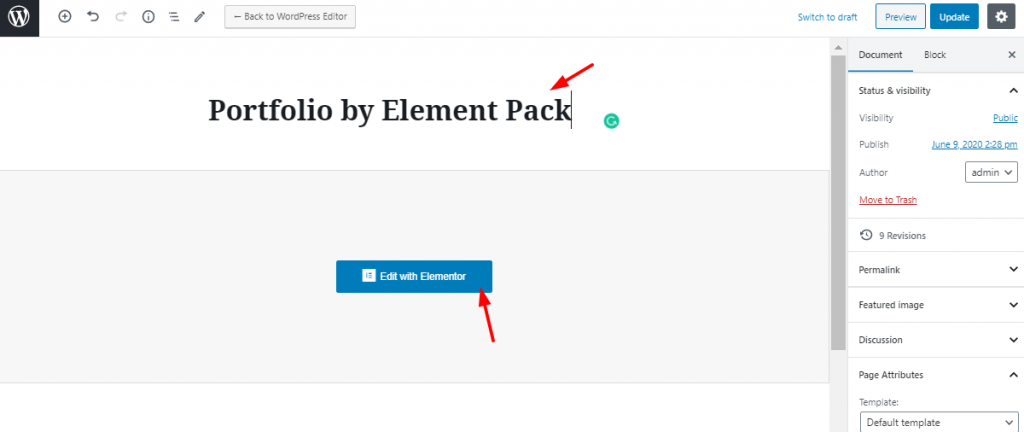
On your dashboard, go to Pages> Add New. You need to put a title for the page as the image shows. Then click on Edit With Elementor.
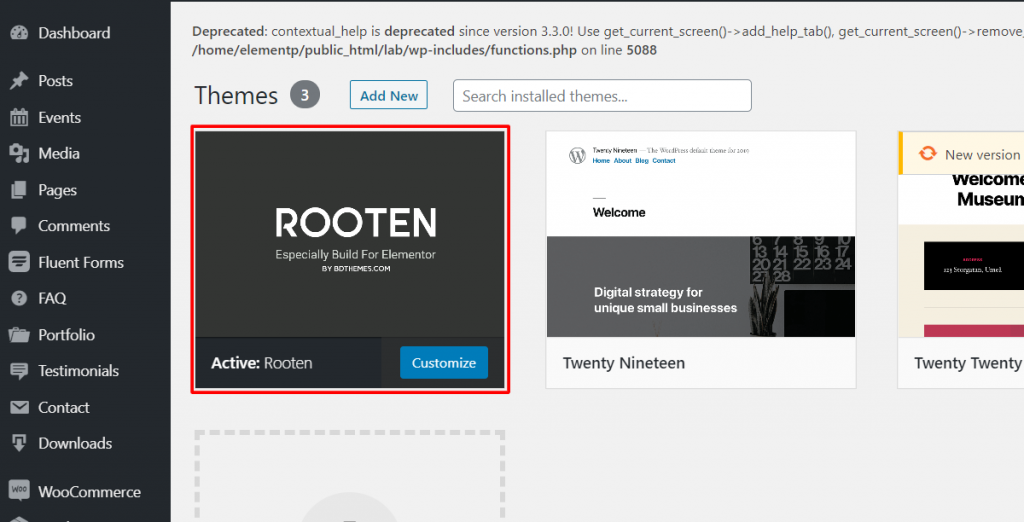
Note that, I’m using Rooten theme for this tutorial. It’s a premium product with a large potential. This is the lightest and fastest theme optimized for WordPress. Rooten theme is offering a huge range of customizable content with stylish artworks. This theme makes it easy and simple for users. It’s an easy-to-use theme for creating a portfolio using Elementor.
Creating a Portfolio Using Elementor and Portfolio Gallery Widget
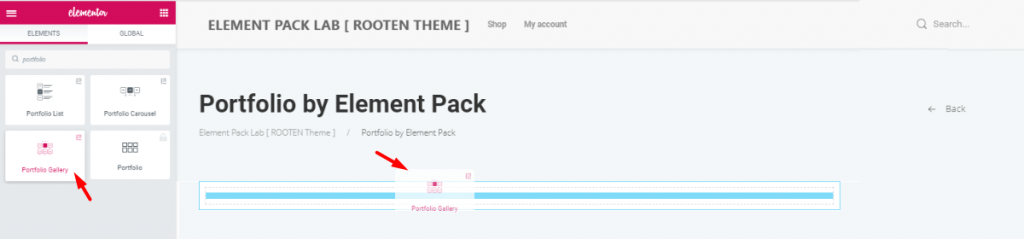
First, you have to drag and drop the widget from the widget menu. Although, this task is nothing to be mentioned. But since many are new to Elementor, this step may help them a bit.
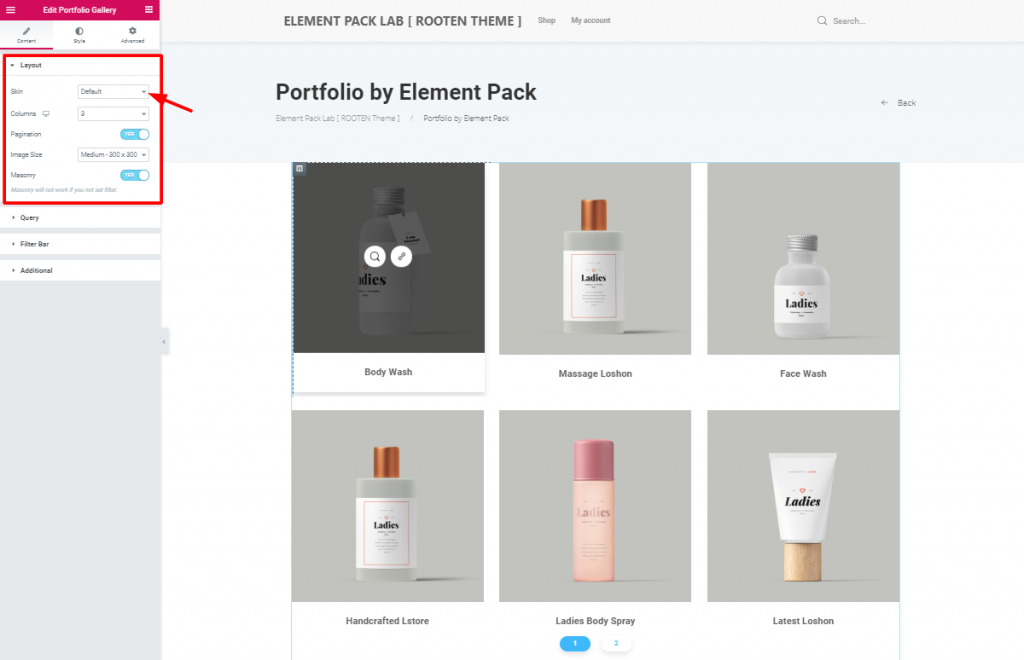
After you insert the widget, you will see the Layout section opened from the Inhalt tab. This tab holds the base settings of the portfolio widget. As you can see, the Haut is set to Default. The first image has a bit blacken out due to mouse hovering on it.
However, you can change the image size and enable pagination or masonry from this section. The Haut option helps you create your unique portfolio using Elementor.
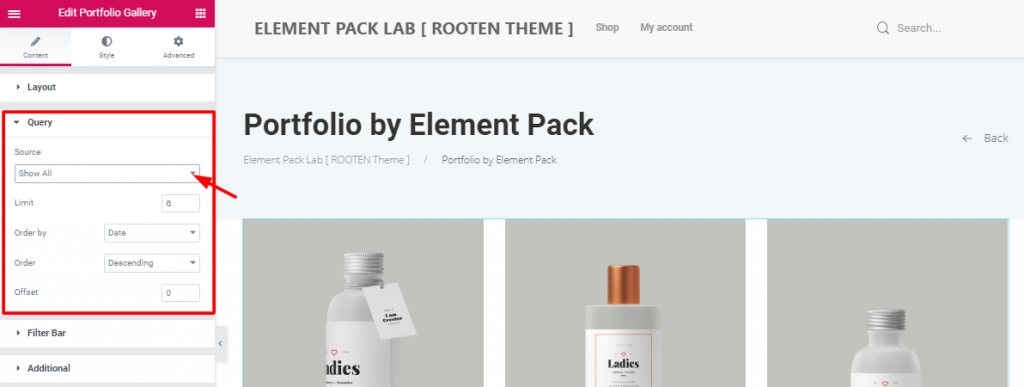
This is where you specify the category of products or items you want to show on the portfolio. If you choose Manual Selection in the Quelle option, you can select a category. It’s the category you have made in the dashboard while creating this portfolio using Elementor.
You can also determine the number of products shown on one page. Also, you can set the order and offset it. These are the basic functions of your portfolio.
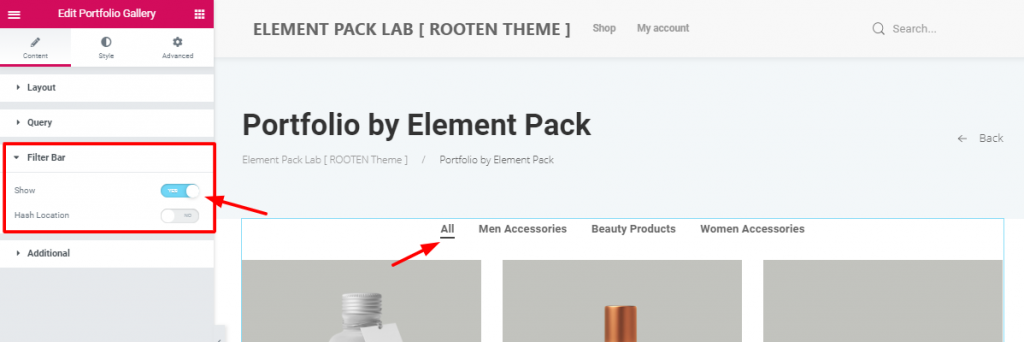
After setting the query, you can see the switcher to turn on the filter bar. It shows how many categories you have inserted in the portfolio. It’s handy and informative towards the visitors. Moreover, the filter bar option makes it easy for customers to choose their products. You need it to create a good portfolio using Elementor.
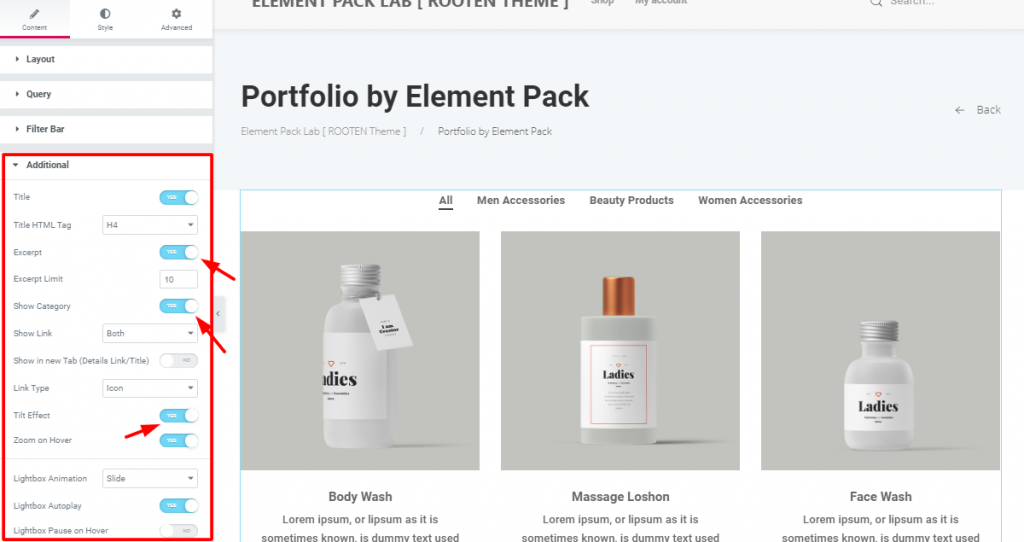
In der Zusätzliche section, you have some more switchers and drop-down controllers. You can actually show/hide the title, excerpt, or categories. However, turning on/off these switchers will do the job. Look carefully at the Tilt Effect und Zoom on Hover switchers.
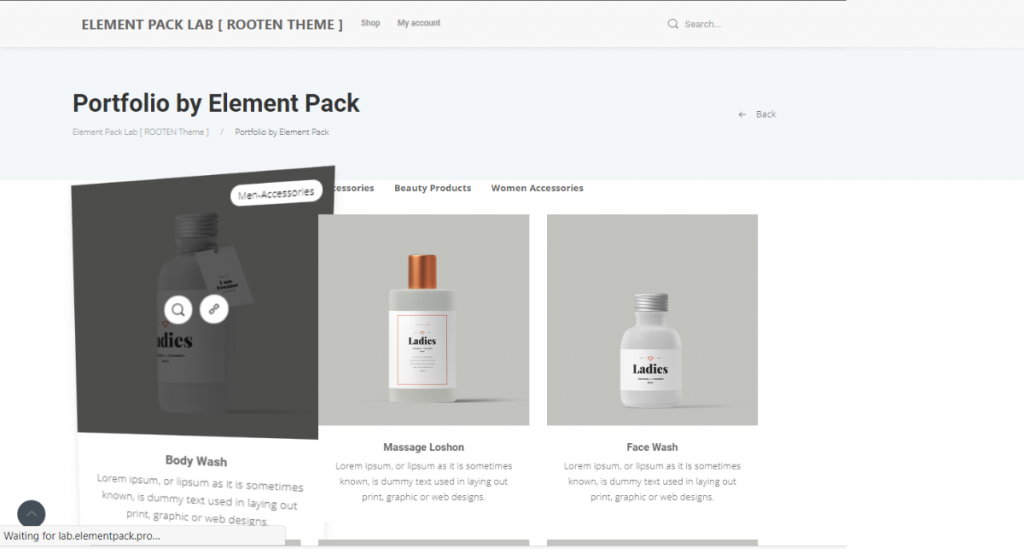
This is the Vorschau mode, showing the action of the two switchers. Adding these effects will not only make your portfolio rich but also make the visitors satisfied.
Now that you have completed the basics, it’s time to add some pepper on the dish. Let’s move on to the Stil tab.
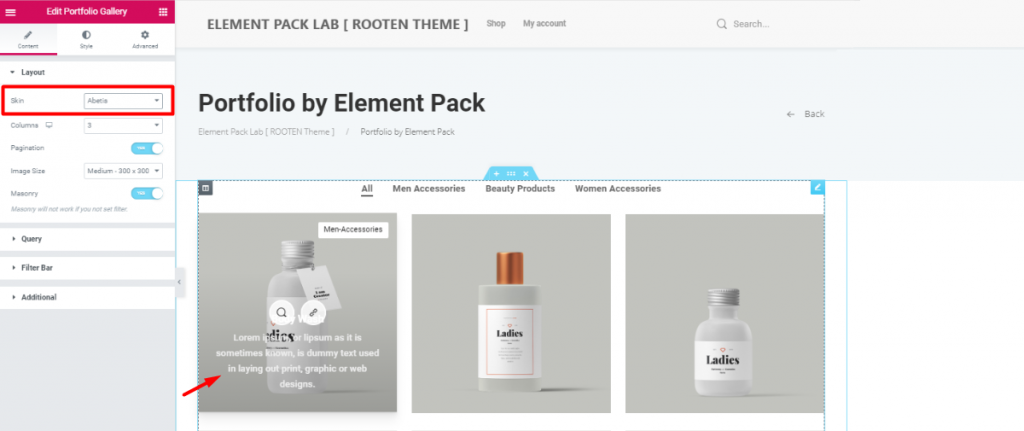
Before moving on, I’m going to change the Haut zu Abetis. Doing this will bring the title and excerpt into the image. The reason is, it will give you more visible ground and will take less space.
However, all the previous settings still remained attached. So, make sure to give another look at the Haut Option.
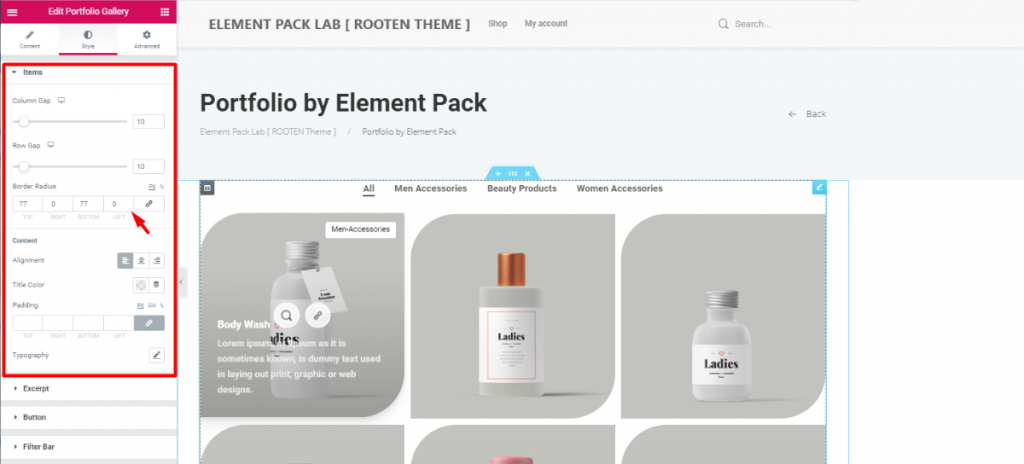
The first section Items lets you adjust the items column and row gaps. The more you increase the gaps, the more their size decreases. This happens because they are in a limited space. So, make sure to maintain the optimum gaps.
Moreover, you can adjust their border-radius from here. As the image shows, I’ve given them unique shapes with Border Radius. Just put 77 numbers in the Top und Bottom fields.
Again, you can change the color and alignment of the Titles of all the items at the same time. However, be sure to choose unique typography that represents your brand. You can also change the typography and color of the excerpt in the next section.
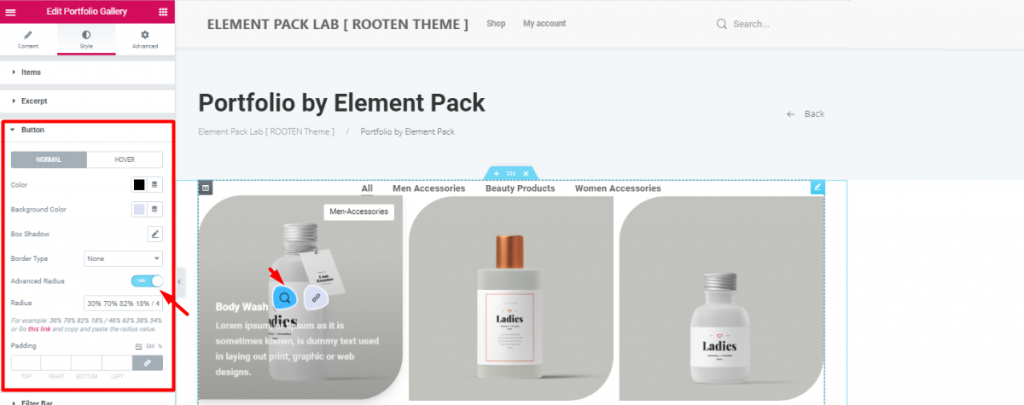
Let’s make things a bit spicier. Turn on the Advanced Radius switcher and have a look. Therefore, you will see the icons appearing in a cool weird shape. This can be done from the Schaltfläche section in the style tab. However, be sure to change the color as you like.
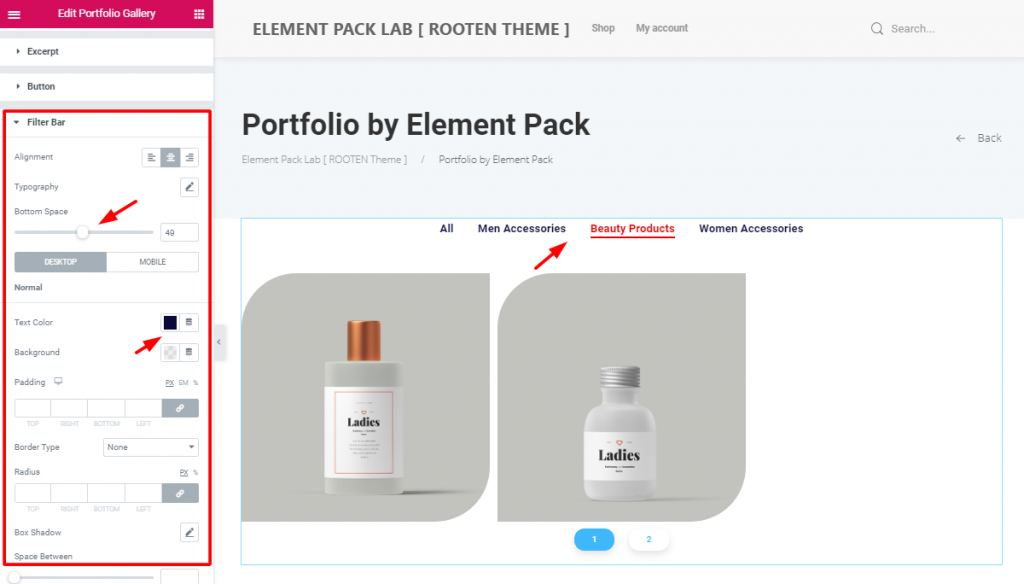
After that, change the alignment and bottom space of the filter bar to match your taste. Don’t forget to change the color and typography. The more refined look your portfolio has, the more it will attract visitors. So, keep that in mind.
Furthermore, changing the appearance of the pagination form the last section is also a good bargain.
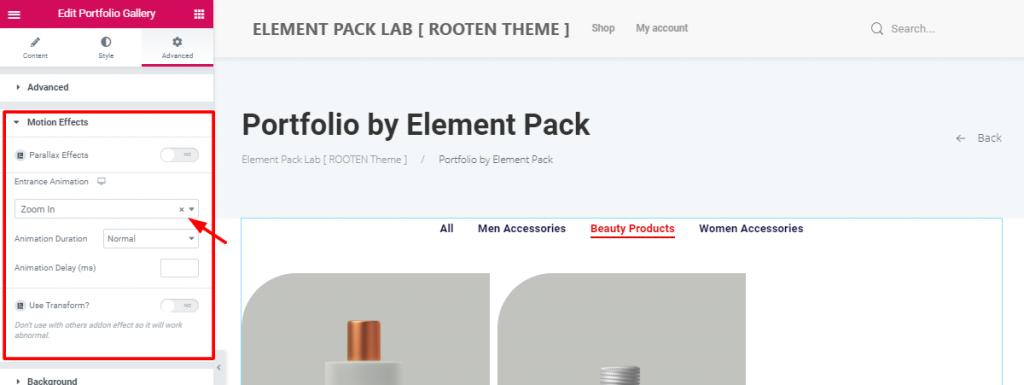
After all these customizations, there’s still something off. Let’s throw in animation and make it complete. From the Fortgeschrittene tab, go to the Bewegungseffekte section. Just like above, choose an entrance animation to the portfolio.
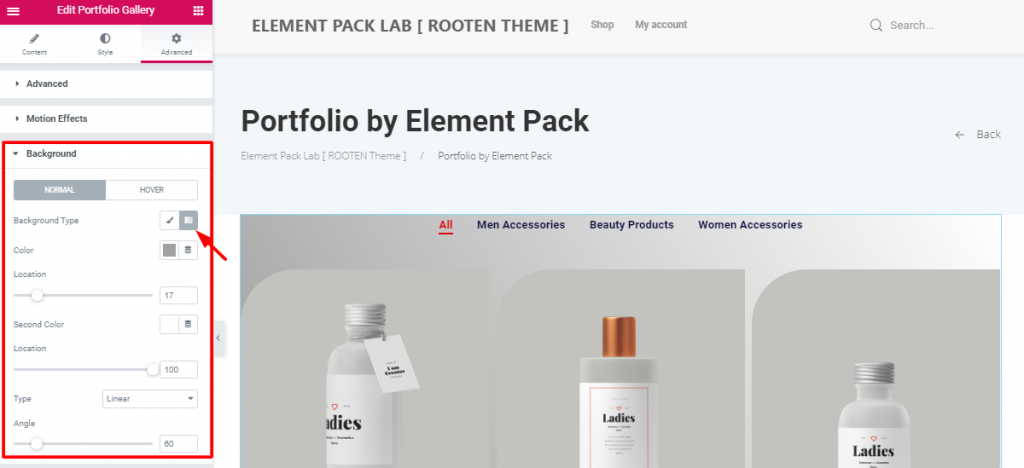
After that, put a gradient color on the background to make a light-dark shade. You can do this in the Hintergrund section. Simply, go to Style tab> Background.
All done! Have a look at the finished product.
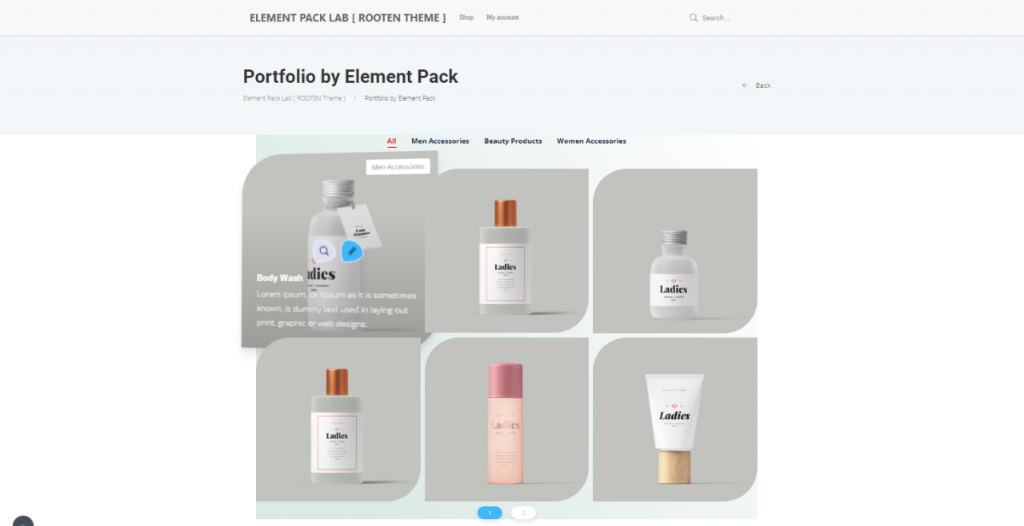
Hence, The portfolio is complete. No need to thank me. However, follow these steps carefully. Make yourself a unique and stunning portfolio using Elementor.
Element Pack ist das am meisten optimierte Add-on auf Basis des WordPress Elementor plugin for creating your premium website.
Dieses Plugin verfügt über einen umfangreichen Bestand, der auf Ihrer Website eingesetzt werden kann. Auch mit 190+ Plugins, 270+ gebrauchsfertige Seiten, über 1800 einzigartige Blöckehat es Element Pack auf die Position des Top 5 weltweit.
Wir veranstalten ein Werbegeschenkprogramm für unsere geliebten Kunden und Abonnenten, die mit unserer offiziellen Website verbunden sind BDthemes.com
Besuchen Sie Element Pack oder Prime Slider und teilen Sie uns Ihre Meinung mit. Die glücklichen Gewinner erhalten eine lebenslange Lizenz im Wert von $100. Es dauert nur eine Minute, um mitzumachen.
What every successful website designer wishes for is premium and optimized tools. And Element Pack responds confidently to that wish. So, don’t hesitate too much and make a run for it!
Danke, dass Sie diesen Blog gelesen haben. Ich wünsche Ihnen einen schönen Tag!

Größtes Elementor-Vorlagenpaket mit der benutzerfreundlichsten UI und 300+ nützliche Elementor-Widgets. Erstellen Sie Websites von Null auf 100% Perfektion im Handumdrehen.
Diese Website wird betrieben von Element Pack Pro und Rooten Thema.
Copyright © 2026 BdThemes. Alle Rechte vorbehalten.









