Ubesværet navigation med rige menupunkter
Visuelle produktvalg øger salget hurtigt
Personligt indhold tilpasser sig i realtid
Sømløs scrolling for bedre UX-flow
Øjeblikkelig duplikering af indhold sparer tid
Hurtig adgang til kraftfulde designelementer
Færdige skabeloner gør designet hurtigere
Avancerede brugerdefinerede felter til fleksible data
Klon sites nemt uden besvær
Skarp, skalerbar grafik til alle skærme
Rebrand værktøjer til et professionelt look
Vis eller skjul indhold med præcision
Engagerende dybde med jævn bevægelse
Tilføj nemt tydelige noter og anmærkninger
Nyttige hints forbedrer brugernes interaktion
Animer elementer med stilfuld flair
Hold vigtige sektioner altid synlige
Fuld kontrol med brugerdefinerede kodejusteringer
Optimer filer for at øge sidens hastighed
Udarbejdede sideskabeloner, der hjælper dig med at komme i gang med din landingsside bare ved at droppe et startdesign
Ready Blocks leveres med en række forskellige layouts og designelementer, f.eks. overskrifter, sidefødder og widgets osv.
Foruddesignede overskrifter med lukrative stilarter, der passer til forskellige nichewebsteder og designsmag
En nyttig samling af footer-designs, der hjælper dig med at skabe en attraktiv footer på din landingsside.
Find os 24/7 til din rådighed. Vi er glade for at kunne hjælpe.
Detaljerede retningslinjer tilgængelige for alle funktioner på BdThemes
Lær noget nyt, bliv informeret om WordPress, webdesign og meget mere
Her er nogle af de vigtigste milepæle i min udvikling:
Lær produktbrug, WordPress-tips og -tricks fra vores videoer
Tjen store provisioner ved at deltage i kampagnen.
Widget Idea Share er en god måde at finde lignende widgets på, som du kan forbedre.
Helt sikkert! Hvis du har brug for at komme i kontakt med os, er du velkommen til at kontakte os
Byg enhver WordPress-formular på få minutter med Sigma Forms.
Coming Soon & Maintenance Mode Page Builder Plugin
Gør nemt hjemmesider tilgængelige med One Accessibility
Vis kundeudtalelser for at øge tilliden og troværdigheden.
Zoloblocks hjælper med at skabe fantastiske Gutenberg-baserede hjemmesider.
Den mest overlegne slider i Elementor-sliderens æra
De eneste kompatible blogging-widgets i Elementor til enhver blog
Byg et next-gen WordPress eCommerce-website til virksomheder
Organiser dine fotos i en ny engel hver gang med Elementor
Styrk engagementet og øg salget ved hjælp af Spin Wheel.
Kraftfuld AI-billedgenerator-plugin til WordPress af ChatGPT
Få 360° Augmented Reality til WooCommerce i dag!
Kopier og indsæt ethvert webdesign, du kan lide, bare med 2 klik!
Et fuldt fungerende tema til elementor med ubegrænsede muligheder
Smart, rent og fleksibelt bloktema til Gutenberg
Dark Reader-plugin sikrer øjenvenlig weblæsning.
WooCommerce one-page checkout for at øge konverteringer.
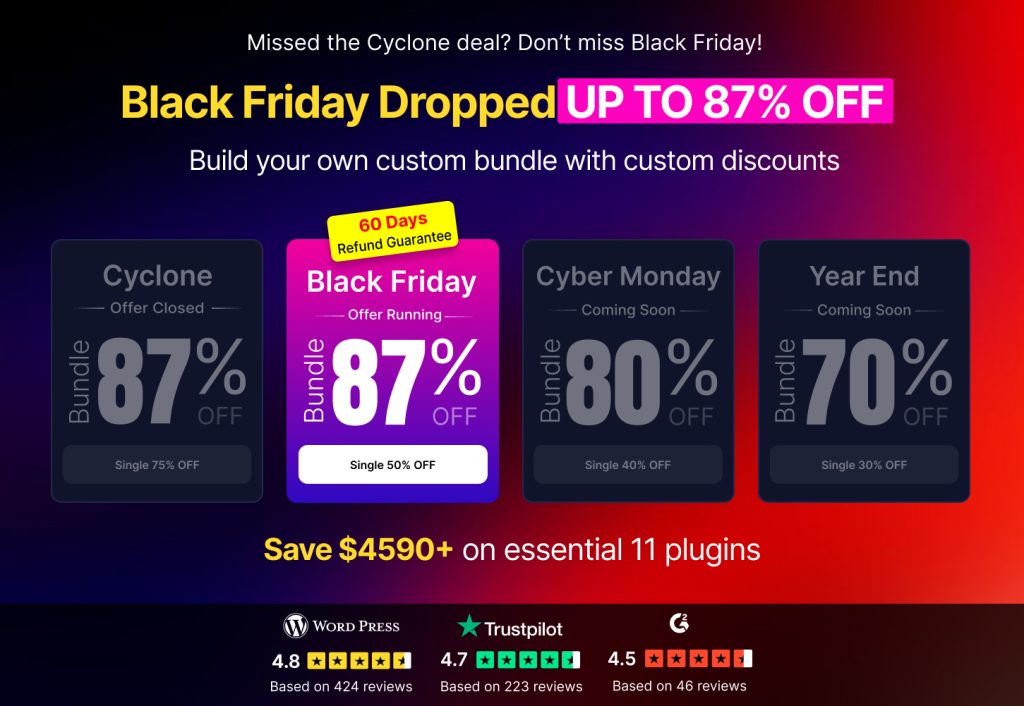
Få adgang til 100+ premium WordPress-plugins med livstidsopdateringer og dedikeret support.
 Danish

Ubesværet navigation med rige menupunkter
Visuelle produktvalg øger salget hurtigt
Personligt indhold tilpasser sig i realtid
Sømløs scrolling for bedre UX-flow
Øjeblikkelig duplikering af indhold sparer tid
Hurtig adgang til kraftfulde designelementer
Færdige skabeloner gør designet hurtigere
Avancerede brugerdefinerede felter til fleksible data
Klon sites nemt uden besvær
Skarp, skalerbar grafik til alle skærme
Rebrand værktøjer til et professionelt look
Vis eller skjul indhold med præcision
Engagerende dybde med jævn bevægelse
Tilføj nemt tydelige noter og anmærkninger
Nyttige hints forbedrer brugernes interaktion
Animer elementer med stilfuld flair
Hold vigtige sektioner altid synlige
Fuld kontrol med brugerdefinerede kodejusteringer
Optimer filer for at øge sidens hastighed
Udarbejdede sideskabeloner, der hjælper dig med at komme i gang med din landingsside bare ved at droppe et startdesign
Ready Blocks leveres med en række forskellige layouts og designelementer, f.eks. overskrifter, sidefødder og widgets osv.
Foruddesignede overskrifter med lukrative stilarter, der passer til forskellige nichewebsteder og designsmag
En nyttig samling af footer-designs, der hjælper dig med at skabe en attraktiv footer på din landingsside.
Find os 24/7 til din rådighed. Vi er glade for at kunne hjælpe.
Detaljerede retningslinjer tilgængelige for alle funktioner på BdThemes
Lær noget nyt, bliv informeret om WordPress, webdesign og meget mere
Her er nogle af de vigtigste milepæle i min udvikling:
Lær produktbrug, WordPress-tips og -tricks fra vores videoer
Tjen store provisioner ved at deltage i kampagnen.
Widget Idea Share er en god måde at finde lignende widgets på, som du kan forbedre.
Helt sikkert! Hvis du har brug for at komme i kontakt med os, er du velkommen til at kontakte os
Byg enhver WordPress-formular på få minutter med Sigma Forms.
Coming Soon & Maintenance Mode Page Builder Plugin
Gør nemt hjemmesider tilgængelige med One Accessibility
Vis kundeudtalelser for at øge tilliden og troværdigheden.
Zoloblocks hjælper med at skabe fantastiske Gutenberg-baserede hjemmesider.
Den mest overlegne slider i Elementor-sliderens æra
De eneste kompatible blogging-widgets i Elementor til enhver blog
Byg et next-gen WordPress eCommerce-website til virksomheder
Organiser dine fotos i en ny engel hver gang med Elementor
Styrk engagementet og øg salget ved hjælp af Spin Wheel.
Kraftfuld AI-billedgenerator-plugin til WordPress af ChatGPT
Få 360° Augmented Reality til WooCommerce i dag!
Kopier og indsæt ethvert webdesign, du kan lide, bare med 2 klik!
Et fuldt fungerende tema til elementor med ubegrænsede muligheder
Smart, rent og fleksibelt bloktema til Gutenberg
Dark Reader-plugin sikrer øjenvenlig weblæsning.
WooCommerce one-page checkout for at øge konverteringer.
Få adgang til 100+ premium WordPress-plugins med livstidsopdateringer og dedikeret support.
Danish
We know you’re looking to inaugurate a WooCommerce Website and start trading products over the Internet, aren’t you? It is a little bit a daunting task but not impossible. In this post, we’re going to show you actual steps to help you to build WooCommerce Website using Elementor and Element Pack.
This kind of website is a combination of some tools such as Elementor, WooCommerce, and a suited theme (recommended Rooten Tema). If these tools are new, you might look them up.
Let’s move on and see.
We’re going to show you step by step how to create WooCommerce Website using Elementor and Element Pack.
Trin 1: To begin with, you’ve to make sure that you have an installed WordPress CMS (Content Management System).
Most importantly here, you will have to install a theme first and then activate. And to do that go to WordPress-dashboard > Udseende > Tema > Tilføj nyt.
Trin 2: In this step, you must install and activate the Elementor a page builder Plugin.
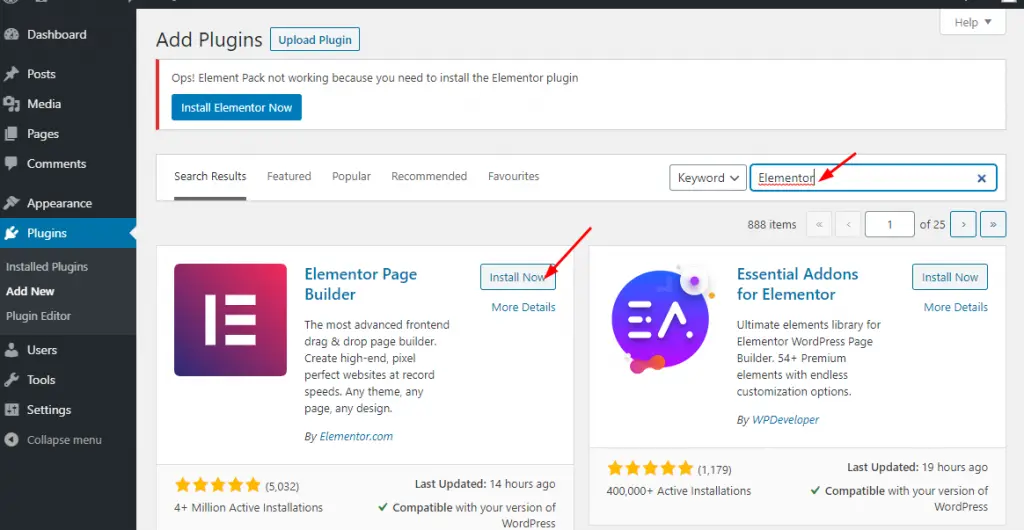
Simply go to WordPress Dashboard til Plugins > Tilføj nyt > search Elementor in the search box > then hit Installer og aktivere.
If done, you’ll find the plugin exactly left side in the panel of the dashboard.
Trin 3: This step will let you install and activate the WooCommerce plugin. Remember, this plugin will be one of your main tools.
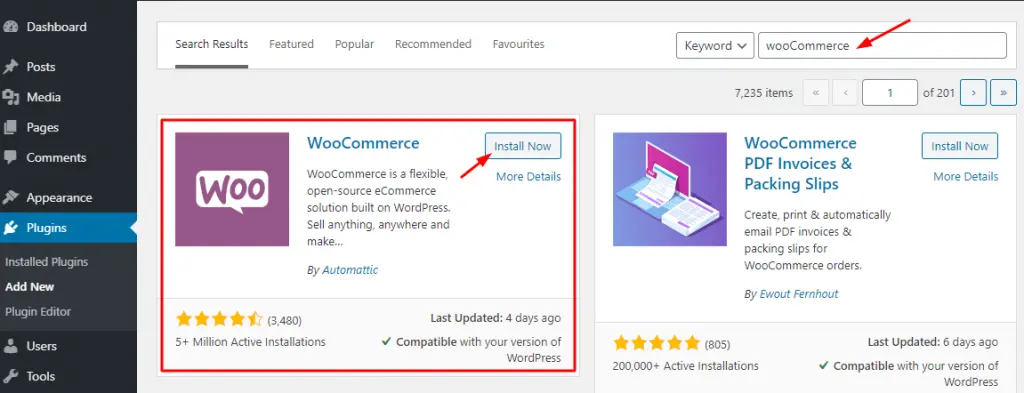
Just go to WordPress Dashboard til Plugins > Tilføj nyt > search WooCommerce in the search box > then hit Installer og aktivere.
Furthermore, you have to go through a few more options namely:
i. Providing Basic Information
ii. Setting up Payment Gateways
iii. Shipping Configuration
iv. Connecting WooCommerce with Jetpack
v. Finalize the setup of WC
To do all these things, visit elementor.com
Is this enough? Quite enough but we’ve to go a little forward.
Adding Products With WooCommerce
Products menu will allow you to add the products you want to populate and sell.
Trin 1: Here you can add your product items with Kategorier, Tagsog Attributes. Just go to Produkter > Tilføj nyt. Every time you have to add products in this way.
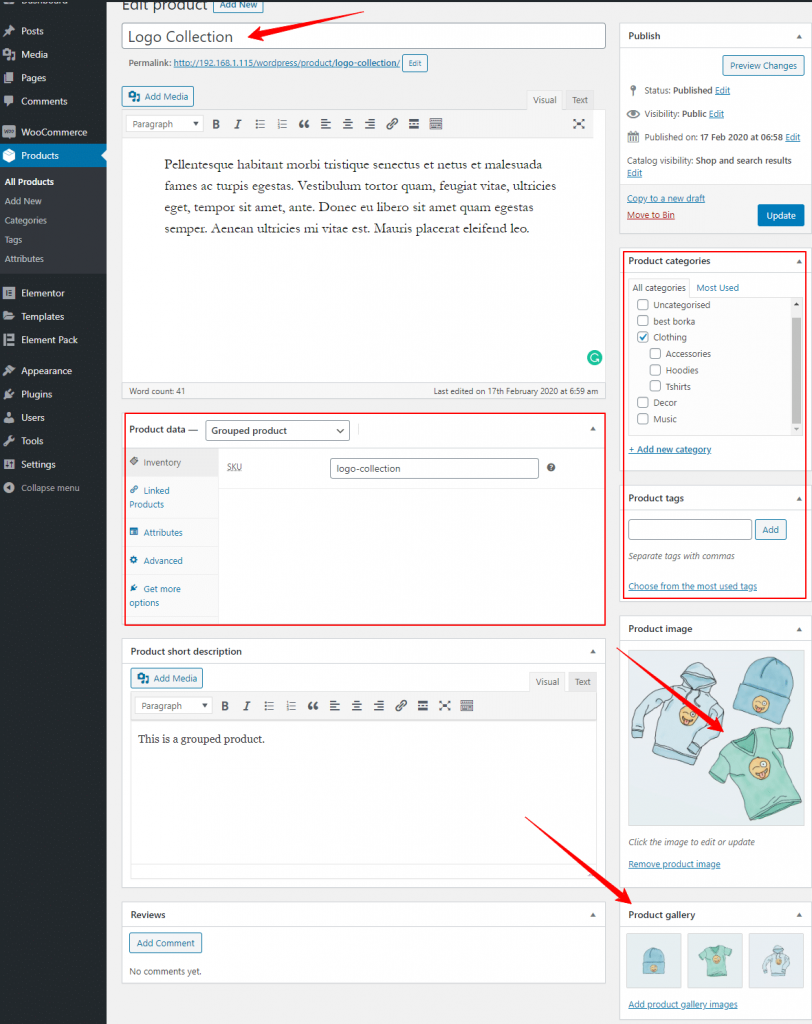
One more thing is to do that you can set Product data, short description. Look at the screenshot above carefully.
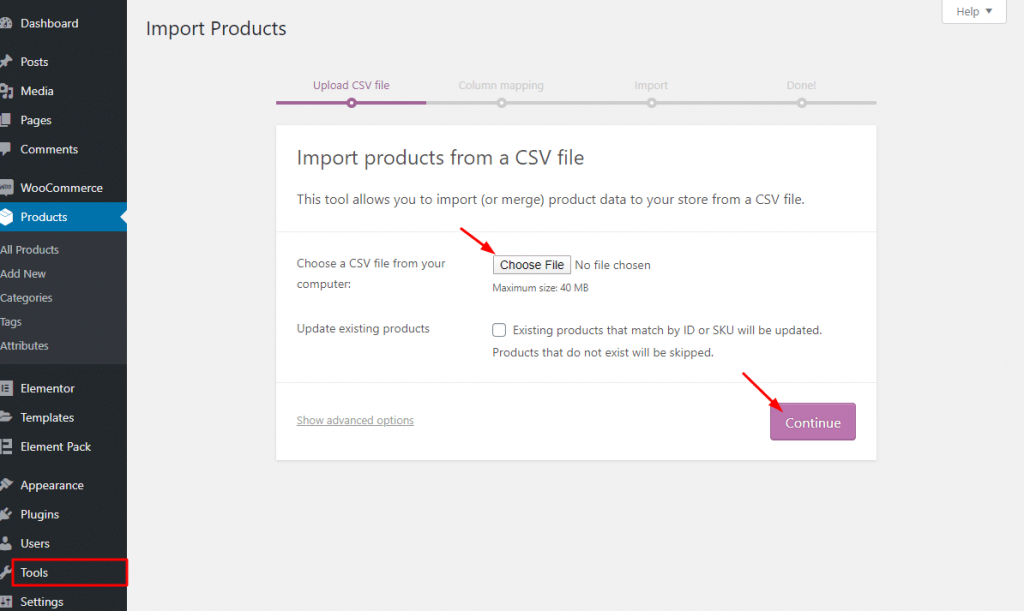
step-2: If you want you can show sample_products data in CSV/XML file provided by WooCommerce. Simply go to Værktøjer > Import > WooCommerce-produkter(CSV)> then hit on the Kør importør. You can do this only for demo purposes.
Trin 3: After adding products, from the Produkter > Tilføj nyt and saving, you can find your products in the list under as you can see.
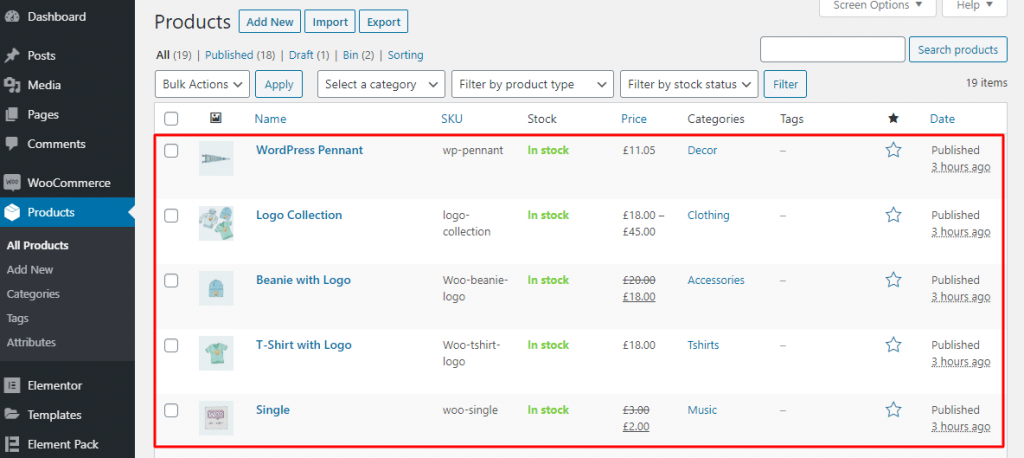
It is very certain that you can also customize the look and feel of your products with Elementor. There is a little trick I wanna suggest you allow a plugin Element Pack to get a better look and feel of products. Yeah, these two plugins integrate with WooCommerce.
Trin 1: To create a new product template, simply go to Skabeloner > Tilføj nyt.
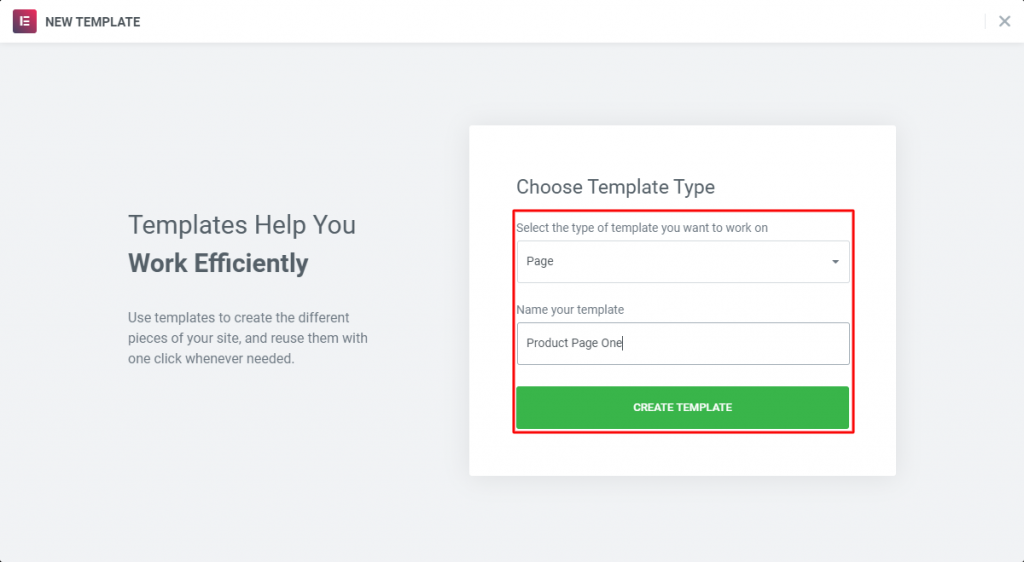
After creating a template and publishing, you’ve to open it in Elementor. After that, you’ll find a variety of widgets for WooCommerce.
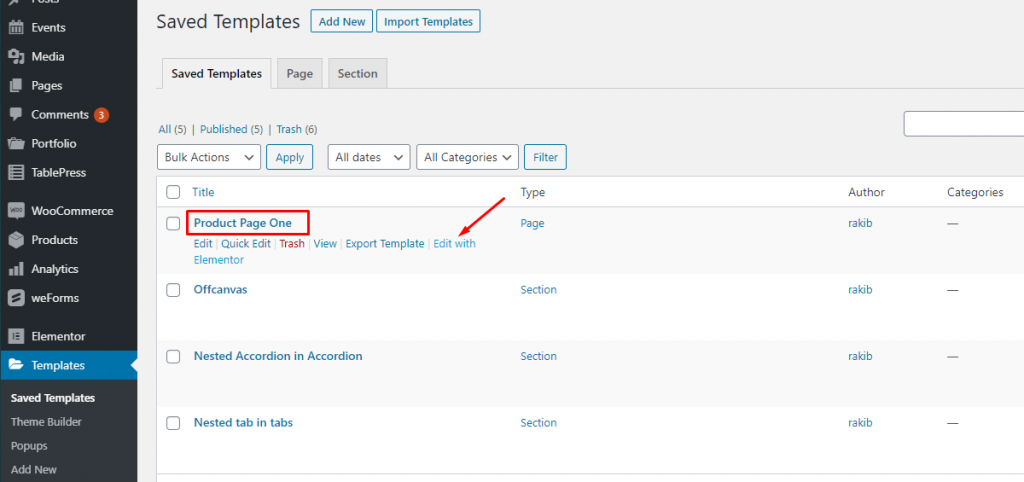
With the default Widgets of Elementor (Free/ Premium), if you install Element Pack, you’ll find more widgets to create your products page. See the photo below.
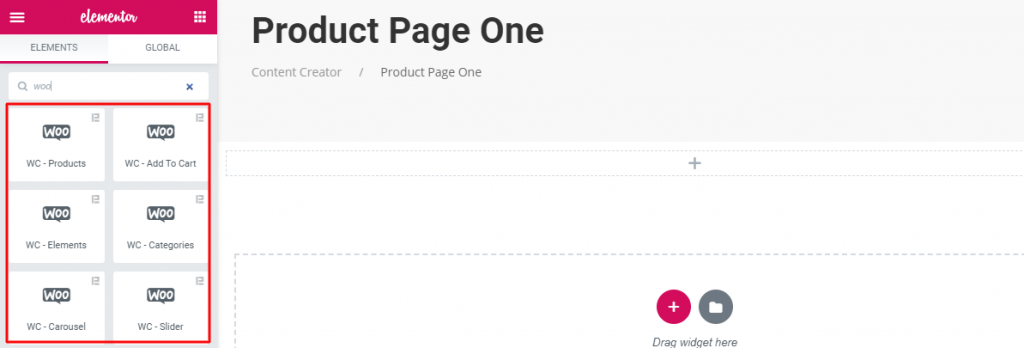
This plugin has some very strong widgets including WC-Products, WC-Add To Cart, WC-Categories, WC-Slider, WC-Elements, WC-Carouselog WC-Mini Cart that will give you supports in the terms of showing products and services for WooCommerce.
Trin 2: In this step, I’ll show you how to use Widgets of Element Pack for WooCommerce.
First, drag and drop any widget (mentioned above).
Layout:
This widget in the Layout section will allow you to show your products grid-wise and table-wise by the Skin controls.
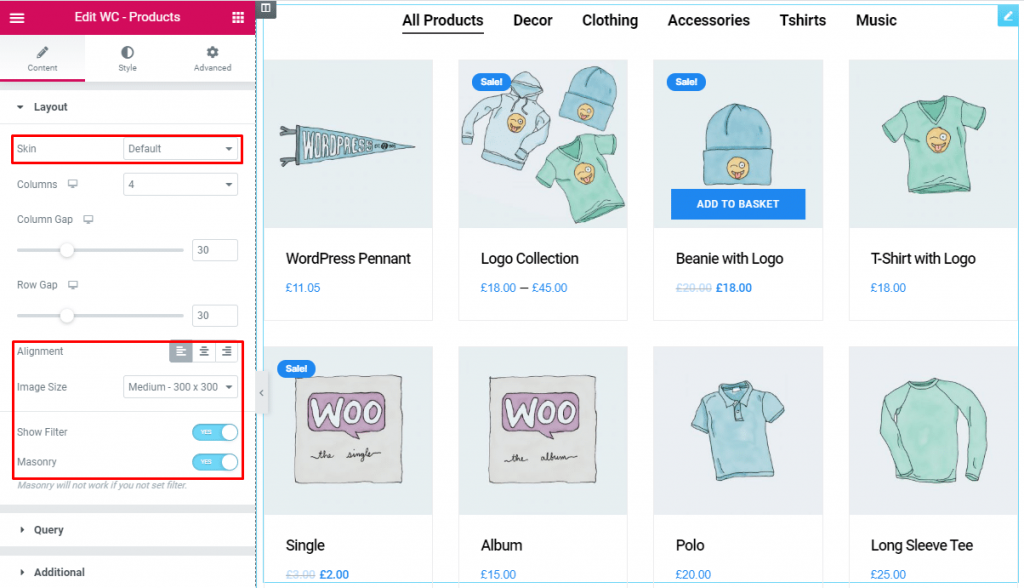
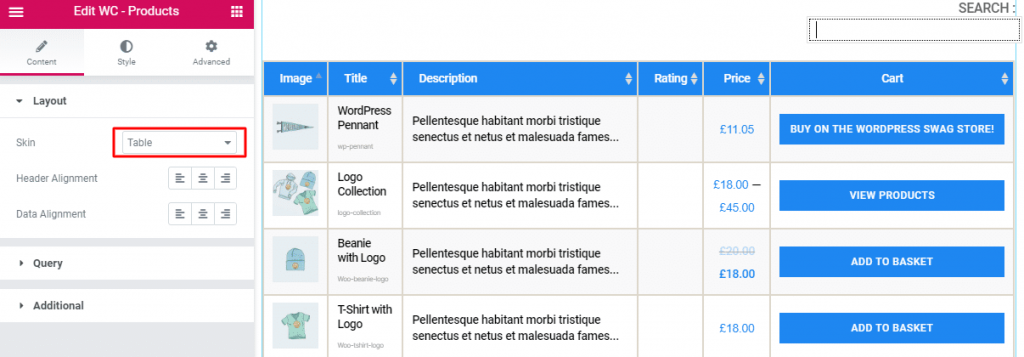
Moreover, in this section, you can set the product image size and product filtering with masonry.
Simply, go to Layout > Hud(default/table) > Tilpasning> Billedstørrelse > Show Filter > Murværk.
This section works for setting the source location of data that you need to display by the reference like Author, Kategorier, Tagsog Formats. The references can be different in accordance with the source location. Læs mere om det
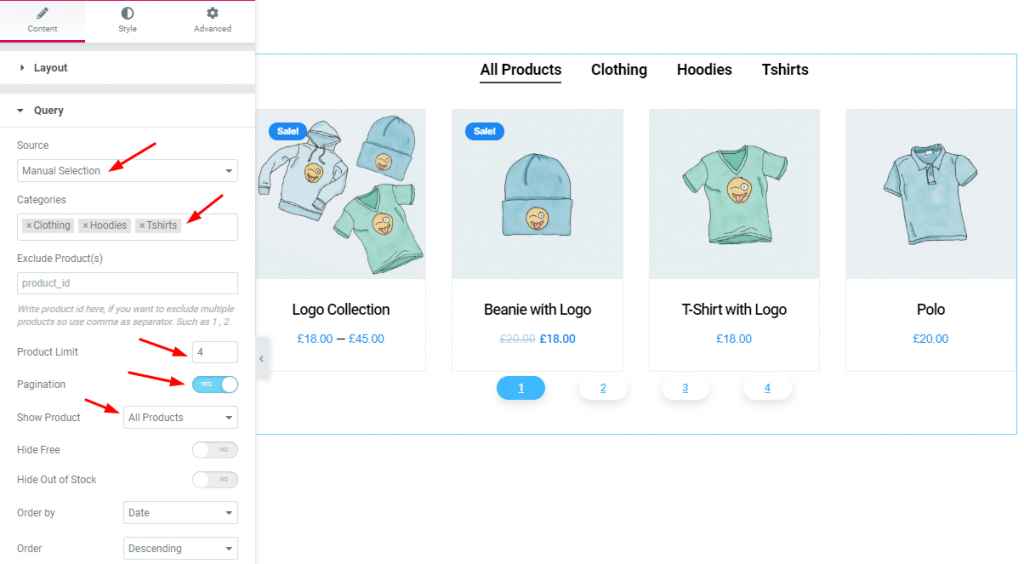
Gå til Forespørgsel > Kilde (Show All / Manual Selection) > Vis produkt (All products/ On Sale/ Featured).
Most importantly, you can set Pagination og Product Limit and you can show product id-wise fra Exclude Product(s).
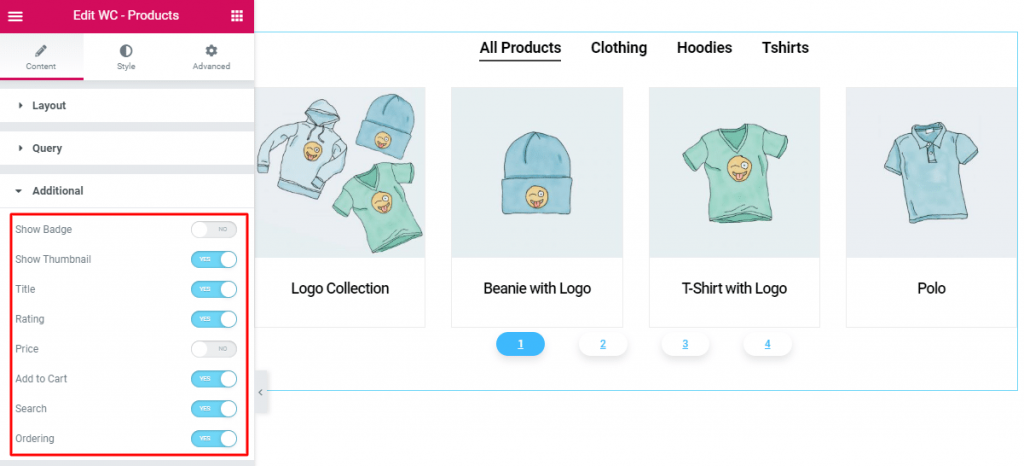
From this section, you have a chance to manipulate the Badge, Thumbnail, Titel, Rating, Pris, Add to Cart, Søg efter, Ordering of the products. Just work with Yes/NO switcher button.
Vi kører et give-away-program til vores elskede forbrugere og abonnenter, der er forbundet med vores officielle hjemmeside BDthemes.com
Besøg Element Pack eller Prime Slider og del dine tanker med os. De heldige vindere får en livstidslicens til en værdi af $100. Det tager kun et minut at deltage.
For styling, you will have to Style Tab and give style as you can see the below screenshot. Here, you’ll be able to style the content section by section such as Item, Search Field, Select Field, Billede, Titel, Uddrag, Rating, Pris, Knap, Badge, Sidefod, Filter Bar.
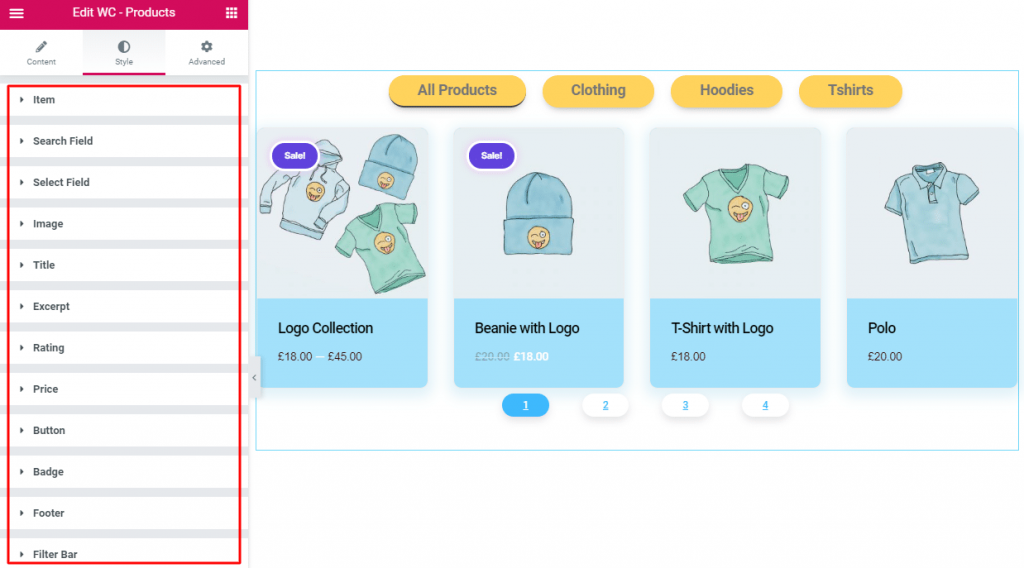
Along with WC-Products widget, you will find 6 more widgets in the Element Pack plugin as I’ve mentioned above. Using the widgets, you will be able to display your products for sale.
Here, I’ll explain each and every menu item one by one so you know exactly what’s going on there.
This one will show the current status of orders at your shop. You will see here are the numbers and type of items sold, and to whom.
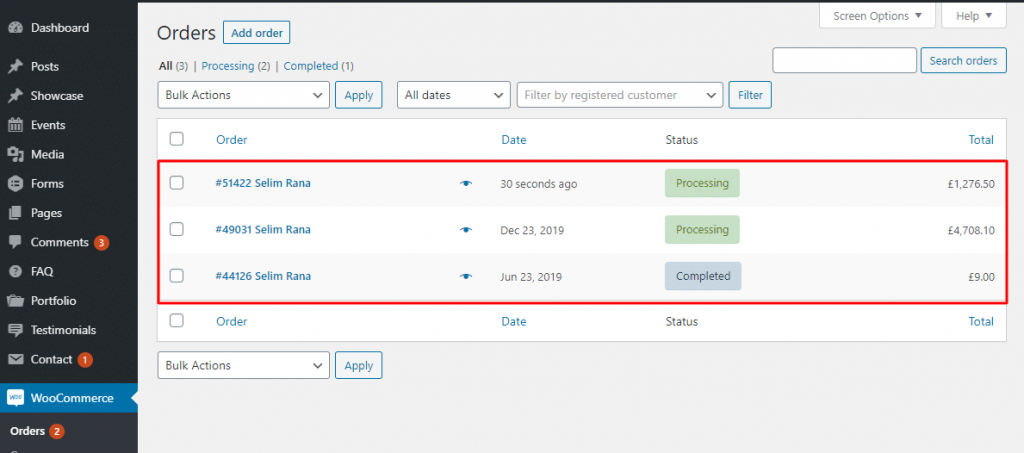
In addition, you will experience many different statuses (pending payment, on hold, refunded, failed canceled, etc.). You can click on each order to modify billing or shipping addresses, add notes, refund order, change the contents of the order, and more.
We think it is a very familiar concept to you. Here, you can create and manage discount codes.
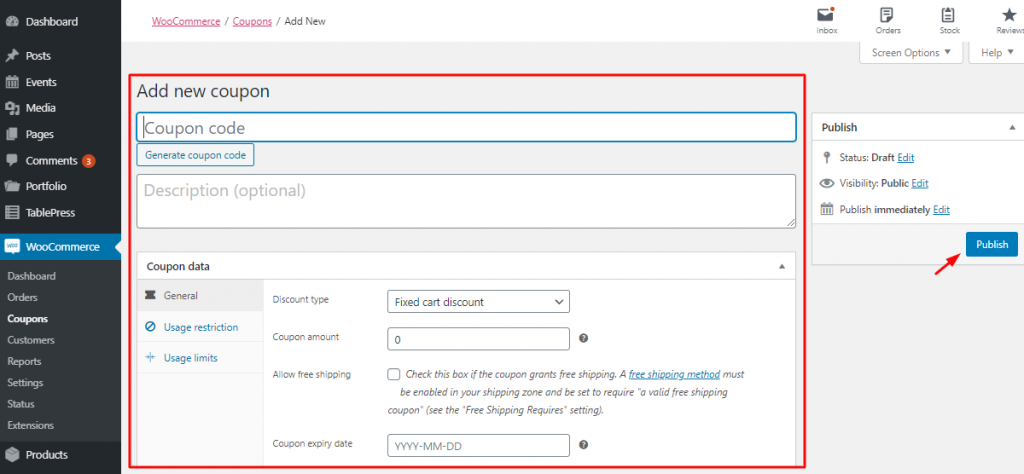
Especially, you can handle coupons expiry date and usage restrictions and limits on how many coupons are available to be used overall or per customer.
This section will inform you of the detailed summaries of every aspect of your shop.
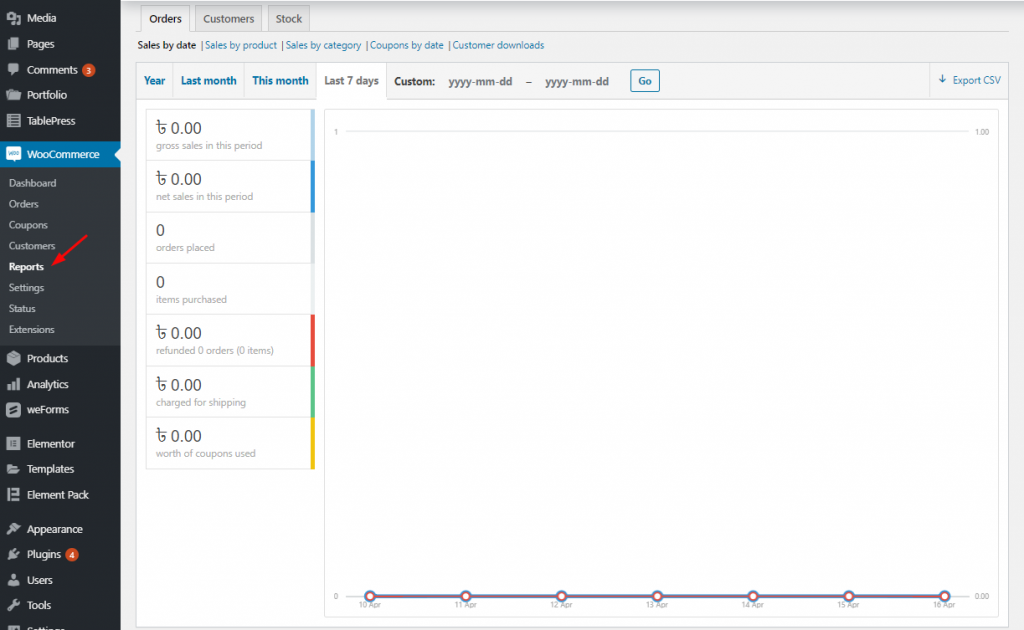
This includes orders placed, items purchased, refunds, issued, shipping costs collected and coupons used and it also holds gross and net sales of the last 7 days, months, year or custom time frame.
Moreover, along with sales by product, categories, coupons used or customer downloads, you may find detailed information on customers, taxes, and stock.
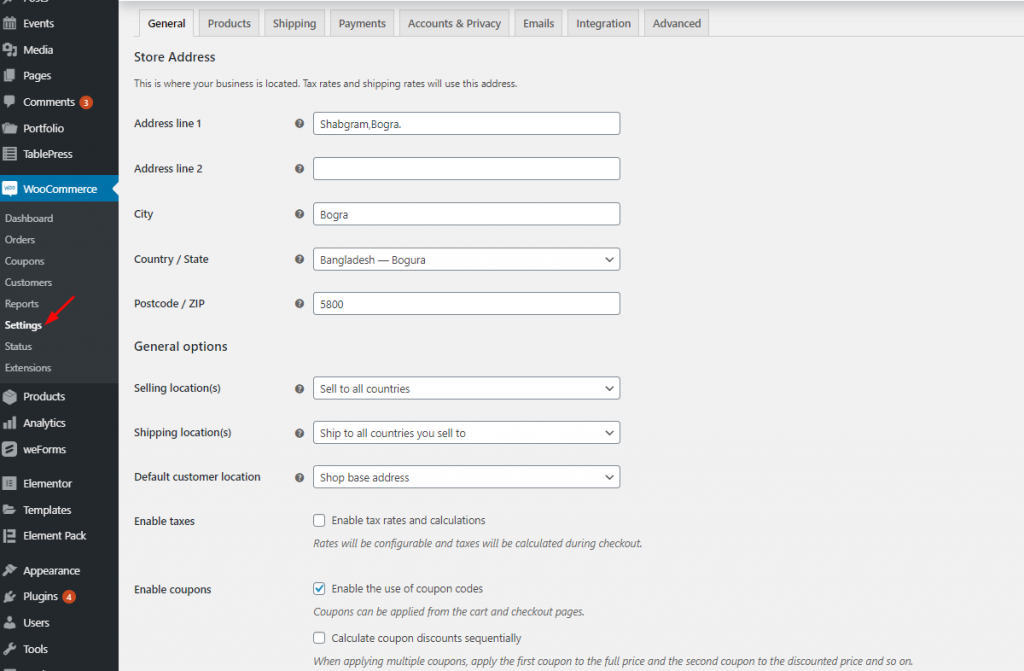
If you gotta control everything in your online e-shop. It has a lot of configuration options to help you.
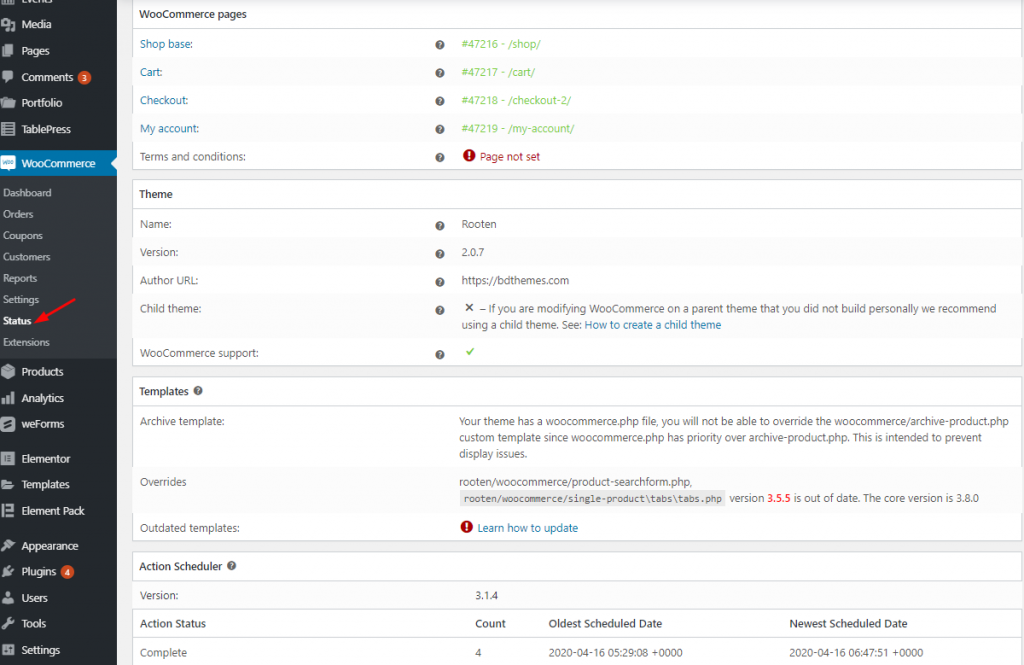
This menu offers you an overview of the health and performance of your online shop.
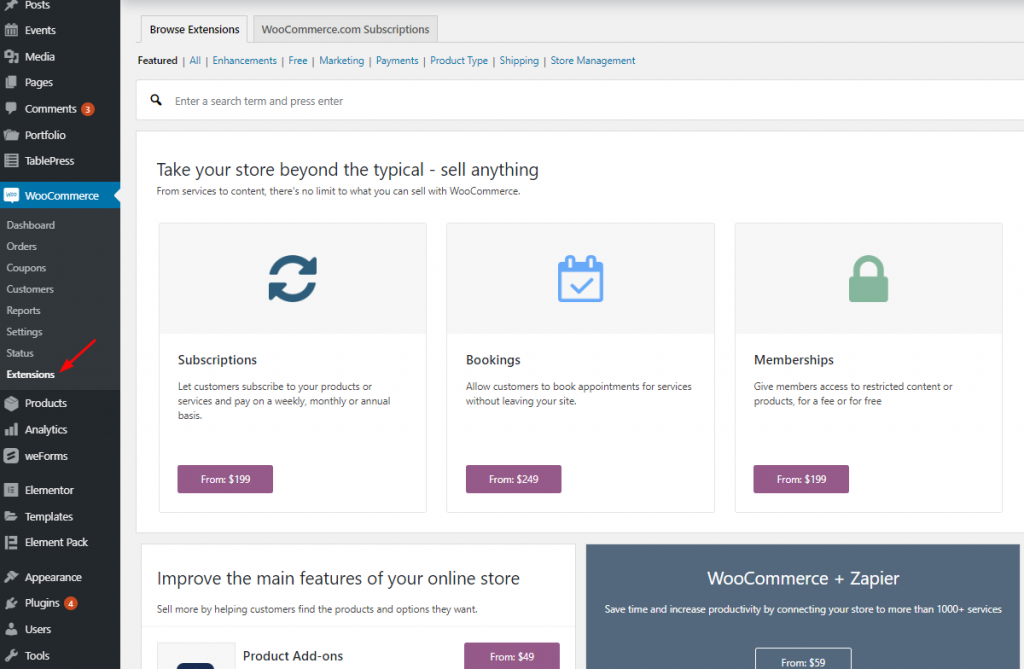
From this menu section, if you interested to enable any extensions suitable, you can easily do that.
Finally, at the very beginning of this article, I quoted about WordPress theme (Hello, OceanWP, GeneratePress, Astra, and more ) is required to build WooCommerce Website. Here, considering the hard task of choosing theme, I’m going to recommend you Rooten Tema (Multi purpose theme) one of the best WordPress Themes.
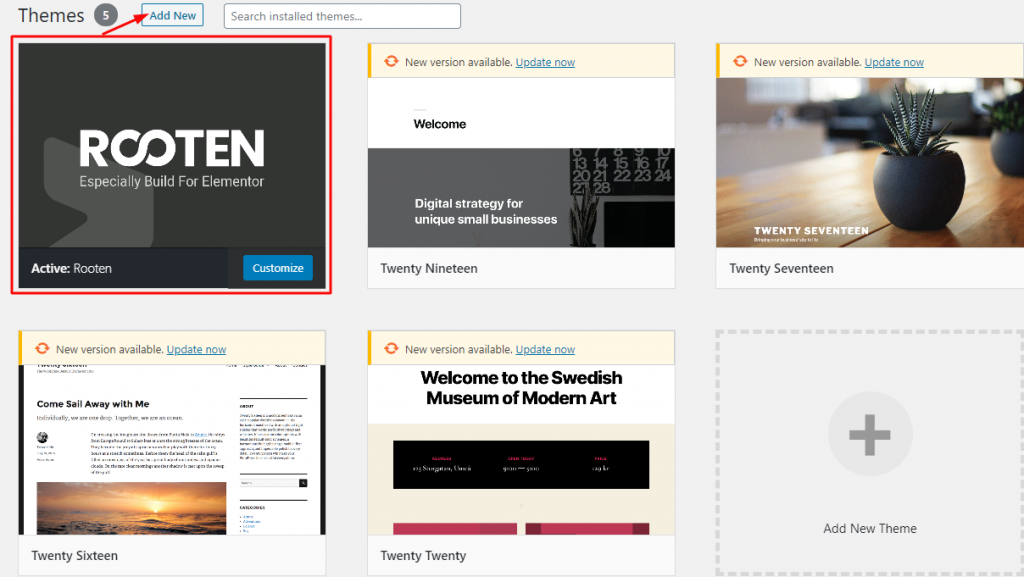
We’ve gone through a few easy processes that will surely take you on the right track of Building WooCommerce Website.
You can feel the confidence to get two cool and mature plugins – WooCommerce and Elementor that give you the necessary tools for an online store. Now, you know how to create and set up your online shop.
However, The free version of both of the plugins is enough to get you up and running. Our store is ready. We wish you all the best, man.
At last, if you find any issue further and struggle, please comment us.

Største Elementor-skabelonpakke med den mest brugervenlige brugergrænseflade og 300+ nyttige Elementor-widgets. Byg hjemmesider fra nul til 100% Perfektion på ingen tid.
Denne hjemmeside er drevet af Element Pack Pro og Rooten Tema.
Ophavsret © 2025 BdTemaer. Alle rettigheder forbeholdes.