
Ubesværet navigation med rige menupunkter
Visuelle produktvalg øger salget hurtigt
Personligt indhold tilpasser sig i realtid
Sømløs scrolling for bedre UX-flow
Øjeblikkelig duplikering af indhold sparer tid
Hurtig adgang til kraftfulde designelementer
Færdige skabeloner gør designet hurtigere
Avancerede brugerdefinerede felter til fleksible data
Klon sites nemt uden besvær
Skarp, skalerbar grafik til alle skærme
Rebrand værktøjer til et professionelt look
Vis eller skjul indhold med præcision
Engagerende dybde med jævn bevægelse
Tilføj nemt tydelige noter og anmærkninger
Nyttige hints forbedrer brugernes interaktion
Animer elementer med stilfuld flair
Hold vigtige sektioner altid synlige
Fuld kontrol med brugerdefinerede kodejusteringer
Optimer filer for at øge sidens hastighed
Udarbejdede sideskabeloner, der hjælper dig med at komme i gang med din landingsside bare ved at droppe et startdesign
Ready Blocks leveres med en række forskellige layouts og designelementer, f.eks. overskrifter, sidefødder og widgets osv.
Foruddesignede overskrifter med lukrative stilarter, der passer til forskellige nichewebsteder og designsmag
En nyttig samling af footer-designs, der hjælper dig med at skabe en attraktiv footer på din landingsside.
Find os 24/7 til din rådighed. Vi er glade for at kunne hjælpe.
Detaljerede retningslinjer tilgængelige for alle funktioner på BdThemes
Lær noget nyt, bliv informeret om WordPress, webdesign og meget mere
Her er nogle af de vigtigste milepæle i min udvikling:
Lær produktbrug, WordPress-tips og -tricks fra vores videoer
Tjen store provisioner ved at deltage i kampagnen.
Widget Idea Share er en god måde at finde lignende widgets på, som du kan forbedre.
Helt sikkert! Hvis du har brug for at komme i kontakt med os, er du velkommen til at kontakte os
Byg enhver WordPress-formular på få minutter med Sigma Forms.
Coming Soon & Maintenance Mode Page Builder Plugin
Gør nemt hjemmesider tilgængelige med One Accessibility
Vis kundeudtalelser for at øge tilliden og troværdigheden.
Zoloblocks hjælper med at skabe fantastiske Gutenberg-baserede hjemmesider.
Den mest overlegne slider i Elementor-sliderens æra
De eneste kompatible blogging-widgets i Elementor til enhver blog
Byg et next-gen WordPress eCommerce-website til virksomheder
Organiser dine fotos i en ny engel hver gang med Elementor
Styrk engagementet og øg salget ved hjælp af Spin Wheel.
Kraftfuld AI-billedgenerator-plugin til WordPress af ChatGPT
Få 360° Augmented Reality til WooCommerce i dag!
Kopier og indsæt ethvert webdesign, du kan lide, bare med 2 klik!
Et fuldt fungerende tema til elementor med ubegrænsede muligheder
Smart, rent og fleksibelt bloktema til Gutenberg
Dark Reader-plugin sikrer øjenvenlig weblæsning.
WooCommerce one-page checkout for at øge konverteringer.
Find Nearby Stores Instantly with Sigma Store Locator
The Ultimate WordPress Media Library Organizer

Få adgang til 100+ premium WordPress-plugins med livstidsopdateringer og dedikeret support.
 Danish

Ubesværet navigation med rige menupunkter
Visuelle produktvalg øger salget hurtigt
Personligt indhold tilpasser sig i realtid
Sømløs scrolling for bedre UX-flow
Øjeblikkelig duplikering af indhold sparer tid
Hurtig adgang til kraftfulde designelementer
Færdige skabeloner gør designet hurtigere
Avancerede brugerdefinerede felter til fleksible data
Klon sites nemt uden besvær
Skarp, skalerbar grafik til alle skærme
Rebrand værktøjer til et professionelt look
Vis eller skjul indhold med præcision
Engagerende dybde med jævn bevægelse
Tilføj nemt tydelige noter og anmærkninger
Nyttige hints forbedrer brugernes interaktion
Animer elementer med stilfuld flair
Hold vigtige sektioner altid synlige
Fuld kontrol med brugerdefinerede kodejusteringer
Optimer filer for at øge sidens hastighed
Udarbejdede sideskabeloner, der hjælper dig med at komme i gang med din landingsside bare ved at droppe et startdesign
Ready Blocks leveres med en række forskellige layouts og designelementer, f.eks. overskrifter, sidefødder og widgets osv.
Foruddesignede overskrifter med lukrative stilarter, der passer til forskellige nichewebsteder og designsmag
En nyttig samling af footer-designs, der hjælper dig med at skabe en attraktiv footer på din landingsside.
Find os 24/7 til din rådighed. Vi er glade for at kunne hjælpe.
Detaljerede retningslinjer tilgængelige for alle funktioner på BdThemes
Lær noget nyt, bliv informeret om WordPress, webdesign og meget mere
Her er nogle af de vigtigste milepæle i min udvikling:
Lær produktbrug, WordPress-tips og -tricks fra vores videoer
Tjen store provisioner ved at deltage i kampagnen.
Widget Idea Share er en god måde at finde lignende widgets på, som du kan forbedre.
Helt sikkert! Hvis du har brug for at komme i kontakt med os, er du velkommen til at kontakte os
Byg enhver WordPress-formular på få minutter med Sigma Forms.
Coming Soon & Maintenance Mode Page Builder Plugin
Gør nemt hjemmesider tilgængelige med One Accessibility
Vis kundeudtalelser for at øge tilliden og troværdigheden.
Zoloblocks hjælper med at skabe fantastiske Gutenberg-baserede hjemmesider.
Den mest overlegne slider i Elementor-sliderens æra
De eneste kompatible blogging-widgets i Elementor til enhver blog
Byg et next-gen WordPress eCommerce-website til virksomheder
Organiser dine fotos i en ny engel hver gang med Elementor
Styrk engagementet og øg salget ved hjælp af Spin Wheel.
Kraftfuld AI-billedgenerator-plugin til WordPress af ChatGPT
Få 360° Augmented Reality til WooCommerce i dag!
Kopier og indsæt ethvert webdesign, du kan lide, bare med 2 klik!
Et fuldt fungerende tema til elementor med ubegrænsede muligheder
Smart, rent og fleksibelt bloktema til Gutenberg
Dark Reader-plugin sikrer øjenvenlig weblæsning.
WooCommerce one-page checkout for at øge konverteringer.
Find Nearby Stores Instantly with Sigma Store Locator
The Ultimate WordPress Media Library Organizer
Få adgang til 100+ premium WordPress-plugins med livstidsopdateringer og dedikeret support.
Danish
To troubleshoot your WordPress site, the error log is the quick way to find what is happening on your WordPress site. Finding the problem is the most critical part of the solution. This article shows you a quick and easy way to find the error log.
You’ve to log in to your cPanel and open the file manager.
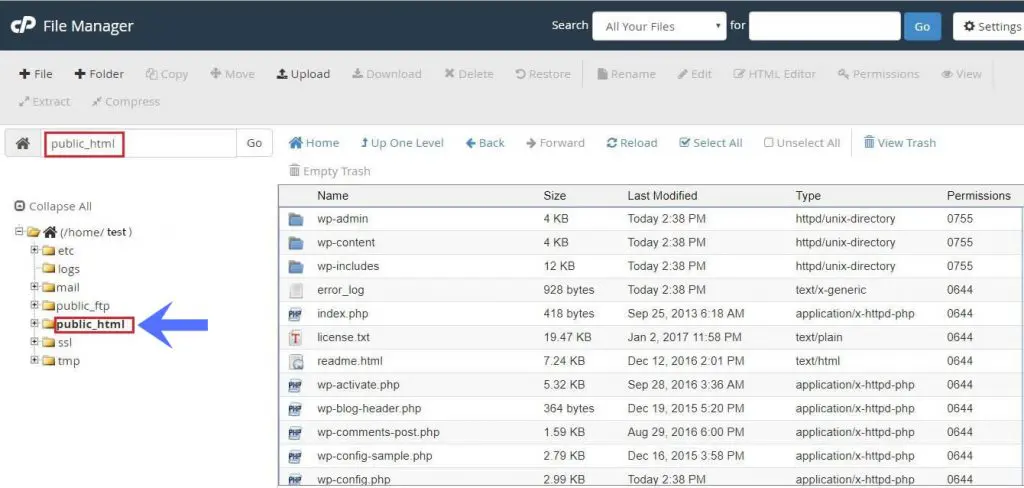
Go to the document directory of your file manager. You’ll find this on public_html or, if it’s on the parked domain – you’ll find this on your domain names folder.

Take a backup of your wp-content directory so that if anything goes wrong you’ll be on the safe side and restore those files.

Add or edit this code to your wp-config.php file:
define(‘WP_DEBUG’, true);
define(‘WP_DEBUG_LOG’, true);
Most WordPress installation has already WP_DEBUG included with the file and the value set to false.
After editing, please ensure and recheck that the value is set to true.

Go to the affected page which is occurring the issues. It’ll send the error log file with the messages.
Go to your wp-content folder and open the log file debug.log and go to the bottom of the page to find the error messages.
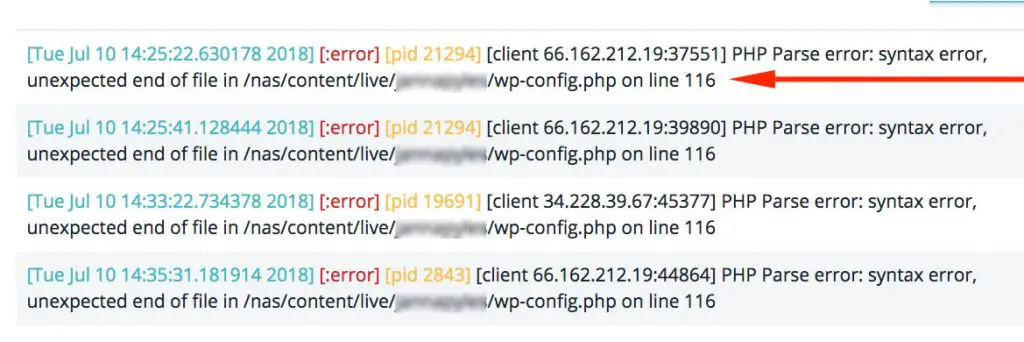
Take the necessary actions to solve the problem. After solving the issue, you can edit the wp-config.php and set the WP_DEBUG file set to false again.

Største Elementor-skabelonpakke med den mest brugervenlige brugergrænseflade og 300+ nyttige Elementor-widgets. Byg hjemmesider fra nul til 100% Perfektion på ingen tid.
Denne hjemmeside er drevet af Element Pack Pro og Rooten Tema.
Copyright © 2026 BdTemaer. Alle rettigheder forbeholdes.









