

Clearly displaying your subscription plans on your WordPress site significantly influences visitors’ purchasing decisions. It’s a fundamental requirement for running an online business smoothly.
Your pricing page is where most decisions are made. Visitors aren’t reading long texts; they’re quickly scanning for clear options, trust, and a plan that feels right.
A good pricing table supports that moment. It places the plans side by side, highlights what each includes, and gently directs users to click.
The best way to do this is with a pricing table that lets people compare plans without extra clicks. It’s easy to set up using the WordPress editor or a pricing table plugin.
And in this blog, we’ll show you how to create a pricing table for your WordPress website.
How to Create a Pricing Table for a WordPress Website
When it comes to implementing new features or components in WordPress, you always have to decide on the best approach.
Typically, your primary two options are to manually code the component or install a plugin. Both methods have advantages and disadvantages if you want to create a pricing table.
But most WordPress users dislike coding. They always want to add new features in an easy way. And they feel comfort through plugin installation.
Method to Create a Pricing Table
A pricing table in WordPress can be created in three main ways. by manually coding it with HTML/CSS. By using a dedicated pricing table plugin. And by using a page builder that includes pricing table elements or templates.
However, in this blog, we will show you how to create a pricing table using WordPress’s page builder. So, let’s start
Step 1: Install and Activate the Plugin to Create a Pricing Table
Since we will be creating a pricing table using the Page Builder method, we need to choose a page builder that provides a pricing table widget. Here, I will recommend Element Pack Page Builder. Element Pack provides a free widget for creating advanced pricing tables.
- To install the Element Pack page builder, go to Plugins > Add New.
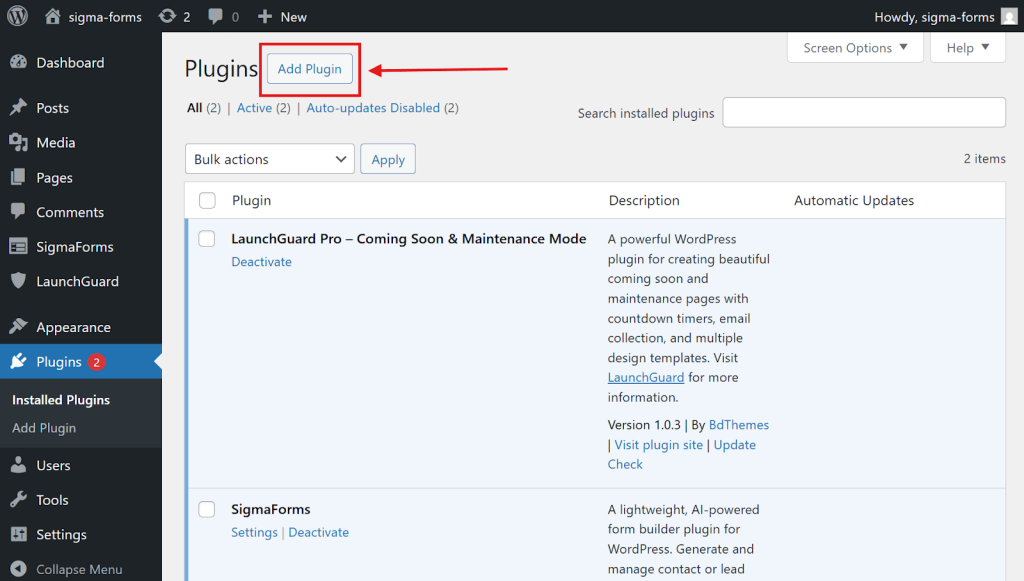
- In the search bar at the top, type Element Pack to find the plugin.
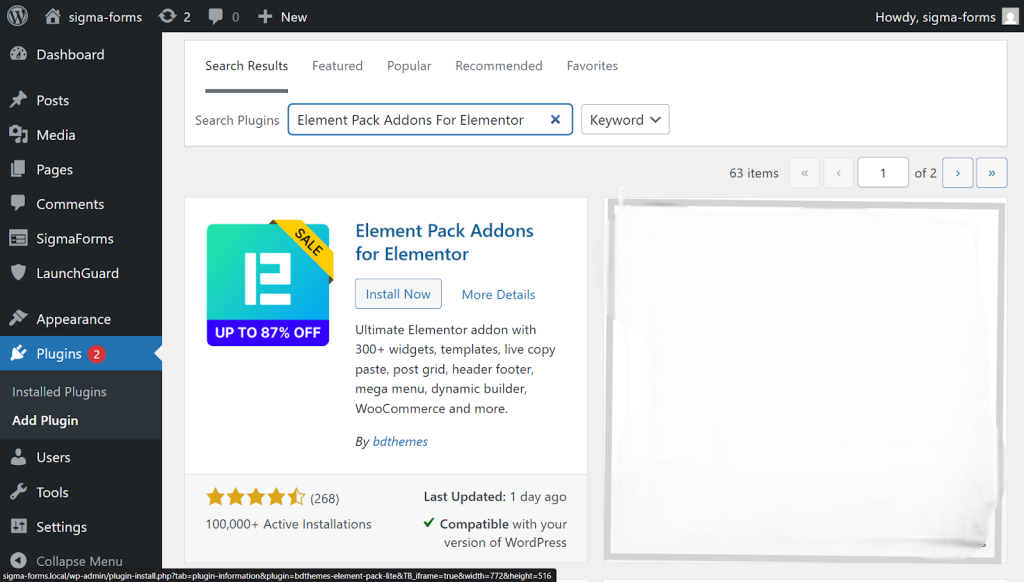
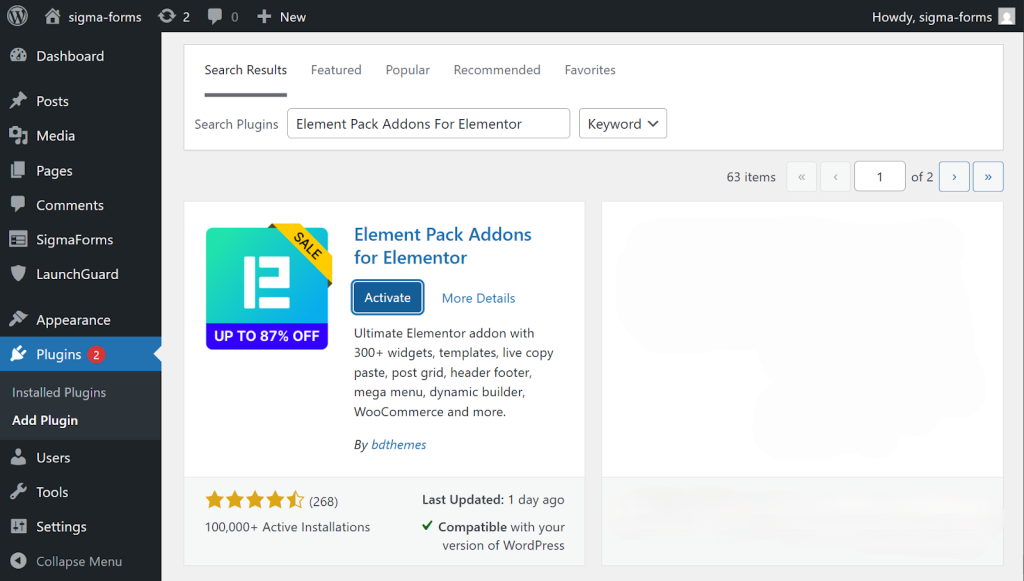
- Then, install and click Activate to enable the plugin.
Step 2: Activate the Pricing Table widget
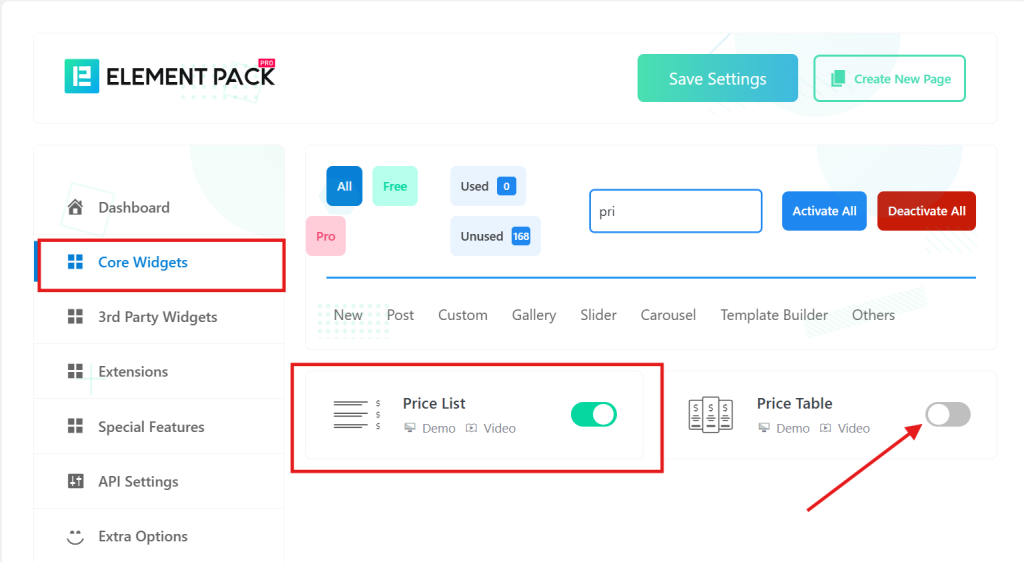
- Then open the plugin and activate the widgets you require, such as the Pricing Table widget. Just go to Core Widgets and find the Price List and Price Table, then activate them.
Step 3: Insert the Pricing Table widget
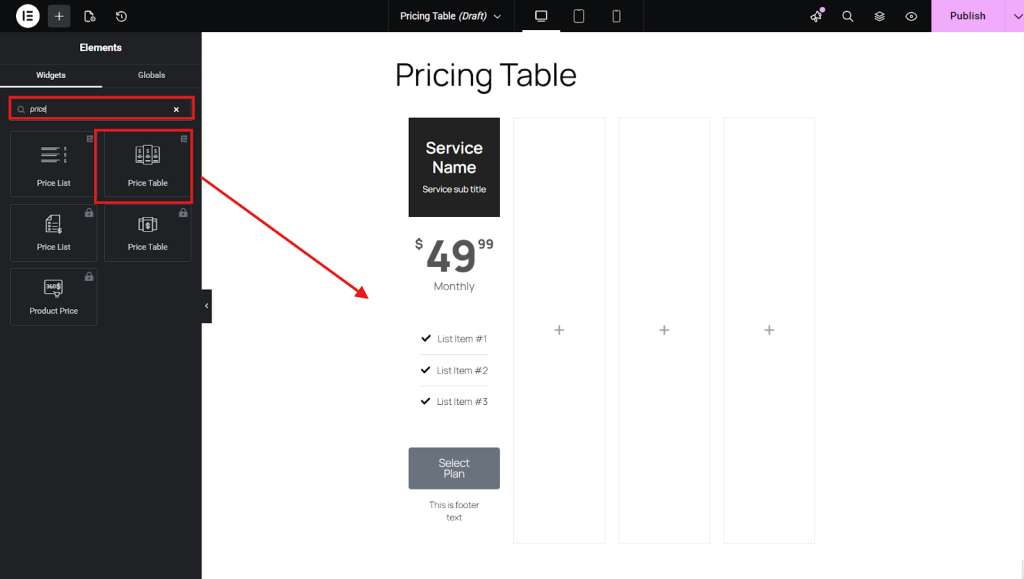
Open your page in the live page builder Elementor, search for “Pricing Table” in the widgets list, then drag and drop it into the desired section of the page.
Step 4: Configure the pricing table
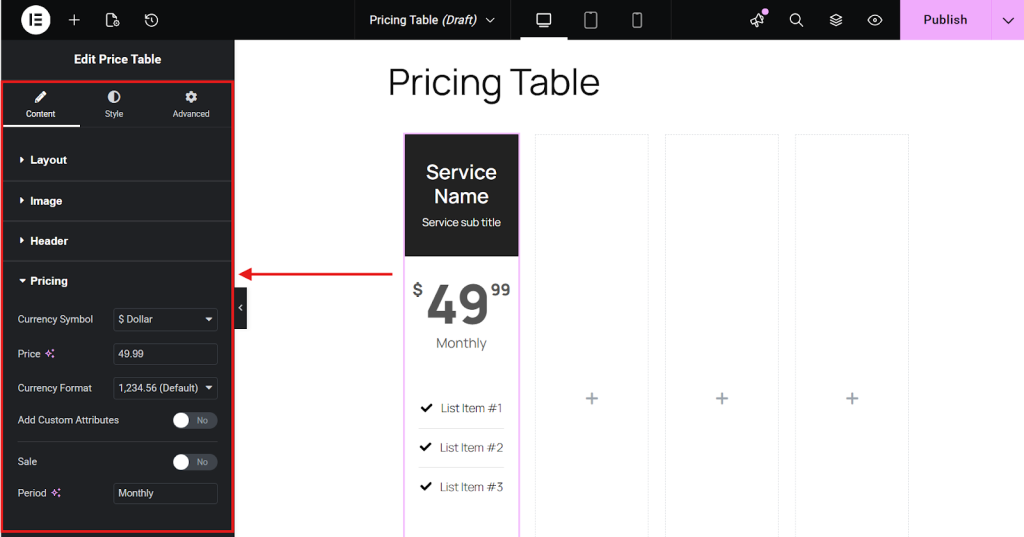
Edit the widget content to set plan names, prices, features, badges (e.g., “Popular”), and buttons with links, then adjust colors, typography, and layout in the Style/Advanced tabs.
Step 5: Save and publish
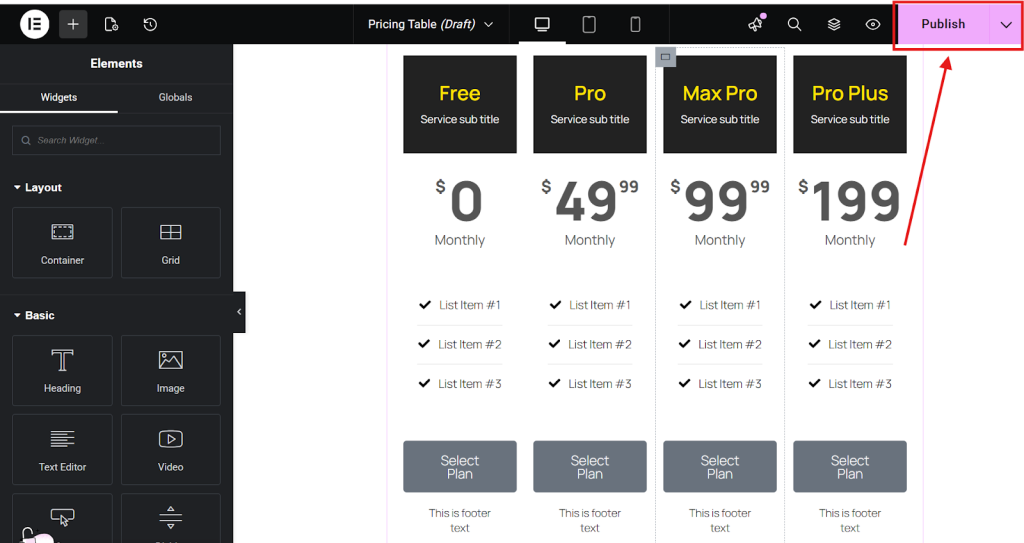
Click Update/Publish in the builder to save the layout and make the pricing table live on your WordPress website
That’s how easy it is!
FAQs
Q1: What is a pricing table, and why use one?
A pricing table displays service or product plans side-by-side for easy comparison, helping visitors choose the best option quickly.
Q2: Which page builders support pricing tables?
Popular ones include Elementor (Price Table widget), addons like Element Pack for advanced designs
Q3: Do I need a separate plugin for page builders?
Core builders like Elementor and Element Pack add-on extend features with 6+ styles, animations, badges, and multiple layouts for stunning tables.
Q4: Is the pricing table mobile-responsive?
Yes, most page builder widgets automatically adjust for mobile; Element Pack ensures smooth, responsive layouts across devices.
Conclusion
Creating a price list with Element Pack in Elementor is super fast and looks completely professional. There’s also no coding required. It has over 240 widgets, 6+ awesome styles like flip effects and ribbons, and easy changes for colors, icons, and hover animations that really grab attention.
Merchants love that it helps customers choose a plan quickly. It helps them upsell better with standout tiers and smooth out the buying process for more sales on SaaS or e-commerce sites.
Responsive design works great on any device. Get the free Lite version to get started, then go Pro for unlimited sites and premium templates. Your price list pages will transform like crazy and fit your brand perfectly.
Md Tarikul
The BdThemes team builds WordPress plugins trusted by 3M+ users worldwide. We write about web accessibility, WCAG compliance, and inclusive design.