

The Parallax Effect in Elementor is a design feature that makes the background move at a different speed than the foreground content while scrolling. It creates a sense of depth and motion on the webpage.
To create a parallax effect in Elementor, open the page where you want the effect and select the element. Go to Style > Background, add your image. Then head over to Advanced > Motion Effects and turn on Scrolling Effects or Mouse Effect. From there, adjust the scroll settings, speed, and customize as your needs.
In this blog, I’ll show 3 different ways to add parallax effect in your Elementor site.
- Parallax effects for web elements
- Parallax effects for the background.
- Parallax effect with advanced customization
So, let’s get started.
How to Create a Parallax Effect Using Elementor | 3 Ways
There are two main ways to add parallax in Elementor. The first is by applying parallax effects to web elements, and the second is by using parallax effects on background sections.
Both options are only available in Elementor Pro, so you’ll need the Pro version to use them.
Here’s how you can create a Parallax Effect using Elementor step by step.
1. Create Parallax Effect on a Web Element
Parallax Effect on a Web Element is when a section, column, or widget moves differently from the rest of the page, creating depth and motion. As it’s a pro feature of Elementor, we’ll use Elementor Pro here.
So let’s see how to do it.
Step 1: Add a Page and Edit with Elementor
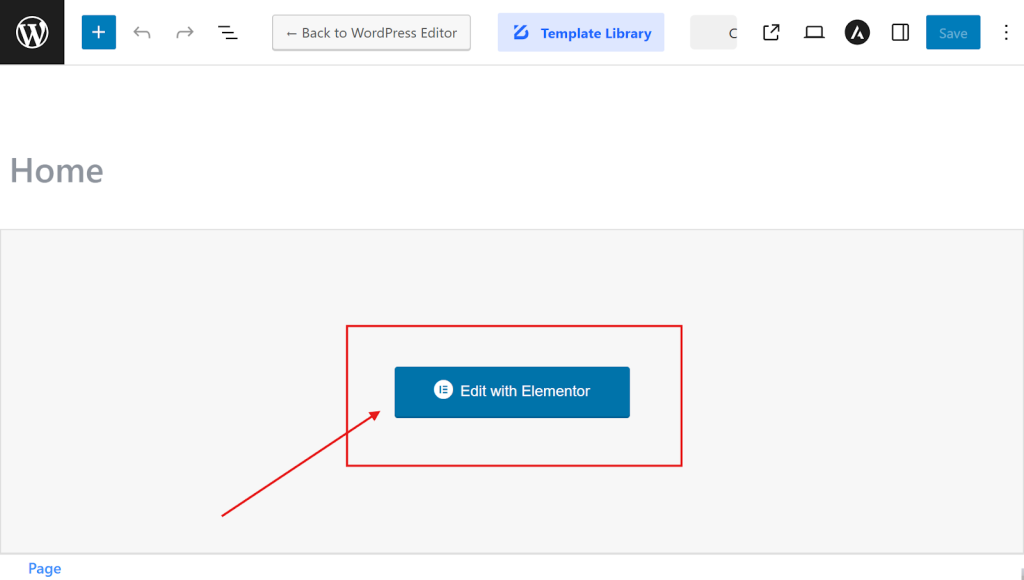
First, open a new or existing page on your site. There, click “Edit with Elementor” to use the parallax on the page elements.
Step 2: Choose an Element to Add Parallax
Then, select the section, column, or widget where you want to apply the parallax effect.
Step 3: Enable Scrolling effects
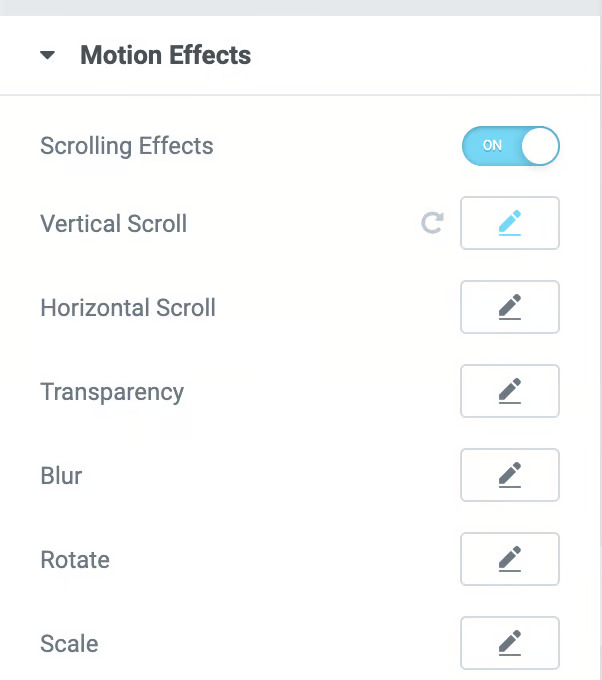
Here, at first, you need to enable the scroll effect, so go to the Advanced tab from the left panel and scroll down to open the Motion Effects settings.
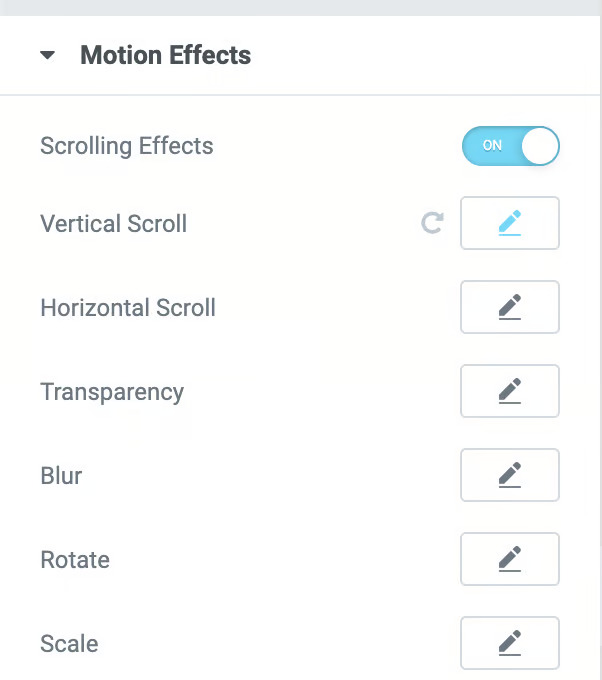
Then, you’ll find options for scrolling effects and mouse effects. Simply enable the Scrolling effects toggle.
Step 4: Customize the Scrolling
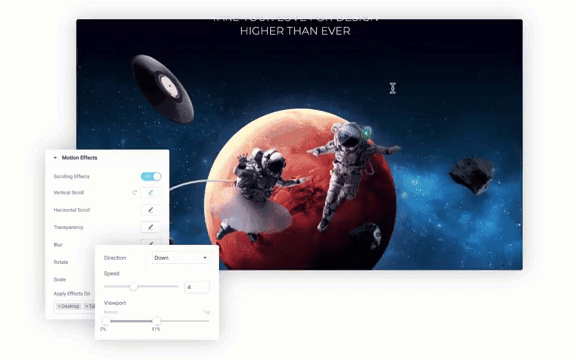
Now, you can easily customize each effect to match your needs. Just click the pencil icon, and a settings panel will open with all the controls.
From there, you can fine-tune the direction, speed, and viewport, deciding exactly when the animation begins and when it ends.
You can also set the viewport scale to specify at which point of the scroll the effect should start and at which point it should stop.
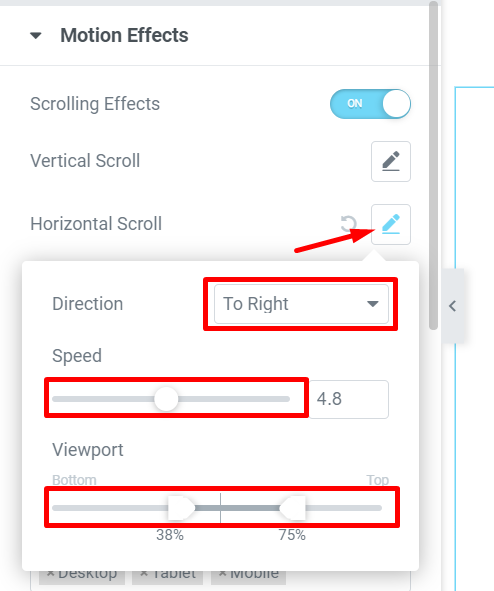
For example, here, I apply the Horizontal Scroll effect by clicking the pencil icon on the Horizontal Scroll option to make such a
- Direction: Right
- Speed: 4.8
- Viewport (top): 38%
- Viewport (bottom): 75%
Pro Tip: For a more dynamic look, you can combine multiple animations on a single element. This step is totally optional and mainly depends on your entire site design. However, multiple parallax animation helps you to create layered effects that stand out.
Step 5: Enable Mouse Effect for web element
Now, you need to enable mouse-based parallax so that the element moves slightly when you move the cursor.
First, enable mouse effect and with the pencil icon, customize and adjust the mouse track and 3D tilt.
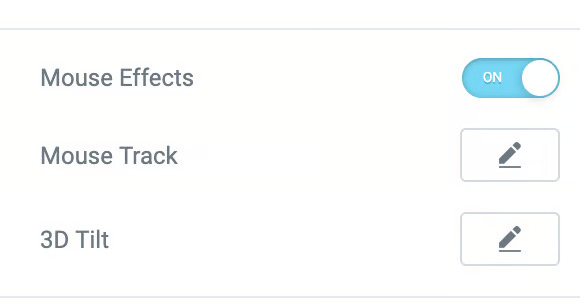
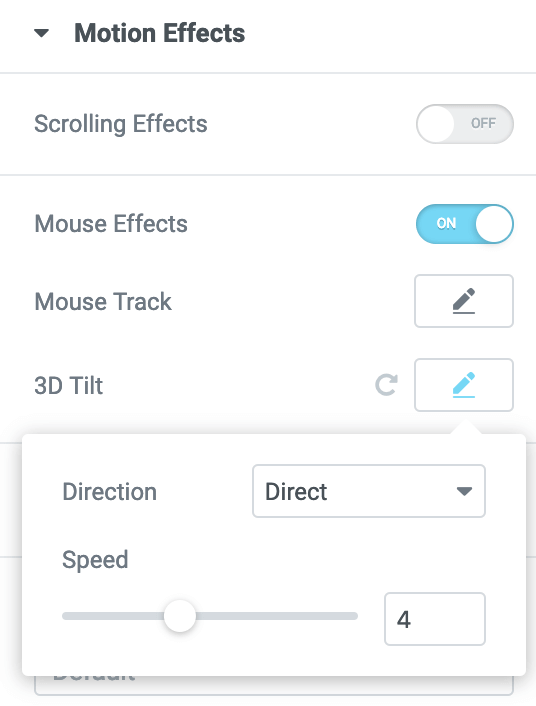
For example, for the 3D tilt effect, I’ve set the adjustments below:
- Direction: Direct
- Speed: 4
Step 6: Apply Parallax on Different Devices
Now time to respond to the parallax effect on different devices, like desktop, tablet, and mobile. Make adjustments if necessary so your parallax works smoothly on all devices.
Finally, here’s the final output of the web element parallax effect:
2. Create Parallax Effect on Site Background
Another popular way to add parallax in Elementor is by applying it to the background of a section. This makes your page feel more dynamic, as the background moves differently compared to the foreground content. It’s a simple but effective way to bring your design to life. Follow these steps to set it up:
Step 1: Select the Background Section
First of all, you need to choose the section where you want the parallax effect to appear. This could be your hero banner, a featured area, or any section that you want to highlight.
Step 2: Open Motion Effects or Mouse Effects Settings
Then, go to the Advanced tab and find the Motion Effects panel. Here you can enable either scrolling effects or mouse effects, depending on the style you want.
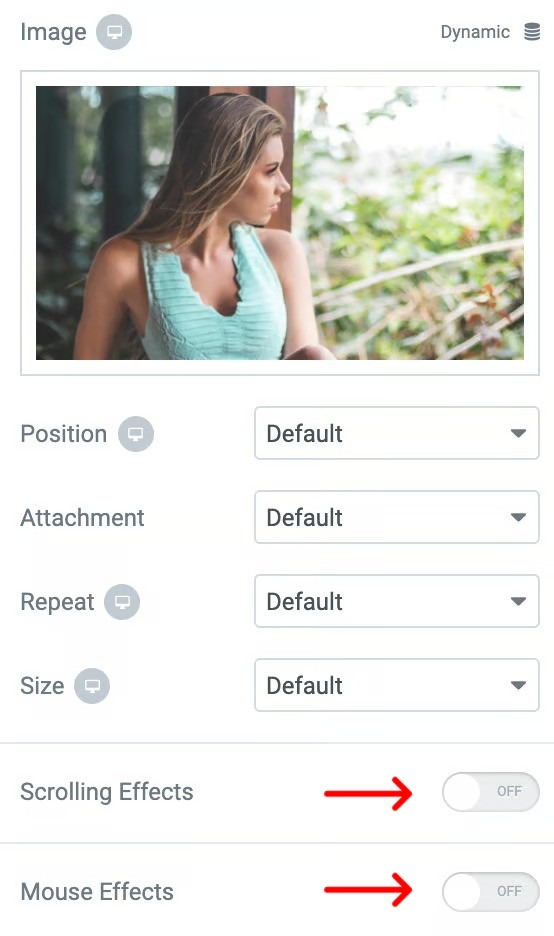
Step 3: Adjust the Parallax Animation Style
Now, you need to adjust the animation style. So, start by opening the Style tab. Upload your background image, then customize how it moves by adjusting the direction, speed, and intensity of the effect until it fits smoothly with your design.
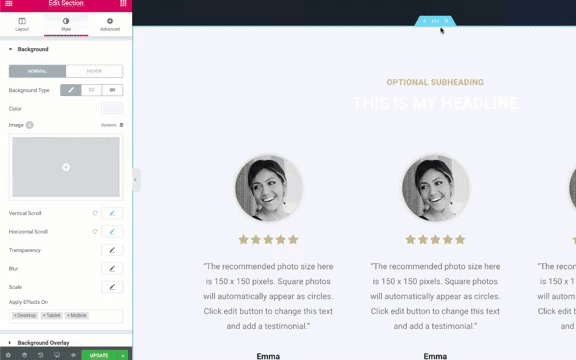
Here, you can choose between 2 different effects that you can apply to your background layer, like the scrolling effect with the mouse effect.
Step 4: Enable Mouse Effects for background
After adjusting the scroll effect, turn on mouse-based parallax so the background responds to cursor movements. This adds an interactive feel for visitors. So, use the pencil icon to customize and fine-tune the mouse track.
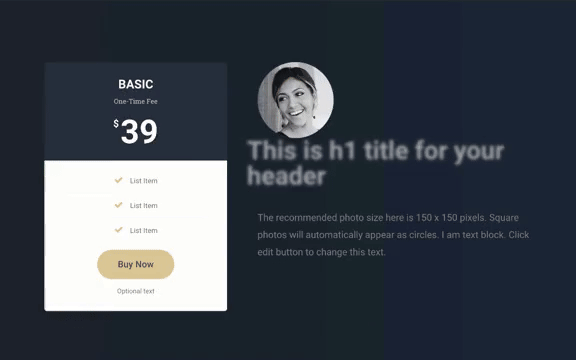
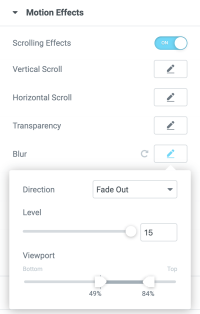
For example, here I have configured the blur effect,
- Direction: Set to Fade Out, meaning the element will gradually blur as it exits the viewport.
- Level: 15
- Viewport Range: Between 49% and 84%, we set when the effect starts and ends based on the user’s scroll position.
Step 5: Test Across Devices
Now it’s time to check how the parallax effect behaves across different devices, desktop, tablet, and mobile. Make adjustments as needed to ensure the animation runs smoothly and looks great everywhere.
And here’s the final result of the background parallax effect:
Note: Do you want to more style the parallax effect to match your brand?
These are the two most common ways to add parallax effects in Elementor. However, if you want more advanced effects like advanced parallax sections, tilt effects, or advanced 3D parallax, Elementor itself doesn’t provide these features by default. For this, you’ll need to use an Elementor parallax effect plugin.
Here, you’ve to buy Element pro to add parallax effect on your site. But, what if you can add more advanced parallax even with a cheaper cost?
That’s what we come up with Element Pack Pro as one of the best Elementor addon options. Along with 4 different widgets for parallax effect, this plugin comes with other 300+ Elementor widgets.
So, even if you’re not an expert or unsure which parallax style fits your website best, you can simply explore the demo designs and pick the one that works perfectly for your site.
Create Advanced Elementor Parallax Effect with Element Pack
Elementor Pro offers basic parallax-like effects, like Motion Effects, Transform & Scale, and Sticky Elements.
If you want to go beyond Elementor’s basic parallax options, the Element Pack plugin is a great choice. It gives you access to more advanced parallax backgrounds, with tilt effects, advanced 3D parallax, and pre-made blocks, so you can create professional designs.
So let’s get started, how to create an advanced Parallax Effect in Elementor with Element Pack step by step:
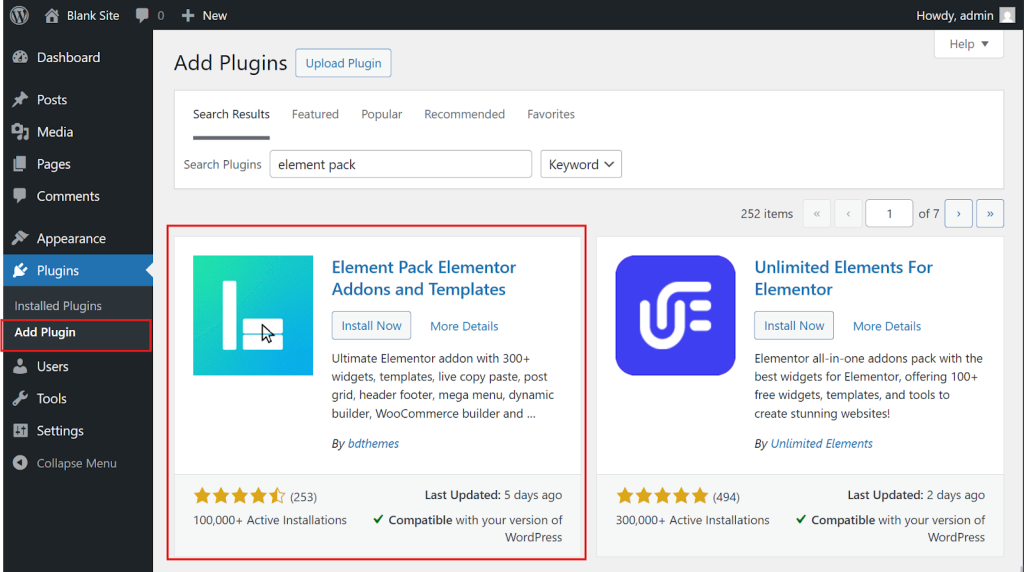
Step 1: Install and Activate Element Pack
First of all, install the Element Pack plugin on your WordPress site, then activate it.
Note: First, install the Elementor free on your site and then install Element pack.
Step 2: Active Parallax Widgets
Then, go to Element Pack Dashboard > Extensions > Active Parallax Effect related extension as needed, like
- Background Image Parallax
- Parallax/Scrolling Effects
- Section Image Parallax
- Scroll Fill Effect
- Animated Gradient BG
- Cursor Effects
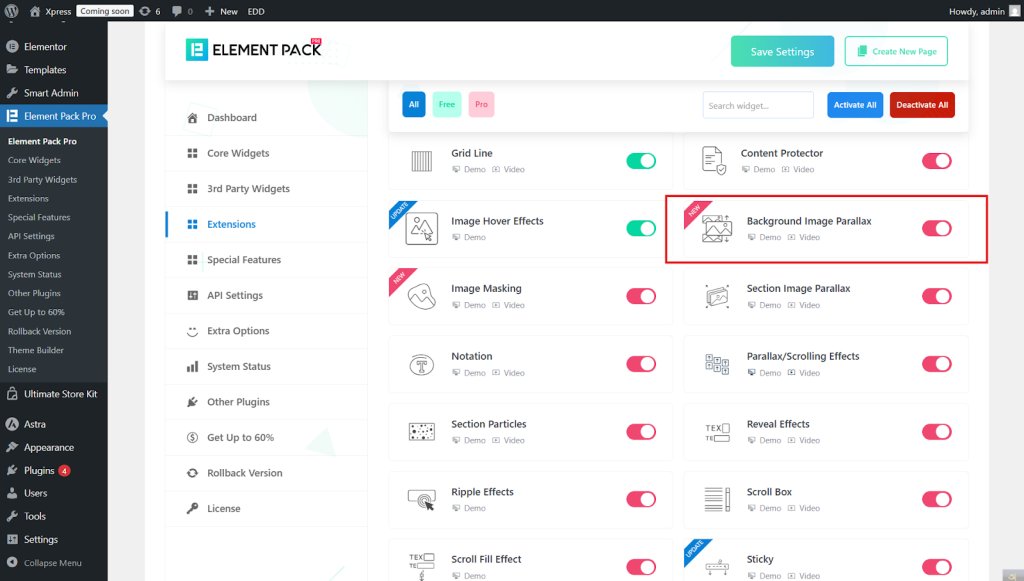
There are lots of options, so you can easily enable further custom features to enhance your parallax effects.
Step 3: Open the Elementor page
Now, choose the page where you want to add the parallax effect and click Edit with Elementor.
Step 4: Choose an Element to Add Parallax
To add a parallax effect in the background, first, enable the background parallax effect, select the section, and go to Style > Background, and switch on the BG Parallax Effect.
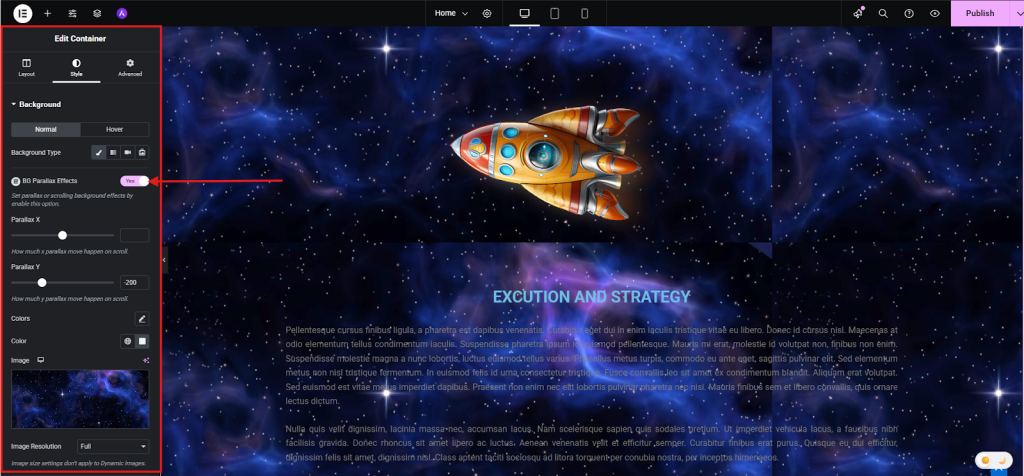
Then, adjust the scroll movement using Parallax X and Parallax Y as needed.
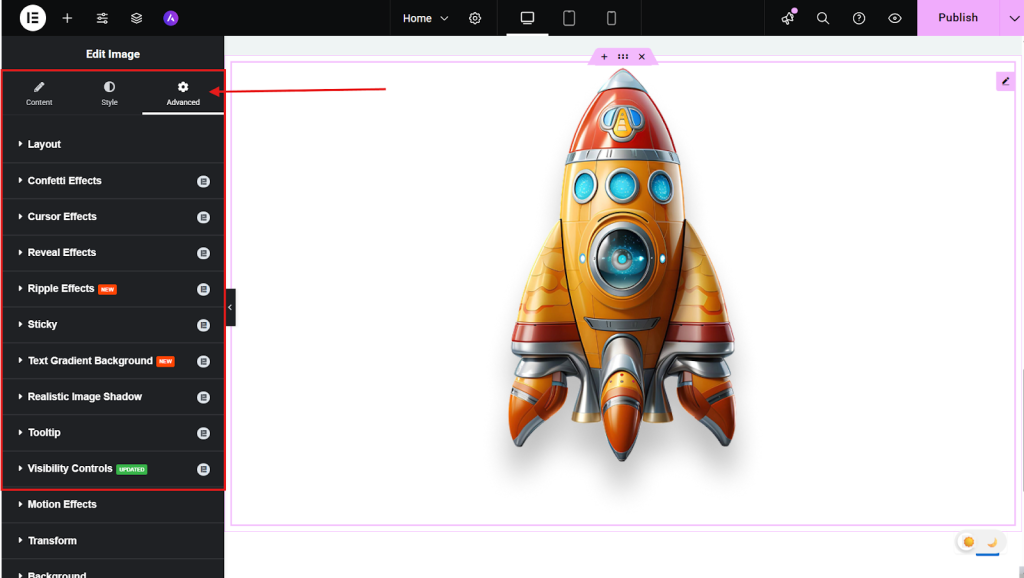
Now, choose another sub-section, column, or widget where you want to apply the parallax effect, and then go to Advanced.
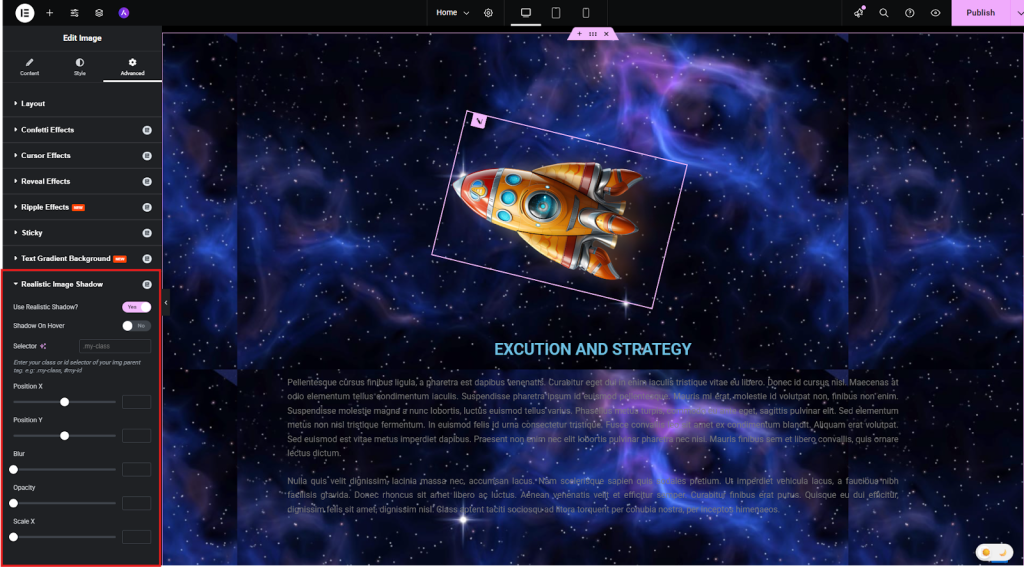
Step 5: Customize the Parallax Settings
Now, in the Advanced tab, you will get many customization sections like
- Confetti Effects
- Cursor Effects
- Reveal Effects
- Ripple Effects
- Sticky
- Text Gradient Background
- Realistic Image Shadow
- Tooltip
- Visibility Controls
- Sound Effect.
From using sections, adjust speed, direction, trigger options, and animation style. With Element Pack, you can even layer multiple elements to create advanced 3D or tilt effects.
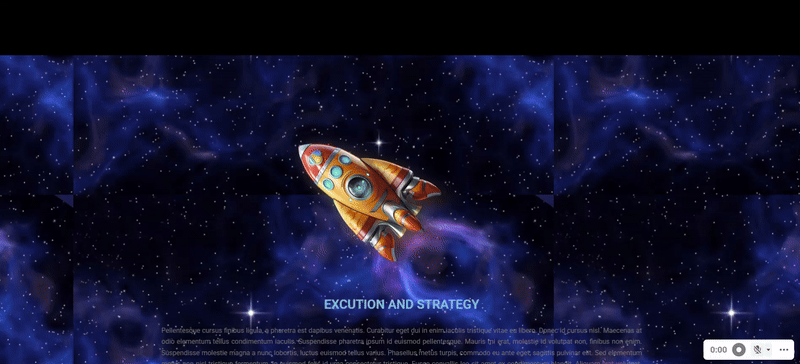
For Example, here I add “Realistic Image Shadow,” which adds a lifelike shadow beneath the image of a stylized cartoon rocket ship. This effect gives the graphic a sense of dimensionality, making it pop off the page.
Then, I adjust the scroll movement using Parallax X and Parallax Y as needed.
Step 6: Use Ready-Made Parallax Blocks (Quick way)
If you don’t want to build from scratch, choose from the pre-designed Parallax Effect ready blocks included in Element Pack. Just navigate to the Element Pack template library inside your Elementor editor.
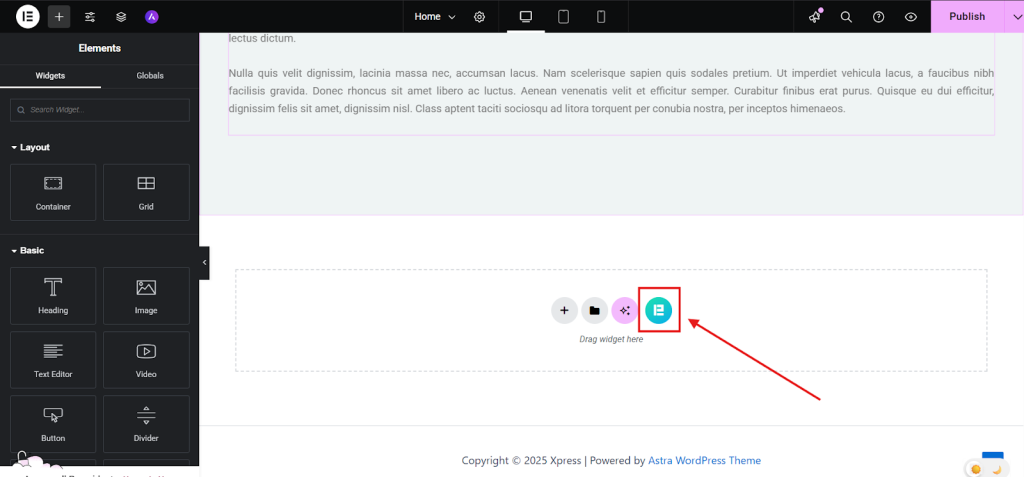
Now, look through the available pre-designed parallax sections until you find one that fits your design.
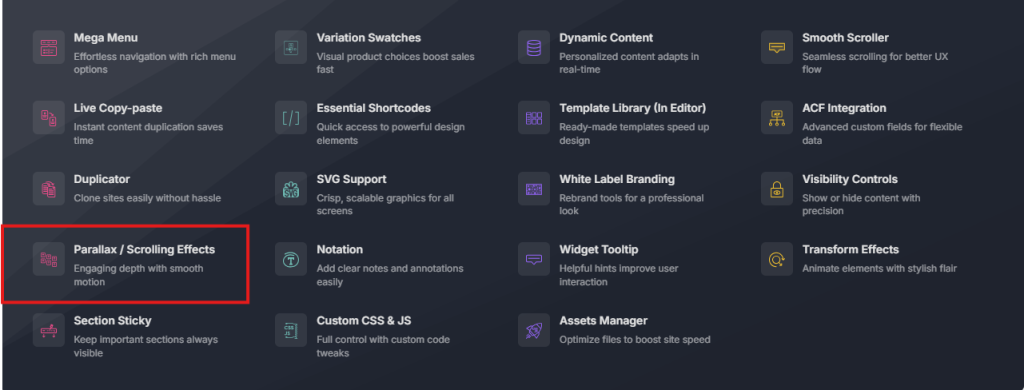
Then, hover over the block you want and click Live Copy to copy the layout and effects.
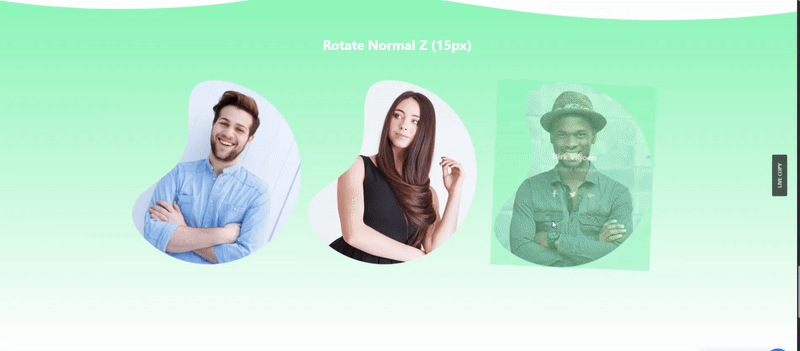
Now, go to your Elementor canvas and paste the copied block into the desired section or container.
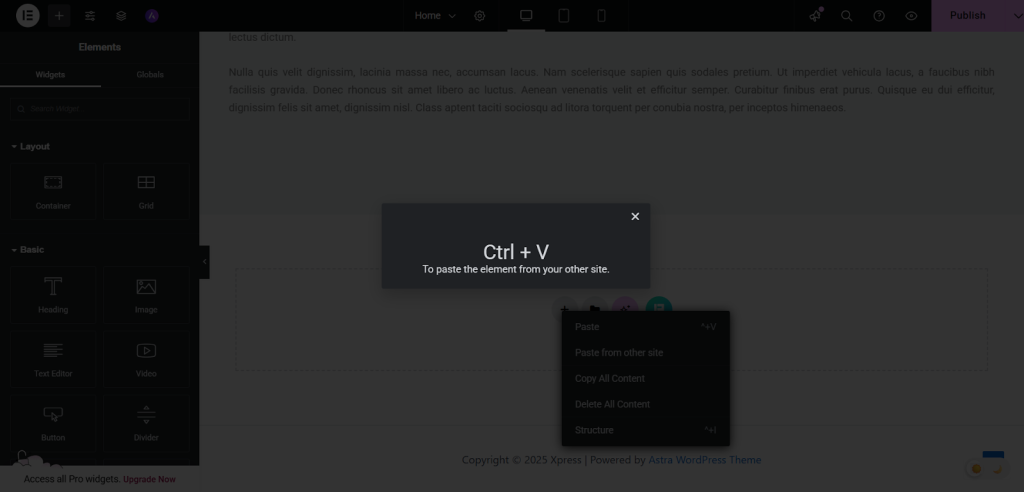
Then, replace placeholder text, images, and links with your own content to match your brand.
Now, from style, change fine-tune colors, typography, and parallax settings to align with your site’s aesthetic.
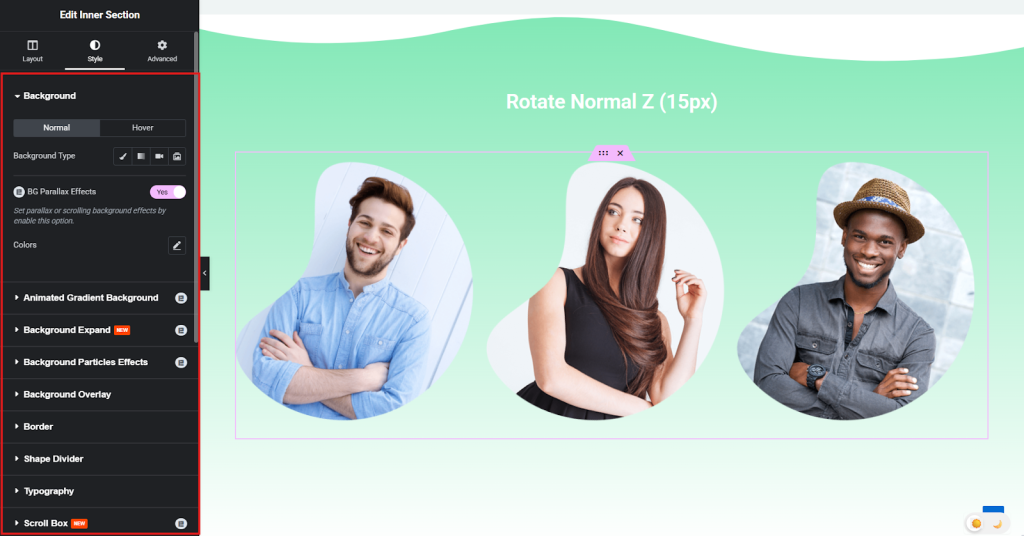
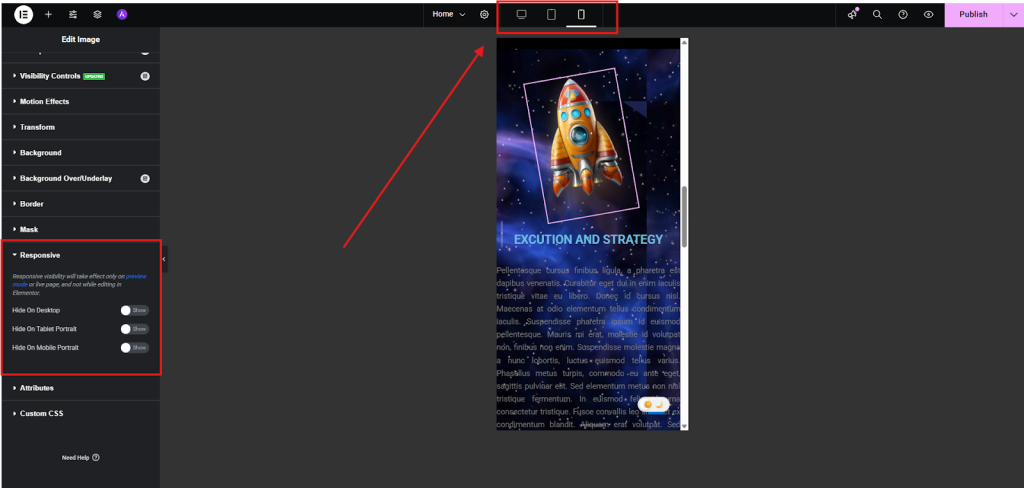
Step 7: Optimize for different Devices
Now, test your parallax effect on desktop, tablet, and mobile to the Responsive option and make sure it looks smooth everywhere.
And here is the final result of the parallax effect created with the Element Pack:
When you build parallax effects directly with Elementor Pro, you get the basics. But with Element Pack, you unlock far more flexibility.
Instead of being limited to standard motion, you can layer animations, control scroll speed, and even mix parallax, like Confetti Effects, Cursor Effects, Reveal Effects, Ripple Effects, and many more advanced functions that Elementor Pro doesn’t offer.
That means you’re not just adding “movement” to a section; you are creating a fully interactive experience, even though you are a non-developer.
Best Practices for Parallax Effect Design Using Elementor
Parallax effects can make your website look modern, engaging, and visually appealing. But to get the best results, you need to use them wisely. Here are some best practices to keep in mind:
1. Protect Readability
Your content should always come first. If text sits on top of a parallax background, check the contrast. If the background is too busy, use overlays or blurred effects.
Example: Sometimes parallax effects create blurriness in text content. So when using any content on a parallax display, make sure that the content is clearly visible.
2. Match the Brand’s Personality
The style of parallax should feel consistent with your brand. A wellness spa might use a slow, calming scroll effect, while a gaming site might use faster, more dynamic movements.
Example: Suppose, on a luxury hotel website, slow-moving waves in the background echoed the relaxing vibe of the seaside location, in perfect alignment with the brand story.
3. Avoid Animation Overload
If your site is packed with sliding, fading, and zooming elements, adding multiple parallax effects just adds noise. Stick to one or two moments where parallax makes sense, like a hero banner or a product showcase.
Example: You’ll notice that Apple’s product pages often use very little parallax, usually highlighting a single product feature as they scroll. That’s all it takes to keep visitors engaged.
4. Watch Performance
Animations + large images = slower load times. Always test performance after adding parallax. If your site feels sluggish, compress images, use lazy loading, or scale back the effect.
Pro Tip: Run your site through PageSpeed Insights or GTmetrix after adding parallax. If you see red flags, optimize before going live.
Elementor Parallax Effect Not Working – Issues & Fix
Sometimes, the parallax effect in Elementor may not work as expected. This can happen due to settings, theme conflicts, or even device restrictions. Here are the most common issues and how to fix them:
1. Motion Effects Not Enabled
If the parallax isn’t working, first check whether Motion Effects are enabled for the section, column, or widget. Go to Advanced > Motion Effects and ensure scrolling or mouse effects are turned on.
3. Theme or Plugin Conflicts
Sometimes your theme or another plugin may override Elementor’s scripts. Try disabling other plugins one by one, or switch temporarily to a default theme like Hello Elementor to test.
4. Browser or Device Limitations
Parallax effects may not always appear the same on mobile or certain browsers. Check the Responsive Settings in Elementor to confirm the effect is allowed on tablets and mobiles.
5. Caching and Performance Issues
Browser cache, CDN, or optimization plugins might block animations from running. Clear your cache, purge CDN, and recheck the site.
Frequently Asked Questions
How to create a parallax effect in Elementor?
To create a parallax effect in Elementor, open the page with Elementor, select the section or element, go to Advanced > Motion Effects, and enable Scrolling Effects or Mouse Effects. Customize the speed and direction to get the desired effect.
How to add a parallax effect in WordPress?
You can add parallax in WordPress either by using Elementor Pro (which has basic parallax options) or by installing a dedicated plugin like Element Pack. This plugin usually offers more advanced styles, such as multi-layer or 3D parallax.
How to apply the parallax effect?
Applying a parallax effect simply means making the background or elements move at a different speed than the rest of the content. In Elementor, you can do this from the Motion Effects settings under the Advanced tab.
How to add a scrolling effect in Elementor?
In Elementor, select your section, column, or widget, then go to Advanced > Motion Effects. Turn on Scrolling Effects and adjust the direction, speed, and animation style to create a smooth scrolling-based parallax effect.
Final Thoughts
Parallax effects can add personality, realism, and movement to your website. But only if you use them with purpose. You should keep it subtle, protect readability, and always test across devices so your design feels smooth everywhere.
Elementor gives you the tools to get started, but if you really want to push your creativity further, Element Pack takes those possibilities to the next level. With its extra parallax effect functions like Confetti Effects, Cursor Effects, Equal Height, Image Parallax, Sticky, Tile Scroll, Visibility Controls, and many more advanced motion options, you can craft designs that don’t just look good; they feel memorable.
At the end of the day, it’s not about adding effects for the sake of it. It’s about creating an experience that feels natural for your visitors. And when you get that balance right, parallax becomes one of those little details that make your site stand out.
Md Tarikul
The BdThemes team builds WordPress plugins trusted by 3M+ users worldwide. We write about web accessibility, WCAG compliance, and inclusive design.