












Building a consistent and professional-looking website with Elementor can be time-consuming, especially when recreating the same widget on multiple pages. If it’s a call-to-action, a contact form, or a pricing table, repeating design elements slows down your workflow and introduces inconsistency.
That’s where Elementor global widgets come in. They let you create a global widget in Elementor once and reuse it across your site to save time and ensure design consistency.
To create Elementor global widget, go to Elementor page >> select widgets (like buttons, tables, etc). Then, personnaliser the widgets. Right click on the page and hit “save as a global” Add a name of the global widget and under the “Global‘ tab you’ll find all the widgets you created as Elementor global widget.
In this complete Elementor global widget tutorial, including creation, find and uses.
So, let’s dive in.
How to Create a Global Widget in Elementor (5 Steps)
In this tutorial, we’ll walk you through how to create a global widget in Elementor to streamline your design process and reuse essential elements across your site.
Follow these steps to create a global widget in Elementor and start reusing design elements across your website with ease.
Step 1: Design the Widget You Want to Reuse
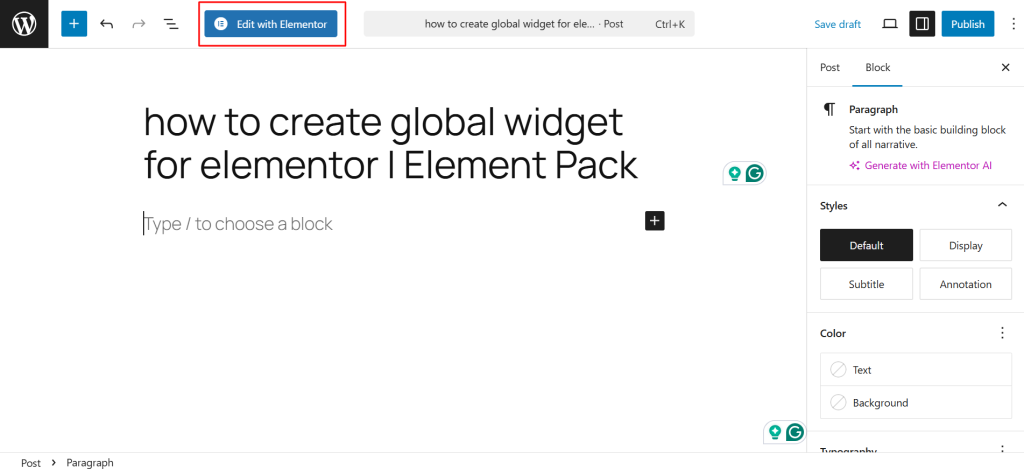
- Open the page in Elementor where you want to design the widget by clicking on Editer avec Elementor.
- Add and customize your desired widget (for example, a button, testimonial, or pricing table).
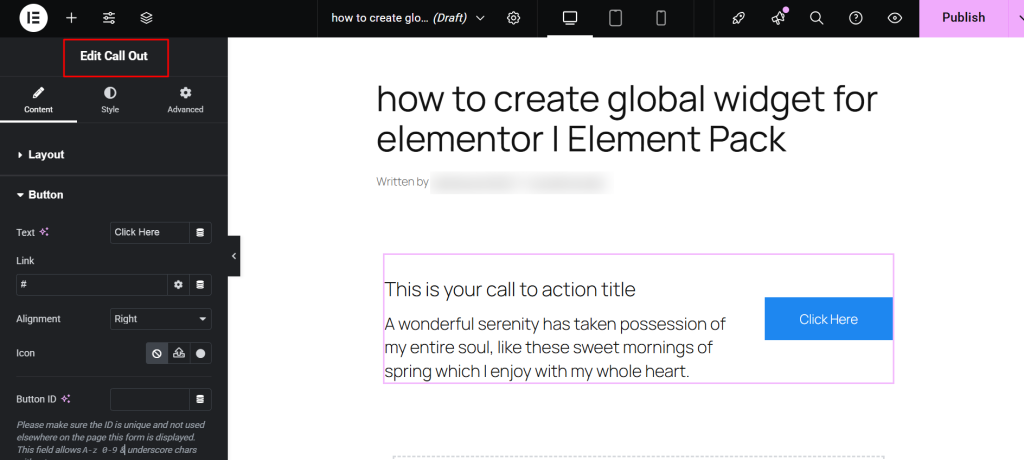
- Make sure the design is final, as this will be reused across your site.
Step 2: Save the Widget as a Global Widget
- Right-click on the completed widget.
- From the context menu, select Save as a Global.
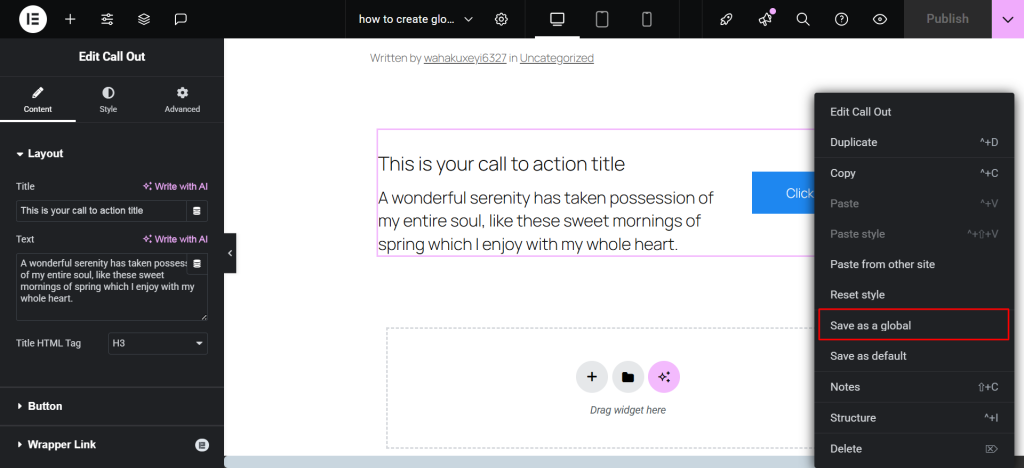
- Give your widget a descriptive name that helps you recognize it later (e.g., “Homepage CTA Block”).
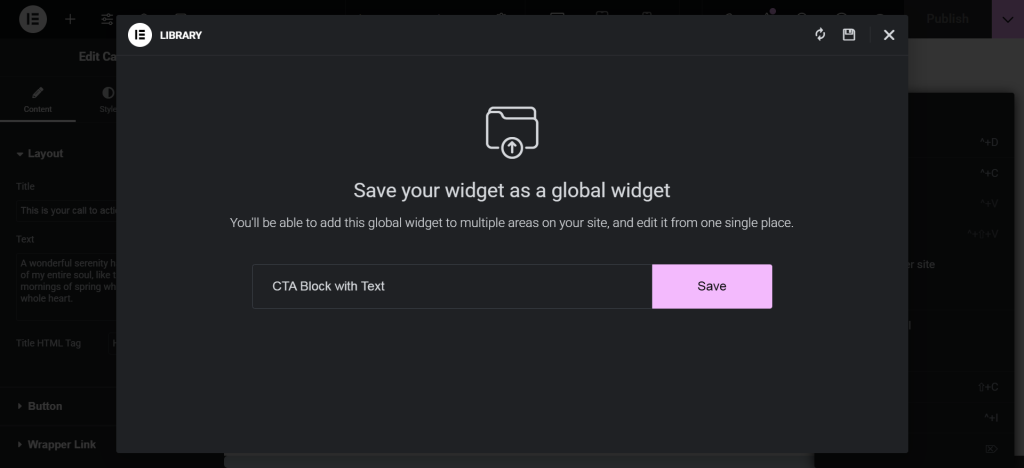
- Cliquez sur Save bouton.
Step 3: Access the Global Widget
- Navigate to a different page or section where you want to reuse the widget.
- Open the Elementor editor, then go to the Globals tabulation.
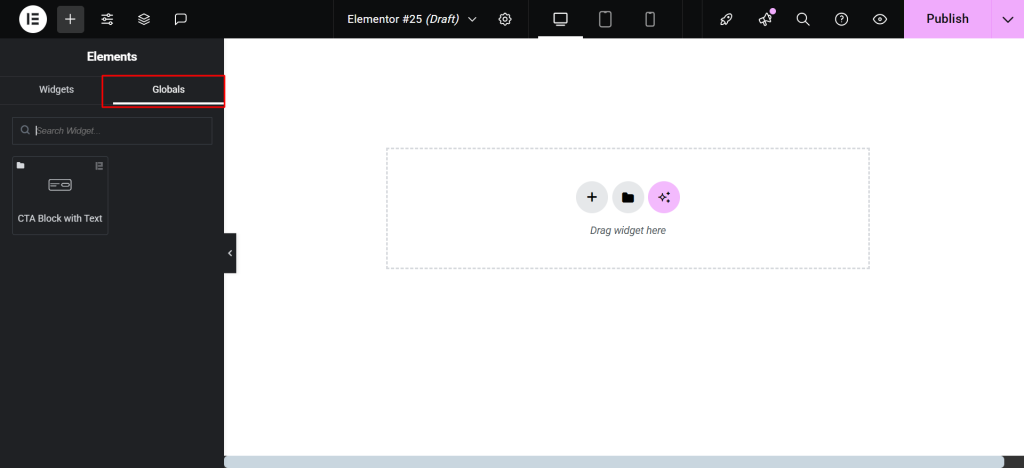
- Drag your saved global widget into the page layout.
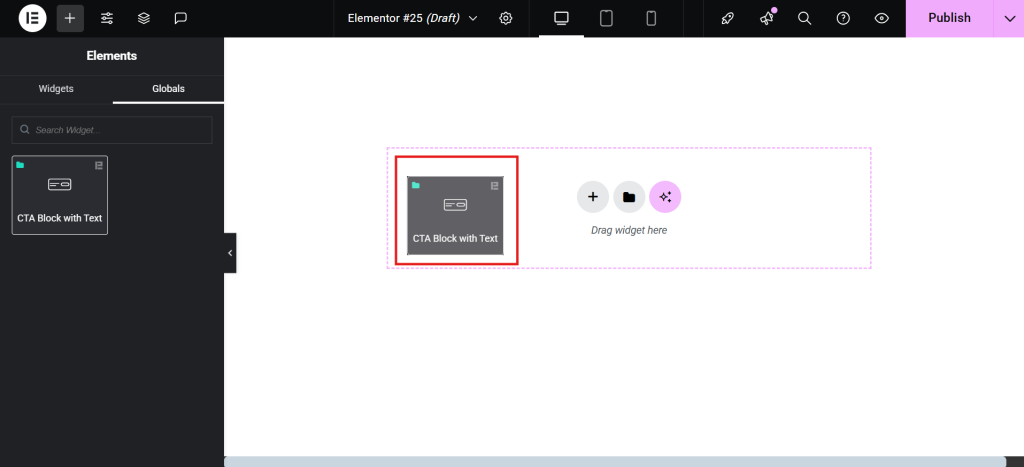
Step 4: Manage and Edit the Global Widget
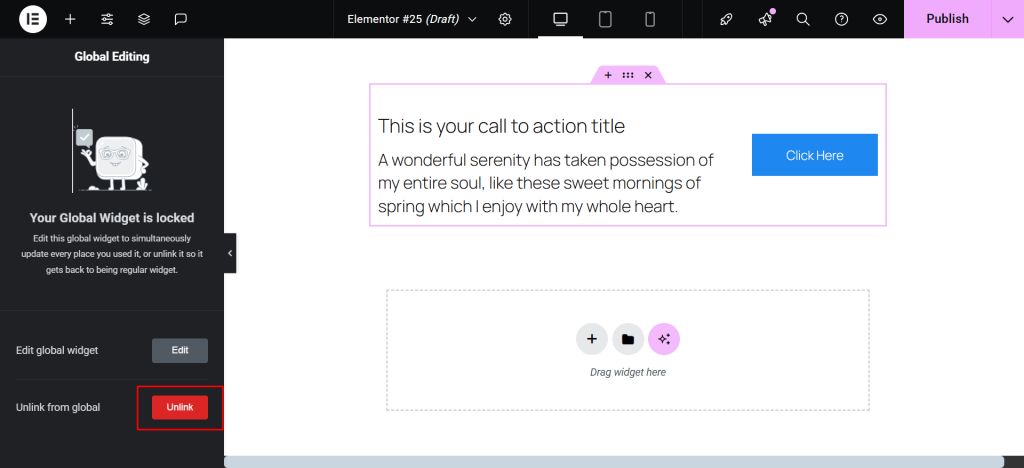
- To edit the widget globally, click the Edit Global Widget option.
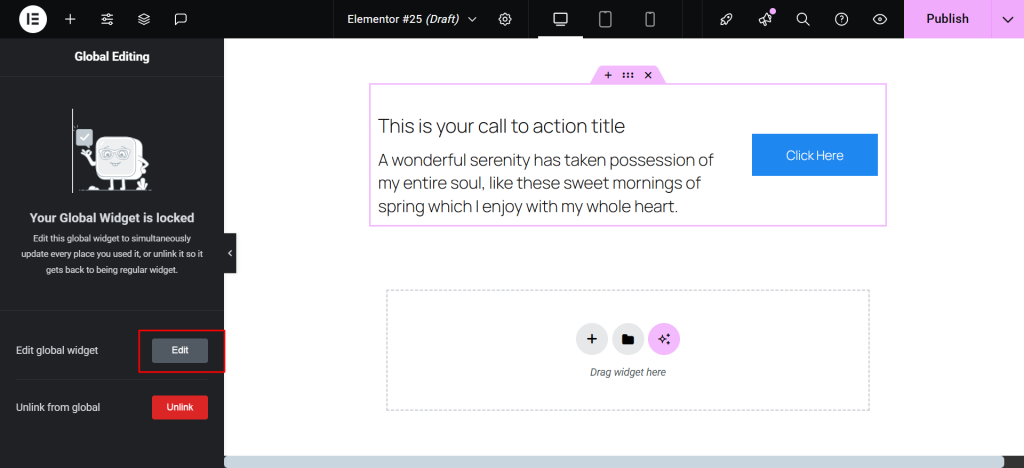
Any changes made here will update every instance of the widget sitewide.
If you only want to make changes to a specific instance:
- Right-click and select Unlink from global option to convert it back to a regular widget.
Step 5: Reuse the Widget Anywhere on Your Site
- Once saved globally, you can reuse the widget in Elementor as many times as needed.
- Simply drag it from the Global tab into any page or template.
How to Insert and Use a Elementor Global Widget?
Once you’ve saved a widget globally, you can easily insert it into any page or ready template within Elementor. Follow these steps to use Elementor global widgets effectively.
Step 1: Open the Elementor Page
- Navigate to your WordPress dashboard and open the page in Elementor where you want the widget to appear.

- Make sure the Elementor editor is fully loaded before proceeding.

Step 2: Access the Global Widgets Panel
- In the Elementor sidebar, select the Global tabulation.

- If you have multiple global widgets saved in Elementor, use the search bar to find the one you need quickly.

- You’ll see your saved widget listed by the name you assigned during the save process.
Step 3: Drag and Drop the Global Widget Into Your Layout
- Click and drag the global widget from the panel onto your page where you’d like it to appear.

- It will display exactly as it was saved, including all styles and content.

Step 4: Choose Between Elementor Global Editing or Unlinking
- If you want changes made to this widget to reflect everywhere it’s used, click Editer and make your updates. This is editing in global mode.

- If you want to customize it only on this page, right-click the widget and select Unlink.

This will convert it into a regular widget, which can now be edited independently.
Using this method, you can quickly and efficiently reuse widgets in Elementor across your site, saving time and ensuring a cohesive design.
When Should You Use Elementor Global Widgets?
Using global widgets in Elementor offers a range of practical benefits, especially for those building dynamic and scalable WordPress websites. Knowing when to use global widgets in Elementor can help you design smarter and maintain a consistent, efficient workflow across your website.
Below are some of the best scenarios where Elementor reusable widgets really shine.
- Call-to-action sections: Use a global widget for CTAs that appear on multiple pages. Updating text, buttons, or offers in one place ensures consistency across the site.
- Contact forms or bulletin d'information sign-ups: If you use the same form on your homepage, footer, and landing pages, saving it as a global widget makes updates easier and faster.
- Pricing tables: When managing eCommerce or service sites, pricing often changes. A global pricing table lets you adjust it once and apply it everywhere instantly.
- Testimonial blocks: Showcase customer testimonials across various pages using a global widget to maintain visual and content consistency.
- Reusable banners or hero sections: When you want a banner or header to appear on multiple pages—like during a sale or campaign—you can save the widget as global in Elementor and reuse it sitewide.
- Common layout patterns: Use global widgets to store frequently used combinations of text, imageset buttons, making it easy to drop them into any new page.
- Client websites with frequent updates: If you’re managing websites for clients, global widgets allow quick updates without touching every page, reducing maintenance time.
Understanding these situations will help you make better design decisions and improve the efficiency of your WordPress Elementor workflow.
Foire aux questions (FAQ)
What is a global widget in Elementor?
A global widget in Elementor is a reusable design element that you can save once and use across multiple pages. When updated, all instances of the widget reflect the changes automatically.
How do I create a global widget in Elementor?
To create a global widget, right-click on a widget in the Elementor editor, then select “Save as Global.” Name the widget, and it will be saved for future use from the Global section in the panel.
How can I reuse widgets in Elementor?
You can reuse widgets by saving them as Elementor global widgets. Once saved, drag and drop them from the Global panel into any page you’re designing.
What’s the difference between a global and a regular widget in Elementor?
A regular widget is page-specific, while a global widget is stored in your Elementor library and updates sitewide when edited. This makes global widgets ideal for consistent, scalable design.
Can I edit a global widget on just one page?
Yes, you can. To edit a global widget individually, right-click it and select “Unlink.” This converts it into a regular widget, allowing you to make page-specific changes.
Where do I find my saved global widgets in Elementor?
You can find your global widgets in the Elementor panel under the “Global” section. Just drag them into your page layout as needed.
Is it possible to duplicate widgets in Elementor without making them global?
Yes, you can duplicate any widget by right-clicking on it and selecting “Duplicate.” However, duplicated widgets are not synced—changes won’t reflect across other pages like global widgets.
Conclusion
Creating a Elementor global widget is one of the smartest ways to enhance your website design workflow. By saving and reusing elements like CTAs, pricing tables, and forms, you not only save time but also maintain design consistency across your site.
Want to take your designs even further? Explore what Element Pack Pro has to offer. With its rich set of advanced widgets and extended functionality, it’s the perfect toolkit to elevate your Elementor website design to the next level.

