



Introduction
You found a beautiful HTML template online and you want it on your WordPress site. But static HTML code does not play well with WordPress out of the box. You need a way to bring that design into your page builder so you can edit it visually, reuse it and manage it like any other WordPress page.
This is exactly where learning how to convert HTML to Elementor becomes valuable. Elementor is the most popular WordPress page builder and once your design lives inside it as a template, you gain full drag-and-drop control over every section, button and image.
In this guide, you will learn the complete process of converting an HTML website to WordPress Elementor, from preparing your files to saving your finished design as a template you can reuse across your site. You will also see how Element Pack widgets make rebuilding your layout faster and more flexible than ever.
How to Convert an HTML Template to an Elementor Page Template
Converting your design does not mean copying and pasting raw code into Elementor. The process works best when you treat your original HTML template as a visual reference and rebuild the same look using Elementor widgets. This approach gives you a fully editable, lightweight and WordPress-friendly result. Follow these four steps to convert your HTML template to an Elementor page template.
Step 1: Prepare and Enqueue Your HTML Assets
Before you touch Elementor, take a closer look at your original HTML file. Open it in a code editor and identify the key building blocks of the design.
- Note the fonts, colors and spacing used throughout the template
- Identify any custom CSS files or styles that give the template its unique look
- Locate the images, icons and media files used in the design and save them to your computer
- If your template uses custom CSS or JavaScript, you can enqueue these files in your WordPress theme so the styling carries over into your new page
- Organize all your assets in one folder so you can upload them to your WordPress media library quickly during the rebuild
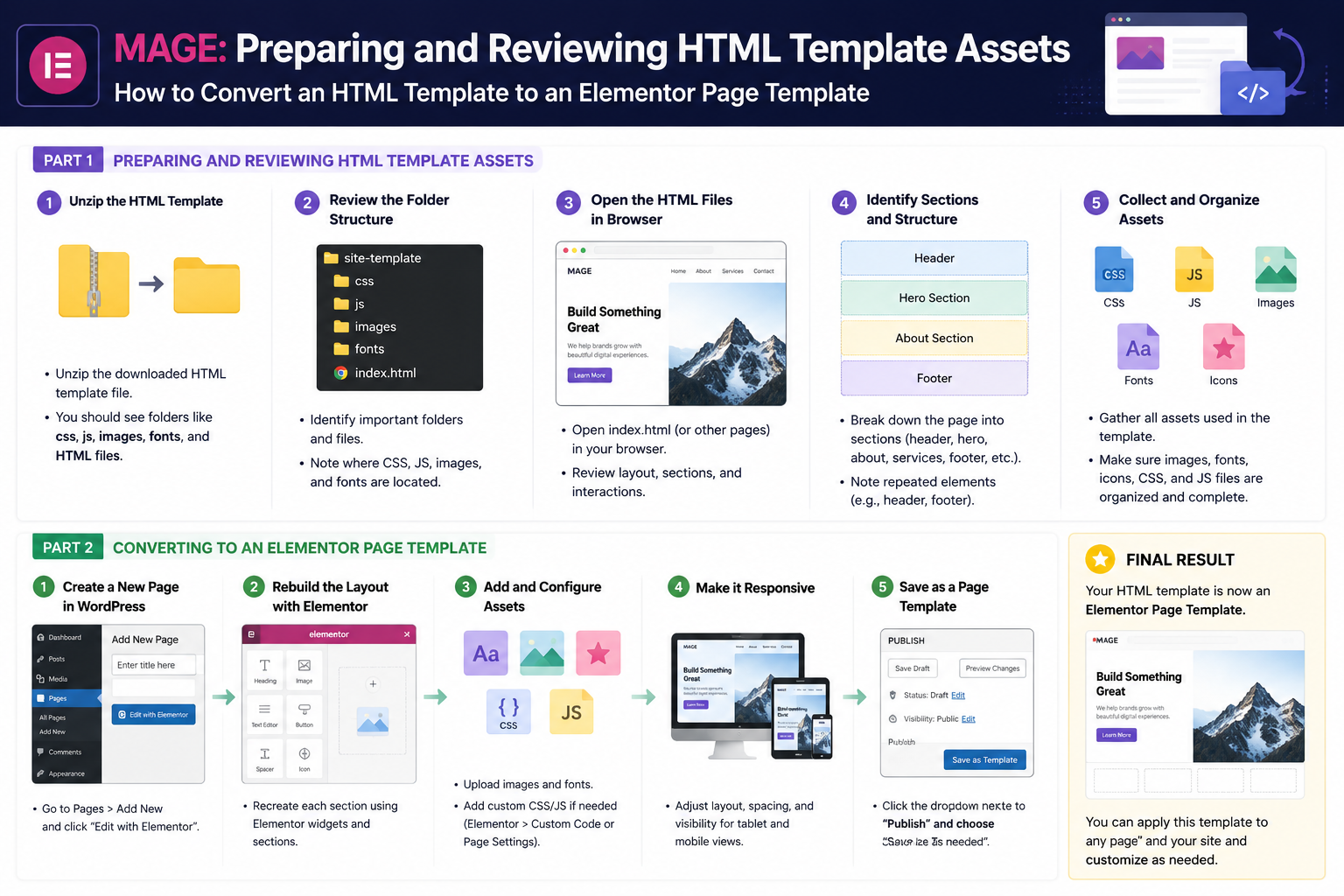
This preparation step saves you time later. When every image, font and color value is ready to go, the actual rebuild inside Elementor moves much faster.
Step 2: Create a Clean, Blank WordPress Canvas
Now you need a fresh page inside WordPress where you will recreate your design.
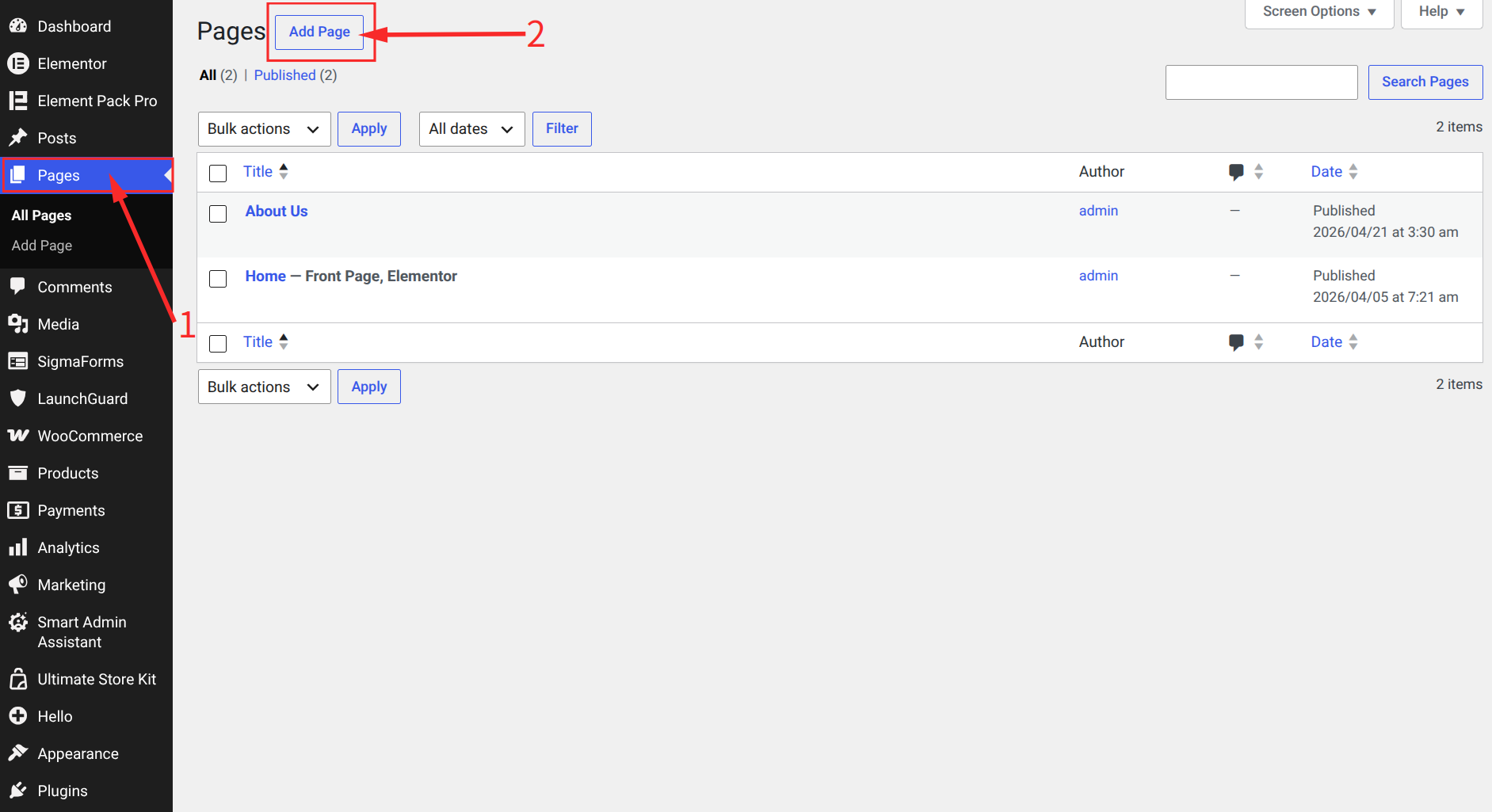
- Go to your WordPress Dashboard and navigate to Pages, then click Add New
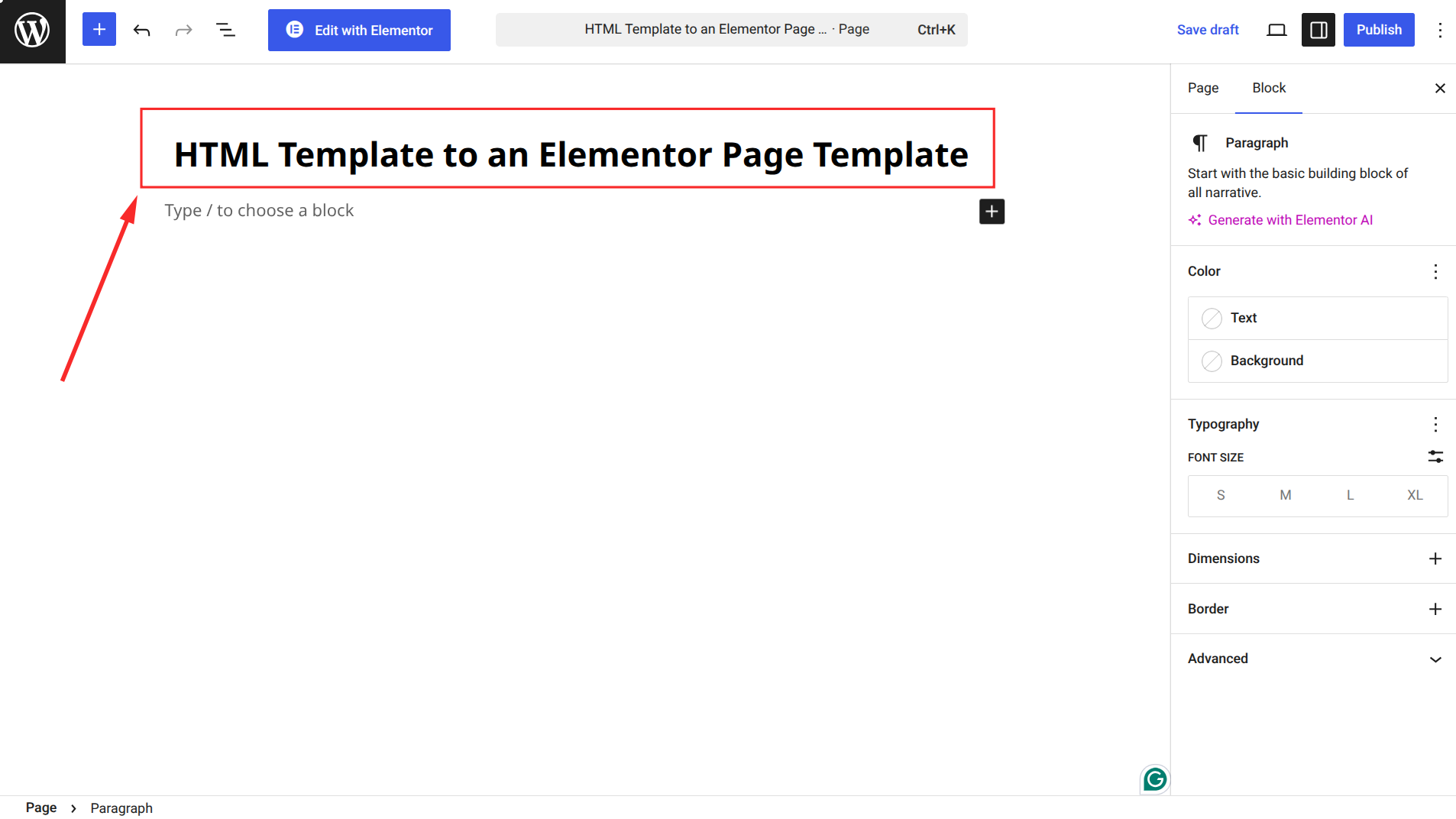
- Give your page a clear, descriptive name that matches the template you are recreating
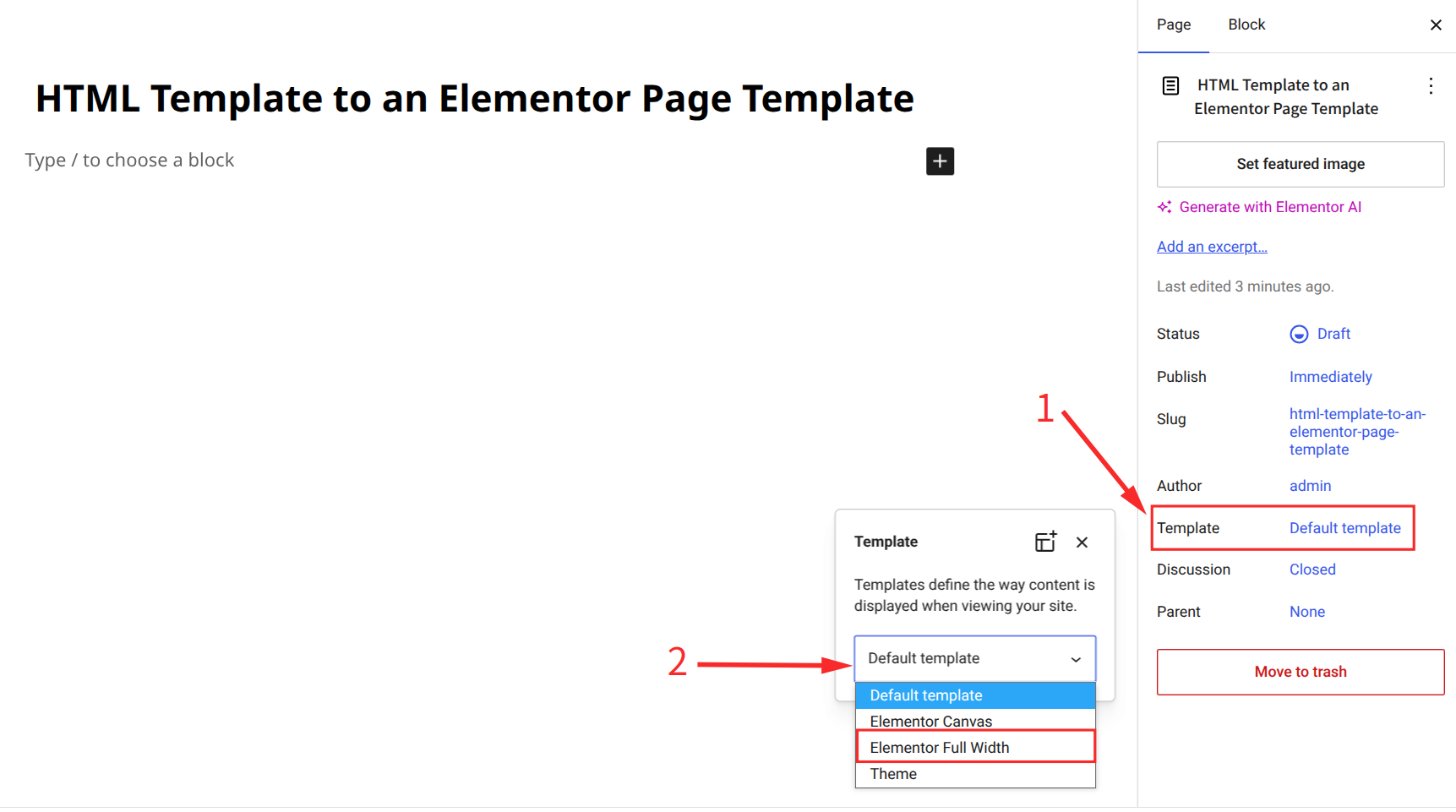
- Select a blank canvas page template from the Page Attributes panel if your theme offers one. This removes the header and footer, so you get a true blank slate
- Click Edit with Elementor to open your blank page inside the Elementor editor
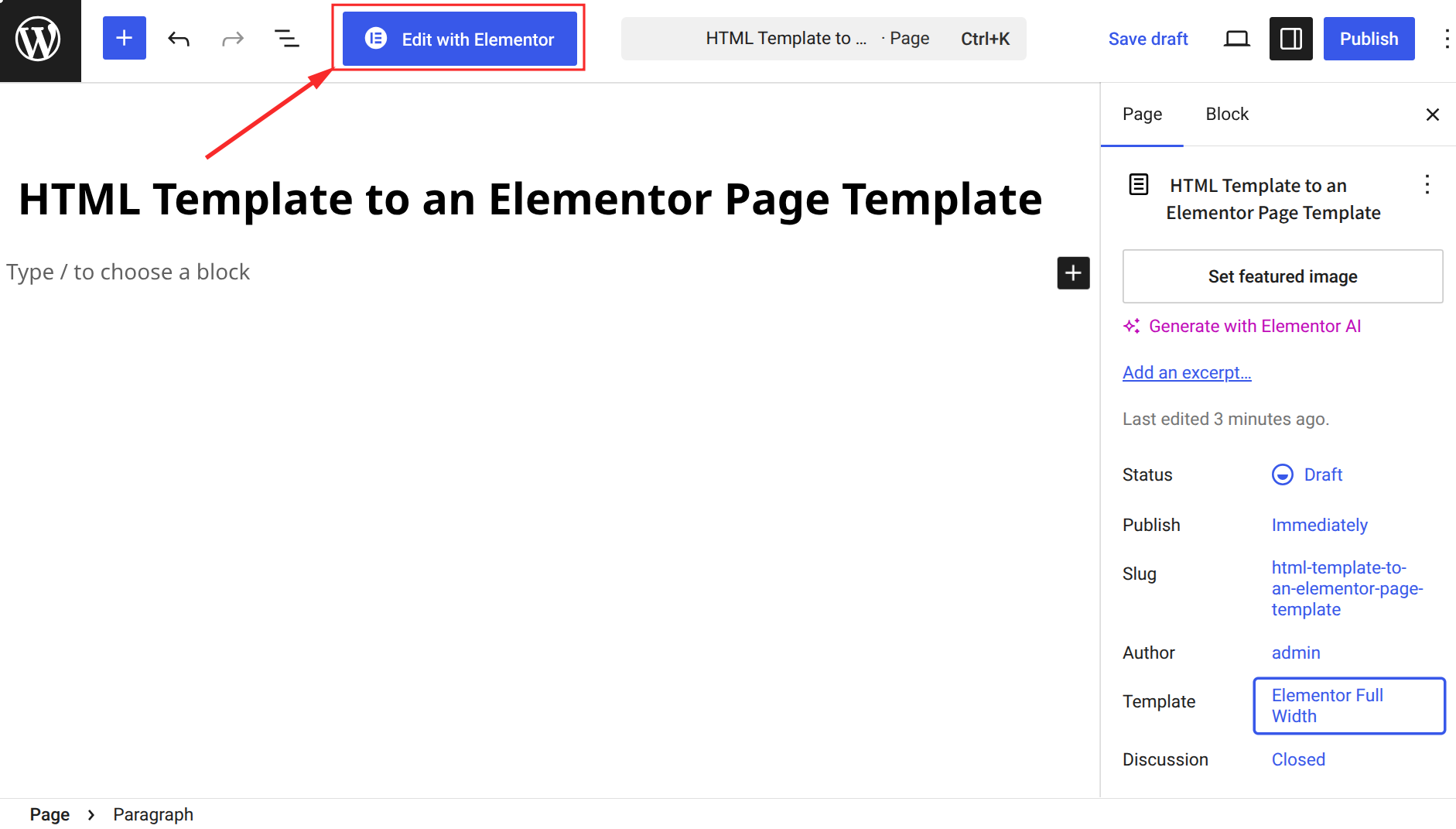
A clean canvas matters because it prevents your theme styles from clashing with the design you are about to rebuild. Starting blank gives you full creative control over every pixel.
Step 3: Rebuild Layouts and Replicate Structure in Elementor
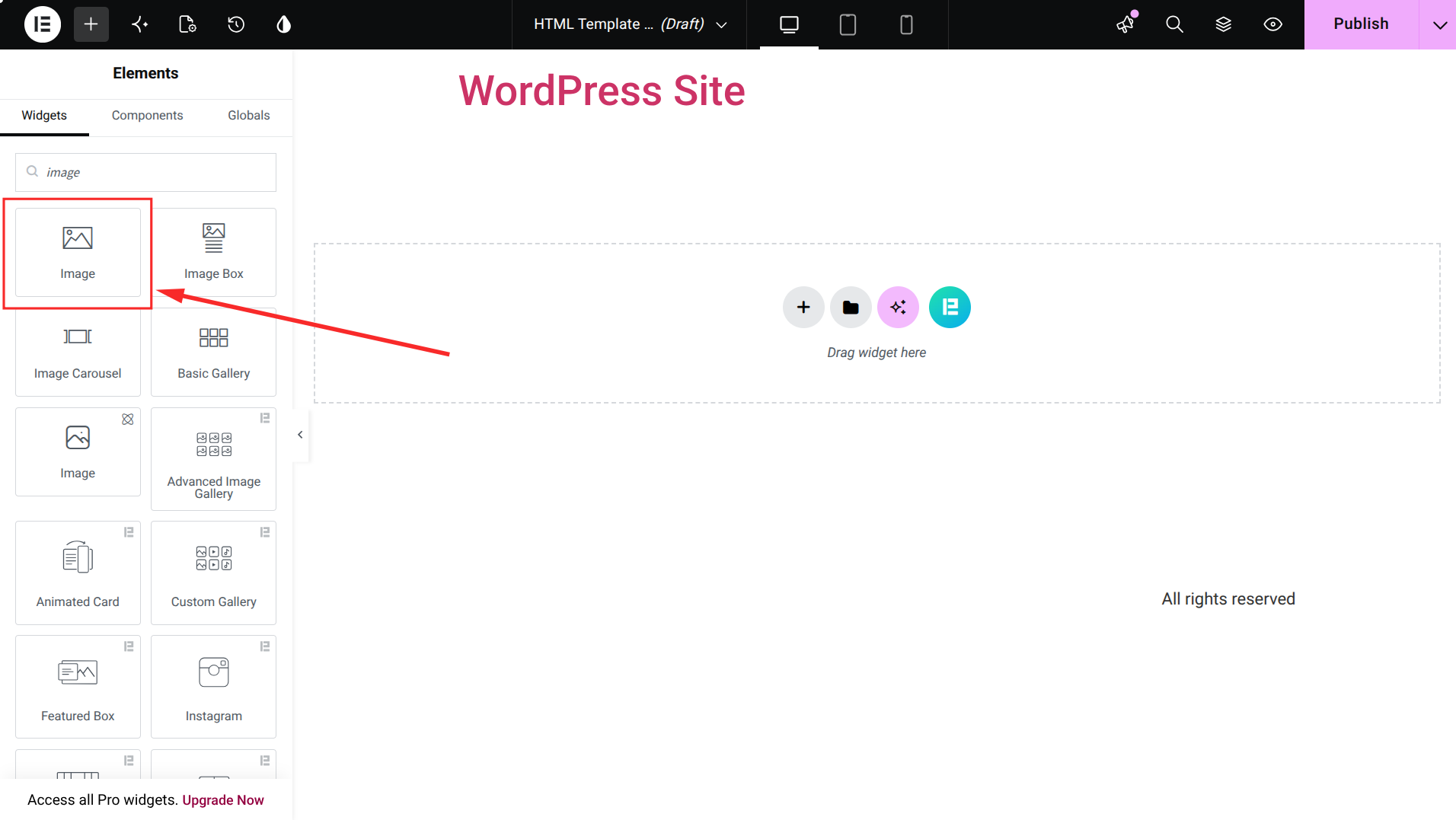
This is the core of the conversion process. You will use Elementor sections, columns and widgets to recreate the exact layout of your original HTML template.
- Add a new section in Elementor and set the column structure to match your HTML template layout
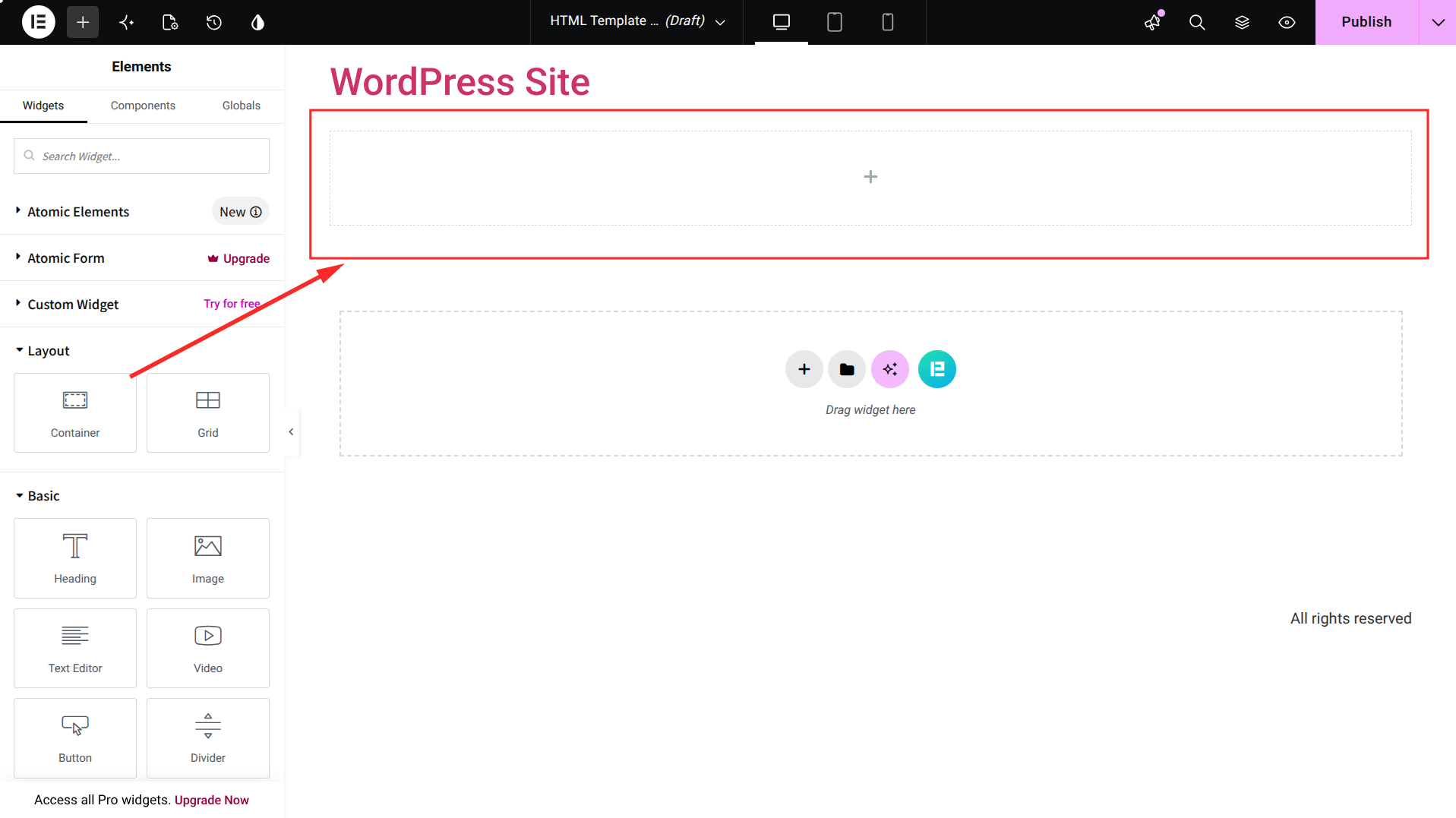
- Use the Heading widget to recreate titles and the Text Editor widget for paragraphs
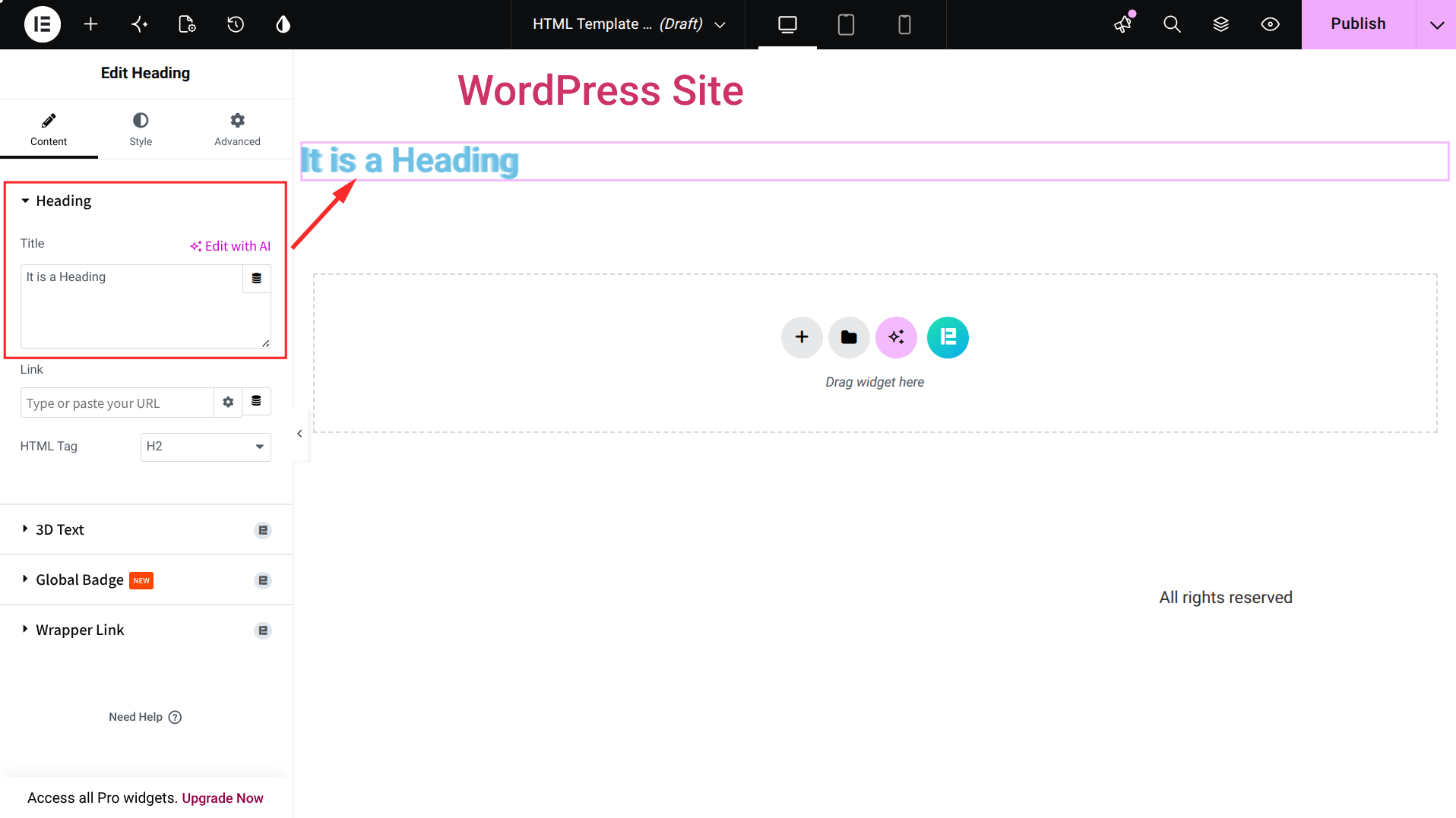
- Upload your saved images through the Image widget to match the visuals from your original template
- For more advanced layouts like sliders, advanced buttons, scroll navigation, or interactive sections, use Element Pack widgets. These widgets are built specifically to replicate complex HTML design patterns without writing custom code.
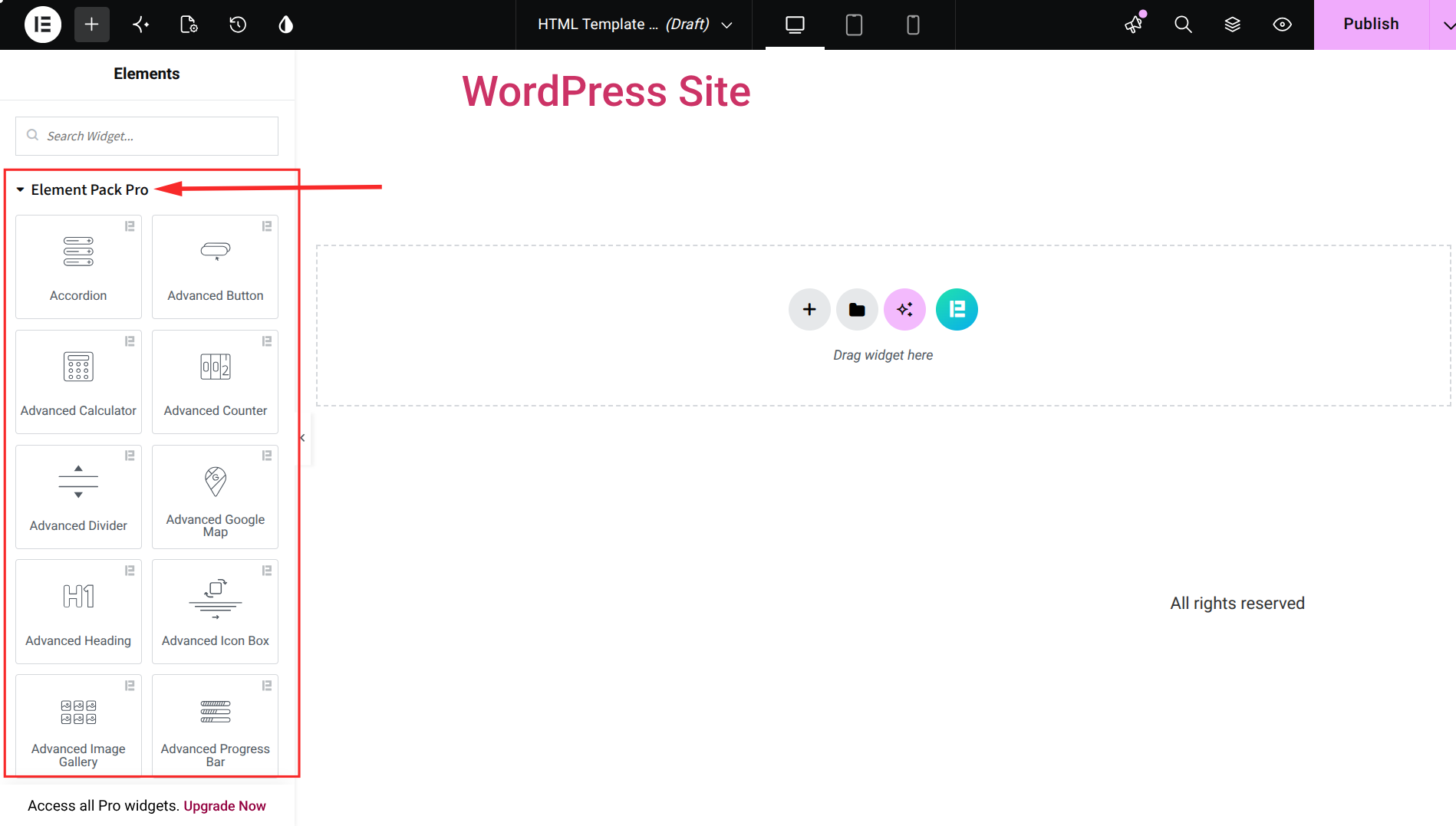
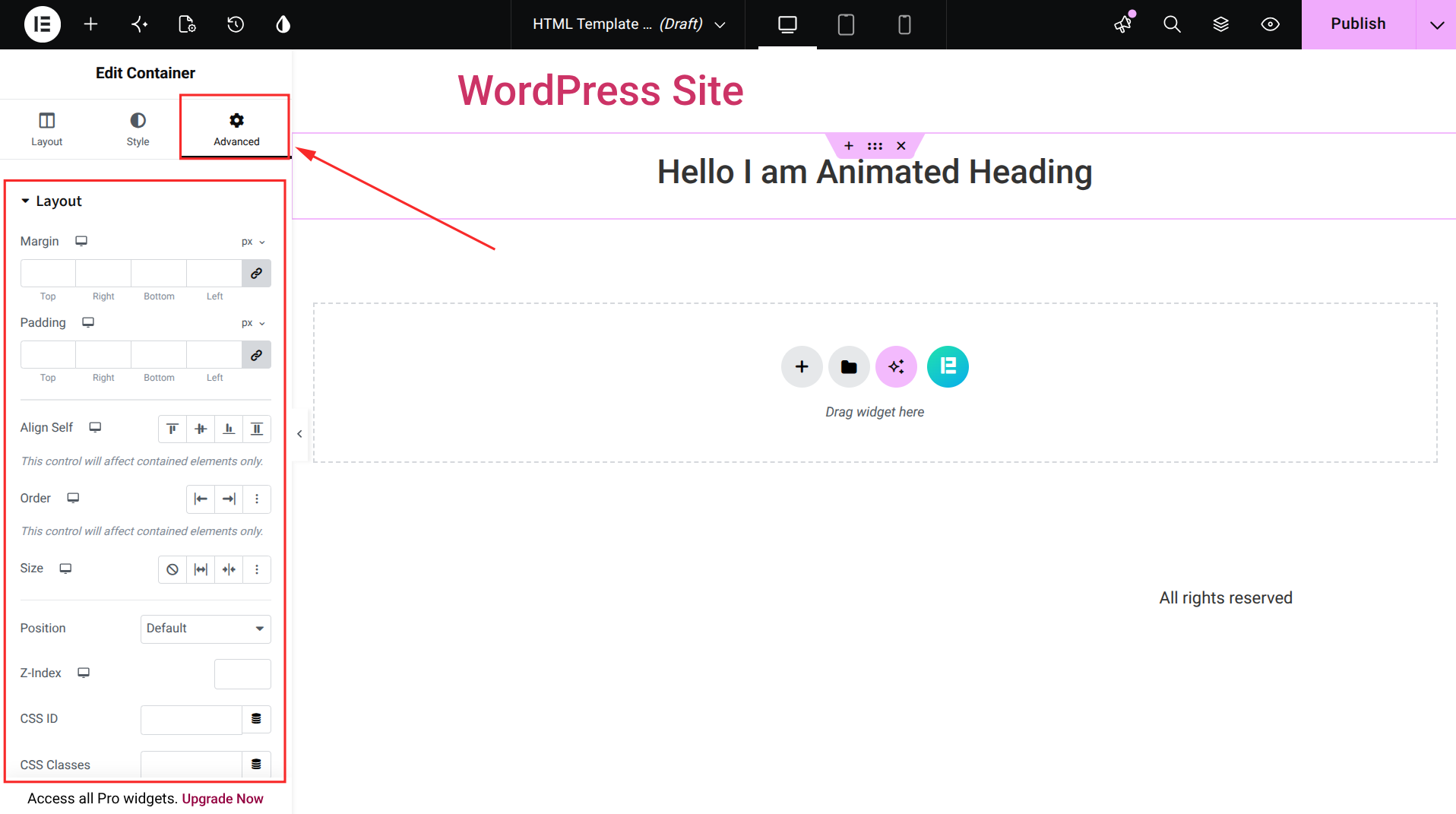
- Match your spacing, padding and margin values to the original template using Elementor's Advanced tab
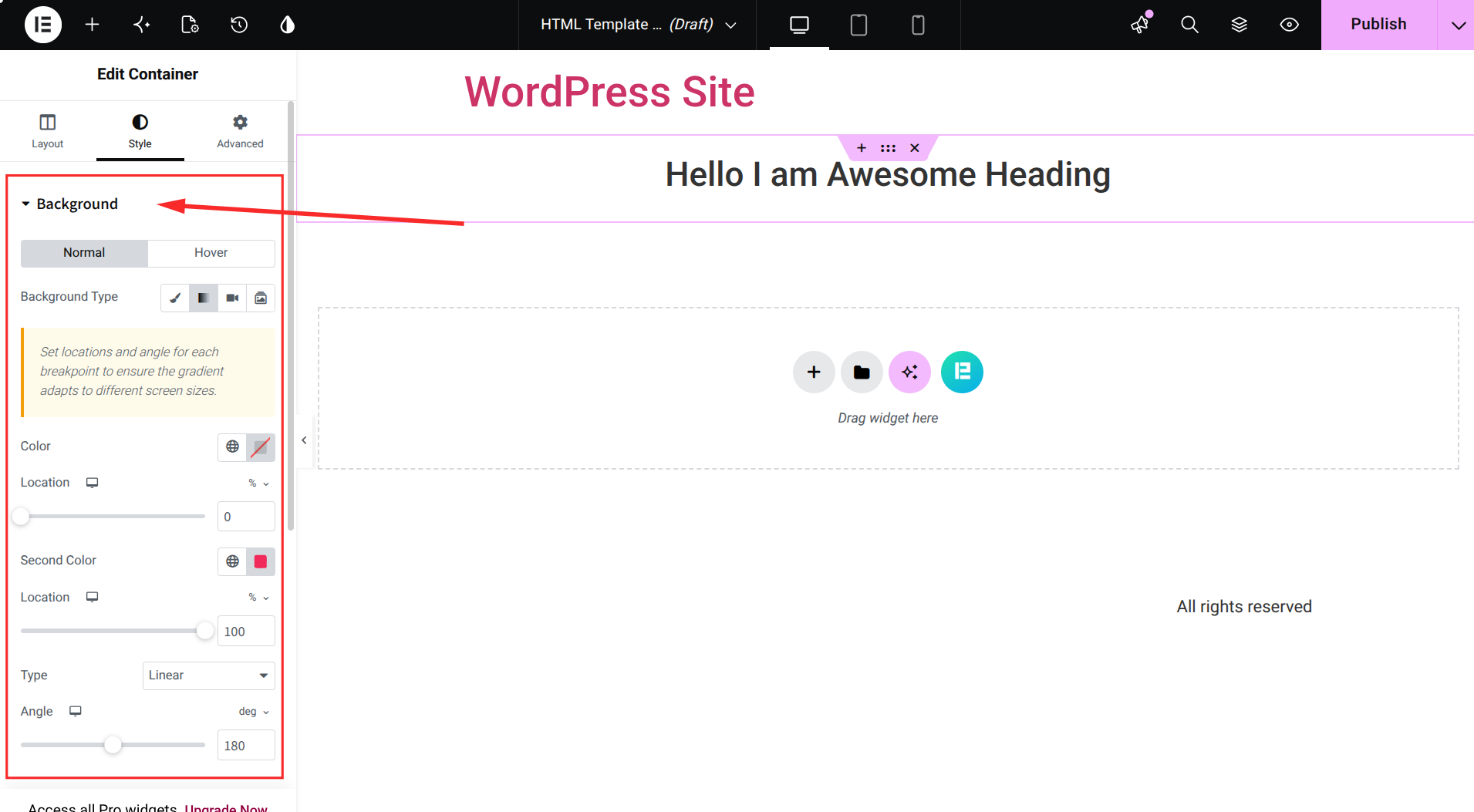
- Apply your brand colors and fonts through the Style tab on each widget to keep the design consistent with the source HTML file
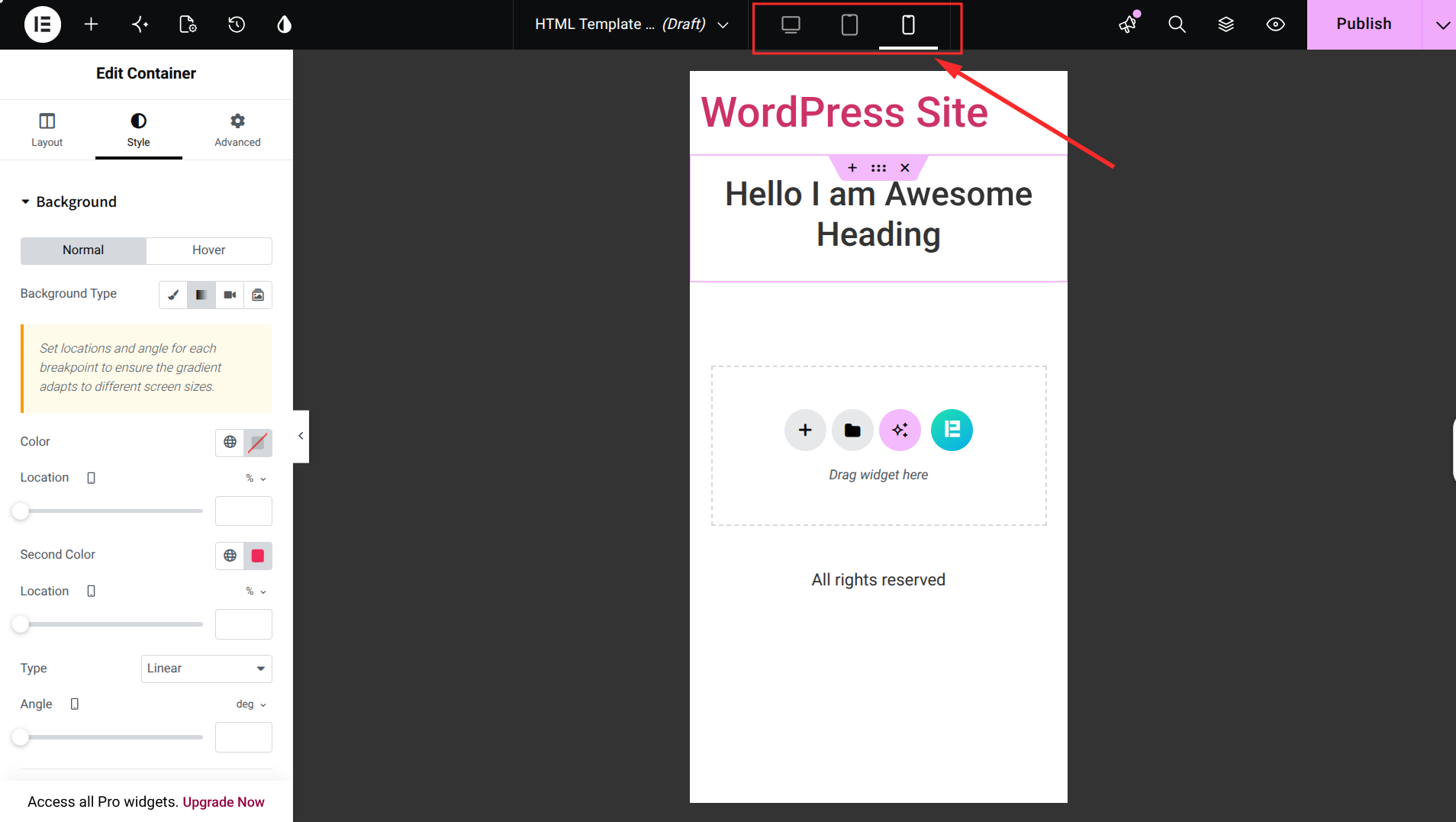
- Preview your page regularly on desktop, tablet and mobile to confirm the layout holds up across devices
Element Pack widgets give you an advantage here because they cover layout patterns that plain Elementor does not include by default, such as advanced sliders, scroll navigation menus and creative button styles. This makes the rebuild process feel less like starting from scratch and more like assembling ready-made pieces.
Step 4: Save as an Elementor Page Template for Reuse
Once your design matches the original HTML template, save your work as a reusable template.
- Click the arrow next to the Publish button at the bottom of the Elementor panel
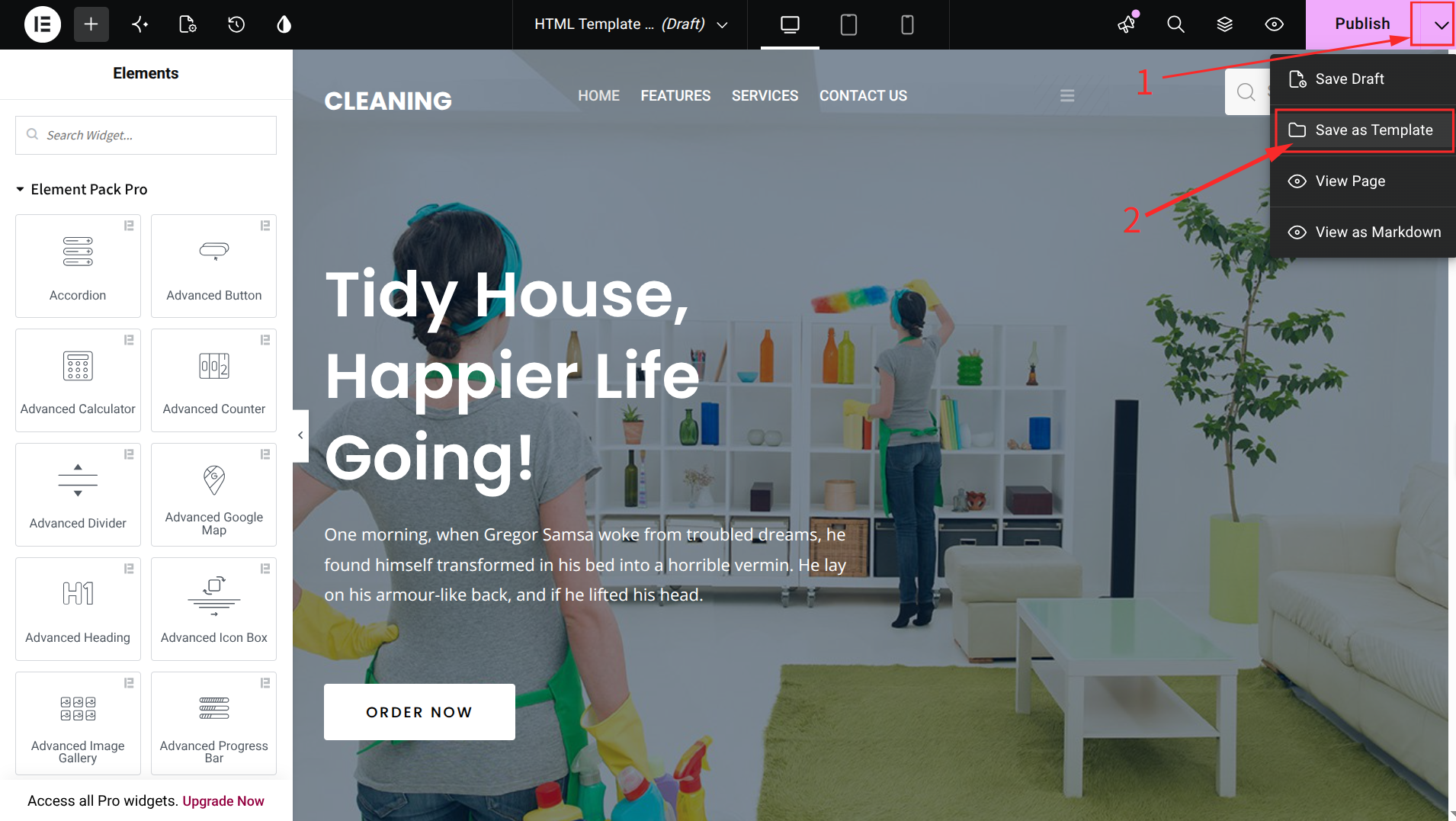
- Select Save as Template from the menu that appears. A pop-up window will appear.
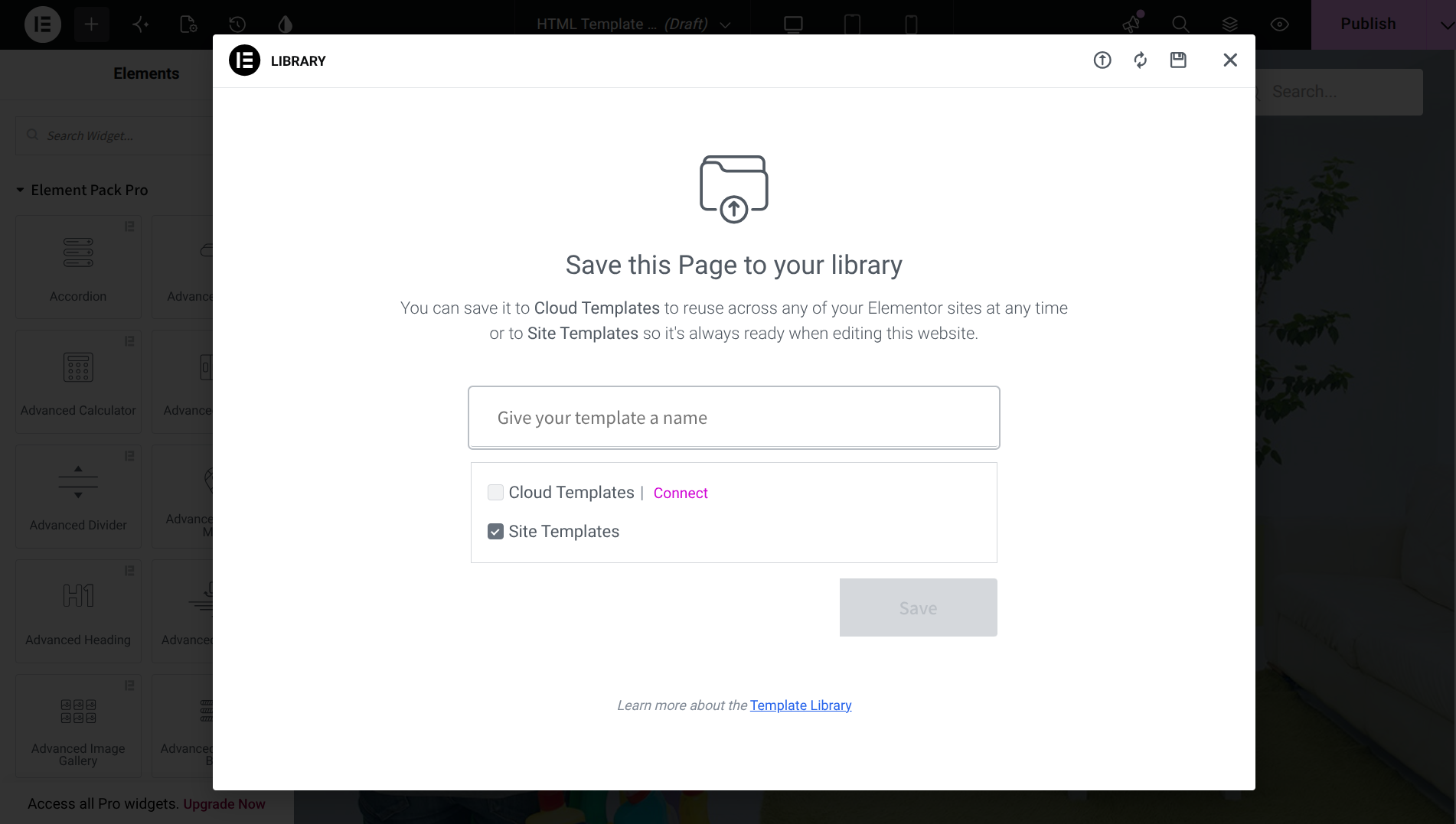
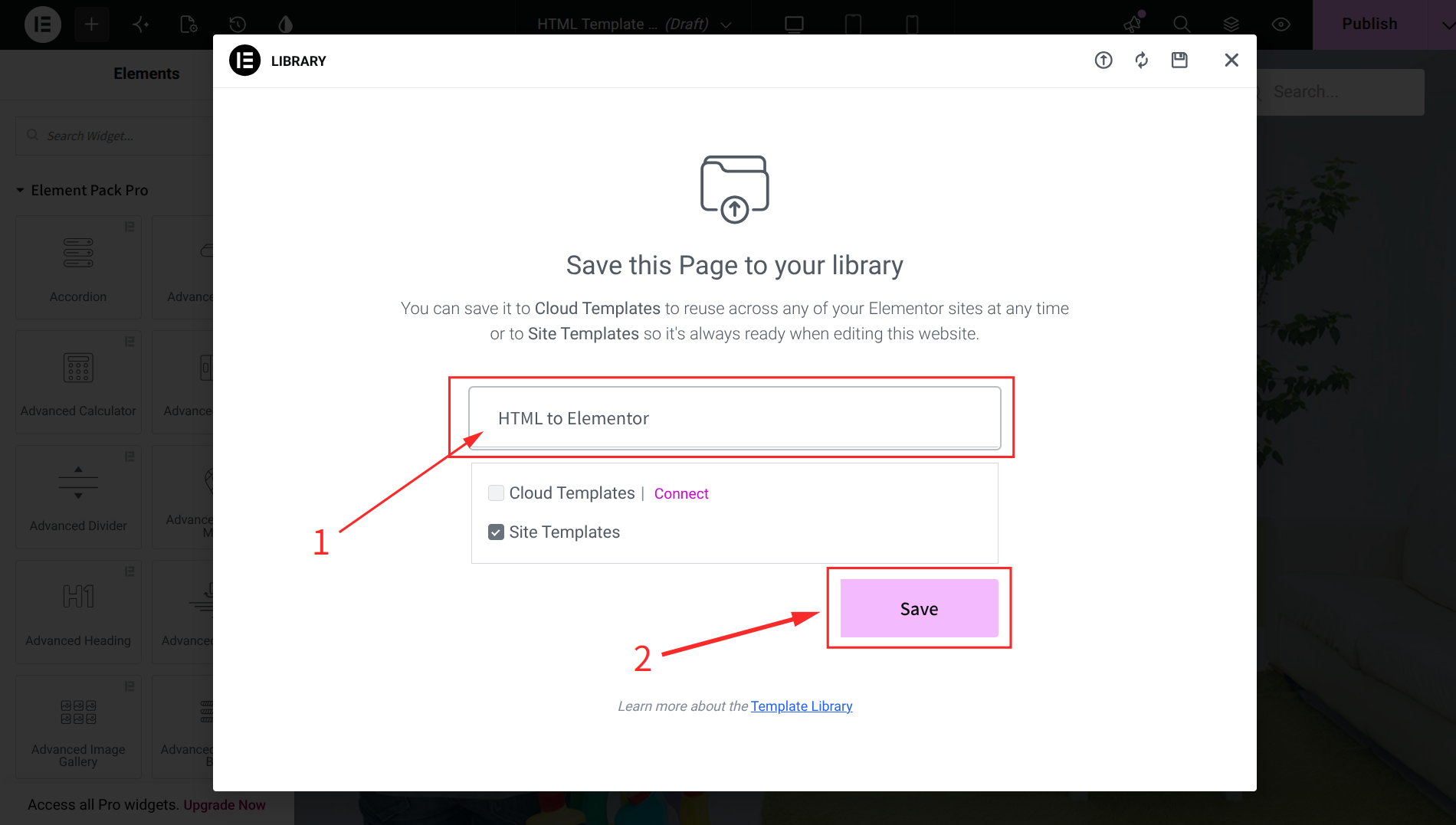
- Enter a clear name for your template and click Save
- Your template now lives in your Elementor template library, ready to insert on any page
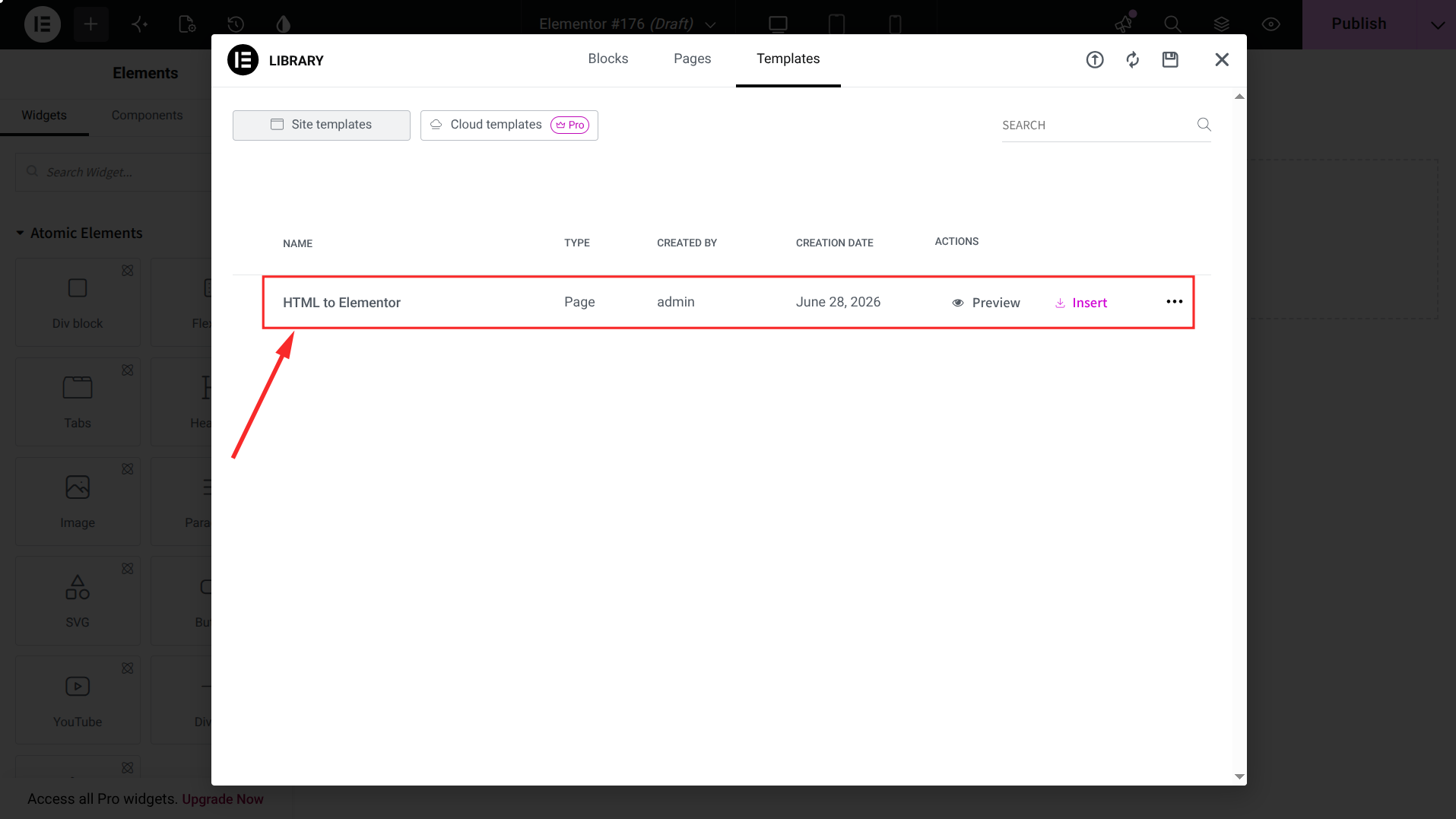
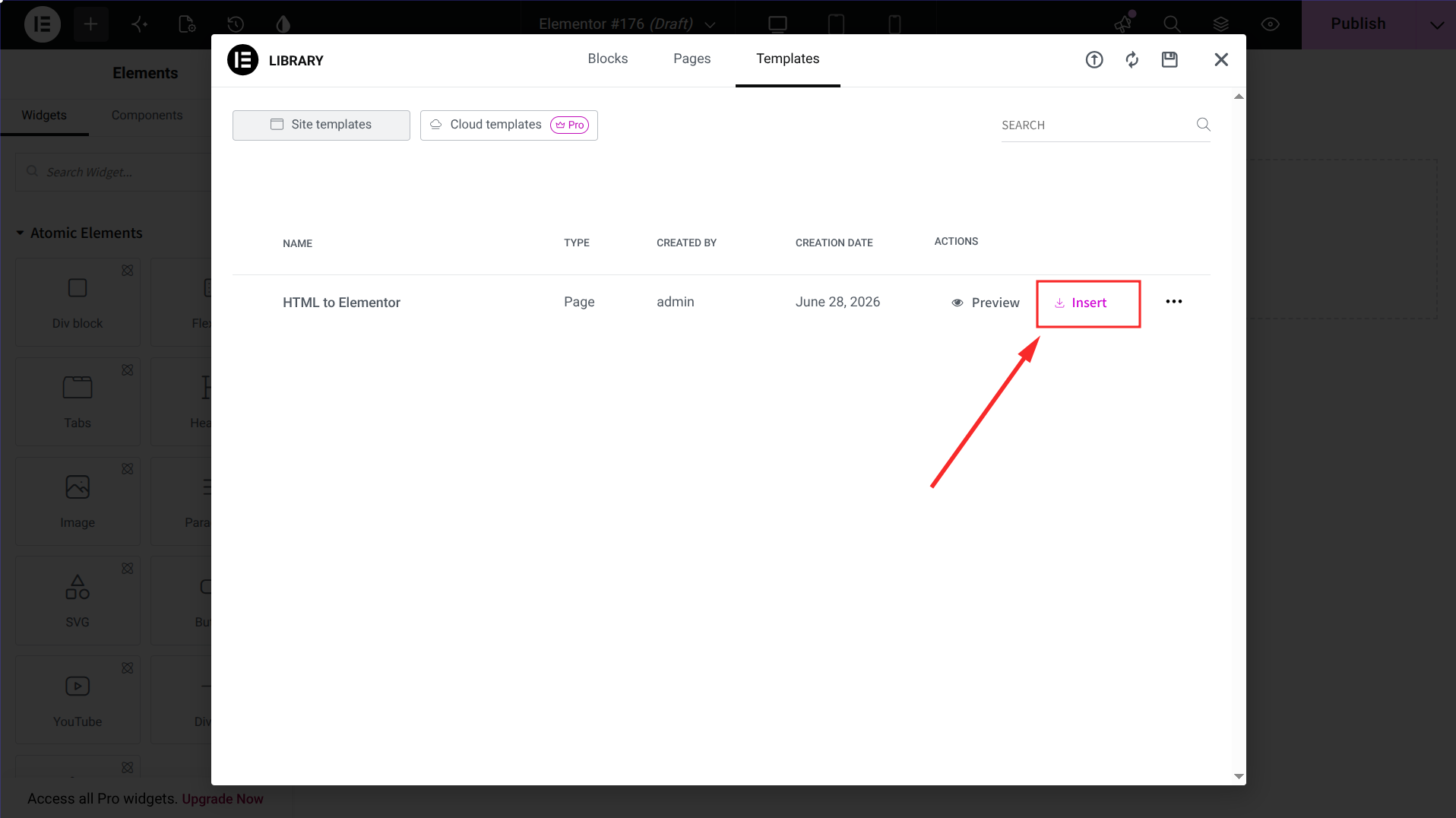
- To reuse it elsewhere, open the template library icon on a new page, hover over your saved template, click Insert and confirm
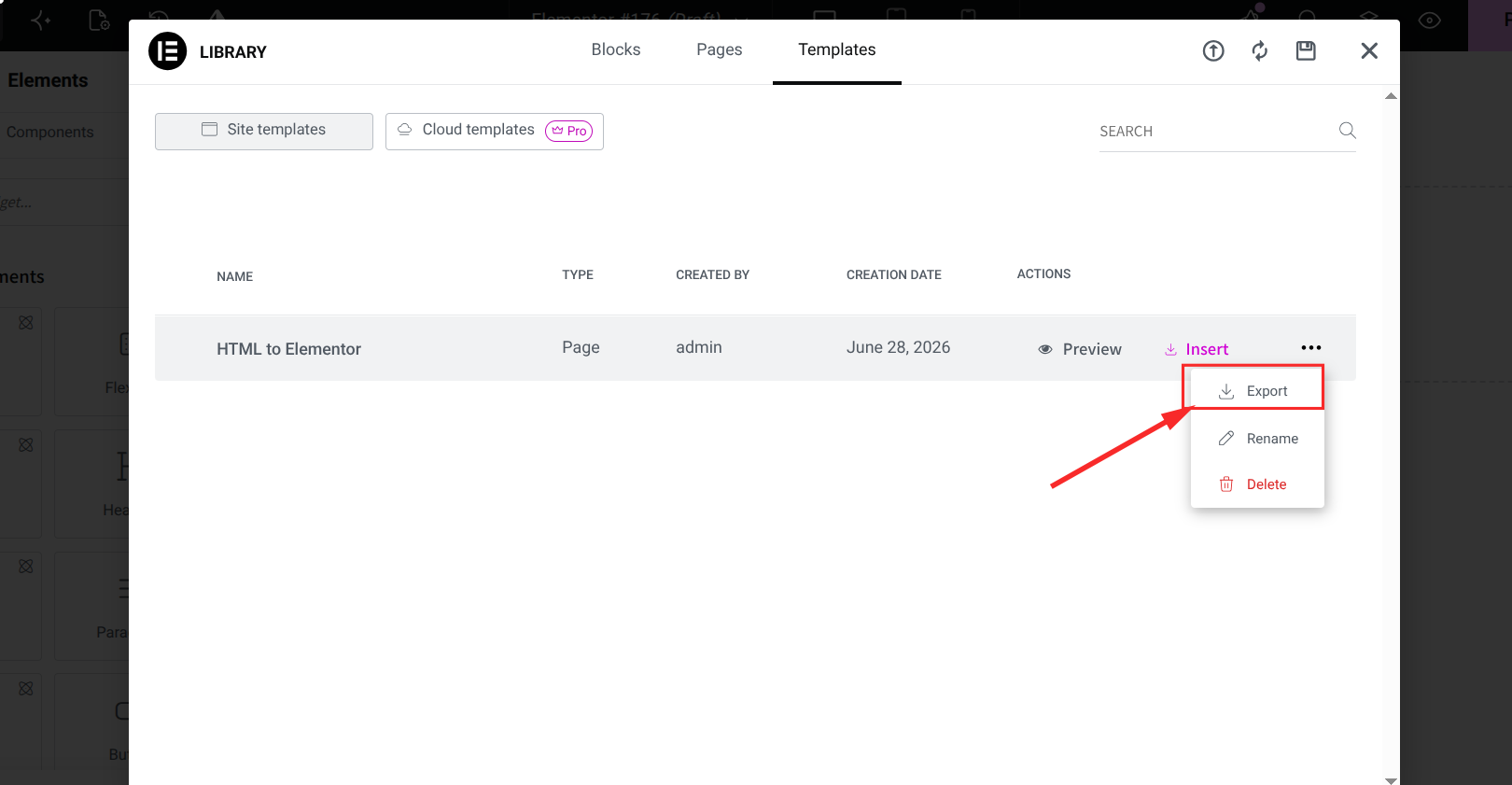
You can also export your saved template as a JSON file from the template library by clicking the three-dot menu and selecting Export. This downloads an Elementor template JSON file that you can store locally and import into any other WordPress site running Elementor. This is especially useful if you manage multiple websites or want to back up your converted designs.
Some users also describe this process as creating an HTML to JSON Elementor file, since the final template you export is stored in JSON format. Elementor handles this conversion automatically once you have rebuilt your design and saved it as a template, so you never need to manually edit any JSON code.
How to Hide an HTML Element in an Elementor Page?
Sometimes you do not want to fully convert your HTML template right away. Maybe you still need the original HTML widget on your page while you finish rebuilding the rest of the design in Elementor. In that case, you can temporarily hide the HTML element instead of removing it.
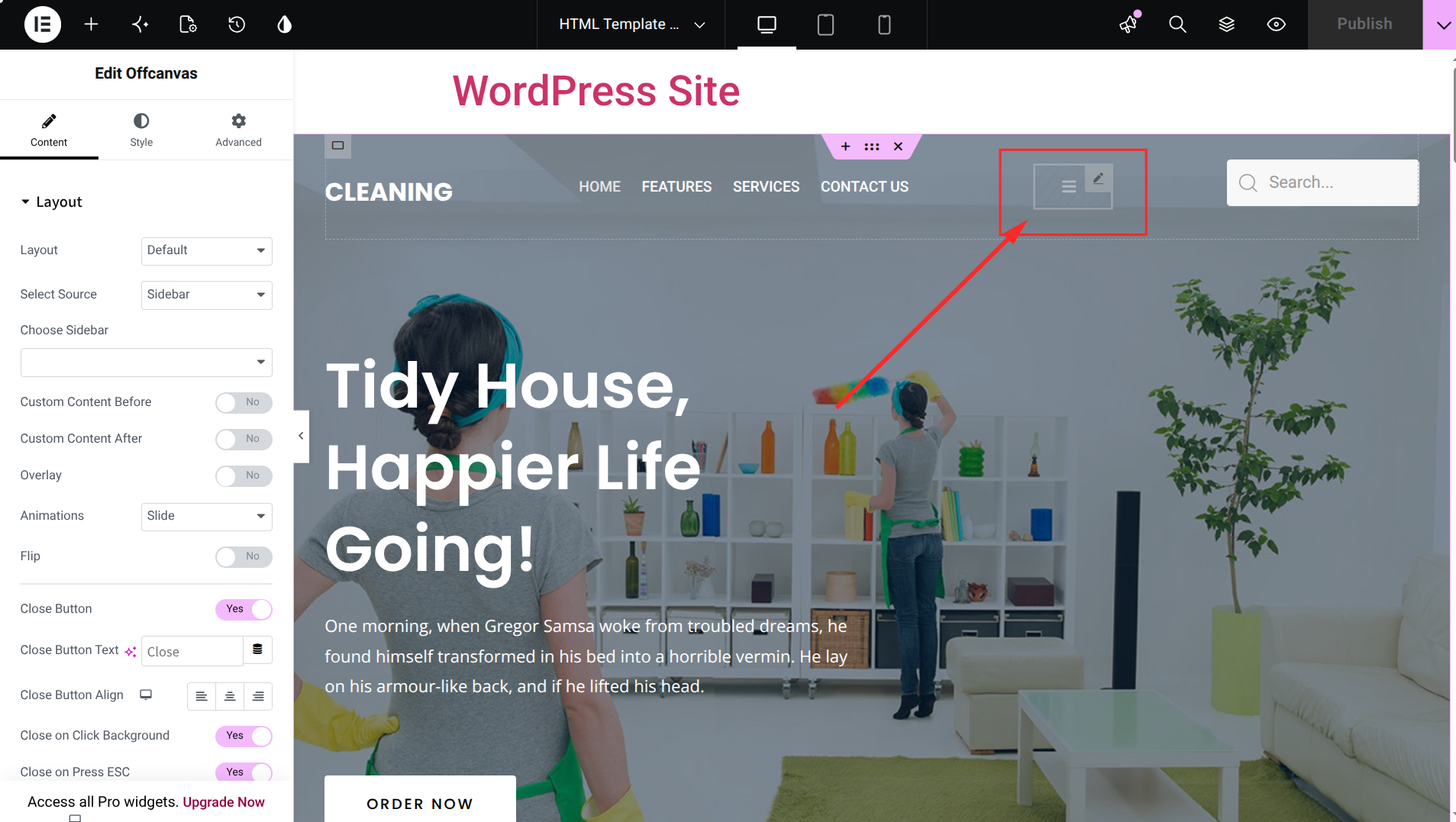
- Open your page in the Elementor editor and select the HTML widget you want to hide
- Click on the Advanced tab in the left side panel
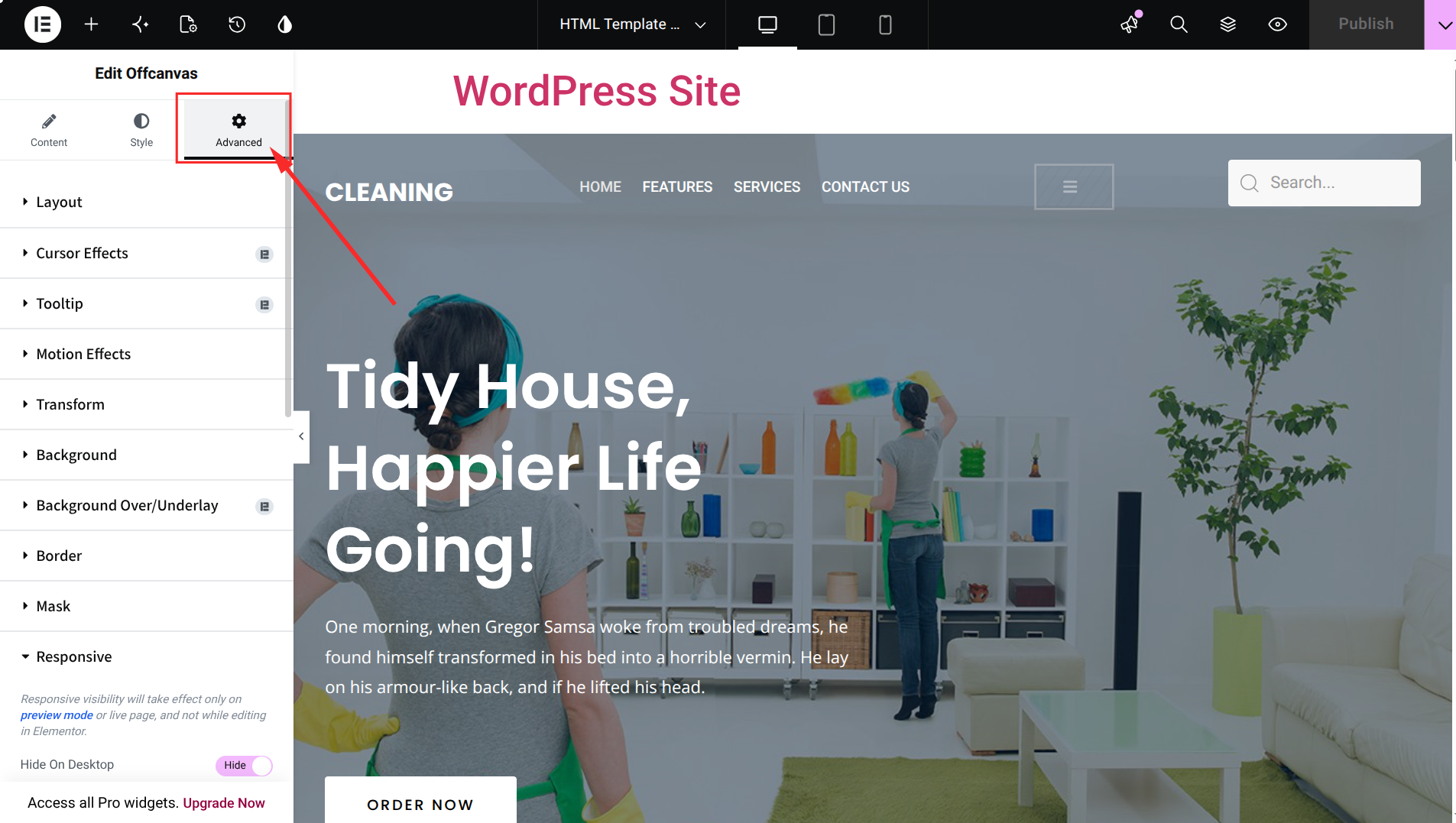
- Scroll down to find the Responsive section in the panel
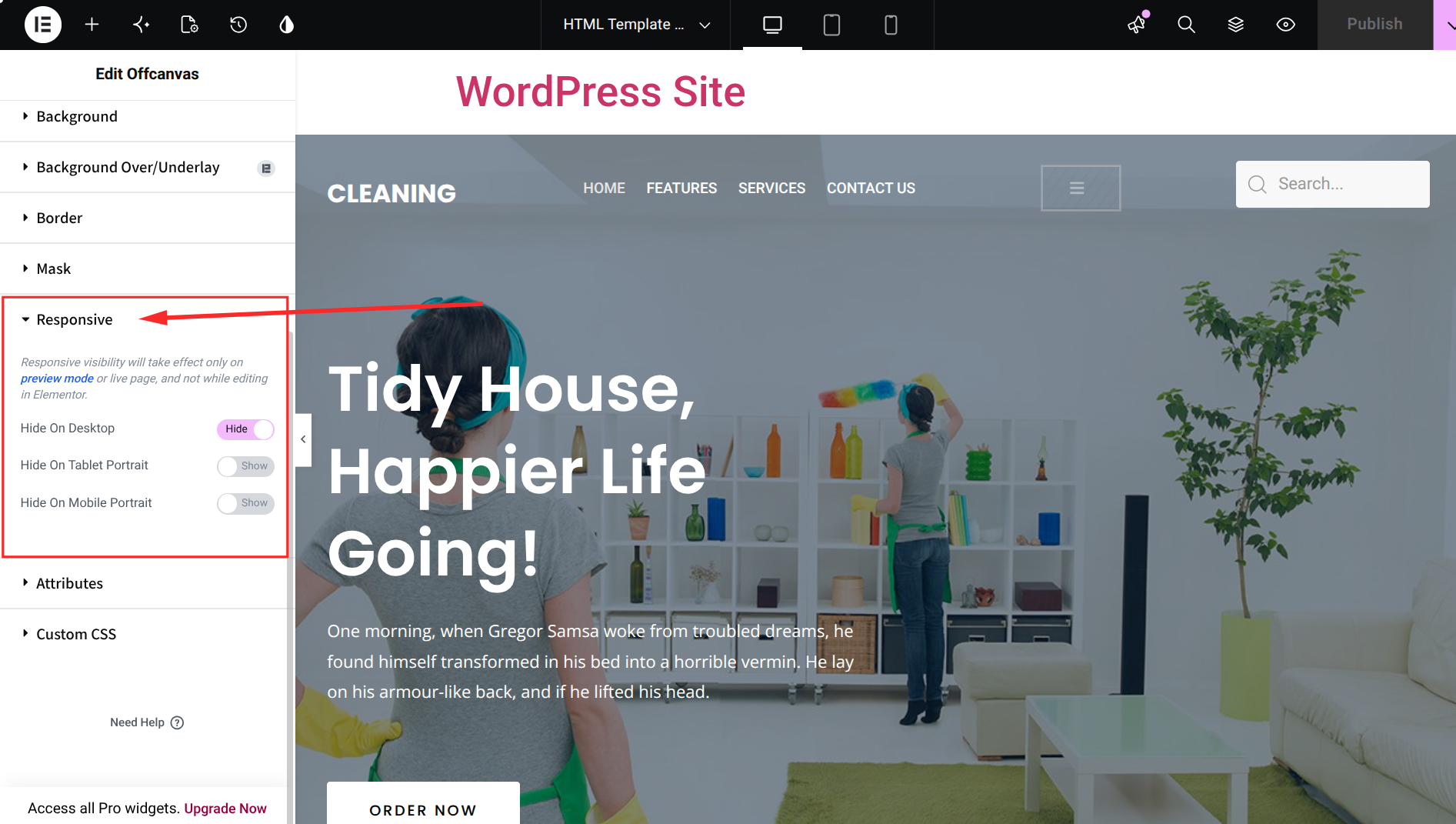
- Enable the visibility toggle to hide the element on desktop, tablet, or mobile, depending on your needs
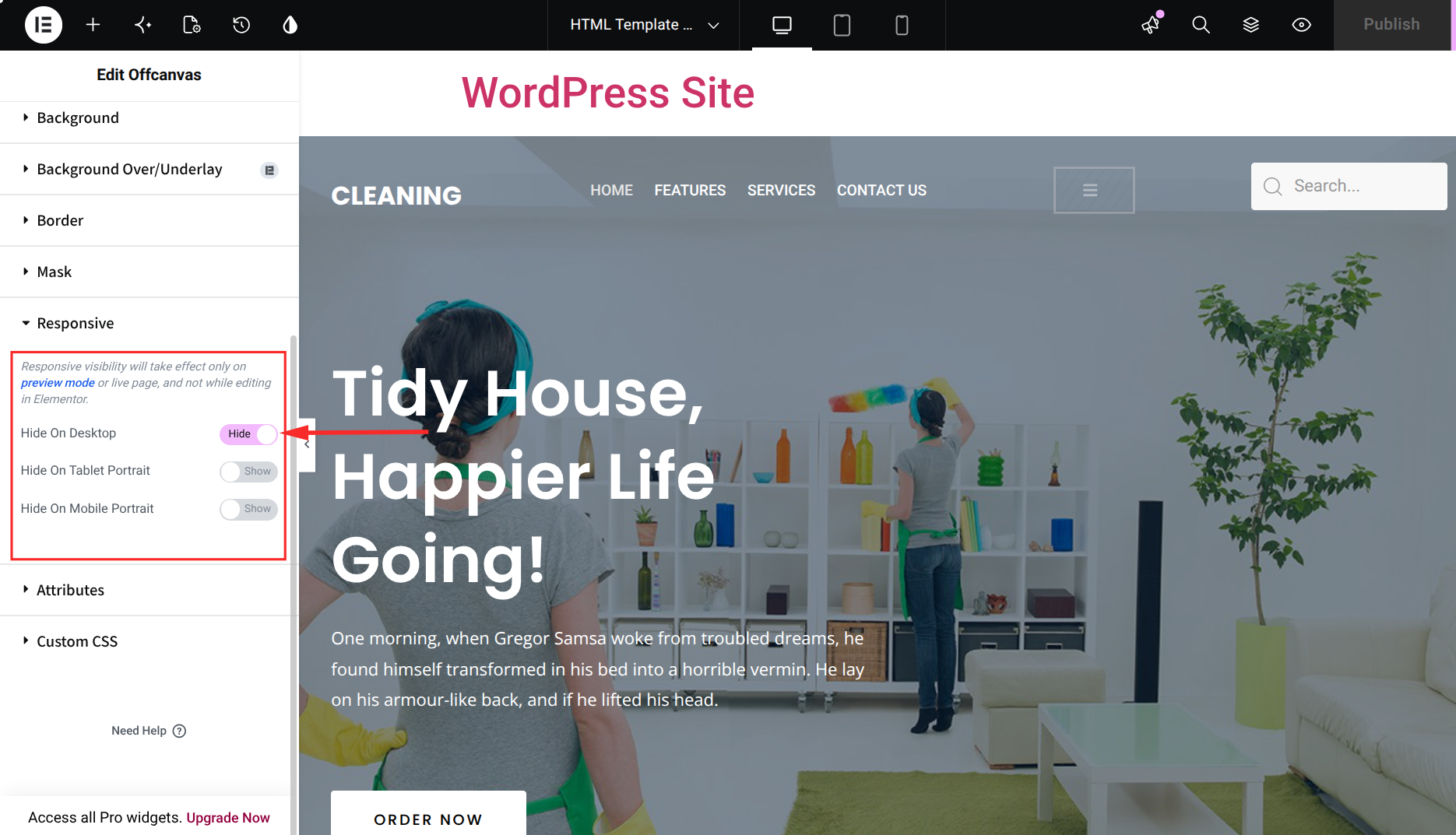
This hide function is temporary. You can switch the toggle off at any time to bring the HTML element back into view. This gives you the flexibility to test your converted Elementor sections side by side with your original HTML content before you commit to a full replacement.
Frequently Asked Questions (FAQs)
How do I convert an HTML template to Elementor?
You rebuild your HTML design inside Elementor using sections, columns and widgets that match the original layout, then save your finished page as a template. There is no automatic one-click converter, but widgets from Element Pack make recreating complex layouts much faster.
Is there an HTML to Elementor converter online?
Elementor does not provide a built-in automatic online converter. Instead, you manually rebuild your HTML design using the Elementor editor. This gives you cleaner code and better performance than an automated conversion tool would typically produce.
Can I import HTML directly into Elementor?
Elementor includes an HTML widget that lets you paste raw HTML code directly into a section of your page. This is useful for small custom elements, but for a full page layout, rebuilding the design with native Elementor widgets gives you better editing control and responsive behavior.
What is an Elementor template JSON file?
When you save a page as a template and export it, Elementor stores the design as a JSON file. You can import this file into any WordPress site running Elementor to reuse your template instantly without rebuilding it from scratch.
How do I add HTML code in WordPress Elementor?
Search for the HTML widget in the Elementor widget panel and drag it onto your page. Paste your code into the widget editor and click Update or Publish to save your changes.
Can I export an Elementor page back to HTML?
Elementor exports designs as JSON by default rather than raw HTML. If you need a static HTML version of your page, you will need a separate export method or tool, since Elementor templates are built to work within the WordPress and Elementor ecosystem.
Do I need coding skills to convert HTML templates to Elementor?
No. The entire rebuild process happens through the visual Elementor editor using drag and drop widgets. Basic familiarity with HTML helps you understand the original design, but you do not need to write or edit any code to complete the conversion.
Final Thoughts
Converting an HTML template to an Elementor page template does not require advanced coding knowledge or a complicated converter tool. It simply takes a structured approach. Prepare your assets, build on a clean canvas, rebuild your layout with the right widgets and save your work as a reusable template.
Once you understand this process, you can recreate almost any design you find online and bring it into WordPress with full visual editing control. Widgets from Element Pack make this process noticeably smoother, since they cover advanced layout patterns like sliders, scroll navigation and creative buttons that plain Elementor does not include by default.
Whether you are rebuilding a landing page, a portfolio site, or a full business website, taking the time to convert your HTML design into a proper Elementor template pays off. You get a page that is easier to edit, faster to update and ready to reuse across your entire WordPress site.
Ready to start your own conversion project? Explore the full range of widgets and features at Element Pack and visit BdThemes to discover more tools that help you build and manage your WordPress website with ease.
Selim Rana
The BdThemes team builds WordPress plugins trusted by 3M+ users worldwide. We write about web accessibility, WCAG compliance, and inclusive design.