












A WordPress theme defines how a website looks and functions. With over 43% of websites running on WordPress, themes play a crucial role in site design, performance, and user experience. Whether it’s a blog, eCommerce store, or portfolio site, the right theme enhances branding, navigation, and responsiveness.
This guide will explain how to install themes in WordPress using different methods, from one-click installations to manual uploads. We’ll also explore the difference between free and premium themes, helping you decide which suits your needs.
A poorly optimized theme can slow down a site, impacting user retention. Studies show that a 1-second delay in page load time reduces conversions by 7% (Source: Google Web.Dev). That’s why selecting and installing the right theme is crucial for website performance.
What is a WordPress Theme?
A WordPress theme is a pre-designed template that controls a site’s layout, typography, and visual elements. It allows users to create a professional website without coding, making WordPress the go-to platform for beginners and businesses alike.
Themes are not just about aesthetics—they also affect SEO, speed, and mobile responsiveness.
According to HTTP Archive, themes with excessive scripts can increase page load time by up to 40%, negatively impacting search rankings.
Free vs. Premium Themes
| Merkmal | Free Themes | Premium Themes |
| Kosten | $0 | $30-$100+ |
| Customization | Begrenzt | Extensive |
| Unterstützung | Community forums | Dedicated support |
| Updates | Less frequent | Regular security updates |
| Leistung | Varies | Optimized for speed |
| Security | Grundlegend | Enhanced security features |
Which one should you choose?
- If you’re starting a blog or personal website, a free WordPress theme is a good choice.
- For businesses, eCommerce, or professional portfolios, installing premium themes ensures better speed, security, and customization options.
Methods to Install a WordPress Theme
Installing a WordPress theme can be done in multiple ways, depending on whether you’re using a free WordPress theme from the official directory, a premium theme, or a custom theme that requires manual installation. Below, we’ll cover the most common methods in detail, ensuring you can install and activate your theme without any issues.
- Installing a Free Theme from the WordPress Directory
The WordPress theme repository hosts 10,000+ free WordPress themes, making it the easiest way to install a theme. Some of the most popular themes in the directory include:
- Astra – Fast and lightweight with over 1 million active installs.
- OceanWP – Optimized for speed and WooCommerce.
- Neve – Mobile-first and highly customizable.
- Kadence – Feature-rich and ideal for beginners.
Step-by-Step Guide to Installing a Free WordPress Theme
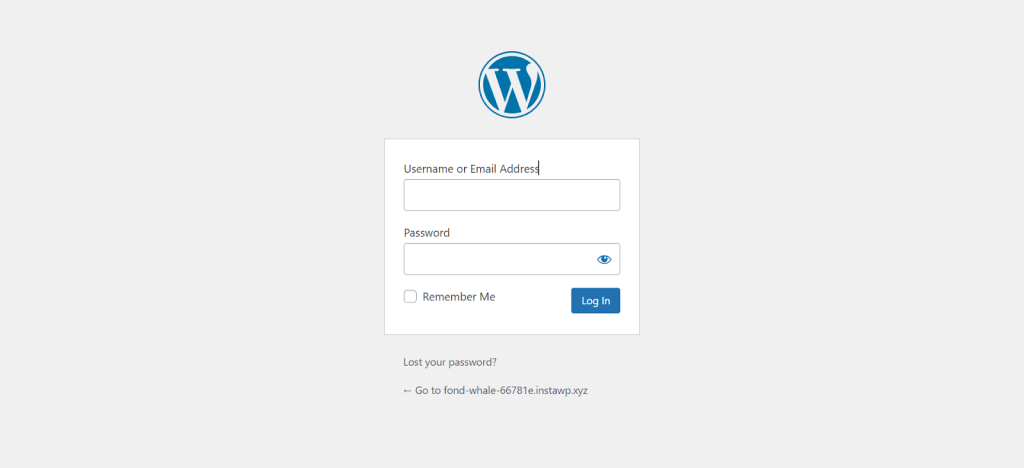
- Log into your WordPress dashboard.
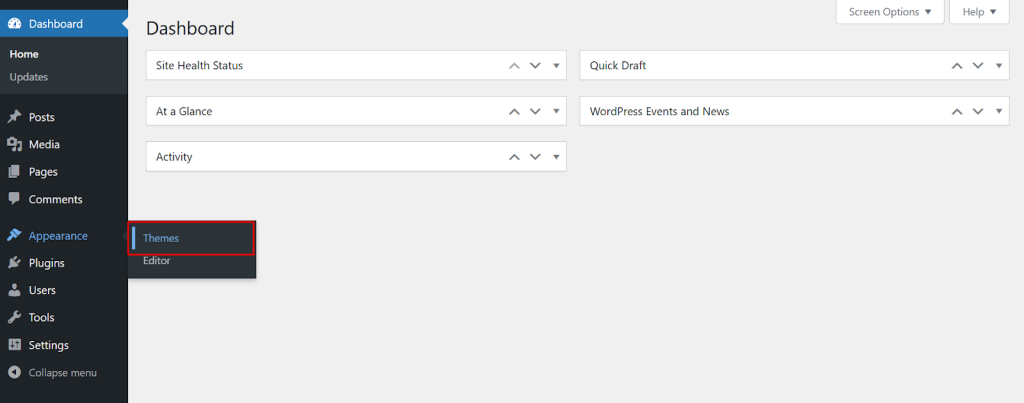
- Gehe zu “Appearance” → “Themes”.
- Klicken Sie auf “Add New”
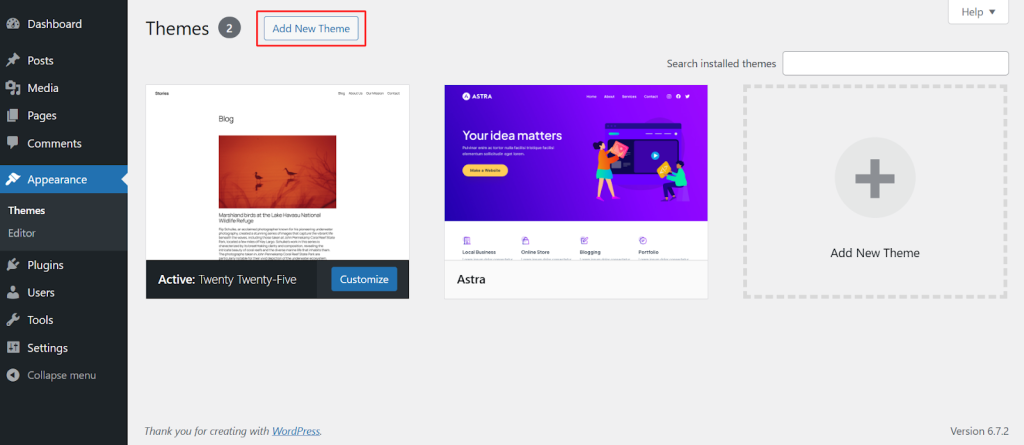
- Verwenden Sie die search bar to find a theme (e.g., “Astra”).
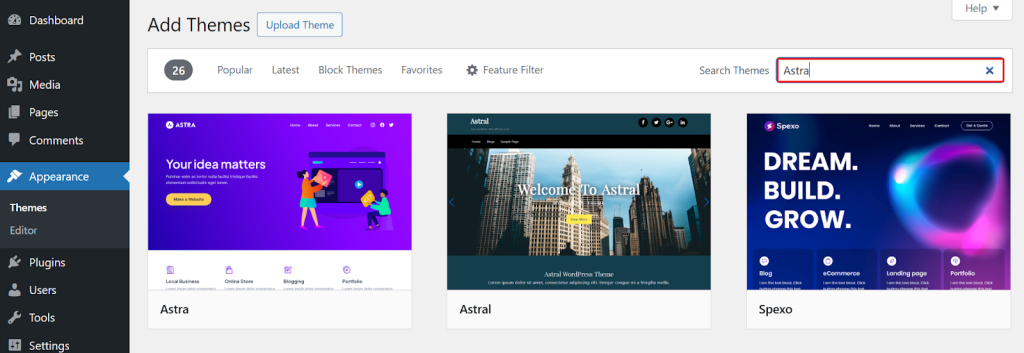
- Klicken Sie auf “Install”.
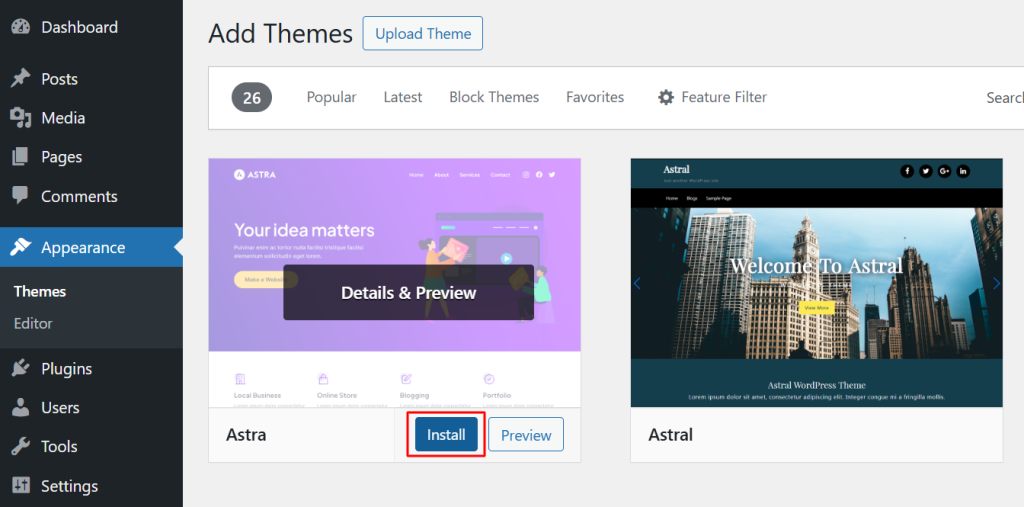
- “Activate” once installation is complete.
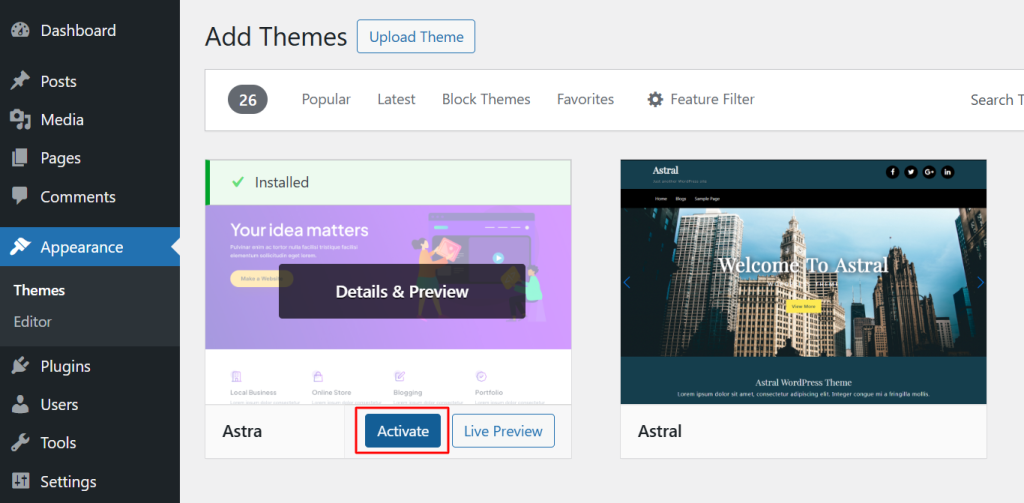
Your WordPress theme is now installed and active.
Best Practices When Selecting a Free Theme
- Choose a lightweight theme for better speed (e.g., Astra, Neve).
- Check active installs and reviews before installing.
- Ensure it’s regularly updated (last updated within 3 months).
Google prioritizes fast-loading sites. Choosing an optimized theme can boost SEO rankings and reduce bounce rates by 32% (Source: Google).
- Uploading a Premium or Custom Theme (.zip File Method)
Premium themes offer advanced customization, better security, and dedicated support. You can purchase them from:
- ThemeForest – Over 50,000+ WordPress themes verfügbar.
- TemplateMonster – Great selection of multipurpose themes.
- Developer’s Website – The official website of theme owners where they sell premium themes and plugins. For example, Element Pack also sells premium versions on their official website.
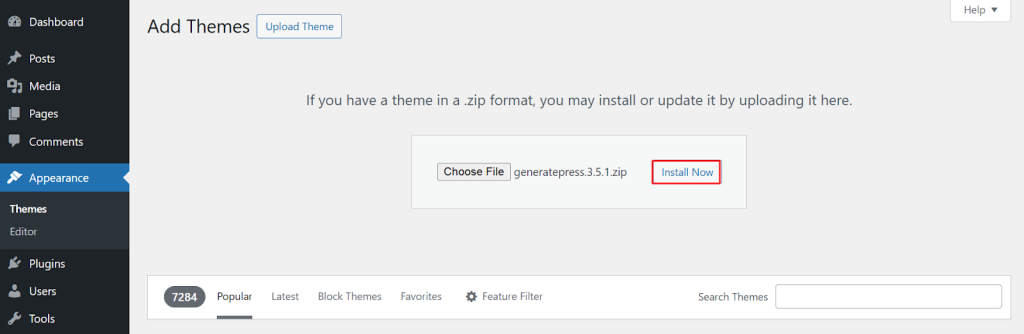
Example: Installing the “GeneratePress” Premium Theme
- Download the theme’s .zip file from the official source.
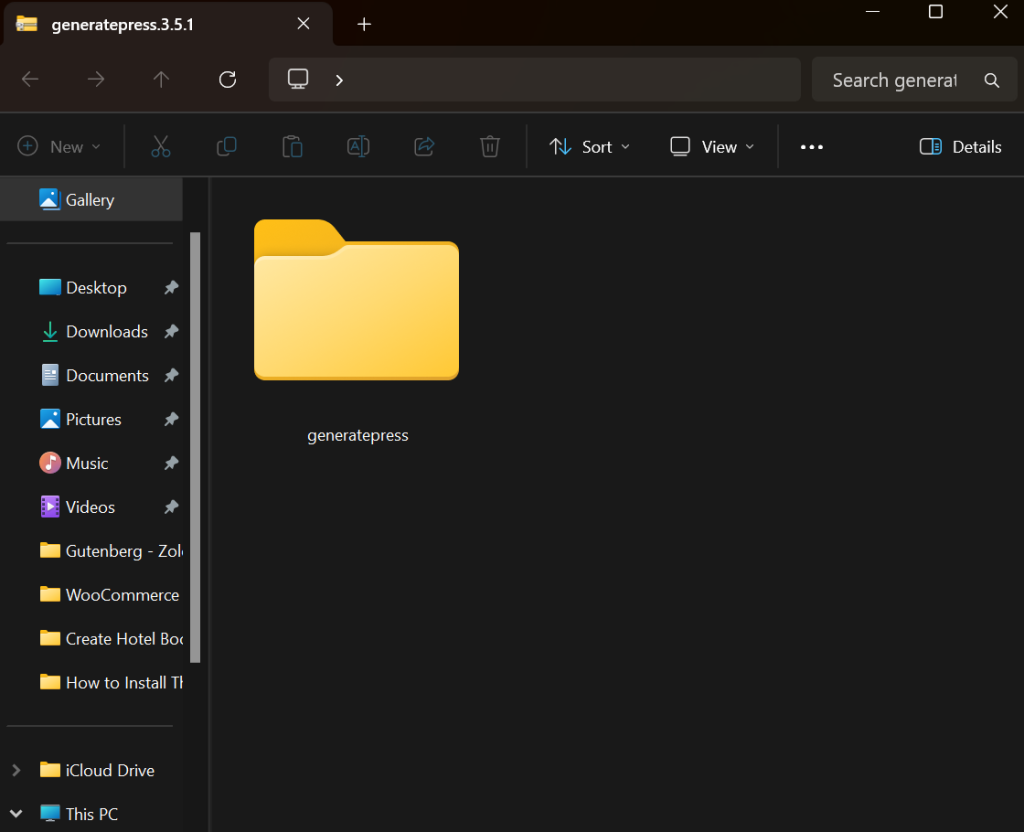
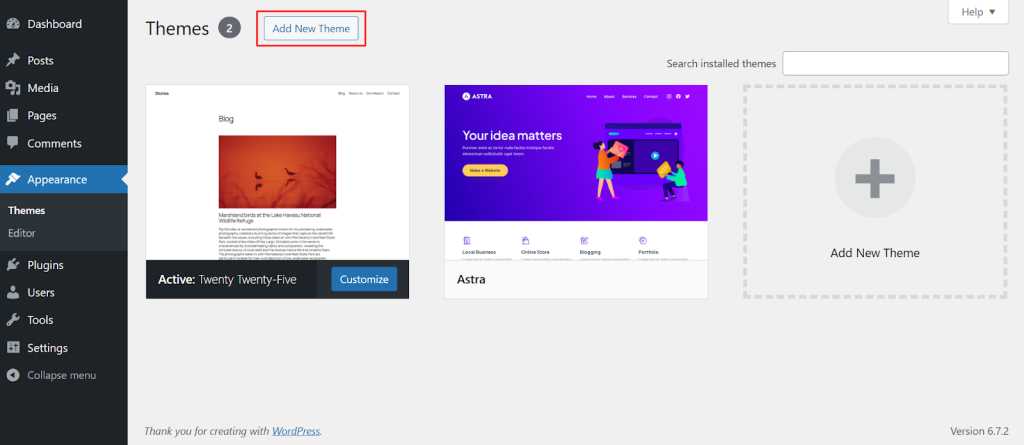
- Gehe zu “Appearance” → “Themes” → Click “Add New”.
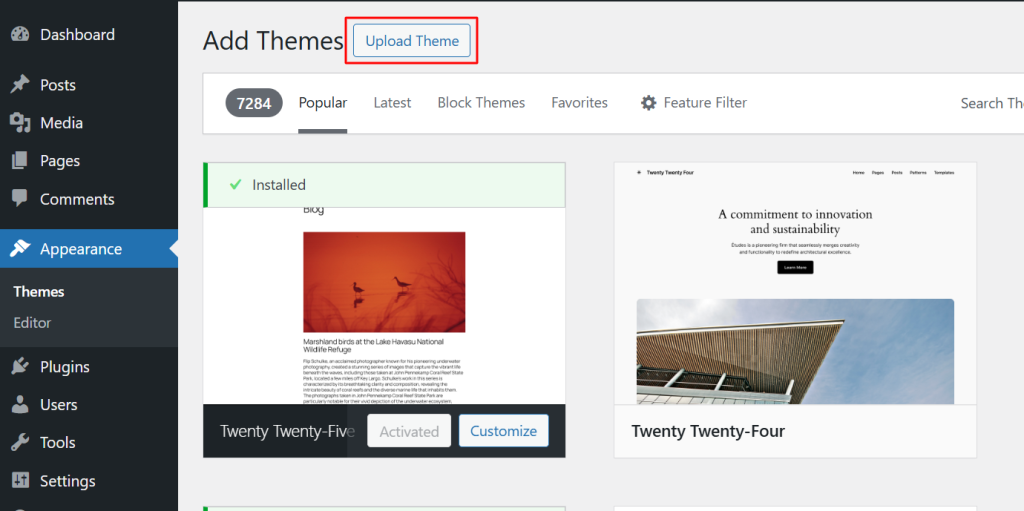
- Klicken Sie auf “Upload Theme”.
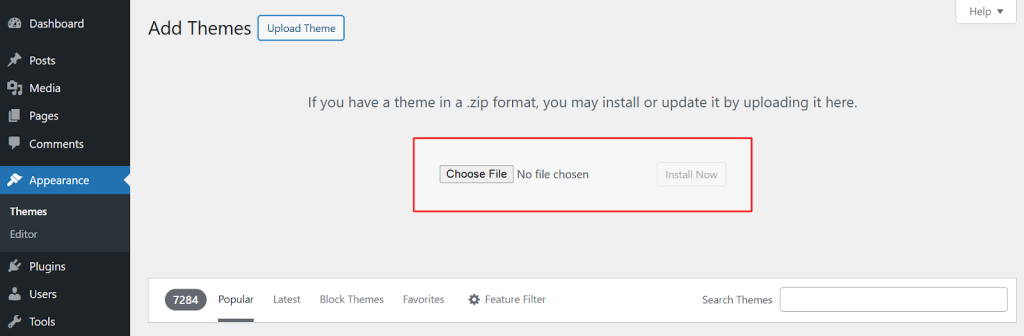
- Then “Choose File”.
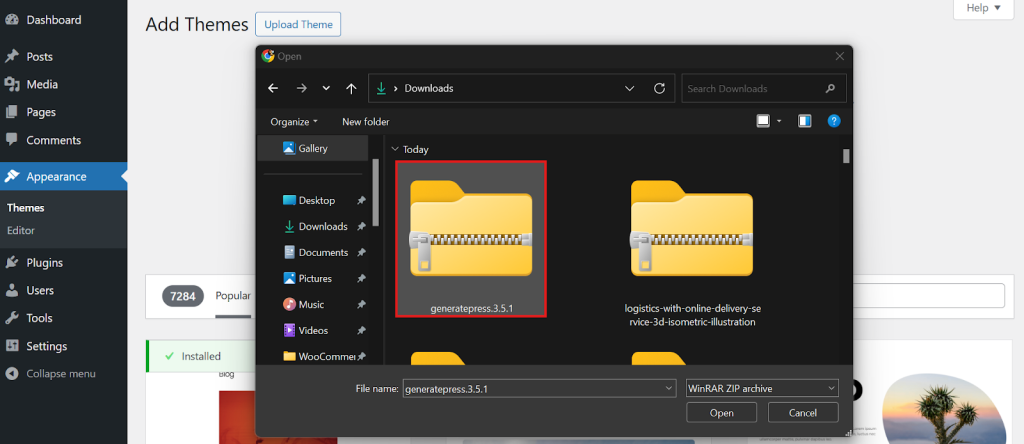
- Wählen Sie die .zip file.
- Klicken Sie auf “Install Now”.
- Klicken Sie nach der Installation auf “Activate”.
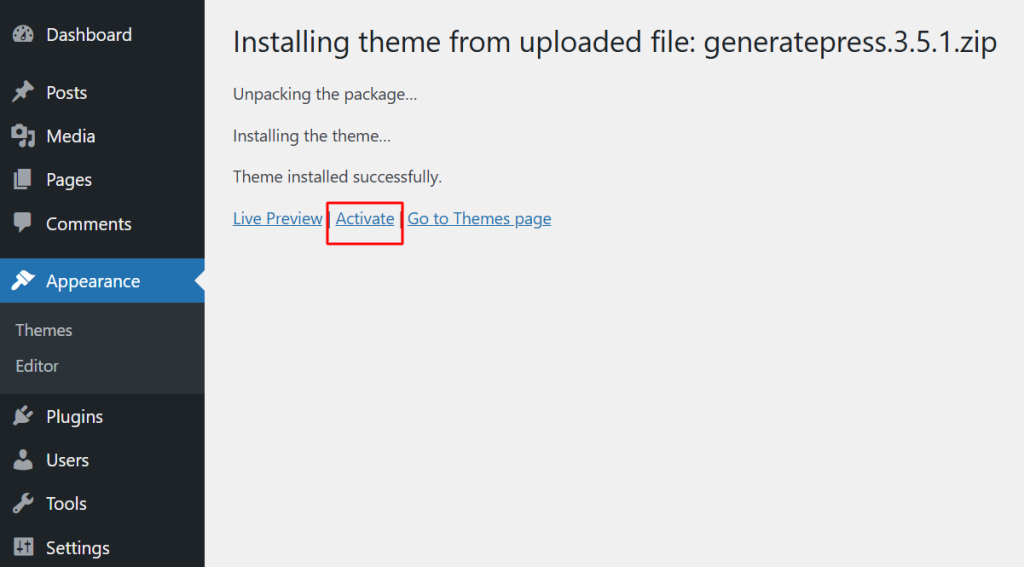
Your premium theme is now installed.
Additional Steps for Premium Themes
- Some premium themes require license activation via API keys.
- Verwenden Sie die theme’s documentation to configure settings.
- Install recommended plugins for full functionality.
- Installing a Theme via FTP (Advanced Method)
If the theme upload fails due to file size limits or other errors, you can manually install the theme via FTP. This method is recommended for:
- Uploading large premium themes without errors.
- Custom themes that aren’t in the WordPress directory.
- Fixing broken themes when the dashboard is inaccessible.
Step-by-Step Guide Using FileZilla
- Download and install FileZilla.
- Obtain FTP credentials from your hosting provider.
- Usually found in cPanel → FTP Accounts.
- Usually found in cPanel → FTP Accounts.
- Connect to your site using FileZilla:
- Host: Your website’s domain.
- Username and Password: Provided by your host.
- Port: Verwenden Sie 21 (default for FTP).
- Host: Your website’s domain.
- Navigieren Sie zu /wp-content/themes/ folder.
- Upload the theme folder (unzipped) to /themes/.
- Log into WordPress, gehen Sie zu “Themes”und Aktivieren Sie the uploaded theme.
Your theme is now installed via FTP.
When to Use FTP?
- If your WordPress dashboard isn’t accessible.
- If you need to install a custom theme not available as a .zip file.
- If you’re dealing with upload size restrictions in the WordPress dashboard.
Comparing Free vs. Premium Themes
Choosing between a free WordPress theme und eine premium theme depends on your website’s goals, budget, and customization needs. The table below highlights the key differences:
| Merkmal | Free WordPress Themes | Premium WordPress Themes |
| Kosten | $0 (Completely Free) | Ranges from $30 – $150 |
| Customization | Limited options | Full design flexibility |
| Updates and Support | Community support, may have delayed updates | Regular updates, priority support |
| Speed and Performance | Generally optimized but lacks advanced features | Often includes performance optimizations |
| Security | Safe if downloaded from WordPress.org, but some may lack security updates | Regular security patches, more secure |
| SEO Optimization | Basic SEO-friendly structure | Often includes built-in SEO features |
| E-Commerce Ready | Some support WooCommerce | Advanced WooCommerce compatibility |
| Am besten für | Personal blogs, small websites | Businesses, agencies, e-commerce |
According to Kinsta, websites with lightweight and optimized themes can reduce loading time by 50% or more, improving user experience and SEO rankings.
Best Practices After Installing a Theme
Once you’ve installed your WordPress theme, proper setup and optimization ensure your website runs smoothly.
Customizing Your Theme
- Gehe zu Appearance → Customize to modify:
- Logo and Site Identity
- Header and Footer Layouts
- Typography and Colors
- Menus and Widgets
A well-designed website can increase engagement by 94% (Source: Adobe).
Installing Recommended Plugins for Performance and Security
- Caching Plugin → (e.g., WP Rocket, W3 Total Cache)
- Security Plugin → (e.g., Wordfence, Sucuri)
- SEO Plugin → (e.g., Rank Math, Yoast SEO)
- Backup Plugin → (e.g., UpdraftPlus)
- Page Builder Plugin → (e.g., Element Pack)
Websites with faster load times see a 35% higher conversion rate (Source: Google).
Running a Site Speed and Performance Check
- Test site speed using Google PageSpeed Insights oder GTmetrix.
- Optimize images with Smush oder ShortPixel.
- Use a CDN (Cloudflare, BunnyCDN) for better global loading times
Häufig gestellte Fragen (FAQs)
1. Can I install multiple themes in WordPress?
Yes, but you can only activate one theme at a time. Other installed themes remain inactive but can be switched at any time.
2. Do free themes receive updates?
Yes, but not as frequently as premium themes. Free themes from the WordPress repository must follow WordPress coding standards, but some updates may be delayed.
3. How do I switch themes without losing content?
Before switching, back up your website, then use a staging site to test the new theme. Your posts, pages, and media files won’t be lost, but some theme-specific settings might need reconfiguration.
4. Can I customize a free WordPress theme?
Yes! You can modify colors, fonts, and layouts using Appearance → Customize. For advanced customization, use a child theme or a plugin like Element Pack.
5. How do I know if a theme is SEO-friendly?
Look for Fast loading speed (test with GTmetrix), Mobile responsiveness (Google’s Mobile-Friendly Test), Schema Markup support (helps with rich snippets in search results)
Conclusion + Final Tips
Choosing and installing the right WordPress theme is a crucial step in building a professional website. You can select a free theme from the WordPress directory or a premium theme with advanced features! The right theme enhances your site’s design, performance, and user experience.
Final Tips for Smooth Theme Installation:
- Test different themes before settling on one that suits your needs.
- Always back up your site before switching themes to avoid data loss.
- Optimize your theme by configuring settings, installing essential plugins, and ensuring mobile responsiveness.
- Check site performance mit GTmetrix oder Google PageSpeed Insights after activation.
If you’re looking for advanced design flexibility, Element Pack offers an extensive collection of widgets and templates to help you customize your WordPress site effortlessly.
Ready to build a stunning website? Explore Element Pack today and unlock powerful customization options!

