

Build a Profitable WooCommerce Marketplace is no longer limited to large companies. Today, anyone can launch a multi-vendor platform using WooCommerce and the right extension.
Think about platforms like Amazon or Etsy. They don’t sell most of the products themselves. They provide the infrastructure. Vendors handle inventory. Customers handle demand. The platform earns commission.
That model is now accessible to small and medium businesses.
If you already run a WooCommerce store, turning it into a marketplace is not complicated. With tools like Dokan, you can allow multiple vendors to sell through your site while you manage commissions, policies, and overall control.
In this guide, we’ll walk through how to create a WooCommerce marketplace that is not just functional, but profitable.
Is This a Good Time to Create a WooCommerce Marketplace?
Right now is an excellent time to build a WooCommerce marketplace. Online marketplaces are booming and represent some of the fastest-growing segments in global commerce.
The overall eCommerce market continues to expand rapidly. Global eCommerce sales are expected to exceed $7.9 trillion by 2027 as more users shop online and digital platforms become more accessible.
Here are some key reasons why launching a marketplace today makes sense:
Market Growth
Online marketplaces are not just large. They are still growing. With the worldwide eCommerce market already in the trillions and consumer demand for digital shopping increasing, a marketplace built with WooCommerce can tap into this accelerating trend.
Increased Seller Opportunity
Many small and medium businesses benefit from marketplace exposure. Around 85% of small businesses say that using online marketplaces helps reduce operating costs. About 92% agree that marketplaces help them reach more customers with less effort. This makes it easier to attract vendors to your platform.
Broad Customer Reach
With over 2.7 billion people shopping online, roughly one-third of the world’s population is already buying digitally. This creates a large opportunity for marketplace owners to connect buyers and sellers on a single platform.
Platforms like eBay and Amazon have validated the marketplace model at scale. Even niche marketplaces can grow quickly. For example, the fashion resale platform Depop generated an estimated $1 billion in gross sales in 2025. This shows that focused marketplaces with a clear audience can scale significantly.
How to Create a WooCommerce Marketplace That’s Profitable
Creating a WooCommerce marketplace is not just about installing a plugin. Profitability depends on choosing the right niche, setting the right commission structure, and building a system that attracts both vendors and customers.
A marketplace earns by connecting buyers and sellers. You do not manage inventory. Vendors do. Your focus is infrastructure, trust, and traffic.
Now let’s start with the first step.
Step 1: Choose an Extension to Turn Your WooCommerce Store into a Marketplace
WooCommerce does not support multi-vendor functionality by default. If you want multiple sellers to list products and manage their own stores, you need a marketplace extension.
This extension allows vendors to register, create stores, add products, manage orders and track earnings. It also lets you control commissions, withdrawals and marketplace rules.
Dokan is one of the most widely used marketplace extensions for WooCommerce. It provides a frontend vendor dashboard, flexible commission settings and built-in withdrawal management.
When choosing your extension, make sure it offers:
- Easy vendor onboarding
- Flexible commission control
- Secure payout options
- Shipping and tax compatibility
- Scalability for growth
Your marketplace extension is the foundation of your platform. Choose one that supports long-term expansion.
Step 2: Activate Dokan to Create Your Multivendor Marketplace
So you have successfully configured WooCommerce. Now you need to activate the Dokan plugin. It’s nothing fancy. Just like any other WordPress plugin–
- Navigating to WordPress Admin Dashboard → Plugin → Add New → Click the search
- Type Dokan → Install → Activate.
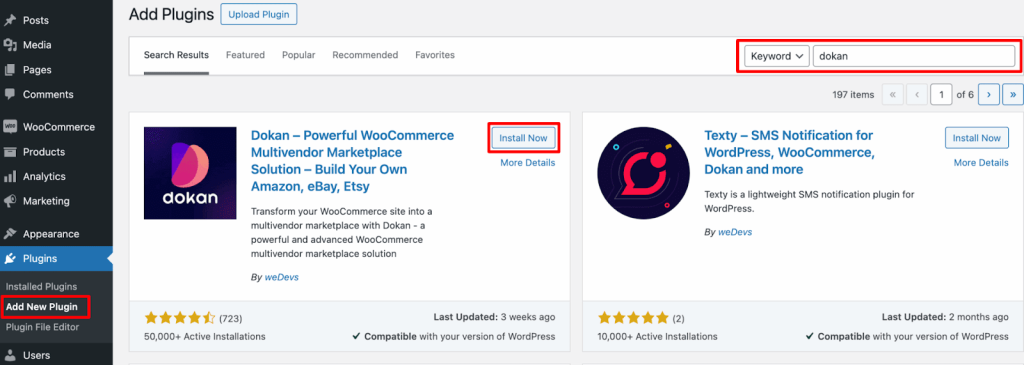
After installing the plugin, you will be guided through the Dokan’s very user-friendly setup wizard and complete the onboarding journey with ease.
Step 3: Install a Dokan Compatible Theme
After installing the Dokan multivendor plugin, you need to install a Dokan-compatible theme. Any theme that is compatible with WooCommerce is also compatible with Dokan multivendor.
You can find the themes in WP Admin Dashboard → Appearance → Themes. But make sure the theme is Dokan compatible.
For other premium or free themes, you need to customize them to make them compatible with your marketplace.
Step 4: Configure Dokan General Settings
After installing and activating the Dokan multivendor plugin, the next step is to configure the core marketplace settings.
You can access all configuration options from:
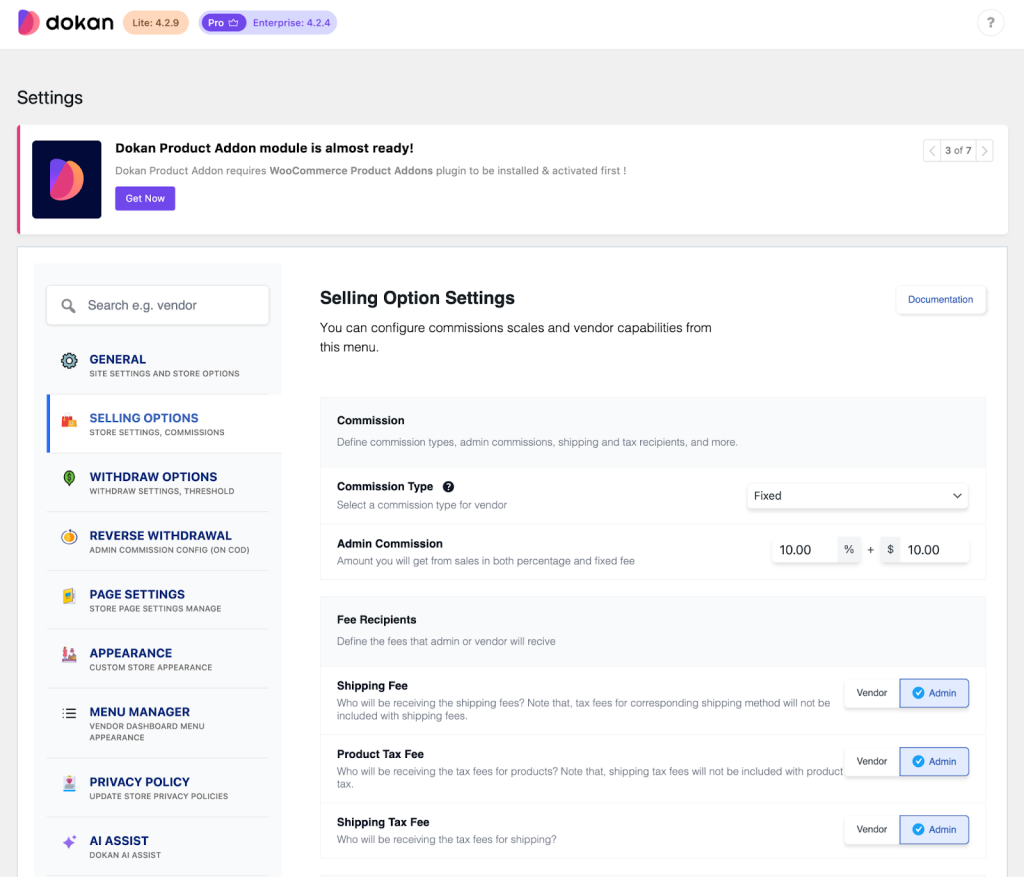
WP Admin Dashboard → Dokan → Settings
From this panel, you can manage the essential marketplace controls, including:
- Set your marketplace Terms and Conditions
- Define Store Categories so vendors can classify their shops
- Enable and manage payment gateways
- Configure vendor withdrawal methods
- Allow vendors to create and upload products
- Create and manage product tags
- Define default product status (Published or Pending Review)
- Configure selling options and commission rules
- Set your marketplace Privacy Policy
This settings area is where you establish the rules and structure of your marketplace. Take time to review each option carefully before allowing vendors to start selling.
You can select the pages for the vendor dashboard, order page, store listing, and terms and conditions page from the Page Settings option.
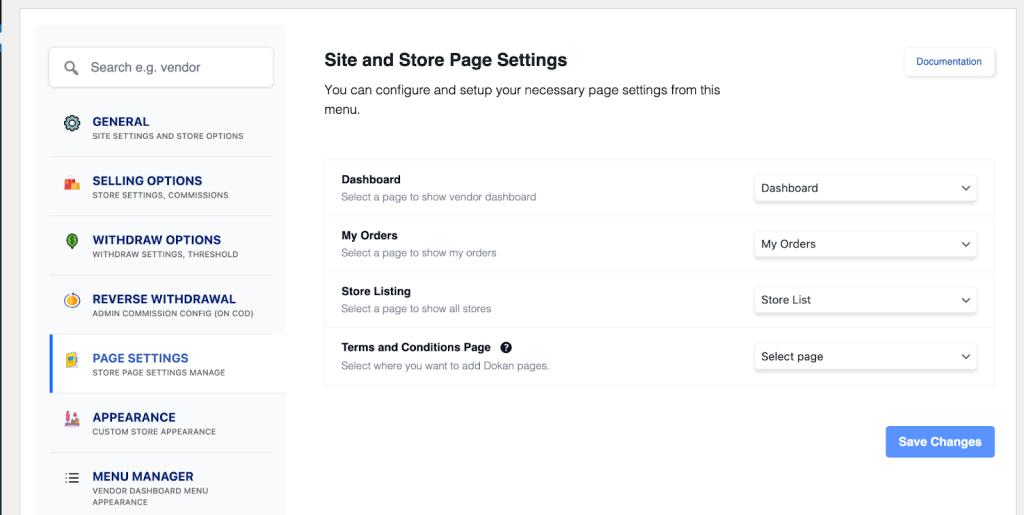
Don’t forget to click the Save Changes button after configuring all the settings. Otherwise, you will lose all your settings.
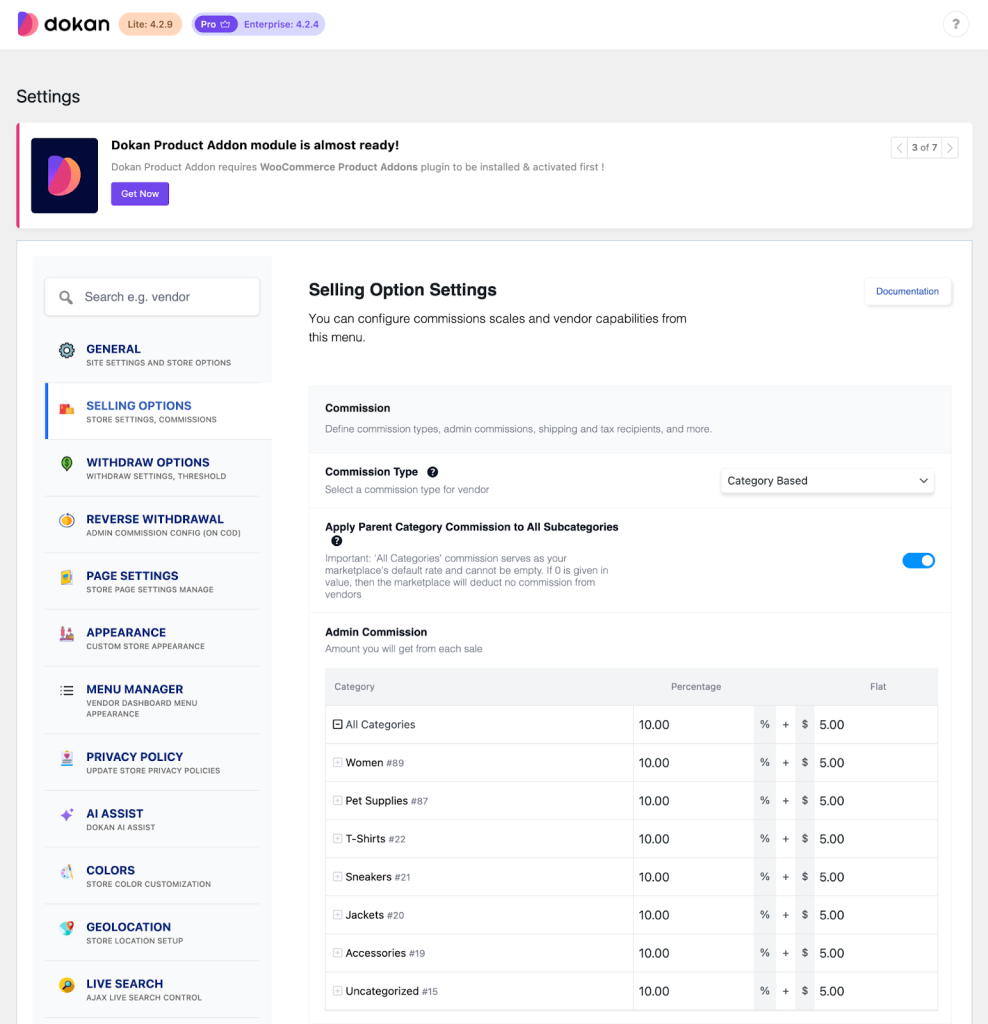
You have to set your commission rate as well. Go to WP Admin Dashboard → Dokan → Settings → Selling Options → Admin Commission.
You’ll find different options for inserting a percentage or a fixed amount. Dokan supports various types of vendor commissions.
Enable Payment Gateways
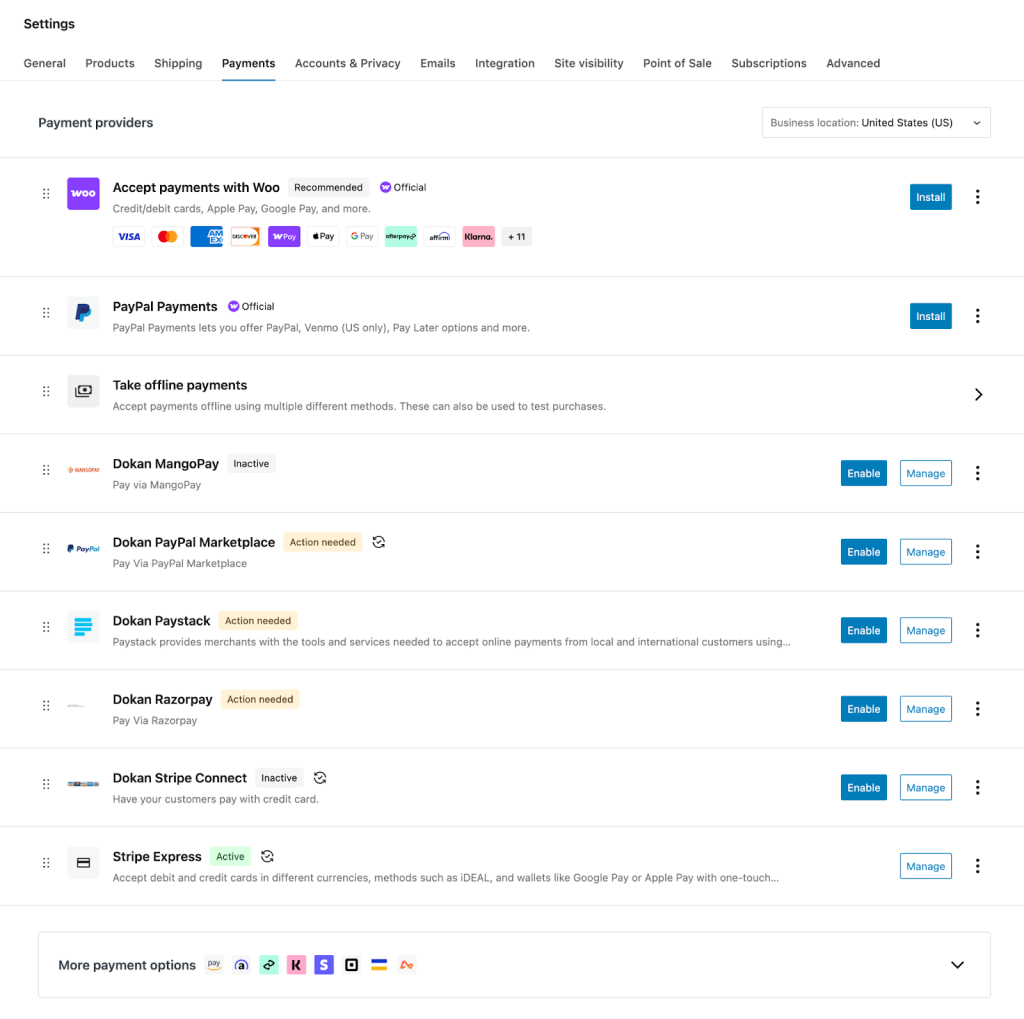
The Dokan multivendor plugin supports all WooCommerce-compatible payment gateways. So, you will get a wide range of choices to make the transaction process easier on your marketplace.
With the Dokan free version, you can use non-adaptive payment gateways like check payments, bank account transfers, cash on delivery etc. You can install the WooPayments plugin to get support for credit cards, debit cards and other payment methods.
However, if you want to access international adaptive payment gateways like Stripe, PayPal, MangoPay, RazorPay, then you need to purchase the Dokan Pro version.
Step 5: Configure Shipping and Taxes
When creating a marketplace with Dokan, setting up shipping and taxes properly is essential for smooth operations.
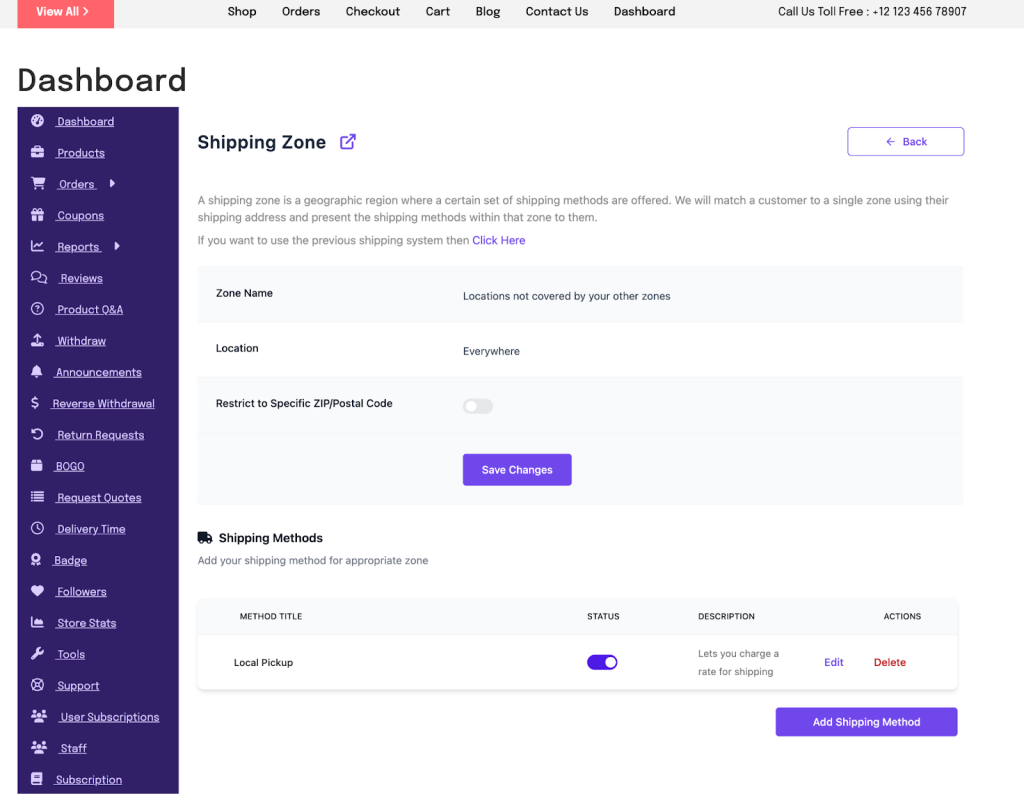
Dokan allows vendors to manage their own shipping settings directly from their dashboard. As the marketplace owner, you can enable shipping features and define rules that vendors can follow.
Vendors can set shipping rates based on zones, countries or flat rates depending on their business model.
For taxes, Dokan works seamlessly with WooCommerce tax settings. You can configure global tax rules from the admin panel, and vendors can apply those tax settings to their products. This ensures consistent tax calculation across your marketplace.
By properly configuring shipping and taxes, you create a transparent buying experience for customers and give vendors the flexibility they need to operate efficiently.
Step 6: Allow Vendors to Sign up to Your Marketplace
Now that you have added all the functionality to your marketplace, you can invite vendors to sign up. Dokan Multivendor has a default registration form that will help vendors to sign up to your marketplace.
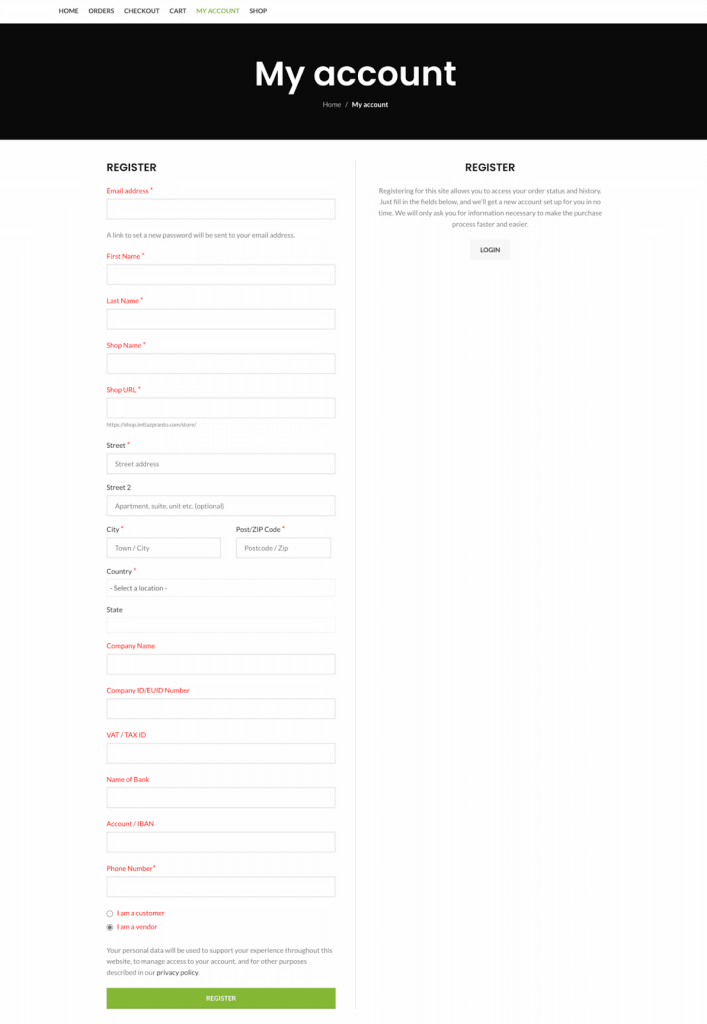
For vendors to start selling, you need to enable the selling status in Dokan → Vendors.
Step 7: Add Advanced Features to Make Your Marketplace Stand Out
Once your marketplace is running, you can use Dokan’s advanced modules to improve vendor experience and increase revenue.
Here are some powerful Dokan features/modules you can enable:
1. Vendor Subscription
Charge vendors monthly or yearly subscription plans instead of relying only on commission. This creates recurring revenue and controls who can sell on your marketplace.
2. Product Advertising
Allow vendors to promote their products on the homepage or category pages. You earn additional income while giving vendors better visibility.
3. Vendor Verification
Enable vendor verification badges to increase customer trust. Verified sellers build stronger credibility.
4. Live Chat
Allow real-time communication between vendors and customers. Faster responses improve conversion rates.
5. Product Q&A
Let customers ask questions directly on product pages. Vendors can respond publicly, improving transparency.
6. Geo-Location
Enable location-based store and product discovery. This is useful for local or regional marketplaces.
7. Auction Module
Allow vendors to create auction-based products. This works well for collectibles or limited items.
8. Booking Module
Let vendors sell bookable services such as consultations, rentals, or appointments.
9. RMA (Return and Warranty Management)
Streamline return and refund handling with a structured system for vendors and customers.
10. Store SEO Settings
Give vendors control over store-level SEO to improve search engine visibility.
11. Vendor Analytics & Reports
Provide detailed reports that enable vendors to track sales performance and growth trends.
Dokan offers 40+ modules to help you manage your marketplace the right way. By enabling the right Dokan modules, you create a marketplace that is more professional, scalable, and attractive to serious vendors.
Mistakes to Avoid While Managing a Marketplace
Building a marketplace is one part. Managing it correctly is what determines long-term success.
Here are common mistakes to avoid:
Allowing Everyone to Register Without Screening
If you approve every vendor without review, product quality will drop. Use vendor approval settings and verification features to maintain standards.
Setting Unrealistic Commission Rates
If commissions are too high, vendors will leave. If they are too low, you will struggle to grow. Find a balanced structure that keeps both sides profitable.
Ignoring Vendor Support
Vendors are your partners. If they face payout delays, technical issues, or unclear policies, they will stop selling. Maintain clear communication and quick support.
Poor Product Quality Control
Low-quality listings damage trust. Set clear product guidelines and review suspicious listings regularly.
Overcomplicating the Marketplace Early
Adding too many modules from day one can create confusion. Start with essential features, then expand gradually.
Ignoring Marketing
A marketplace without traffic will not grow. Invest in SEO, email marketing, paid ads, and content marketing to attract buyers.
Mistakes to Avoid
Adding an AI chatbot widget to your marketplace is another low-effort way to convert that traffic once it arrives — it handles buyer questions instantly and keeps vendors from waiting on support.
Unclear Policies
Refund rules, withdrawal schedules, and commission structures should be transparent. Confusion leads to disputes.
Avoiding these mistakes helps you build a stable and profitable WooCommerce marketplace.
FAQ(s)
1. How much does it cost to start a WooCommerce marketplace?
You will need hosting, a domain, WooCommerce, and a marketplace extension like Dokan. The cost depends on your hosting plan and whether you choose free or premium marketplace features. You can start with a small budget and scale later.
2. Can vendors manage their own products?
Yes. With Dokan, vendors get a frontend dashboard. They can add products, manage orders, track earnings, and request withdrawals without accessing your WordPress admin.
3. How do marketplace owners make money?
You can earn through commission on each sale, vendor subscription plans, product advertising fees, or a combination of these models.
4. Do I need technical skills to build a marketplace?
Basic WordPress knowledge is helpful. Most setup steps are guided. Dokan provides a setup wizard that simplifies configuration.
5. Can I create a niche marketplace?
Yes. WooCommerce marketplaces work well for focused niches such as handmade goods, digital downloads, local vendors, B2B supplies, or rental services.
6. Is WooCommerce scalable for large marketplaces?
Yes, if you use proper hosting and optimize performance. As your marketplace grows, you may need better hosting, caching, and database optimization.
Start Your Marketplace Journey From Today
Creating a WooCommerce marketplace is no longer complex or expensive. With the right extension, clear policies, and a focused niche, you can launch a scalable platform without managing inventory yourself.
The marketplace model works because it spreads responsibility. Vendors handle products. You manage infrastructure and earn commission. When structured properly, this model reduces risk and increases growth potential.
Start small. Focus on quality vendors. Set fair commissions. Keep your user experience clean and simple.
As traffic grows and vendors succeed, your marketplace becomes more valuable.
Now the next step is simple. Choose your niche, install the right tools and begin building your WooCommerce marketplace.
Md Tarikul
The BdThemes team builds WordPress plugins trusted by 3M+ users worldwide. We write about web accessibility, WCAG compliance, and inclusive design.